Any Loss, Any Device, Any File, Recovered

Recover Data under Various Loss Scenarios

  • Recover recently and permanently deleted files
  • Get back formatted files
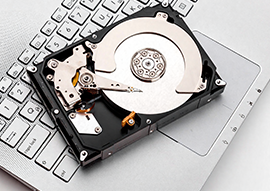
  • Retrieve data from damaged or corrupted hard drives
  • Restore data lost due to disk issues like partition, repartition, not-mounting, etc.
  • Rescue lost data caused by macOS errors like crash, interrupted update, etc.
  • Other data loss scenarios: virus attack, improper operation, software crash, etc.
Learn more

Recover Data from Anywhere

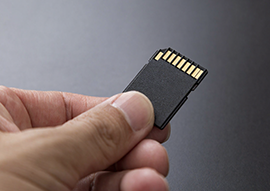
  • Support all major storage devices (Mac, hard drive, memory card, camera, etc.)
  • Recover data from any types of drives: HDD, SSD, Fusion Drive, SD Card, USB, etc.
  • Support file systems APFS, HFS+, HFS X, FAT16, FAT32, exFAT and NTFS
  • Apply to different models of Mac, and different brands of storage devices
Learn more

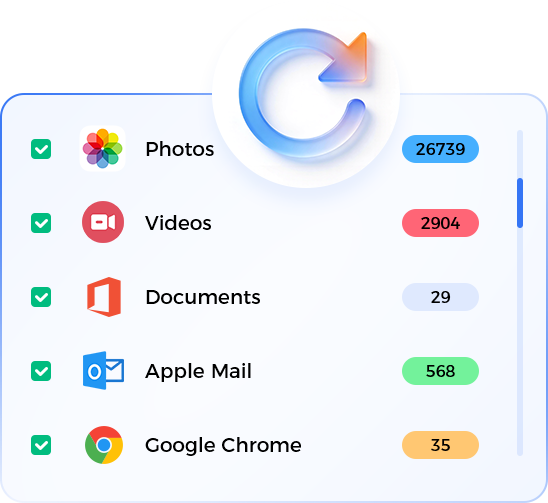
Recover Virtually Anything

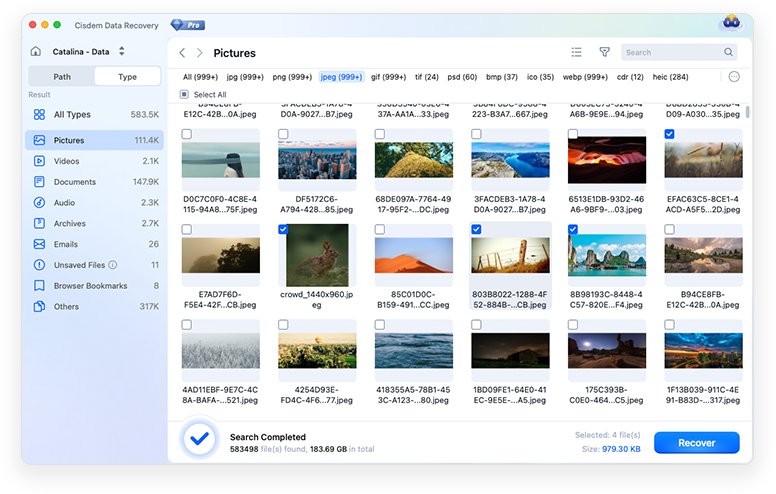
  • Support photo recovery for common and proprietary image formats
  • Recover screen recordings and videos in AVI, MOV, MP4, M4V, etc.
  • Retrieve unsaved and deleted documents in Keynote, Pages, Numbers, Word, Excel, PowerPoint, etc.
  • Restore music files in AIF/AIFF, M4A, MP3, WAV, WMA, etc.
  • Find back archives in ZIP, RAR, ISO, EXE, DMG, etc.
  • Recover emails from Outlook, Outlook Express, Apple Mail, etc.
  • Get back bookmarks from Google Chrome, Safari, Firefox and Microsoft Edge
Learn more

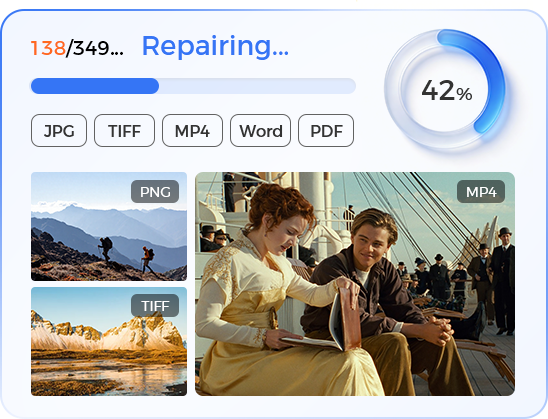
Fix Damaged Videos, Photos, Docs

  • Repair files damaged due to sudden power off, system crash, disk issue, etc.
  • Easily repair photos in JPG/JPEG/PNG/BMP/GIF/TIFF and so on
  • Batch repair videos, with or without sample videos
  • Fix damaged Word, Excel, PDF automatically
Learn more

Offer Additional Features

  • Recover files directly from iCloud in 2 modes
  • Restore data from unbootable Mac in Recovery Mode
  • Create drive backup to save data, and recover when the drive runs into problems
  • Create bootable macOS installer, from Tahoe and earlier versions
Learn more

Build in Useful Tools for Better User Experience

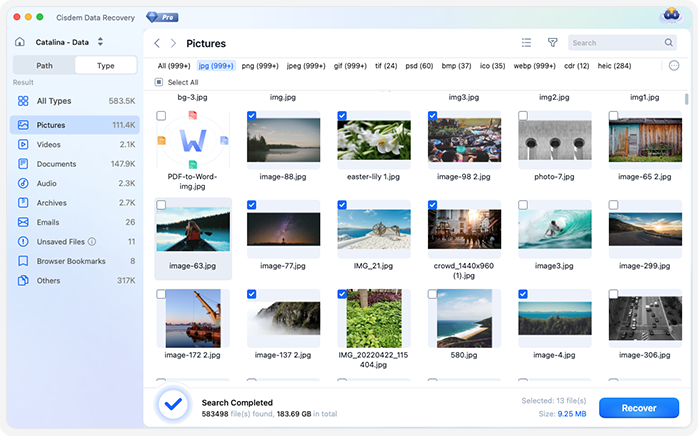
  • Auto restore files to the target disk once the scanning is complete
  • Quickly locate files using Filter tool or Search box
  • View files in Columns view or Icon view
  • Preview pictures, videos, documents and others before recovery process
  • Save scanning, and load the record to resume previous recovery process
  • Save recovered files to local drive, or to Dropbox, OneDrive, pCloud, Box

Cisdem Data Recovery for Mac Use Cases

2,000,000+ Happy Users Around the World

With over 2 million satisfied users worldwide, Cisdem Data Recovery for Mac is the best tool for restoring any file from any drive and storage device. Hear what they have to say!

Cisdem Data Recovery works as well as any similar recovery tool, but it also packs some additional features you don’t always find in such applications. It’s easy to use and should handle recovery scenarios well, provided the data hasn’t already been overwritten.

Softpedia.com

A simple and efficient recovery tool that offers to restore data you lost accidentally. It may not be the fastest file recovery tool, but the accuracy of the results exceeds the average recovery rate of other similar programs.

macdownload.informer.com

Read More Tech Reviews

Thomas

Cisdem worked flawlessly on my SanDisk SSD. It detected the device immediately and helped me recover over 100GB of lost videos from it. Truly a must-have for anyone in the trouble of data loss.

Edward

I'm not good at the technical stuff, but Cisdem was incredibly easy to use. I was also amazed by the wide range of file types it supports, from common images and documents formats to obscure file formats, Cisdem handled them all without issues.

Pamela

Cisdem truly stands out for its high recovery rate. I used it with a variety of deleted files and it managed to bring back almost everything. I could actually see the photos, videos and documents before starting recovery.

Read More User Reviews (4.8/5)

Terence, AU

Solved the problem simply.

Jens, DE

I was very satisfied with the service. Everything was handled professionally, quickly, and with great attention to detail. I would definitely recommend it to others.

Adrie Gunther, NL

The application works great, very happy and great customer service.

Read More Trustpilot Reviews (4.8/5)

Frequently Asked Questions

You can scan the devices that recognized by Mac, and preview the lost file in free trial version. But to recover the lost files, you have to register with a license code.
Yes. Click on Cisdem Data Recovery from Apple menu bar, go to Preferences and select a file type (Pictures, Documents, Audio, Videos, Emails, Archives, Others) to scan or recover.
It depends on the capacity of your hard drive and the performance of your computer. Most drive recoveries can be completed in around 10 to 12 hours for a 1-TB healthy hard drive in general conditions.
It can be caused by hardware or software issues. You can check the instructions in the app and follow it according to different situations. Or just go to Applications > Utilities, find and open Disk Utility to check if your drive can be recognized under Disk Utility. If it is cannot be recognized under Disk Utility, then Cisdem Data Recovery for Mac is not able to work on this hard drive.
A file is saved as 2 parts on the storage device: directory info (which contains file name, time stamp and size info, etc.) and data content. If the files you've recovered from Files with Directory cannot be opened, one possible reason is the corrupt directory info. There is still a chance to get the data content through the Files without Directory.
Read More FAQs

User Guide

Explore detailed instructions and helpful tips.

See User Guide

What's New?

Learn about the latest updates and features.

View Version History

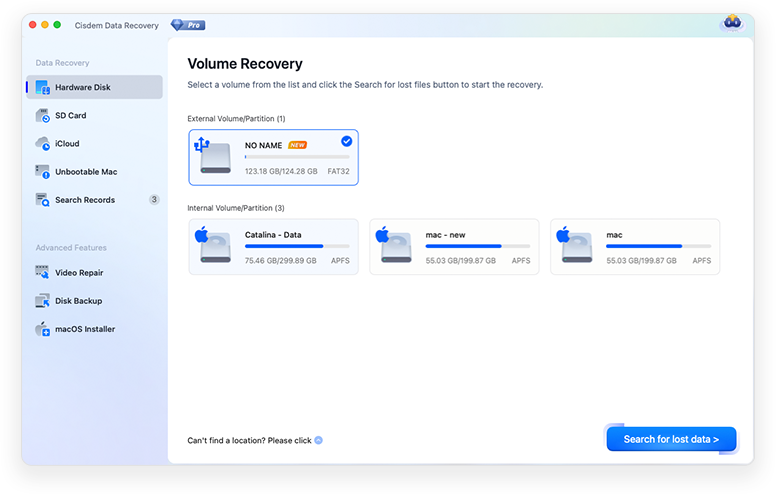
Recover Deleted or Lost Files in 3 Steps

Step 1: Locate

Select the location where you deleted or lost the data.

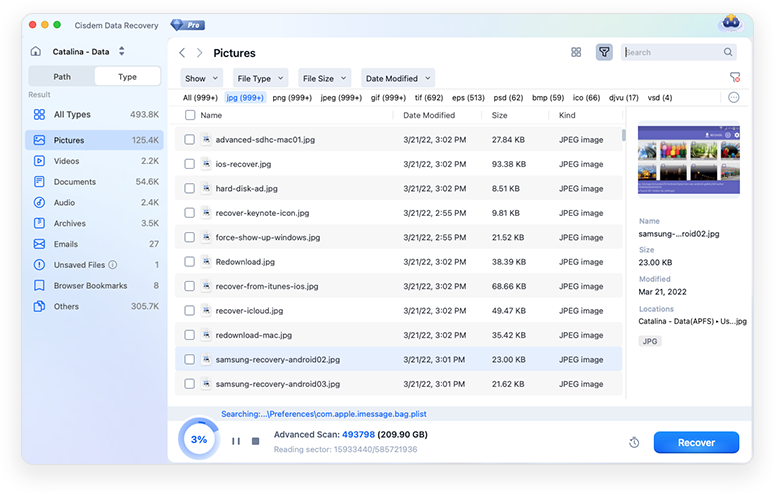
Step 2. Scan

Click on Search for lost data to start scanning, looking thoroughly on the drive and digging up most files.

Step 3. Recover

Use the Filter or Search tool to locate wanted files, preview them. Then click Recover, save the recovered files to local drive or to Cloud.

Step 1 Step 2 Step 3