


 Cisdem Data Recovery





 Data Recovery
Best App to Recover Formatted USB


Before leaving home, I plugged the USB into my PC one last time to make sure my lecture slides and the final exam pack worksheet were updated to latest. But then I saw an error on my PC and presented me with 2 options: Eject or Initialize. Caught by a panic, I initialized and didn’t realize that I were formatting the drive. Seconds later, my drive became empty, and my files were gone. I didn’t know what to do, so I submitted a ticket to our IT support desk, the technician man told me some standard advice and 2 recommended tools, which included Cisdem Data Recovery. After a quick review of the website, I downloaded the software, luckily, it recovered me the files. - Kenneth | Lecturer
Kenneth, who is a senior lecturer in architectural history, uses a red USB drive to store his course materials, including a complex workbook with dozens of worksheet for final exam, and several presentations for his lectures this semester.
Challenge of restoring slides or sheets from formatted USB drive
We often have multiple versions of the same document. After formatting, recovered files may lose original names, making it impossible to identify the latest version. But if we have a robust preview tool, it becomes easier to recover a wanted file.
Restoring slides and worksheets is difficult than restoring photos, because they are often complex and functional files with a large amount of data. Which makes the data integrity very important. Even if you can recover the files, links, objects and others might be invalid. So, we need to find the right recovery tool.
Solution: Using Cisdem Data Recovery
Intermediately after the data loss, Kenneth reached out to his university’s IT support desk. The technician confirmed the challenges, but also gave him the hope—there are data recovery programs designed to restore files from formatted drives if acted quickly. He recommended two trusted tools, one was Cisdem Data Recovery. Later he tried it, and got back his files within 5 minutes.
Kenneth has never thought about getting his slides and sheets back in such a short time, just by using a data recovery tool. He wants to share his experience and helps others that caught in the data-loss panic. Here is the process he followed to recover the files from his formatted USB drive.
Steps to Restore Slides/Worksheet from A Formatted USB
Step 1. Install the app
I downloaded Cisdem Data Recovery for Windows from their official website. Ran the exe file on my PC and installed to my D drive.
Step 2. Select the USB drive.
I connected the USB drive to my PC, went to Hardware Disk and chose my USB drive.
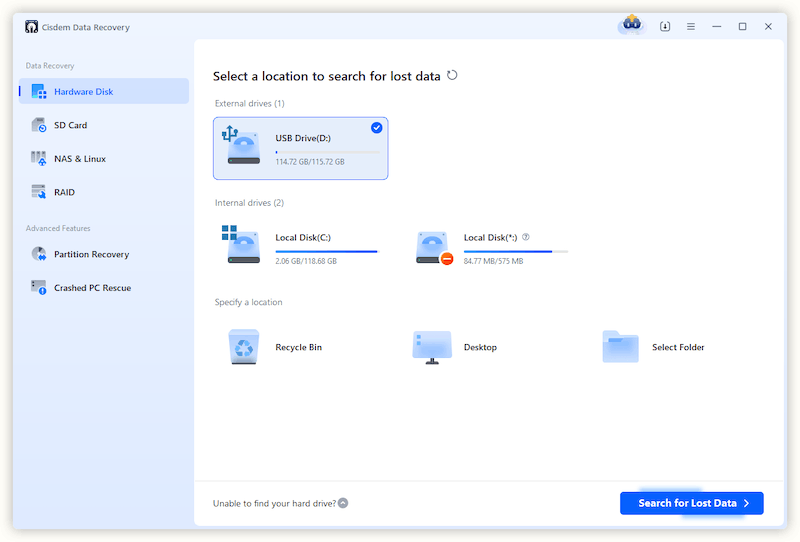
Step 3. Scan the USB drive.
Then I clicked Search for Lost Data to start the scanning. My USB drive didn’t store many files on it, so the scanning was very quick in my case.
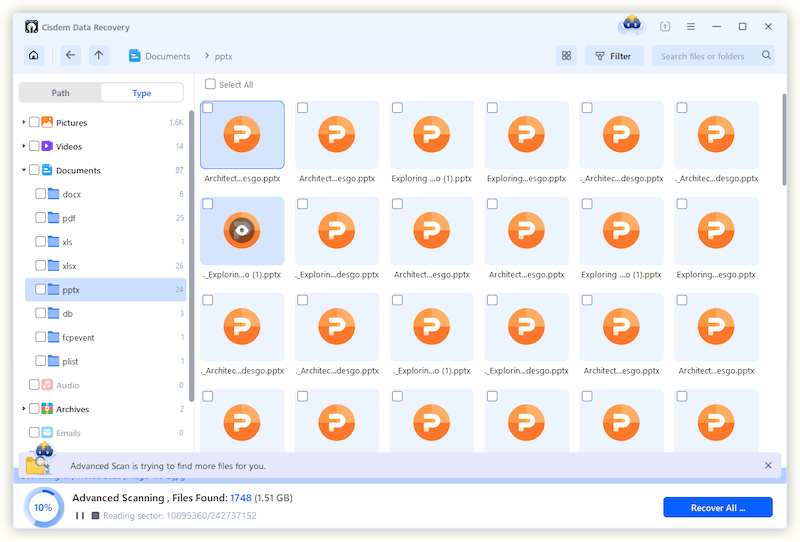
Step 4. Check the files on the formatted USB drive.
When the recoverable files showed up, I went to Type and checked the Documents category. I could find all the presentations and excel sheets by switching between the sub folders.
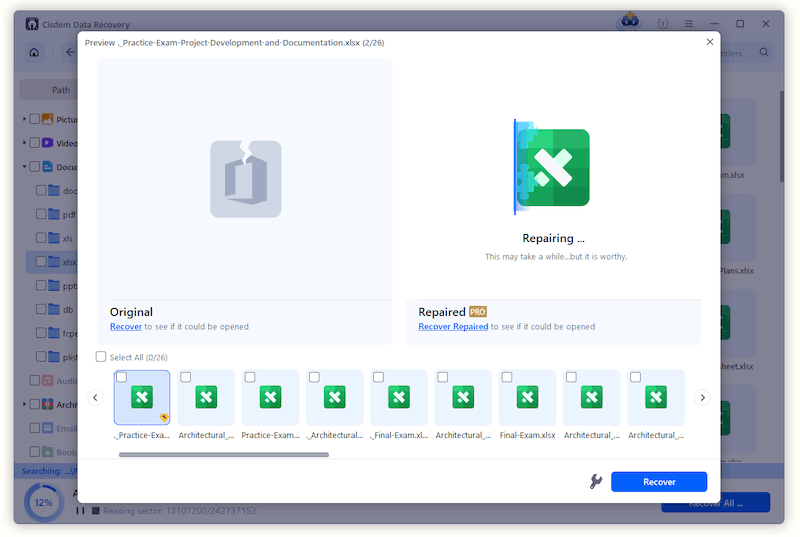
I double clicked the file thumbnails to preview my documents and made sure they were the latest version I needed.
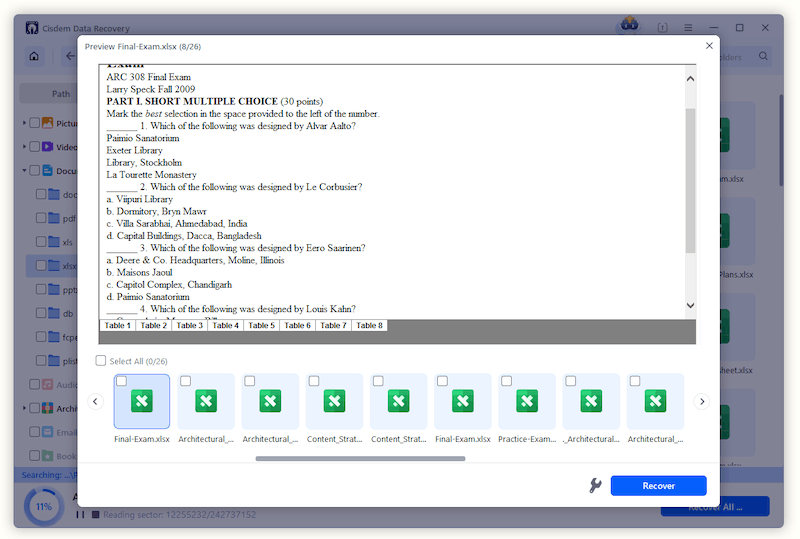
Tips from Cisdem:
Cisdem Data Recovery will auto repair your documents if a damage is detected. Also, you can click on the File Repair icon to activate the repairing process. Once the auto repair is complete, you will be able to recover your documents, and the recovered files are intact and readable.
Step 5. Select documents to recover.
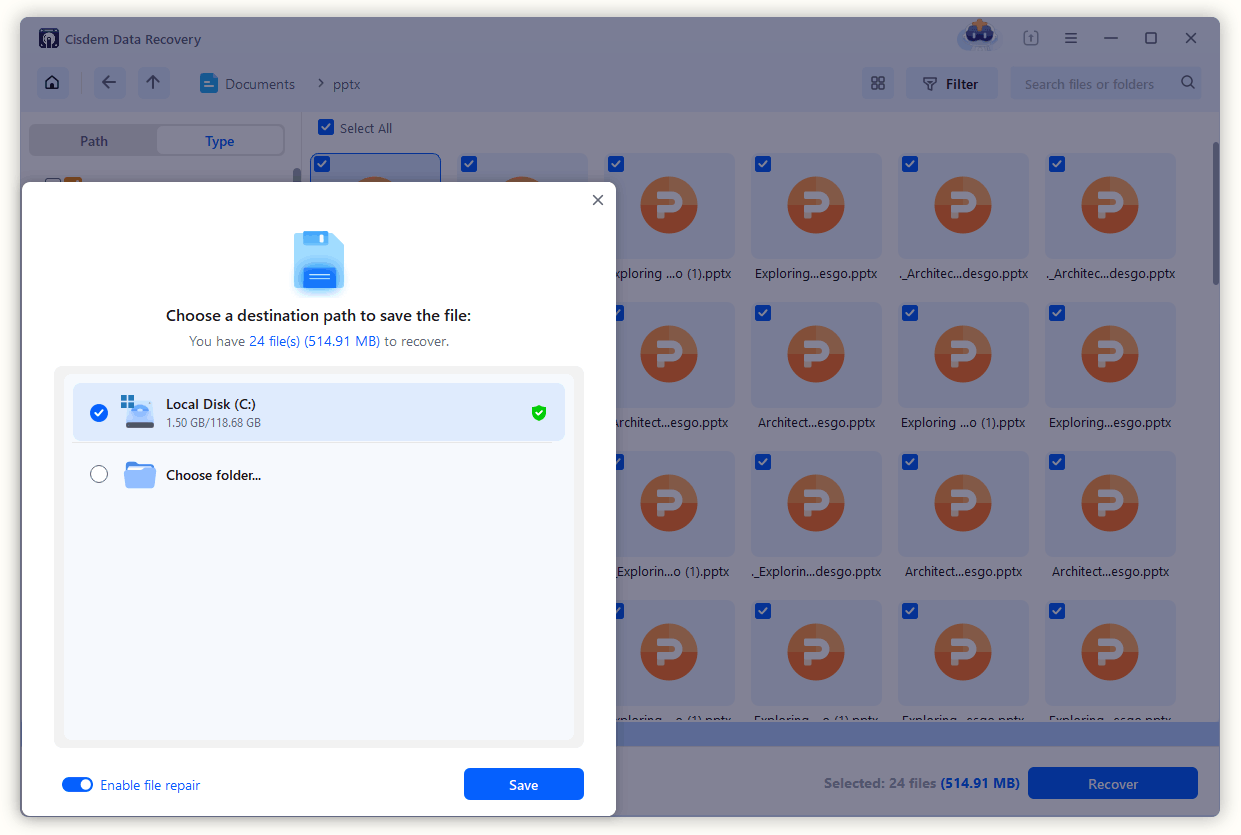
Then I selected all the slides and worksheets that I wanted to recover, clicked Recover button and saved them to my PC first, later transferred to my USB again.
FAQ
Word, Excel, PowerPoint, PDF, ePub, HTML, CSV, XML, Json, Text, XPS, WPD, RTF and others.
You can use the Filter tool to locate a document by file size or date modified. It can be a fixed file size/date range, also can be a customized range to quickly locate your document.
It doesn’t matter where you save the recovered files, but you are recommended to have a backup of the important files, in case of any data loss.
Loved the article, share!

