


 Cisdem Data Recovery





 Data Recovery
Best App to Recover Data from Hard Drive


As the IT professional at a marketing company, I received a panicked call from marketing director. She had mistakenly deleted some critical archives in ZIP format from the 18 TB WD drive, which was connected to our NAS. I immediately took the drive out to prevent any data from being overwritten. And recalled seeing Cisdem Data Recovery mentioned multiple times in IT subreddits, I downloaded the program and connected the drive to a Mac. As the scan started, I saw the hope and felt relieved, because I found the archives in the recoverable list. - Corey | IT Professional
Corey, who is an IT Systems Administrator in a marketing agency, his job is to help colleagues with all kinds of IT problems and protect those important data on the server/drive.
Challenge of restoring deleted archives from external drive
External hard drives are often high-capacity, Corey’s is 18 TB with a large amount data on it. Scanning terabytes of data is time-consuming that can take hours or more. But Corey needed to fix this issue as soon as possible to get the NAS server back onto the right track.
Archive is actually a file container that has a lot of documents or media files in it. Recovering the compressed file is useless if the files inside are corrupted. Corey needed a tool that could reconstruct the complex structures and recover files without corruption.
Solution: Using Cisdem Data Recovery
Upon getting the call, Corey's first move was to disconnect the 18 TB drive and avoid data overwritten. Remembering the recommendation from a Subreddit he read a lot, he searched Cisdem Data Recovery online and went to the website, launched the software, and initiated a deep scan. Finally, he got the archives back.
Corey knew what to do first when data loss happened, and had a basic knowledge about data recovery using a piece of software. But he thought data recovery can be as easy as possible for everyone, if you find the solution. Therefore, he wanted to share this with others facing the same situation.
Steps to Restore Deleted Archives from WD 18 TB Drive
Step 1. Download and install the app.
I searched Cisdem Data Recovery online and found the official website: https://www.cisdem.com/. Then downloaded the dmg installer to my Mac. By double clicking on the file, and dragging the icon to Application folder, I was able to install the app quickly.
Step 2. Select the WD 18 TB Drive.
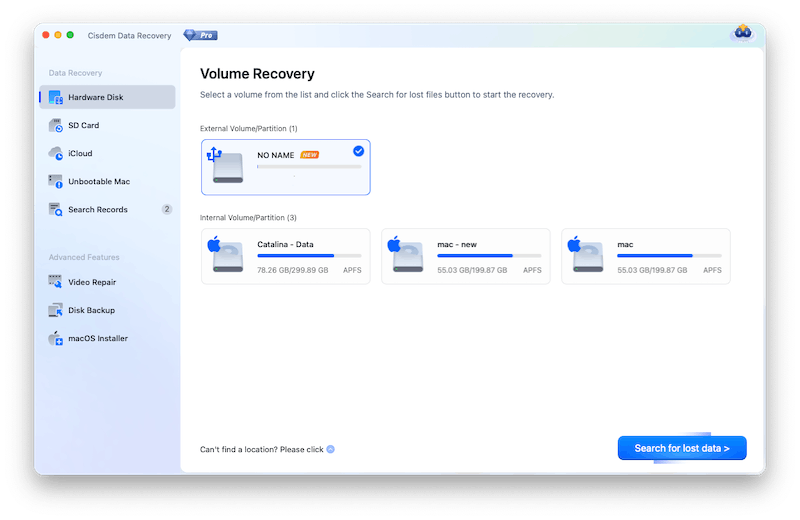
I connected the WD 18 TB Drive to my Mac via an USB cable. Then I went to Hardware Disk and chose my WD drive.
Step 3. Scan the external drive.
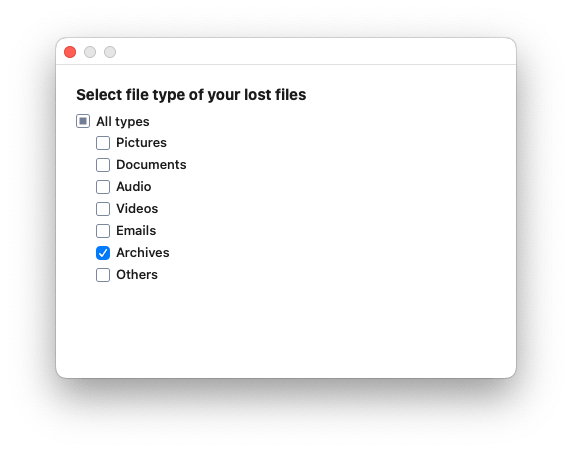
Then I clicked Search for lost data to start the scanning. There were about 14 TB of data stored on the drive. I was planning to have a complete scan, but I wanted to get the archives back first, so I just selected Archives file type to scan from Cisdem’s Preferences panel.
Tips:
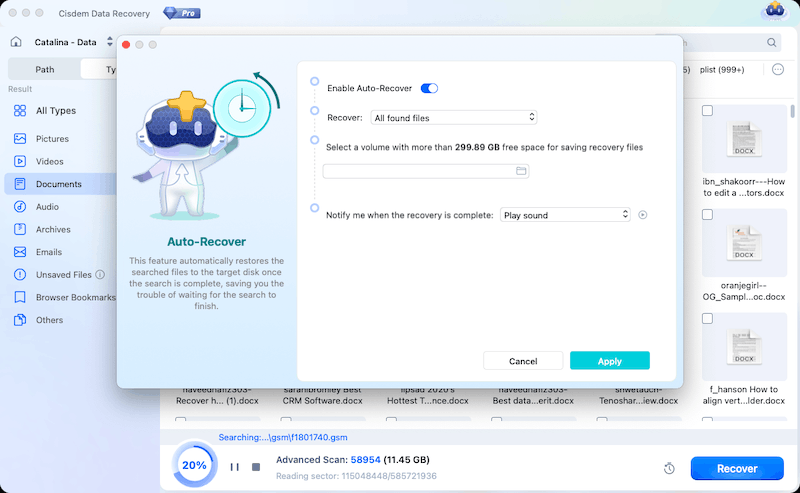
If you want to have a thorough and complete scan on the drive, you can enable Auto-Recover by clicking on the clock icon at the bottom of the interface, this allows Cisdem automatically restoring all the files to a selected disk once the search is complete.
Step 4. Locate the files on the formatted USB drive.
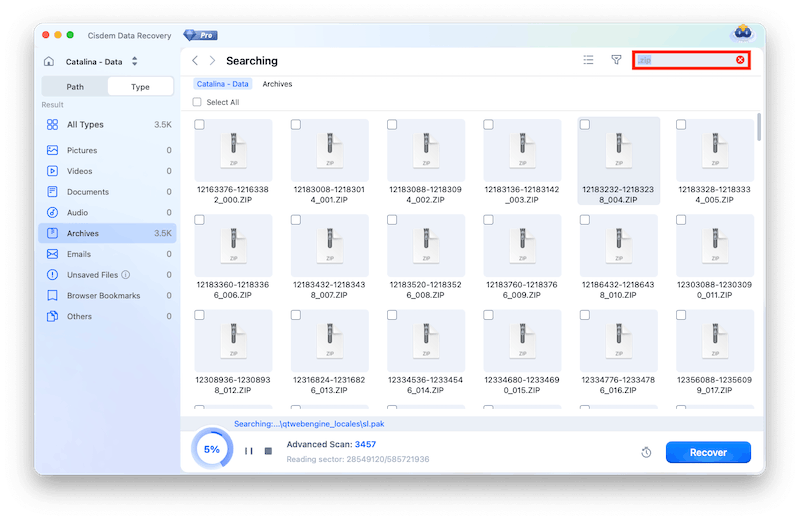
Once the scanning finished, I clicked on Type > Archives, there were 3000+ archives, I searched in the box to find those with .zip extension, and quickly, I located those deleted compressed files.
Step 5. Select archives to recover.
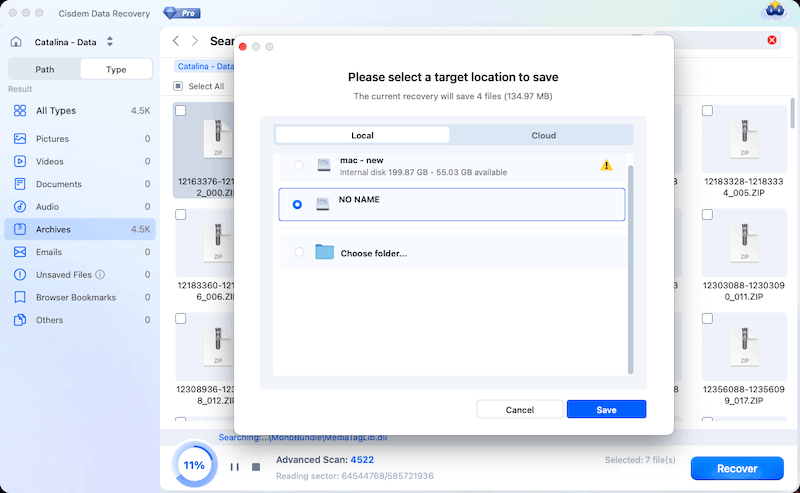
Then I selected all the archives that I wanted to recover, clicked Recover button and saved them back to my WD 18 TB Drive again.
FAQ
zip, rar, iso, sit/sitx, etc.), exe, dmg, etc.
It can be caused by various reasons: damaged card reader, loose connection, faulty port, unsupported file system, corrupted file system, hardware issues and so on. Cisdem Data Recovery supports virtually all brands and all file system format of external hard drive. If it is not detected in Cisdem, you can click the in-app instructions or “Contact us” for assistance.
The original RAR file might have been corrupted since it was created or saved, just before the deletion. You will need a professional program to repair your archives. A partial recovery may also lead to this, it found the file index, but the document was overwritten indeed.
Loved the article, share!

