


 Cisdem Data Recovery





 Data Recovery
Best App to Recover GoPro Videos


It was the final evening of my week-long hiking trip, I finally sat down to review the footage in my GoPro. My fingers were still numb due to coldness, and then I made a mistake, I selected the latest 10 clips and deleted them! Frantically searching online for 15 minutes, I finally calmed down and went to the GoPro video forum I visited often, I found a thread described my exact situation, downloaded Cisdem Data Recovery recommended in the thread, and had my GoPro videos recovered. - Darren | Influencer
Darren, who is American influencer that films immersive 4k adventures such as forest trails to explore wild places. He is now using GoPro Hero 13 Black.
Challenge of restoring deleted GoPro videos
Unlike photo or other document, a video is a massive and continuous stream of data. Especially for GoPro videos, they use a complex system to store the video, a long video might be split into multiple small files, or broken into several chapters. This is also the reason why many users report that their videos are recovered in parts. Because it is not easy for a recovery program to find back all the segments of a video and return as a complete one.
What’s more, if the recoverable videos are shown with a generic name, is there a way to preview the video? Darren has no experience at all, but he wants a reliable recovery.
Solution: Using Cisdem Data Recovery
Darren intended to use a free utility to recover the videos, but he was afraid of more data loss. So, he went to the video forum that discussed about all kinds of GoPro issues. He found a thread in which a GoPro user had the same situation. Cisdem Data Recovery was the solution, so Darren downloaded the software and tried.
Darren was so excited to get his deleted GoPro videos back, he played the videos to check if they were complete, and they were. Here are the steps he followed to recover his videos.
Steps to Recover Deleted GoPro Videos
Step 1. Install and initiate the app.
I downloaded Cisdem Data Recovery onto my Mac. Then double clicked on the .dmg installer file, moved it to Application folder to install. It was easy and quick.
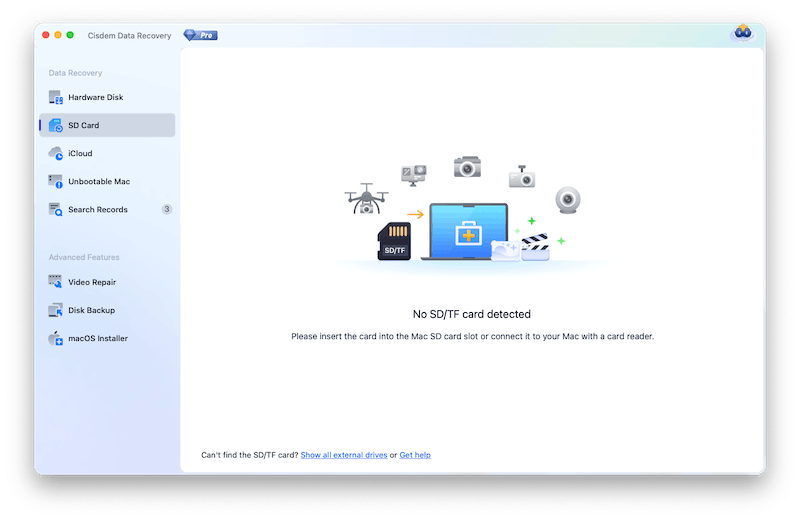
Step 2. Select the GoPro SD card.
I went to the SD Card tab, connected my GoPro SD card to the Mac via a card reader. Then my card showed up in Cisdem, I selected it.
Step 3. Scan the card.
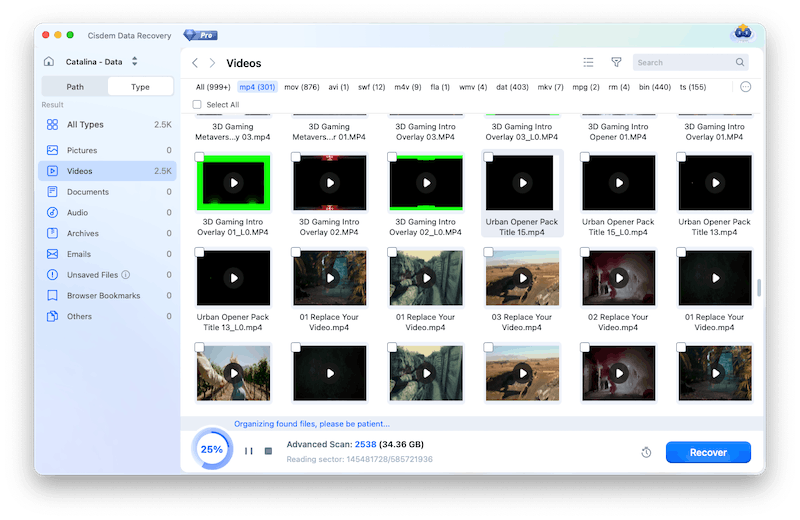
Then I clicked Search for lost data, the scanning started instantly. My GoPro card stored a lot of videos, the scanning took about 13 minutes, but still quicker than I expected. I let the scanning complete, without pausing or stop mid way.
Step 4. Find the files on the formatted USB drive.
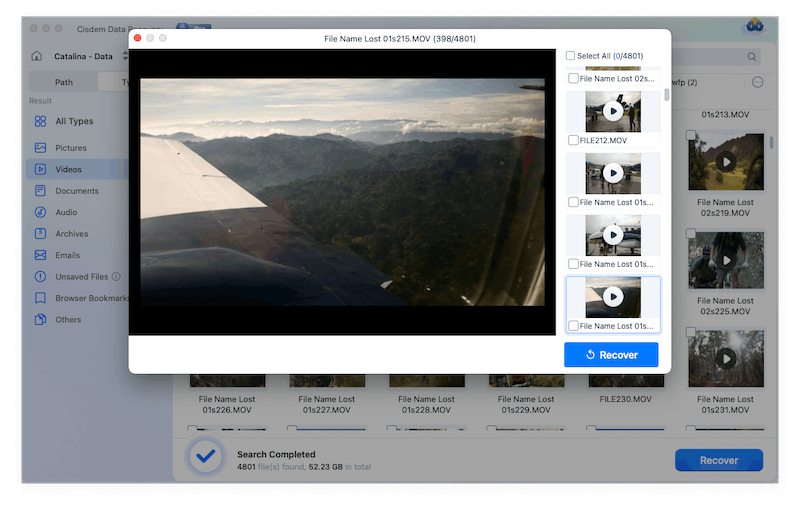
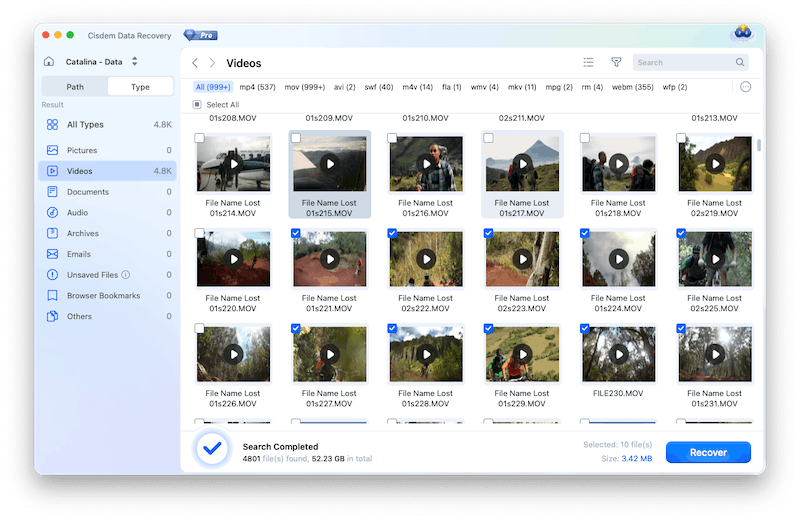
After the scanning, I found 4800 clips, some came with original file name, some came with generic name. According to the video thumbnails, I could tell what were those video about.
I clicked on the play button from the video thumbnails, previewed the videos and checked if they were complete.
Step 5. Select GoPro videos to recover.
Then I selected all the 10 videos that I deleted by accident, clicked Recover button and saved them to my Mac’s desktop.
Tips from Cisdem:
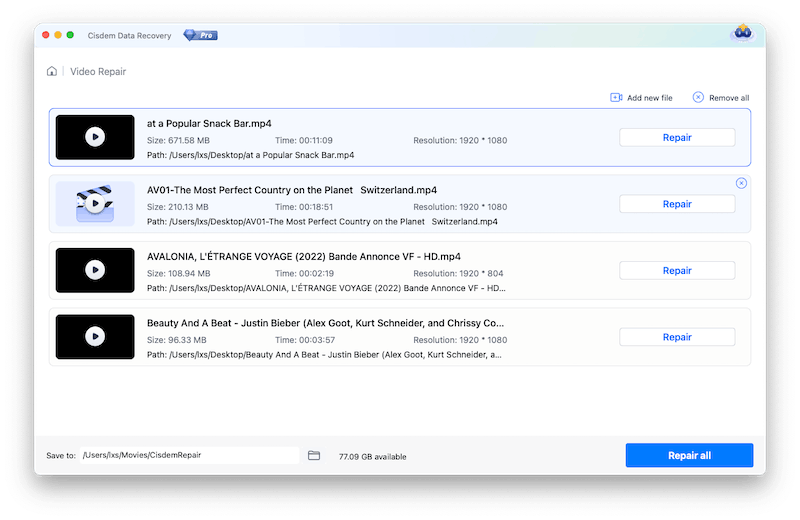
If you cannot preview the videos, or the recovered videos cannot be opened, they are corrupted. You can use the Video Repair tool in Cisdem Data Recovery to repair the damaged videos. Just add the videos that you cannot open by drag and drop, then click on Repair button. If the video is severely damaged, you need to import a sample video to fix.
FAQ
Virtually all mainstream video formats, including but not limited to AVI, MOV, MP4, M4V, 3GP, 3G2, WMV, ASF, FLV, SWF, MPG(MPEG), RM(RMVB), MKV, MXF.
It may be a partial recovery, part of the segments have been recovered, because other segments have been overwritten. Or for the reason that the data recovery program cannot correctly reassemble all these parts, so the video is not in full length. You can recover all the clips first, then use your video editor to combine them.
It depends on how many new videos you’ve recorded. The old videos are permanently deleted only when they are overwritten by the new ones. If you only recorded several, you might be able to recover some of the old videos.
Loved the article, share!

