Available for


By default, Cisdem Duplicate Finder deletes selected duplicates by moving them to the Recycle Bin (Windows) or Mac (Trash), making it easy to recover them if needed.
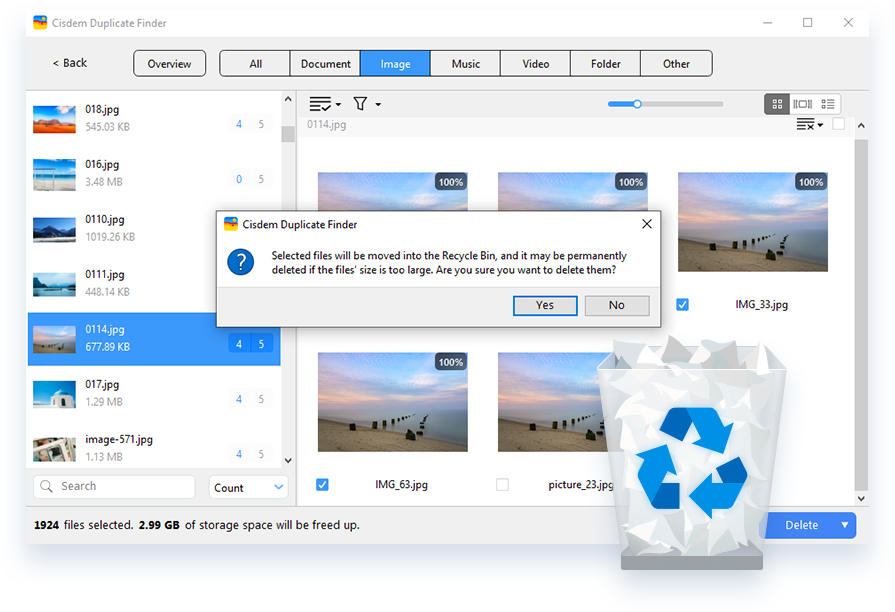
However, there are three exceptions based on the operating system or a file’s location.

On Windows
Large files won’t go to the Recycle Bin and will be permanently removed.

On external storage
Files deleted from external storage will be permanently eliminated.

In Mac’s Photos
Files deleted from the Photos app will go to the Recently Deleted album within the app.
Cisdem Duplicate Finder offers two other removal methods for your convenience. Note that duplicates deleted from the Photos app on Mac will still be moved to the Recently Deleted album, regardless of the method you choose.
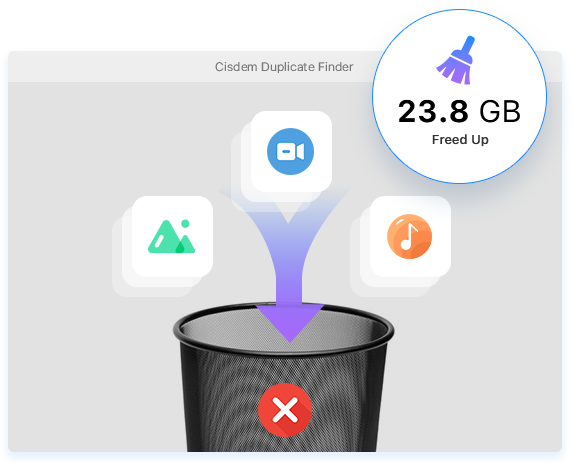
With the default Move to Recycle Bin or Trash method, deleted files still occupy space on your computer. If you are certain about deleting those duplicates, choose the Remove Permanently method in Settings to free up space immediately.
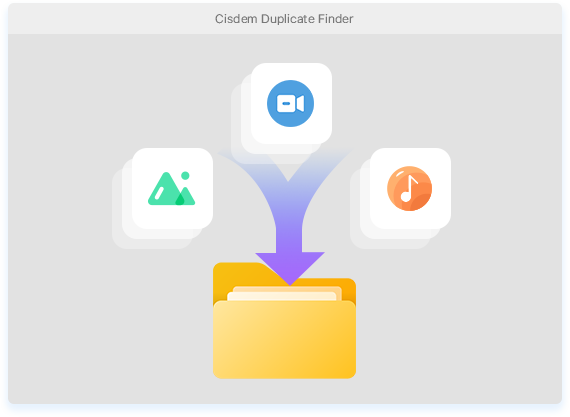
If you prefer to move duplicates to a specific folder instead of deleting them, you can select the Move to Folder method. This method will require you to specify the desired folder before moving the files. It can be a folder on your computer or external storage device.
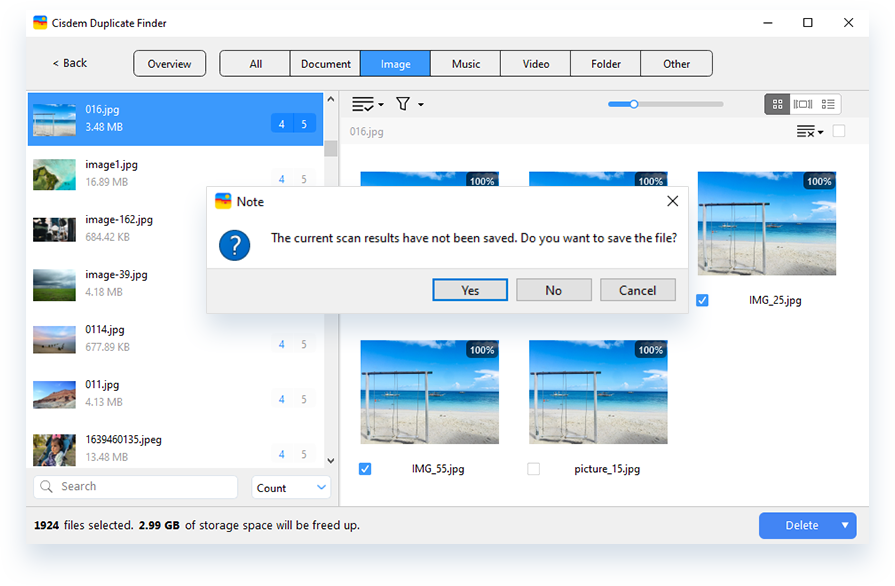
Really need to quit Cisdem Duplicate Finder but haven’t finished deleting duplicates? Don’t worry! You can save the process without having to perform a scan again.
When you quit the app in such a situation, you will be asked to save a project file that contains the current scan results and selections. When you are ready to continue later, just import the project file to continue where you left off.