


 Cisdem Duplicate Finder






Duplicate Finder
Best iTunes Duplicate Remover


It can be a real pain to have to manually delete duplicate songs in iTunes. I've been looking for an easier way to get rid of them and Cisdem Duplicate Finder is the tool that works. It allows me to mass remove duplicates. Great for managing duplicates. - Taylor | Music lover
Music is in Taylor’s DNA. He enjoys music from various genres and is always ready to explore something new.
Challenge of having duplicate songs
Taylor has been using iTunes to manage his music for many years. As his library grows larger over time, he sees more and more duplicates. They can be really annoying sometimes. When he’s expecting his favorite song on an album, the previous song just plays again. Having too many duplicates also makes it less efficient to manage his library.
iTunes does offer a tool to help users locate duplicate items, and Taylor knows about it. However, that tool can’t help him remove those duplicates. He definitely doesn’t want to manually delete them one by one. There are tons of them! He needs a better way.
Solution: Using Cisdem Duplicate Finder
Taylor feels lucky that he discovered Cisdem Duplicate Finder, which is exactly the tool that he needs. This app quickly scans iTunes for duplicate items and automatically selects duplicates for elimination, saving him time and effort.
Taylor shares below how he uses this app, hoping to help other iTunes users with the same problem. And in addition to steps shared by Taylor, you will also find some details provided by Cisdem.
Steps to delete duplicate songs in iTunes
Step 1. Install the app
I downloaded Cisdem Duplicate Finder from their official site and installed it on my Windows PC, which was easy and quick.
Notes from Cisdem:
As you may know, iTunes worked on both Mac and Windows in the past. However, now it only supports Windows and some early macOS versions. Mac users who are still using iTunes can also install and use Cisdem Duplicate Finder.
This Cisdem app can also helps users delete other duplicate files, such as duplicate photos and duplicate videos.
Step 2. Scan iTunes for duplicate songs
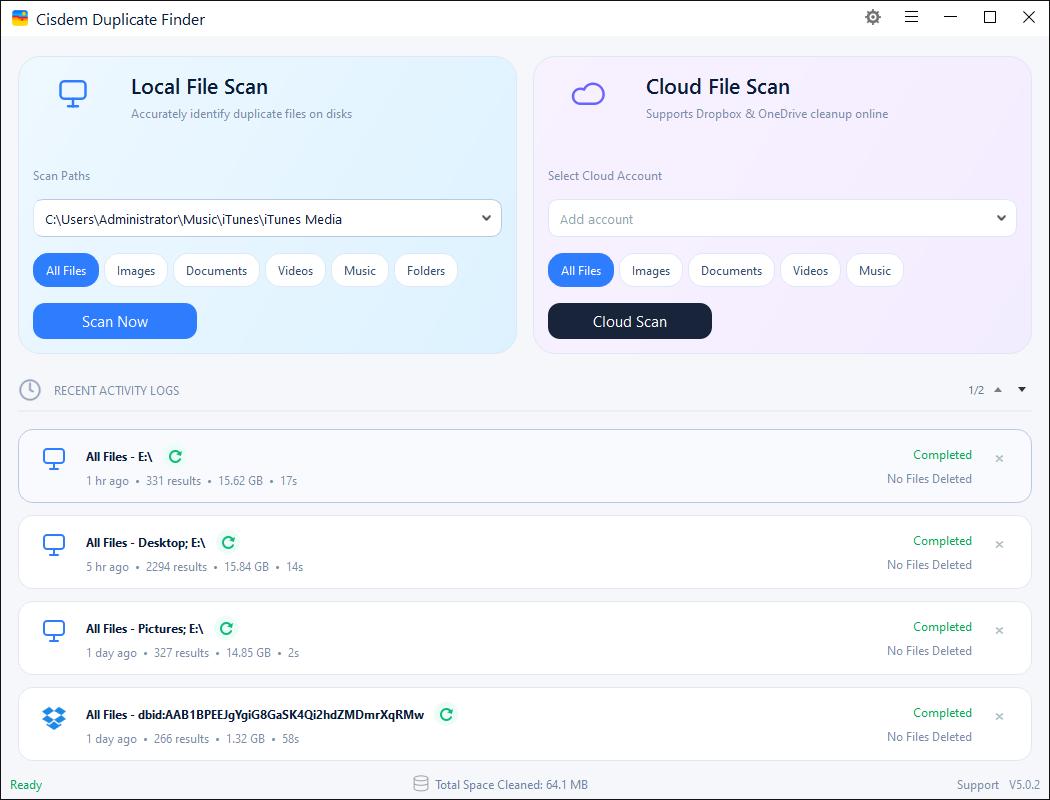
I opened Cisdem Duplicate Finder, dragged my iTunes Media folder into it, and then clicked Scan Now.
Note from Cisdem:
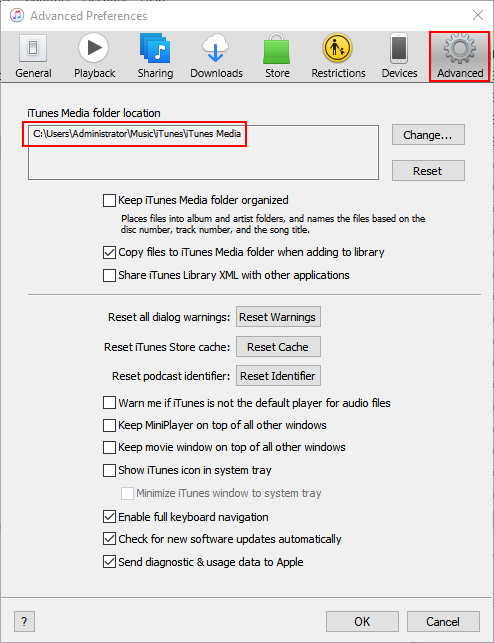
This will find duplicates that are in the iTunes Media folder (which you can find in the Music folder on your PC). If you have changed the iTunes Media location but can’t remember where it is, you can go to iTunes' Edit menu > Preferences > Advanced to find the location.
Step 3. Delete all duplicates at once
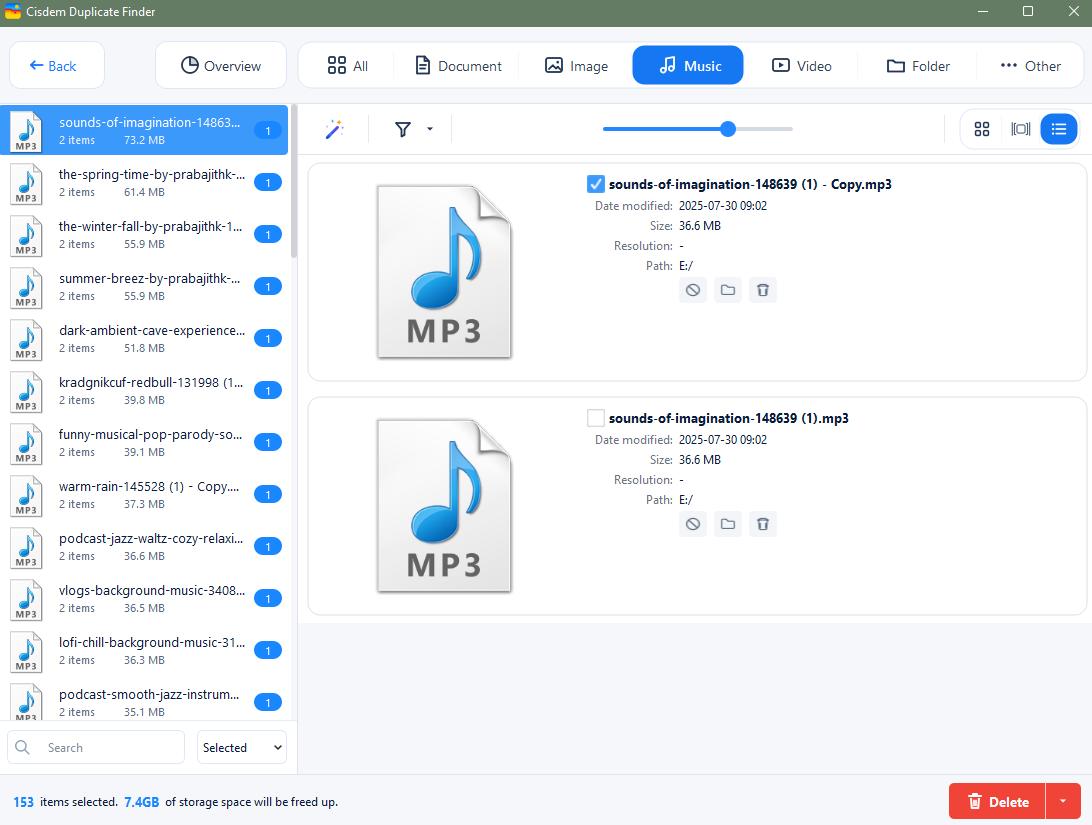
Once the scan was complete, a results window appeared, displaying all duplicate songs found in my iTunes. On the left was a list of duplicate groups, and on the right, I saw the specific songs in a selected group.
Cisdem Duplicate Finder has a feature that automatically selects all but one item for deletion, so I didn’t have to do it manually one by one. I found the auto selections smart enough to know which files were the original ones.
I clicked Delete and then Yes in a message asking if I was sure about the deletion. All duplicate songs were moved to the Recycle Bin then.
Note from Cisdem:
Auto selection are made based on attributes like time and file names, helping make sure that originals remain unselected and untouched. In addition, there are selection rules (e.g., Select Newest) that you can apply to selected groups.
Step 4. Remove missing songs
However, it’s not finished yet. After duplicates were removed, I found them appear as missing songs in my iTunes, which was kind of annoying.
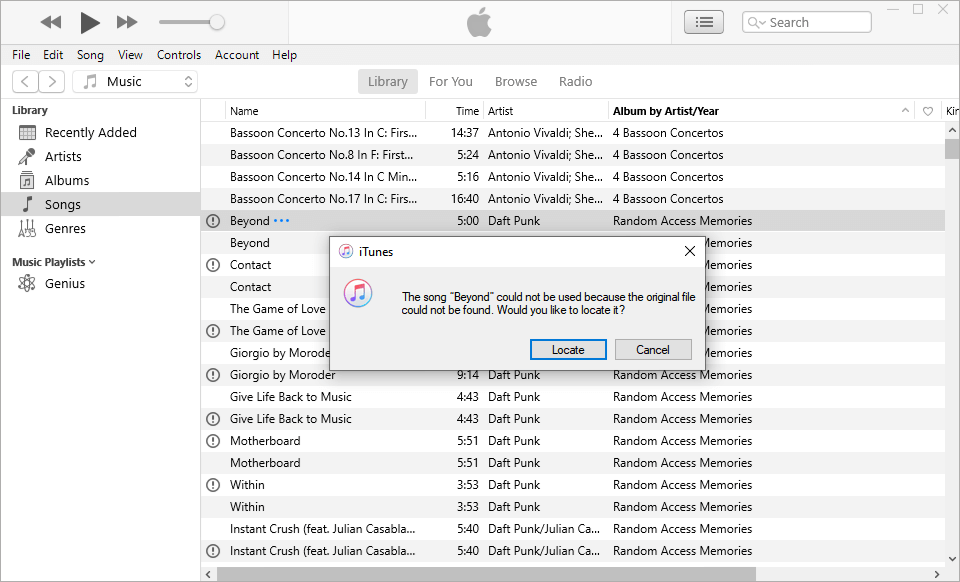
Luckily, the support team of Cisdem told me the following easy way to remove them.
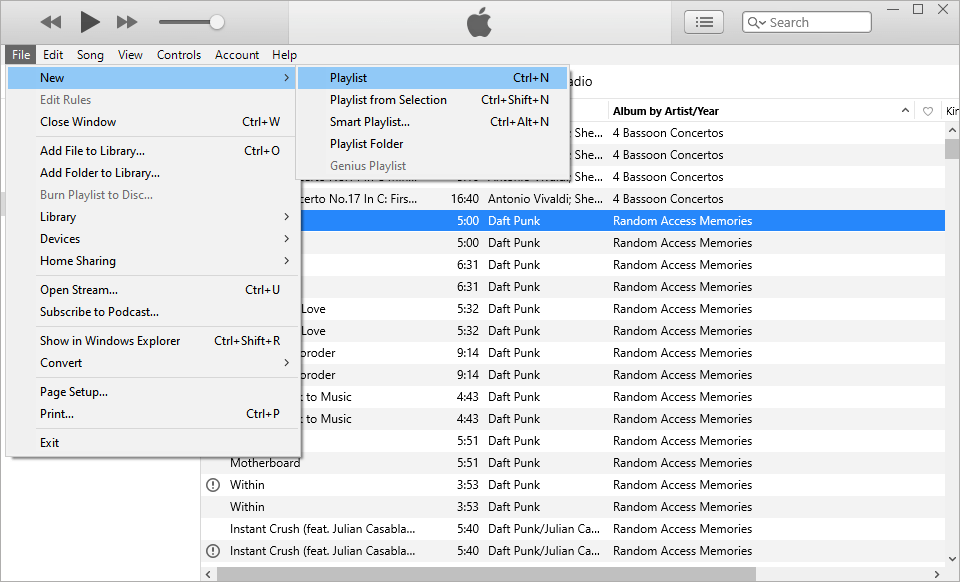
- In iTunes' File menu, choose New > Playlist to create a new playlist and name it All songs. Then drat all songs in the Library into this playlist.
![choosing New in the File menu showing an option named Playlist]()
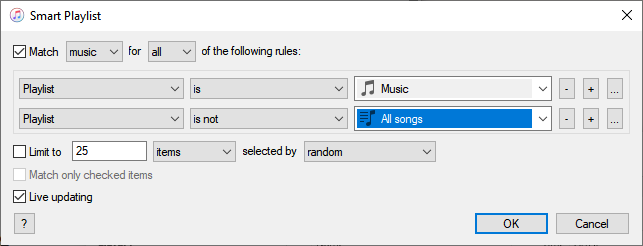
- In the File menu, choose New > Smart Playlist to create a new Smart Playlist. In the Smart Playlist window, set up these two rules: “Playlist” “Is” “Music”, and “Playlist” “is” “not” “All songs”. Then name this Smart Playlist “Missing songs”.
![the Smart Playlist dialog]()
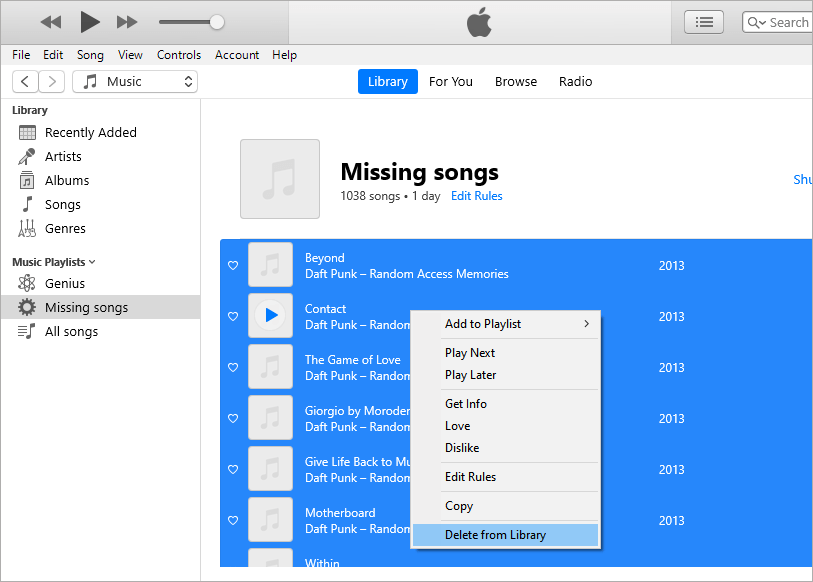
- Select the Missing songs Smart Playlist in the left sidebar, select all songs appearing on the right, right-click, choose Delete from Library, and click Delete Songs in the message that appears.
![the Missing songs Smart Playlist and a menu showing the the Deleting from Library option is chosen]()
FAQ
Yes. Cisdem Duplicate Finder can find all exact duplicates (i.e. songs that are the same in every way but regardless of their file names) as long as they exist in the iTunes Media folder.
If there are less than 50 duplicates in your iTunes, the said built-in tool can be efficient enough. However, if there are more duplicates, a tool like Cisdem Duplicate Finder is far more helpful.
Loved the article, share!

