


 Cisdem Duplicate Finder






Duplicate Finder
Best Duplicate Document Finder


As someone who spends most of her day working with documents, I was overwhelmed by the number of duplicate documents on my computer. Cisdem Duplicate Finder made it incredibly easy to identify and remove them! - Mia | Office worker
Mia, who works at an IT service company, creates and manages lots of documents, such as reports, presentations, and spreadsheets.
Challenge of having duplicate documents
Mia had multiple versions of the same contract document, and this happened with many other files on her PC, especially documents. This made it difficult to manage files and find what she needed. She wanted to clean up the duplicates to reduce the clutter.
Were these three reports with identical file name truly the same? Which of those four contracts with similar file names could she safely delete? Mia tried manually comparing file contents to find duplicates. But there were so many files. She believed that process would be time-consuming and unreliable.
Solution: Using Cisdem Duplicate Finder
Mia looked for a tool that could help her easily manage duplicate documents and discovered Cisdem Duplicate Finder. With this professional duplicate file finder, she effortlessly eliminated true duplicates from her computer.
Mia shared her experience to help others having the same problem. Below are the steps that she followed, organized by Cisdem. The steps can help Windows users manage duplicate documents and also other duplicates like photos and videos.
Steps to find and remove duplicate files on a Windows PC
Step 1. Download and install the app
I downloaded Cisdem Duplicate Finder from their official website. It supports Windows 10 and later and should be able to run on most computers. Installing it was easy, which just took a double-click on the downloaded .exe file.
Step 2. Scan for duplicate files
I dragged my Documents and Desktop folders into the app and clicked the Start Scan button. Those were the locations where most duplicates exist in my case.
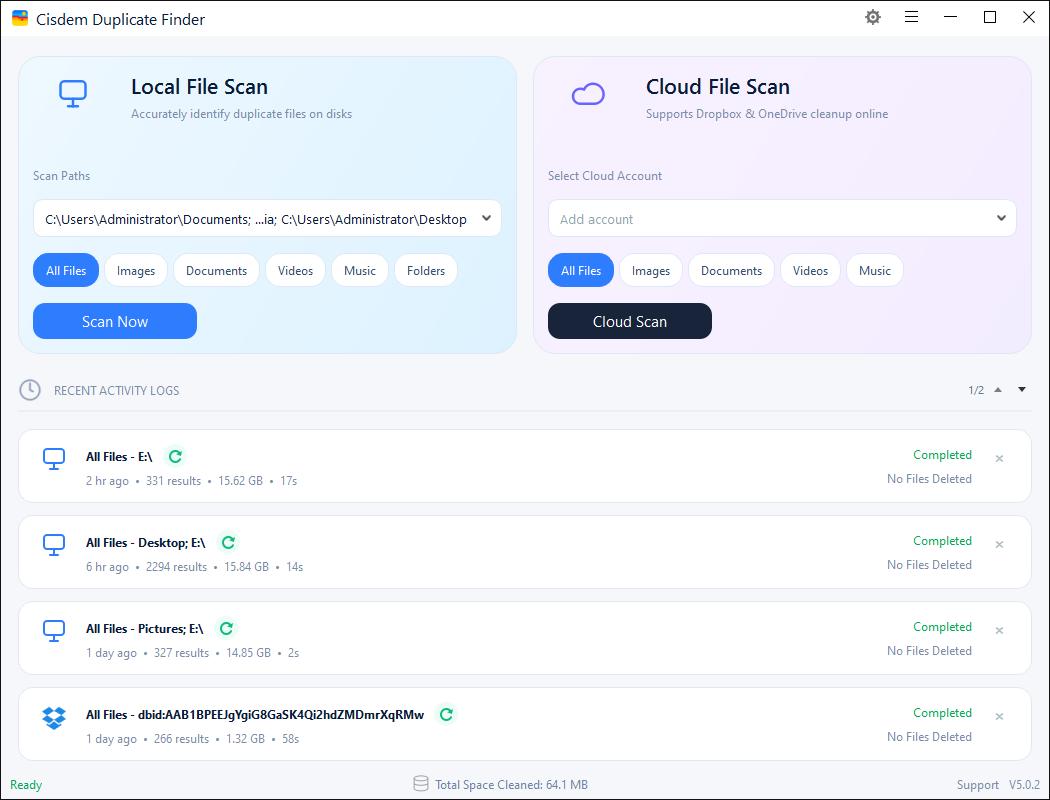
I really appreciate that this app can search across multiple folders, including subfolders, at the same time. The app identifies duplicates by comparing file contents. Even if two documents only have a difference of an extra space, they won't be considered as a group of duplicates.
Note from Cisdem:
The fact is that you may see duplicates in your Windows system files and app files. But deleting them will cause your computer or apps to stop working properly. So please avoid scanning folders like C:\Windows and C:\Program Files.
Tip from Mia:
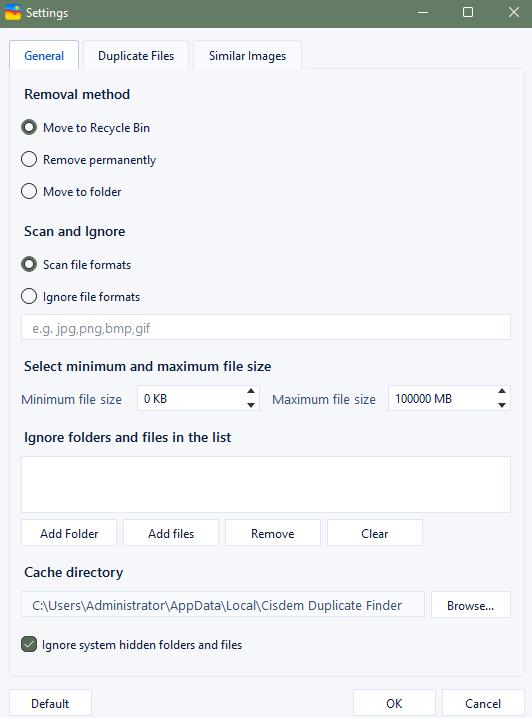
Before clicking Scan, I checked out the settings and found that they could be helpful. You can exclude or limit files and folders by:
- Selecting a file size range to ignore small or large files.
- Adding specific folders (such as backups) and files to exclude.
- Excluding specific file formats (like pdf and pptx).
- Limiting the scan to a single file format (such as duplicate docx files).
Step 3. Review duplicate files.
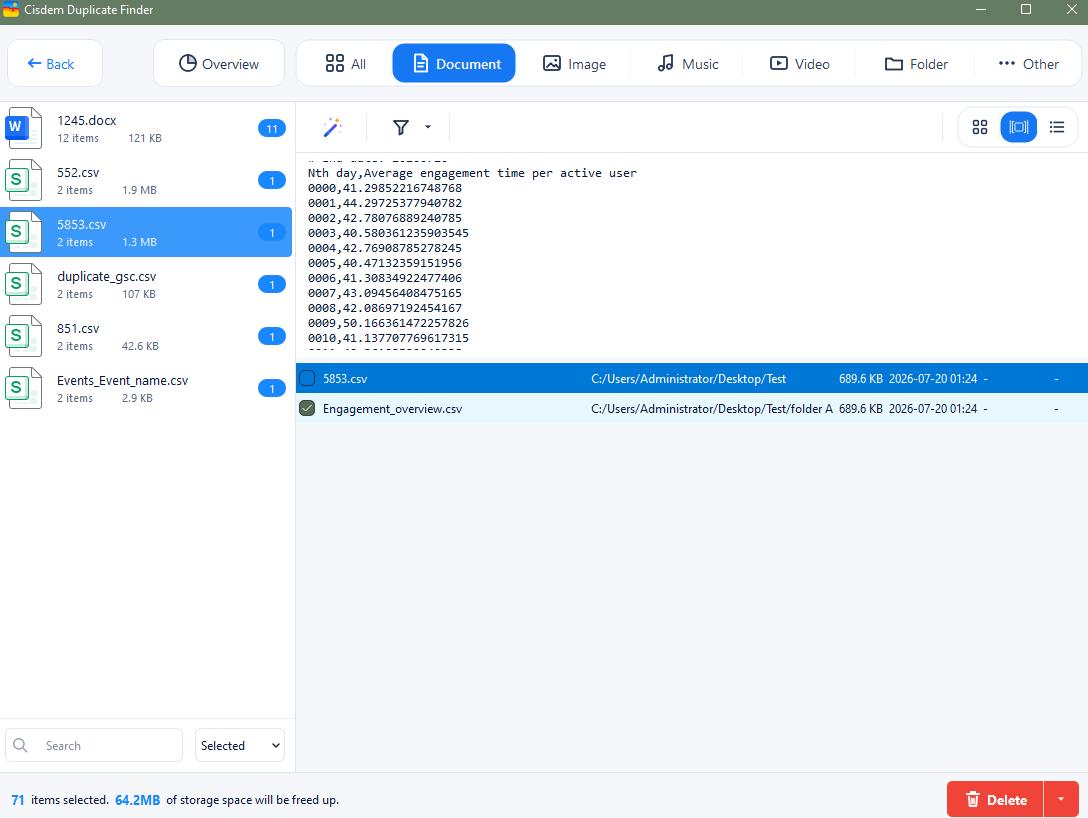
Once the scan was done, I saw a results window with several tabs. The All tab displayed the number of duplicates found and how much space they occupy, and the Document tab listed all duplicate documents.
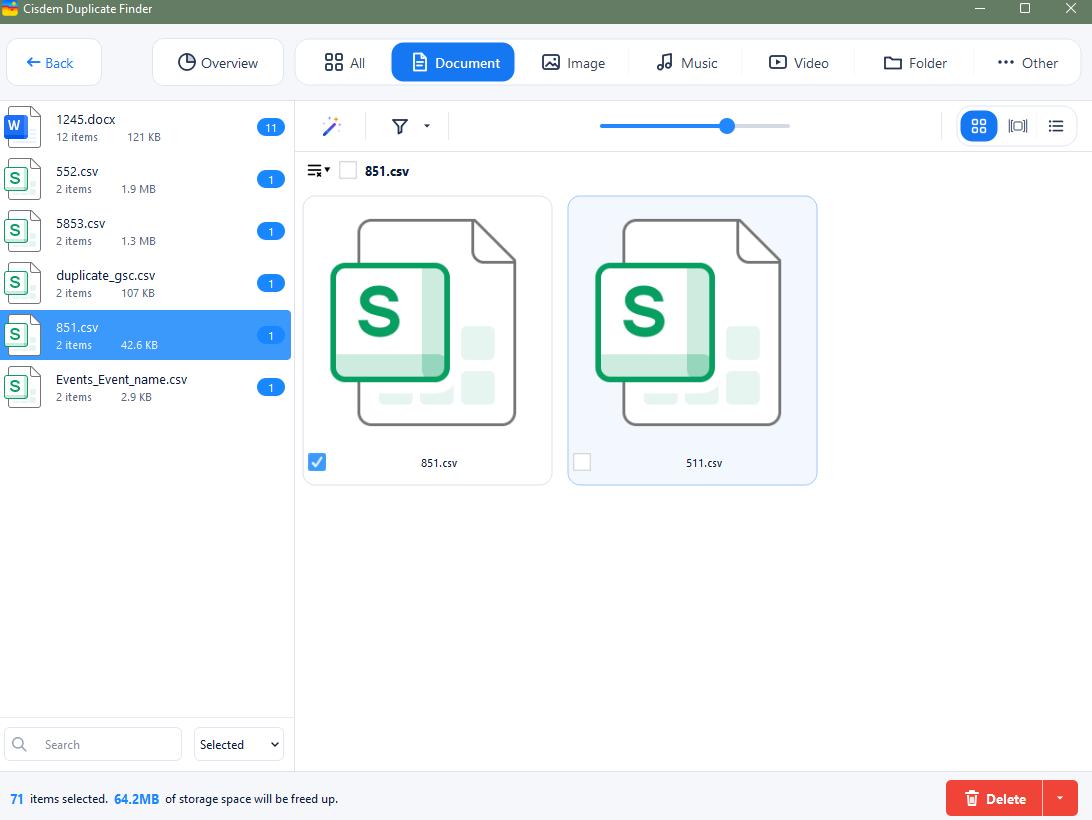
The app offers three view modes to see document information such as name, size, location, and date created. In the second mode, I could open a specific document in File Explorer for a closer look if needed.
Step 4. Select duplicates for deletion
Cisdem Duplicate Finder automatically selected all duplicates for deletion, and all the original files remained unselected. It allowed me to manually adjust selections, which provided me with peace of mind.
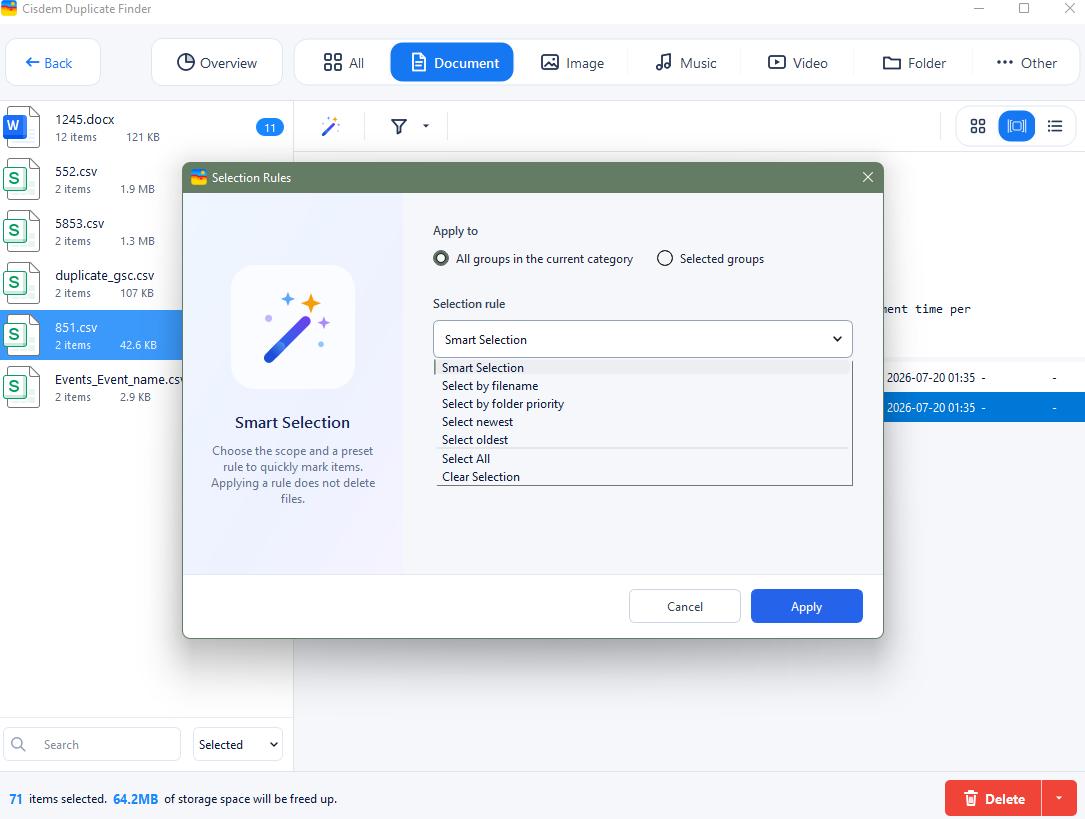
There are also selection rules available that apply to the chosen groups of duplicates:
- Select newest: Keep the oldest file, selecting newer ones for deletion.
- Select ildest: Keep the newest file, selecting older ones for deletion.
- Select by filename: Prioritize keeping the file with the original name.
- Select by folder priority: Choose which folder’s files to keep.
Tip from Cisdem:
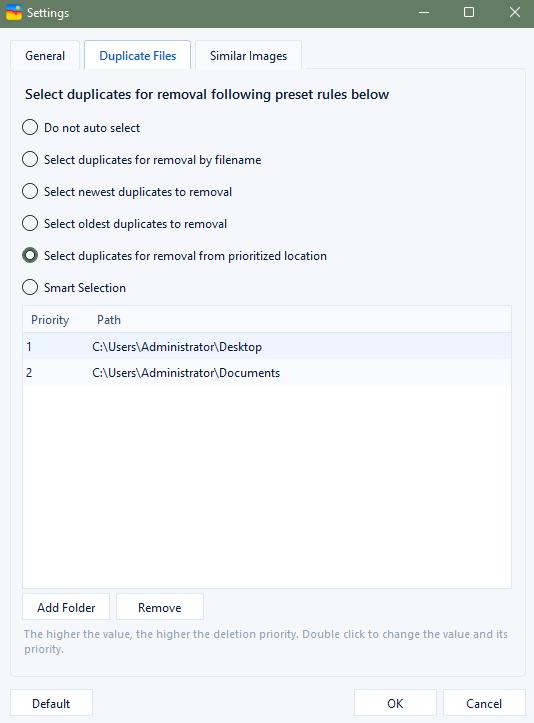
The Select by folder priority rule can be useful when duplicate files exist between two or more folders. For example, if you have Report Q1.xlsx in Desktop and Documents folders and you want to keep the one in Desktop, you can do this:
a. Go to Settings > Duplicate files.
b. Choose the Select duplicates for removal from prioritized location option.
c. Add the two folders.
d. Set a value for each folder.
Step 5. Delete duplicate files
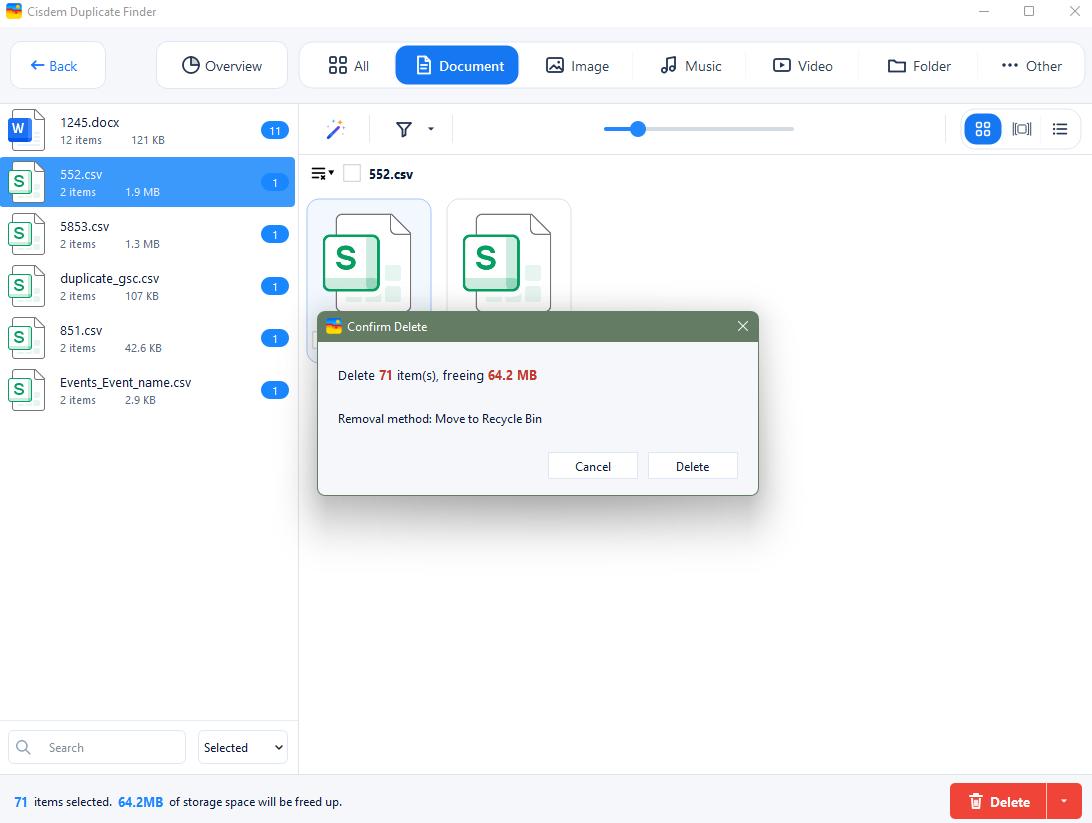
When I was sure that unwanted duplicates were selected, I clicked the Delete button and then Yes to confirm the deletion. All selected files were deleted to the Recycle Bin. This is the app's default deletion method, making it easy to restore files if needed.
Cisdem Duplicate Finder saved me from manually comparing files for identifying duplicates. I hope my experiences can help you easily manage your duplicate files!
FAQ
No. The tool is designed to smartly recognize original files, but you have full control over which files to keep or delete.
Yes. With the default deletion method, deleted files will be deleted to the Recycle Bin. You can recover files from there.
Yes. Just connect your external hard drive to your computer and add it for scanning.
Loved the article, share!

