Quickly Find Duplicate Files and Similar Photos

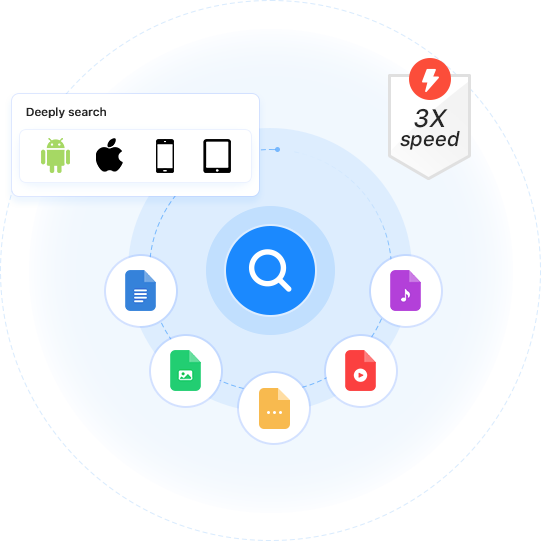
Use Cisdem Duplicate Finder to quickly scan your Android, iPhone or iPad for duplicate photos, videos, and more! The app accurately identifies duplicate files by content, regardless of their names. Note that on iOS or iPadOS, Cisdem Duplicate Finder supports scanning only the Photos app.
The app also scans for similar images, including same photos in different formats or sizes as well as pictures that look alike, such as resized, flipped, rotated or recolored versions, burst shots, and photos taken from different angles or distances, helping you effortlessly find redundant versions.

Efficiently Customize Scan Settings

Cisdem Duplicate Finder offers scan settings for you to adjust, allowing a more customized, efficient scanning experience.

Tune Similar Image Detection

You can adjust similarity thresholds for comparing images, or disable similar image detection for faster scanning.

Scan Specific Duplicates

Android users can set the app to find only a specific type of duplicates, such as duplicate images or audio files.

Exclude Certain Folders

Android users can choose to ignore specific folders during scanning, such as backups or system folders.

Easily and Safely Delete Duplicate Files

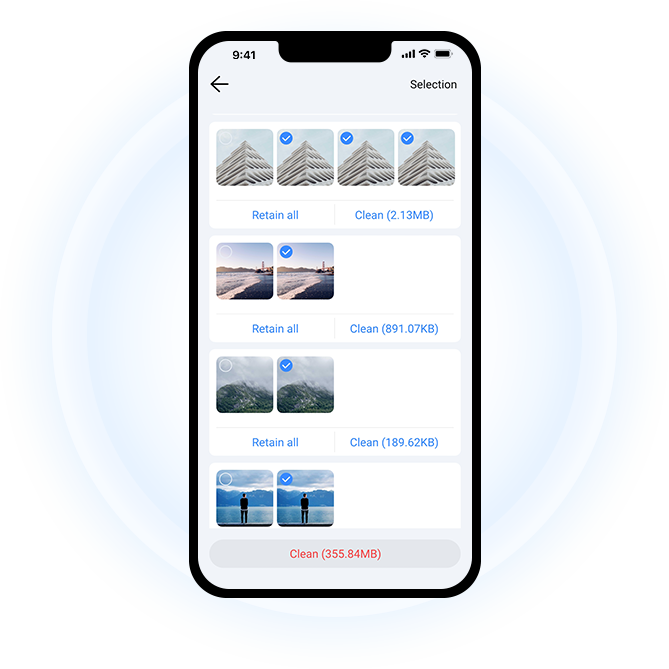
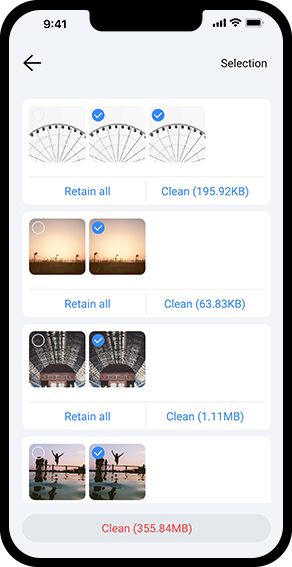
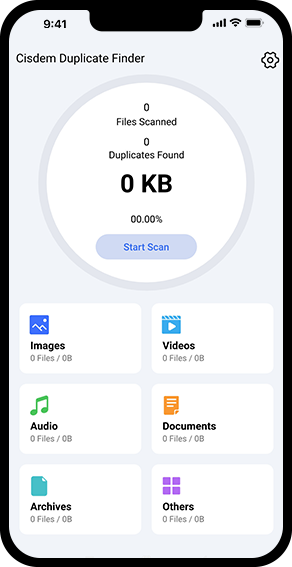
Cisdem Duplicate Finder displays detected duplicate and similar files by type: Images, Videos, Audio, Documents, etc. You can easily handle each file type individually: choose a type, view the results, and remove unwanted items all at once with the help of auto selections!

View Duplicate Files

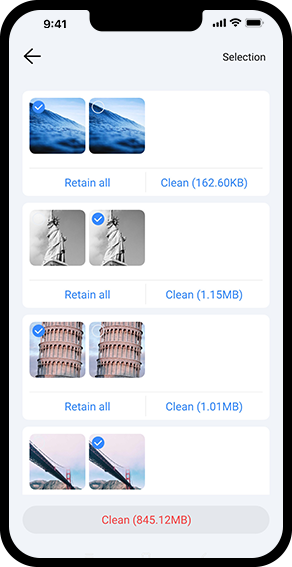
  • Preview duplicate/similar photos side by side
  • Tap any photo for a larger preview and details
  • View how much space each duplicate group occupies
  • See file names, extensions, and paths

Select Duplicates for Elimination

  • Duplicates are automatically selected in each group
  • Original file remains untouched in each group
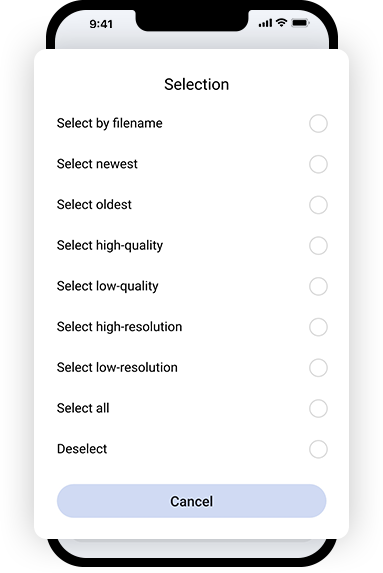
  • Manually adjust auto selections if needed
  • Apply a desired rule if needed, e.g., Select Newest

Delete Duplicate Files

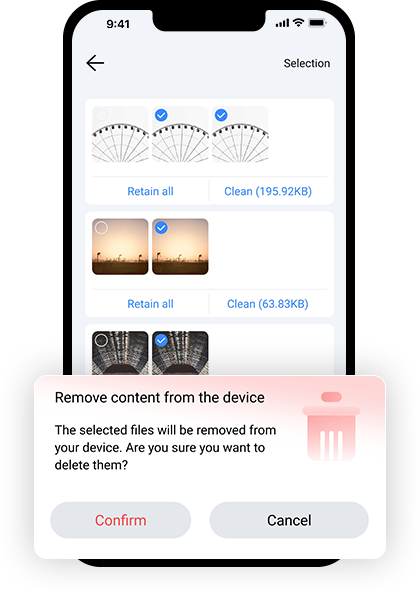
  • Clean up all selected duplicates with a single tap
  • Tap Confirm to finalize deletion, preventing accidental removals
  • On Android: Files are permanently deleted, freeing space immediately
  • On iPhone/iPad: Files are moved to Recently Deleted in Photos app

People Love This Duplicate File Finder

With over 2 million satisfied users on all platforms, Cisdem Duplicate Finder is the top choice for effortlessly cleaning up clutter and optimizing your storage. Hear what they have to say!

@_emmy_lou

Cisdem's Duplicate Finder is a great tool for organizing your files. It helps you find and remove duplicate files easily.

Watch on TikTok

Frequently Asked Questions

Yes, the app is designed to run on Android, iOS, and iPadOS devices. On Android, it can scan folders, including those on the SD card. On iPhone and iPad, it works specifically with the Photos app.
Yes, the app is completely free to use for Android devices, iPhone, and iPad. You can download it from the Google Play Store or the App Store, depending on your device.
The app uses advanced hashing algorithms to compare file contents, regardless of file names, providing high accuracy in finding true duplicate files.
No, you have full control over which duplicates are removed, and deletions won't happen without your confirmation. However, the app does provide auto-selection for duplicates to facilitate removal.
On Android, deleted files can't be recovered through the app, and you can back up important files first if needed. On iPhone or iPad, you can recover deleted files from the Recently Deleted album in the Photos app.

Remove Duplicate Files in 3 Easy Steps

Step 1: Scan

Tap Start Scan to scan for duplicate files in your folders (Android) or the Photos app (iPhone or iPad).

Step 2: View

Once the scan is complete, tap a file type, such as photos, to view the duplicate files of that type.

Step 3: Delete

Stick to the automatic duplicate selections or adjust selections, then tap Clean to delete all duplicates of that type. Continue handling other duplicate types.
Step 1 Step 2 Step 3