


 Cisdem Duplicate Finder






Duplicate Finder
Best Duplicate Audio File Finder


As a sound designer for indie games, I keep thousands of audio effects on my external hard drive. Over the years, I ended up with lots of duplicate audio files. Cisdem Duplicate Finder helped me clean them up in minutes. It saved me hours of manual work. - Michael | Sound designer
Michael is an independent game sound designer responsible for managing a large number of audio files, including sound effects, background music, and project trunks.
Challenge of having duplicate audio files
To create sound effects for games, Michael usually stores all recorded and downloaded audio files on an external hard drive. As his projects grew, he noticed that many audio files were duplicated, with different file names but identical content.
One time, while working on a game voiceover pack, he spent a long time trying to find the right sounds because there were so many duplicates. He needed an easy way to automatically find and delete all the duplicate audio files from the external hard drive.
Solution: Using Cisdem Duplicate Finder
Michael discovered Cisdem Duplicate Finder - a tool that made it simple to locate and delete exact duplicates on his external hard drive with just a few clicks.
To help others facing the same issue, Michael shared his steps below. These instructions can help Windows users find and remove duplicate audio files, videos, photos, documents, and more from external storage devices efficiently.
Steps to find and remove duplicate files on external hard drive
Step 1. Download and install the app
I downloaded Cisdem Duplicate Finder to my Windows 11 computer and double-clicked the .exe file to install it. During setup, I was able to choose from 7 available languages. I selected English.
Tip from Cisdem:
Cisdem Duplicate Finder is available for Windows 10 or later, macOS 10.11 or later.
It supports 7 languages: English, German, Spanish, French, Italian, Portuguese, and Japanese.
Step 2. Scan for duplicate files
I plugged my external hard drive into my computer’s USB port. Then I opened File Explorer. The drive appeared in the left-hand panel.
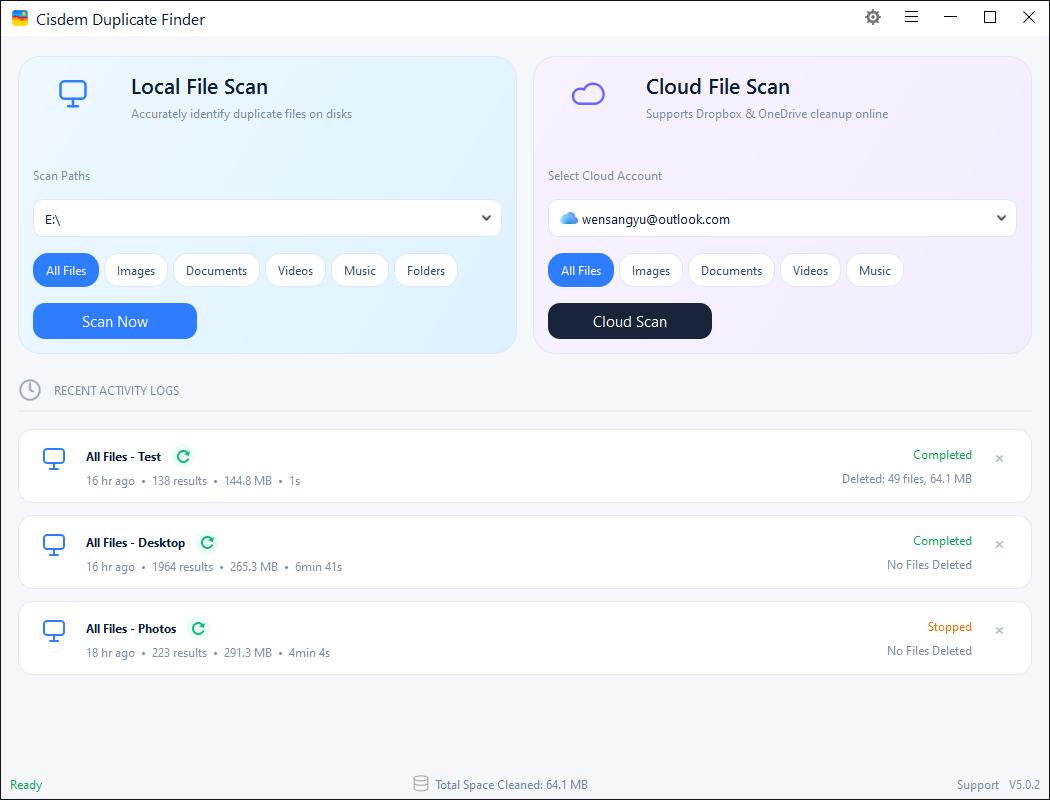
I simply dragged the drive into Cisdem Duplicate Finder under Local File Scan, and clicked the Start Scan button.
Tip:
I discovered that this app can scan for duplicate files across multiple folders or drives. This feature was exactly what I needed, as I had duplicate audio files scattered between my computer and external hard drive.
Step 3. Preview duplicate files
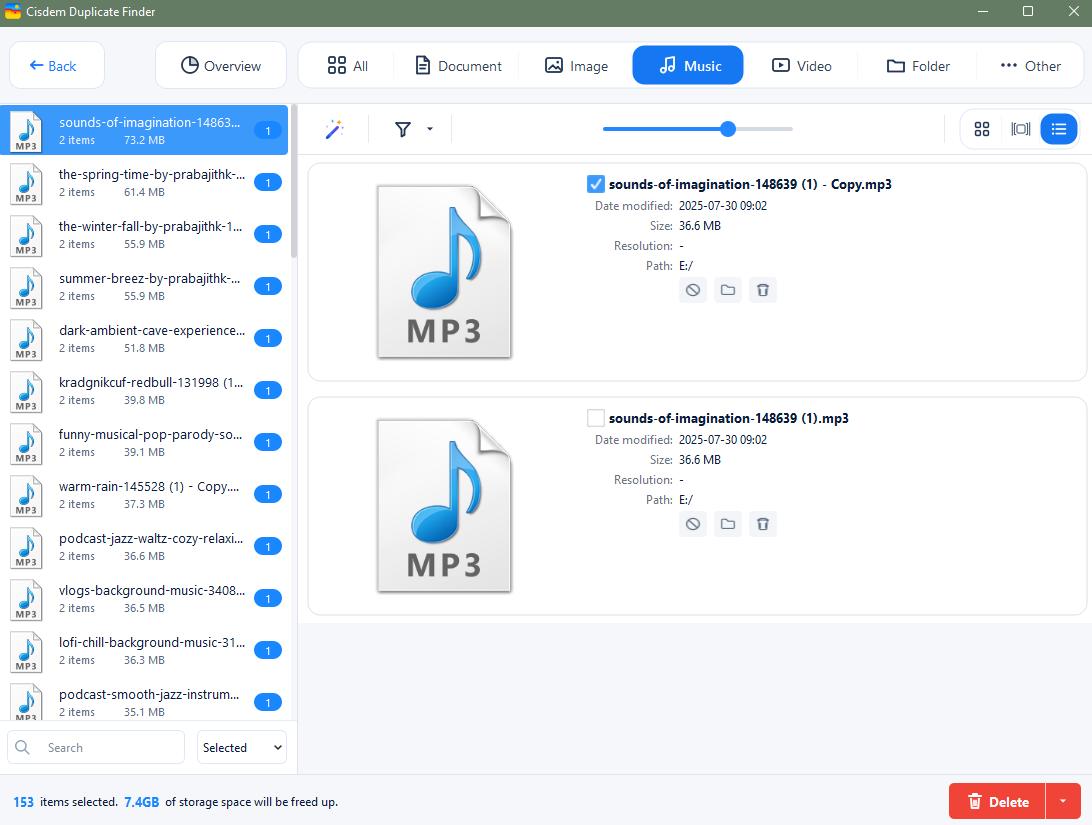
It quickly found over 7.4 GB of duplicates on my external hard drive. All duplicate audio files were grouped under the Music tab for me to preview. A few duplicate videos were also detected and grouped under the Video tab.
It allowed me to preview file details such as creation date, size, and file path.
Step 4. Select duplicate files
Cisdem Duplicate Finder automatically selected all but one copy in each group of duplicate audio files, saving me a lot of time.
Tip from Cisdem:
Cisdem Duplicate Finder automatically selects duplicates for removal using an intelligent algorithm. Files with words like copy, autosave, or trash, etc. in their names are prioritized for deletion.
If you're not happy with the auto-selection, you can also use one of the 8 available selection rules:
- Select Newest/Oldest: Choose duplicate files based on file creation date.
- Select by Filename: Choose duplicate files based on filename initials.
- Select by Priority: Set custom priorities to remove duplicates from specific folders or drives.
- Select high-resolution/low-resolution: Ideal for duplicate images; keep the version with the highest or lowest resolution.
- Select high-quality/low quality: Keep the version with the highest/lowest overall quality.
Step 5. Delete duplicate files
I simply clicked Delete and confirmed with Yes to remove all duplicates from my external hard drive.
Cisdem Duplicate Finder saved me from spending hours sorting through duplicate audio files. I hope my experience helps others quickly clean up their external drives too!
FAQ
Yes. Just open Cisdem Duplicate Finder. Drag the external hard drives into the program for scanning.
Yes. With Cisdem Duplicate Finder, you can scan only certain file types. Just go to Settings. Open the General tab, and check the option “Scan only file formats”. Then, enter the file extensions (like .mp3, .wav, etc.) you want to include. Click OK. The scan will target only those file types.
Yes. Cisdem Duplicate Finder also supports finding and removing duplicate files in OneDrive, Google drive, and other cloud drives.
Loved the article, share!

