What is Cisdem OneDrive Duplicate Finder?

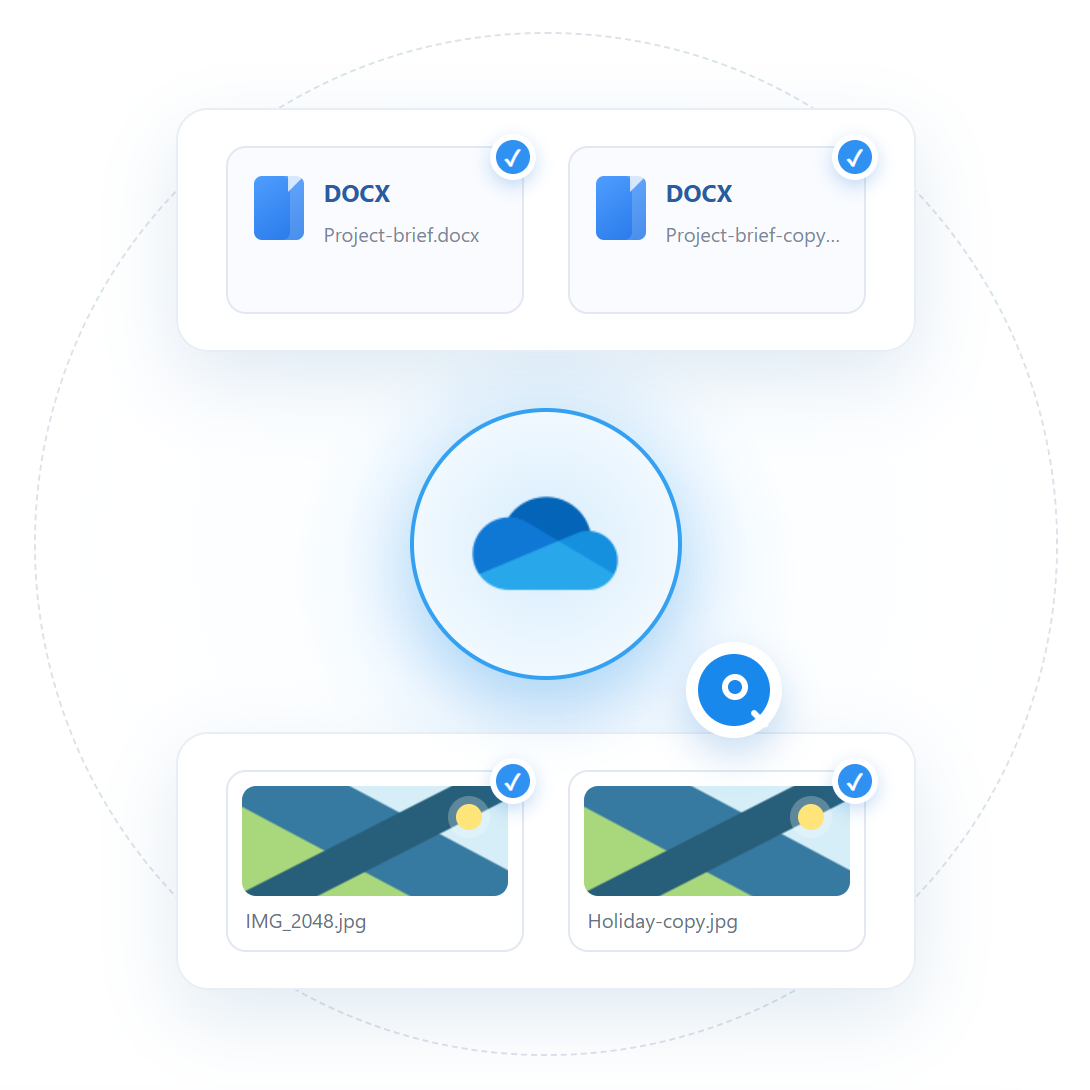
Cisdem Duplicate Finder is a desktop app for finding and removing duplicate files and similar photos in OneDrive. On Windows, it can connect to OneDrive and scan selected folders online. On Mac, it scans files after they are synced locally. It compares content rather than names, groups results for review and helps move selected copies to the recycle bin.

Stop Hunting for OneDrive Duplicates Manually

OneDrive can help prevent some duplicate uploads, but it mainly detects files with the same name and extension. The harder duplicates to find are renamed copies, photos saved in multiple versions, and duplicate files caused by sync issues. Cisdem Duplicate Finder goes beyond name matching to help you find and manage duplicate files across your OneDrive storage.

OneDrive Built-in Handling

Basic detection followed by manual cleanup

Name-Based Matching

Detects duplicates mainly by file names and extensions.

Renamed Copies Can Be Missed

Identical files may remain hidden after renaming.

Duplicates Across Locations

Files stored in different folders are harder to identify.

Manual Comparison

Checking and removing duplicates one by one takes time.

VS

Cisdem Solution

Content-based detection with a safer cleanup workflow

Content-Based Detection

Finds duplicates beyond file names and extensions.

Detect Renamed Copies

Identifies matching files even with different names.

Compare Across Locations

Finds duplicates across OneDrive folders.

Smart Cleanup Control

Review groups, apply rules, and remove unwanted copies safely.

Find the copies OneDrive leaves behind

AI similar photo detection

Detect Duplicate Files and Similar Photos Smarter

Duplicate-file detection uses content fingerprints to find matching files even when their names or OneDrive locations are different.

For similar photos, Cisdem uses an on-device DINOv2-Small model to analyze available photo previews and generate visual features. A visual similarity search process helps surface visually similar versions that ordinary file matching can miss.

  • DINOv2-Small visual features for similar-photo candidates
  • On-device visual analysis with DirectML acceleration when available
  • Content fingerprints for duplicate-file candidates
OAuth and local AI privacy

Keep AI Processing Local and Your Account Secure

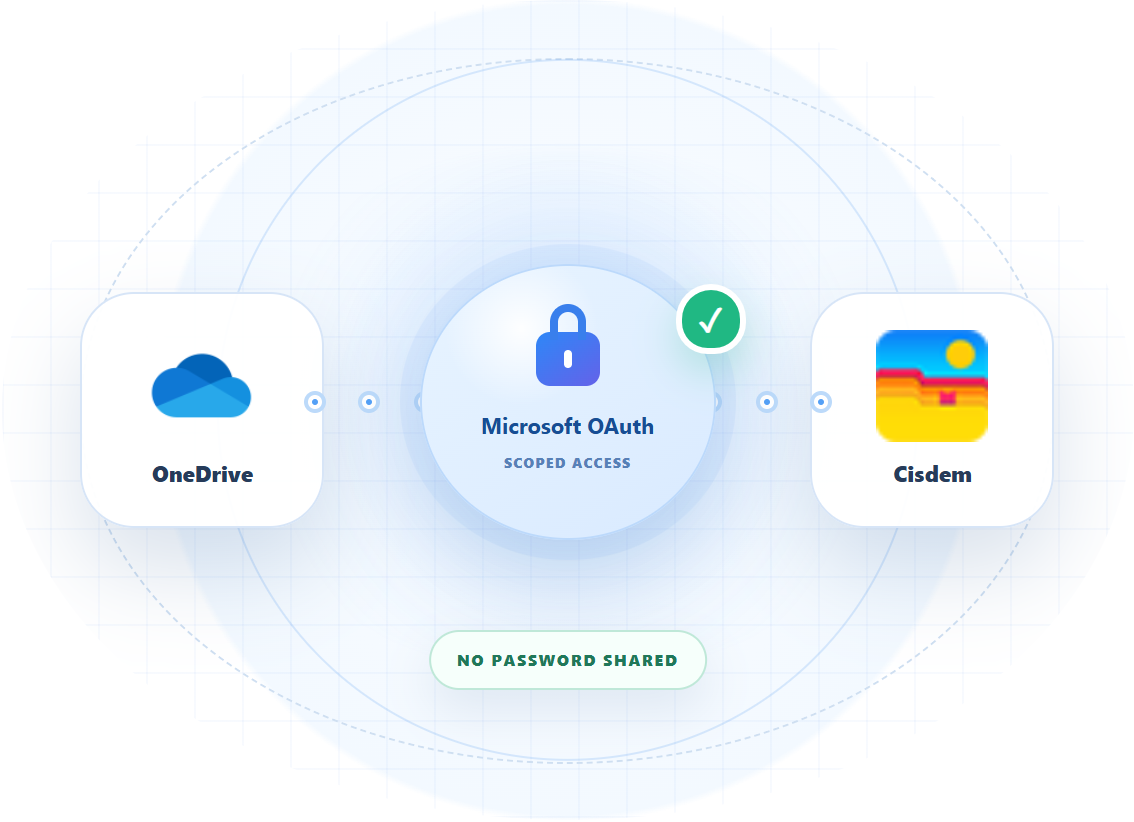
On Windows, OneDrive access is authorized through Microsoft OAuth. Cisdem never receives your Microsoft password, and the desktop app uses only the cloud access you authorize.

Similar-photo analysis runs locally on your PC through ONNX Runtime, using DirectML when available and falling back to CPU when needed. Online OneDrive scanning still uses Microsoft APIs to access authorized files and required metadata or previews. Local AI processing and cloud access remain separate.

Clean up every corner of your OneDrive

Content fingerprint detection

Accurately Find Duplicate Files By File Content

Cisdem Duplicate Finder uses content-based comparison methods instead of relying only on file names or extensions. It generates file signatures from content information and compares these values to identify exact duplicate files, even when copies have been renamed or stored in different OneDrive folders.

Review duplicate groups

Review Duplicate Groups Before Removing Files

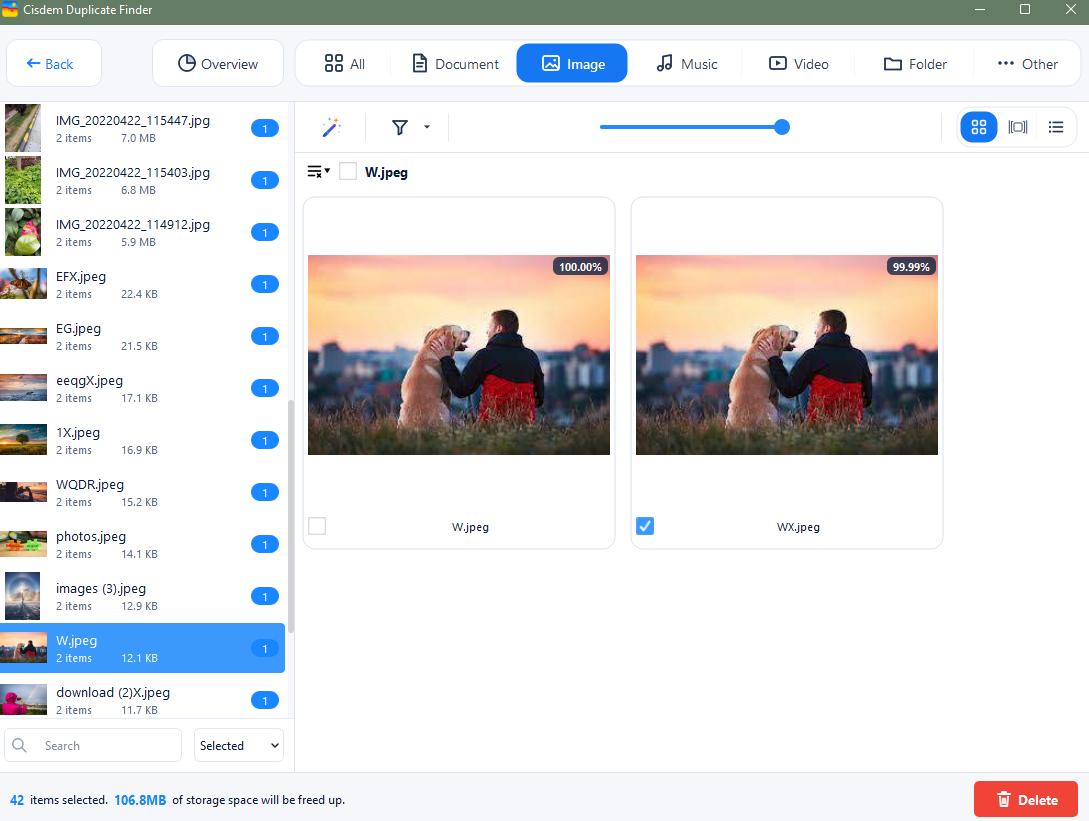
After scanning, Cisdem organizes detected duplicates into clear groups, allowing you to understand exactly what was found before taking any action. Each group displays important file details, including names, sizes, locations, and modification dates, making comparison easier.

Multiple viewing modes are available for different review needs. Use Thumbnail view to compare images visually, List view to check file information, or Info view to inspect detailed attributes. Search, sort, and filter options help you quickly navigate large OneDrive scans and locate the files you want to keep.

Automatic selection rules

Automatically Select Duplicates and Clean Up Faster

For exact duplicate groups, Cisdem automatically selects extra copies while keeping one file unselected. Similar photos are left unselected by default for review. This reduces manual work when scanning large OneDrive libraries.

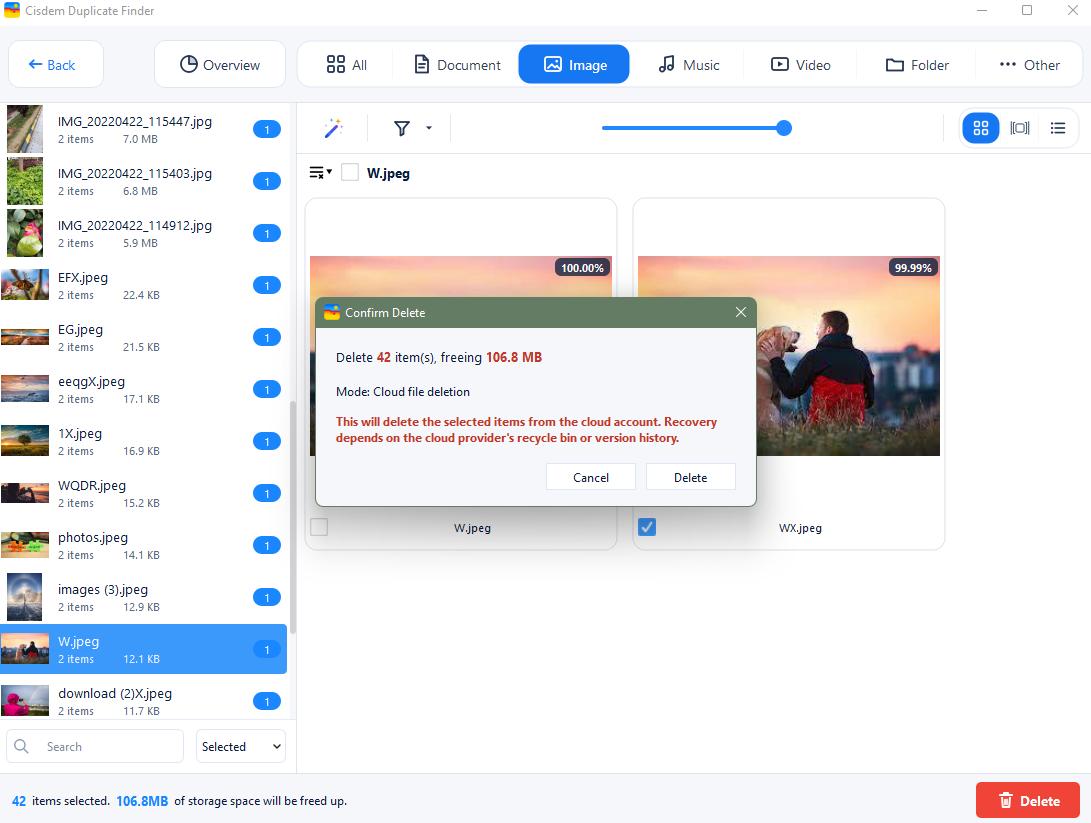
You can apply preset selection rules, such as keeping the oldest or newest file, selecting files from specific locations, or manually adjusting individual choices. Before removal, review all selected items and confirm the action to ensure only unwanted duplicates are cleaned up.

Extended Support for Advanced OneDrive Cleanup Situations

Scan OneDrive Your Way

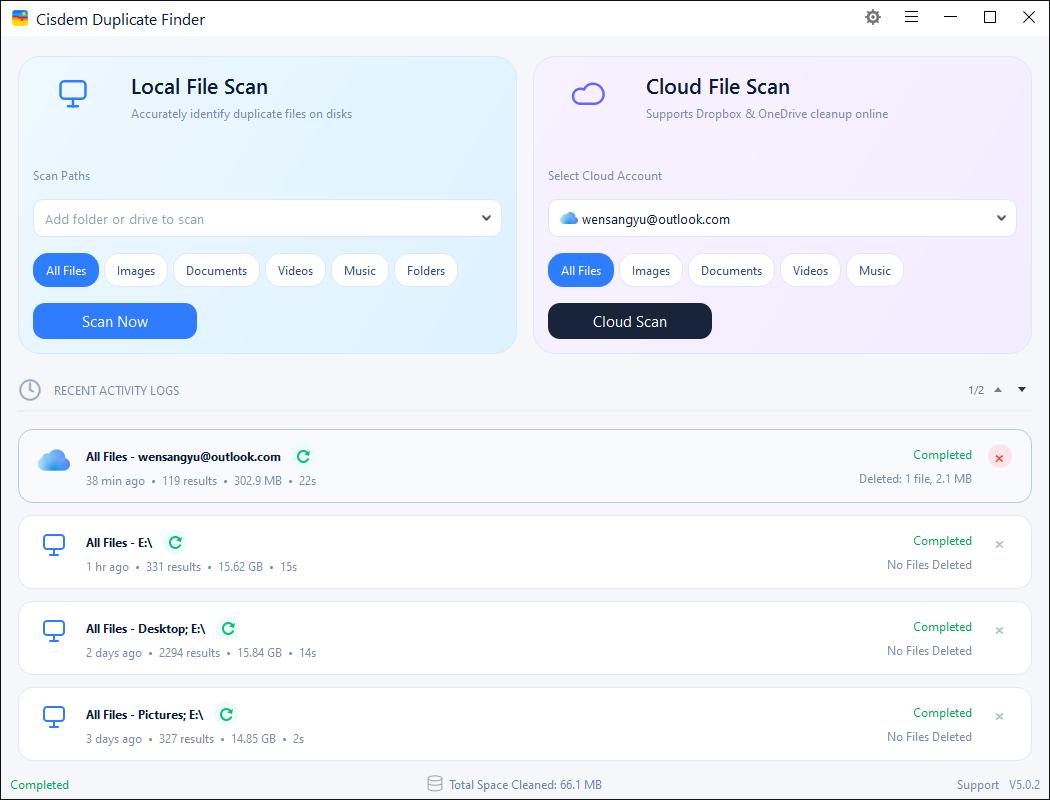
Connect OneDrive and scan your entire account or select specific folders based on your cleanup needs.

Find Duplicates Across Locations

Compare matching files across different OneDrive folders instead of checking each location separately. Detect duplicates even when copies are stored in different paths.

Choose What to Keep

Use preset selection rules or manual choices to keep the preferred copy in each duplicate group. Review your selections before removing files.

From a cluttered OneDrive to a clear one

Step 1: Connect OneDrive and Scan

Select OneDrive under Cloud File Scan, sign in to your account, and allow access. Choose the folders you want to check, then start the scan.

Step 2: Review Duplicates

Preview detected duplicates. Use automatic selection, apply your preferred rules, or manually choose which files to keep.

Step 3: Clean Up OneDrive

Remove unwanted duplicates with one click. Deleted files can be recovered from OneDrive's Recycle Bin if needed.

Connect OneDriveReview duplicatesClean up OneDrive
WINDOWS + MAC

Choose the OneDrive workflow for your computer

Cisdem Duplicate Finder supports both platforms, with a direct online workflow on Windows and a synced-folder workflow on Mac.

Mac

Mac

macOS 10.11 or later
  1. Sync OneDrive files to your Mac
  2. Add the local OneDrive folder
  3. Review and remove synced duplicates
Free Download for Mac

Frequently Asked Questions

Yes, on Windows. Cisdem Duplicate Finder can connect to OneDrive and scan the entire drive or selected folders online without downloading or syncing the files first. On Mac, sync the OneDrive files or folders you want to check, and then scan the local OneDrive folder.
Yes. Cisdem compares file content rather than relying only on file names, so identical files can be grouped even when their names or folder locations are different.
It can check images, documents, videos, music, folders, archives and other common file types. It can also identify similar photos, such as resized, reformatted, rotated or lightly edited versions.
Yes. When connecting OneDrive on Windows, select only the folders you want to scan. On Mac, add a specific synced OneDrive folder instead of the entire drive.
No. A scan does not remove anything. Cisdem can automatically select extra copies in each duplicate group, but you can preview the results and change every selection before confirming removal.
Yes. When Cisdem removes duplicate files scanned directly from OneDrive, the deleted items are moved to your OneDrive Recycle Bin. You can restore them from the Recycle Bin if needed. We recommend reviewing selected duplicates before confirming removal.