Available for


iTunes users often use manual cleanup or the built-in Show Duplicate Items option in iTunes to handle duplicate songs in their libraries. However, Show Duplicate Items is limited, so you still need to delete duplicate tracks one by one. This can be time-consuming when dealing with large libraries.
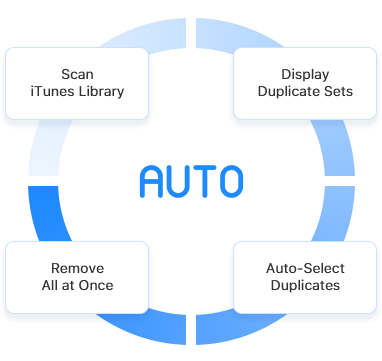
With support for both iTunes and Apple's Music app, the iTunes duplicate remover feature in Cisdem Duplicate Finder solves the problem by automatically scanning your iTunes library, displaying duplicate songs into sets, and then automatically selecting all duplicates while keeping the original in each set. As a result, you can easily get rid of duplicates all at once.
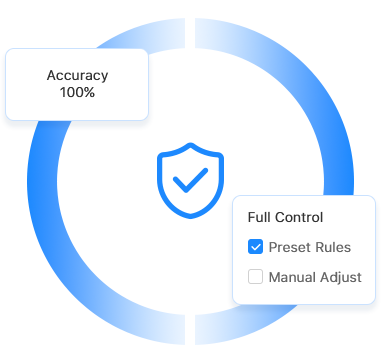
The reliability of this feature lies in its high accuracy and flexible customization options. It accurately detects exactly identical audio files in iTunes, regardless of file names, ensuring reliable results and keeping unique songs untouched.
You have full control over what gets removed. You can customize automatic selection with preset selection rules, or manually adjust selections for more flexibility and peace of mind. You can clean up duplicates in your library quickly and confidently without worrying about deleting tracks you want to keep.
The iTunes duplicate remover feature in Cisdem Duplicate Finder goes through the Media folder for iTunes or its successor and first groups audio files by size. For each file in the same size group, the feature generates a unique hash value (like a digital fingerprint) based on file content, for example, 5635c61f5067491901d5cf363110a. Then, it compares these hash values, and files with identical hashes are identified as duplicates. Even if two audio files are nearly the same but differ by as little as 0.0001 seconds, they will have completely different hash values. Therefore, this duplicate detection method is 100% accurate.
It is optimized for speed and can handle large music libraries efficiently, such as scanning a 10 GB music library in less than 20 seconds. AI-enabled optimization is used to improve the scanning and processing speed.
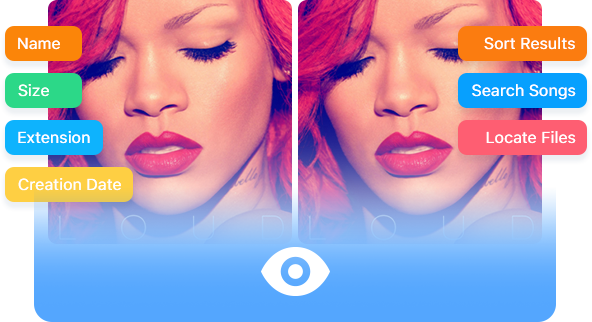
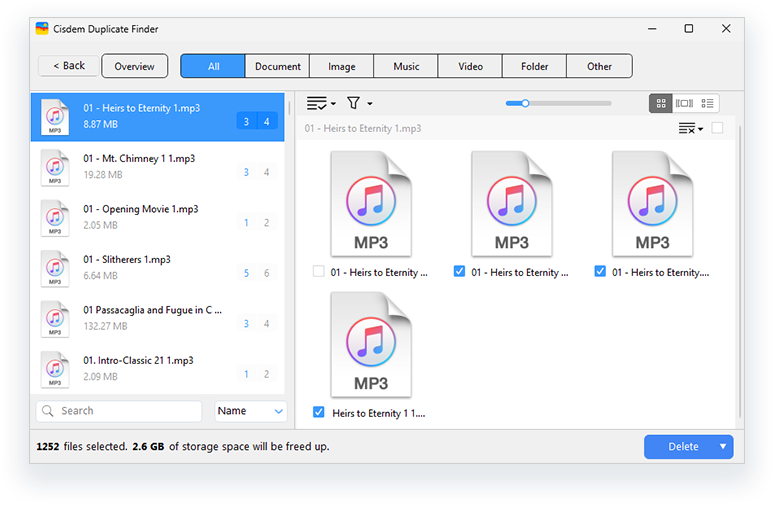
The results window displays detected duplicates and groups them in sets, making it easy for you to review and understand what duplicate songs exist in your library. The results window includes file information, such as file name, size, extension, and creation date. Mac users can also view album artworks and preview songs directly using the built-in media player.
There are a few options to help you manage duplicates before removal. For example, you can search songs by name and sort duplicate sets by size or name. You can also quickly locate files on your computer using the Show in File Explorer (Windows) or Show in Finder (Mac) option.
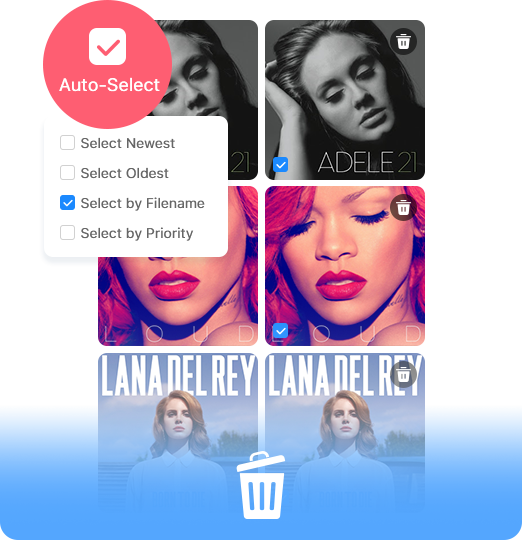
Although you may want to review duplicates for peace of mind, you may not like the idea of manually selecting each duplicate for deletion, especially when there are many sets. Luckily, the feature automatically selects all duplicate files in each set while keeping the original file, saving you time and effort. It determines the original file using an intelligent scoring system based on factors like file name and path. You can also choose from preset selection rules, such as deleting newer or older files, depending on your preference. In addition, you can manually select or deselect files as needed.
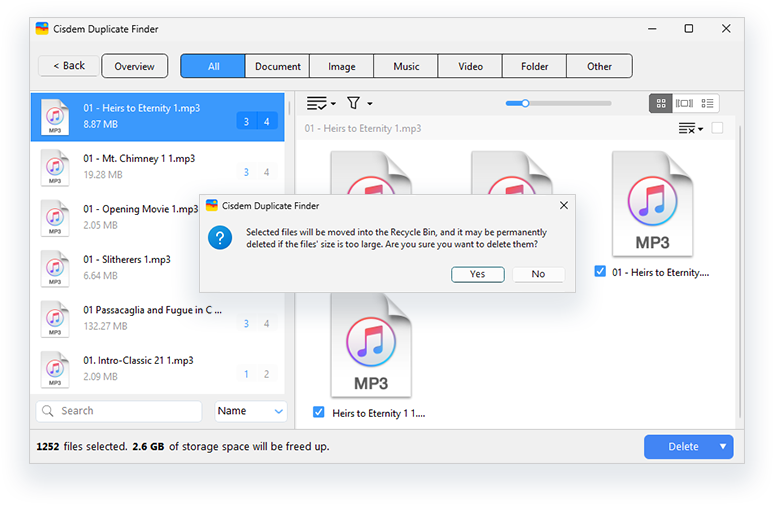
Once you are satisfied with the selection, you can remove all selected duplicates with a single click. Deleted files will be moved to the Recycle Bin (Windows) or Trash (Mac), so they can be easily restored if needed. You can also move selected files to a specific folder for better management. All the actions are designed to keep your files safe.
Support scanning iTunes libraries stored on external storage devices, such as external hard drives.
Allow you to scan for duplicate songs across multiple libraries or regular folders containing songs.
Let you set a folder priority to determine which folder is preferred for keeping files during duplicate removal between multiple libraries.

Add your iTunes Media folder using the Add button or drag and drop. Click Scan to start scanning for duplicates in your library.

When the scan is complete, duplicates will be displayed in sets. You can view, sort, and search the results as you like.

By default, duplicates are automatically selected while keeping the original file. You can also apply preset rules or make manual adjustments. Once ready, click Delete to remove all selected songs at once.
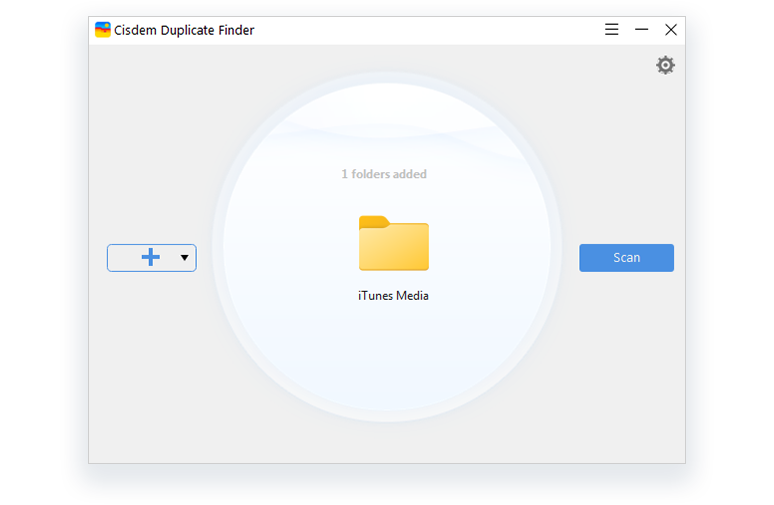
By default, the iTunes Media folder is located in the Music folder on your Windows PC or Mac. To check its exact location, go to iTunes Preferences > Advanced, where you will see the location.
If you see duplicate songs in your iTunes but the scan finds nothing, there are usually two possible situations.
- The songs are not exact duplicates
As mentioned, Cisdem Duplicate Finder's iTunes duplicate remover feature finds exactly identical audio files only. Different versions of the same song, such as an album version and a live version, or songs of different audio quality, are not considered duplicates by this feature.
- The songs are not stored in the iTunes Media folder
The audio files may be stored in a regular folder instead of the iTunes Media folder, which can happen if the Copy files to iTunes Media folder when adding to library option is not enabled in iTunes Preferences.
An exclamation mark next to a song indicates that iTunes points to a file that no longer exists. Since duplicate songs are removed from the iTunes Media folder, this is what will happen after removal. The good news is you can easily remove all these marks in bulk using a Smart Playlist, so you don't need to clean them up one by one.