


 Cisdem Duplicate Finder






Duplicate Finder
Best Duplicate Photo Finder


Managing duplicate photos was no easy task, especially with a toddler running around! With Cisdem Duplicate Finder, I can effortlessly delete duplicates in my Photos app and folders. It’s a lifesaver! - Sarah | Mom with a kid
A mom of a toddler boy, Sarah doesn’t want to miss any of her son’s precious moments. She takes a lot of photos, leading to an overwhelming number of photos stored on her Mac.
Challenge of having duplicate photos
As Sarah takes more and more pictures, she notices duplicates accumulating in both the Photo app and folders on her Mac. Having so many identical photos really makes looking back at those memories less enjoyable. Duplicate photos also waste the space on her computer. Sarah doesn’t know why she has so many copies, but she knows that it’s time to deal with this mess.
Solution: Using Cisdem Duplicate Finder
Sarah searched online for a solution and found Cisdem Duplicate Finder. She spent some time familiarizing herself with the app and used it to remove gigabytes of duplicates.
Sarah hopes that she can help other Mac users who are struggling with duplicates, so she is sharing her experience below, along with some notes from Cisdem. Mac users can follow this process to easily manage all types of duplicate files such as photos, videos, and documents.
How to remove duplicates from Mac’s Photos app and folders
Step 1. Install Cisdem Duplicate Finder on your Mac
I installed this app from the App Store, but you can also get it from their website if you like.
Step 2. Add your Photos library or folder to scan
Open the app and add the Photo library or folders you want to search for duplicates. You can add them by clicking the add icon or simply drag and drop your folders. After that, click Scan.
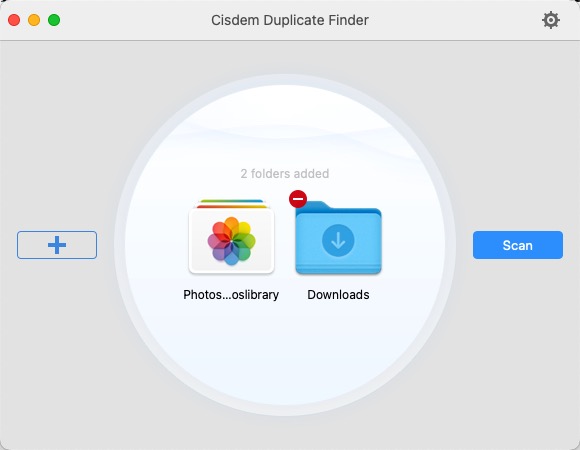
Here are two things worth mentioning.
- To scan your Photos app, you need to add the Photos library from your Pictures folder instead of adding the app itself.
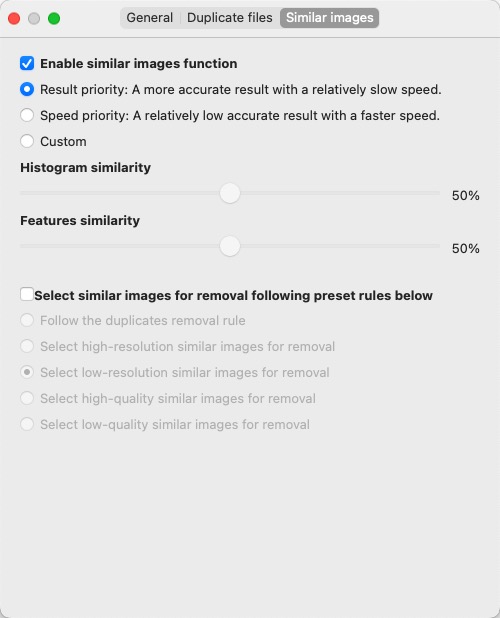
- If you want to find pictures that appear identical but aren't exactly the same, you can turn on the feature for finding similar images.
Notes from Cisdem:
In addition to folders, Cisdem Duplicate Finder supports the Photos library (where files in the Photos app are stored). Its process of finding and removing duplicates follows the Photos app’s rules, respecting the integrity of your database and assets.
Cisdem Duplicate Finder can find duplicates within and across multiple locations at the same time, such as between folders, between Photos libraries, or between a folder and a Photos library.
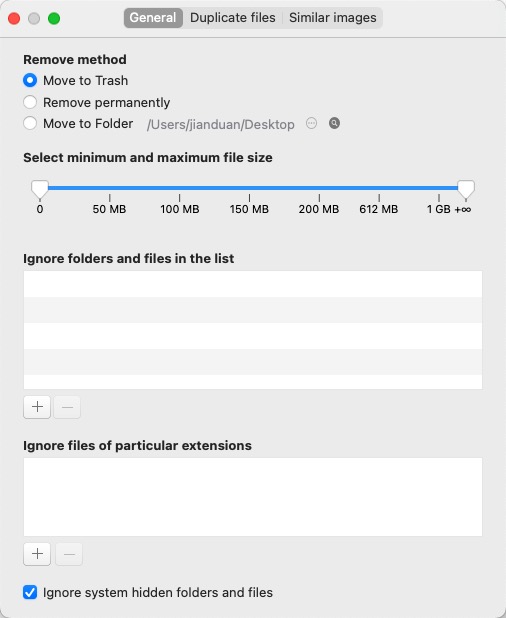
You can customize the scan settings before performing a scan, such as excluding certain files and folders by selecting a file size range or specifying the location. You can also enable the similar images function to detect photos that look the same but have different sizes, dimensions or formats, as well as similar-looking photos.
Step 3. View the scan results
Cisdem Duplicate Finder scanned my photo collection with over 10,000 photos in less than a minute, which is fast. When the scan is complete, a results window will appear. It has several tabs, such as All, Image, and Document, for you to see found duplicates by type or all in one place.
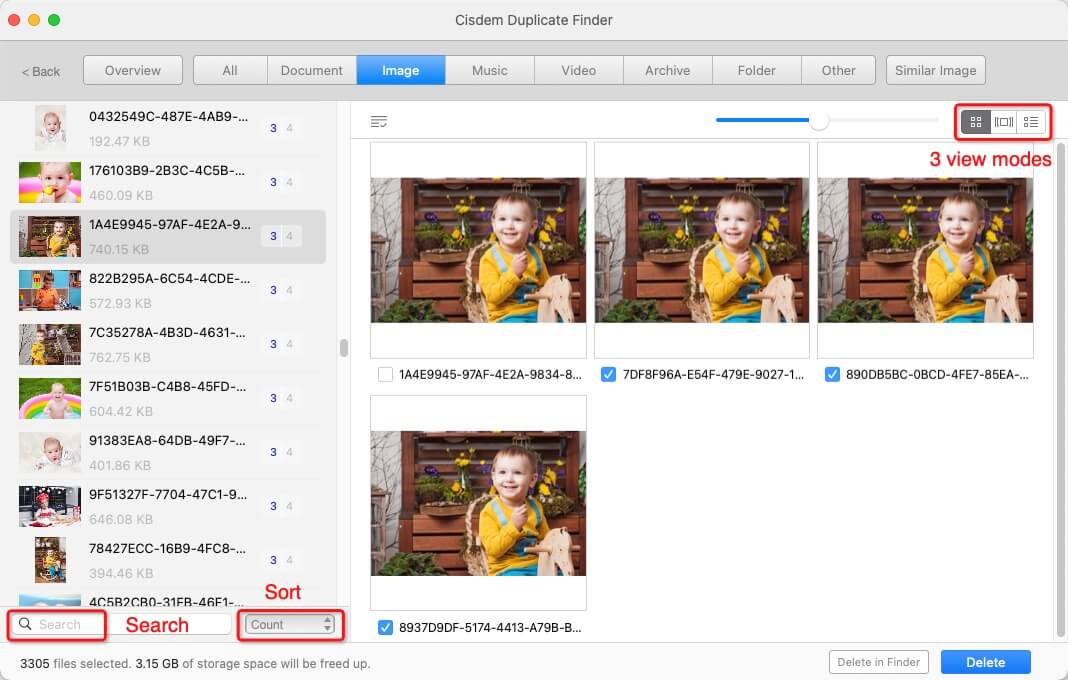
I like the default way duplicate photos are displayed, allowing me to easily preview and compare them. The app also provides two other ways to view them, showing some photo information like size.
Note from Cisdem:
In addition to three view modes, there’s a search tool to help you quickly locate files and a sort tool to organize duplicate files by name, size, or other attributes.
Step 4. Select unwanted duplicates
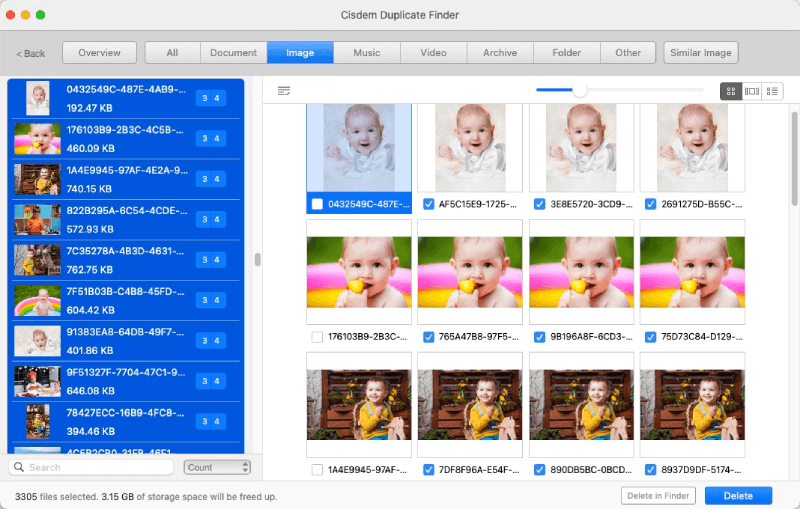
This app automatically selects all duplicates for deletion as advertised. In each duplicate group, the app makes sure that the original photo remains unaffected and automatically selects duplicates. Thanks to this feature, I don’t have to manage duplicates individually. You can review the selections in bulk by highlighting duplicate groups on the left.
Note from Cisdem:
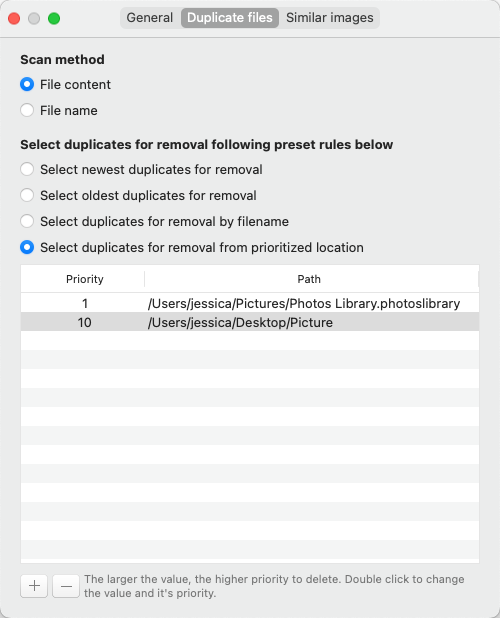
Cisdem Duplicate Finder also provides several selection rules based on time or file location. If some duplicates exist in both your Photos app and folder and you need a way to keep the photos in the Photos app and delete the copies in folder, you can use the By Priority selection rule. To set up this rule, go to Settings > Duplicate Files, add your Photos library and folder, and set priority value 10 for the folder and 1 for the Photos library.
Step 5. Remove all duplicates
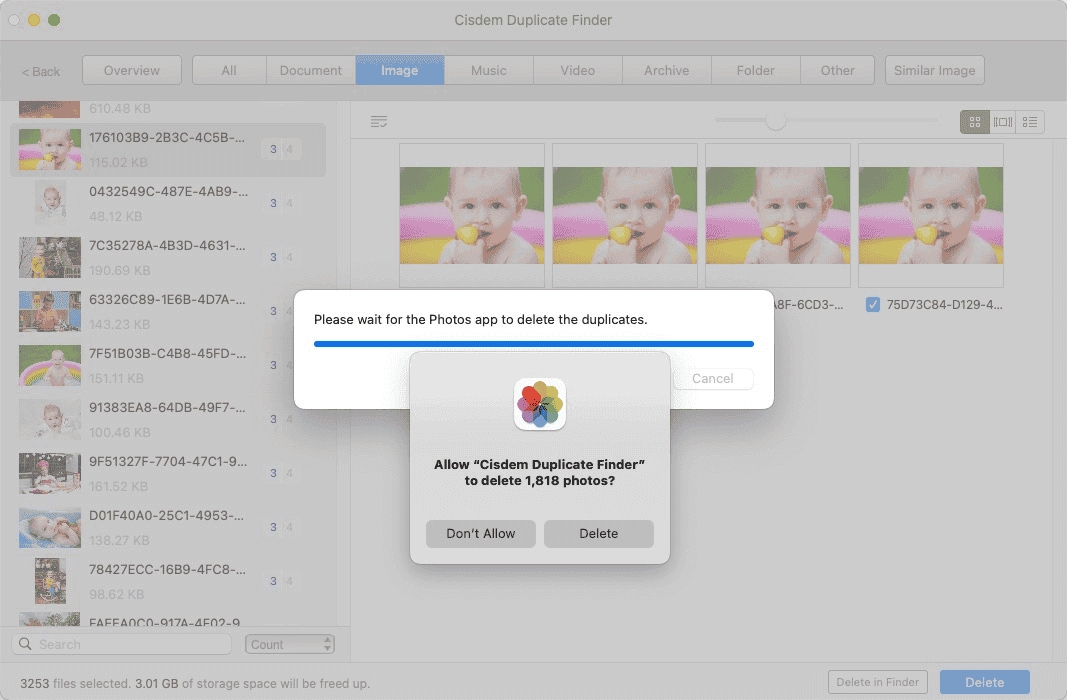
When you are certain that those duplicates you don't want to keep anymore are selected, you can remove them by clicking Delete and confirming this deletion. When it comes to deleting duplicates from the Photos app, there will be a message asking you to allow the deletion, and just allow it.
Notes from Cisdem:
Cisdem Duplicate Finder has three removal methods: Move to Trash (default), Remove Permanently, and Move to Folder. You can select one in Settings if needed. However, files deleted in the Photos library will be moved to the Recently Deleted album in the Photos app, regardless of the removal method selected.
After being sent to Trash, files still take up storage space. To reclaim space, you need to delete them from Trash.
FAQ
Yes. It scans subfolders. By the way, if you want to exclude a subfolder, you can add it to ignore in Settings.
When Cisdem Duplicate Finder applies automatic selections, it considers time and file names. You can go to Settings to set a desired selection rule for automatic selections.
If duplicate files are removed and sent to Trash, you can recover them by selecting Restore from Trash in Cisdem Duplicate Finder’s Windows menu, selecting all deleted files in the dialog that appears, and clicking Put Back. For those deleted in the Photos app, recover them from the Recently Deleted album.
Loved the article, share!

