Available for


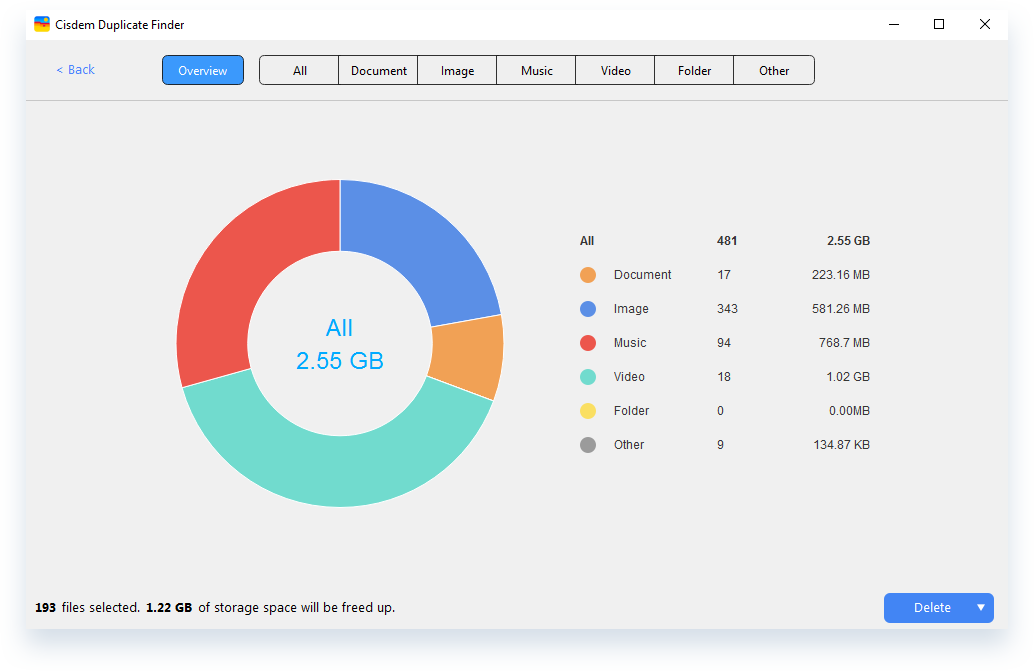
Once Cisdem Duplicate Finder finishes scanning for duplicate files, it provides a pie chart showing the total number of duplicates found and how much storage space they occupy. It also breaks down the results by file type, giving you a clear picture of what duplicates clutter your storage.
Note: Duplicate images in less known formats, like certain RAW formats, may appear under the Other tab.
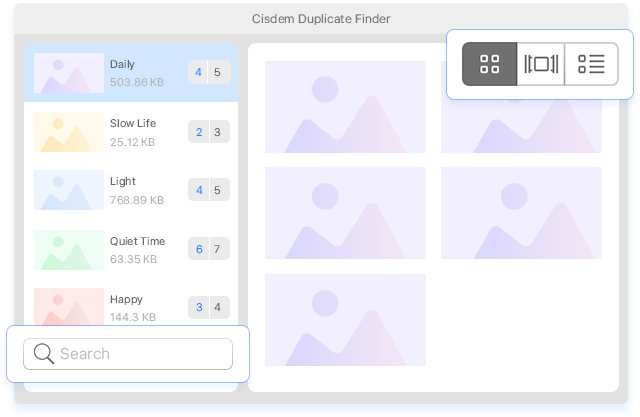
This duplicate file finder displays all scan results under the All tab. You can also view duplicates by file type by going to the corresponding tab (e.g., Image). The app provides three modes to help you effortlessly examine duplicate files.
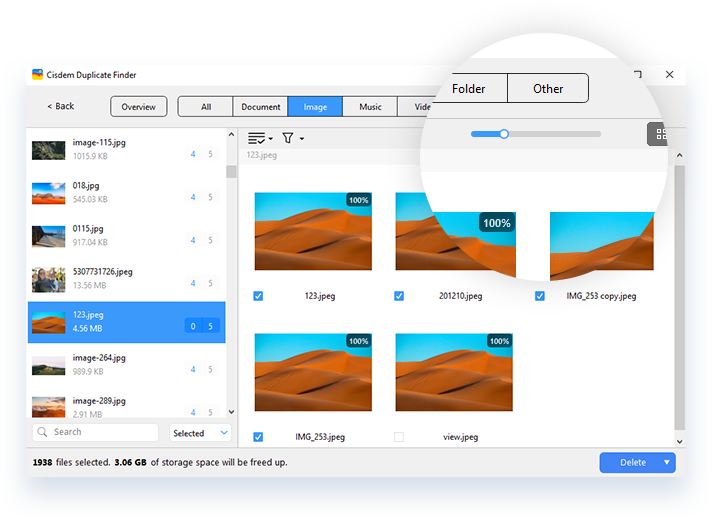
This mode allows you to easily preview each group of duplicate images side by side. You can zoom in or out for better viewing. You can also maximize the results window for convenience.
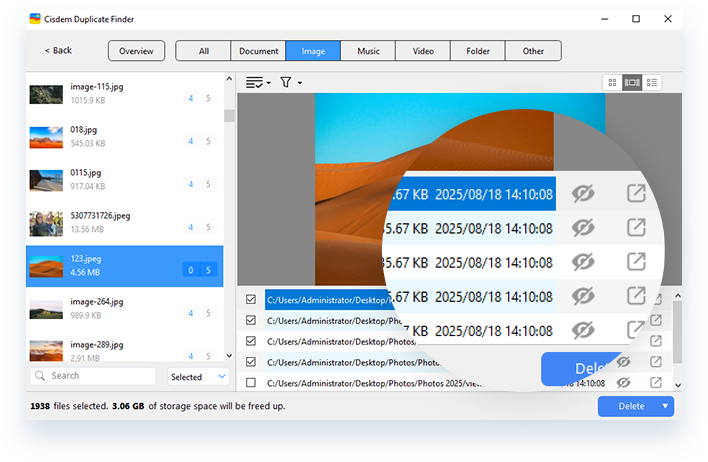
This mode displays file info, such as path, size, and date modified, along with image previews. It lets you hide specific files or open a file in File Explorer or Finder. Mac users can preview docs, music, and videos as well.
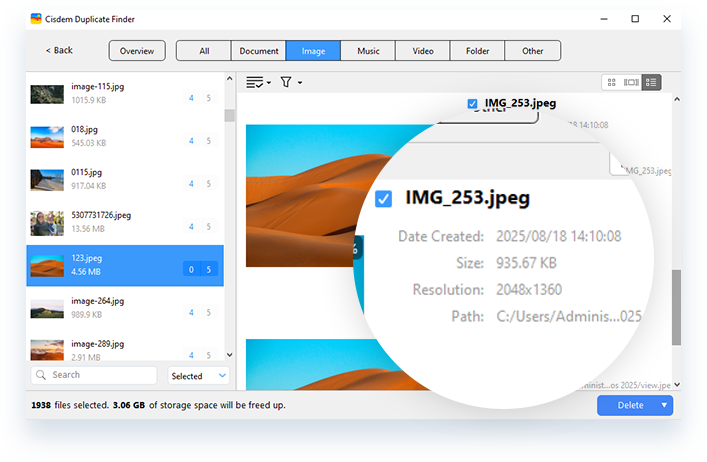
This mode is particularly useful for viewing identical and similar photos. It provides larger image previews along with file information like dimensions and sizes.
Cisdem Duplicate Finder offers three tools to help you organize scan results efficiently.
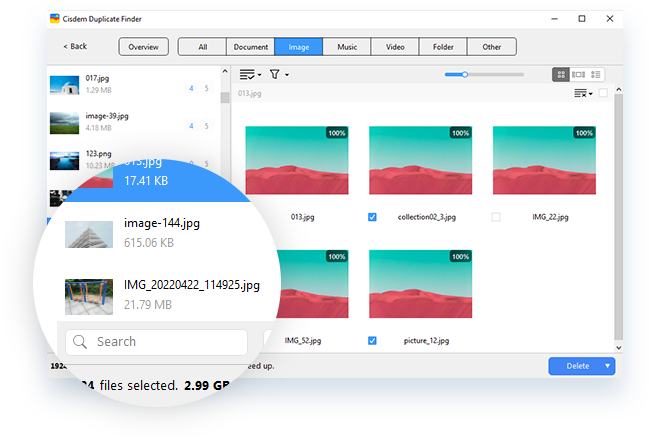
With the search box in the bottom left corner of the results window, you can quickly locate the files you are looking for by name (e.g., "cat").
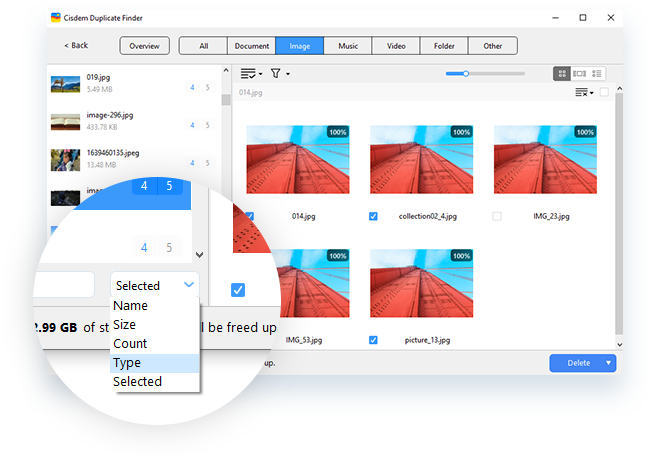
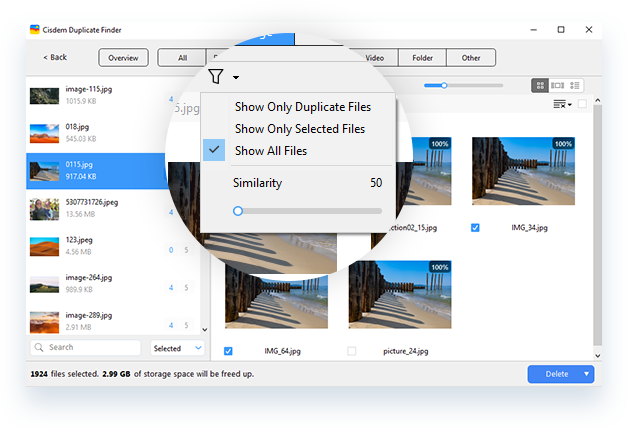
You can easily sort duplicates by name, size, or other attributes. Just click the dropdown menu next to the search box and choose a desired sorting order.
Available for Windows only, this tool lets you control what appears in the preview pane on the right when you highlight one or multiple groups on the left. It gives you four filtering options.