Available for



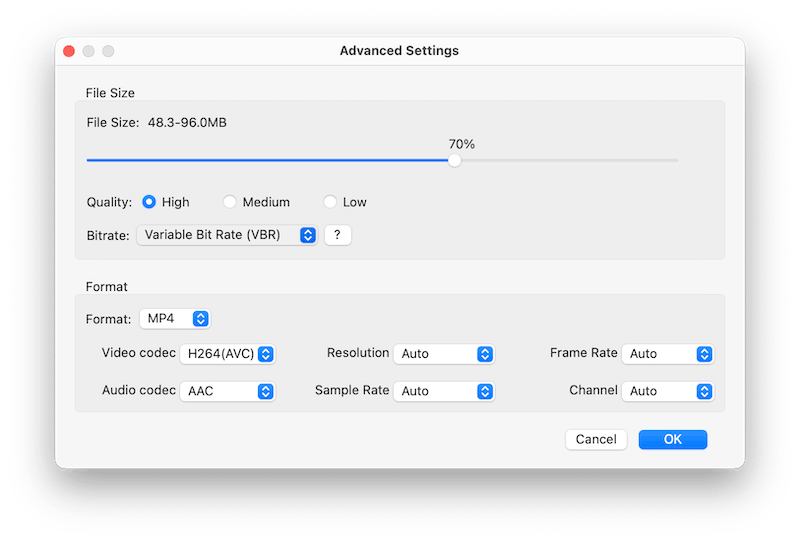
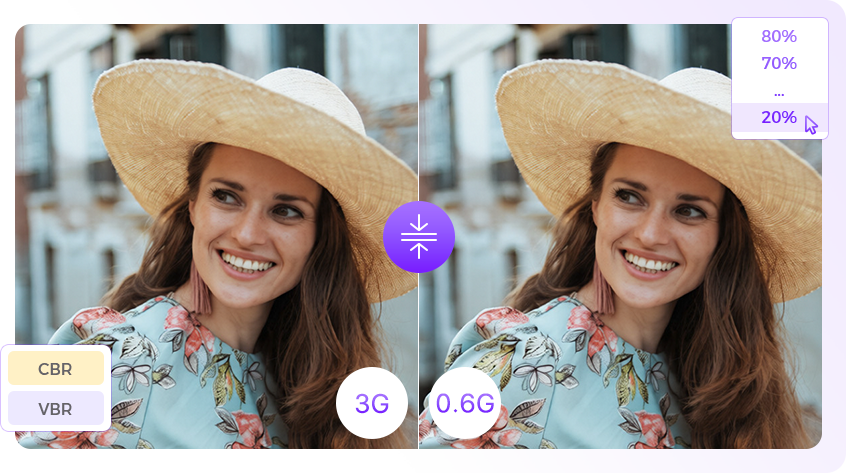
Compression made effective and simple with Cisdem VideoPaw. To resize video over GB while maintaining exceptional quality, the most recommended method is to set custom percentage for compression (a lower percentage means more compression) + VBR bitrate + High quality.

Preset & Custom Compression
Directly choose from fixed percentage presets or adjust with slider for exact control.

CBR & VBR Bitrate
Choose VBR for smarter compression that optimizes quality, or CBR for fixed file size.

Quality Level
Choose your quality: High, Medium, or Low. Its impact on compression size is minimal.
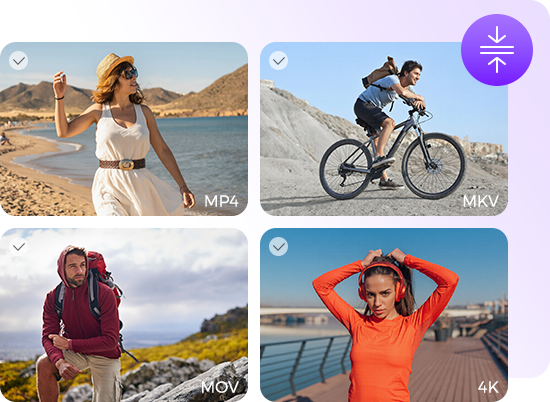
Efficiently handle media files of any format and quality - That's where Cisdem VideoPaw excels.
 Bulk Compression
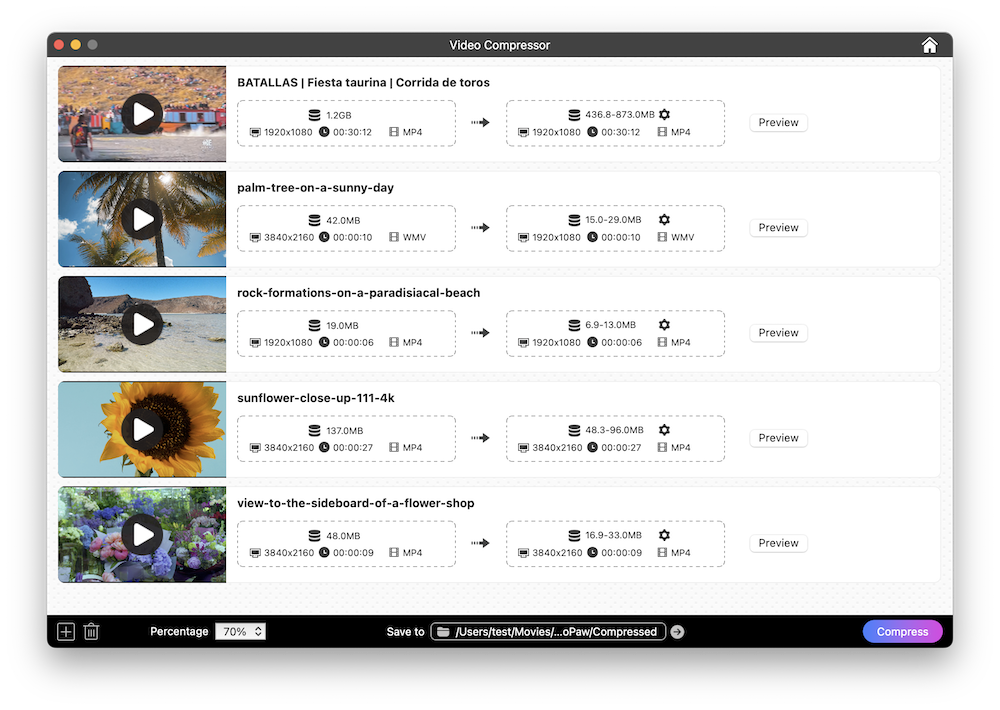
Simultaneously compress different media files, or compress multiple identical files into different sizes. Even with batch processing, the compression speed is extremely fast. You can easily control compression, pausing and resuming at any time.
Multi-Format Compression
Effortlessly upload video and audio files in any format. Display details like original file size, resolution, duration, format, and an editable title. With the integrated media player, you can view your files before compression.
4K Compression
Compress 4K, 1440p, 1080p, or any resolution. Keep the original dimension or downscale it if needed. Get smaller files without compromising on visual quality of your video.
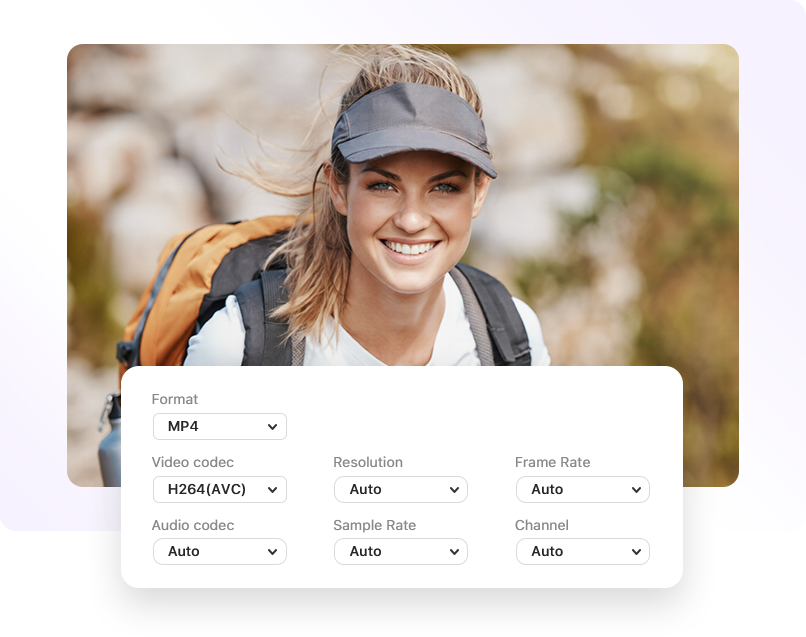
Support a total of 9 video output formats and 2 audio output formats, including MP4, AVI, MKV, WMV, WEBM, MP3, and more. keep the default or auto parameters, or adjust them manually. If you re-encode a video with with H265/AV1 or lower its resolution/frame rate/sample rate/channel, it will also help reduce the video size a bit.
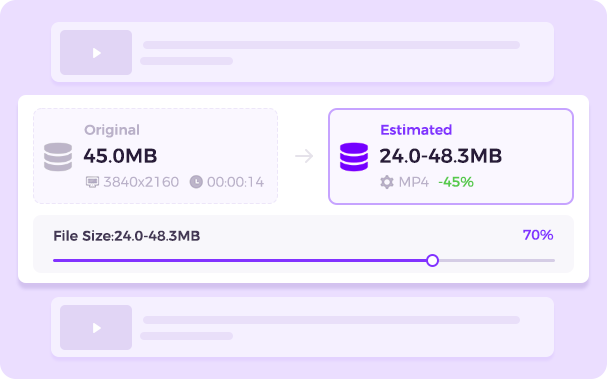
Compression needs to wait for a while, especially when the video is particularly large. Cisdem VideoPaw can tell you the resulting size and quality in advance. No more worrying about wasting time due to poor compression.
Size Estimation
Get instant file size estimates while adjusting compression settings. See how percentage change affects your final file size in real-time. Show you an estimated range for VBR encoding and a fixed estimate for CBR encoding.
Quality Preview
Preview the first 20 seconds of video and audio. Ensure they remain visually and audibly consistent without significant changes.

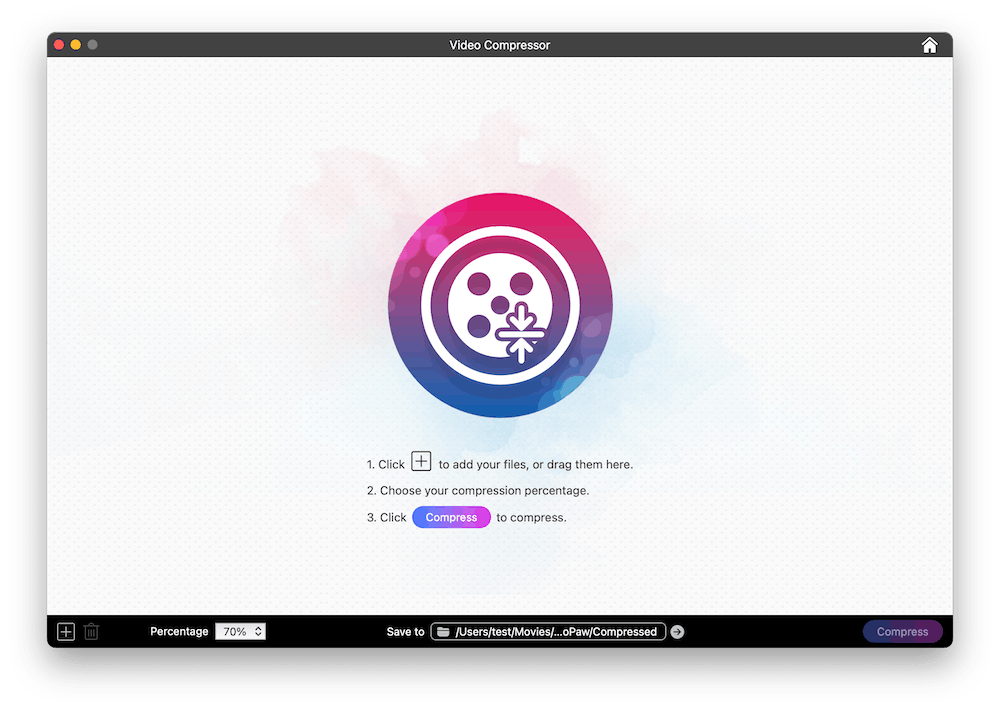
Go to Video Compress module and then upload video files it.

Set compression options, format, and its parameters.

Preview the output file, if satisfied, start compressing all your videos.

Convert, download, record, compress, enhance, edit video and rip DVD/Blu-ray.