


 Cisdem VideoPaw





 VideoPaw
Best App to Download Lecture Videos from YouTube


I saved all the required lecture videos from YouTube at once using Cisdem VideoPaw. I'm not tied to a good Wi-Fi signal anymore. Whether in cafes or during breaks between classes, I can make use of my time to review the lectures offline. - Willie | A college student
Willie, a Music and Theater Arts major, was reviewing his Computational Music Theory and Analysis class. The lectures were on the school's YouTube channel. He wanted to download all 47 videos to his laptop so he could reliably watch them without internet.
The challenge
Willie tried several online video downloaders, but the results were always disappointing. Most tools could only download 720p videos, while the professor's lecture videos were 1080p or higher quality. Some online sites even had sketchy ads or security risks, which made him hesitate to use them.
Willie also tried some free programs, but hey were either beginner-friendly or broke since they hadn’t been updated in ages.
The biggest challenge was that Willie wanted to download all 47 videos quickly at once, rather than processing them one by one, which would take a long time. Ultimately, it proved hard to do this for free.
The solution
Willie eventually turned to paid software - Cisdem VideoPaw. He didn’t buy it until he got a confirmation from support that it could handle 47 videos simultaneously.
Willie was really impressed with the software. He could quickly download YouTube videos to popular video or audio files. So he worked with Cisdem to create simple steps for downloading YouTube lectures. Below are his guide, with helpful tips and notes added by the Cisdem editor.
Steps to download YouTube lecture videos without losing quality
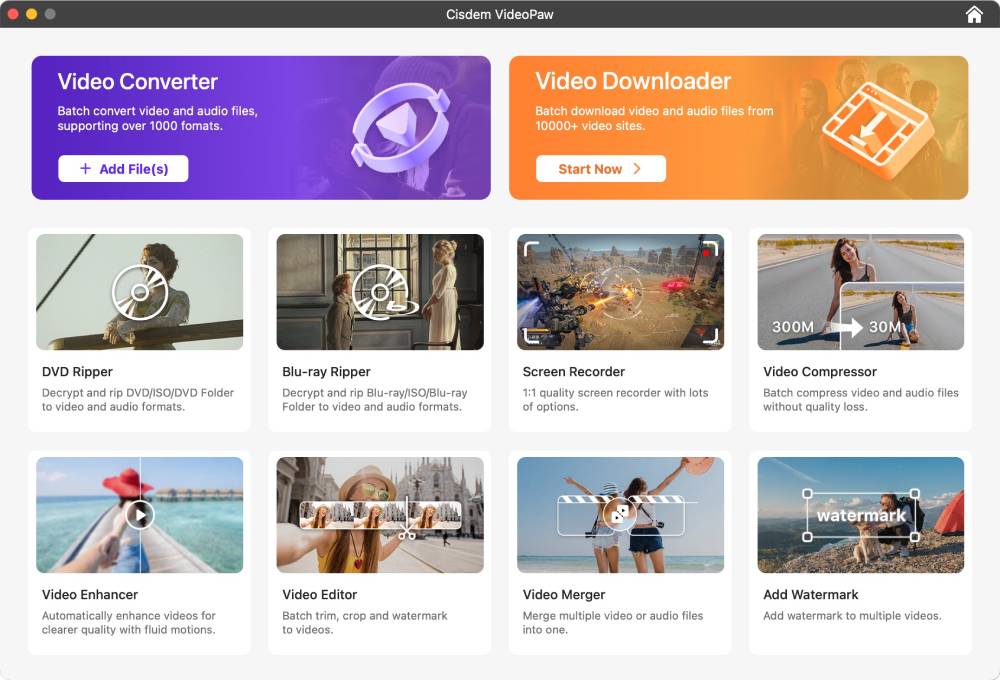
Step 1. Go to the “Video Downloader” module
I installed Cisdem VideoPaw on my computer. After opening it, I saw the main interface with all tools neatly arranged. I clicked and entered the Video Downloader module.
Step 2. Copy YouTube video link
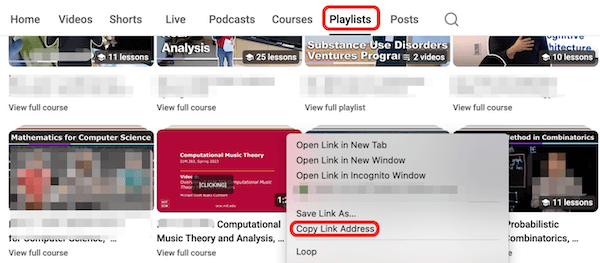
I visited my university's YouTube channel and found the Computational Music Theory and Analysis lecture series in the "Playlists" section. I right-clicked the video thumbnail and copied the playlist link.
Step 3. Parse the copied link
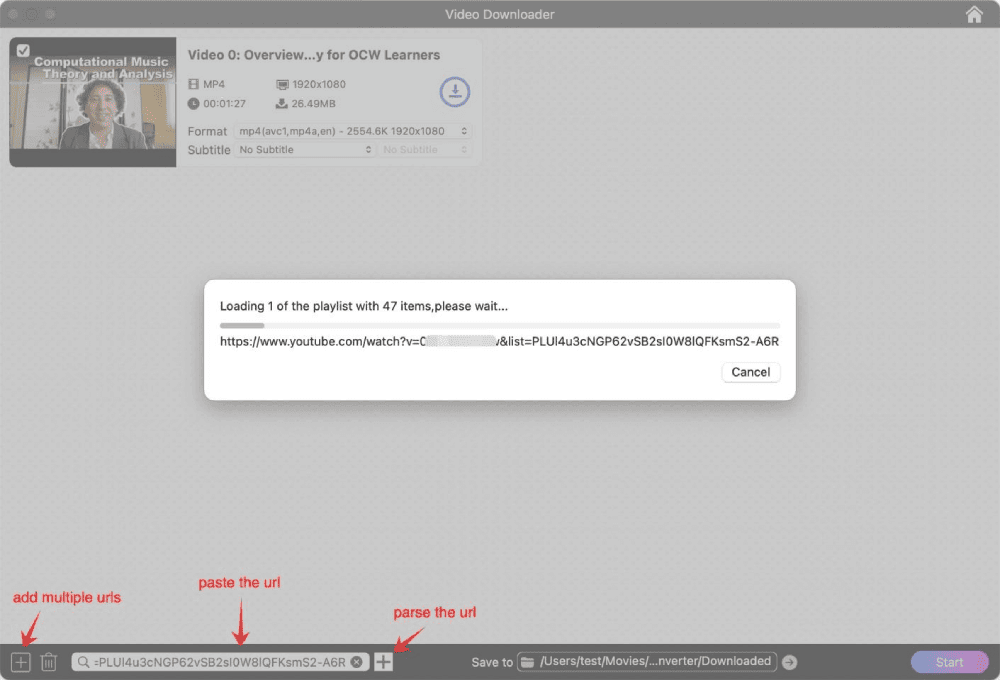
I pasted the link into the text box at the bottom of the Video Downloader interface and pressed Enter to start parsing the link. It then showed me the parsing progress: "Loading x of the playlist with 47 items".
Once the parsing is complete, all videos in the playlist will appear on the interface and wait for download.
Tip from Cisdem:
- In addition to playlists, Cisdem VideoPaw also lets you parse all search results, your "Liked videos" list, the whole YouTube channel, and more with one link.
- To parse just one video from a playlist, use that video's direct link. Open the video, click "Share" below the video, then copy its link.
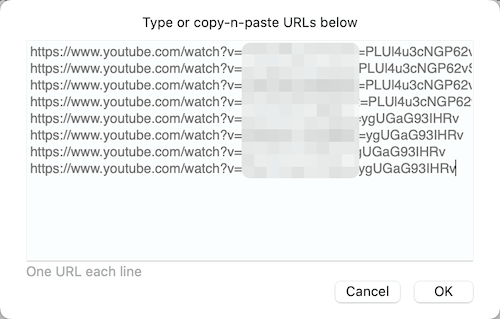
- You can also batch parse multiple YouTube links. Click the "+" on the bottom left, paste all your links, and get them all queued up in one go.
Step 4. Choose format for your videos
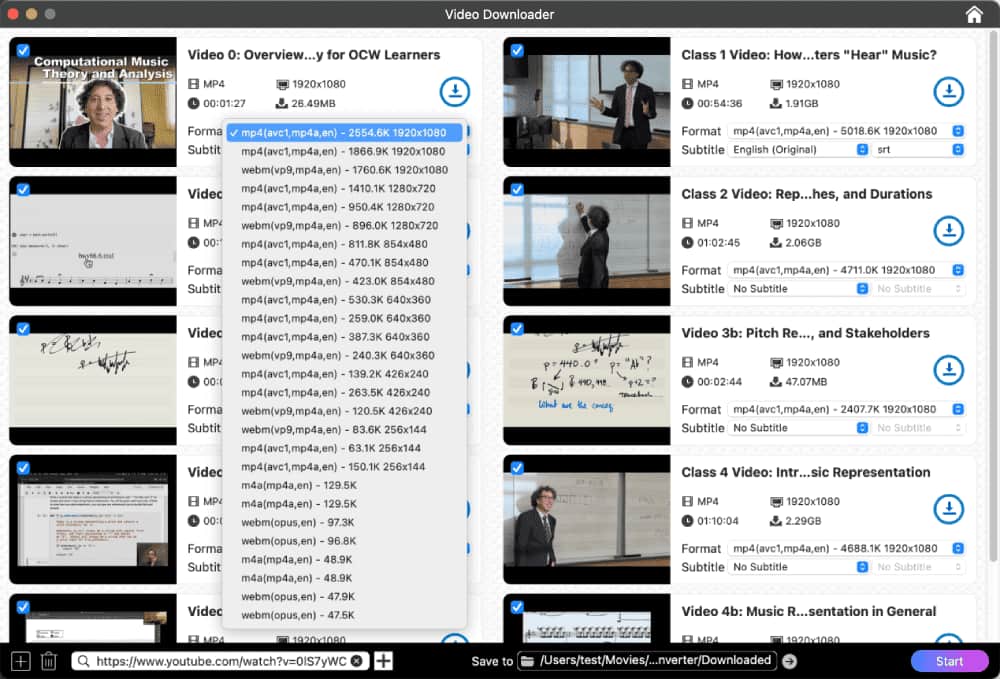
Cisdem VideoPaw parses all video and audio tracks from a YouTube video. In the Format list, select output options by format, encoder, bitrate, and resolution.
I kept default options to save videos in highest quality. If you only want the audio files, scroll down and select the M4A or OPUS format.
I also selected the "English (Original)" subtitle option and the SRT subtitle format for best compatibility. If you don’t want to save the subtitles, just don’t select the subtitle option.
Tip from Cisdem:
- Videos with AVC1 encoding are widely compatible. VP9 and AV1 may not work on some older devices or players. You can use VLC to play them.
- The app picks up both automatic and uploaded subtitles from YouTube. They're saved in the same folder as the video. If you want the subtitles permanently burned in, head to VideoPaw's "Video Converter" window and embed SRT files in the edit interface.
- If there are lecture videos in the playlist you’d like to skip, uncheck the box on their thumbnails, or right-click and select "Delete".
Step 5. Download YouTube videos
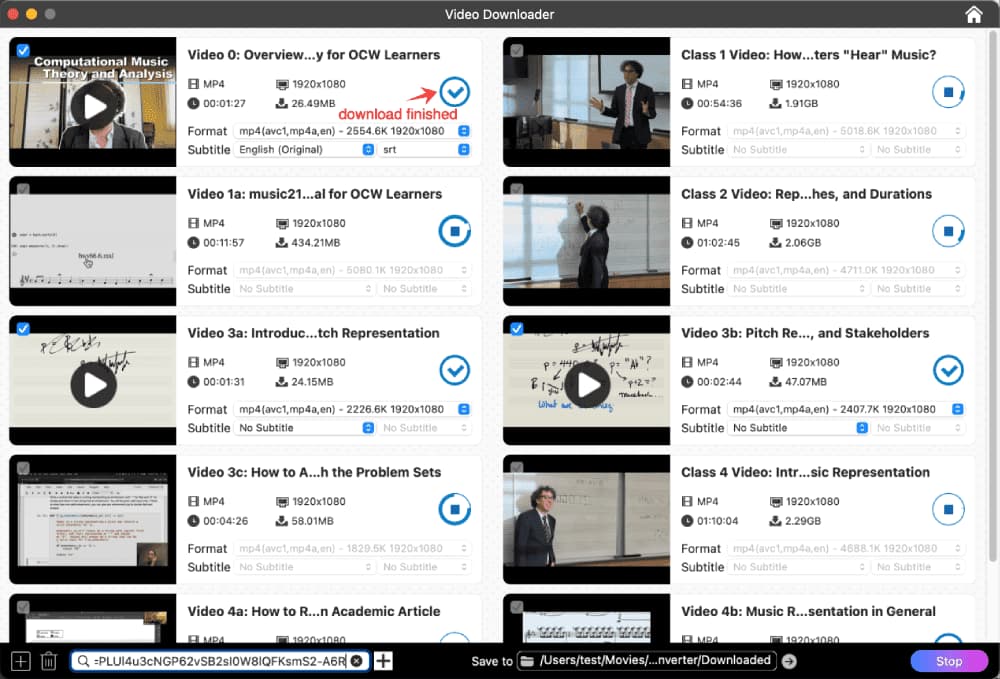
Choose the destination folder for the videos and click the "Start" button next to it. The app will then download the professor's lecture videos simultaneously. All 47 videos saved quickly. I played the videos, and the quality is excellent.
Disclaimer:
The above tutorials are for educational and reference purposes only. Ensure that the YouTube videos you intend to download are completely free and accessible to all students. Plus, downloaded videos are restricted to personal use only. Don’t infringe copyright, nor distribute them for profit.
FAQ
The original YouTube video does not include an MP3 audio track. To maintain the original audio quality, choose M4A or OPUS in highest bitrate. If you prioritize audio compatibility, you can add the downloaded audio to VideoPaw's module to convert YouTube audio to MP3 format.
Cisdem VideoPaw can download videos from YouTube with a specific quality, including 1080p and 4K, but the lecture videos have to be in 1080p or above to start with. You can click the 'Settings' button in the video to view the supported resolutions.
Yes. Click the 'Share' button below the video to get the link for single video download. Don't use the link in your browser's address bar, nor right-click the video and select 'Copy video URL', as these methods will still parse all videos in the playlist, which is time-consuming.
Loved the article, share!

