


 Cisdem VideoPaw





 VideoPaw
Best MP4 to MP3 Converter


I was so excited after recording my first podcast until I saw that the file was in MP4 format. Total rookie mistake. I was almost stuck, but Cisdem VideoPaw saved me. It can effortlessly extract audio from video with no loss in audio quality. - Shannon | New podcaster
Shanno is a fledgling podcast creator, currently producing her first podcast, My Travel Diaries. A travel enthusiast, she had no prior experience in podcast production or audio/video conversion.
The challenge
Shannon took the first podcast very seriously and even invited a close friend who shares her travel enthusiast as a guest.
When the recording officially began, Shannon turned off her camera on Zoom. She assumed it would automatically save as an audio-only file. However, because she had never changed the default recording settings, Zoom saved an MP4 file with a black screen and only audio.
With Apple Podcasts and Spotify requiring audio, she can't post her podcast on major platforms. A re-record was not a good option, as the episode was about 40 minutes and their schedules wouldn't allow it.
The solution
Shannon realized the problem was with the file format, not the content. So, she searched for a professional converter to extract audio from MP4. She chose Cisdem VideoPaw, and it helped her convert podcast from MP4 to MP3 in just a few seconds.
Considering that others might have the same experience, Shannon shared her steps for extracting audio. Not just for converting to MP3, it works for any other audio format too. Let's see how Shannon did it.
How to convert MP4 file to MP3 for podcast uploads
Step 1. Install and launch the app
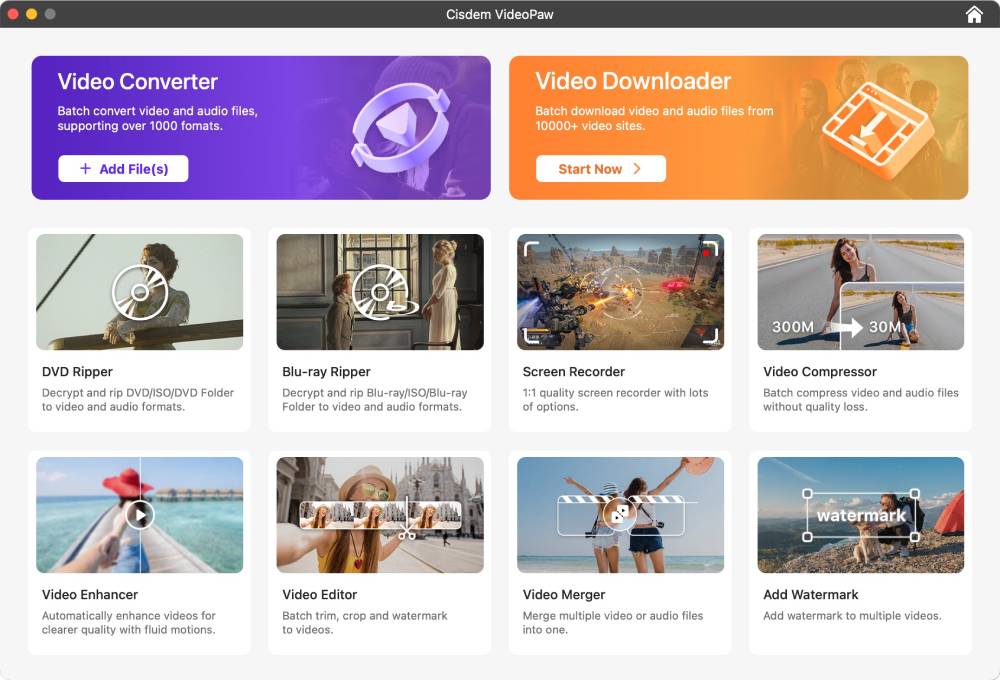
Once I opened Cisdem VideoPaw, I were greeted with a variety of features. Since the all-in-one toolkit was so useful, I pinned it to the taskbar for easy access later. Then, I went to the Video Converter module.
Step 2. Add MP4 files
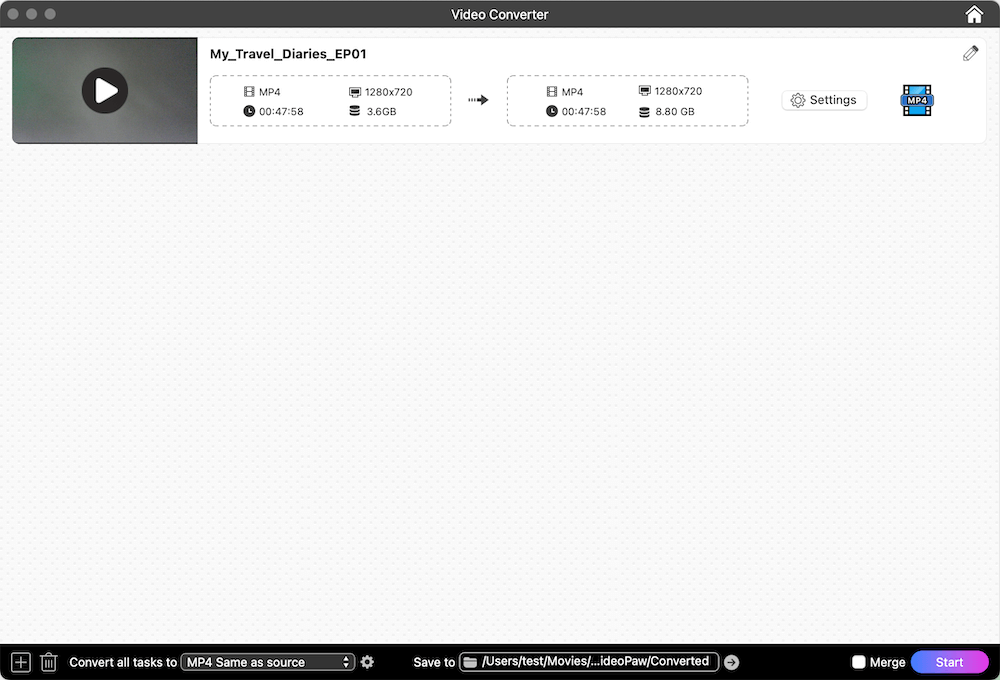
Click the “+” in the lower-left corner or drag and drop to add the video. I found the recorded MP4 video in the Zoom folder and dragged it directly into the software.
Tip from Cisdem:
- Cisdem VideoPaw supports batch processing of multiple files. In this use case, Shannon was only converting one podcast file.
- The app has a built-in media player. You can view the added videos by clicking the play button in the file thumbnail.
- To remove a file, right-click it and select "Delete". Or select the file and hit the trash can icon in the bottom-left interface.
- Click the title to edit and the converted audio will be saved with that name.
- If you need to combine multiple podcast audio files into a single complete episode, you can check the “Merge” box at the bottom.
Step 3. Choose MP3 as the target format
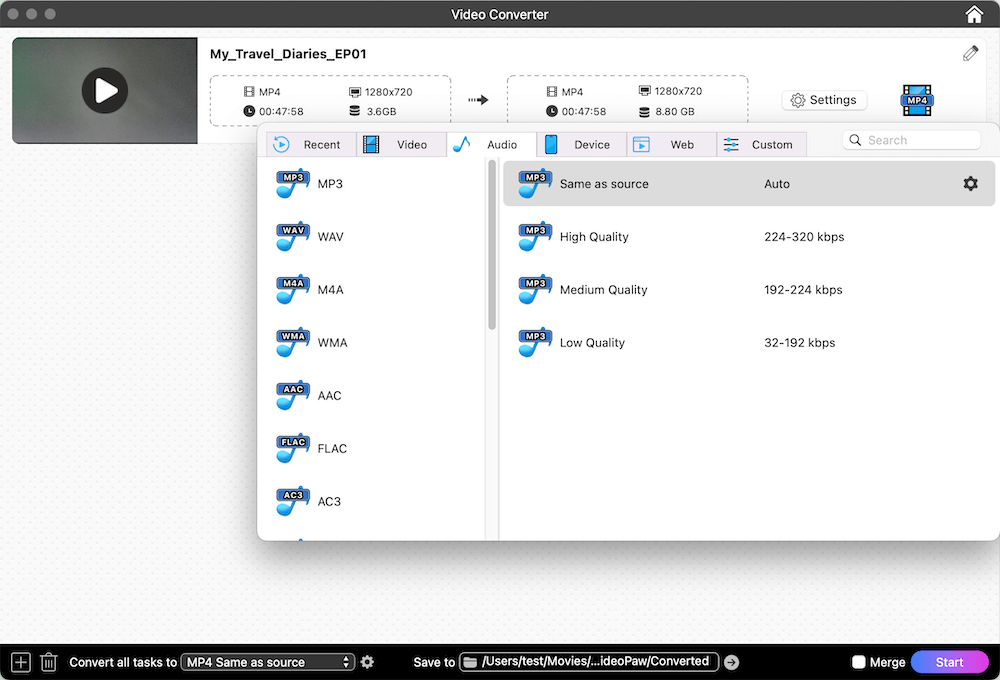
Click on the format icon or the button next to “Convert all tasks to” to pull down the format menu. I chose “MP3 and Same as source” option under the “Audio” tab.
Tip from Cisdem:
- Open the "Settings" window to adjust the file parameters. The app has already intelligently configured them for you. All "Auto" or "Same as source" options are the best choices. Unless certain platforms have requirements for video codecs, resolution, etc., it’s not recommended that you manually change the parameters.
- If you customize the settings, you click "Save as New Preset" and give it a name. Find it later in the "Custom" tab for one-click conversion.
Step 4. Convert MP4 file to MP3
Click on the path next to "Save to" to set your own. I selected "Downloads" as my output path. Once everything is ready, hit “Start”. It takes just a few seconds to convert MP4 file to MP3.
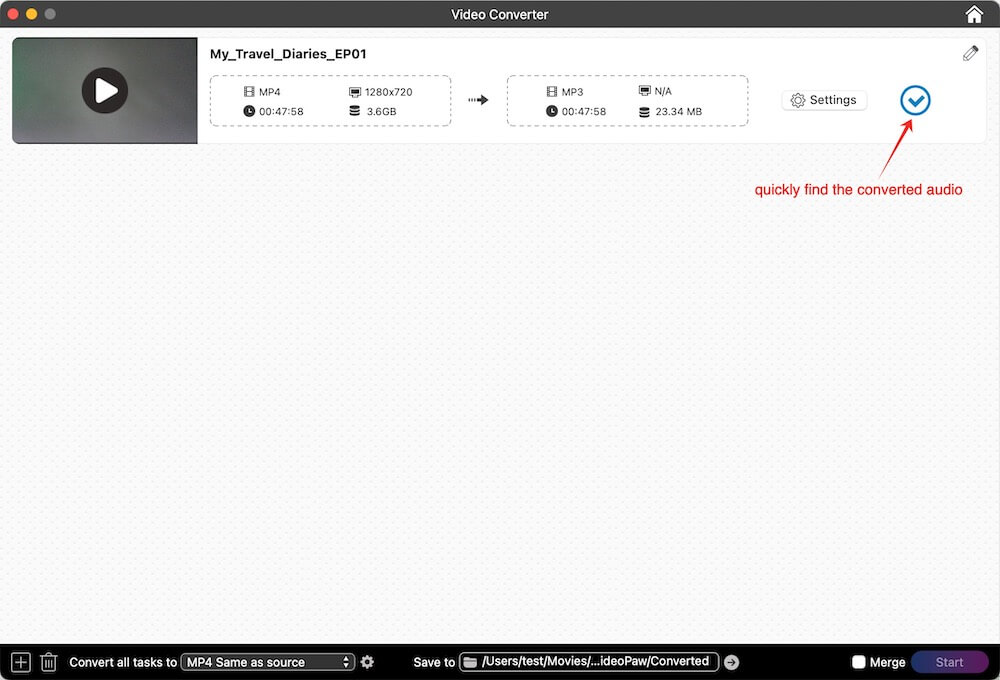
You can quickly navigate to the converted files by clicking the right arrow to the right of the path or the blue checkmark. I listened to the converted audio, and the sound quality was great. I successfully uploaded it to multiple podcast platforms.
Tip from Cisdem:
Cisdem VideoPaw supports eight basic video editing tools, and three of them can be applied to audio.
- Trim: Cut out any silence or extra sound at the start or end.
- Chapter: If you are creating an audiobook, you can split the audio into multiple chapters and save them in M4B format.
- Volume: Adjust the levels and apply fades to the podcast audio for a smoother flow.
FAQ
Yes. The software can also convert video to 16 audio formats, including M4A, WAV, and AAC. For podcast uploads, MP3 remains the most compatible and reliable format of choice. Always verify your platform's supported formats if choosing an alternative.
Technically impossible. MP4 and MP3 hold distinct internal data structures. Renaming doesn't change file’s actual content. Podcast platforms look at the data inside, not just the file name, and will still see a video.
You can do it this way. Be sure to set the output as audio format, and then use Zoom to record M4A files. However, don’t record copyrighted music or unauthorized content. Uploading such audio to podcast platforms may result in its removal or even account suspension.
Loved the article, share!

