Available for


Capture every dimension. Record what you show, who you are, and what you say.
Cisdem VideoPaw captures screen in 60fps with tack-sharp detail and perfect color. Its advanced hardware acceleration means no lag, ever.
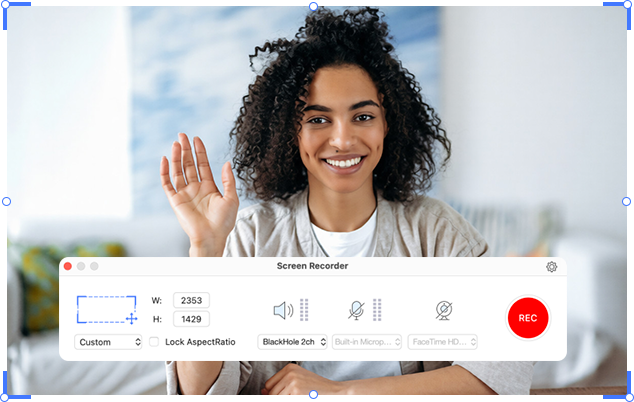
 Record full screen at the highest
Record any custom region with optional aspect ratio
lock to maintain proportions
Record specific window including browser and app
Use the preset resolution to meet platform publishing
requirements
Record full screen at the highest
Record any custom region with optional aspect ratio
lock to maintain proportions
Record specific window including browser and app
Use the preset resolution to meet platform publishing
requirements
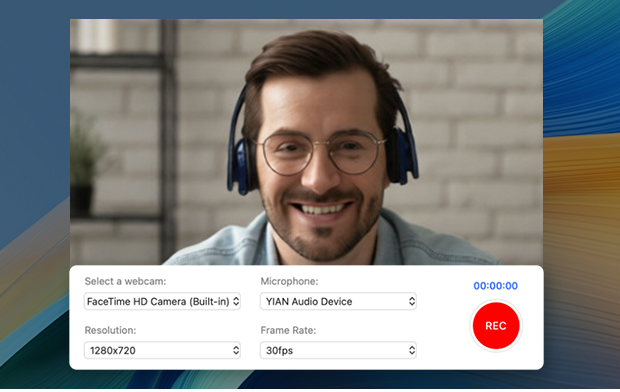
Straightforward recording. Just you and the camera, capturing clean, well-lit footage every time.
Record with built-in camera and microphone
Offer 1080p and 4K resolution recording
Record with consistent frame rate
Connect your camera instantly without complicated
setup
Add a webcam overlay to the screen to enhance interactivity and authenticity
Drag the webcam to any corner without obscuring key
content on the screen
Capture audio and video streams between both sources
Create the feeling that you're watching the screen
together
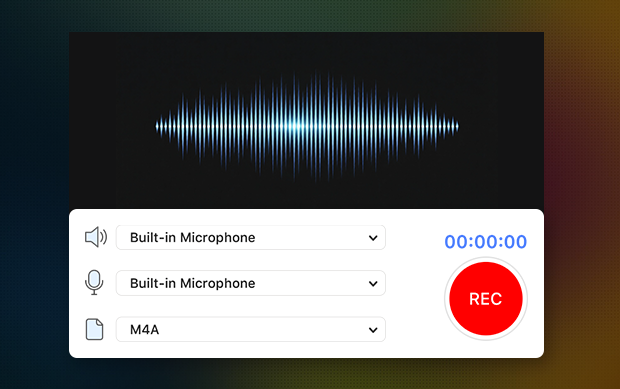
Simplify your recording process and achieve crisp and immersive audio-only capture without video processing.
Record system audio, microphone, or both
Export audio recording as MP3, M4A, WAV
Save storage and system resources compared to screen
recording
Cisdem VideoPaw allows any window selection, helping you control and target exactly what you want to share. So your key scenarios are covered.
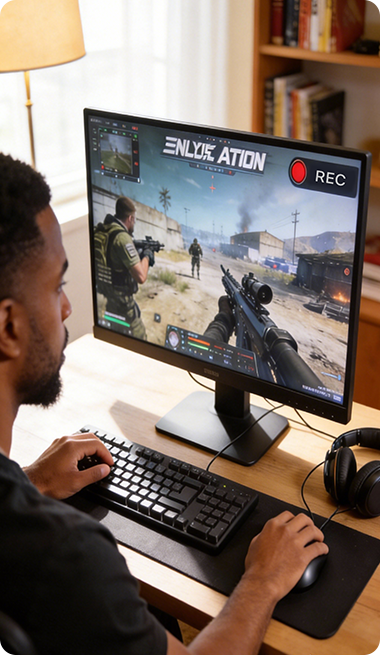
Capture game highlights or walkthroughs for platforms like Twitch and YouTube. Record high-quality screen video with your reactions.

Capture important videos for work such as presentations, demos, webinars, Zoom meetings, and training sessions.
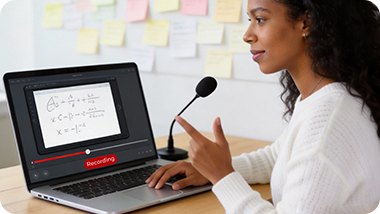
Record online courses and lectures for review. Catch up on missed classes through scheduled recordings.
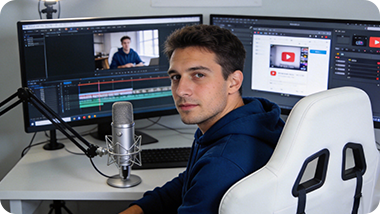
Record online videos from video sharing platforms like YouTube, Facebook, and X, including live streams such as press conferences, live concerts, live sports events, influencer live streams, etc.
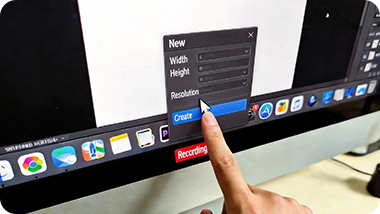
Record step-by-step software tutorials and bug reports to help users understand the software and solve issues they encounter.
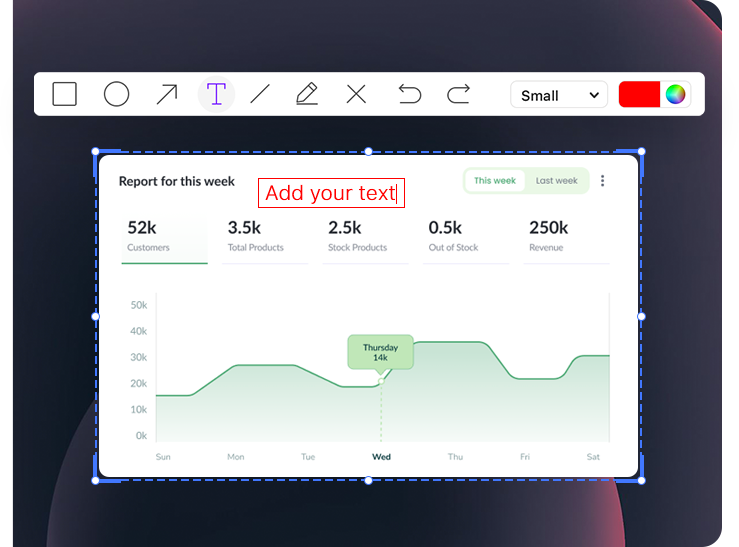
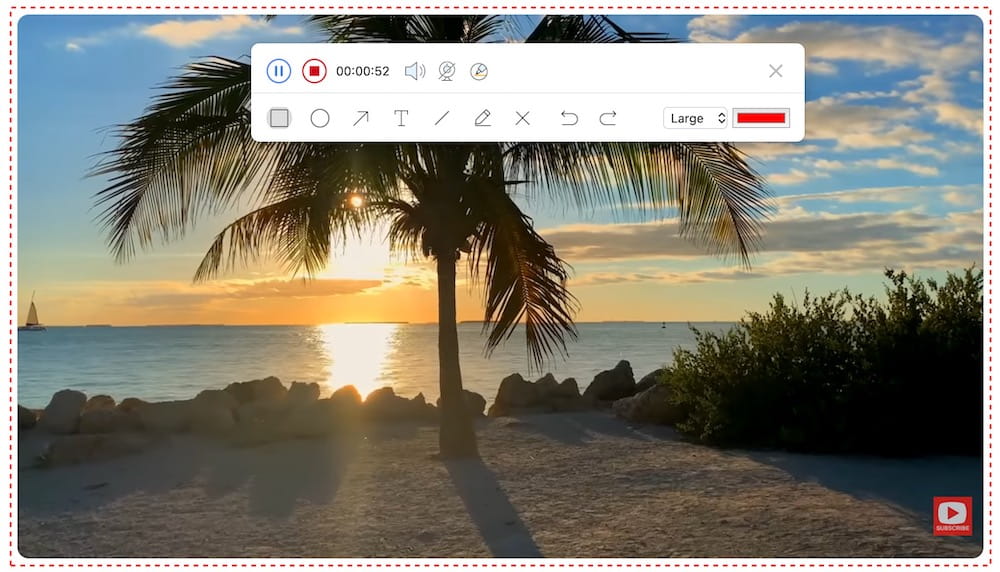
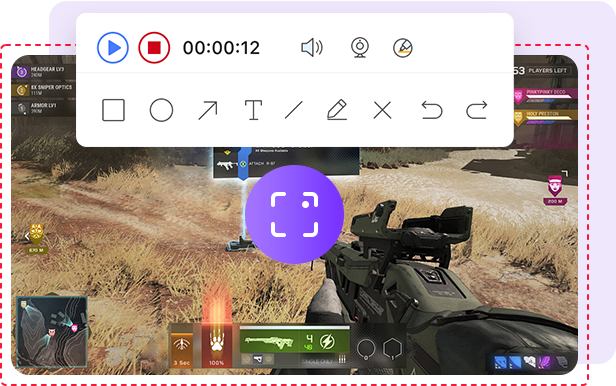
Not just show, also explain. Cisdem VideoPaw lets you draw or add annotations during recording. Make it more engaging and easier to follow.
 Add rectangle, circle, arrow, and line
Insert text annotations
Use the pen tool to freely draw or write anything
Undo or redo the previous action, or clear all at
once
Adjust the size and color of all annotations
Add rectangle, circle, arrow, and line
Insert text annotations
Use the pen tool to freely draw or write anything
Undo or redo the previous action, or clear all at
once
Adjust the size and color of all annotations
With thoughtful configuration, you can achieve outstanding recordings.

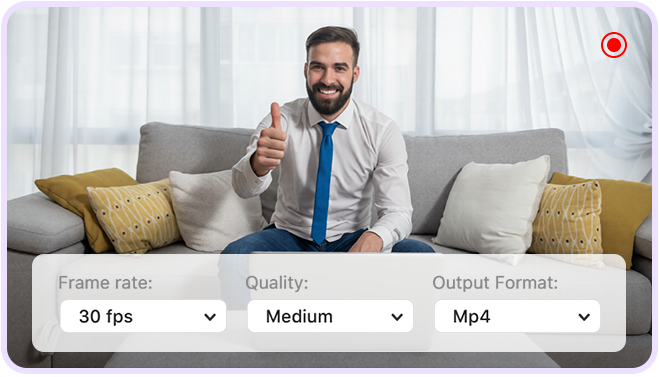
Can choose the recording frame rate, quality, output format, whether to skip the countdown, and whether to display the mouse cursor. Everything is up to you.
Adjustable frame rates (e.g. 30fps, 60fps)
Multiple quality options (High, Medium, Low)
Multi-format export (MP4, AVI, FLV)

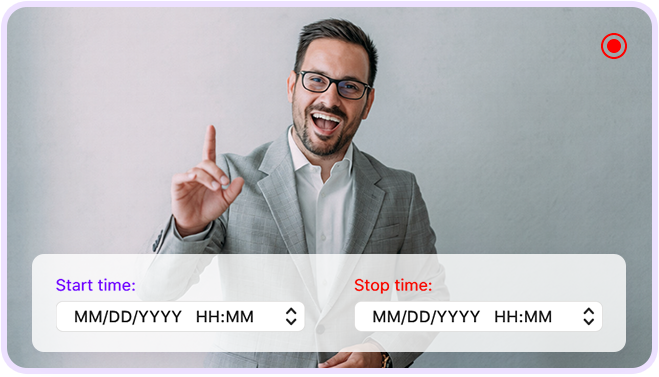
Set fixed duration limits to prevent oversized files. Or schedule recordings in advance -they'll start and stop automatically to perfectly align with your schedule.

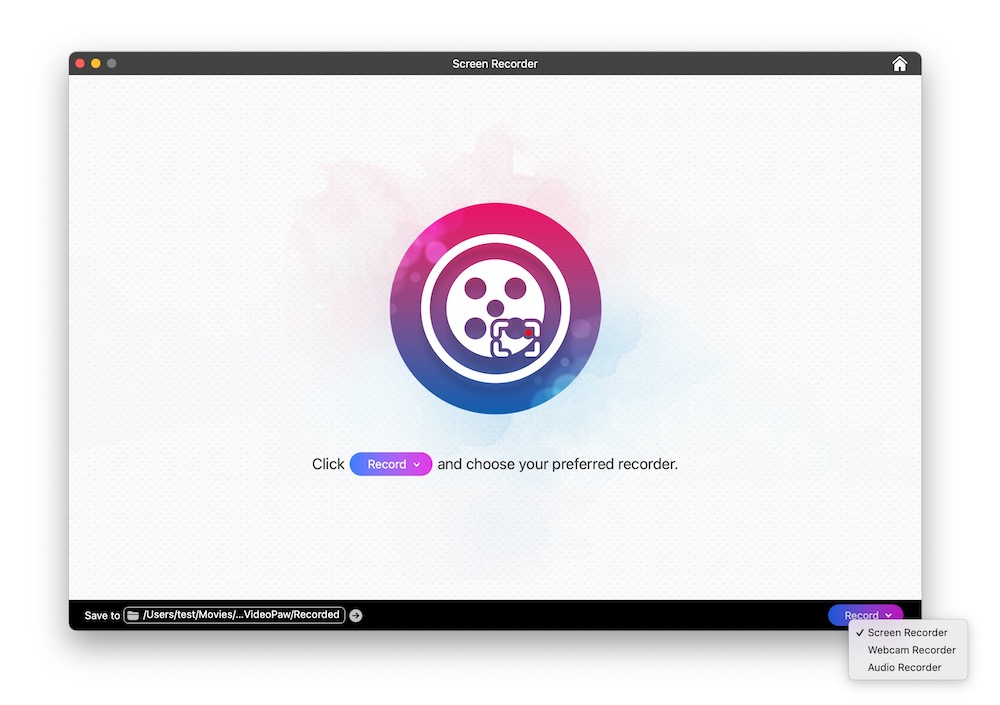
Head to Screen Recorder interface. Click "Record" in the bottom right corner, then select screen, webcam, or audio recording.

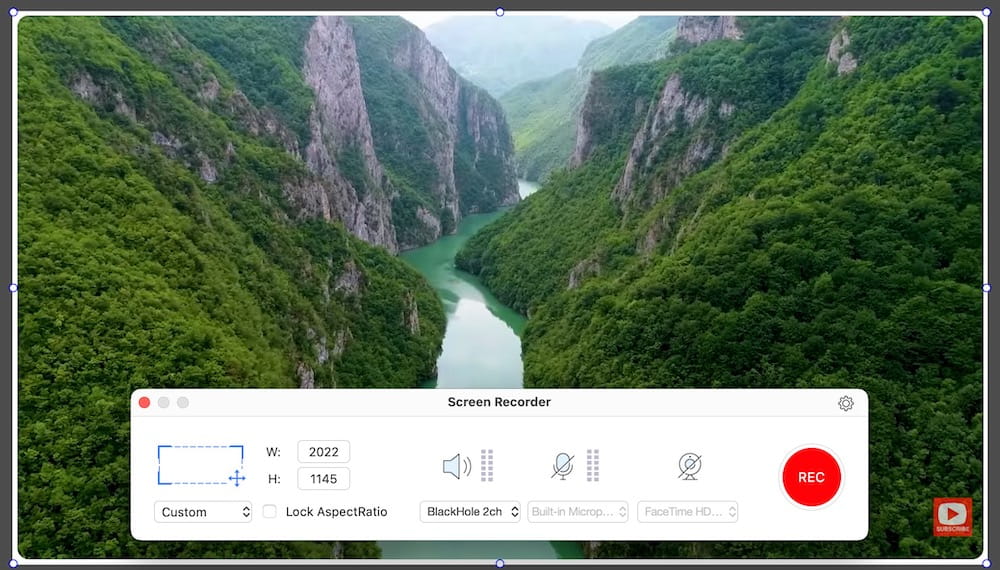
If you choose “Screen Recorder”, set the recording area, and enable webcam and mic access if needed.

Click the red “REC” button to start, add annotations while recording, and stop it when you’re done.
Convert, download, record, compress, enhance, edit video and rip DVD/Blu-ray.