Available for



With automatic duplicate file detection, easy view of detected duplicates, and automatic selection of duplicates for removal, this tool can help you easily clean up unwanted duplicates in bulk.

The tool can scan for duplicate photos, videos, audio, documents, archives, and other files on the external drive connected to your Windows or Mac computer. It also intelligently detects similar photos using on-device AI.
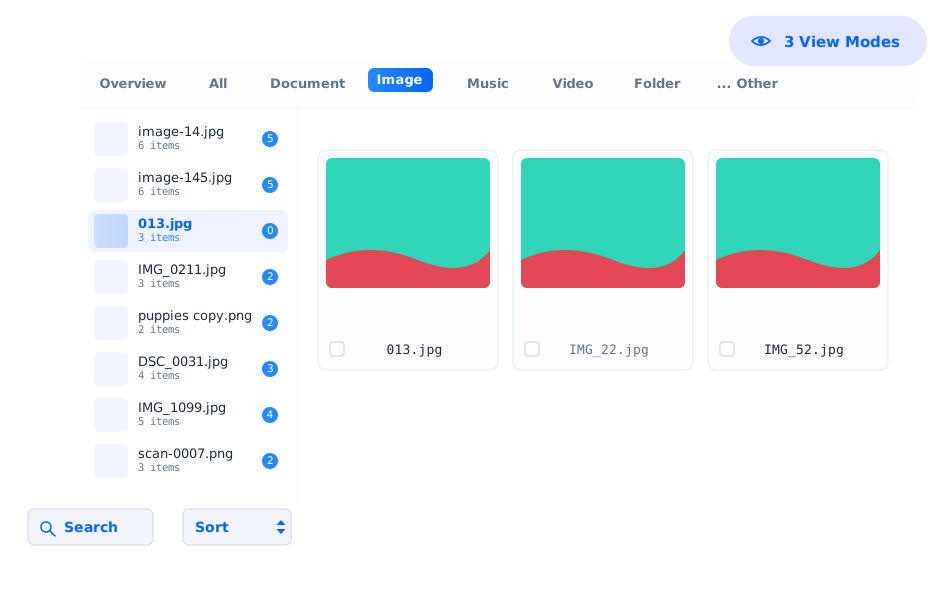
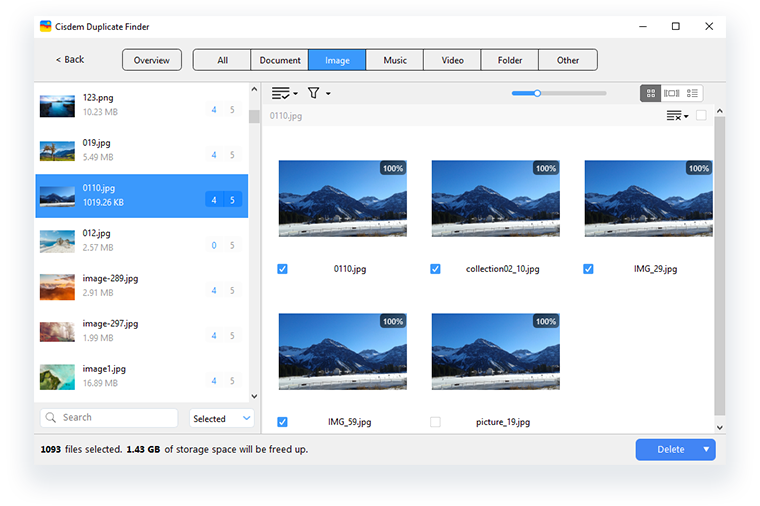
When the scan is complete, the results window will appear, allowing you to easily view detected duplicate files all in one place or by file type, such as Document, Image, and Music. You can switch between three view modes for side-by-side image previews and basic file information.
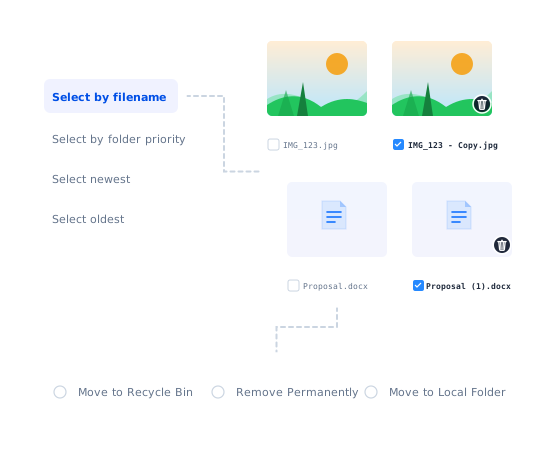
In each duplicate group, this tool automatically selects all but one file for removal based on the default Select by filename rule. You can choose a different selection rule or manually select or deselect files. No files will be deleted without your confirmation.

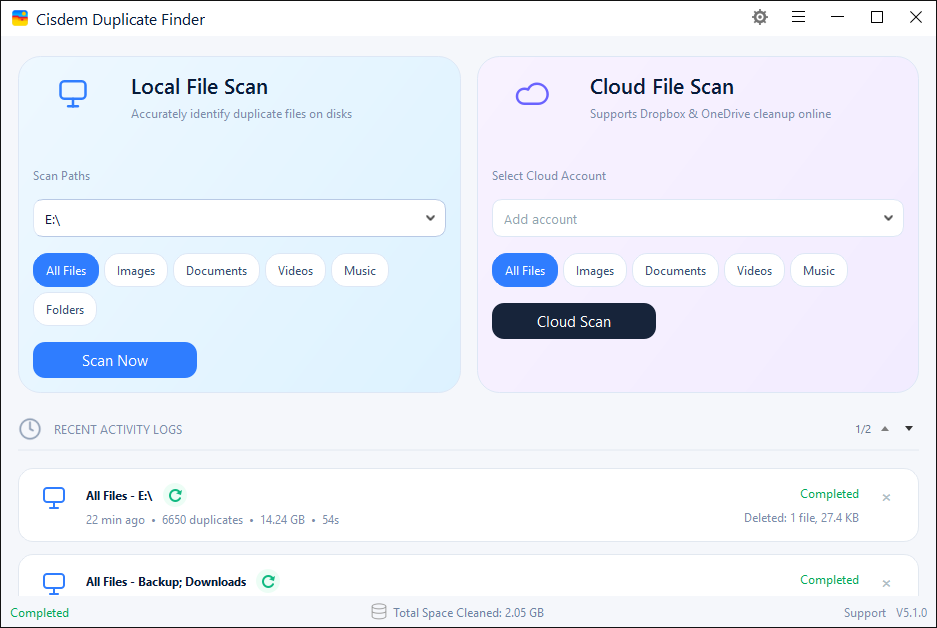
Drag the external drive connected to your Windows PC or Mac to the tool's interface. Click the Scan button.

The results window displays duplicate files for you to view, sort, and search.

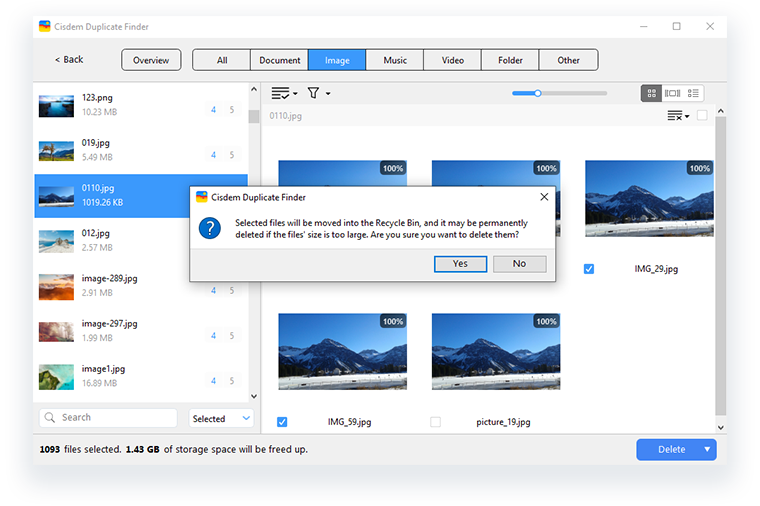
Accept the automatic selections, or make adjustments manually or via selection rules. Click the Delete button, then confirm the deletion.
Important
During the entire process of scanning for and deleting duplicate files, please make sure that your external drive is well connected and don't remove it. When you remove your device after the process is complete, please eject your device properly instead of simply unplugging it.
With this tool, you can easily keep your external drive or certain folders on it free of duplicates. But some real-world use cases can be more complex or specific. Here are four common use cases.

You can drag two or more external drives to the tool, or just add specific folders from each drive. If they contain a very large number of files, the scan may take longer. Using the Select by folder priority rule can help you delete duplicates on one drive while keeping files on another untouched.

You can add your external drive and, for example, your PC's D: drive to the tool, or only add certain folders from them. The Select by folder priority rule also works in this case. The rule even allows you to keep files in a folder while removing duplicates elsewhere.

If you have a large external drive with lots of files and only want to find duplicate photos, you can choose the Images button before scanning. This way, the tool will only scan photos, which can also speed up the scan. You can focus on other file types, such as documents, videos, or both.
If you are a Mac user who stores the Photos app library on an external hard drive, you can use this tool to remove duplicate and similar photos from this library. Before performing a scan, you first need to open this library in your Photos app. Deleted photos will be moved to the Recently Deleted album in the Photos app.
With support for a wide variety of external drives, Cisdem Duplicate Finder can be used as an external drive duplicate finder. This tool scans your entire drive or specific folders on it for duplicate files, helping you easily declutter storage and free up space.
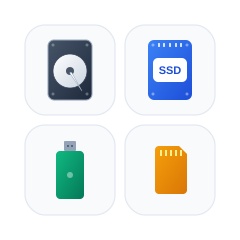
External SSDs, external HDDs, USB flash drives, memory cards
Western Digital, Seagate, SanDisk, LaCie, Samsung, and more
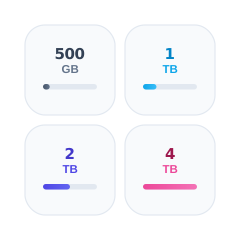
16 GB, 128 GB, 500 GB, 1 TB, 2 TB, 4 TB, and more
It depends.
If you have chosen the Move to folder removal method in Settings and set a local folder as the destination folder, duplicate files will be moved to and stay on your computer.
For Windows users, if the file system of your external drive is the same as your computer's, for example, NTFS, selected duplicate files will be moved to the Recycle Bin. If not, they will be deleted permanently.
For Mac users, selected duplicate files will be deleted permanently. However, there's an exception. If you are removing duplicates from a Photos app library stored on an external drive, deleted files will go to the Recently Deleted album and stay in this library and also your external drive for 30 days. After 30 days, they will be automatically deleted permanently.