
An Easier Way to Handle Duplicate Videos

Manually finding and removing duplicates can be suitable for handling a few clips and movies. However, what if you have a large collection of videos? In such a case, Cisdem Duplicate Finder's duplicate video finding feature is an easier and more practical solution.

Manual Process

Slow, tedious, and potentially risky

Time-consuming

May take hours to go through folders and videos within.

Exhausting comparison

Manually comparing videos can be exhausting and tedious.

Potential risks

Manual comparison mistakes might lead to deleting unique videos.

Inefficient removal

Take time to delete every duplicate individually.

VS

Cisdem Solution

Fast, effortless, and accurate

Lightning fast

Take seconds or minutes to scan multiple folders containing videos.

Automatic comparison

Automatically comparing videos is effortless on your part.

High accuracy

Algorithm-powered duplicate detection by file content offers accuracy.

Bulk removal

Adjustable automatic selections help you do bulk deletion.

Find Duplicate Videos on Mac, Windows, External Drives & Cloud

Over time, duplicate movies, clips, footage and so on can accumulate due to copying and pasting, multiple backups, or repeated downloads or imports. With Cisdem Duplicate Finder, you can easily locate them.

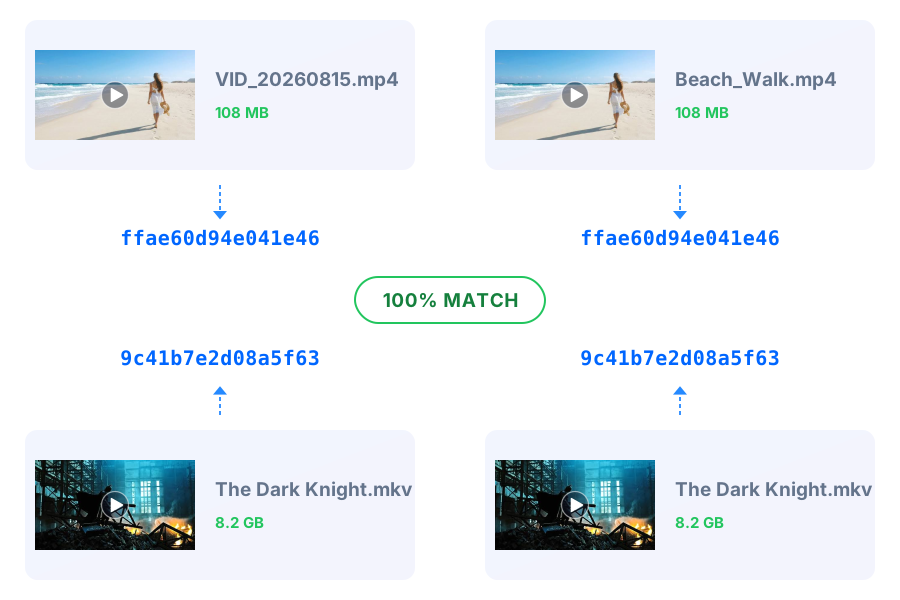
Two groups of duplicate videos with different or identical file names share matching XXH3 hash values

Identify Duplicate Videos by File Content, Not Names

Suppose there are two groups of duplicates: VID_20260815.mp4 and Beach_Walk.mp4, and The Dark Knight.mkv and The Dark Knight.mkv. The tool can find them all, regardless of their file names. Why?

It uses an algorithm called XXH3 to generate a hash value, like a digital fingerprint, for each video based on its file content (the byte-by-byte data), and then compares these hash values. File names are not taken into consideration at all.

If two videos share the same hash value, they are duplicates. Two files will have different values with a difference of just one frame. That's why this identification method provides high accuracy.

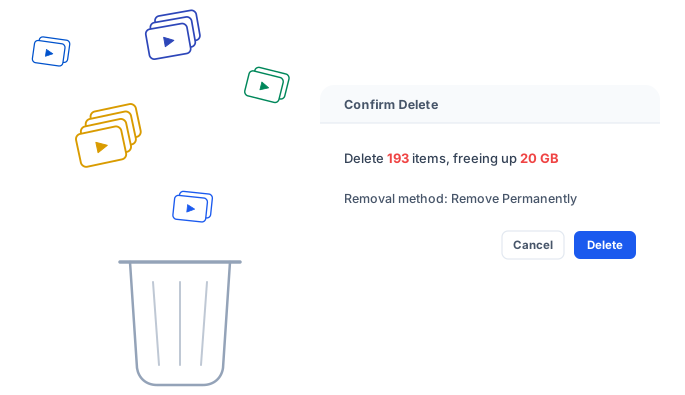
In the test, Cisdem Duplicate Finder scanned three folders containing 498 videos like clips and movies in 5 seconds, identifying duplicates within and across the folders. It found 92 groups of duplicates, containing 285 videos in total, 193 of which were duplicates (taking up 20 GB).

Scan for duplicate videos across computers, external storage, and cloud drives

Scan for Duplicates in Movies, Clips, and Other Videos in Different Locations

The tool supports scanning deeply within one location or across multiple locations at a time, locating duplicates even if they are buried within layers of folders or scattered widely across a drive.

  • Windows PC & Mac: The tool works with both Windows 10 or 11 and macOS 10.11 or later. You can scan folders, drives, or volumes (on Mac). In addition, it supports the Photos app on Mac.
  • External storage devices: If your files are stored on an external hard drive, USB flash drive, or memory card, this tool can also handle them. You just need to connect your external drive to your computer first.
  • OneDrive & Dropbox: Windows users can use the tool to directly scan OneDrive or Dropbox online. If you are handling a different cloud drive service, or if you are a Mac user, please first sync your files to your computer via a service's official desktop app, and then start a scan.
Find duplicate videos in popular formats and limit scans to specific formats

Support all popular video formats

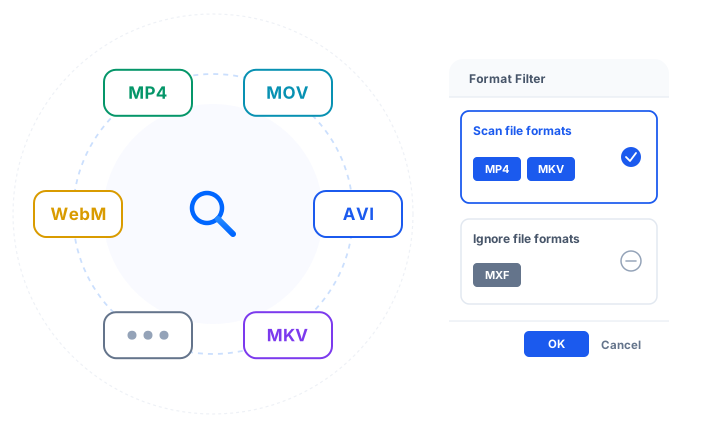
This tool can find duplicate MP4s, MOVs, AVIs, MKVs, WebMs, and all other popular video formats, including video files captured by your phone or camera or downloaded from the web, whether they are short clips or entire movies. In addition, the tool finds other duplicate files and similar photos.

  • Only scan specific formats: If you only want to handle the duplicates in your MP4 videos, you can set a format to target MP4 files while skipping all others. Just specify the one or multiple video formats of your choice. This option is only available for Windows.
  • Ignore certain formats: You can also scan all videos while ignoring specified formats. For example, if you work in the media industry and prefer keeping your MXF files untouched, just add this format to the ignore list.

Bulk Delete Duplicate Videos to Quickly Free Up Space

Among common file types such as photos, videos, audio, and documents, videos are likely to take more storage space. For example, a one-minute 1080p clip captured by a phone can be easily over 100 MB, and a 4K movie may take more than 8 GB of space. Their duplicates can waste a lot of space! Luckily, this tool allows you to remove detected duplicates in bulk.

Automatically select duplicate videos for bulk removal

Automatically Select Duplicates for Bulk Removal

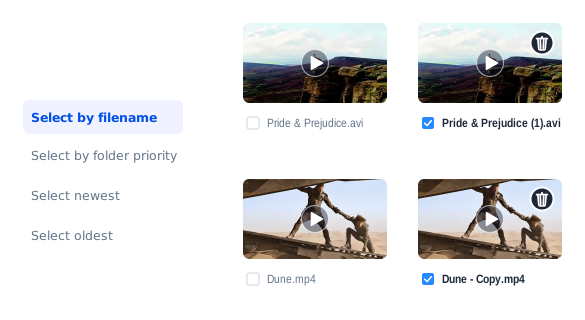
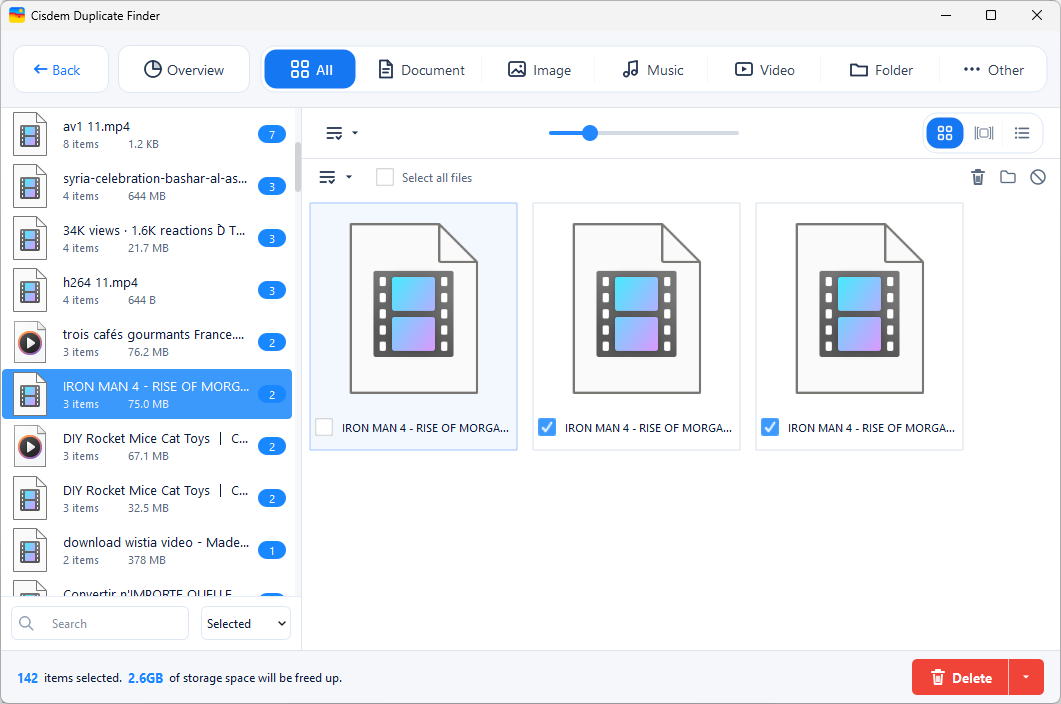
When the tool finishes scanning, the results window appears, displaying duplicate videos in groups for you to view. At the same time, it selects all but one item for deletion in each group, based on your desired selection rule. There are four rules to choose from, and you can also select and deselect files manually.

Select by filename

This is the default rule. With it, videos with names that include "Copy" or "(1)" are more likely to be selected.

Select by folder priority

If you are handling two folders, like Backup and Downloads, you can set the tool to prioritize deleting duplicates from Downloads while keeping videos in Backup.

Select newest or oldest

These two rules are based on modification date, helping you keep the oldest or newest video in each group while deleting the rest.

Delete duplicate videos using three removal methods

Delete Duplicates to Free Up Space

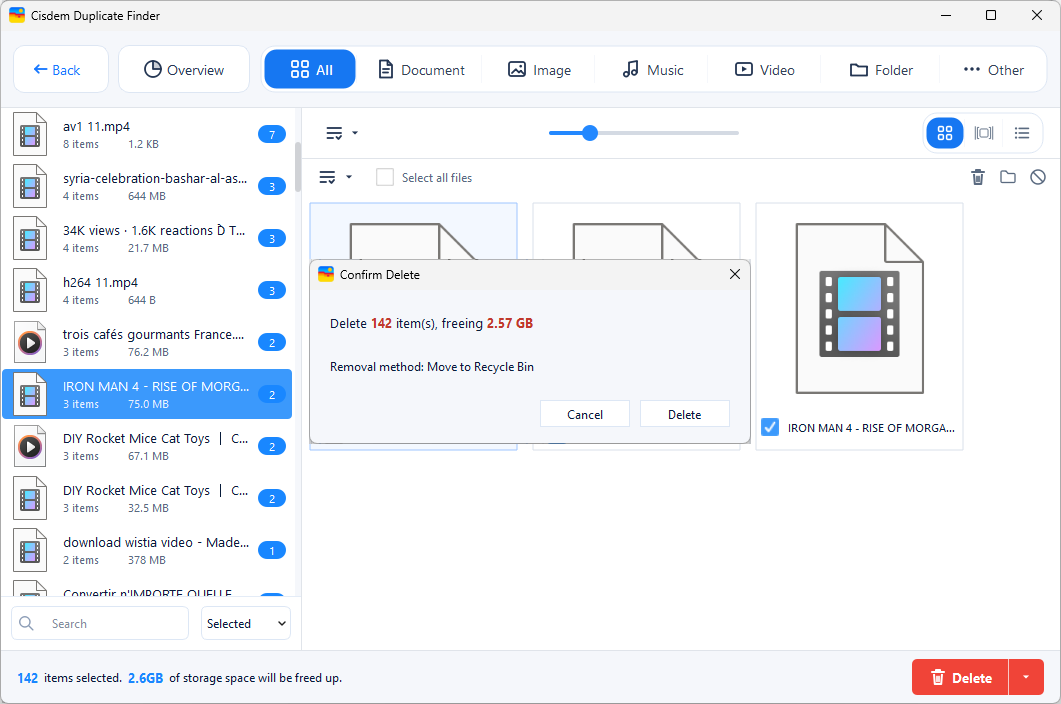
Since unnecessary duplicates are selected, you can bulk remove them with a single click. There are three removal methods. Choose a desired method, click Delete, and then confirm the deletion.

If you have collected many movies on your drive with duplicate copies among them, this duplicate movie finder may help you quickly reclaim gigabytes of space.

Remove Permanently

If you are running out of space due to those duplicate videos, this removal method can be the best option, since it frees up storage space immediately.

Move to Recycle Bin or Trash

With this default method, duplicates are still on your computer, taking up space and letting you easily restore files if needed. Note that removing multiple GBs at a time may trigger permanent deletion even with this method, and the message box will let you know.

Move to Folder

This removal method allows you to move selected duplicate videos to a specific folder on your computer or an external drive for future management.

3 Simple Steps to Clean Up Duplicate Videos

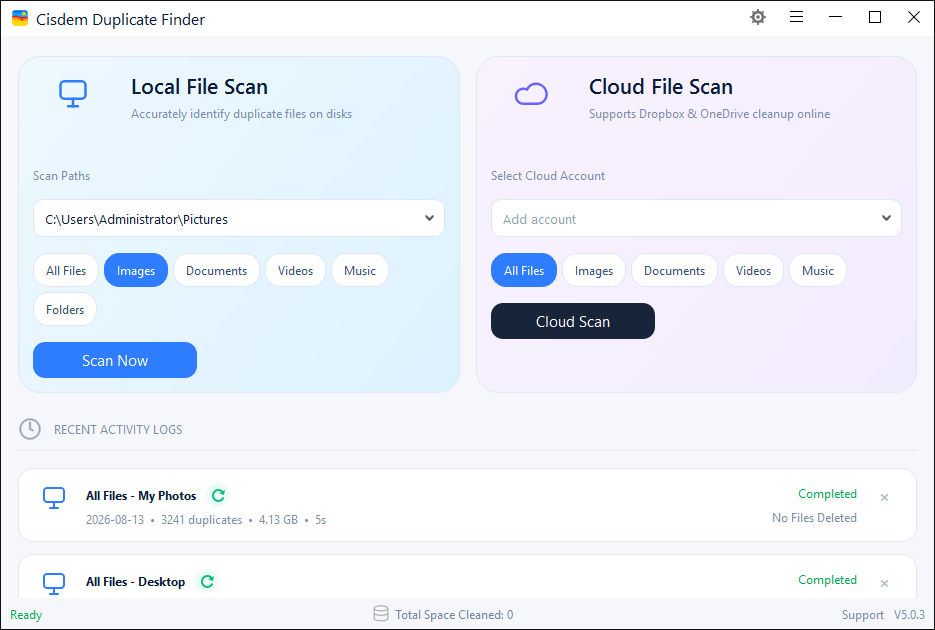
Step 1: Scan

Add one or multiple folders or drives to the tool by drag and drop or the Add button, click Scan. Windows users can click the Videos button before scanning.

Step 2: View

Click the Video tab in the results window to view all detected duplicate videos. You can also sort or search them.

Step 3: Delete

Click the Delete button and confirm the deletion to remove auto-selected duplicates. Or, you can adjust selections manually or via rules before performing deletion.

Scan folders and drives for duplicate videos View duplicate videos in the Video tab Select and delete unwanted duplicate videos

Frequently Asked Questions

There are two ways.

Find and delete them if you don't have many videos. Sort them by file size or name, check file information to spot potential duplicates, and watch videos to confirm if they are really duplicates. Then, delete the duplicates you've found.

Use duplicate finder software if you have a medium or large video collection. It can identify duplicates and help you delete them in bulk.

While Windows doesn't have one, Mac's Photos app, which allows users to store both photos and videos, has built-in duplicate detection that can help users automatically find duplicate videos in this app.

The most efficient way is to use software that identifies duplicate videos by file content (hash value). This method doesn't take file names into consideration.