
Scan Dropbox on Windows and Mac

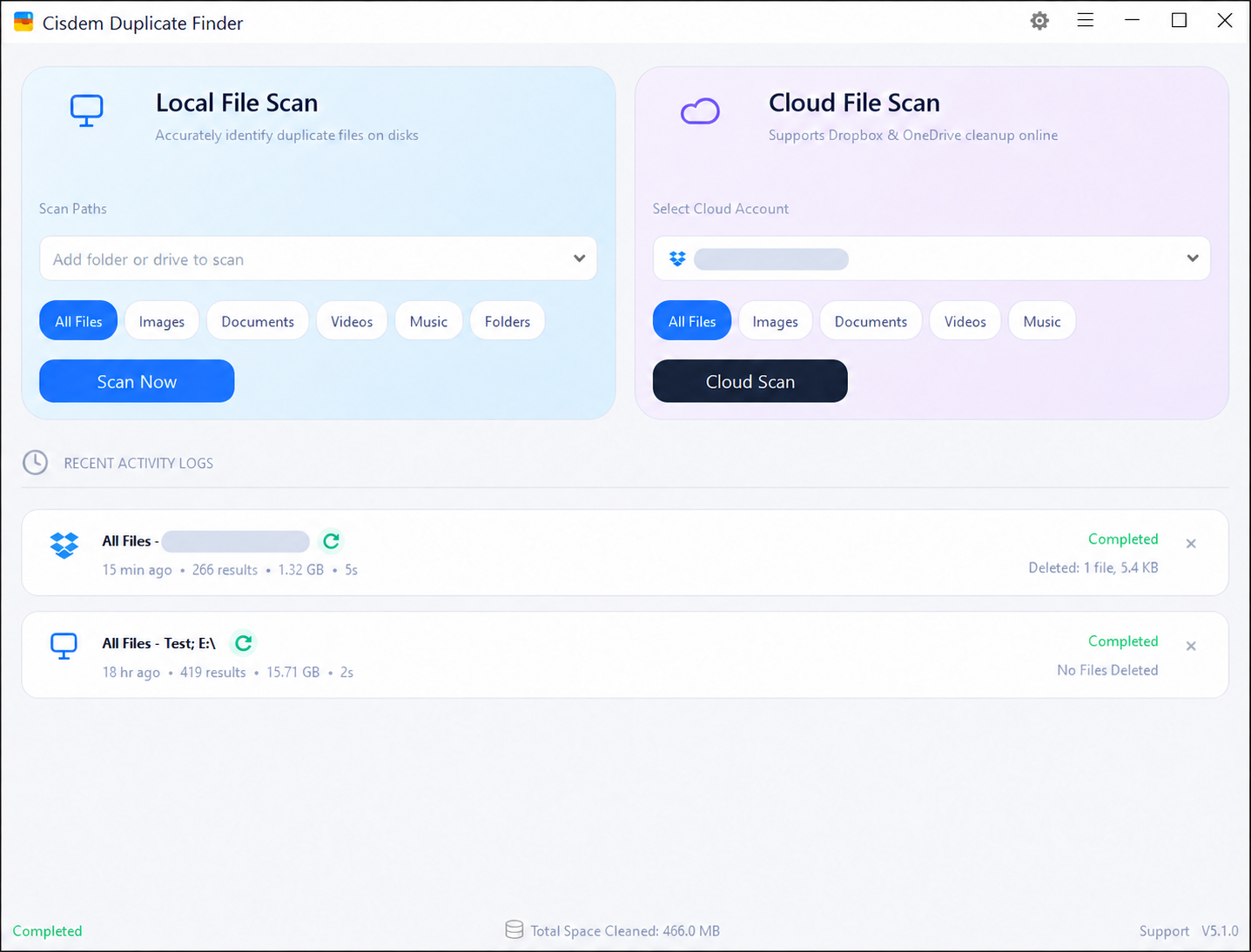
On Windows, find Dropbox duplicates without downloading or syncing your entire collection to your PC first. Cisdem scans Dropbox directly, so you can keep local disk space available and get started without the Dropbox desktop app.

On Mac, Cisdem scans your locally synced Dropbox folders. Make the files you want to check available offline, then find duplicates within and across those folders.

Choose What to Scan

DropboxCisdem Duplicate Finder
Cisdem Cloud File Scan with a connected Dropbox account and the Cloud Scan button

Windows · Cloud File ScanEntire account

Work
Photos
Videos

Identify Dropbox Duplicate Files by Content

Matching fingerprints identify report.docx and report-final.docx as duplicates, while two photo.jpg files show different images and fingerprints

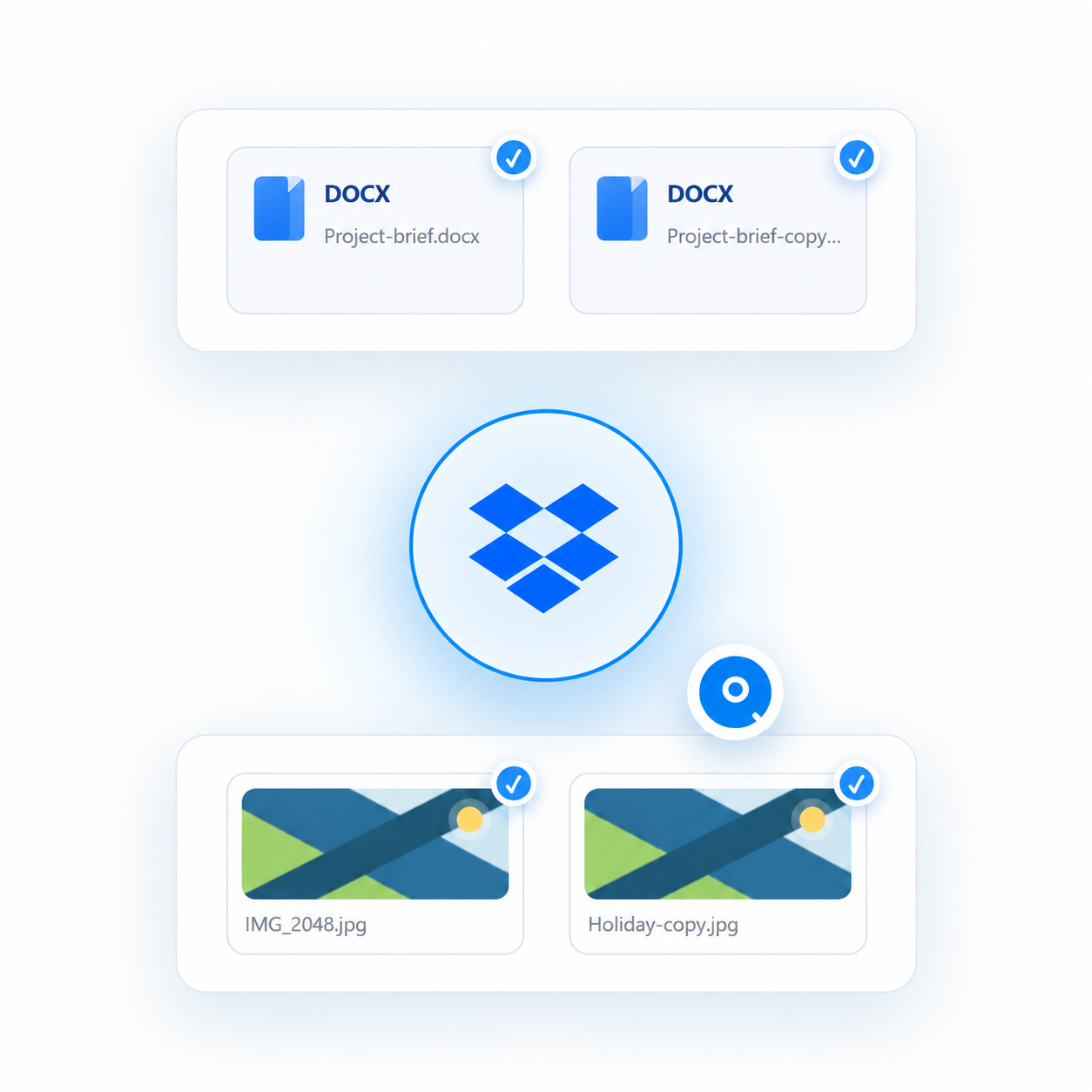
Renaming a file does not change its content. When identical files are saved under different names or in different Dropbox folders, Cisdem can still identify them as duplicates.

By comparing digital file fingerprints, Cisdem checks for matching content rather than relying on filenames or file sizes alone. Files with different content are not treated as duplicates simply because their names or sizes match.

  • Different names. Identical content.report.docx↔report-final.docx
    Duplicates
  • Same name. Different content.photo.jpg↔photo.jpg
    Not duplicates

Support for a Wide Range of File Formats

JPG

Images

JPG, PNG, HEIC & more

MP4

Videos

MP4, MOV, MKV & more

MP3

Audio

MP3, WAV, FLAC & more

PDF

Documents

PDF, DOCX, XLSX & more

ZIP

Other files

ZIP & more

Find Duplicate and Similar Photos in Dropbox

Technical illustration of local AI photo analysis and quality scores on a scale of zero to five

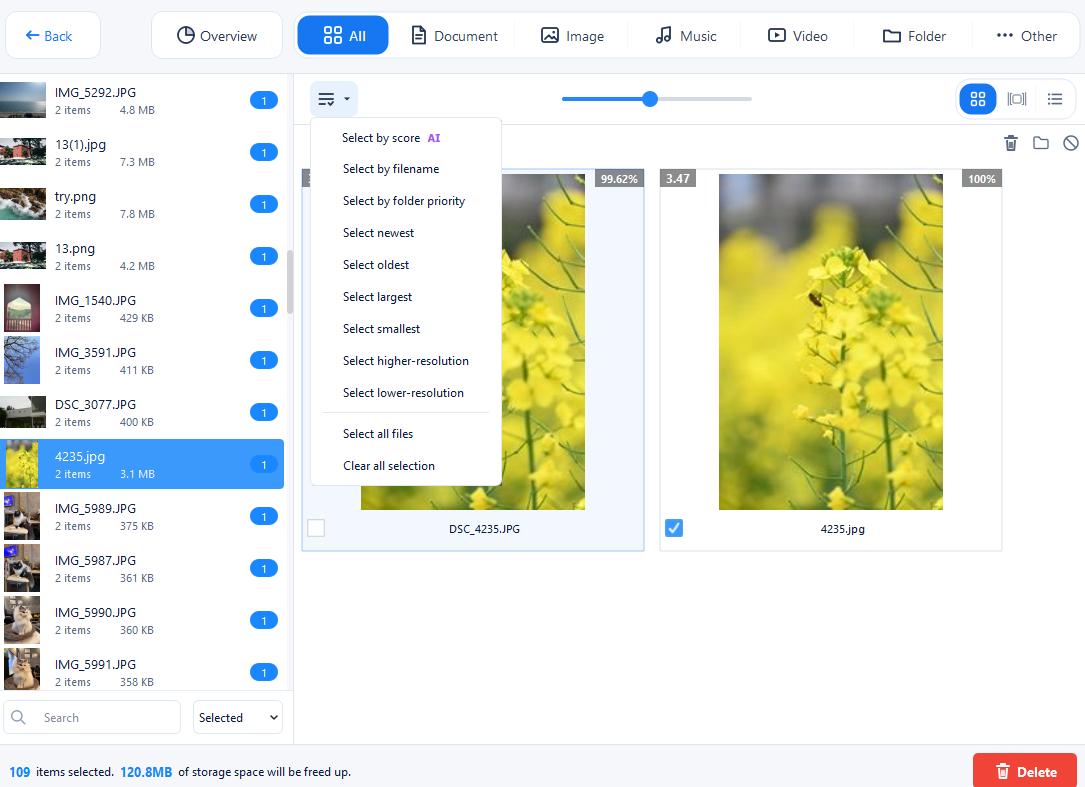
Cisdem identifies exact duplicate photos. It also uses DINOv2-Small AI to detect visually similar photos in Dropbox, including burst shots, cropped or resized versions, and photos taken from different angles.

AI Scoring assesses photo quality based on sharpness, exposure and composition, along with facial expressions in portraits. These scores help you decide which versions are worth keeping.

  • Adjust the similarity level to refine results
  • Compare photo quality with scores from 0 to 5
  • Run AI detection and scoring locally on your PC

Preview and Compare Dropbox Duplicates

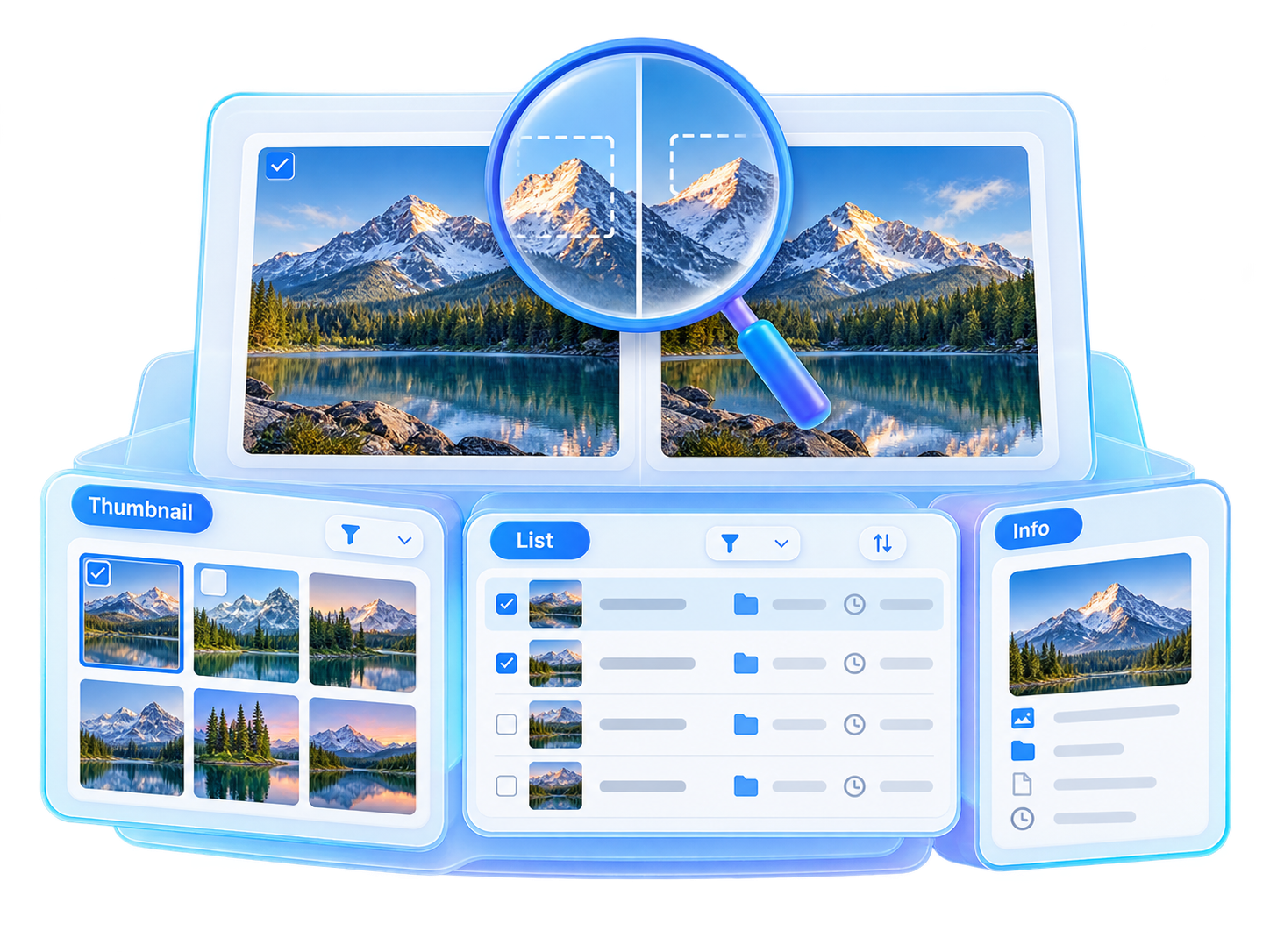
Technical illustration of Thumbnail, List and Info preview modes with side-by-side photo comparison

Review detected duplicates together without opening each file individually in Dropbox. Switch between Thumbnail, List and Info views to preview files and check details such as size, location and date.

Filter results by file type or sort them by size to focus on large duplicate videos and other space-consuming copies. Compare similar photos side by side to spot differences and decide which versions to keep.

  • Choose from three preview modes
  • Compare file locations, sizes and dates
  • Filter and sort results to prioritize your cleanup

Auto-Select and Delete Dropbox Duplicates

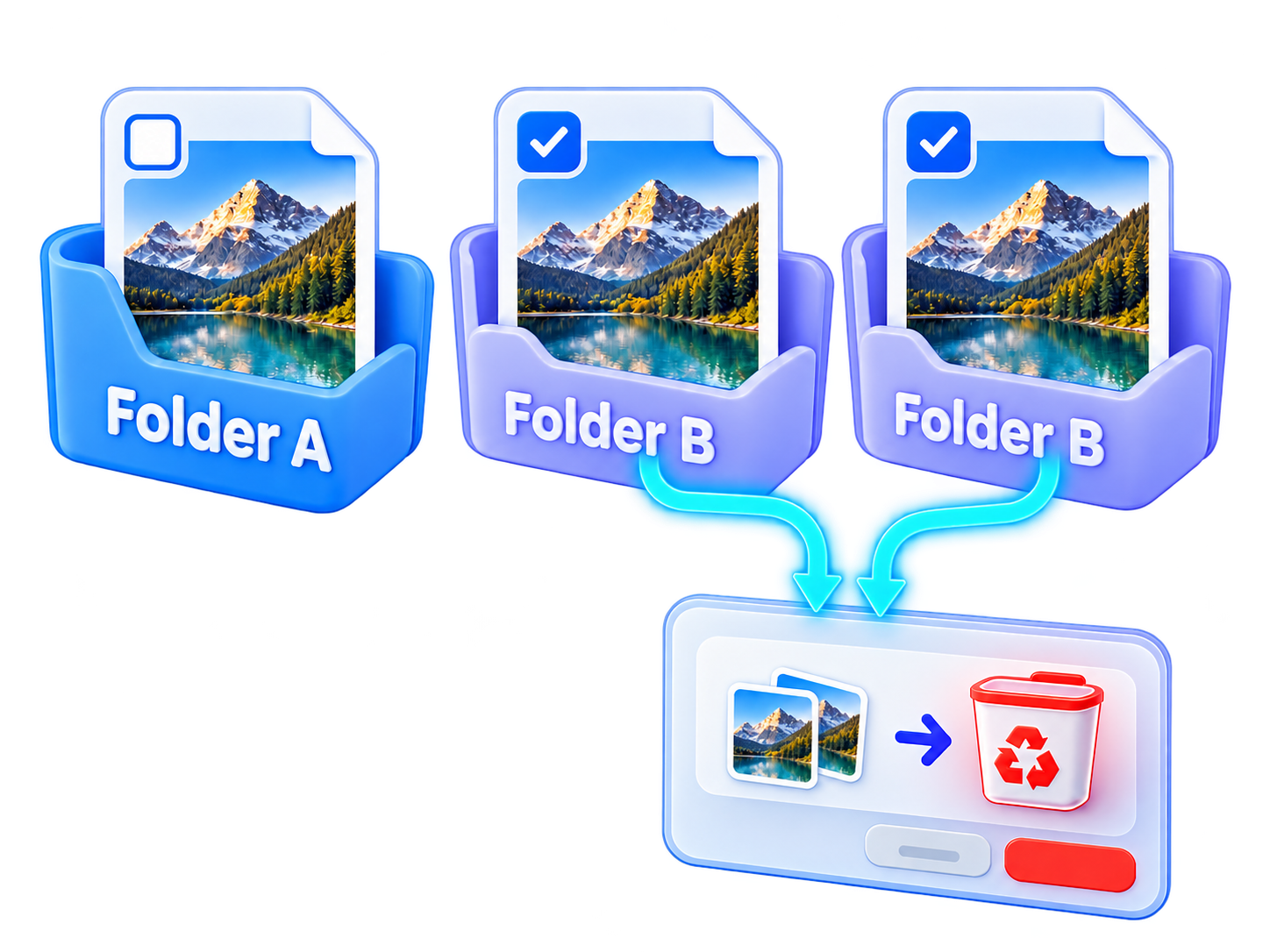
Technical illustration of one unselected duplicate retained and two selected extra copies sent for confirmed deletion

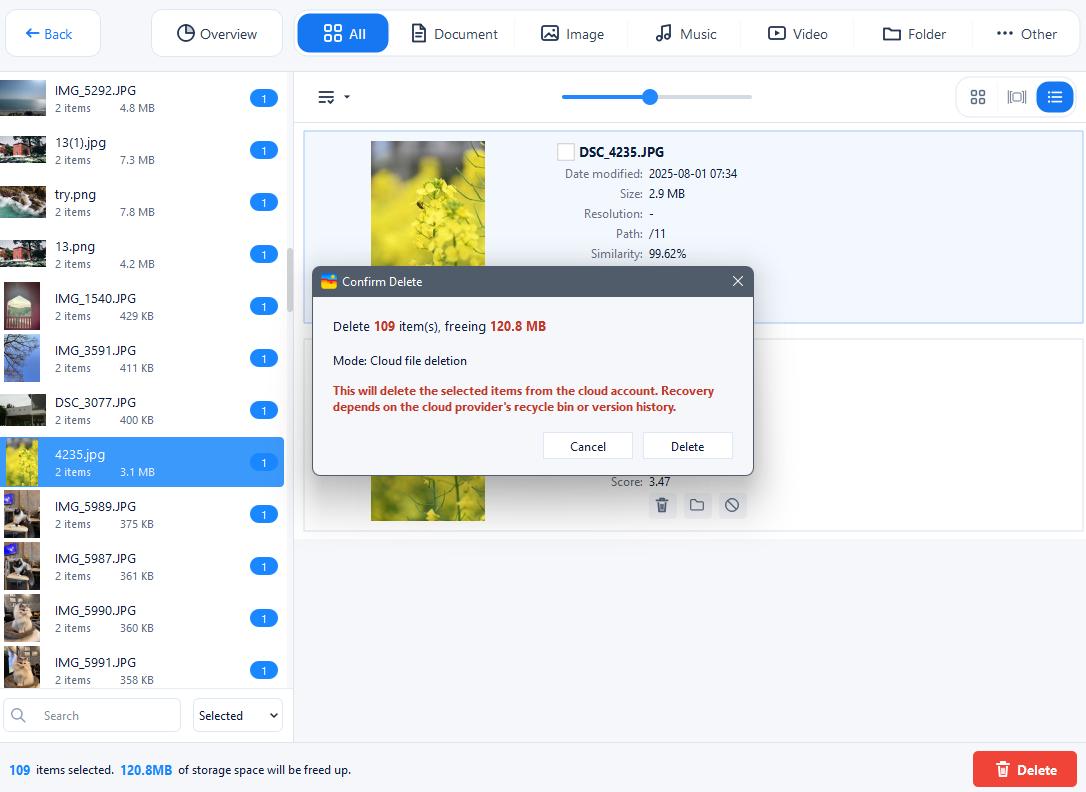
Cisdem automatically selects all but one file in each exact duplicate group. You can use folder priority or other selection rules to choose which files to keep, or adjust individual selections manually. Once you are satisfied with your selections, click Delete and confirm to remove the selected duplicates from Dropbox in one batch. Unselected files remain in their original locations.

  • Automatically select all but one file in each exact duplicate group
  • Customize selections with rules or manual adjustments
  • Delete selected Dropbox duplicates in one batch

Manual vs. Cisdem Dropbox Cleanup

Manual cleanup means comparing files one by one, checking different folders and selecting duplicates individually. Cisdem brings matching files together and automatically selects extra copies for you to review before deleting.

Manual cleanup

Manual Cleanup

Renamed duplicates are easy to miss

Different filenames can hide identical content.

Compare similar photos by eye

Check photos one by one for differences in detail and quality.

Check files across different folders

Switch between locations to compare files and check their details.

Select duplicates individually

Check each group and decide which file to keep.

Cisdem Duplicate Finder

Cisdem

Find duplicates by content

Identify identical files even when their names differ.

Detect and score similar photos

Find visually similar images and use quality scores to help decide which ones to keep.

Review duplicate files together

View duplicate groups, file locations and other details in one place.

Auto-select duplicates for removal

Leave one file unselected in each exact duplicate group. Review your selections before deleting.

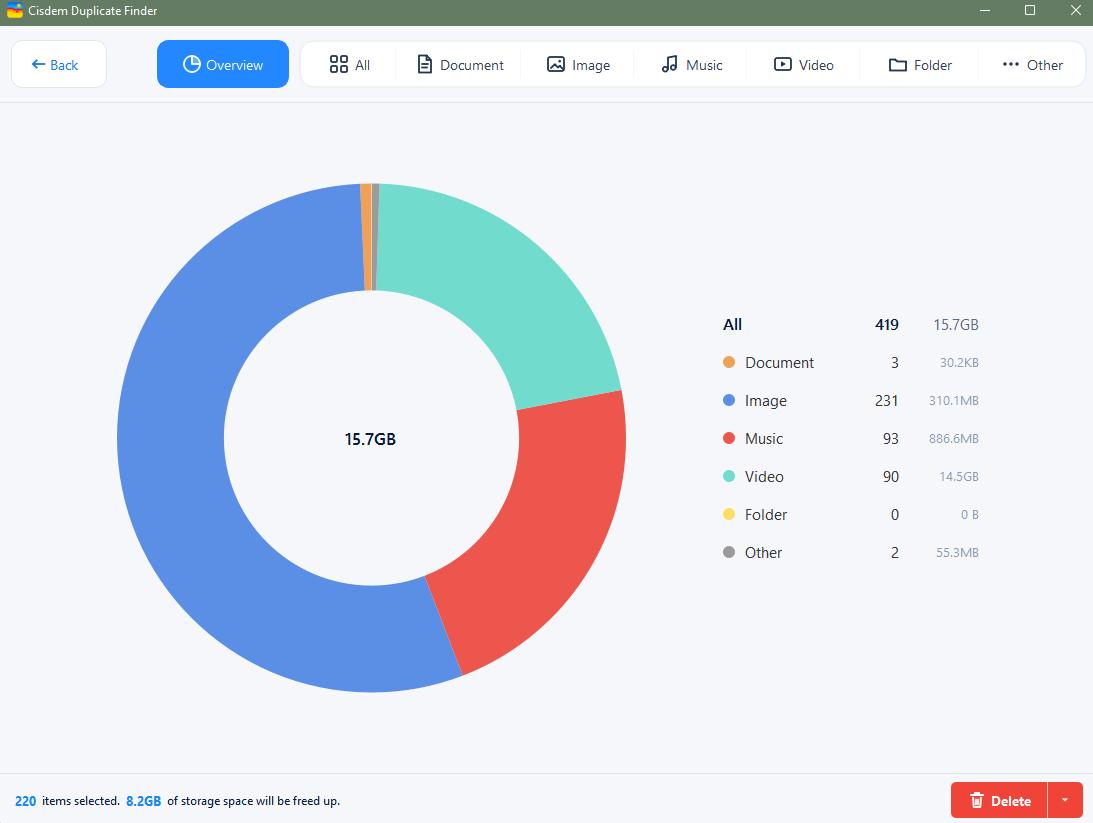
Dropbox scan results showing a 15.7 GB chart and the breakdown by file type

Our Dropbox Duplicate Scan Test

We scanned a Dropbox folder containing images, videos, documents and music files using Cisdem Duplicate Finder for Windows. After reviewing the results, we selected extra copies for removal and left one copy in each duplicate group unselected.

Scan Time
16seconds
Data Scanned
15.7GB
Selected for Removal
8.2GB

Tested in October 2026 with Cisdem Duplicate Finder 5.1.0 on Windows 11, using direct Dropbox cloud scanning.

3 Steps to Remove Dropbox Duplicate Files

Cisdem Duplicate Finder with a connected Dropbox account under Cloud File Scan

Windows · Connect your Dropbox account

Clean Up Duplicates Beyond Dropbox

Dropbox and a local computer folder connected by two arrows

Compare Dropbox with Local Folders

Sync selected Dropbox folders and make their files available offline. Scan them along with local folders to find duplicates between Dropbox and your computer.

OneDrive and another cloud drive syncing with a local folder

Clean Up Other Cloud Drives

On Windows, connect OneDrive for direct cloud scanning. For other cloud services, scan their locally synced folders once the files are available offline.

Frequently Asked Questions

Dropbox can recognize duplicate uploads with the same filename in the same folder. However, identical files with different names may still go undetected, taking up storage and adding clutter.
On Windows, no. You can connect your Dropbox account in Cisdem to scan it directly. On Mac, use the Dropbox desktop app to sync your folders and make the files available offline, then scan the local Dropbox folder.
No. Cisdem automatically selects exact duplicates for removal. You can change the selections, and nothing is deleted until you click Delete and confirm.
Yes. Deletions also apply to the same Dropbox account on your other devices once they sync.
You can restore files from Deleted files on dropbox.com within your account’s recovery period.
Yes. The free trial lets you scan for duplicates and preview the results. Deleting all selected duplicates at once requires the full version.