Available for


The restrictions Cisdem AppCrypt puts on apps and websites are very difficult to bypass. Why?
It uses a password to effectively safeguard apps. And that same password, along with other measures, is also used to protect Cisdem AppCrypt itself. If anyone tries to open a locked app or visit a blocked website by manipulating this tool, he or she won't be able to do it.
When you first open Cisdem AppCrypt, you need to set a password. Below is how password protection works.
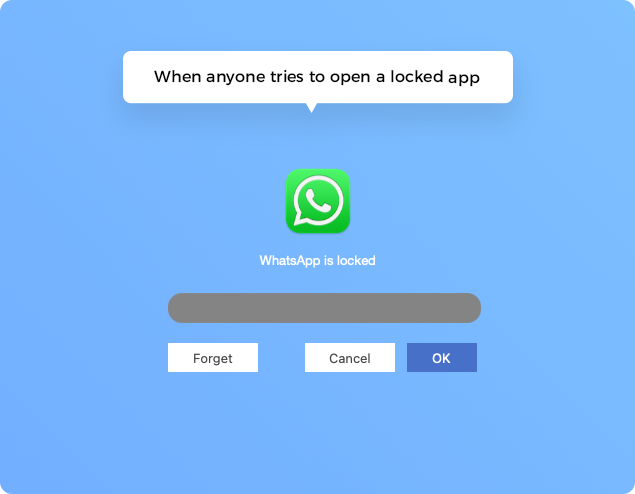
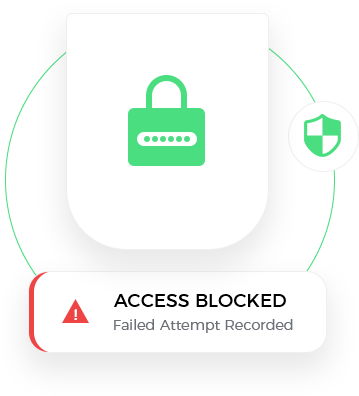
If anyone tries to unlock an app, a screen will appear, preventing access and prompting for a password.
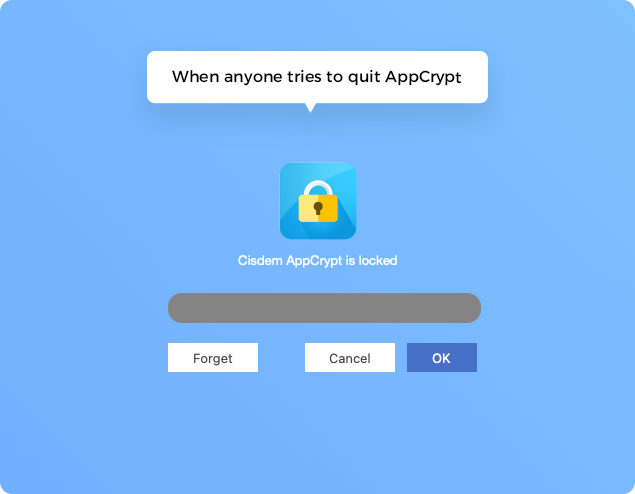
Restrictions are in effect as long as Cisdem AppCrypt is running. Quitting the tool will prompt for the password, which also makes uninstallation impossible as it's running.
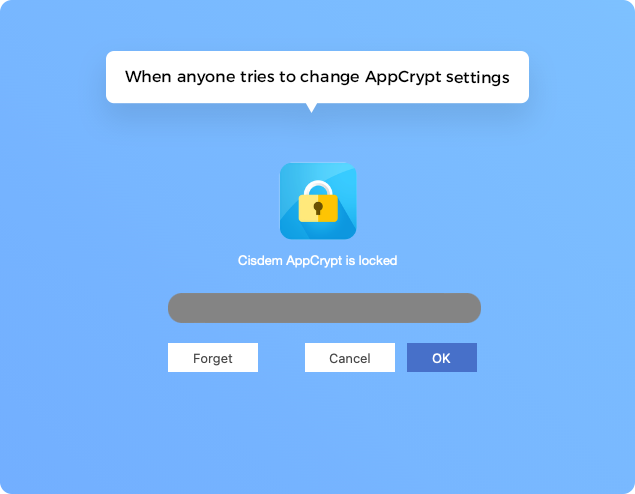
The tool's settings can only be accessed or modified through its main window. Opening the main window will ask for the password, preventing changes such as removing the lock from apps, removing sites from the block list, editing schedules, or changing Preferences.
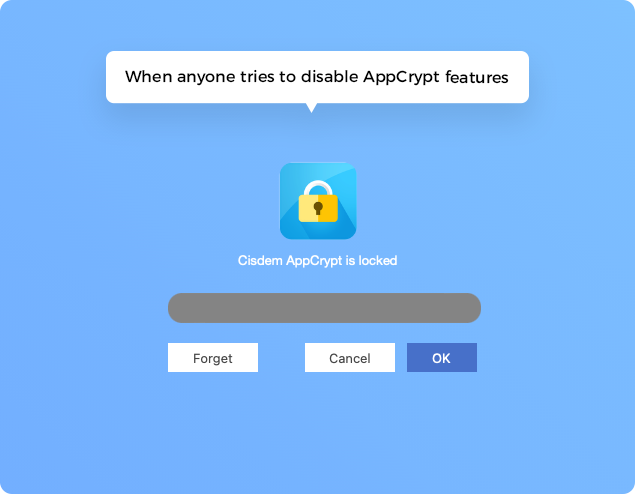
There are options available to disable the App Lock and Web Block features. Clicking such an option will also ask for the password.
To further prevent circumvention, you can enable the following measures in Preferences. Preferences settings are password-protected, so only people who know the password can disable these measures.
Set Cisdem AppCrypt to automatically open when your computer starts to implement restrictions right away.
Stick with the default settings to lock the three relevant system tools on your computer, making it harder for anyone, even tech-savvy people, to quit Cisdem AppCrypt.
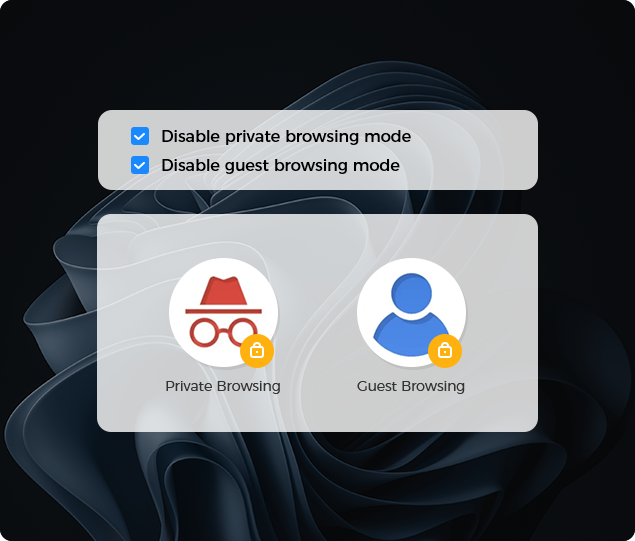
Disable these modes on Windows to prevent access to blocked websites through them. Blocking applies to both modes on Mac, so no action is needed for Mac users.
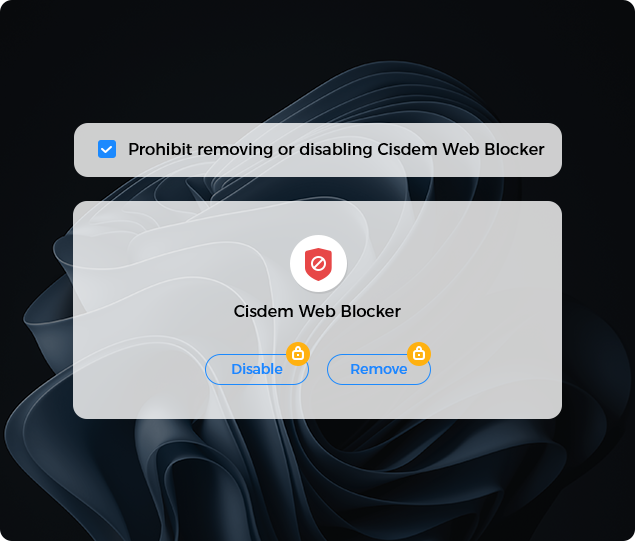
Turn on the option that prohibits removing or disabling the Cisdem Web Blocker extension in browsers, which is essential for Cisdem AppCrypt to block websites on Windows. Mac users can ignore this, since no extension is needed on Mac.
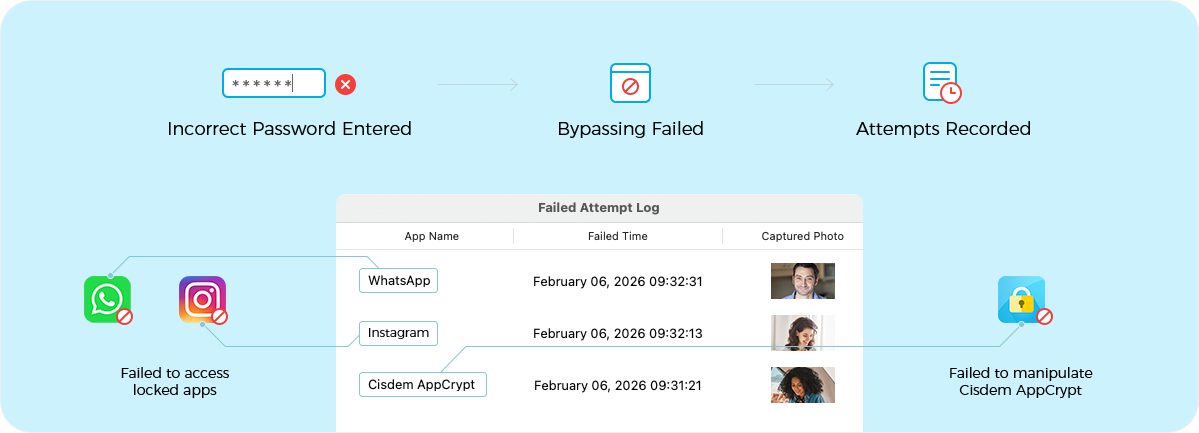
If someone tries to bypass restrictions with an incorrect password, such as attempting to unlock apps, quit Cisdem AppCrypt, open its main window to change settings, or unlock apps, he or she will fail!
Cisdem AppCrypt will record failed attempts in the Failed Attempt Log, including the app involved and the time of the intrusion. Also, it will capture the intruder's picture (Mac only).