


 Cisdem AppCrypt






AppCrypt
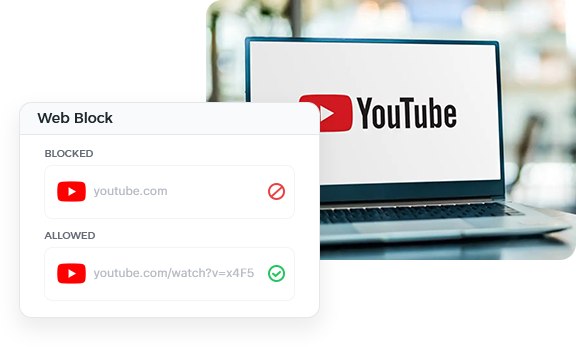
Best App to Control Access to YouTube Videos


Cisdem AppCrypt is exactly what we need. It's easy to set up and truly helpful, blocking YouTube while allowing my kids to watch videos assigned by their teachers. - Matthew and Crystal | Parents of two kids
Matthew and Crystal have a 17 years old daughter named Charlotte and a 15 years old son named Ethan.
Challenge of having unrestricted access to YouTube while doing homework
Charlotte and Ethan have their own MacBooks, which they use for homework and entertainment. Matthew and Crystal have set up Screen Time on their devices to control their access to certain websites and apps. However, they run into a big problem when it comes to restricting YouTube access.
They can't completely block YouTube because kids need to watch some YouTube videos assigned by teachers via links in Google Classroom, such as certain historical videos and clips. Matthew and Crystal really want to help their kids stay focused and undistracted while doing homework.
Solution: Using Cisdem AppCrypt to only allow certain videos on YouTube
Matthew and Crystal have been searching for tools that will help and tried a few distraction blockers and productivity apps. Finally, they discovered what they need - Cisdem AppCrypt. They find this tool particularly helpful for controlling access to YouTube content.
Steps: How to allow only specific YouTube links
Matthew and Crystal share their experience and show you how to set up the tool step by step.
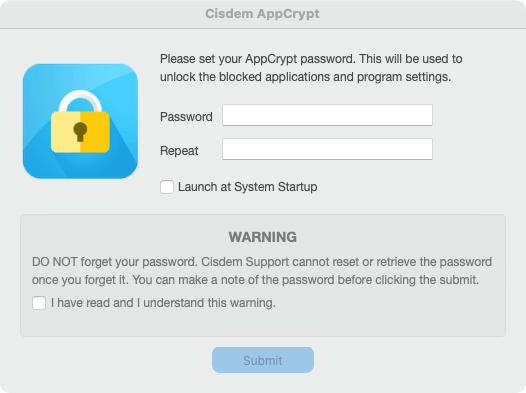
1. Get Cisdem AppCrypt installed on a child's Mac. The first time you launch the tool, a password setup window will appear. Set a hard-to-guess password.
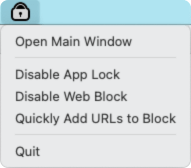
2. Click the lock icon in the menu bar and choose Open Main Window.
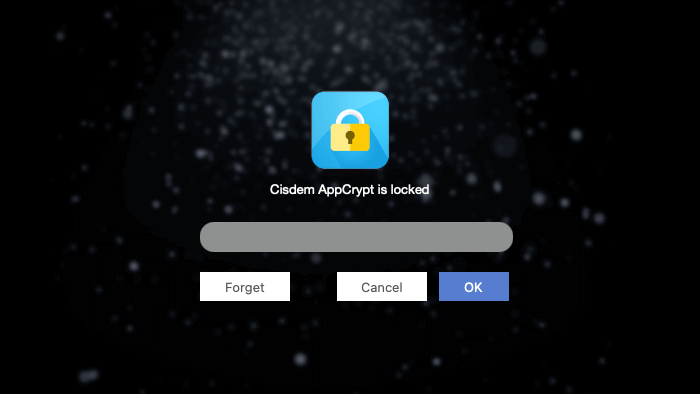
3. Enter the password and click OK to access the tool's main window.
4. In the Web Block tab in the main window, enter youtube.com in the URL field and click Add.
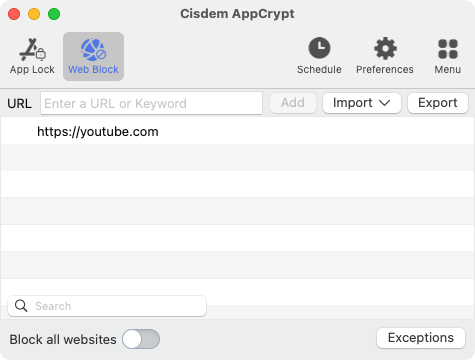
5. Click Exceptions at the bottom right corner of the Web Block tab.
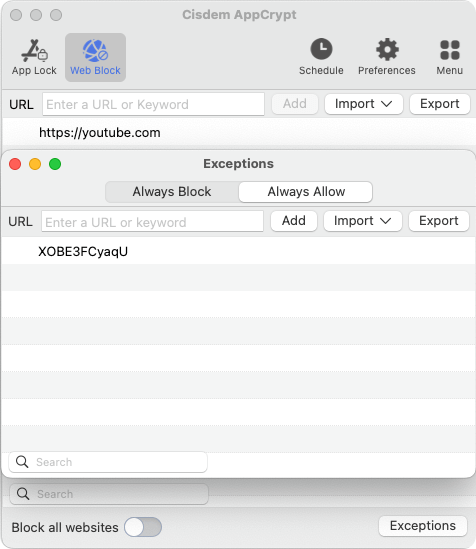
6. Choose the Always Allow tab in the Exceptions dialog that appears. Allow specific YouTube links by adding their IDs one by one.
Note from Cisdem:
Every YouTube video has a unique ID, which you can easily find in its link. For example, if the video's link is https://www.youtube.com/watch?v=XOBE3FCyaqU, its ID is XOBE3FCyaqU.
What if there are, say, 30 videos that you'd like to allow? The process would be a bit time consuming. Here's a trick. You can use an online tool like YouTube Video ID Finder to quickly get the IDs, paste them in a TXT file, and then import them to the Always Allow list.
After installing and setting up Cisdem AppCrypt like this on a Mac, the entire YouTube will be blocked on supported browsers, including Safari, Chrome, Edge, Opera, and Brave. But children are still able to watch videos added to the Always Allow list.
FAQ
No, they aren't able to do this. Restrictions apply to both normal and private browsing.
You can use Cisdem AppCrypt's App Lock feature to lock any unsupported browsers.
Merely adding a channel's link to the Always Allow list will allow your kids to visit this channel, including its Home page, Videos list, Shorts list, etc. However, the specific videos in this channel are still restricted and not accessible. You can add their IDs to the Always Allow list if you like.
Loved the article, share!

