


 Cisdem AppCrypt


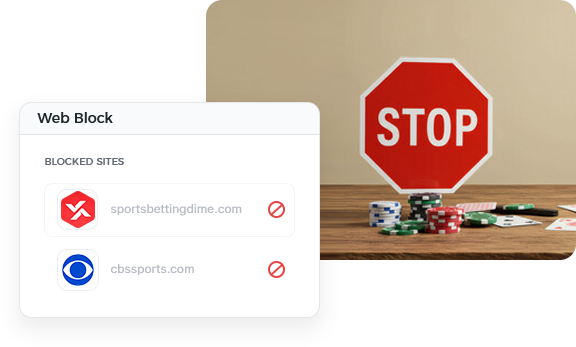




AppCrypt
Best Gambling Website Blocker


Cisdem AppCrypt has helped keep my husband from accessing those gambling websites. I keep the password to myself so he can't get around the restrictions. - Lauren | A woman with a husband who's into online gambling
Lauren's husband Matthew frequently visits gambling websites.
Challenge of having access to gambling websites
Matthew got into online gambling in his early twenties and broke the habit with his family's help. But the urge returns. He keeps winning and losing, becoming addicted. The loss is heavy, and he feels regretful. However, he just can't help but keep going back to those gambling websites. He has confessed to Lauren. But the craving is so strong that they realize Matthew's willpower alone isn't enough to fight it.
Solution: Use Cisdem AppCrypt to help limit gambling sites
They spent time looking for a website blocker that's difficult to bypass and found Cisdem AppCrypt. Lauren installed this app on Matthew's MacBook Air and set it up following the official user guide. In addition to specific gambling sites, she added relevant keywords to the block list. Cisdem AppCrypt has password protection, and Lauren set a strong password to make sure that his husband wouldn't be able to get around it.
Steps to add gambling sites and keywords to the block list
Step 1. Install Cisdem AppCrypt and set a password
Download and install the tool on the device on which you need to restrict website access.
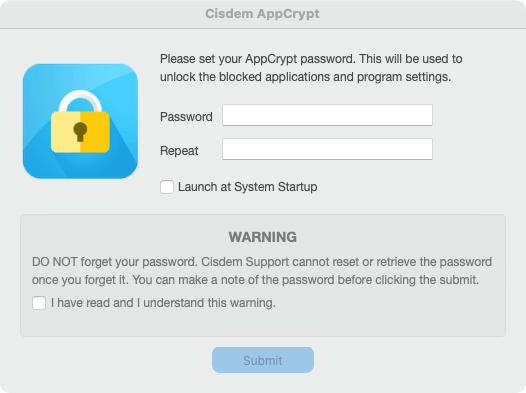
Open the tool. In the password setup dialog that appears, set a password.
Note from Cisdem:
It's recommended to set a long, complex, and hard-to-guess password. If you are using this tool to block your own access to gambling sites, you can consider having someone else set the password or setting a random password you won't be able to remember.
Step 2. Access the Cisdem AppCrypt main window
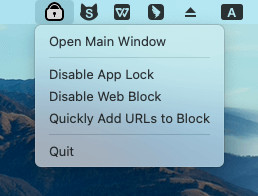
Click the tool's icon in the menu bar and choose Open Main Window.
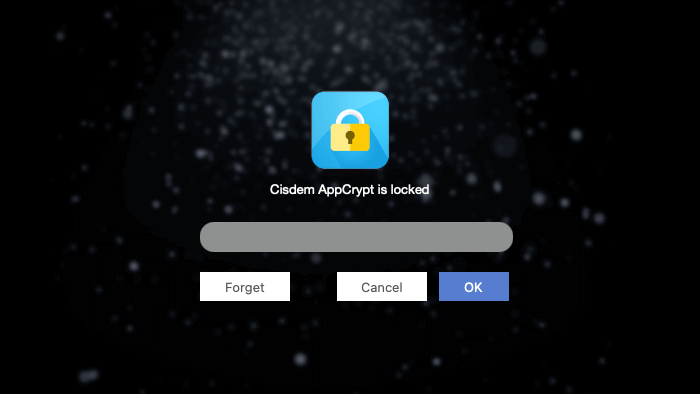
On the screen that appears, enter the password and click OK to access the main window.
Step 3. Add sites and keywords to the block list
In the main window, choose the Web Block tab.
Click the Import dropdown menu and choose the Gambling Sites option. This will add 151 popular gambling websites to the block list.
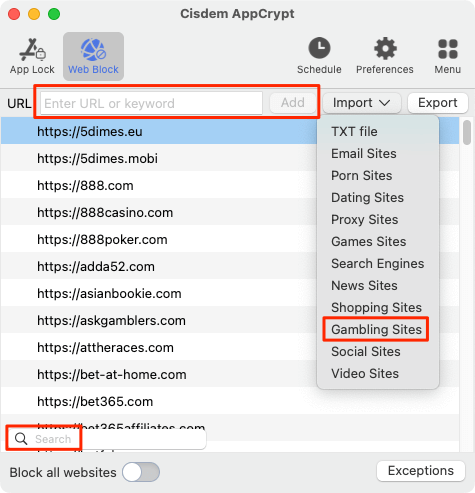
Use the Search box to check if the sites you need to block are already on the list. If not, manually add them one by one using the URL field and Add button.
If needed, manually add relevant keywords as well, such as "casino", "poker", "gamble", "bet", "lottery", and "card". All URLs that contain an added word will be blocked.
Note from Cisdem:
If you really want to prevent access to all websites of this nature, there's a trick. On the bottom of the Web Block tab, toggle Block all websites to the on position and click Exceptions. In the Exceptions dialog, add necessary sites to the Always Allow list. This will block the entire web except sites needed for work, socialization, or other non-gambling activities.
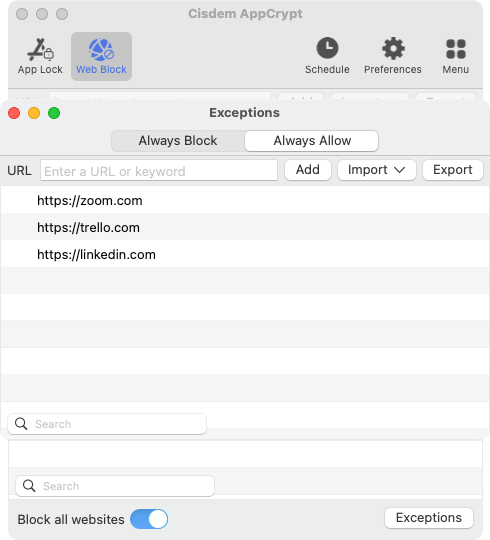
Step 4. Check and configure settings to make the tool harder to bypass
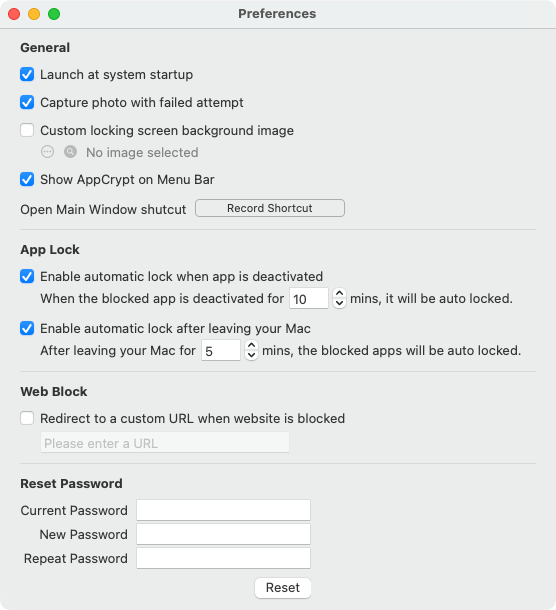
- Choose Preferences. Make sure the Launch at system startup checkbox is selected. Selecting the two checkboxes in the App Lock section is recommended but not necessary.
![Preferences window]()
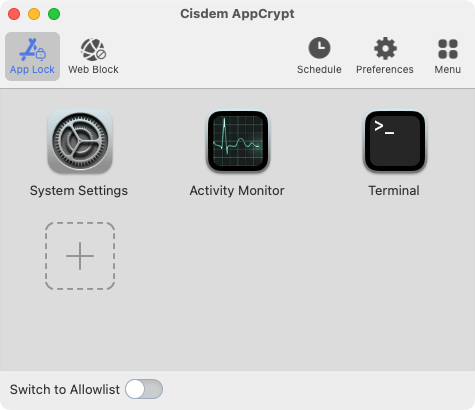
- Choose the App Lock tab. Make sure you don't remove the three apps that appear in the tab by default.
![App Lock tab]()
- Click the tool's icon in the menu bar. In the menu that appears, make sure the Web Block feature is not disabled.
Note from Cisdem:
If you enable Capture photo with failed attempt in Preferences, a Mac will take a picture if someone tries to quit Cisdem AppCrypt or access its main window by entering an incorrect password.
FAQ
Yes, added gambling websites are permanently blocked as long as Cisdem AppCrypt is running. This tool automatically opens every time the computer boots up and can't be quitted without a password. Therefore, it runs continuously.
Yes, this tool and all its features (including password protection) perfectly work with all types of user accounts on a Mac.
Loved the article, share!

