


 Cisdem AppCrypt






AppCrypt
Best Game Blocker for Computers


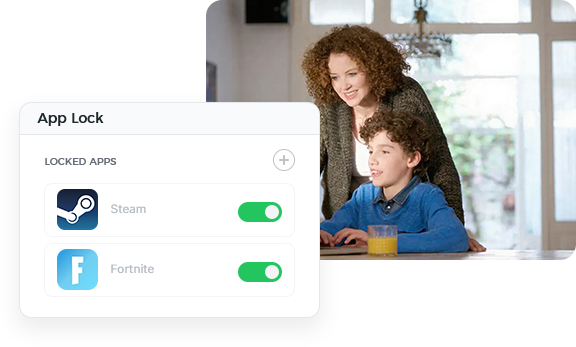
Thanks to Cisdem AppCrypt, I can stop my son from playing games during online classes. He focuses better without being distracted by his favorite games. - Susan | A mom of a 12 years old boy
Susan has a 12 year-old son who takes online classes.
Challenge of easy access to games during online learning
Susan's son Tom has his own computer, which he uses for both studying and gaming. Susan has no problem with him playing games. However, Tom is spending more and more time on games like Roblox and Minecraft and even starts playing them during online classes. They've had conversations about not gaming during study hours, but that hasn't been helpful.
She knows she can just uninstall the games, but she doesn't want to completely ban them. Plus, Tom can easily reinstall them if he wants. In addition, there are gaming websites that don't require installation at all.
Solution: Using Cisdem AppCrypt to limit game access
Susan has been looking for software that allows her to block games during study hours and also limit his overall gaming time. She found Cisdem AppCrypt through someone's recommendation and describes it as a "real life-saver". Now she's able to effectively control game access.
How Susan set up Cisdem AppCrypt for blocking games during study hours
Susan shares the steps, observations, and insights.
Step 1. Install the tool
Download and install Cisdem AppCrypt on the child's computer (or the family computer if that's what he uses for school).
Step 2. Set a password
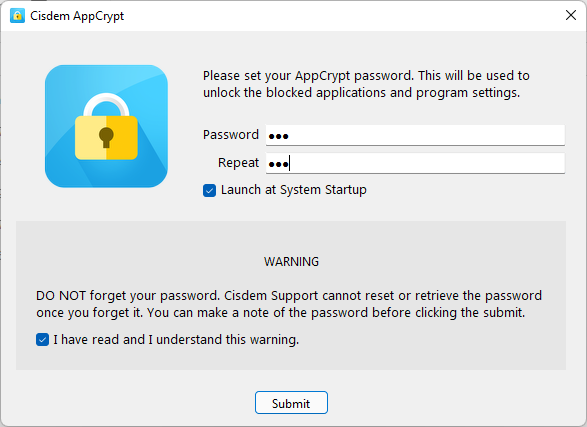
When you open Cisdem AppCrypt on this computer for the first time, set a password.
Note from Cisdem:
Avoid using a simple password like "123456" or an easy-to-guess one, such as the child's or parent's birthday.
Step 3. Open the tool's main window
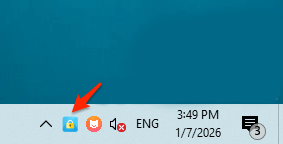
Click its icon on the taskbar.
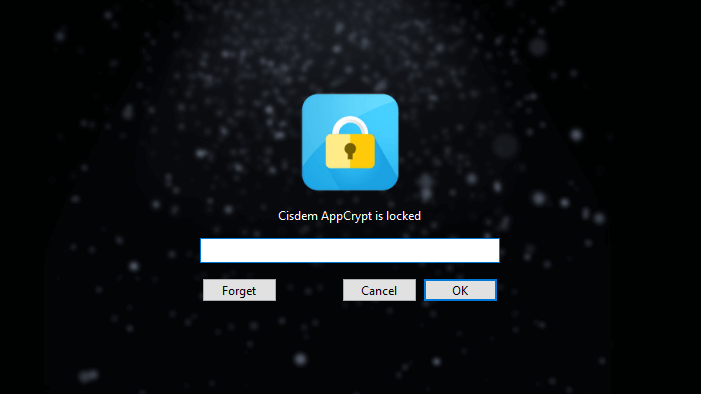
Enter the password you've set when prompted, and then the main window will open.
Note from Cisdem:
Due to the password, children can't access this main window, which means they are not able to bypass blocking by changing your settings.
Step 4. Add game apps to block in any of the following ways
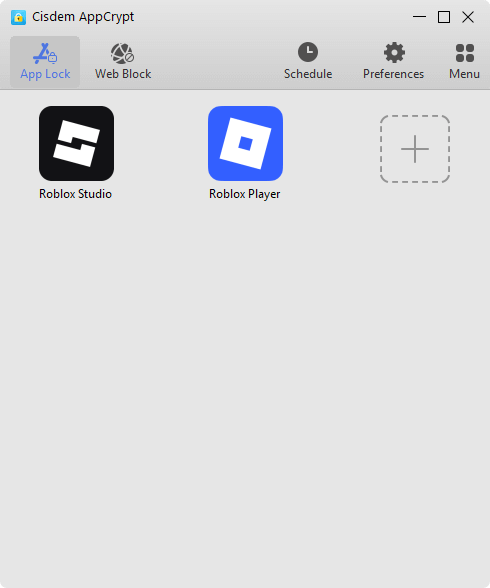
- Directly drag a game app's desktop shortcut to the App Lock tab in the main window. Alternatively, use that big Add icon.
![Cisdem AppCrypt's App Lock tab showing a big Add icon and two added games]()
- Click the Start menu icon, right-click the game app from the All apps list, and choose More > Open file location. Drag the game you see in the File Explorer window that appears into App Lock.
- For a game from the Microsoft Store, you need to find it in its folder under C:\Program Files\WindowsApps, then drag and drop it.
Step 5. Add game websites to block in the Web Block tab
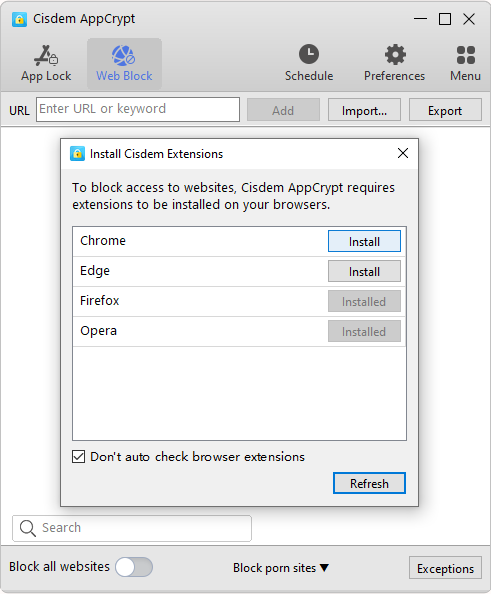
When you open the Web Block tab for the first time, install an extension on the browser(s) of your choice as prompted. (This extension is essential for Cisdem AppCrypt to be able to block websites on Windows, while the extension is not required on Mac.)
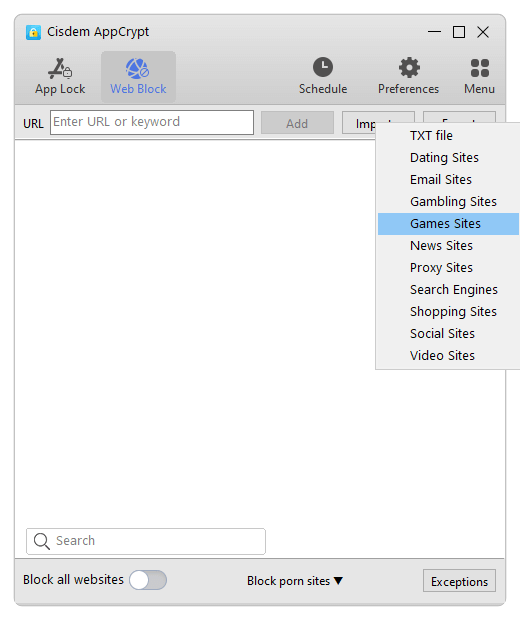
From the Import dropdown list, choose the Games Sites option, which will add all popular game sites to the block list.
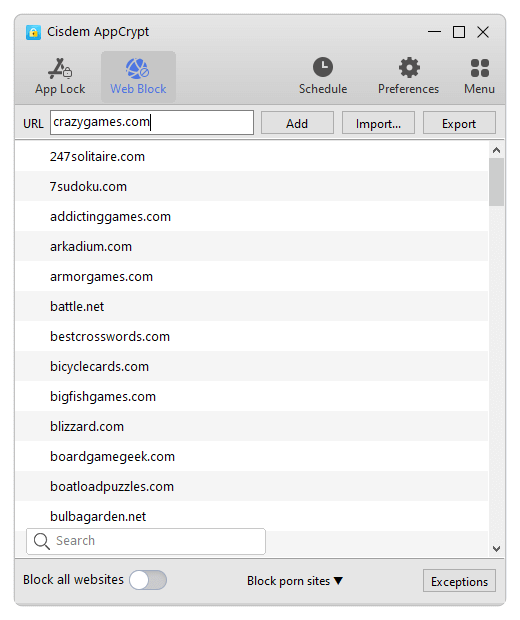
If needed, manually enter a website like crazygames.com and click Add.
Note from Cisdem:
If you want to completely block all game websites, you can turn on Block all websites, click Exceptions, and then add the sites required for study to the Always Allow list.
Step 6. Set schedules
Choose Schedule in the main window to open the General Schedule dialog.
- Activate blocking during study hours: Change the default schedule to, for example, "From 9:00 to 11:45 Working Days". Click Add Schedule and set it to "From 13:00 to 16:00 Working Days". This will restrict all game apps and sites you've added during class hours, while they will be automatically unblocked during launch break and after 4:00 PM.
![a General Schedule dialog showing two schedules and an Add Schedule button]()
- Limit game access on weekends: To reduce a child's overall gaming time, it can be necessary to set limits on games on weekends as well. You can add three new schedules for these times: 00:00–08:00, 11:00–14:00, and 21:00–23:59.
![a General Schedule dialog showing different schedules for working days and weekends]()
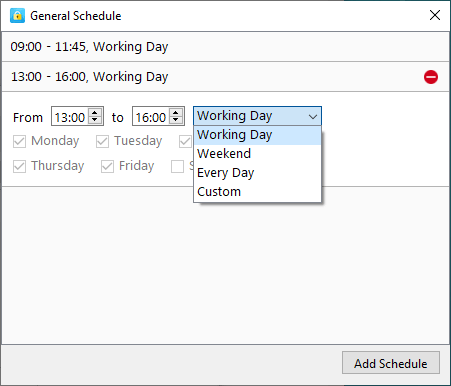
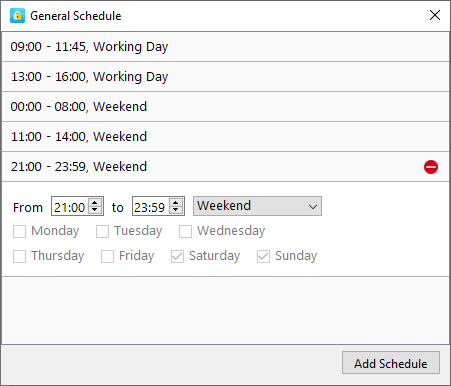
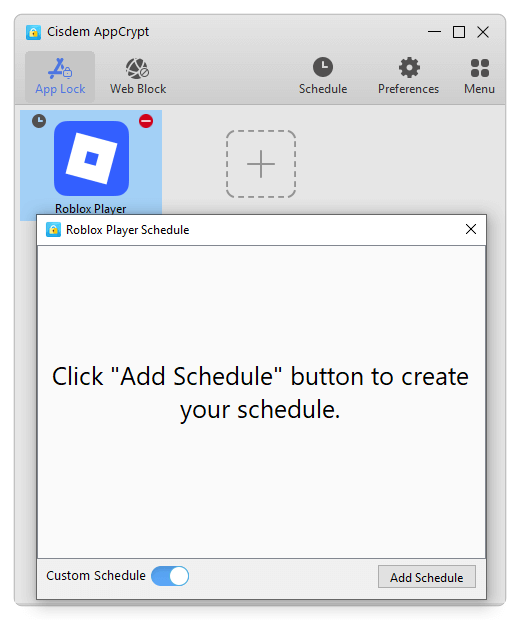
You can add, remove, or edit schedules as you like. In addition, you are allowed to enable Custom Schedules for specific games.
FAQ
The reason is that this app was installed from the Microsoft Store. In File Explorer, go to WindowsApps within Program Files, find the app's folder, and then drag it from there.
It won’t happen. Only people who know the password can quit this tool. To make blocking harder to bypass, you can turn on these options in Preferences: Launch at system startup, Disable TaskMgr, Disable CMD, Disable System Settings, and the ones in the Web Block preferences.
Loved the article, share!

