


 Cisdem AppCrypt






AppCrypt
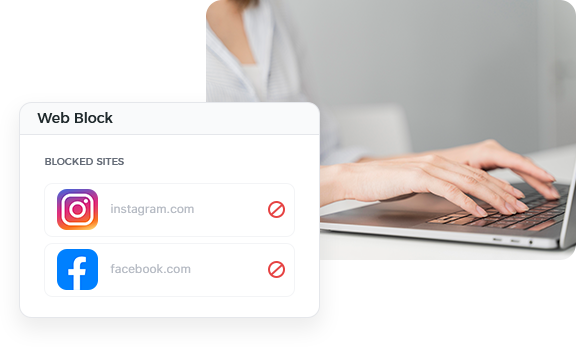
Best App to Block Distracting Websites


Cisdem AppCrypt really helps me out by blocking all those distracting websites during work hours. Highly recommended for anyone looking to reduce digital distractions. - Samantha | A copywriter
Samantha is a copywriter working in a health insurance company.
Challenge of having favorite websites at fingertips while working
Samantha is a heavy social media user. Sometimes at work, she plans to browse Instagram or X for just a few minutes to relax, but ends up spending more than an hour scrolling. She feels frustrated and starts looking for a solution.
She has tried a few website-blocking extensions. These extensions do create a barrier against social media and other distracting websites. However, this is not enough, since Samantha can easily disable or remove an extension. She needs something more effective.
Solution: Using Cisdem AppCrypt to block distractions
One day, Samantha stumbled upon a video showing people how to block websites using Cisdem AppCrypt. She didn't hesitate to try it out because the video mentioned a password protection feature. She asked her friend and colleague working in a different department to set the password for her so she wouldn't be able to bypass this tool. This turns out to be helpful.
How to block distracting websites at work and prevent bypassing
To help those struggling with distractions at work, Samantha shared step-by-step instructions.
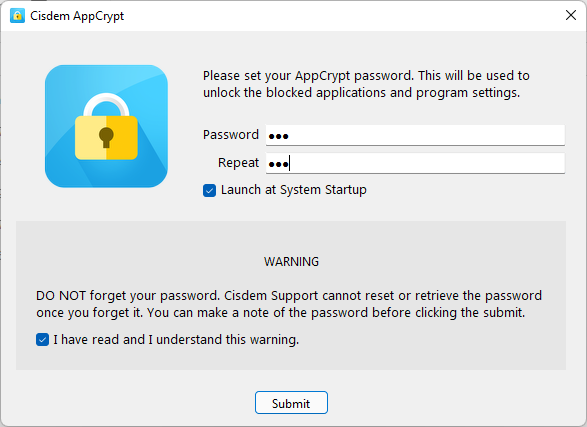
Step 1. Install Cisdem AppCrypt on your work computer. Open it, and you will see a password setup window. There, set a password.
Note from Cisdem:
If you are like Samantha and want to make sure you can't bypass blocking by configuring the tool's settings, it's recommended that you ask someone else to set the password for you.
Step 2. Access the tool's main window.
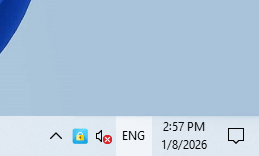
Click its icon at the bottom right corner of your computer.
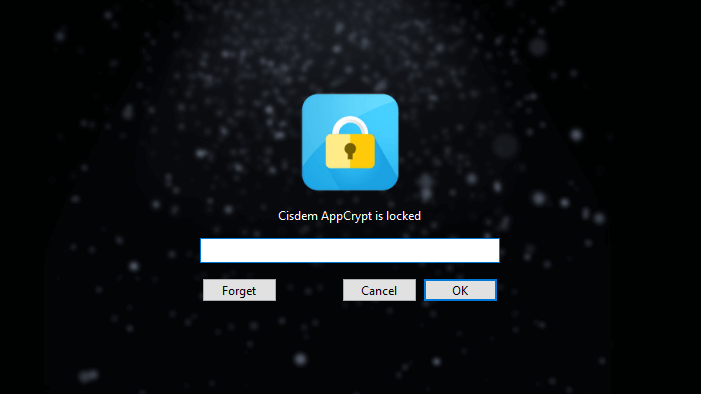
Enter the password as prompted.
Now, you should see the main window.
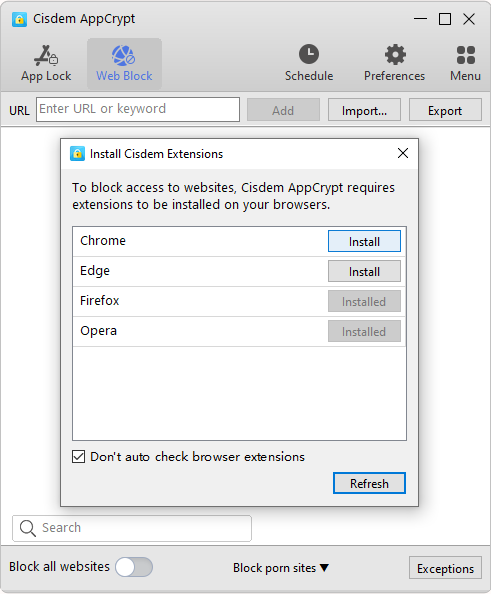
Step 3. Choose the Web Block tab. Install an extension on all supported browsers that have been installed on the computer, which is essential for blocking to be implemented.
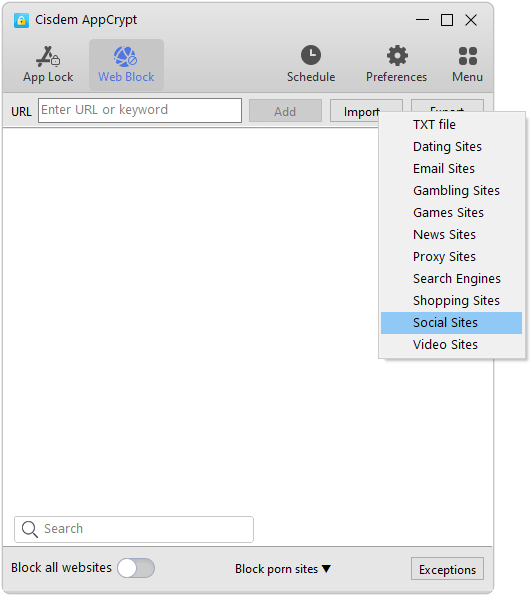
Step 4. Click the Import dropdown menu and choose the Social Sites category, which will block all popular social media websites immediately.
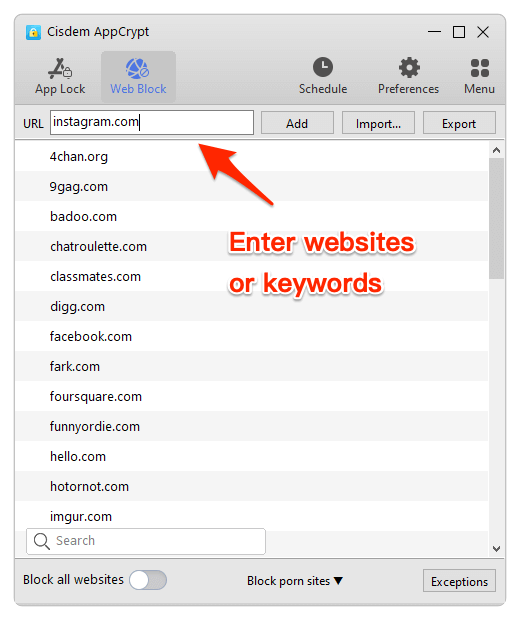
You can still block other websites by choosing more categories, manually adding websites or keywords, or importing sites from a TXT file if available. (Some people have shared such files on forums.)
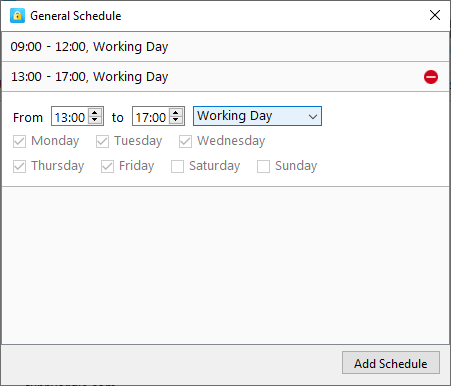
Step 5. Set blocking to be active during work hours.
Choose Schedule to open the General Schedule dialog. Set schedules based on your situation. For example, set the first schedule to 09:00 - 12:00 Working Day and the second one to 13:00 - 17:00 Working Day.
Step 6. Configure settings to make blocking hard to bypass.
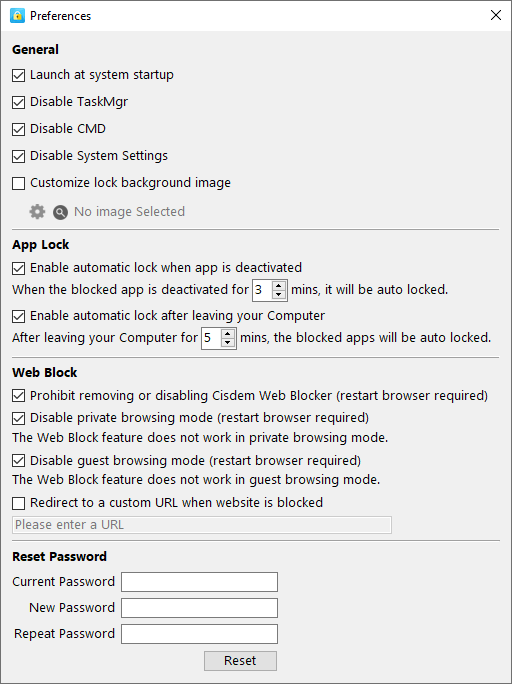
- Go to Preferences and select the first four checkboxes in the General section. This makes sure that blocking is active as soon as the computer starts, and prevents it from being bypassed using system tools.
![Preferences window showing four sections, including General, Web Block, and more]()
- In the Web Block section in Preferences, select the first three checkboxes to prevent restrictions to be bypassed by disabling or uninstalling the extension or by using incognito/guest browsing.
- Right-click the Cisdem AppCrypt icon on the taskbar to make sure that Web Block is not disabled.
FAQ
If you have added a keyword, such as reddit, to the block list, all URLs that contain this keyword will be detected and restricted.
When you try to remove the extension from your browser or disable it, a screen will appear prompting for the password. Without knowing the password, you won't be able to get rid of the extension.
Loved the article, share!

