Protect Your Apps and Privacy
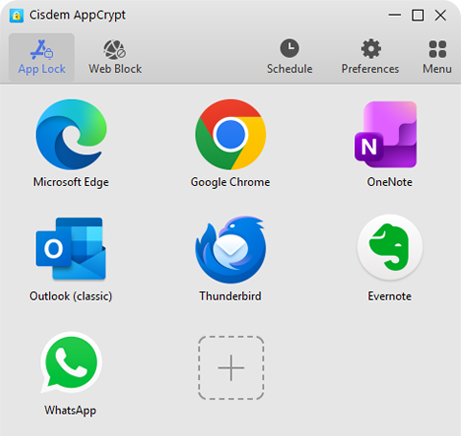
By locking apps like Photos, Messages, WhatsApp, Mail, Chrome, and Safari, you can effectively prevent others from snooping on your important apps and privacy.
Available for


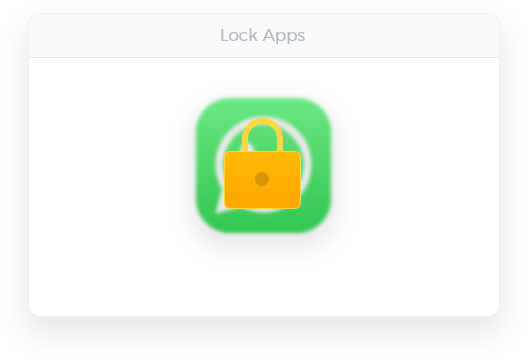
With Cisdem AppCrypt, you can easily lock individual apps with a password. Nobody can access your locked apps without entering the password.

By locking apps like Photos, Messages, WhatsApp, Mail, Chrome, and Safari, you can effectively prevent others from snooping on your important apps and privacy.

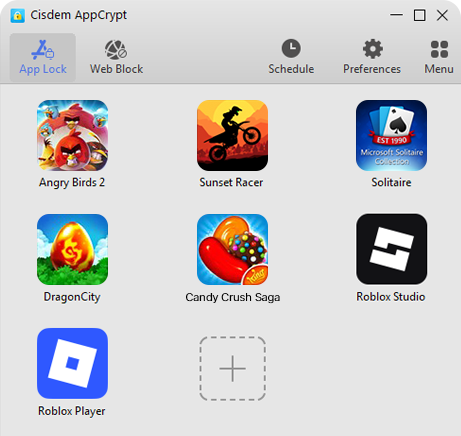
You can also prevent your children's or your own access to certain apps, such as games or age-inappropriate apps, which helps protect children from inappropriate content.

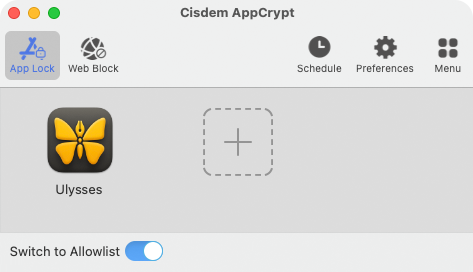
By switching to Allowlist (Mac only), you can limit your computer to one or few apps added to the Allowlist, enabling enhanced control over app access.
Cisdem AppCrypt automatically re-lock apps after they've been unlocked, in the following situations. This adds another layer of security and helps minimize any unauthorized access to your protected apps.
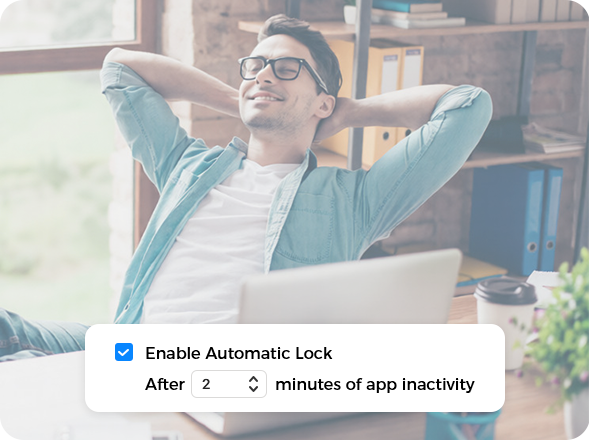
If an unlocked app has been inactive for a period of time, it will be automatically locked again. You can enable or disable re-locking for this situation.
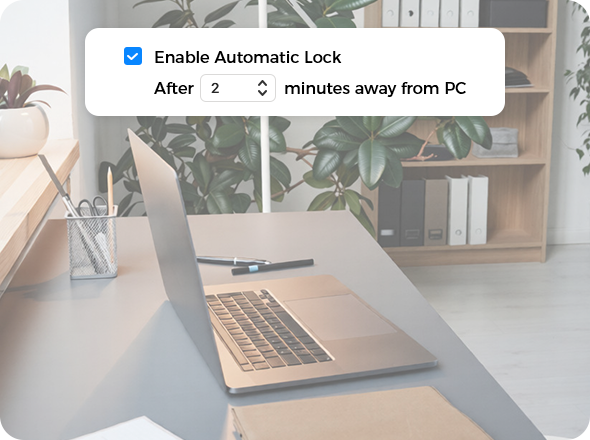
If you have been away from your computer for a while, all unlocked apps will be automatically re-locked. Enable or disable re-locking for this situation as needed.
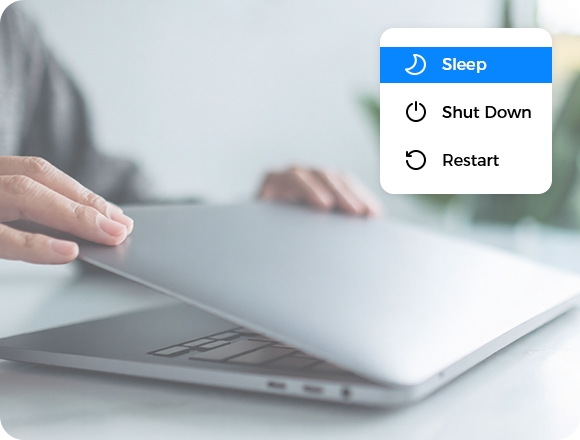
After you wake your computer from sleep, you will find that all unlocked apps are locked.