


 Cisdem AppCrypt


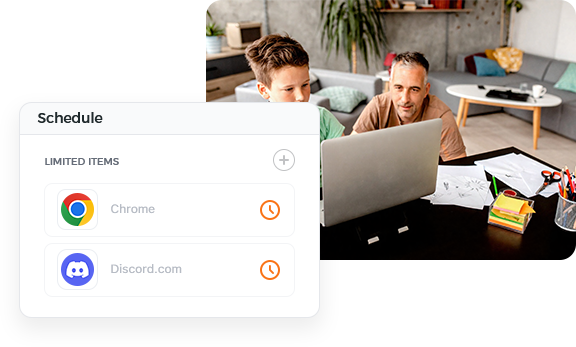




AppCrypt
Best App for Limiting Site and App Usage to Control Screen Time


With this tool, I'm able to control when my son can use apps and sites, greatly reducing the time he spends in front of the computer screen. - Michael | A father of a 11 year-old boy
Michael has a 11 years old son named Noah.
Challenge of unrestricted access to the family computer
Michael and his wife think Noah is too young to have his own phone, but they allow him to use the home PC. However, they notice their son spending more and more time in front of the computer. They start to be concerned about his eyesight.
It occurs to them that they could completely ban computer usage. After reading some researches online, they realize that's not a good idea. But something needs to be done to help their son cut screen time.
Solution: Use Cisdem AppCrypt to limit usage time
One day, Michael found a Reddit post mentioning Cisdem AppCrypt and tried it out. The tool turned out to be promising. Michael uses Cisdem AppCrypt to limit access to all websites as well as certain apps during specific times, effectively reducing Noah's screen time without banning computer usage.
Steps to set time limits on websites and apps
Michael shares below how to use this tool and the schedules he sets. By following these instructions, parents can easily control screen time for their kids by restricting website and app access. The process consists of two parts.
Part 1. Add websites and apps to restrict
Step 1. Download and install Cisdem AppCrypt on the computer your child uses.
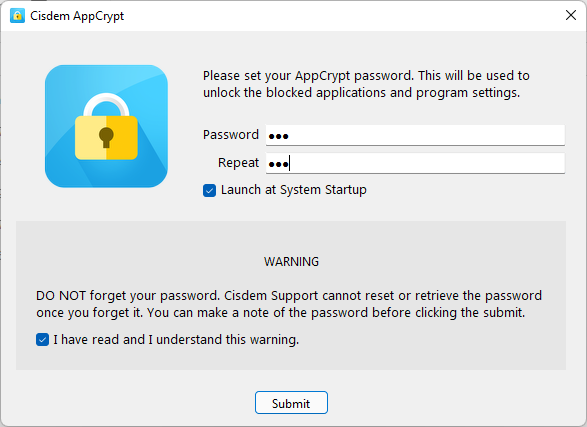
Step 2. Open the tool and set a password as prompted. Make sure that you use a password your child can't guess.
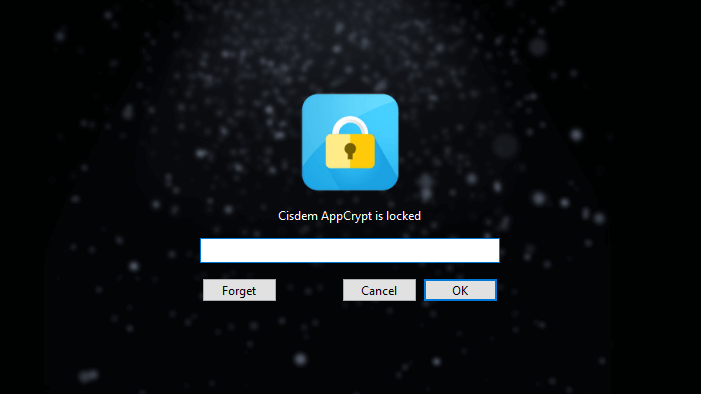
Step 3. Click the tool's icon on the taskbar, which will ask for a password. Entering the password will open the tool's main window.
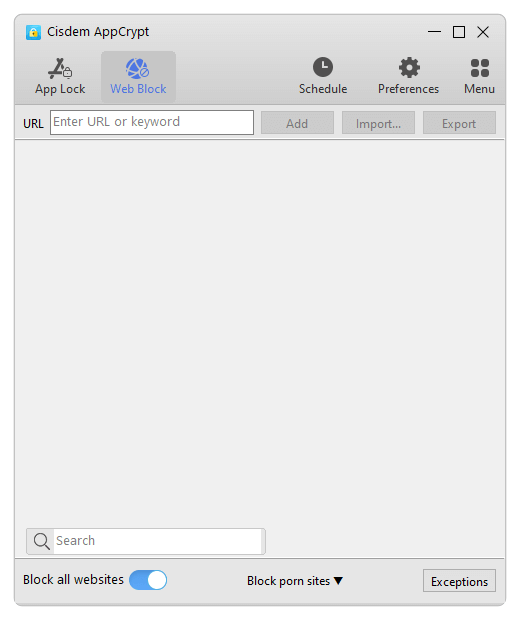
Step 4. Add websites and apps.
- Choose the Web Block tab. (When you open this tab for the first time, install an browser extension as prompted, which is essential.) Turn on the Block all websites option.
![the Web Block tab showing a Block all websites option in the bottom left corner, with the option being enabled]()
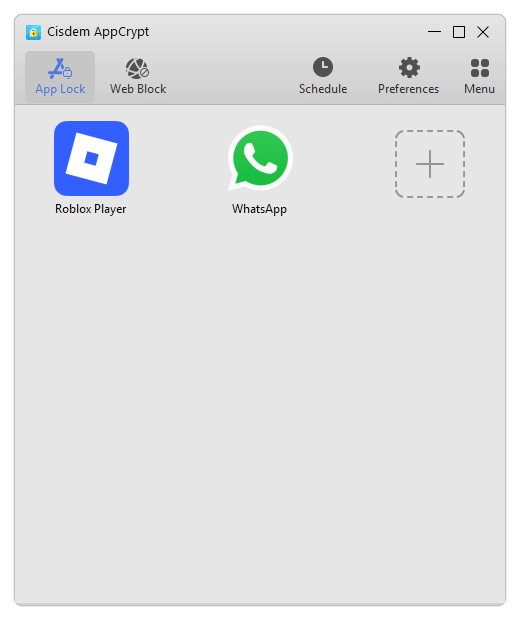
- Choose the App Lock tab. Add the apps, such as games, your kid spends much time on.
![the App Lock tab showing two apps have been added]()
Note from Cisdem:
Instead of restricting all websites, you can choose to limit only your child's favorite sites. However, many parents, including Michael, find that restricting all sites is more effective.
Part 2. Set time limits
There are methods available for setting time limits on restricted items, and you can use them together if needed.
Set the same limits for all items
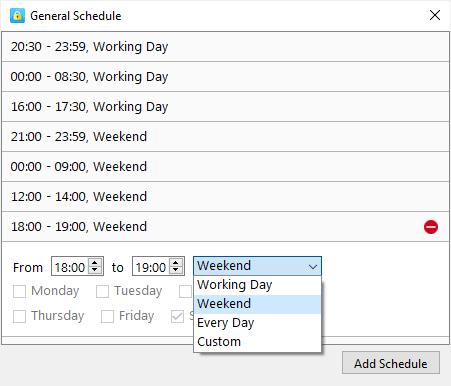
Choose Schedule in the main window, and you will see a General Schedule dialog. There, you can specify the times of the day and days of the week when your child is not allowed to access all restricted sites and apps.
You can create multiple schedules based on your specific needs, so there's a lot of flexibility.
| Time period | Description | |
|---|---|---|
| Weekdays | 20:30 to 23:59 00:00 to 08:30 |
Overnight restriction |
| 16:00 to 17:30 | Afternoon restriction | |
| Weekends | 21:00 to 23:59 00:00 to 09:00 |
Overnight restriction |
| 12:00 to 14:00 | Lunch time restriction | |
| 18:00 to 19:00 | Dinner time restriction |
Set different limits for different items
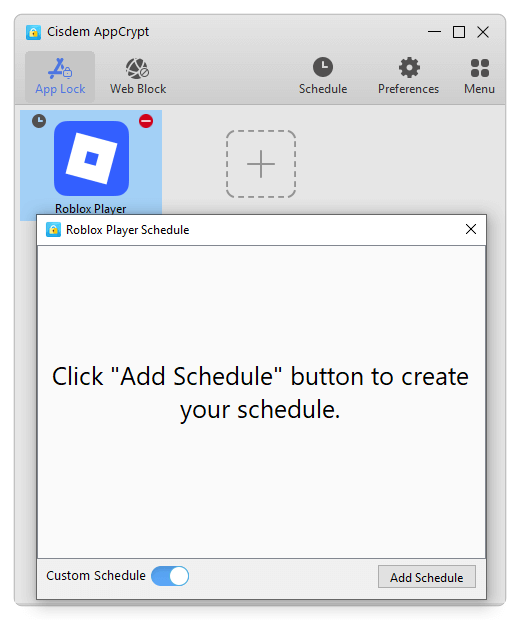
Select a website or app in the Web Block or App Lock tab and click the clock icon that appears. This will open a Custom Schedule dialog for this specific item. Turn on the Custom Schedule option. Then set one or multiple schedules as needed, which is the same to setting general schedules.
Note from Cisdem:
If you want to remove the custom schedules from a site or app so that it will follow the general schedules, it's recommended to simply turn off the Custom Schedule button instead of deleting your schedules.
FAQ
The reason is that this app was installed from the Microsoft Store. In File Explorer, go to Program Files and then WindowsApps, find the app's folder, and drag it from there.
It won’t happen. Only people who know the password can quit this tool. To make blocking harder to bypass, you can turn on these options in Preferences: Launch at system startup, Disable TaskMgr, Disable CMD, Disable System Settings, and the ones in the Web Block preferences.
Loved the article, share!

