


 Cisdem AppCrypt


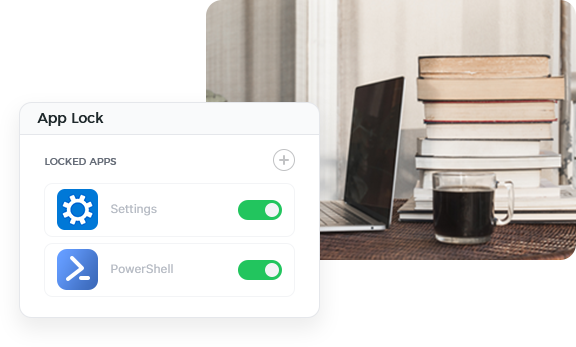




AppCrypt
Best App Locker for Computers


Cisdem AppCrypt really helps keep those important apps safe on public computers. It stops users from opening them or messing around with them. - Robin | A systems librarian
Robin works in a library, taking care of the tech stuff.
Challenge caused by unrestricted access to apps on public computers
Anyone with a library card can freely use public computers. They use these computers to search for books, browse the web, work on documents, complete homework, or do other tasks. However, some people take advantage of access to certain apps, such as Settings and Command Prompt, to change or tamper with computer or network settings. Doing so can cause the operating system to malfunction or crash or lead to security issues. Robin needs to prevent these risky actions from happening.
Solution: Using Cisdem AppCrypt to protect important apps
Robin was looking for a way to restrict access to certain apps and discovered Cisdem AppCrypt. When trying this tool, he found it’s useful but thought it would be time-consuming to set up the tool on 70 Windows computers individually.
So, he contacted the support team to ask if there was a quick and easy way to set it up. Fortunately, Cisdem AppCrypt offers a configuration import and export feature, which made the setup process much easier.
Steps to put a lock on certain apps on multiple computers
Below are the steps that Robin took. By following these steps, libraries, organizations, and businesses can easily secure their important apps. Individuals will also find the steps helpful.
The process consists of two parts.
Part 1. Install and set up Cisdem AppCrypt on one computer
Step 1. Download Cisdem AppCrypt from the official website and install it on a computer.
Step 2. The first time you open the tool, set a password. Avoid using a simple, easy-to-guess password.
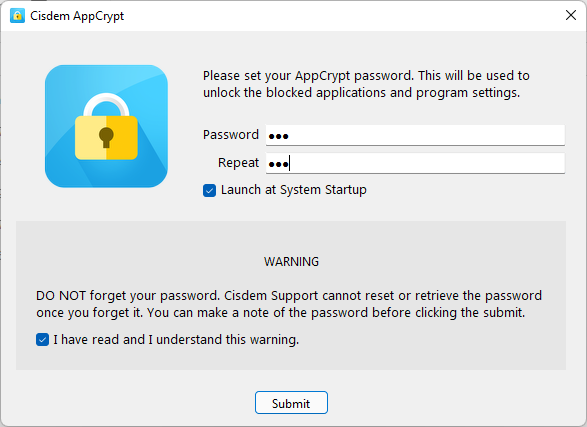
Note from Cisdem:
Don't use a simple, easy-to-guess password, such as "123456", "111111", "password", or "password123". It's recommended to use a long, complex, and unique one, such as one containing uppercase and lowercase letters, numbers and symbols.
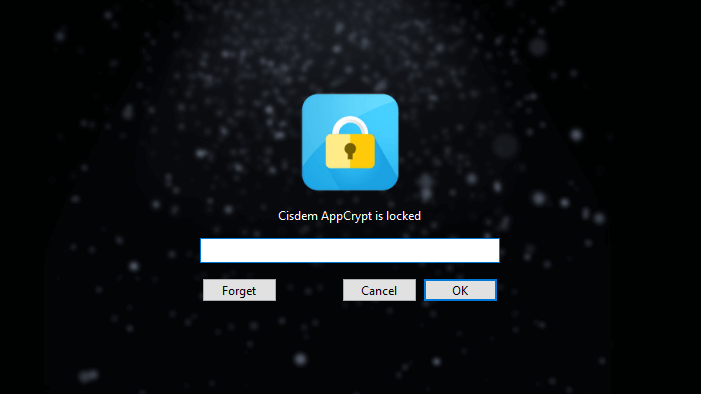
Step 3. Click the tool's icon on the taskbar and then enter the password set in step 2 when prompted. Thus, you are in the main window of this tool.
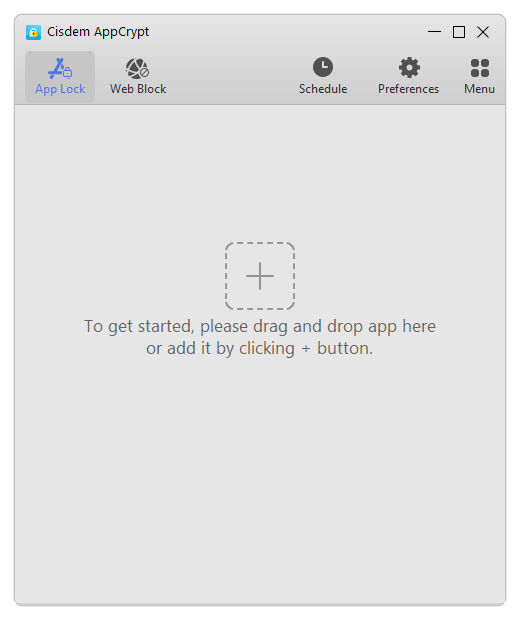
Step 4. Choose the Preferences tab.
There, select these three checkboxes: Disable TaskMgr, Disable CMD, and Disable System Settings.
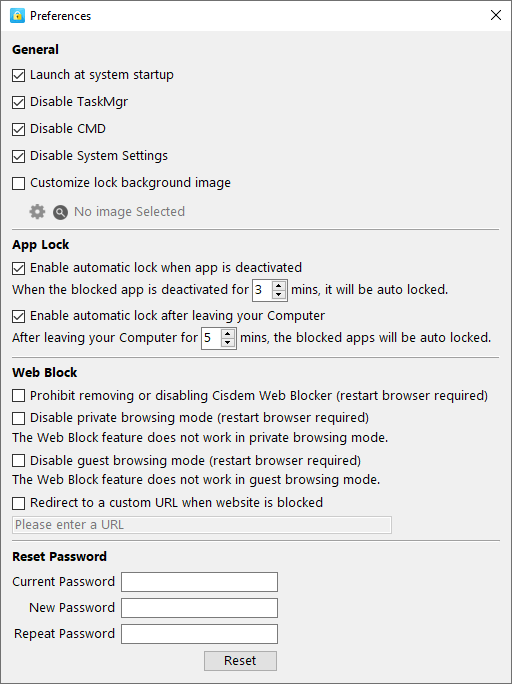
Now, Task Manager, Command Prompt, and Settings are locked.
Step 5. Choose the App Lock tab. There, click the big Add icon to add other specific apps (or their desktop shortcuts) that you need to protect. Alternatively, add apps by drag and drop.
Step 6. Verify or adjust Cisdem AppCrypt settings.
- Make sure you don't change the default General Schedule. By default, added apps are locked permanently.
- Select the Launch at system startup checkbox to make sure app locking becomes active as the computer starts up.
![the Launch at system startup checkbox is selected]()
- If needed, enable the two automatic re-locking options to eliminate the possibility of apps being accessed. For example, if a staff member who knows the password unlocks an app and walks away, the app will be locked again automatically.
Part 2. Export and import configuration to quickly set up Cisdem AppCrypt on other machines
Step 1. After you've locked all apps that you want to secure and are happy with the settings, choose Menu in the main window and then Export Configure.
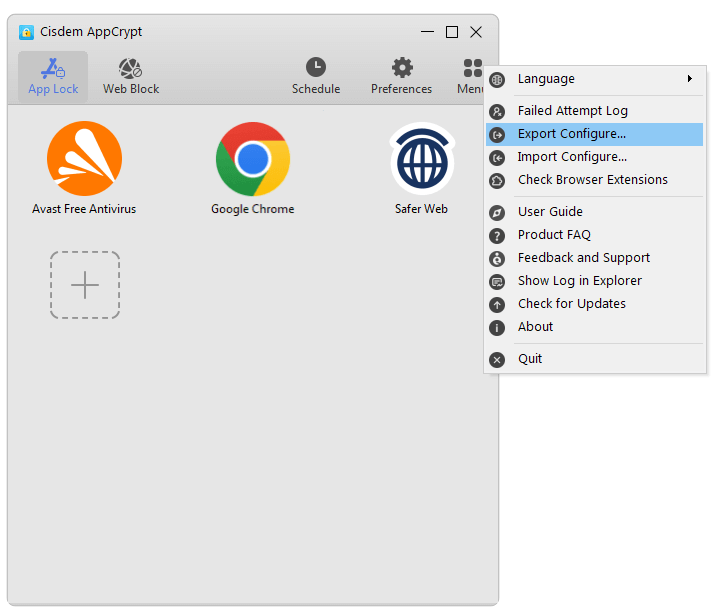
Step 2. Give the configuration file a descriptive name and click Save.
Step 3. On each computer, install Cisdem AppCrypt and set a password.
Note from Cisdem:
The password is not contained in the configuration file, so you need to set it individually.
Step 4. Choose Menu > Import Configure.
When the process is complete, the apps that you've specified to lock will be locked on every computer.
FAQ
If the app doesn't have a desktop shortcut and you no idea where to find the app, go to Start then All apps, right-click the app, and choose More then Open file location. If an app was installed from the Microsoft Store, you need to find it in WindowsApps within Program Files.
The app won't open, and this person will see a screen prompting for a password. If the person tries to bypass by entering an incorrect password, Cisdem AppCrypt will record this attempt in the Failed Attempt Log in Menu.
This could happen. The reason is that app wasn't installed in the same location on this particular computer as it was on the other computers. If so, just manually add this app to lock on this computer.
Loved the article, share!

