


 Cisdem AppCrypt






AppCrypt
Best App to Block Scam Websites


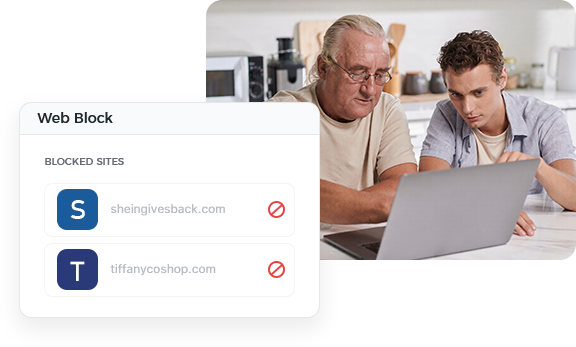
I use Cisdem AppCrypt to keep my old father safe from web scams. It helps prevent him from making purchases on strange websites. - James | Son of a retired teacher
James' father is a 75 year-old retired high school teacher.
Challenge of being exposed to scam websites
There are tons of scam websites out there, with new ones being created every day. Everyone is their potential victim. James' father fell victim to a few fake online shopping websites. So James checked the browser settings on this father's Mac and enabled the feature that would detect and warn of fraudulent sites. While this helped, many scam websites still managed to bypass the detection. His father still ended up getting scammed by some seemingly legit shopping sites.
Solution: Use Cisdem AppCrypt to make scam websites inaccessible
James came up with a solution and thought that the best way was to allow only the truly legit websites while blocking everything else on the internet. He discussed the idea with his father, and his father understood and agreed. James then spent some time searching for an app that could help and found Cisdem AppCrypt.
He installed Cisdem AppCrypt on his father's Mac and set it up by turning on the whitelist feature and adding all of his father's favorite, legit websites to the list. When James visits his parents' house, he will examine the new websites his father wants to access and then add the safe ones to the whitelist, so his father can enjoy more of the web.
How to block access to scam websites by allowing only legit sites
Step 1. Have a conversation
Discuss this idea with the loved one who you are trying to protect from online scams. If he or she is against it, you may need to find a solution that they accept.
Step 2. Install Cisdem AppCrypt
Download and install the tool on his or her computer.
Note from Cisdem:
Cisdem AppCrypt is not a scam website checker or detector. Instead, it has a website blocking feature that can help you restrict access to scam websites after being set up properly.
Step 3. Set a password
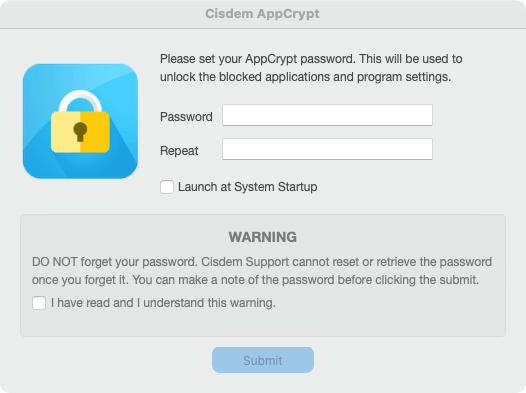
The first time you open this tool, set a password.
Note from Cisdem:
Cisdem AppCrypt is protected by this password. Therefore, even if the person is tempted to bypass it, he or she won't succeed.
Step 4. Open its main window
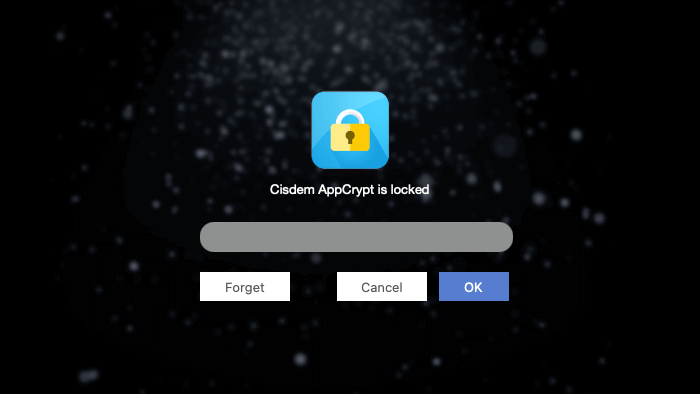
Click the tool's icon in the menu bar and choose Open Main Window.
Enter the password you set in step 3 to access the main window.
Step 5. Turn on and configure the whitelist feature
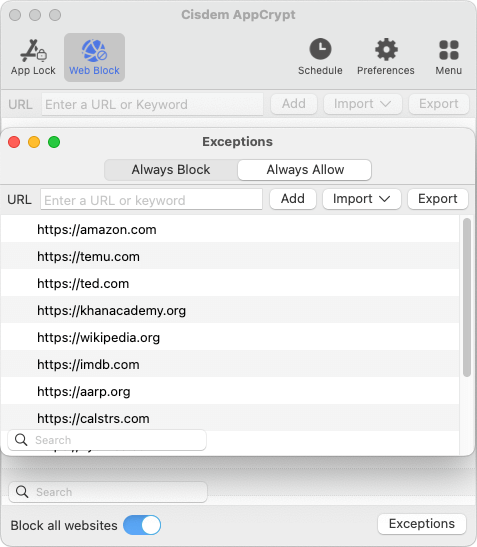
Choose the Web Block tab. Toggle Block all websites in the bottom left corner to the on position. Click Exceptions.
In the Exceptions dialog that appears, choose Always Allow. Add all of your loved one's favorite, legit sites to this allow list.
Note from Cisdem:
If you want your loved one to be able to browse the internet more freely, you may consider an alternative method - using Cisdem AppCrypt to block specific scam websites. You can do this by manually adding specific sites in the Web Block tab or importing a list of scam websites from a TXT file (by choosing Import > TXT file).
If you choose this alternative method, it's recommended that you add a layer of security by configuring your browser settings. For example, Safari users can select the Fraudulent sites checkbox in Settings > Security, and Chrome users can turn on both Standard protection and Enhanced protection in Settings > Privacy and security > Security > Safe Browsing.
FAQ
It applies to most popular browsers, including Safari, Chrome, Edge, Opera and more. If the person you want to protect uses an unsupported browser, you can just use Cisdem AppCrypt to App Lock feature to lock the browser.
To make blocking active, you need to make sure the this tool is running. There's a setting that, when enabled, makes sure the tool starts automatically when the computer boots up. Once the tool is running, only people who know the password can quit it. Therefore, the person you are protecting won't be able to quit it.
Loved the article, share!

