Available for


No matter where your videos come from, you can burn them.

Remove unwanted parts and keep the best moments. Just drag the sliders or set the time to trim your video in seconds.


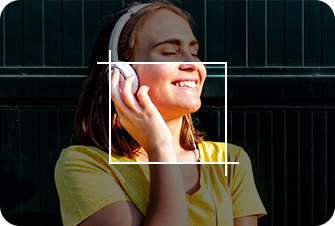
Adjust the video aspect ratio to make it play full screen after burning. Or crop the edges to keep the focus on the useful part.

Change video orientation. Rotate or flip the video for TV, PS5, or more (e.g. family reunions or birthday videos shot on your phone).

Fix old tapes, brighten dark clips, match colors, etc. Boost your video quality easily.
 Brightness
Make the video brighter or darker. Handy for fixing underexposed or overly bright clips.
 Contrast
Enhance the difference between light and dark areas. Make your video full of depth.
 Saturation
Control how colorful your video feels. Turn it up for vibrant, down for soft.
 Tint
TintCorrect color shifts toward green or magenta. Help keep skin tones and colors looking natural.
 Temperature
Warm (adds yellow) or cool (adds blue) your video. Fix color shifts from different lighting.
Tailor your video with watermarks and subtitles for a practical and enjoyable disc.
 Add Watermark
Insert a text or image watermark into your video to claim ownership. Also adjust the position, transparency, text size/font/color.

 Add Subtitle
If there are soft subtitles, seamlessly hard-code them into your video. If not, import external .srt, .ass, or .ssa files. Your subtitles will always be in sync.

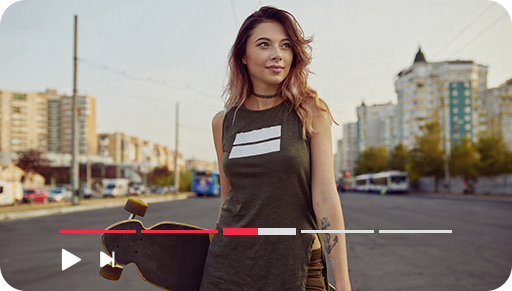
Skip to different video sections easily. Make your DVD more organized and user‑friendly.
 Build a DVD Navigation Structure
Create chapters like "Chapter1" and "Chapter2" that act as clickable options in the DVD menu.
 Precise Navigation
With time settings down to the second, each chapter begins exactly at a scene change or key moment.
 Unlimited Chapters
Add as many chapters as you need. There’s no limit.
Make your DVD playback sound better with simple adjustments.

 Volume Adjustment
Ensure all videos on the DVD maintain the same volume level, avoiding some videos that are too loud or too quiet.
 Fade In
Set a gentle fade-in for 1 to 5 seconds so it sounds natural when the audio begins.
 Fade Out
At the end, do a slow fade-out over 1 to 5 seconds so it smoothly fades away.
Cisdem DVD Burner comes with more handy tools to make your creative process smoother and more efficient.

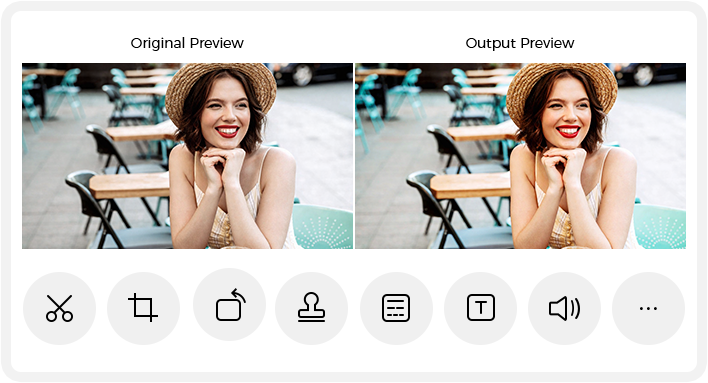
Preview Editing
View your original and edited video side by side, allowing you to visually compare every change and ensure each adjustment is as intended.

1-Click Reset
All edits for the current video, except Watermark and Subtitle, can be easily reset to the original with just one click. Try out different editing tools without worry!

Apply to All
Edit one video with Rotate, Watermark, and Effects. And with one click, you can apply the same changes to all imported videos.

Easily make professional and unique DVDs with the best DVD burning software.