


 Cisdem DVD Burner





 DVD Burner
Best App to Burn Sports Video, Like Soccer Game, to DVD.


My job isn’t just to film the game - it’s to preserve lasting memories for every player. Cisdem DVD Burner makes it easy for me to burn the girls' game videos and highlights to DVD, which their parents and coaches really loved. - Wayne | Sports videographer
Wayne is a videographer for his local high school girls' soccer team. After the season, he’s collected tons of footage, including goals, saves, celebrations, you name it. Besides filming every game, he also needs to pick player’s best moments.
The challenge
After the season ended, the coaches and parents asked to have DVDs made of the championship game and key highlights as keepsakes.
Since every player and parent would get a copy, Wayne went through the roughly 80-minute game (not including halftime) and picked out each player’s best moments to edit. He’s pretty good with editing, so that part was no problem.
The hard part was burning multiple DVDs. Wayne had never done that before. He also needed to set up chapter menus so everyone could easily jump to specific players’ highlights.
The solution
Since burning multiple DVDs was a heavy and unfamiliar task, Wayne started looking for a solution that would deliver good quality but save him time. After some research and comparison, he chose Cisdem DVD Burner. The app really made things easier.
Wayne was happy to share his successful experiences with other sports videographers dealing with the same problem. Below is his step-by-step process. Hope it helps you create sports DVD copies that work on any regular DVD player.
Steps Wayne took to convert soccer games to multiple DVDs
Step 1. Add video footage to the software
I downloaded and installed the software from Cisdem DVD Burner’s official website.
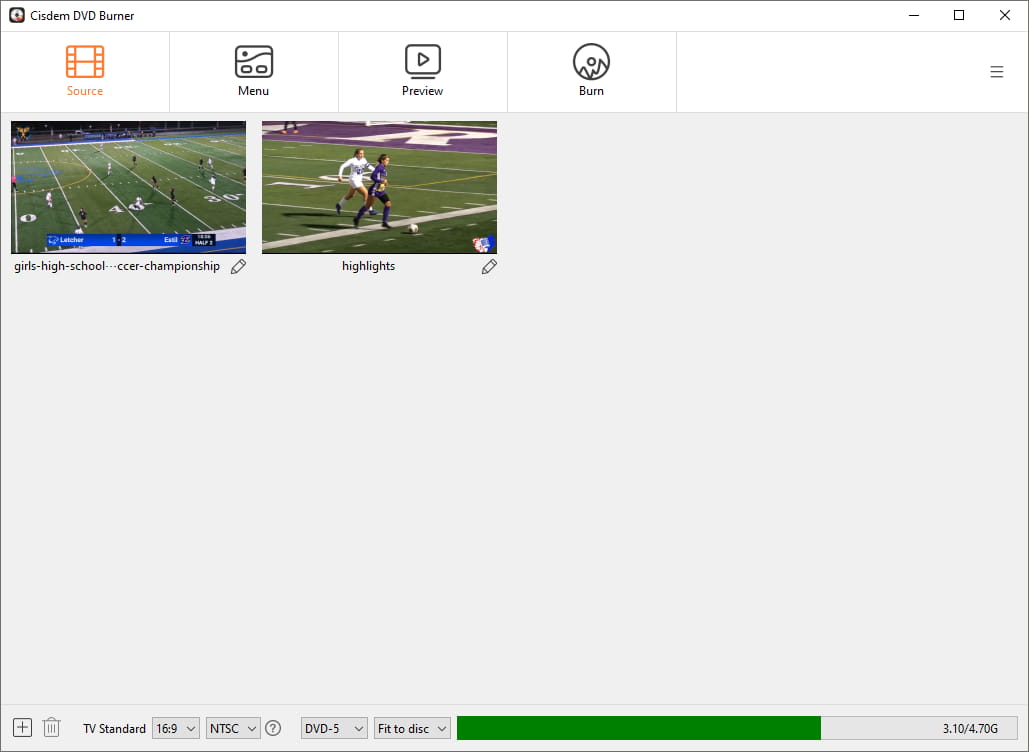
Once I opened Cisdem, I just dragged the soccer game footage and the players’ highlight videos into it.
Tip from Cisdem:
Cisdem DVD Burner efficiently handles raw video files of various formats. Regardless of the format, the software will automatically encode it into the DVD-compatible MPEG2 format. So, you don’t have to worry about compatibility.
Step 2. Adjust DVD parameters
In the "Source" window at the bottom, pick NTSC TV Standard and one of the 6 quality levels. The whole video (game footage plus highlights) is about 110 minutes long, so I have 2 options:
- Burn videos to DVD-9 with the "Best" or “High” quality level. Note: DVD-9 may not work with some very old, first-generation DVD players.
- Burn videos to DVD-5 with the "Fit to Disc" or "Normal" quality level. The former offers higher quality, while the latter offers faster burning speeds.
After checking with players' parents, I’ve decided to go with option 1.

Step 3. Edit the video
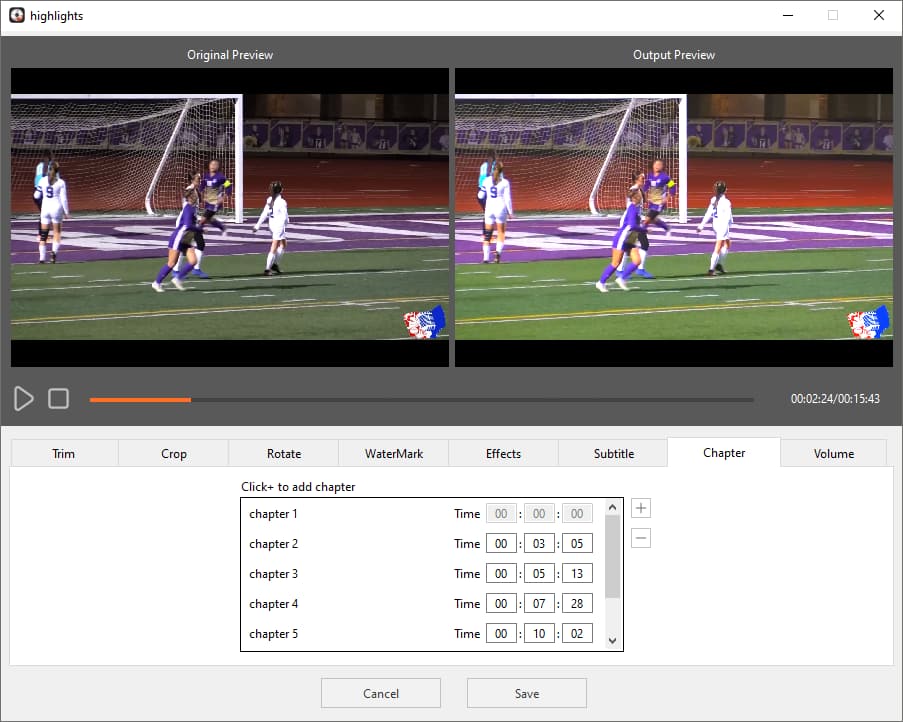
Click the pencil icon to open up the editor. I've already done the heavy editing in my pro software, so I just need to do a couple quick tweaks in here:
Under the "Chapter" section, split the championship game video into chapter 1 and chapter 2 for the two halves. For the highlight reel, divide the chapters based on different players' top moments.
If you have never edited before, you can use Cisdem DVD Burner's other basic editing features including Trim, Crop, Rotate, Effects, Watermark, Subtitle, and Volume.
Step 4. Create a menu
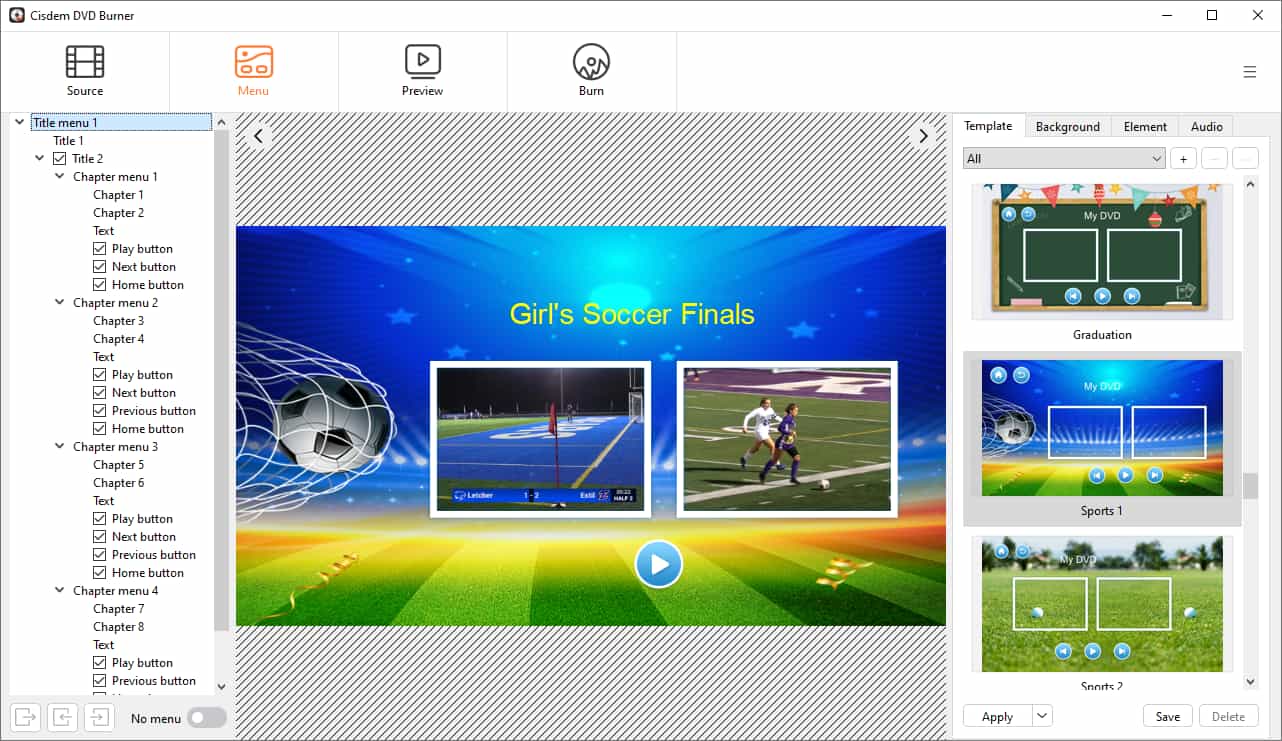
Click the “Menu” icon from the top to enter the menu creation workspace. Here’s what I did:
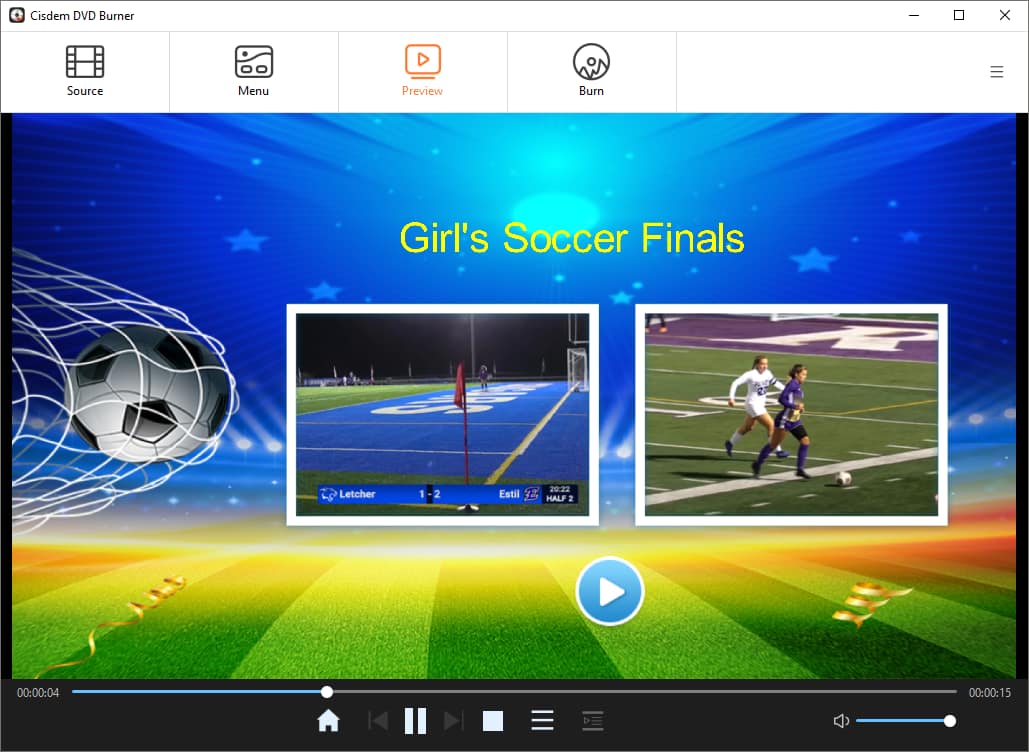
- Under the "Template" tab on the right, I selected the Sports 1 template from Occasion, which happens to be a soccer-themed template. You can upload a team logo, trophy photo, or group shot as the menu background.
- I changed the main title to "Girls' Soccer Finals”. The chapter titles for the two videos are named “Full Match” and “Player Highlights”.
- In the "Element" tab, I selected the "Text and Frame" style. Added labels to each video including chapters.
- I downloaded a classic motivational sports song and set it as the menu music.
Step 5. Preview
Click on the "Preview" tab to enter preview module. Use the on-screen menu to test all the buttons and make sure they navigate correctly to the right video clips.
Step 6. Burn sports videos to DVD
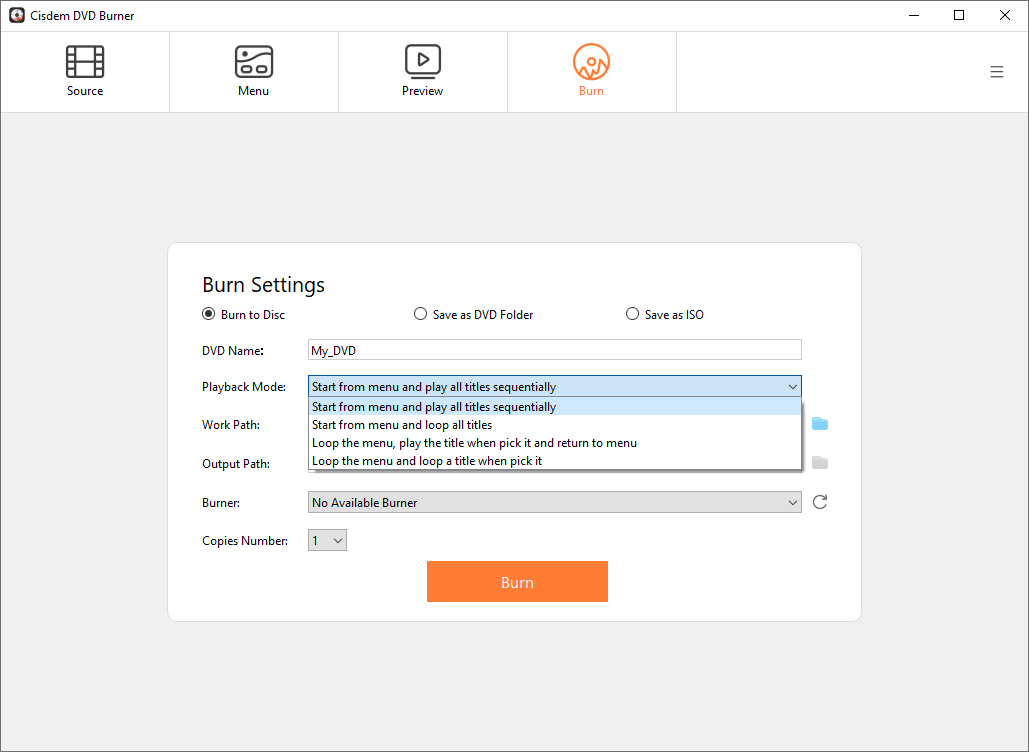
After entering the "Burn" interface, I:
- Insert a new, high-quality, blank DVD into my computer's optical drive.
- Keep the default "Burn to Disc” and playback mode settings.
- Set the "Copies Number" value to 19.
- Click "Burn" to begin creating the DVD.
Tip from Cisdem:
After finishing all the burning, make sure to back up the final Cisdem project file. If you need to add more burns later, you can just pull up the project file without having to redo everything.
FAQ
Cisdem DVD Burner supports any type of video, including 4K video. But it only burns to a standard DVDs, which resolution is 720x480 (NTSC) or 720x576 (PAL). It will re-encode the video to fit a standard DVD. For TV playback, the video quality remains clear, but it can't preserve the ultimate detail of 4K.
Yes, just select the number of copies and burn them. It saves time by skipping video re-encoding and speeds up the burning process.
Yes, Cisdem DVD Burner can add watermarks to each video, either as images or text, for example, if you're an athlete, you can insert your team's logo. To add a watermark to your menu, replace the background picture with your own edited version and incorporate the watermark into it.
Loved the article, share!

