Available for


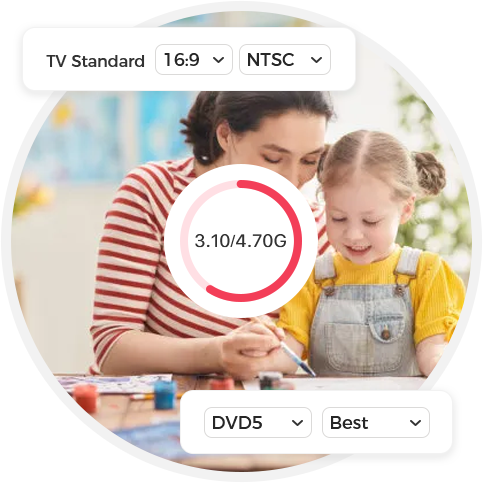
Master two simple settings to ensure your disc looks perfect on any screen.
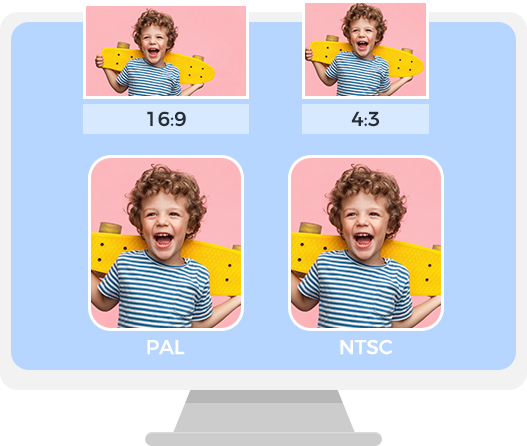
 TV Aspect
Set the video shape (16:9 or 4:3) for playback. Match your screen to prevent black bars or stretched images.
 TV Standard
Select the broadcast format (NTSC or PAL) for your region, making sure the DVD you burn can be recognized without issue and played by local devices.
Discover disc types supported by Cisdem DVD Burner, each offering different storage capacities to match your needs.
| Type | Capacity | Structure | Typical Usage | DVD-5 | 4.7GB | Single-layer disc | Save standard videos and movies, mostpopular and affordable |
|---|---|---|---|
| DVD-9 | 8.5GB | Dual-layer disc | Process longer movies, series, orhigher-quality video collections |
| DVD-10 | 9.4GB | Double-sided disc(flip to use both sides) | Made for extra capacity not ease of use,rare in home use |

Automatically tweak quality based on video length and disc capacity. If there's enough space, “Fit to Disc” preserves the best quality. If it goes over a standard DVD, it compresses to fit. Note: For the best visible quality, keep compression under 15%.
Who it’s for: Perfect for everyone.

Encode with the highest bitrate to deliver the best video quality and retain most of the original details.
Who it’s for: Users who prioritize quality and don't need to burn long videos.

Compared to “Best”, it offers quality that's close but allows you to fit a bit more on the disc.
Who it’s for: Users whose projects aren't very long and want a better viewing experience.

Use industry-standard encoding to ensure maximum compatibility during playback. Support average quality and length.
Who it’s for: People who just want a quick, reliable disc that works on any player.

Use fixed low-bitrate encoding to store more videos on a single disc than the “Normal” option.
Who it’s for: You want to burn for longer, but the quality still needs to be good enough to watch.

Use the lowest bitrate to store the longest video possible. Get the most out of the disc.
Who it’s for: Made for those willing to sacrifice quality to reach maximum single-disc capacity.
Know your disc capacity in seconds. No more failed burning from running out of capacity.

Cisdem DVD Burner clearly displays the total size of your added videos against the total capacity of your selected disc type. You can always accurately track your used and remaining capacity.

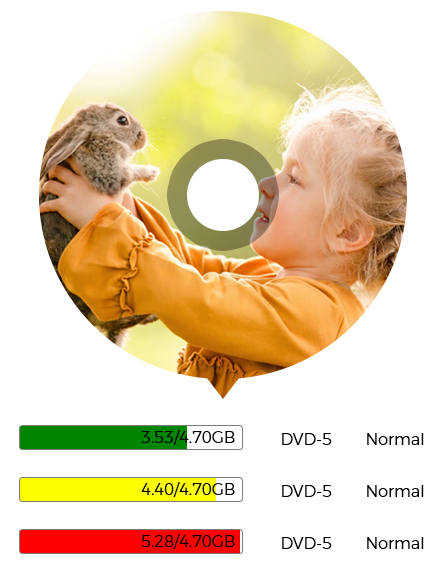
The capacity bar is your ultimate visual guide, giving you an instant check on DVD available space.
Green (Safe): Plenty of capacity. You can keep adding files or start burning right away.
Yellow (Warning): Capacity usage has exceeded 80%. Add more with caution.
Red (Over Limit): Capacity exceeded. You must remove some files or apply the “Fit to Disc” quality option to continue.
Your capacity preview isn't static. Switch between 3 DVD types and 6 quality levels, then see live capacity bar and number updates. You’ll know whether your project fits on a single disc or needs more - all before you burn. Here’s the estimated video length per disc for every setting.
| Quality Level | Video Bitrate(Mbps) | Audio Bitrate(Kbps) | DVD-5(Hour) | DVD-9(Hour) | DVD-10(Hour) |
|---|---|---|---|---|---|
| Fit to Disc | 1.8 - 8.5 | 128 - 384 | ~1.18 - 5.42 | ~2.13 - 9.78 | ~2.36 - 10.86 |
| Best | 8.5 | 384 | ~1.18 | ~2.13 | ~2.36 |
| High | 6.5 | 224 | ~1.55 | ~2.81 | ~3.13 |
| Normal | 5 | 192 | ~2.01 | ~3.63 | ~4.03 |
| Low | 3.5 | 160 | ~2.85 | ~5.15 | ~5.72 |
| Lowest | 1.8 | 128 | ~5.42 | ~9.78 | ~10.86 |
 Note:
Note:
Easily make professional and unique DVDs with the best DVD burning software.