


 Cisdem DVD Burner





 DVD Burner
Best App to Burn Movies to DVD


For years, I've wanted to burn some movie series to DVDs as my own personal collection. Thanks to Cisdem DVD Burner, it helped me back up my movies with custom menus and chapters. It works like a charm! - Joshua | Old movie fan
Joshua is a movie enthusiast and a collector of movie series. He legally owns digital copies of the original Star Wars trilogy - A New Hope, The Empire Strikes Back, and Return of the Jedi.
The challenge
Joshua's Star Wars trilogy was precious to him. He wanted to convert them to physical discs. However, the process was a little more complicated than he thought.
Did his digital copies support burning? Was the output quality good? Could he play them on a regular DVD player? Joshua watched some YouTube tutorials to learn, but he quickly got overwhelmed by the complicated settings. He felt hesitant to try it out, worried he might waste his blank discs.
The solution
Joshua discovered Cisdem DVD Burner, a reliable DVD authoring software, while watching YouTube videos. The app is easy to use and offers a free trial. He burned a movie to a DVD folder to test it out, and everything worked fine, except that the trial version only allowed burning up to 5 minutes of movie. He then purchased the program and successfully completed his task.
Steps Joshua took to create DVD collections from movies
For users also considering turning movies or TV shows into physical collections, you can learn from Joshua's experience. He went over the steps and results. Here’s what he said.
Step 1. Download and install the app
I downloaded Cisdem DVD Burner from its official website. I installed the Windows version. The .exe file is about 110MB, and the software takes up under 300MB.
Step 2. Import a movie file
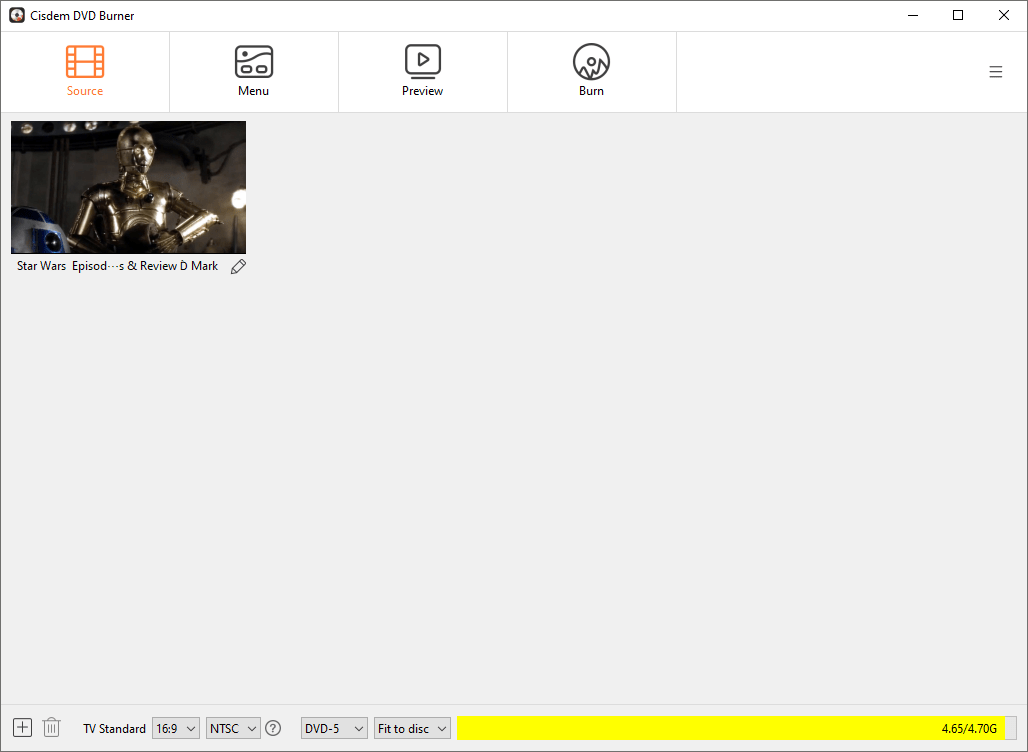
Open the software and drag the movie file into the “Source” interface. I only added one movie at a time.
Step 3. Set DVD parameters
In the lower part of the “Source” interface, I selected the NTSC TV standard (suitable for the United States) and the “Fit to Disc” quality level.
The runtimes of the original Star Wars trilogy are as follows:
- A New Hope - 121 minutes
- The Empire Strikes Back - 124 minutes
- Return of the Jedi - 131 minutes
Since a movie only exceed the 120-minute mark by a little, it can be compressed to fit on a DVD-5 using the "Fit to Disc" option. It isn't heavily compressed and the quality stays pretty good.
To use “Best” or “High”, you’ll need a DVD-9. A typical movie is too long to fit on a DVD-5 disc with the “Best” or “High” option.

Step 4. If needed, edit the movie
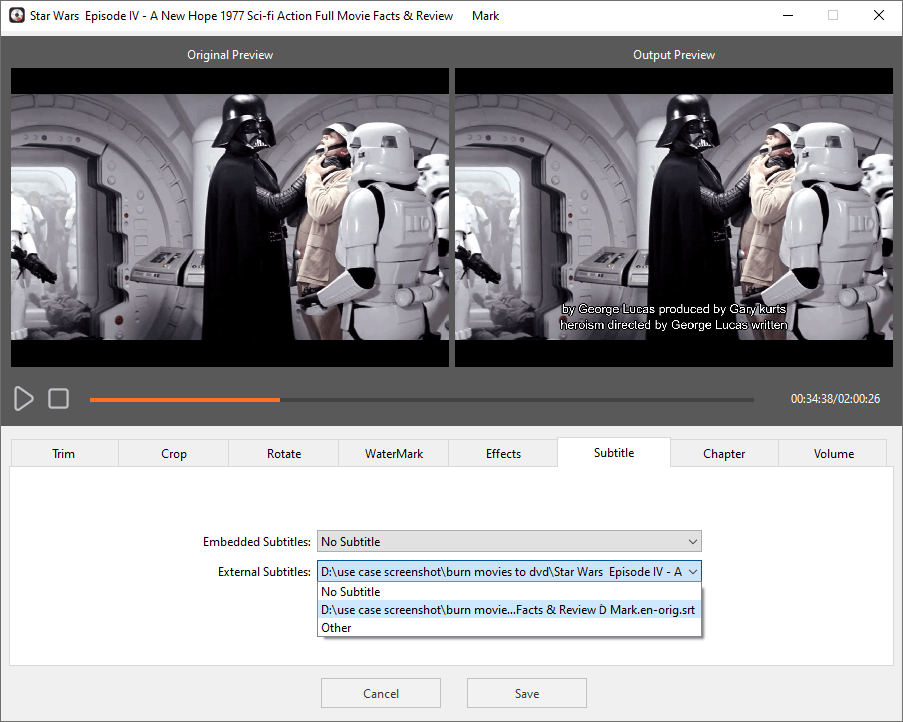
Click the pencil icon, then select any tool to edit the movie.
I only used some tools:
- Subtitle: A New Hope didn't come with subtitles, so I downloaded an English .srt file from a subtitle website and embedded it via Cisdem DVD Burner.
- Chapter: I divided A New Hope into 6 chapters based on the opening, plot, and ending, allowing me to quickly jump to the most key scenes during playback with one click.
- Volume: Of the original trilogy, A New Hope also had the lowest volume, so I boosted the movie's audio.
Step 5. Add the menu
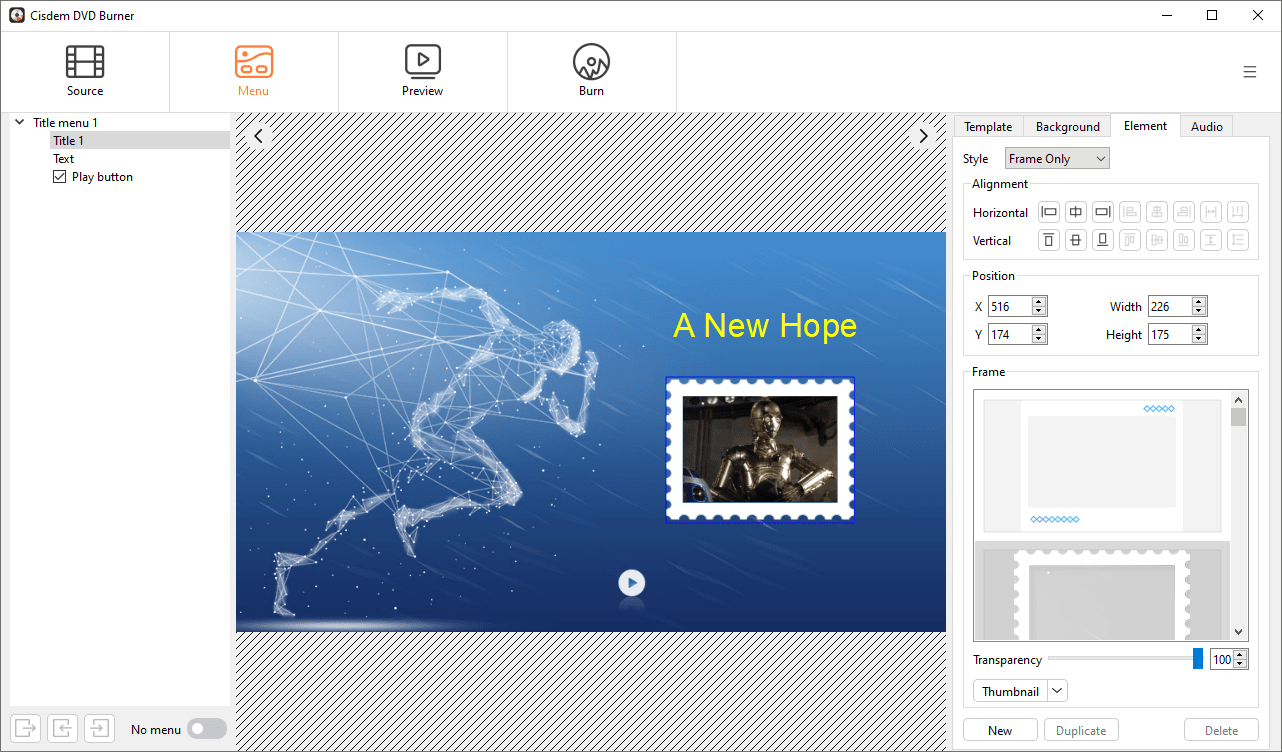
Click the "Menu" tab at the top of the software to enter the menu editing module.
- I picked Classic 2 as the template, since it has a more sci-fi vibe that matches the Star Wars. You can also upload an image locally to replace its background.
- I changed the DVD title to the movie title.
- I added a menu for the chapters and renamed each chapter button from its default label text, such as "Chapter1", to a plot-specific one.
Step 6. Burn a movie DVD
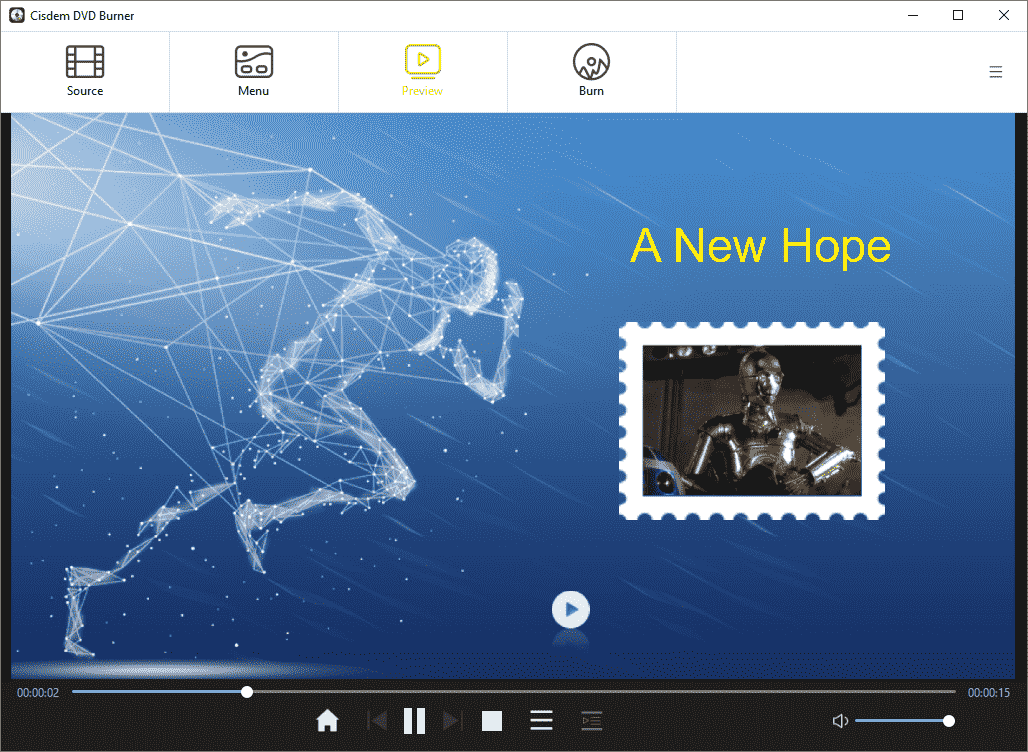
In the "Preview" window, check if each chapter jumps accurately and that menus and subtitles display properly. Then proceed to the “Burn” window for final settings and burning.
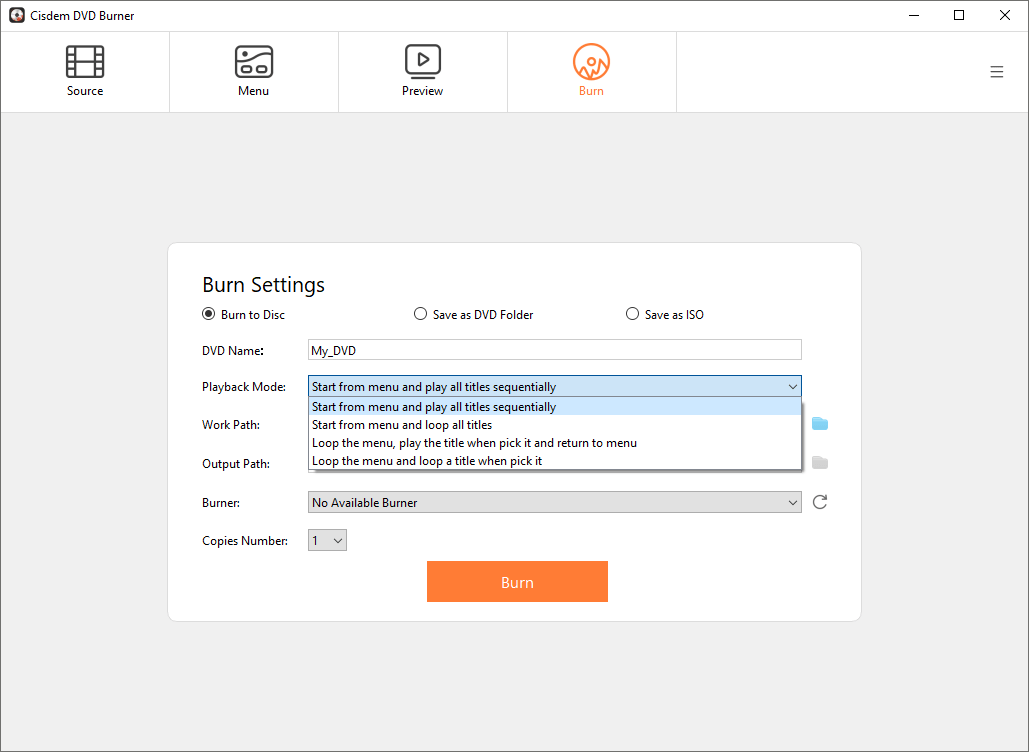
I selected the "Burn to Disc" option, keeping the default playback mode and copies number. Finally, start burning.
Disclaimer from Cisdem:
Cisdem DVD Burner is intended for personal use only. Unauthorized burning or distribution of copyrighted movies or audiovisual works may violate local laws.
The results
I first burned New Hope onto a blank DVD-5 disc and confirmed it played properly on my DVD player before proceeding to burn the remaining two discs.
However, while burning Return of the Jedi, Cisdem DVD Burner crashed. Cisdem customer support helped me figure out the reason: I was running Photoshop and Word simultaneously, which quickly drained the CPU. I closed all unnecessary programs and tried again. The burning was successful.
FAQ
Yes, but different quality levels will affect how many movies you can fit on each DVD. Assuming the movie runs for 120 minutes, the estimated values are:Using the "Fit to Disc" option, a DVD-5 can hold 2 movies and a DVD-9 can hold 4; at Normal quality, a DVD-5 holds 1 movie and a DVD-9 holds 2; with Best quality, a DVD-5 can't store a full movie while a DVD-9 can only hold 1.Note: The "Fit to Disc" option is based on maximum compression. In practice, we don’t recommend squeezing in that many movies, as the video quality won’t be good.
Yes. TV series usually have many episodes, so if you want to burn an entire season, calculate in advance how many discs you'll need to prepare.
You can’t burn commercial movies for profit, but you are allowed to burn your home movies, public domain movies, and movies with explicit permission. It is best to keep movies that are not your own for personal viewing and collection only.
Loved the article, share!

