


[2025] What’s the Best PDF Organizer on Windows, Mac and Online Free?
 1.1K
1.1K
 0
0


When you get a PDF document with a lot of pages and have to adjust the pages, will you be at your wits’ end? Whether you are a teacher, student, or office worker, you will encounter such problems in dealing with PDF documents. Fortunately, it’s much easier than you think. A PDF page organizer can help you rotate, insert, extract, split, replace or delete pages in PDF.
Both desktop apps and online free page organizers can be your solutions. Today, we list 6 best PDF organizers to manage pages in PDF in a breeze. Plus, free ways such as desktop apps and online free tools are also on the list.
 Cisdem PDFMaster
Best-in-class PDF Page Organizer on Windows and Mac
- Organize multiple pages in PDF: rotate, move, delete, insert, extract, split, replace or crop pages effortlessly.
- Manage a single page using page a thumbnail panel with just a click.
- Preview the effect of the organized pages.
- Sort pages without quality loss.
- Other features: edit, convert, create, annotate, compress, protect, unlock PDF on Windows and Mac.
- A 14-day free trial for every user.
 Free Download macOS 11 or later
  Free Download Windows 10 or later
Earlier than macOS 11, click here
We Pick 2 Best PDF Page Organizers for Windows and Mac
#1 Cisdem PDFMaster
What is the best software to organize PDF files? Highly ranked PDF software has great topicality in search engines, and everyone will be curious about it and want to download and use them. In this section, we have gathered the best PDF organizer to organize multiple pages in PDF for Windows and Mac users.
Cisdem PDFMaster, which has a certain reputation in the PDF software market, can completely become your go-to option. The main functions of PDFMaster is editing, organizing, annotating, converting, creating, compressing, encrypting and decrypting PDF files. To boost efficiency and simplify workflows, the batch feature allows users to manage multiple documents at the same time. This means that you can also manage all pages in bulk.
No matter whether you want to organize a single page in PDF or adjust documents with multiple pages on Windows or Mac, you need an all-around PDF manager such as Cisdem PDFMaster.
How to Organize a Single Page in PDF?
- Download Cisdem PDFMaster on your Windows or Mac and start a 14-day free trial right now!
Free Download macOS 11 or later Free Download Windows 10 or later
Earlier than macOS 11, click here - Head to Open Files icon and import your PDF files to the best PDF organizer.
![]()
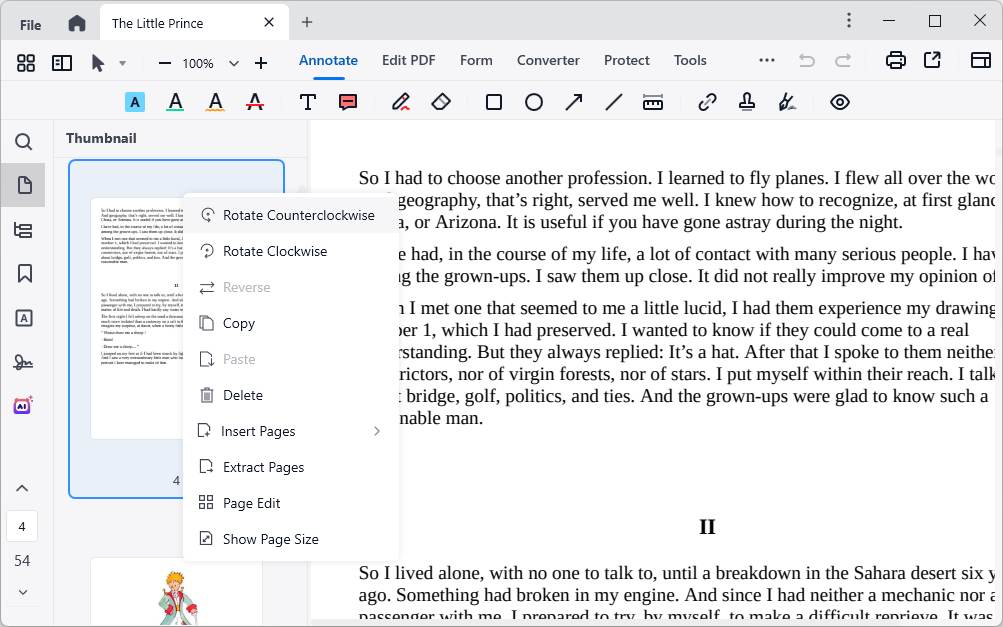
- To organize a single page, open the page thumbnail view.
- Right-click the page you want to organize, then you can:
►Move it to top/bottom
►Rotate clockwise/counterclockwise
►Copy or delete it
![pdf organizer cisdem1]()
How to Organize Multiple Pages in PDF?
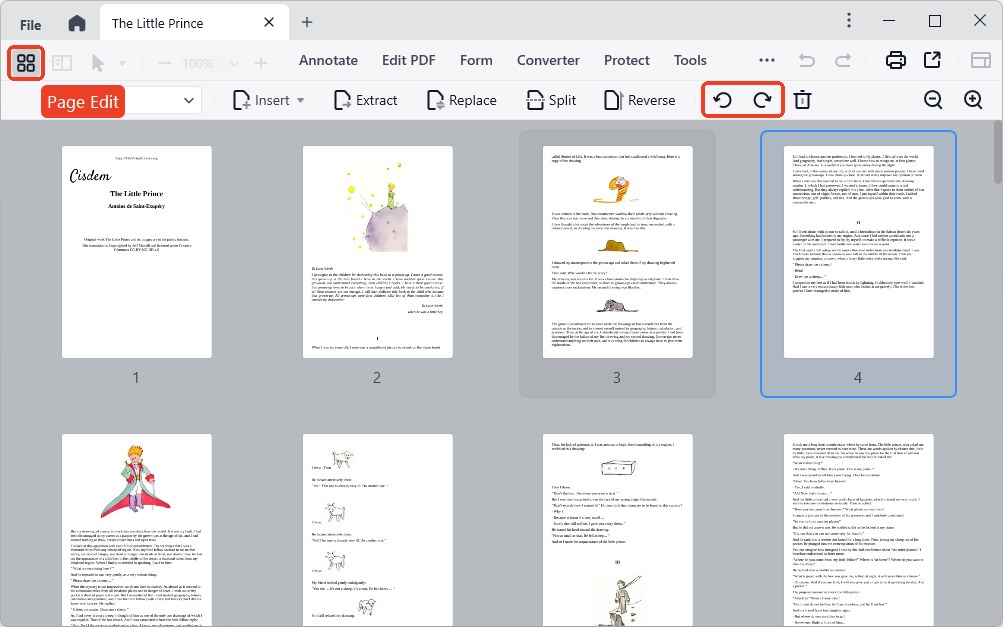
- When a PDF is uploaded, tap on the Page Edit tool in the toolbar.
- With this batch feature, you can organize multiple pages in PDF:
Delete: Delete specified pages from the document
Rotate Left: Counterclockwise rotation with 90 degrees
Rotate Right: Clockwise rotation with 90 degrees
Extract: Extract specified pages from the document
Insert Before: Insert a blank page before the specified page
Insert After: Insert a blank page after the specified page
Split: Split current document into multiple PDFs
Replace: Replace specified pages with pages from another PDF file
......![pdf organizer cisdem2]()
#2 Adobe Acrobat Pro DC
It’s 100% sure that the highest standard of PDF software - Adobe Acrobat Pro DC can solve this easy issue without effort. Novices may be discouraged by its high price and difficulty of use. Why not try it for free first and then share your new experience with us.
How to Organize PDF Pages in Adobe Acrobat Pro DC?
- Open a PDF file from your device or cloud.
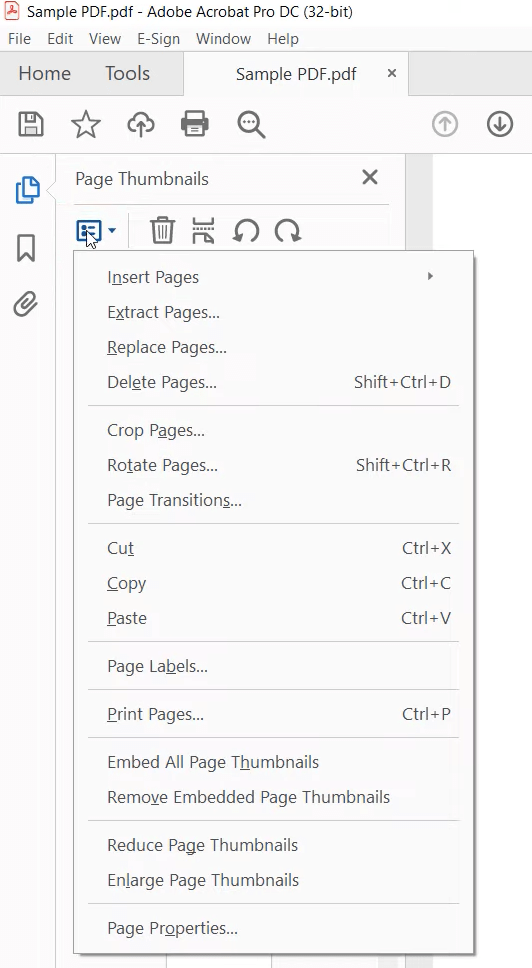
- To organize PDF pages using page thumbnail panel:
Select the Page Thumbnail icon and click on the Options button in the page thumbnail panel. Then you have multiple options to manage pages: Insert/extract/replace/delete/crop/rotate pages.![pdf organizer adobe1]()
- To organize pages using organizing features:
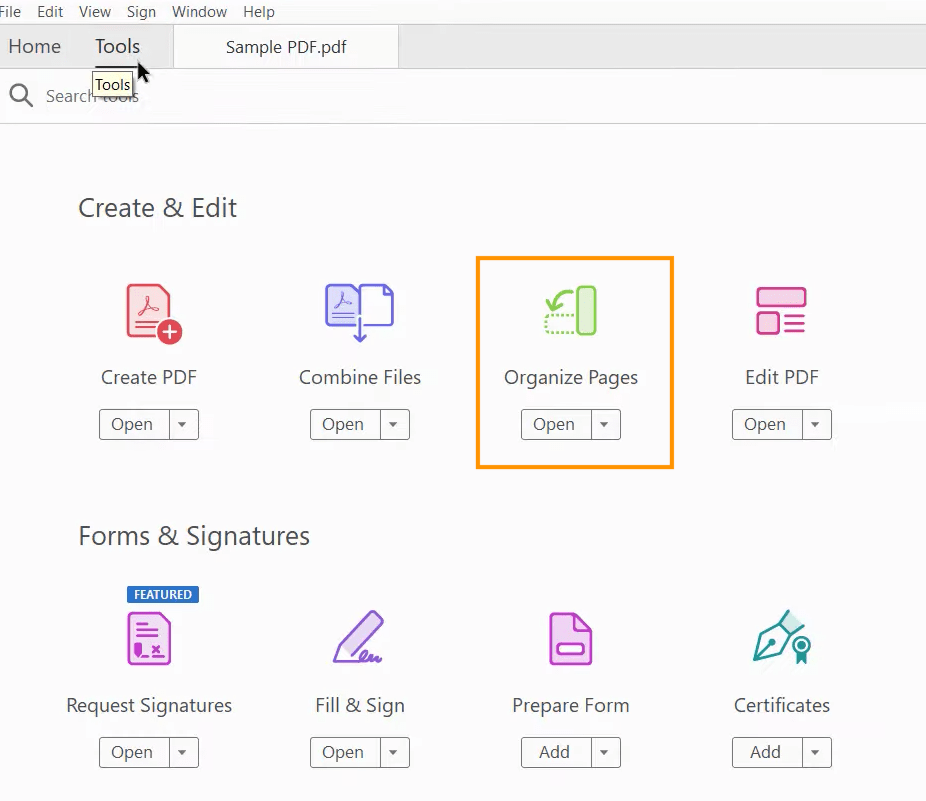
►Tap on Tools > Organize Pages.![pdf organizer adobe2]() ►Then you can find many organizing tools in the toolbar. What’s more, you can also choose the page that you want to adjust, rotate, delete or insert page from file/clipboard/scanner/web page.
►Then you can find many organizing tools in the toolbar. What’s more, you can also choose the page that you want to adjust, rotate, delete or insert page from file/clipboard/scanner/web page.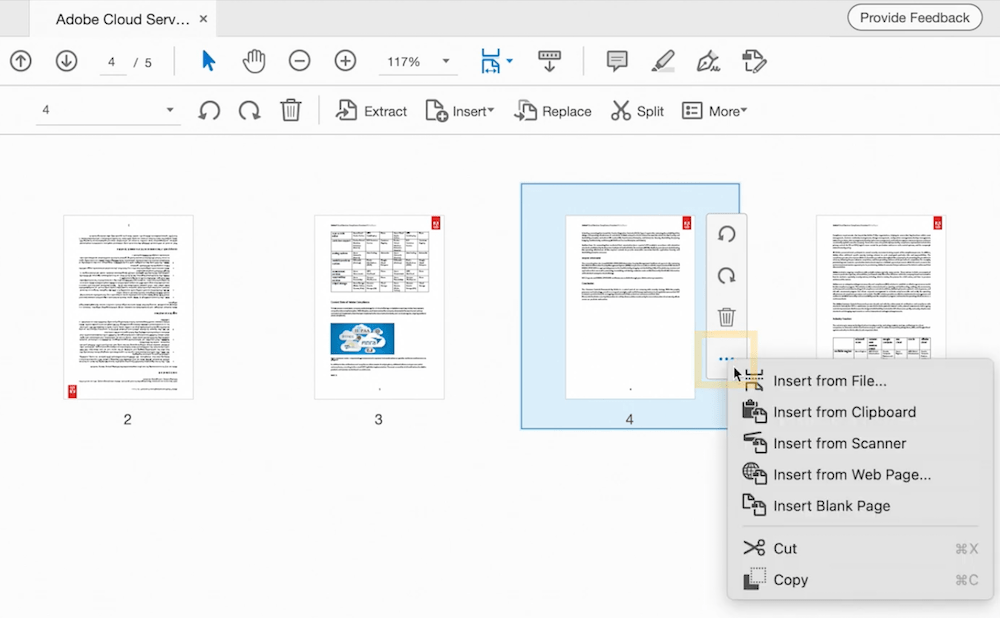
 ►Then you can find many organizing tools in the toolbar. What’s more, you can also choose the page that you want to adjust, rotate, delete or insert page from file/clipboard/scanner/web page.
Best Free PDF Organizer Software
#1 Preview
There are still many freeware on the market that allow you to manage pages, but their functions will be relatively limited compared to paid software.
macOS comes with a default app for viewing PDF files and images - Preview, which avoids the situation where related third-party software is redundant on the desktop. Rotate, delete, insert, duplicate, crop pages are standout organizing features of Preview.
How to Organize PDF Pages on Mac with Preview?
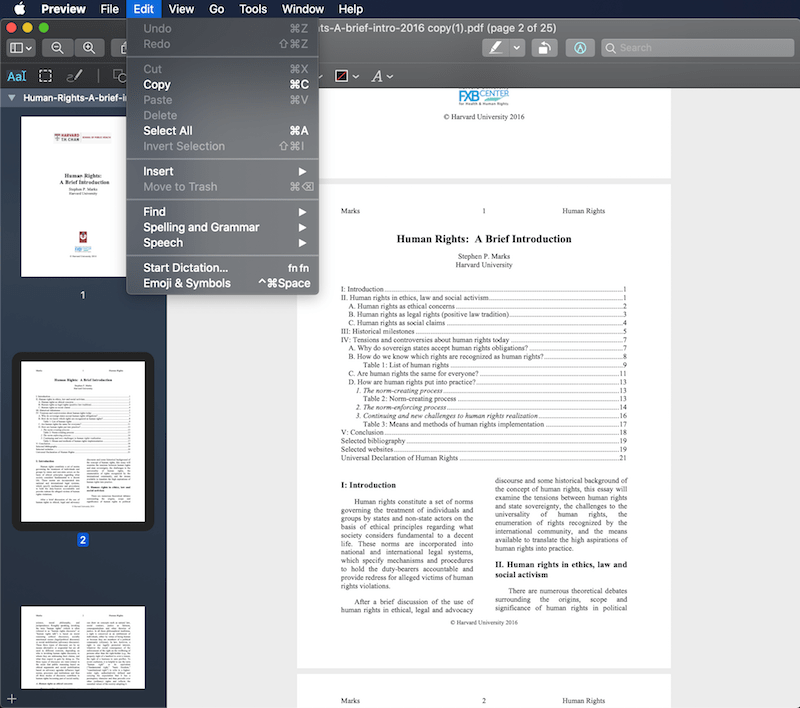
- To copy or insert pages, go to the Edit tab.
![pdf organizer preview1]()
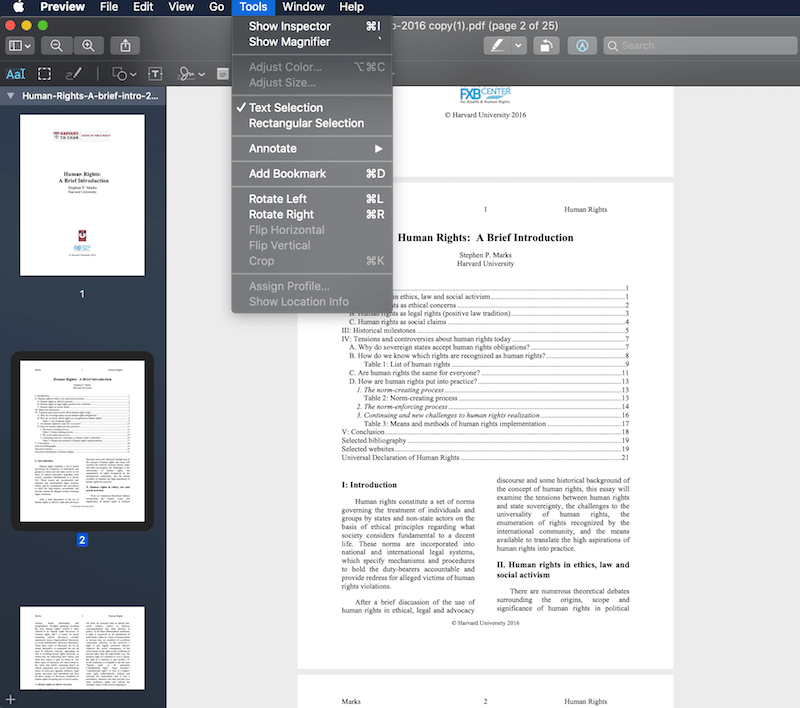
- To rotate page, go to Tools > Rotate Left/Rotate Right.
![pdf organizer preview2]()
- To delete page, select the page in Thumbnail view, press the Delete icon on your keyboard.
#2 PDFsam Basic
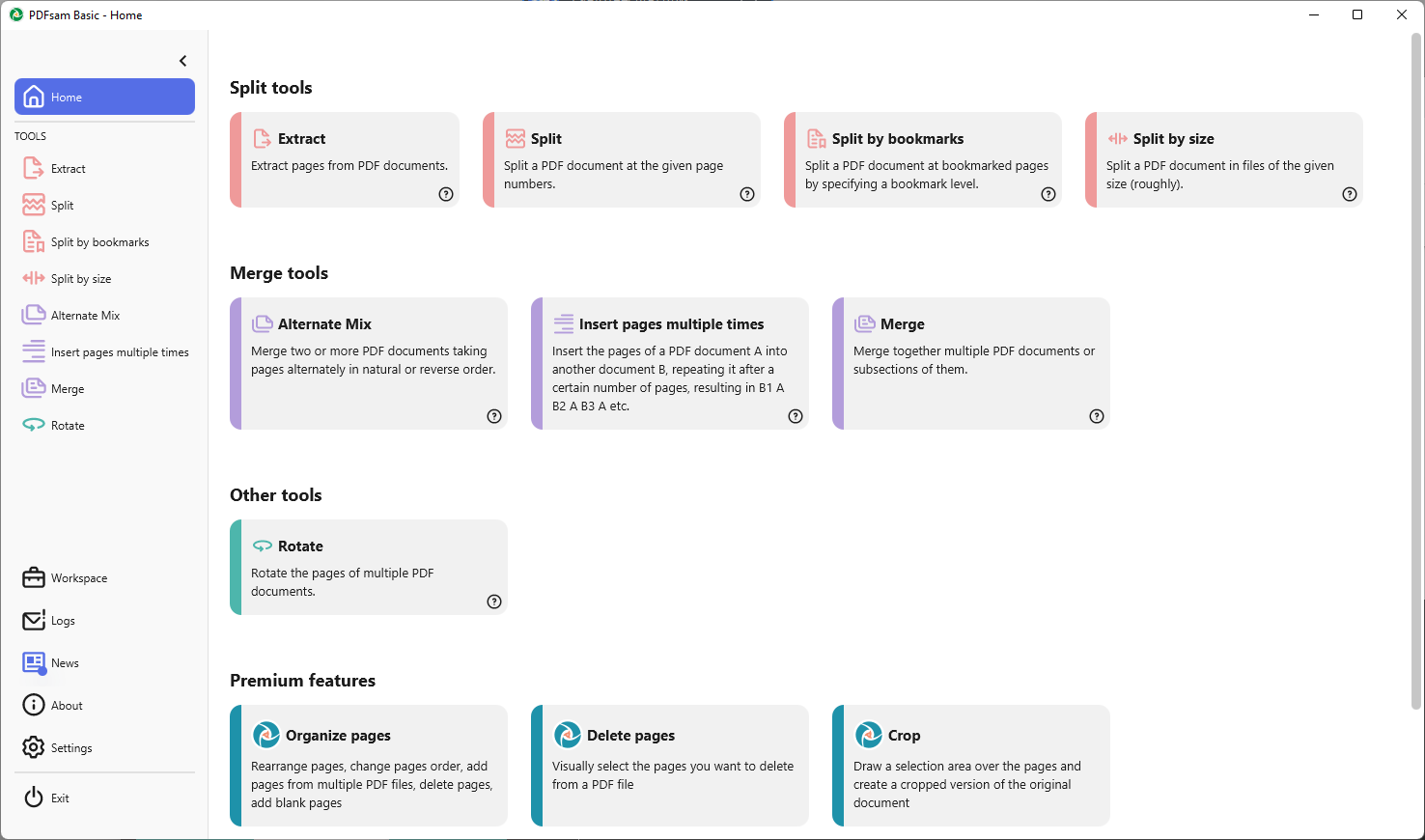
You may find that Preview can process a single file, but not to multiple documents. Another totally PDF organizer app named PDFsam Basic is designed to extract pages, split file, merge files, and rotate PDF in bulk. It’s actually an open source and multi-platform software. But if you want to explore more advanced features, you can also try PDFsam Enhanced or PDFSam Visual created by the brand.
Follow the Steps to Organize Pages in PDF for Free:
- Run PDFSam Basic > Home and choose the organizing tools you need from the toolbar: Extract, split, insert, merge or rotate pages.
![pdf organizer pdfsam1]()
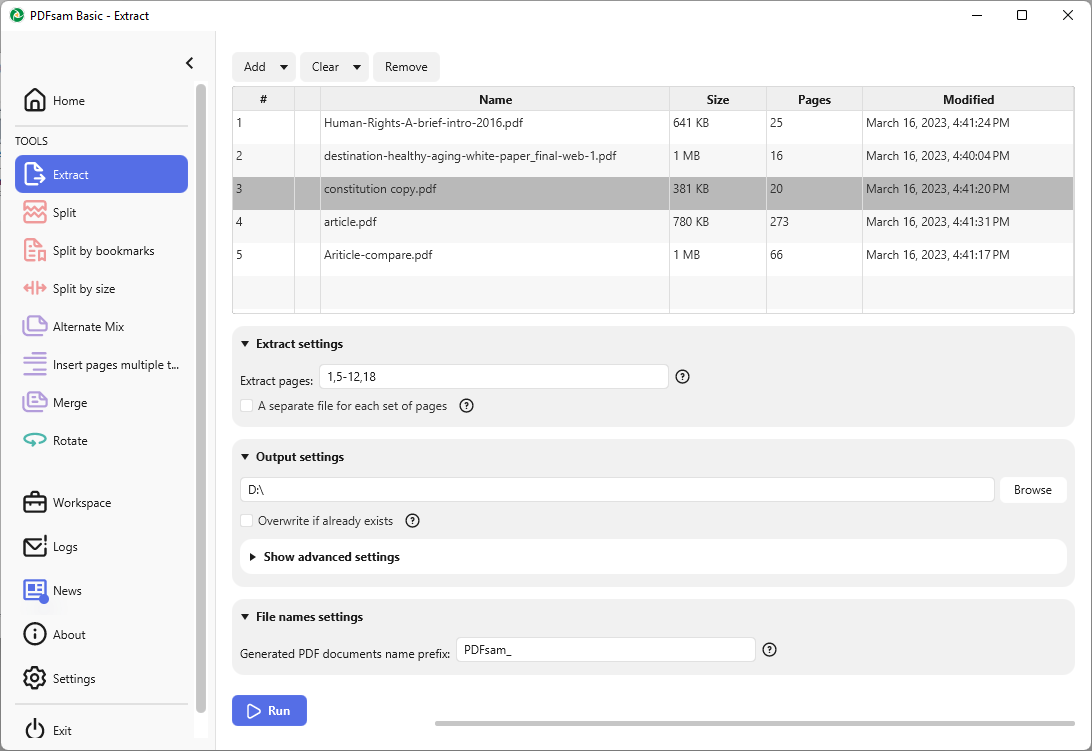
- Set Extract feature as an example: add multiple files to the list, choose the pages that need to extract, set the output folder and file name.
![pdf organizer pdfsam2]()
- When you finish the above settings, click on the Run button to save your organized PDF.
Organize PDF Pages with Online Free PDF Organizer
#1 Sejda
Desktop apps are reliable and practical, but not suitable for everyone. For users who have small needs and do not want to download third-party software, online free PDF organizers are worth a try.
Sejda is a popular website that was founded in 2010 and is used by millions of users. It makes it supper easy to deal with PDF files with over 30 tools online for free. The organizing tools give you a clear view of all pages and allow you to change position with drag-n-drop.
Limitations of Sejda:
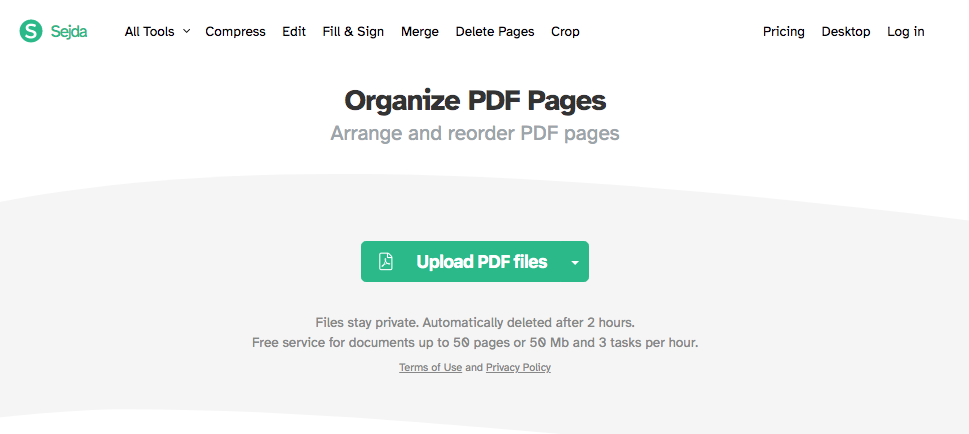
- Free import up to 50 pages or 50 MB files
- Only 3 tasks per hour
- All files will be deleted automatically after 2 hours
How Does the Online Free PDF Organizer Works?
- Visit Sejda website and go to All Tools > Organize.
- Click on the Upload PDF files to open PDF.
![pdf organizer sejda1]()
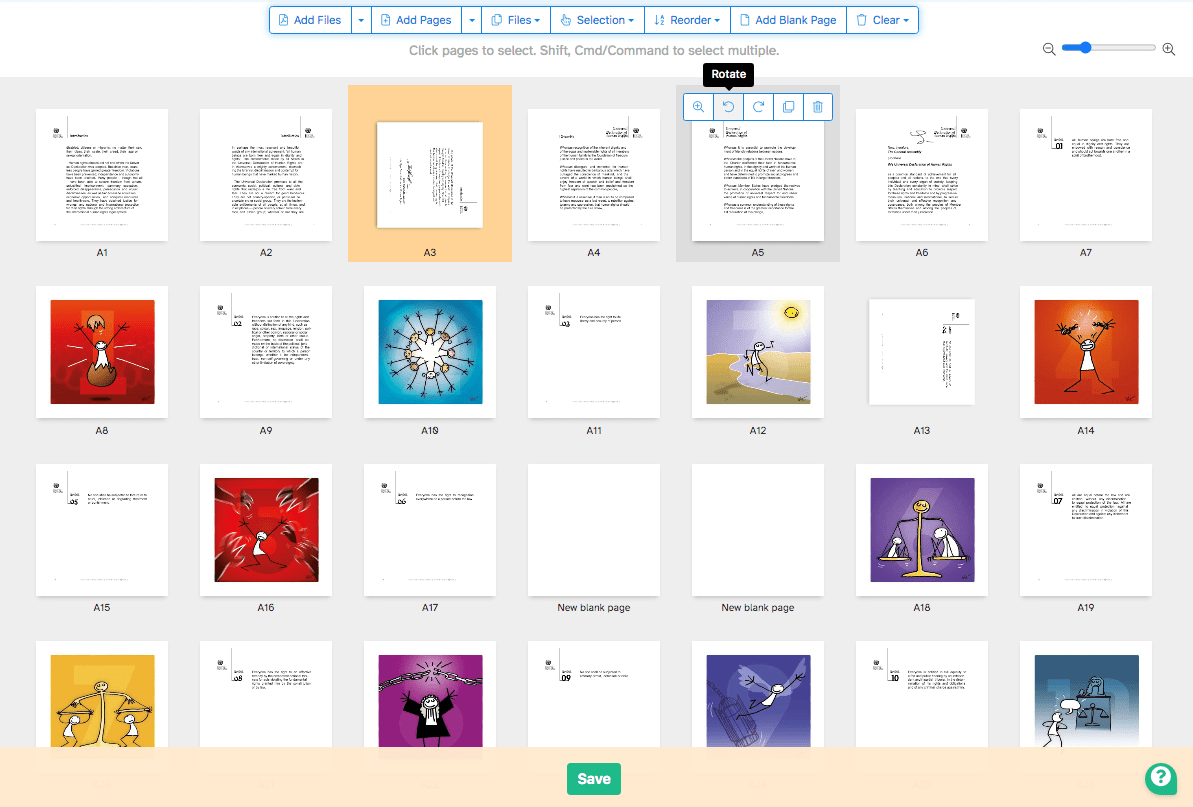
- Now, it’s easy to organize pages from the floating toolbars. Also, it allows you to rotate, copy, enlarge, duplicate or delete a single page in the panel.
![pdf organizer sejda2]()
- Download the file by clicking the Save button.
#2 PDF Candy
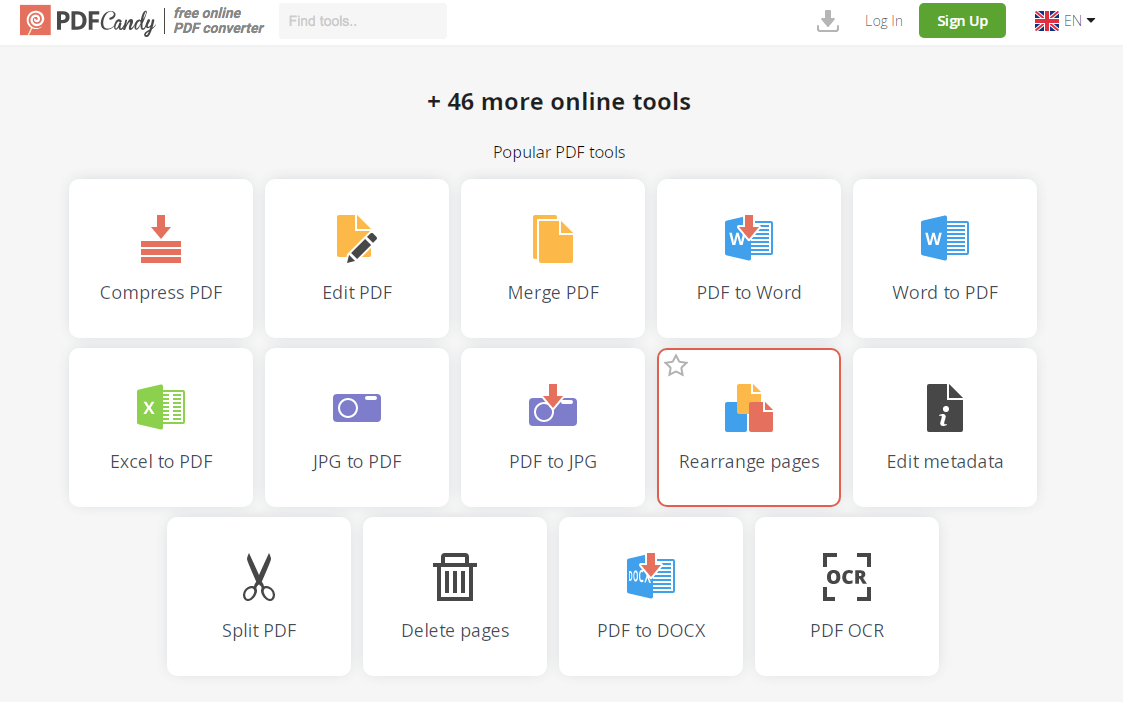
In fact, PDF Candy offers 47 online tools to handle PDF documents: rearrange pages, compress PDF, edit PDF, merge PDF, convert PDF, edit metadata, split PDF, PDF OCR, add page numbers, add header and footers, etc. But to be honest, in terms of organizing pages, its tools are not as rich as Sejda.
Limitations of PDF Candy:
- One task per hour
- File size limitations
- Cannot insert, extract or split pages in PDF
Now, follow the tutorial to organize your PDF pages online for free:
- Go to PDF Candy and choose the Rearrange pages tool.
![pdf organizer pdfcandy1]()
- Then add the file that you need to manage from your computer, Dropbox or Google Drive.
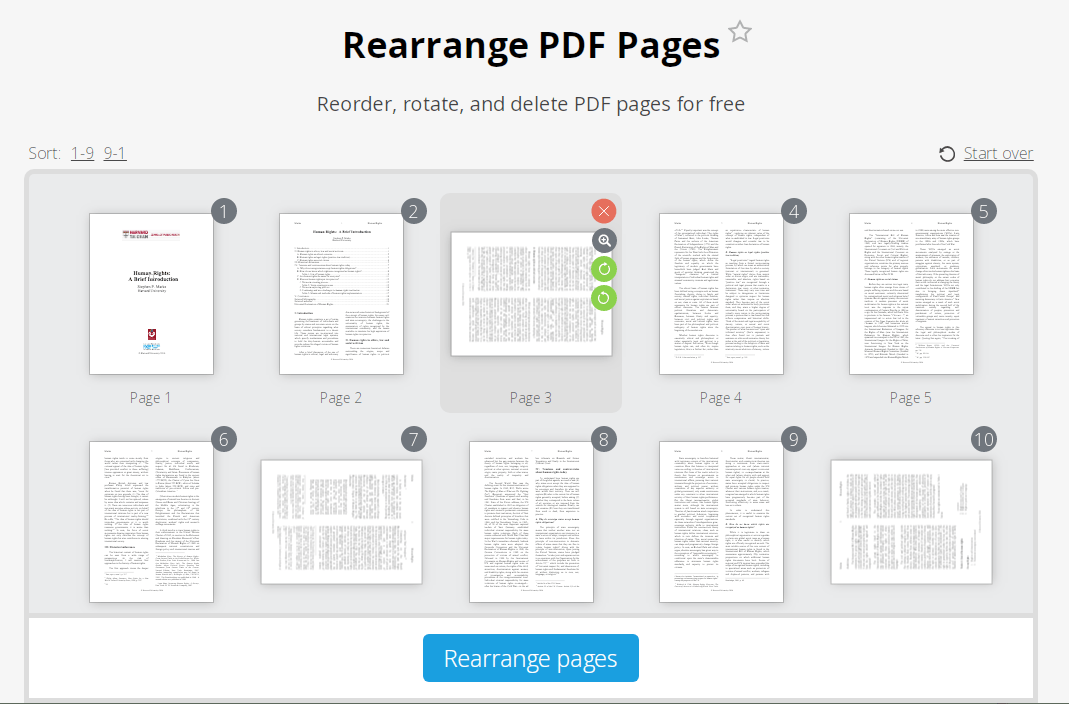
- You can drag the page to any position as you like. Plus, select one page to delete or rotate also works.
![pdf organizer pdfcandy2]()
- Press on the Rearrange pages button to save your organized PDF file.
Comparison Table of the 6 Top PDF Organizer in 2025
| PDF Organizers | Organizing features | System | Price |
|---|---|---|---|
| Cisdem PDFMaster | Rotate, delete, insert, extract, split, replace, crop, copy&paste, reverse, reorder | Windows 11/10/8/7; macOS 10.11 or later |
Free trial: 14 days Annual license: $49.99 |
| Adobe Acrobat Pro DC | Rotate, delete, insert, extract, replace, crop | Windows 11/10/8/7; macOS 10.15/ 11/12/13 |
Free trial: 7 days Month: $19.99 Year: $239.88 |
| Preview | Rotate, delete, insert, duplicate, crop | macOS | Free |
| PDFsam Basic | Rotate, extract, split, insert | Windows(64 bits); macOS | Free |
| PDF Candy | Rotate, delete, reorder | Online | Free |
| Sejda | Rotate, delete, insert, duplicate, reorder | Online | Free |
With so many top-ranked options, which one is the best and which is the most suitable for you? I believe that after reading the article on the analysis of specific tools, steps and comparisons, you already have a preferred tool in mind.

Bianca is a senior tech editor and strategist at Cisdem with Over 10 years of experience on PDF related solutions which covers all document editing, annotating, converting and managing etc.

Liam Liu takes charge of the entire PDF product line at Cisdem and serves as the technical approver for all related editorial content. He has deep expertise in PDF and document management technologies and nearly a decade of development experience.