


How to Recover Deleted Tesla Dashcam Footage (2026 Updated)
 1.8K
1.8K
 2
2


Dashcam footage provides you with security, also with proof in an accident. But what if we deleted the dashcam footage or it just goes missing, how to recover? In this guide, we will dive into several solutions on recovering deleted Tesla dashcam footage, under normal and sentry mode. Actually, these methods also apply to other car brands, because dashcams on different cars works in similar way.
 Cisdem Data Recovery for Windows and Mac
Recover Tesla and Other Dashcam Footage
- Recover deleted videos from all Tesla recording mode: auto, manual, honk, sentry
- Recover footage from for formatted or corrupted Tesla dashcam USB drive
- Repair Tesla videos in batches
- Preview video before recovery
- Support footage recovery from all kinds of dashcam
- Also recover other 1000+ file types: video, photo, document, email, bookmark, archive, etc.
- Also support recovery on various internal and external storage devices
- Recover unsaved files
- Additional features: backup disk, auto save recovered file, etc.
 Free Download Windows 11/10/8/7
 Free Download macOS 10.15 or later
Can We Recover Deleted Tesla Footage?
Yes, we can.
As we should know, no matter which recording mode you choose on your Tesla, the footage will be saved to the USB drive that you have inserted into glovebox. You can access to these videos on the touchscreen, or use a computer to view the recordings in RecentClips, SavedClips or SentryClips folders.
When you delete a video from Tesla dashcam on the touchscreen, it becomes invisible in the dashcam and you lose the portal to the video. But it is still somewhere on the USB drive, unless there is new footage overwriting the video completely. When you delete a video from Tesla via a computer, the video will moved to recycle bin or goes invisible because the system need to mark the space as available to store new footage, that is to say, the deleted Tesla video is still on the USB drive until new footage overwrites it.
Therefore, once you delete a Tesla footage and want to recover the Tesla USB drive, pause the recording and take out the USB drive as soon as possible, otherwise, the newly recorded footage will overwrite the deleted videos and they will be gone forever.
#1 The Easiest Way to Recover Deleted (Sentry Mode) Tesla Dashcam Footage
In case the thought “how to recover deleted Tesla dashcam footage with ease and high recovery rate” is running in your mind, a good option is to use a data recovery program.
Cisdem Data Recovery is such a trustworthy program. No matter how you lost the footage from Tesla dashcam, by accidental deletion, formatting the USB drive, and no matter which mode you were using to record the footage, under Sentry, Auto, Manual or Honk Mode, as long as you perform the recovery as soon as possible before the footage is overwritten by a new recording, Cisdem will be helpful.
It can recover files from various data loss scenarios, including deletion, drive formatting, bad sector, file corruption, system crash, virus attack, OS update/downgrade, etc. Here you can check out its main features:
- Recover files from both internal and external storage devices, including dashcam USB drive
- Recover 1000+ files: video, photo, document, email, bookmark, archive, etc.
- Repair damaged photos, videos and documents
- Recover unsaved files: Word, Excel, PowerPoint, Keynote, Pages, WPS, PSD, etc
- Apply to virtually all data loss scenarios: system crash, unbootable device, deletion, formatted drive, file corruption, partition loss, virus attack,etc.
- Search lost file by name, file size, date, etc.
- Preview files easily
- Pause, resume scanning
- Auto recover files
- Save recovered files to local disk or cloud
- Additional features: create disk backup, create bootable macos installer
Here is how to use Cisdem Data Recovery to recover deleted Tesla (Sentry Mode) dashcam footage:
- Download and install Cisdem Data Recovery on your Windows or Mac.
Free Download Windows 11/10/8/7 Free Download macOS 10.15 or later - Insert the Tesla Dashcam USB stick to your computer.
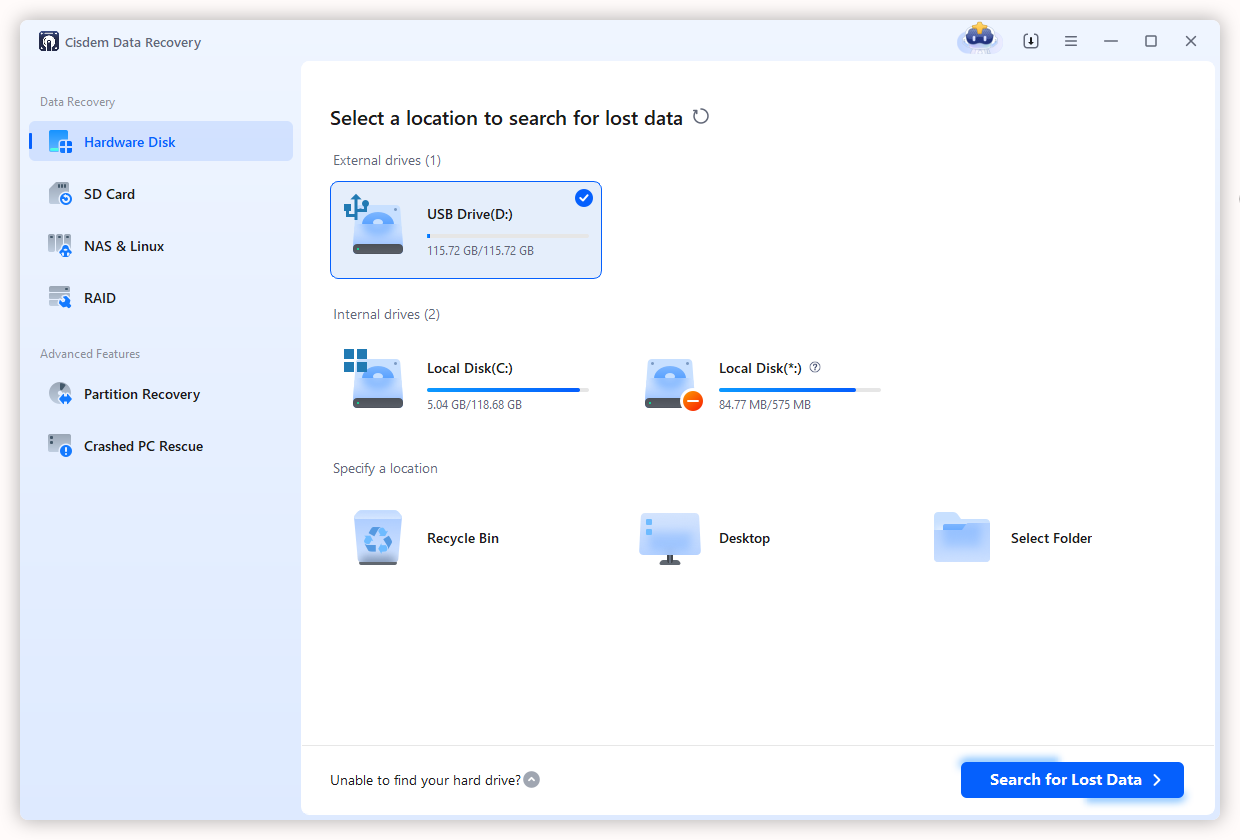
- Run Cisdem Data Recovery on your device, then go to Data Recovery, choose the USB drive you store the Tesla videos. Click on Search for lost files to start the scanning.
![recover tesla video cisdem 01]()
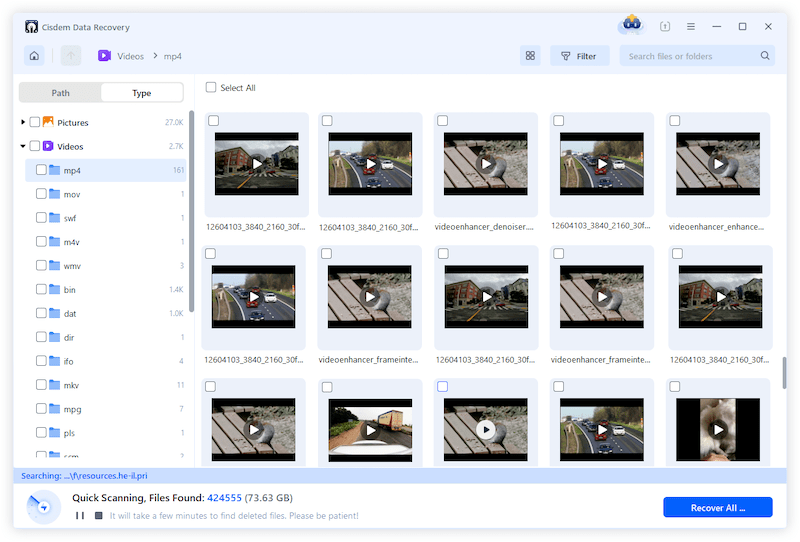
- Then go to Type > Videos, check the Tesla videos in different folders.
![recover tesla video cisdem 02]()
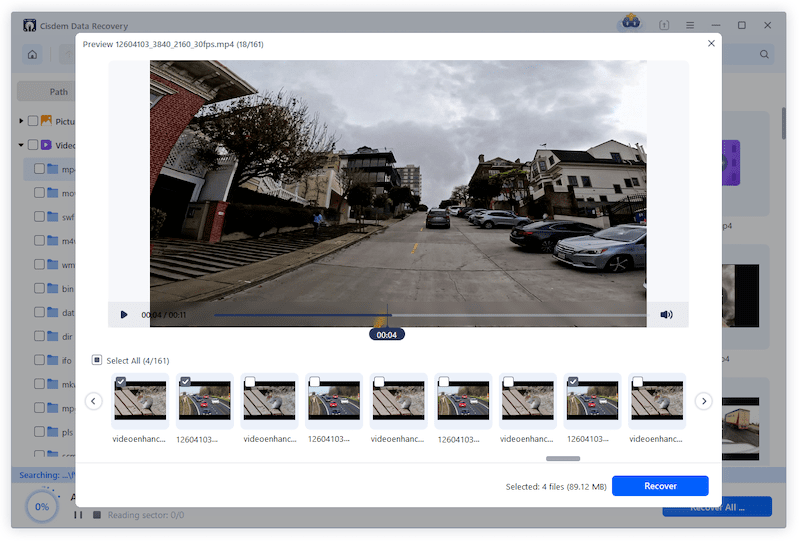
- Double click to preview a file and select the deleted Tesla dashcam footage, finally, click Recover button. You can save the recovered footage to your computer, or USB, or other places.
![recover tesla video cisdem 03]()
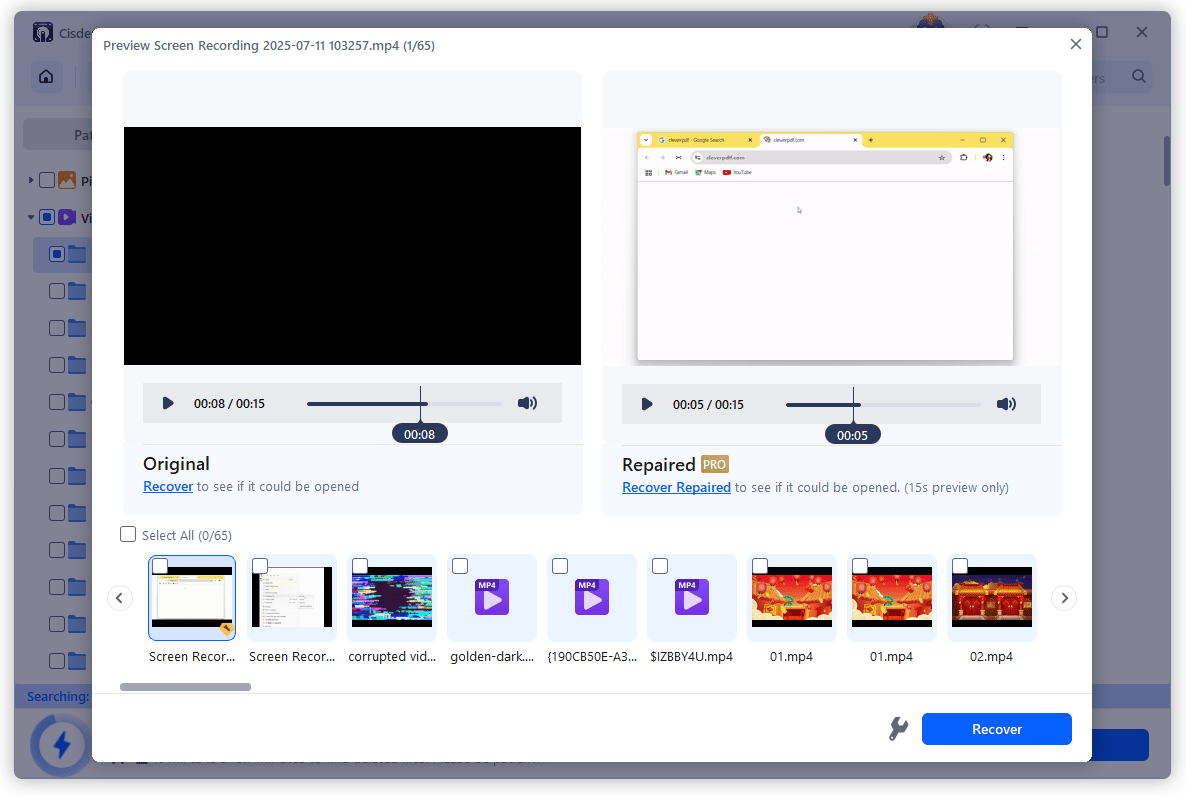
- (Optional) If the Tesla dashcam footage is corrupted and shows up as a black image, you can use the file repair tool to fix.
![repair dashcam footage]()
 Jason's Recovery Story
User: Jason, 36 years old, marketing specialist
Problem: Jason started driving his Tesla Model 3 only 34 days ago. Last Friday, his car was involved in a minor sideswipe in a parking lot. It was lucky that the damage was not serious, he wanted to review the Tesla Dashcam footage to understand what happened and provide evidence for his insurance claim. Before connecting his thumb drive to his computer, he deleted several recordings and thought this might save some time reading the drive. But when checking, he could not find the footage of the sideswipe incident. He did not realize that he've deleted the footage by mistake, and he wanted a reliable way to recover the lost footage.
Device: 256-GB Samsung thumb drive, Tesla Model 3 Dashcam, Dell laptop running Windows 11
Solution: Jason installed Cisdem Data Recovery on his laptop’s internal drive. Then connected the 256-GB thumb drive to his computer, Cisdem recognized the device quickly. Jason selected the thumb drive and started the scanning. After about 10 seconds, the scan completed, Jason navigated to Videos category in the Type tab. He quickly located the wanted footage, preview it, then selected the video and clicked the Recover button to save it to the desktop of his laptop.
Result: 32 Tesla Dashcam videos were found on the drive, and all of them can be opened. The restored footage included the recording of the sideswipe accident, helped Jason prepare his insurance claim. And several other deleted videos that captured his daily commutes and weekend drives were also recovered.

#2 Check Recycle Bin
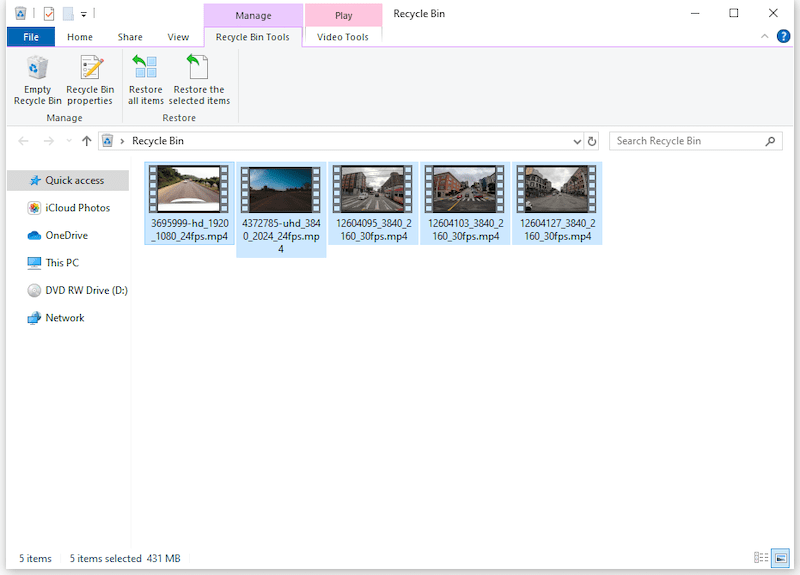
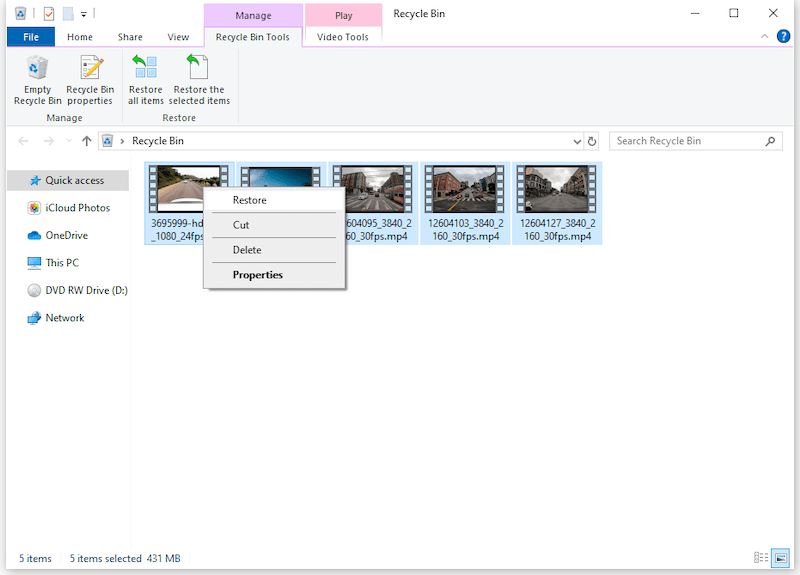
You may have deleted the Tesla videos from the RecentClips, SavedClips or SentryClips folder using a computer, then the footage are just moved to trash bin and can be recovered, as long as you don’t empty the bin or manually permanently delete.
- Open recycle bin on your computer.
- Select the deleted Tesla videos.
![restore tesla trash 01]()
- Right on Put back to restore.
![restore tesla trash 02]()
#3 Use a Backup
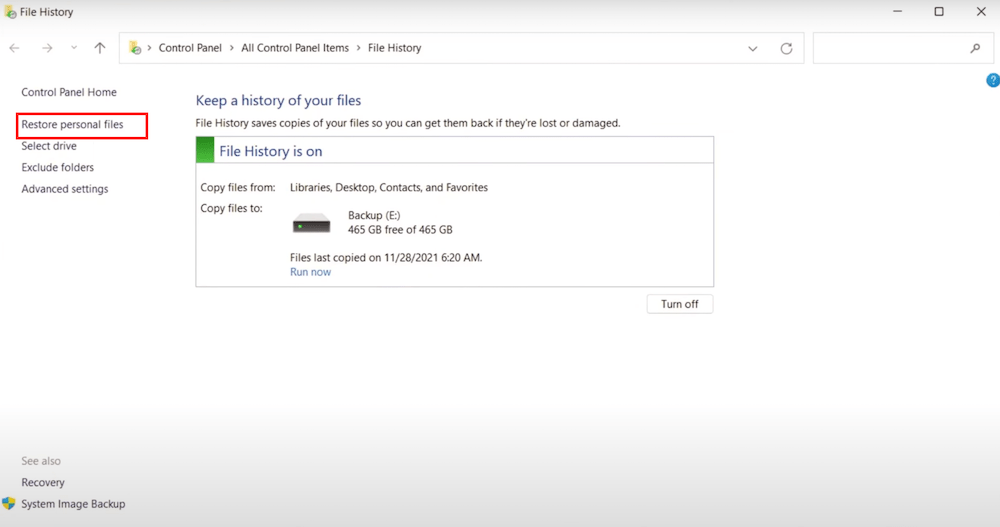
In the case that you’ve copied the videos to your computer, or an external storage device, or upload to the cloud, you should check the backup first, then transfer the backup to the Tesla dashcam USB drive using a computer.
You might have been recommended to using File History or Time Machine to backup files on your computer. We suggest using a cloud drive to back up your Tesla videos as well, this not ensures your data is safely saved, but also lets you view the recordings anytime and directly on your mobile device by signing into the cloud storage website.
#4 Recover Deleted Tesla Sentry Mode Footage from Support
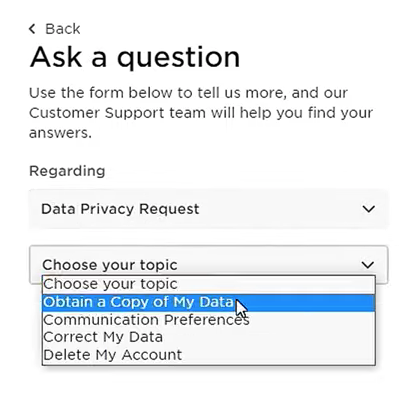
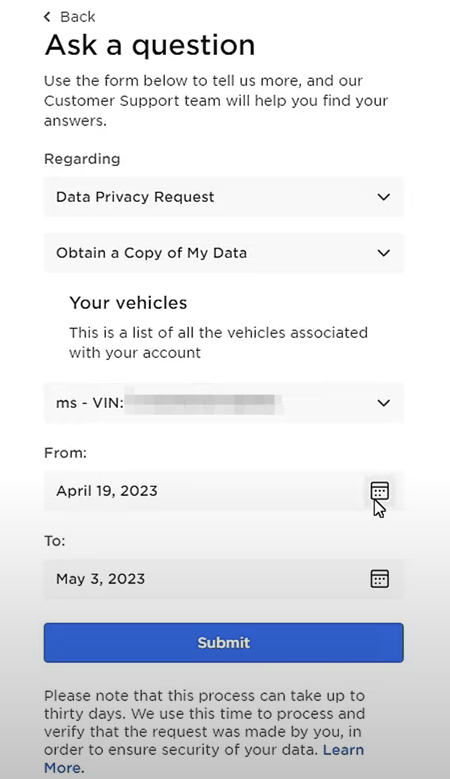
You are not in situation A or B, and still not able to recover the deleted Tesla footage? Here is the good news, especially for Sentry Mode deleted Tesla videos: you can obtain a coy of the data associated Tesla account, including Sentry Mode camera recordings, Dashcam camera recordings, Cabin camera data, Autopilot camera recordings and so on. You just need to submit a request.
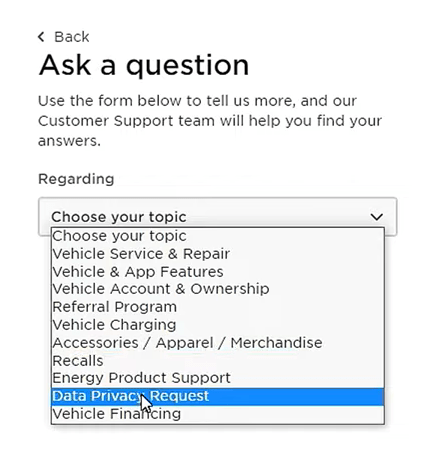
- Open www.tesla.com/contactus, sign in with your Tesla account.
- Choose Data Privacy Request from the topic list.
![tesla support 01]()
- Then select Obtain a Copy of My Data and click Submit.
![tesla support 02]()
- Select vehicle, and choose the data range for the recordings. Then click Submit.
![tesla support 03]()
- Tesla support will notify you via email when the data report is ready, just check your mailbox from time to time, this may take up to 30 days.
#5 Recover Deleted Tesla Dashcam Videos with Recuva
Also, there is a free data recovery program can recover a deleted Tesla footage from the USB drive, it is Recuva. Recuva is designed to recover a lot of files from internal disk and external media storage on a Windows PC. It has both quick scan and deep scan, marks the found files in different color indicating the difficulty of recovering.
But it is not guaranteed you will get the deleted videos back, nor all the recovered video can be opened. It depends on the how much the USB has been overwritten and how Recuva scanning engine interacts with the data on the drive. Anyway, if you want to try and feel nothing to lose, check out the following steps to recover Tesla USB footage.
- Download and install Recuva free on your Windows PC.
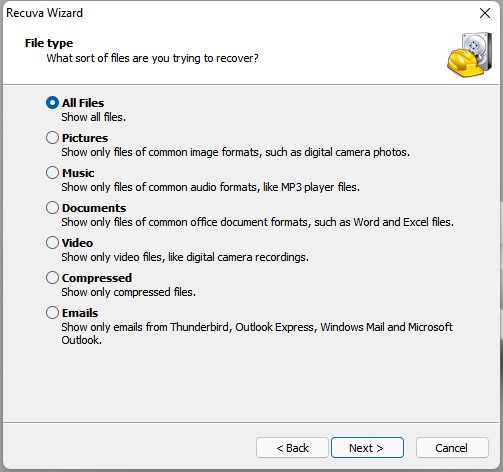
- Choose Video from file type list and click Next.
![recover tesla video free 01]()
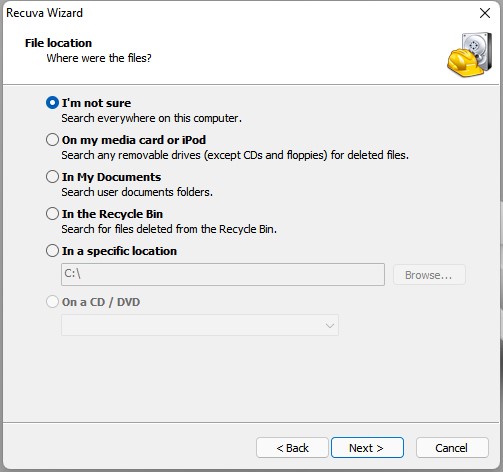
- Choose the Tesla dashcam USB drive and click Next.
![recover tesla video free 02]()
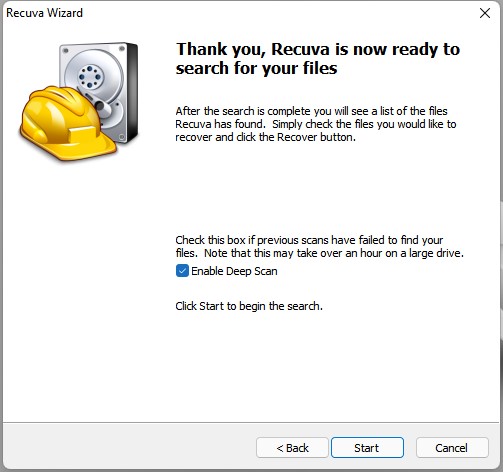
- Click Start to scan the dashcam USB drive.
![scan tesla usb]()
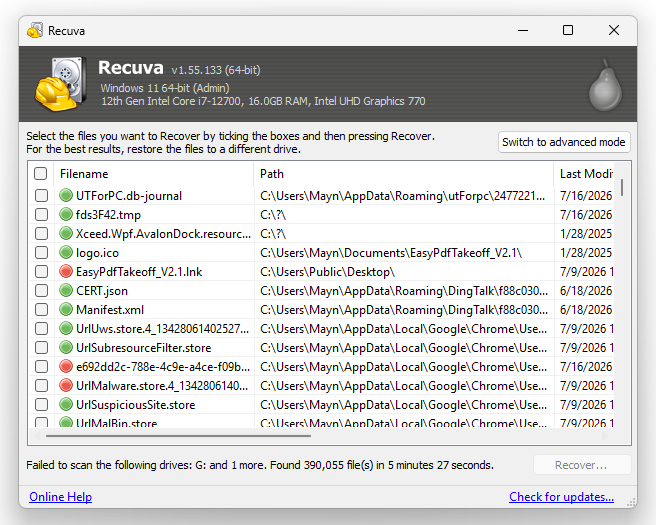
- Select the deleted videos and click Recover button to save to a safe location.
![recover tesla video free 03]()
Tesla Dashcam Footage is Missing? Here is Why and How to Fix?
It would be a nightmare if the footage that contains an important evidence for a recent accident is missing, or the dashcam records but there is no footage saved on the USB drive. It has a reason and we can fix with a DIY solution.
Reason 1: The USB drive is not inserted properly.
Fix 1: Remove the USB drive from the glovebox, check if there is any dirt in the port. And connect the USB drive to the port (or to another port) again to check if records and saves the video.
Reason 2: You are not choosing the right recording mode.
Fix 2: There are 3 recording modes on a Tesla mode, also there is Sentry Mode. Under different modes, the recording will start according to the settings. For example, if you choose Auto mode, the recordings are only saved when you manually touch the dashcam icon, if you choose Honk mode, the recording are only saved when your press the horn.
Reason 3: The USB is not formatted properly.
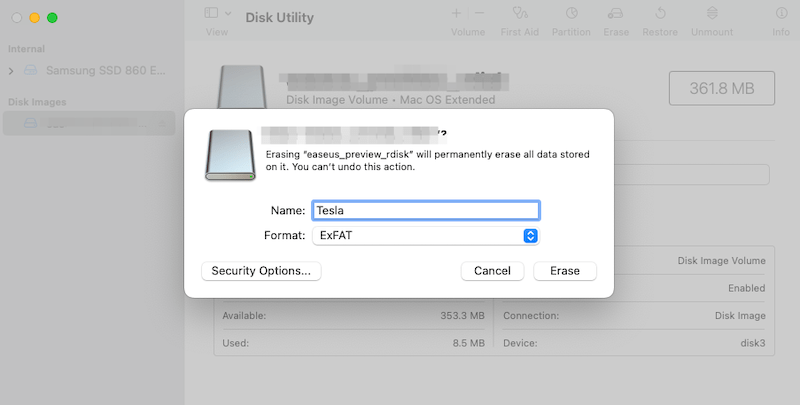
Fix 3: According to Tesla Official, Dashcam requires a properly formatted USB drive, with a minimum storage capacity of 64GB, USB 2.0 or later. The USB drive is recommended to format with a computer and saved in exFAT format.
Use the built in disk utility tool on you computer to format. For example on a Mac, open Disk Utility, choose the USB drive, click on Erase > ExFAT > Erase.
Reason 4: The USB is faulty or corrupted.
Fix 4: Faulty or corrupted USB drive will lead to data loss as well, you should run a health check on the USB drive and repair for further use.
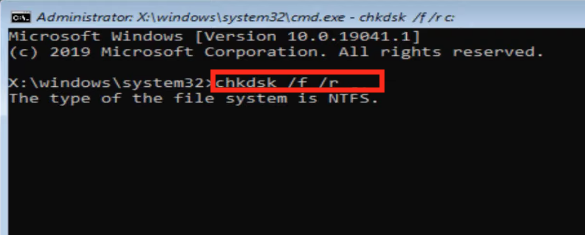
If you are using a Windows PC, open Command Prompt, enter chkdsk *: /r(replace * with the drive letter of the USB drive) and press Enter, your system will check and repair the USB automatically. Also, you can pay an expert to check the status of the USB drive and give you professional advice.
Surely, for whatever the reason is, you can always contact Tesla support for help at any time.
FAQs
1. Does Tesla Sentry Mode save footage automatically?
Yes, when Sentry Mode is enabled, if the car detects a security event, it automatically saves a recording. And the footage is stored in the Sentry folder on the vehicle's USB drive.
2. Does Tesla delete old dashcam footage?
Yes, Tesla automatically deletes old dashcam footage when your USB drive runs out of space.
3. How long does Tesla dashcam keep footage?
It depends on the storage capacity of your thumb drive, the larger its free space is, the longer it can keep footage, and basically, a smaller USB drive may only store a few days of driving footage, while a larger drive may keep weeks or even months of recordings.
4. Can I recover Tesla dashcam footage after formatting the USB drive?
Yes, you can.
When the USB drive is formatted, the footage on the drive just becomes invisible and you lose the portal to the video. But the files are still somewhere on the USB drive, until there is new footage overwriting them. So, before they are overwritten, we can still recover, using a dedicated USB drive recovery tool like Cisdem.
5. How do I transfer Tesla dashcam footage to my computer?
Unplug the USB drive from the port, then insert it into your Windows PC or Mac. Wait for the computer to recognize the drive, and you will be able to transfer the footage to your computer.
6. Can I view Tesla dashcam footage on my phone?
Yes, you can view Tesla videos on your phone via Tesla App.
Conclusion
Cisdem Data Recovery offers the easiest and quickest solution to recover a deleted Tesla dashcam footage, even under Sentry Mode. But if you want some free DIY solution, we’ve listed 4 for you. There are a myriad of reasons explaining how important it is to enable a dashcam on your vehicle, the footage provides first-hand evidence of a road accident. Therefore, make sure the recordings are saved and adjust the settings when necessary.

Connie Yu has been a columnist in the field of data recovery since 2011. She studied a lot of data loss situations and tested repeatedly to find a feasible solution tailored for each case. And her solutions are always updated to fix problems from the newest systems, devices and apps.

JK Tam is the lead developer at Cisdem, bringing over two decades of hands-on experience in cross-platform software development to the editorial team. He is now the lead technical approver for all articles related to Data Recovery and DVD Burner.
Isaias
I accidentally lost important Tesla dashcam footage and didn’t know how to recover. Definitely useful for Tesla owners that want to recover the videos from USB.
Aaron Ash
Last month I accidentally formatted my Tesla's drive - wiping out a week's worth of Sentry Mode footage that included a hit-and-run in my parking lot. I thought the videos were gone forever until I tried CISDEM's method. What impressed me most was how it recovered not just the recent clips, but even older deleted files the Tesla's system had automatically cycled out. The key was stopping all writes to the drive immediately.