


[6 Ways] How to Markup a PDF on Windows, Mac and iPad
 431
431
 0
0


PDF documents are increasingly used by businesses and individuals to exchange various types of written content. It may involve contracts, reports, legal agreements, etc. Recipients might need to add notes, comments, highlights and more details to PDF. For such reasons, you'll require a dedicated PDF tool that enables you to markup your PDF files. Luckily, both Windows, Mac and iPad have several ways to mark up PDF, and you'll find them in this article effortlessly.
 Cisdem PDFMaster
Best Way to Markup PDF on Windows and Mac
- Highlight, underline and strike through text.
- Add shapes such as rectangle, oval, polygon, cloud and more.
- Freehand draw in PDF with pencil.
- Add lines like polyline, arc and arrow.
- Insert sticky notes,text box,callout, calendar, stamp and signature to PDF.
- Offer a number of measure tools.
- Edit existing text and insert new text, images, links and more.
- Organize and manipulate PDF pages.
-
Add watermarks and mark for redaction.
 Free Download macOS 11 or later
  Free Download Windows 10 or later
Earlier than macOS 11, click here
Best Way to Markup a PDF on Windows and Mac
There are endless ways to mark up PDFs on Windows and Mac, but the easiest and most efficient one is to use a PDF editor. Here you are recommended to use a professional PDF editor, Cisdem PDFMaster. This app is incredibly robust and empowers you a great deal of freedom when working on PDF files. Adding markups to PDF is just one of its attractive features.
With the aid of it, it is of great convenience to highlight, underline or strike through text to improve readability. It also provides a bunch of markup and annotate PDF tools, including shape, pencil, note, call-out to add more details to your PDFs.
Advantages of Using Cisdem PDFMaster to Markup a PDF
- Mark up PDF with multiple markup tools, including highlights, underlines, strikethrough, notes, shapes and freehand drawing.
- Provide plenty of shapes such as rectangle, oval, polygon and cloud.
- Draw free-form shapes with pencil.
- Add lines like polyline, arc and arrow.
- Insert sticky notes, text box, callout, stamp, signature and calendar to PDF as you want.
- Offer a number of measure tools that can accurately calculates the dimensions and distances of objects in PDF drawings.
How to Markup a PDF on Windows & Mac in Cisdem?
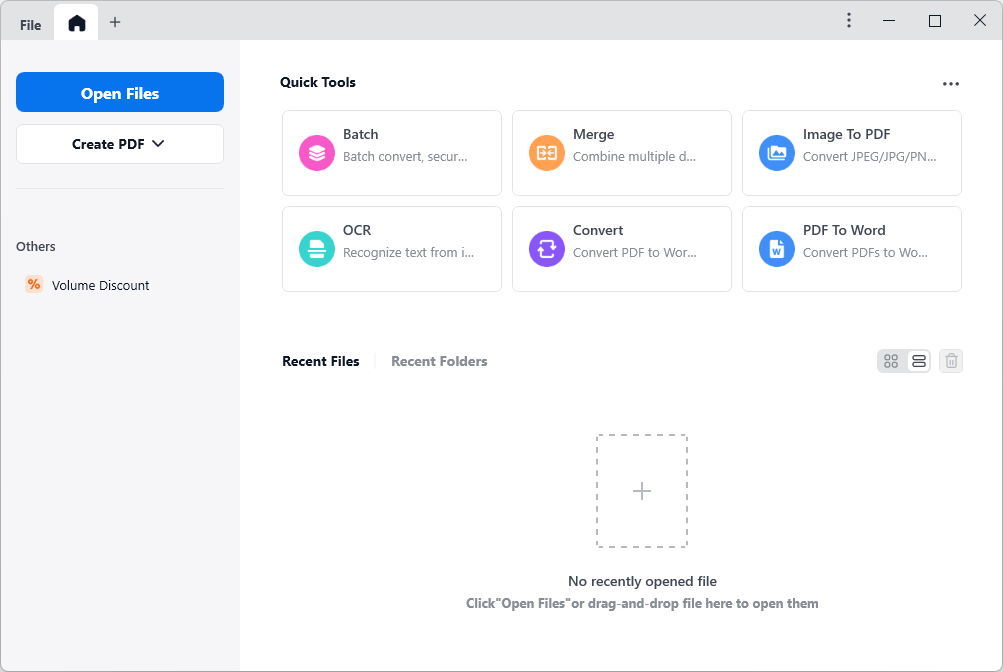
- Download and install Cisdem PDFMaster on your computer.
Free Download macOS 11 or later Free Download Windows 10 or later
Earlier than macOS 11, click here - Go to Open Files to upload the PDF file you want to mark up.
![how to markup a pdf cisdem01]()
- Under the Annotate tab, you can highlight, underline or strike through text, add shapes, notes, pencil, etc. as per your preference.
![how to markup a pdf cisdem02]()
- If you want to edit the markup you made, click on the markup, then the right-hand toolbar will appear. You can easily change its color and opacity, or remove it.

Apart from marking up PDF files, Cisdem PDFMaster can also perform the editing function: You can edit existing text with format, such as setting font style, size, color or alignment for words, sentences and paragraphs. and insert new text at your will. Also, you can insert new texts, images and links in PDF at your will.

For multi-pages PDF file, you can create a table of contents to display the document structure, so you can navigate to a certain part quickly.
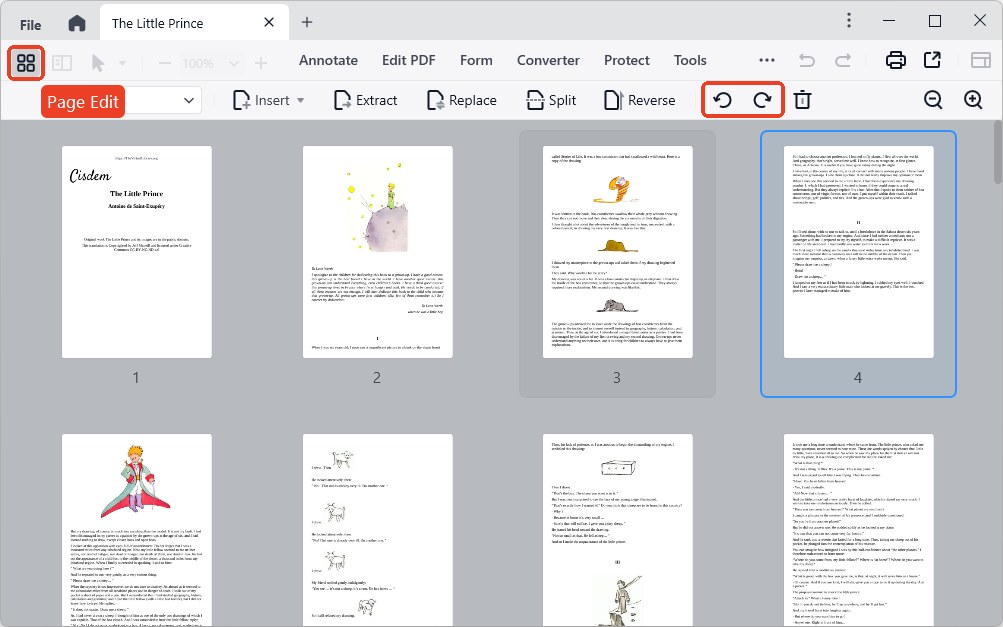
Besides, it is extremely easy to manipulate PDF pages, like deleting, rotating, extracting and so on.
If there exits private and sensitive information in PDF, setting password, marking for redaction or adding a digital signature can keep your PDF secure.
How to Markup a PDF Free
Can you mark up a PDF for free?
Many users are looking for a free way to markup PDF documents. It's lucky that there are many options for you to choose from. In this section, you’ll find 4 workable ways to markup a PDF for free.
Method 1: Markup a PDF with Freeware
Compared to professional PDF editors, some free PDF readers and built-in software can also provide PDF markup features, with fewer markup tools available. But for basic needs, they are perfectly adequate.
#1. Adobe Reader
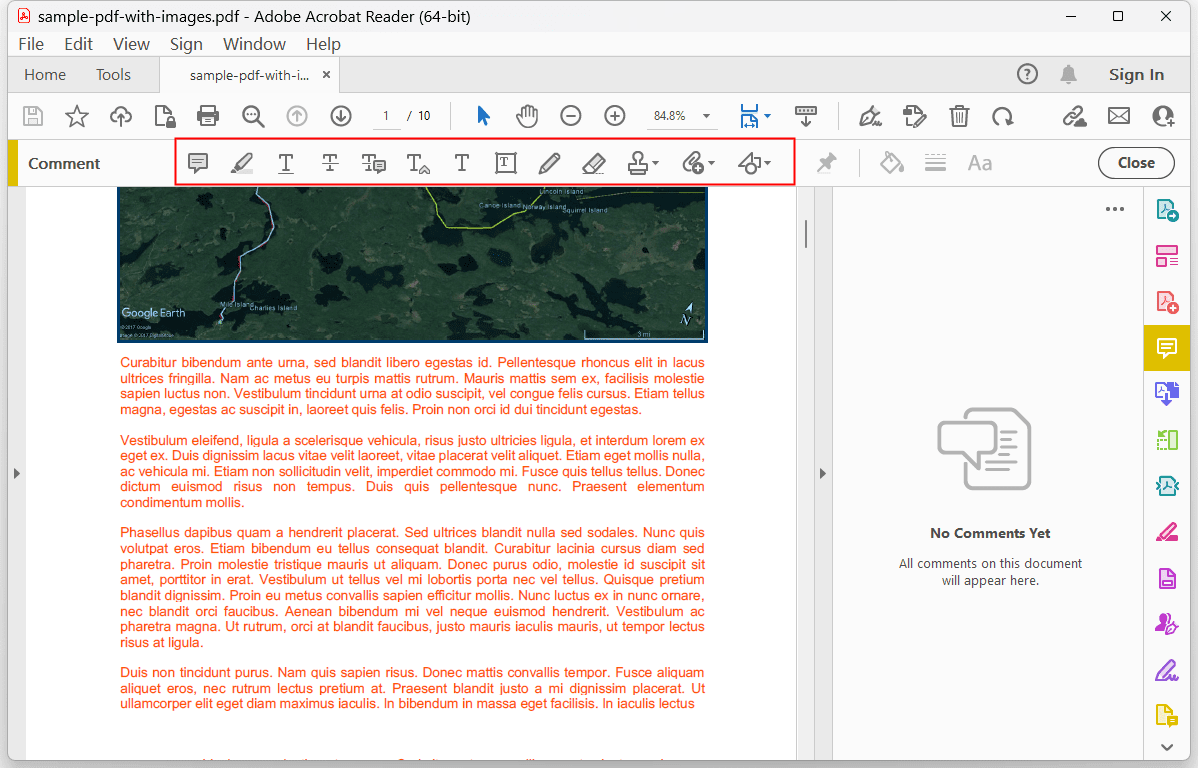
Adobe Reader is a free PDF reader app, doing more than just opening and viewing PDF files. It's easy to markup documents using highlight, underline and strikethrough tools, add bookmarks, sticky notes or type text directly onto the page, and even draw on the screen with a freehand drawing tool.
How to Markup a PDF in Adobe Reader?
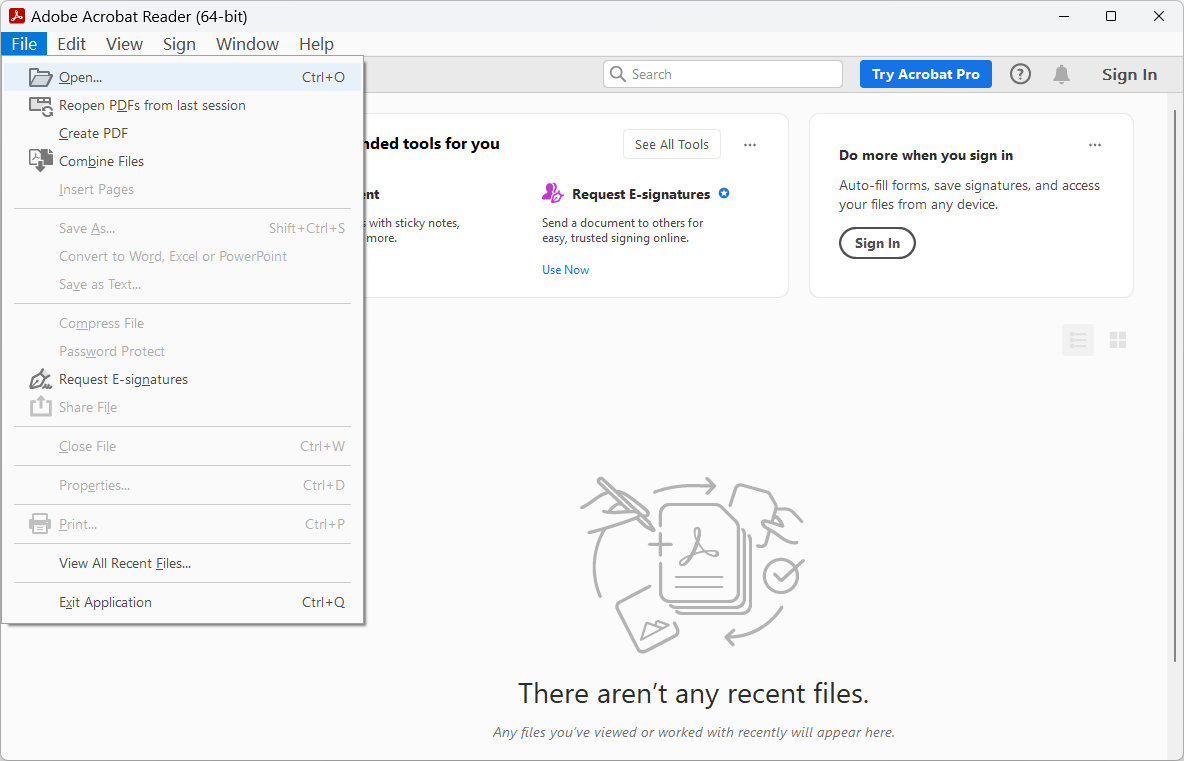
- Launch the program of Adobe Reader.
- Open a PDF in Adobe by clicking File > Open.
![how to markup a pdf adobe01]()
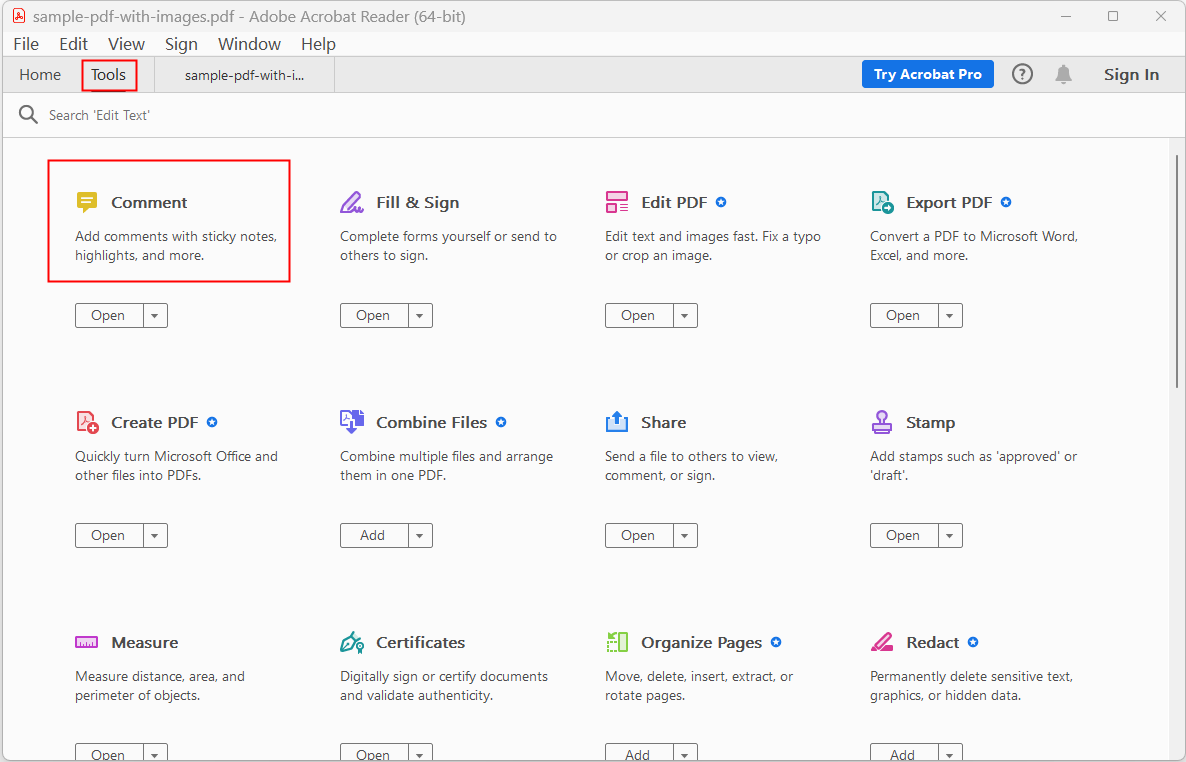
- Click Tools at the top left > Comment.
![how to markup a pdf adobe02]()
- Mark up your PDF file. You can underline text, strike through content, highlight text, draw with pencil and more. Also, you can add different shapes like arrow, rectangle, oval as you want.
![how to markup a pdf adobe03]()
#2. Preview
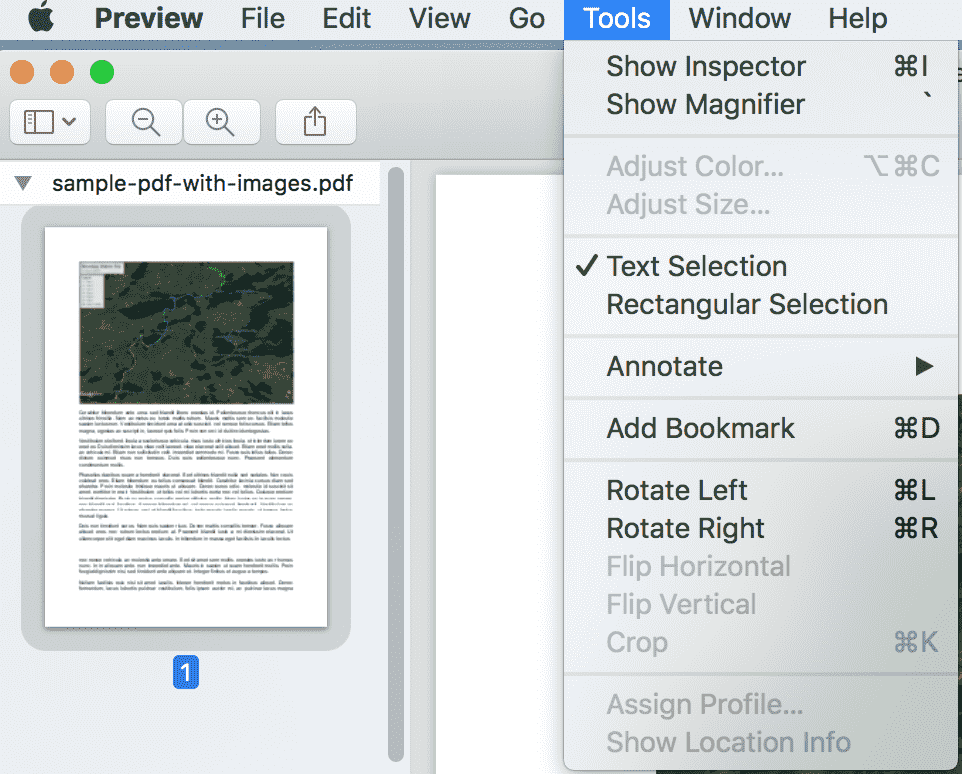
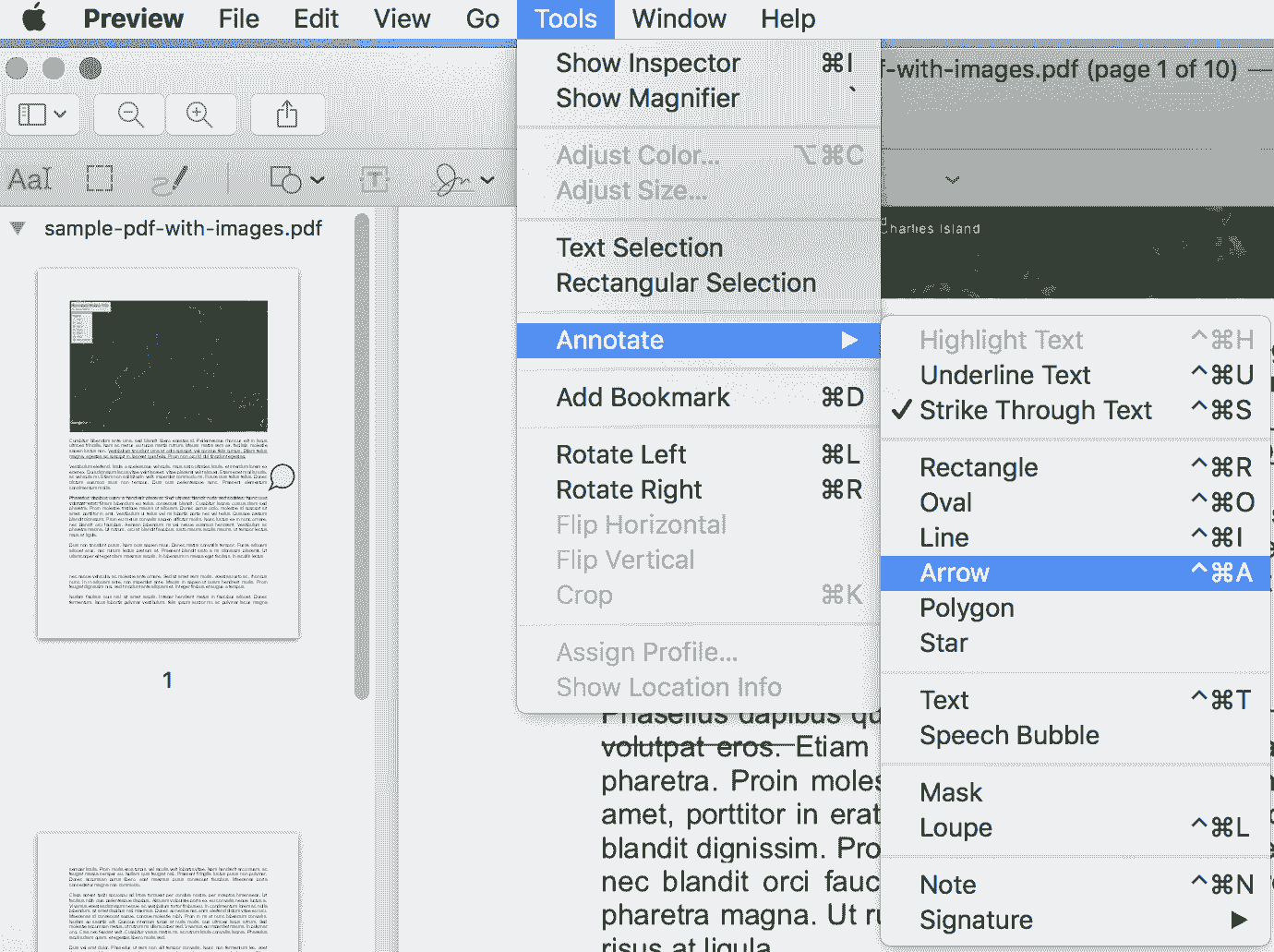
Preview is designed as a PDF and image viewer on Mac. For Mac users, you can achieve the goal of marking up PDF files easily in Preview. It allows you to add rectangle, oval, line, arrow, polygon and notes, as well as highlighting, underlining and striking through text.
How to Markup a PDF in Preview?
- Open your PDF file with Preview on Mac.
- Go to Tools at the top and select Annotate from Tools drop-down menu.
![how to markup a pdf preview01]()
- In the extended list of annotate, choose the annotate tools you need, you can add shapes, text, speech bubbles, notes, or signatures.
![how to markup a pdf preview02]()
Method 2: Markup a PDF with Online PDF Markup Tool
In addition to free software, you can also try online PDF markup tools, which usually work across multiple platforms and you don't have to puzzle about downloading any software.
#3. Google Drive
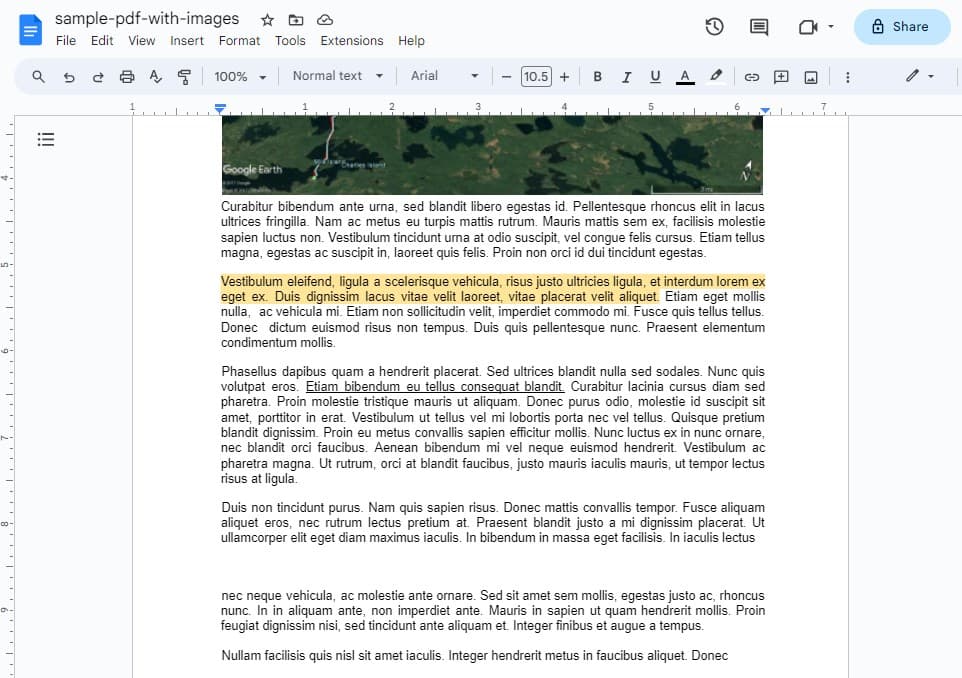
Google Drive is a file storage and sync service developed by Google. It includes Google Docs, Google sheets and Google Slides. All files created and edited through them are saved in Google Drive. To mark up PDF files simply, you have to open your PDF with Google Docs, where PDF will be automatically converted into Word format.
How to Markup a PDF in Google Drive?
- Log in to Google Drive.
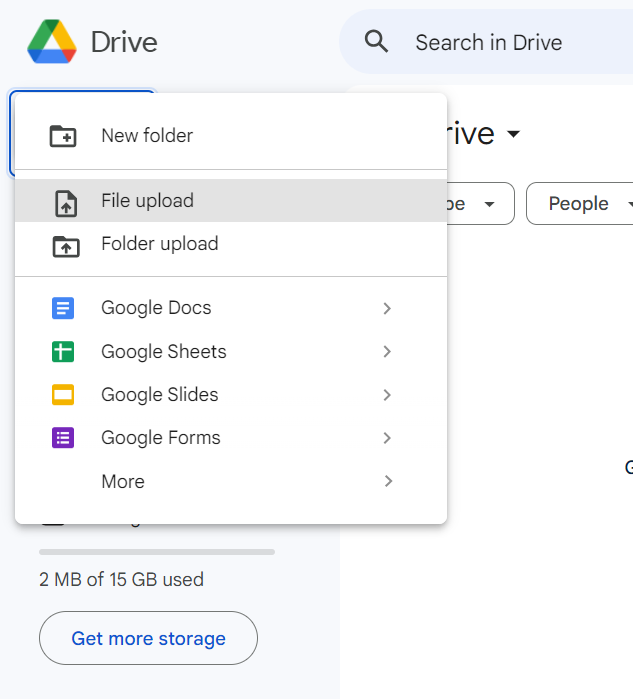
- Upload your PDF file by clicking +New > File Upload.
![how to markup a pdf google01]()
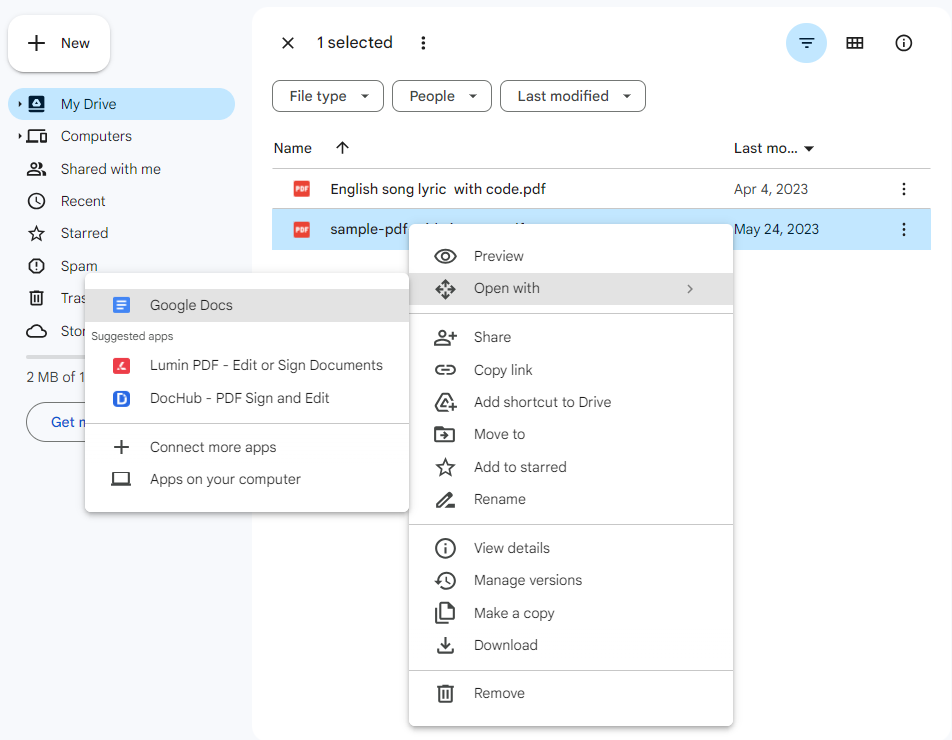
- Right-click the imported PDF and open it with Google Docs.
![how to markup a pdf google02]()
- Now you can customize the file using the markup tools as you wish.
![how to markup a pdf google04]()
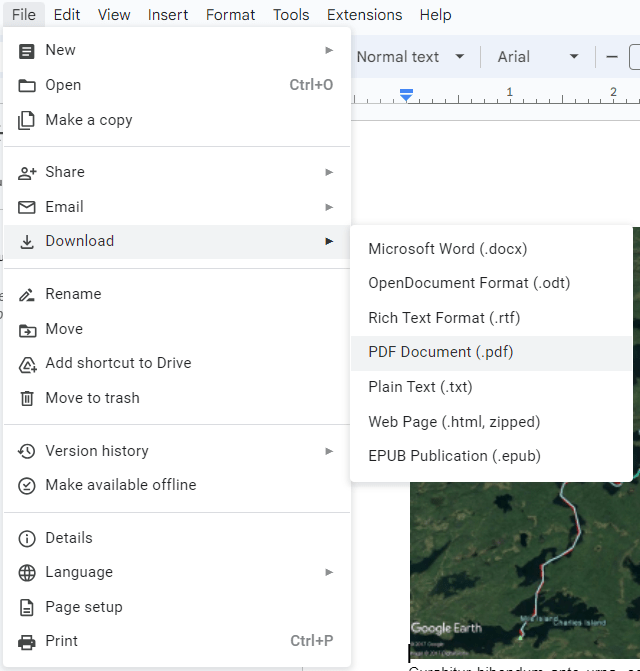
- Once finished, select File > Download > PDF Document to apply changes.
![how to markup a pdf google03]()
Limitations of Using Google Docs:
- It takes much time to upload large files.
- Some formatting issues occurred when importing PDF files.
- Only a few markup tools are provided.
#4. AvePDF
AvePDF is an online PDF software offering high-level features that you can use at work. It works on all devices and browsers. Besides, unlike other online PDF tools, AvePDF is highly secure that all files uploaded will be automatically deleted from its servers after 30 minutes.
How to Markup a PDF in AvePDF?
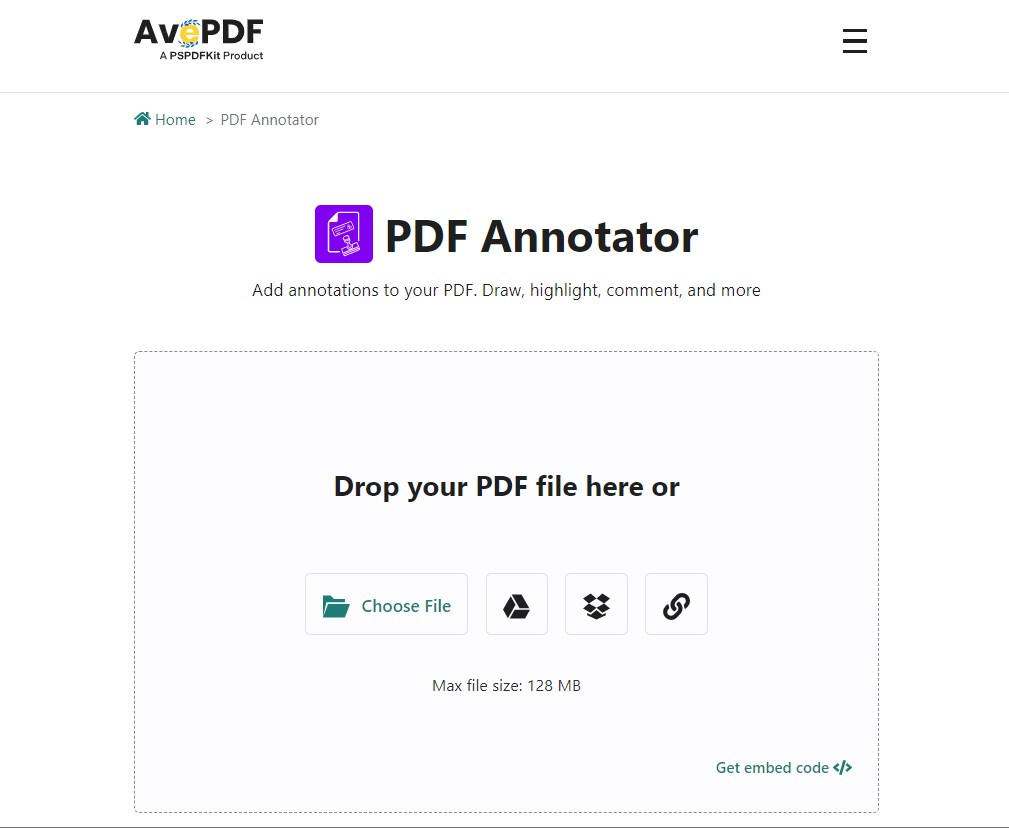
- Go to AvePDF website > PDF Annotator.
![how to markup a pdf ave01]()
- Drop your PDF file or choose file from your device or your cloud storage service.
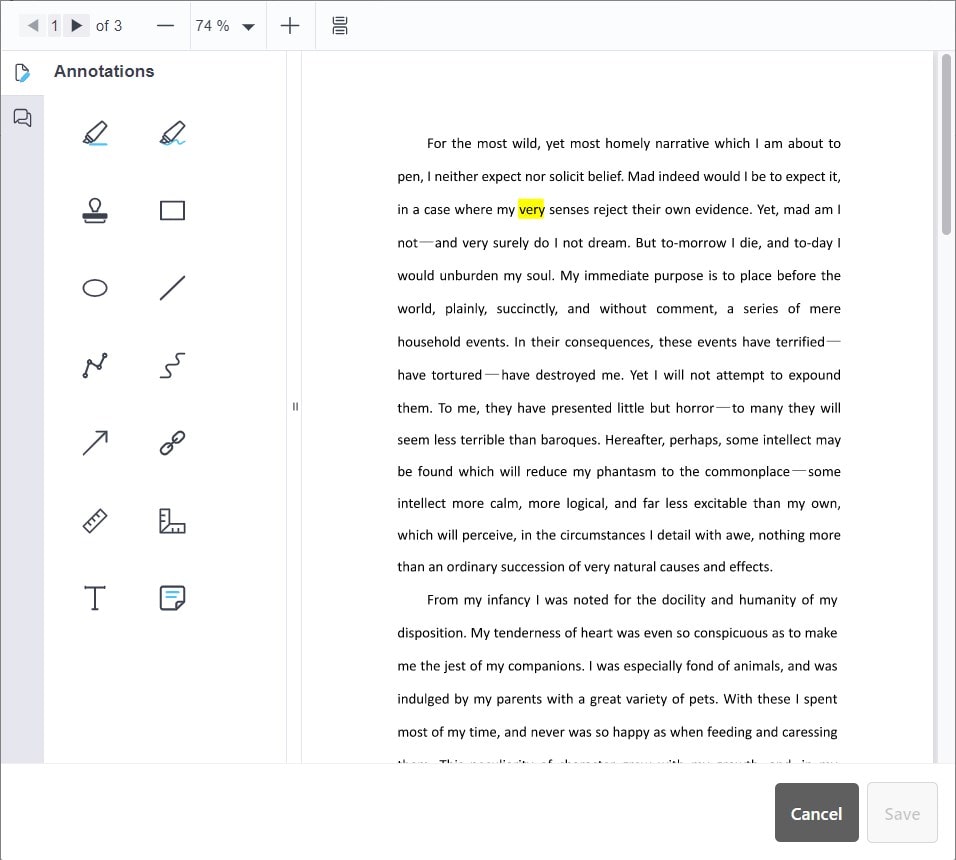
- Click on the Annotations icon in the left sidebar. The annotations tools include: highlighter, freehand highlighter, rubber stamp, rectangle, ellipse, line, connected lines, freehand, arrow, link, ruler, polygon ruler, text, and sticky note. Click the tool needed to customize your PDF.
![how to markup a pdf ave02]()
- Click on the Save button and download the marked-up PDF file to your computer or save it directly to your cloud storage service.
Limitations of Using AvePDF:
- Maximum processing per hour: 1
- Maximum file size: 128 MB
- Maximum number of files per processing: 10
How to Markup a PDF on iPad & iPhone
There isn't an equivalent on iOS of the Mac’s Preview app, but Apple still manages to give you powerful options to get most of your work done with PDF.
The Files app was a built-in program introduced to iOS in 2017, which has provided an effortless way to manage all your files efficiently on your iPad or iPhone. Beyond that, this app has one under-the-radar feature that lets you perform marking up of PDF documents using your iOS, including highlighting text, free-hand drawing, adding text, signature, magnifier and shapes.
Now Take a Look at How to Markup a PDF on iPad or iPhone:
Before you can mark up your PDF files, you need to download them from your device first and save them to the Files app.
- Step 1. Open a PDF File in Files
Launch the Files app on your device and open a PDF file. If you can't find it, type the file name in the search box to locate it. - Step 2. Set the Page Thumbnail
If you're using an iPhone, swipe right from the left edge of the screen to make the page thumbnails visible. Or, it will show up automatically on iPad. Go to the page you want to mark up.![how to markup a pdf files03]()
- Step 3. Open the Markup Toolbox
Hit the marker icon at the top right. It will give you access to the markup tools. Choose your preferred brush to sketch on the PDF.![how to markup a pdf files01]()
- Step 4. Find More Markup Tools
Tap the "+" icon at the bottom, then you will find more markup tools. It lets you add text, signature, magnifier, rectangle, oval and arrow.![how to markup a pdf files02]()


To Summarize
Although built-in software or free online tools are sufficient for simple tasks, not all tasks are very simple. In these cases, you need to turn to a more powerful tool. For Windows and Mac users, Cisdem PDFMaster will be a good choice, you can download it and try its free trial version for 14 days.

Bianca is a senior tech editor and strategist at Cisdem with Over 10 years of experience on PDF related solutions which covers all document editing, annotating, converting and managing etc.

Liam Liu takes charge of the entire PDF product line at Cisdem and serves as the technical approver for all related editorial content. He has deep expertise in PDF and document management technologies and nearly a decade of development experience.