


How to Block Websites on Arc Browser: 3 Tested Methods
 102
102
 0
0


When using Arc for work or personal projects, you may get distracted by social media, videos, or other websites. It's a good idea to block access to these sites when you need to concentrate.
In this article, I will share the three methods that I tested, providing step-by-step instructions, advantages, and potential limitations, which can help you choose the best method for your needs.
Whether you want to block websites on Arc during certain hours or permanently, you will find this article helpful.
 Cisdem AppCrypt
Arc Website Blocker for Mac
- Block entire websites, specific pages, keywords, and website categories (e.g., Social, Gambling, Porn)
- Block all websites except allowed ones
- Support Arc, Chrome, Safari, and other browsers, including normal and incognito browsing modes
- Lock individual apps
- Block websites and apps 24/7 or during scheduled hours
- Password-protect restrictions set on websites and apps
- Easy to set up
- Help with productivity, digital wellness, and more


A brief comparison of methods
I tested three methods on my iMac running macOS 14 Sonoma and my Windows 11 PC, covering the following aspects and more:
- Whether I can block by domain, URL, keyword, or category
- If it's possible to schedule blocking
- If blocking applies
- to Arc and non-Arc browsers
- across different spaces and profiles in Arc
- to incognito browsing
- How easily I can visit blocked websites
Here's a brief comparison of these methods.
| Method | Best for | Effort to set up | Can you easily bypass it? |
|---|---|---|---|
| 1. Use AppCrypt | Blocking across spaces and profiles in Arc; cross-browser | 2 minutes | No (Require password) |
| 2. Use BlockSite | Blocking based on Pomodoro timer | 2 minutes | Yes (Easy to remove) |
| 3. Use LeechBlock NG | Highly customizable blocking | 5 minutes or longer | Yes (Easy to disable or uninstall) |
Method 1. Block websites using AppCrypt
Applies to: Mac
If you are a Mac user, you can consider this method, which uses a tool called Cisdem AppCrypt, or simply AppCrypt. I’ve been using it for over seven years and recently started using it on Arc.
What I like about this method
- Make it easy to block unwanted websites: You can restrict 11 website categories directly, add specific sites or pages that you want to restrict, and filter URLs by keywords.
- Provide flexibility: You can set blocking to be active permanently or only at scheduled times. You can create custom schedules for specific sites. In addition, you can redirect blocked sites to your favorite productive site or simply a search engine.
- Work widely: Blocking applies to the entire Arc browser, regardless of spaces or profiles, as well as other web browsers (such as Chrome and Safari), including Incognito mode.
- Effectively prevent bypassing: Password protection is reliable. It stops websites from being removed from the block lists, prevents schedules from being changed, and makes sure that AppCrypt can’t be quit or uninstalled easily.
Step-by-step instructions
1. Download and install AppCrypt.
 Free Download macOS 10.15 or later
  Free Download Windows 10 or later
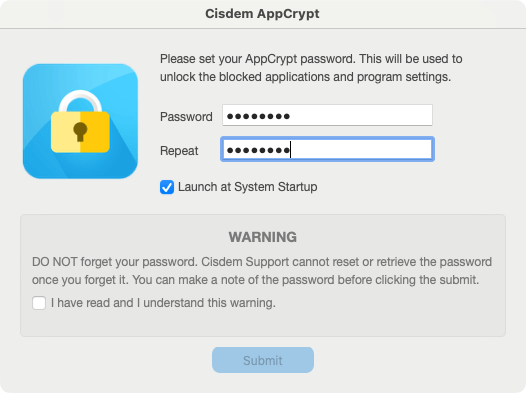
2. The first time you open it, set a password.
(Tip: You can consider asking a friend to set the password for you, so you won't be tempted to bypass it.)
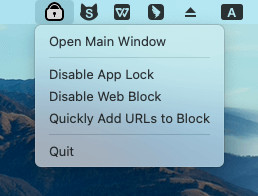
3. Click the tool's icon in the menu bar and choose Open Main Window.
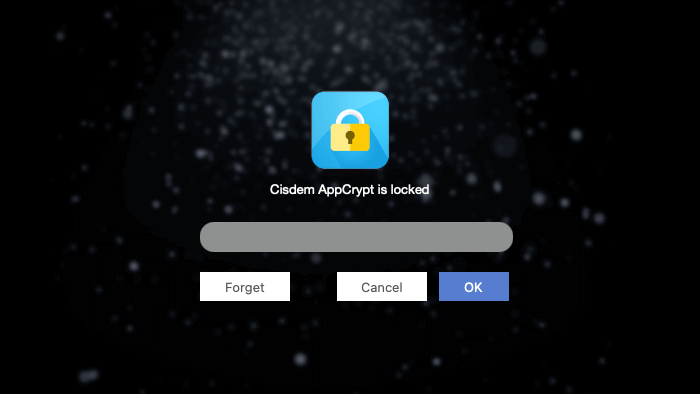
Then, enter the password to access the window.
4. In the Web Block tab, you can choose unwanted website categories, then add specific websites, pages, or keywords.
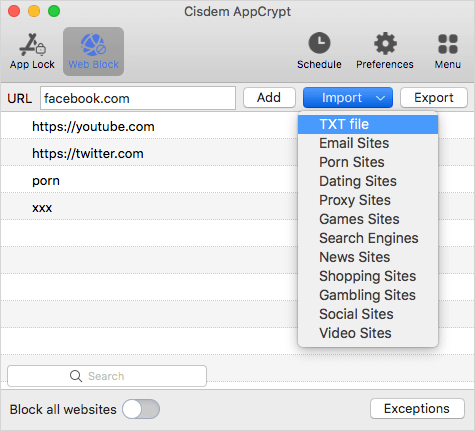
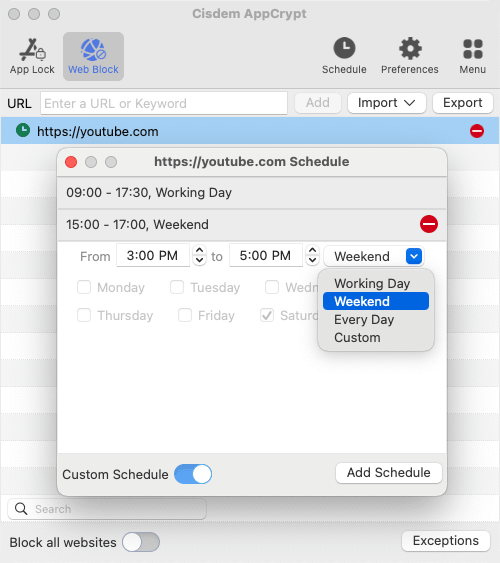
5. Optionally, create schedules, for example, restricting youtube.com from 9:00 AM to 5:00 PM on weekdays.
Potential limitations
Same blocking experience everywhere: This can be an advantage or a limitation, depending on your needs. If you need different blocking setups (for example, blocking distracting sites temporarily in your work profile in Arc while restricting inappropriate content in your personal profile), I recommend checking out methods 2 and 3.
Method 2. Block websites on Arc using BlockSite
Applies to: Mac, Windows
Since Arc is Chromium-based (which means it's similar to Chrome in the core), extensions made for Chrome can also work with Arc. The first extension that came to my mind is BlockSite, and that's what this method uses.
What I like about this method
- Easy to add websites to the block list: You can block 6 website categories directly, and also manually add websites, pages, and keywords to the block list.
- Offer great control: You can flexibly decide when websites are blocked or accessible: using fixed schedules, setting time limits (which I really like), or using a Pomodoro timer. For example, social media sites can automatically become restricted once you've used them for over one hour.
- Suggest websites to block: If you allow it, BlockSite will track your most visited websites and recommend new websites to add to your block list. (If you are privacy-sensitive, you can choose not to enable this feature.)
Step-by-step instructions
1. In your Arc, visit the Chrome Web Store.
2. Search for BlockSite, then click Add to Arc.
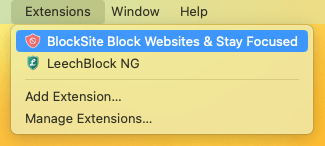
3. Navigate to Extension and choose BlockSite.
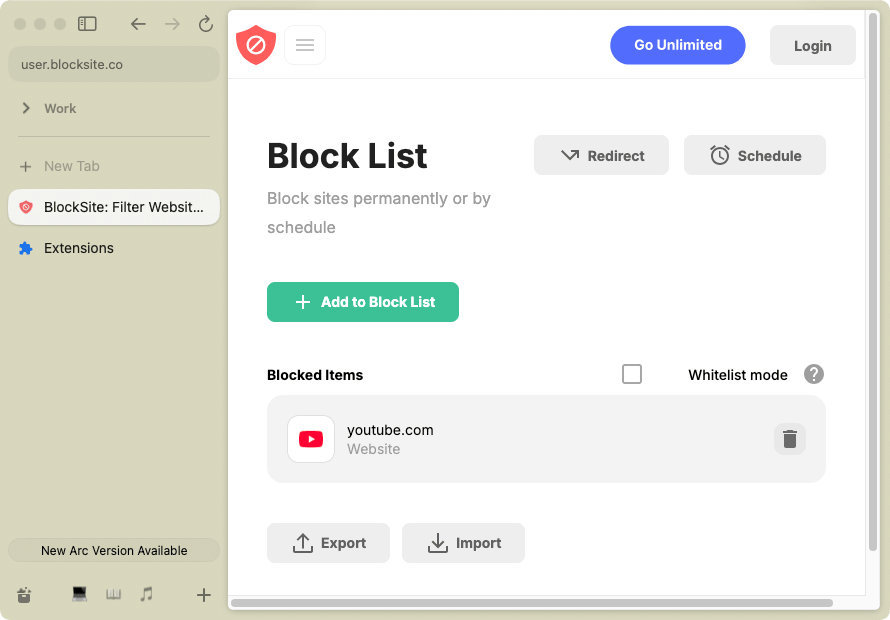
4. Click the gear icon to access the extension's options page.
5. You can create one or multiple block lists.
- For websites you want to restrict all the time or by schedule, add them in the Block Sites section.
![Block Sites section showing an Add to Block List button, an Schedule button, and more]()
- For websites you want to block by time limits, add them to the Usage Limit section.
- If you’re a fan of the Pomodoro timer, consider adding websites to the Focus Mode section.
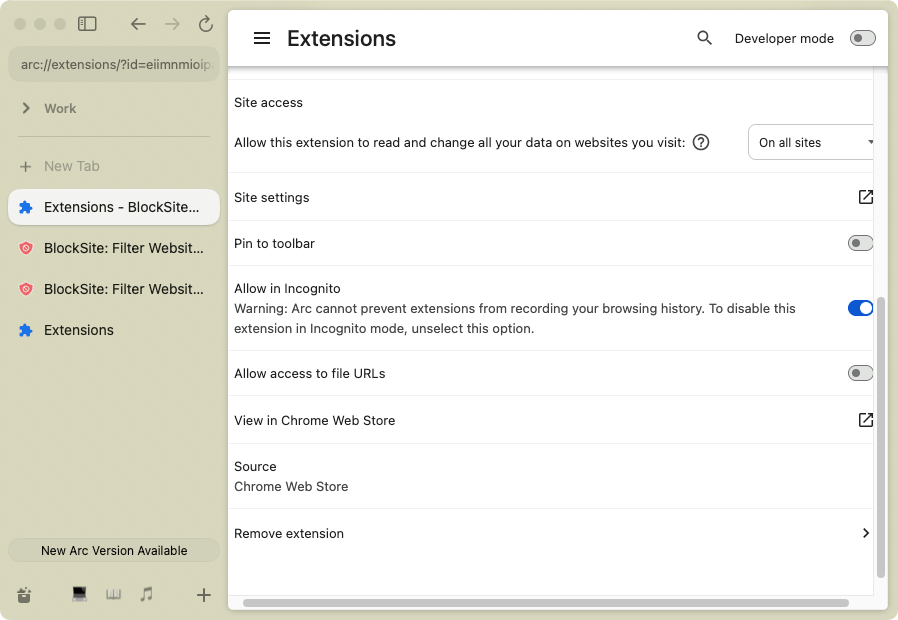
6. Optionally, go to Manage Extensions and turn on Allow in incognito to apply blocking to incognito browsing mode.
From now on, this extension will immediately block these websites on your Arc. If you have different spaces but they use the same profile, then blocking will apply across all of them. To set up different blockings for different space, you will need to create a separate profile for each.
Potential limitations
- Easy to uninstall: Browser extensions, including BlockSite, can be easily uninstalled. Although it provides a password protection feature to help prevent users from disabling it, it can’t stop the extension from being uninstalled from Arc.
- Bypassing via a different browser: Since the blocking is at the browser level, it's possible to visit restricted sites using a different browser. If needed, you can install the extension on other browsers to achieve wider blocking.
Method 3. Block websites on Arc using LeechBlock NG
Applies to: Mac, Windows
LeechBlock NG is another website blocker extension available for Arc. You might be wondering why I share another extension solution. Well, because LeechBlock NG is completely free and offers a different level of flexibility and control.
What I like about this method
- Create multiple blocking setups: You can create up to 30 block sets for different needs. For example, Block Set 1 restricts distracting sites during work hours, Block Set 2 limits explicit websites permanently, and Block Set 3 disables access to all websites during sleep hours.
- Provide highly flexible control: Both methods 1 and 2 give you control over specific restriction needs, but they work following preset "rules". With LeechBlock NG, you basically create your own rules. For example, it supports wildcards (*), allowing you to decide how websites are added. You can set sites that are already open to be blocked immediately or the next time you try to visit them. If you choose time-based blocking, you can even control what counts as website usage: just opening a site in a tab, or having it active in the foreground.
Step-by-step instructions
1. Install LeechBlock NG from the Chrome Web Store on your Arc browser.
2. Go to Extensions and choose LeechBlock NG.
3. Click Options to access the extension's options page.
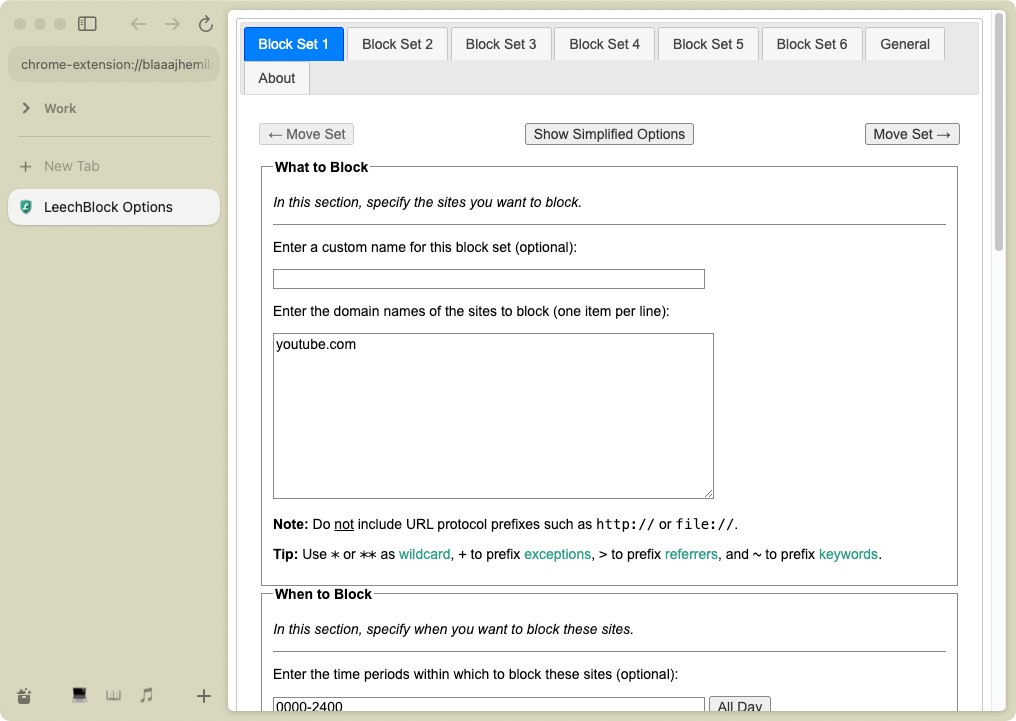
4. First, decide if you want to see all options.
(If you only need basic blocking or want to avoid an overwhelming setup, click Show Simplified Options.)
5. In the What to Block section, enter websites, pages, or keywords as needed.
6. In the When to Block section, choose to activate blocking by fixed schedules or time limits, then specify times or durations.
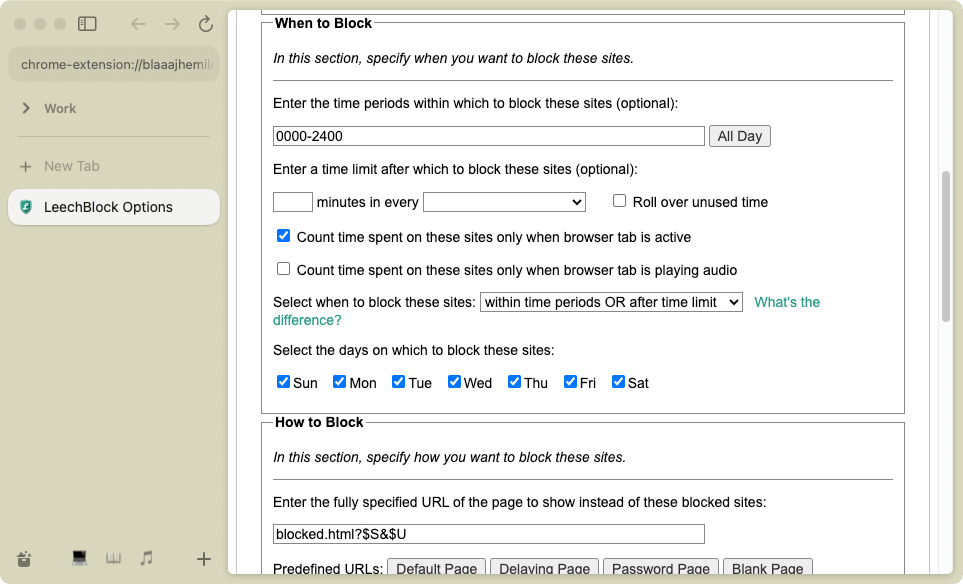
7. Optionally, set a redirect URL in the How to Block section, and go to the General to create a more personalized blocking experience.
Create multiple Block Sets if needed.
Potential limitations
- Easy to disable or uninstall: LeechBlock NG can be easily disabled or removed from your Arc browser.
- Bypassing via a different browser: As with method 2, the blocking applies to Arc only.
- Time-consuming setup: Since LeechBlock NG doesn't have features like blocking website categories, you need to manually add websites one bye one, which can be time-consuming if you need to restrict many websites. Also, unlike the tools used in methods 1 and 2, this tool may have a learning carve.
- Performance not very stable: I tried using the Lockdown feature to set a temporary blocking session that would override schedules, but I ended up finding that blocking stopped working completely. I had to reinstall LeechBlock NG to make it work again.
FAQs
Does Arc browser have a built-in website blocker?
No, Arc doesn't provide a built-in feature for blocking websites.
Does Screen Time support Arc?
If you are a Mac user, you might have considered using Screen Time as a native solution for restricting websites on Arc. However, unfortunately, Screen Time on Mac doesn't support Arc.
The good news is Screen Time on iPhone works with Arc. (Arc is called Arc Search on iPhone).
Does Microsoft Family Safety support Arc?
Microsoft Family Safety can block websites on Edge on Windows 10 and 11, but it doesn't work with Arc. So, the simple answer is no.

Norah Hayes likes to share her tips on how to improve focus and stay motivated at work. She believes it is essential to eliminate all online distractions during work hours.

Ethan Long joined Cisdem in 2015 as a developer and now serves as the editorial advisor for Cisdem AppCrypt. He actively tests and uses Cisdem AppCrypt and other screen-time management tools to ensure AppCrypt meets its promises in real-world scenarios.