


How to Block Websites on Edge - 4 Methods in 2026
 1.5K
1.5K
 1
1


Microsoft Edge is a powerful and high-performance web browser preferred by many Windows users. It is also popular on mobile phones. For security, productivity or some other reasons, many users are looking for ways to block inappropriate or some distracting websites on Edge. Below I’ll show you 4 different methods to do this.
 Cisdem AppCrypt
Block Websites on Edge & Other Browsers
- Block websites on Microsoft Edge, Chrome, and other browsers
- Let you block specific websites or webpages
- Let you block categories of sites, such as games sites, porn sites
- Also supports blocking URLs containing specific word
- Let you block all websites except a few
- Lock individual applications with password
- Block websites and lock apps permanently or at certain times
- Requires password to enter/quit/uninstall AppCrypt
- Easy to use and hard to bypass
- Help with parental controls, productivity and privacy protection
- Compatible with Windows, Mac, Android, iPhone and iPad


Method 1. Block websites on Edge with Cisdem AppCrypt
Best for: Parents who want to control child’s online activity, or users looking for ways to block distracting sites to boost productivity.
To block access to a specific website or categories of sites on Microsoft Edge, the easiest way is to use Cisdem AppCrypt. This website blocker comes with a password protection feature to prevent unauthorized changes. Once you add a website to the block list, it becomes inaccessible in Edge. To unblock it, users must disable web block, quit or install the tool. All of these actions require the password, making it difficult to bypass.
Below are the steps to block websites in Microsoft Edge on a Mac or Windows computer. The process on Android and iOS devices is similar, but even simpler.
1. Download and install Cisdem AppCrypt.
 Free Download Windows 10 or later
  Free Download macOS 10.15 or later
 GET IT ONGoogle Play
  Download on theApp Store
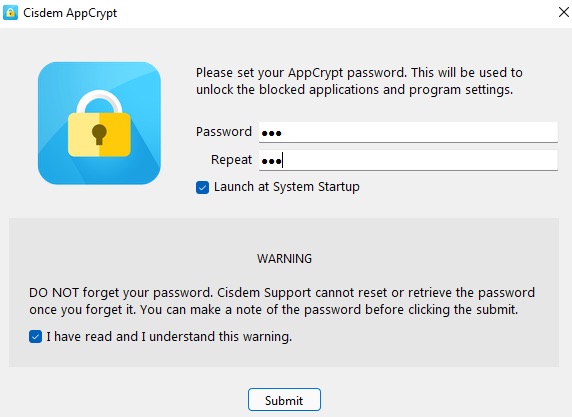
2. Set a password when you first launch it.
To make the blocking more efficient, check the box next to Launch at System Startup.
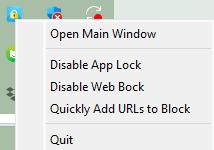
3. Click the lock icon on Windows task bar (or Mac menu bar). Choose Open Main Window.
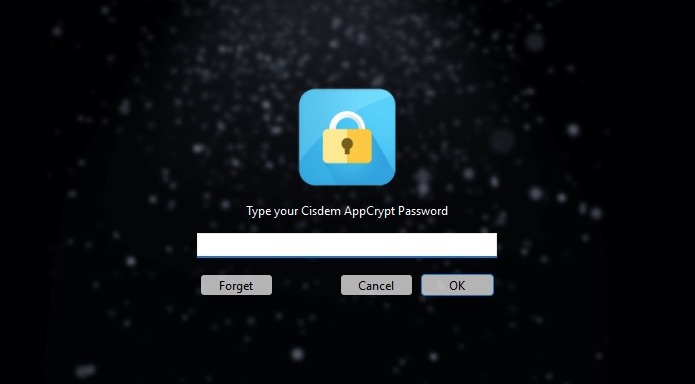
4. Enter the password to access its main window.
5. Go to the Web Block tab.
Windows users will be required to install extensions for blocking websites on different browsers. To block websites on Edge, click Install next to Microsoft Edge. Mac users can skip this step.
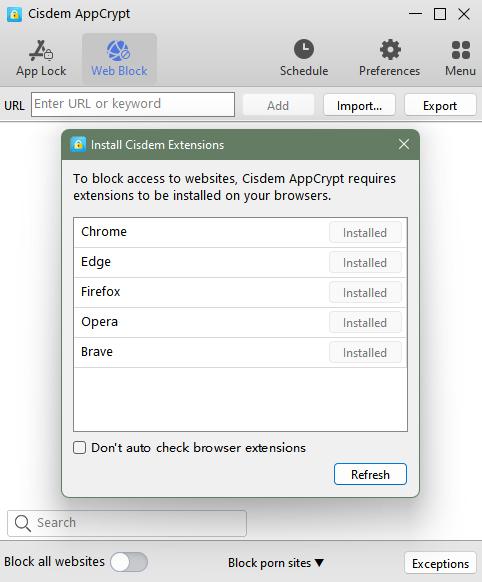
6. Go back to the Web Block tab again. Add the sites that you want to block to the top box. Click Add.
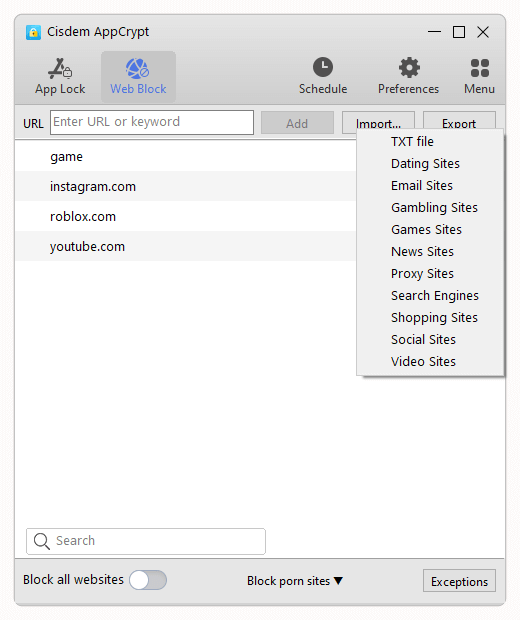
Now the websites are blocked on your Edge browser.
Note: To unblock a blocked site on Edge, enter AppCrypt (password required) and select the site from the block list. Press the Delete key on the keyboard.
Or, click the lock icon on the task bar. Select Disable Web Block, which will temporarily unblock all blocked sites. All these actions require you to enter the password.
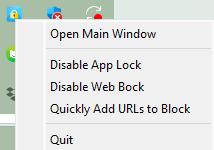
Tip 1: How to block inappropriate sites on Edge by category?
Some parents are worried about their children visiting inappropriate content online and want to do some thing to make the Edge browser safer for kids. In this case, AppCrypt also helps. It supports blocking websites on Edge by categories, including social sites, porn sites, games sites, and more. Click the Import button. Select a category, such as Games sites. This will block hundreds of popular gaming sites on Edge with a click.
Tip 2: How to allow only one website on Edge?
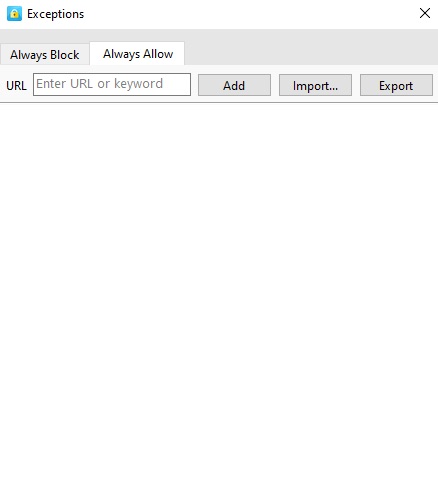
Cisdem AppCrypt also allows you to block all websites but allow only one or a few trusted sites. Enable Block all websites on the bottom left corner. Click Exceptions. Go to the Always Allow tab. Add the URLs of sites you allow to access.
Method 2. Block websites on Edge with Block Site extension
Best for: Users who only need to block websites in Microsoft Edge and don’t want to install additional software.
Another simple method to block websites on Edge is to use an Edge extension. Unlike method 1, a website blocking extension only works on a browser. So if you have other browsers installedon your device (such as Chrome), the websites blocked on Edge will still be accessible through other browsers.
In addition, this method is not ideal if you are blocking websites for yourself but have less self-control, or if you are setting parental controls for your children. Since extensions can be easily removed or disabled.
Steps to block a website on Microsoft Edge via extension:
1. Open your Edge browser.
2. Click the Extensions icon on the upper right corner.
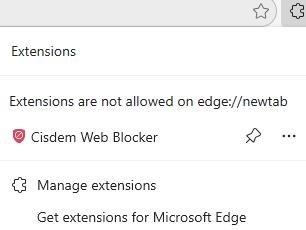
3. Click Get extensions for Microsoft Edge.
4. Search for Block Site in the search box. Select that one developed by Free Simple Apps.
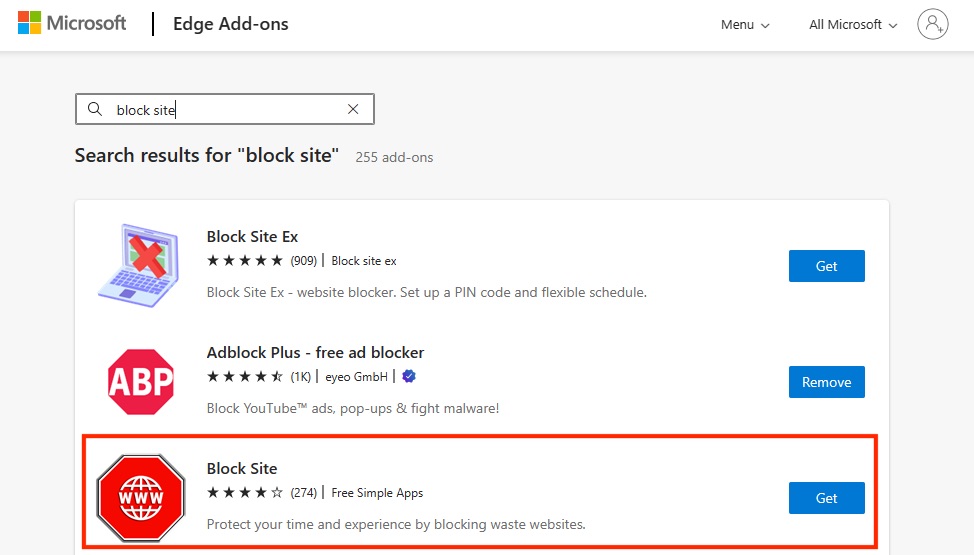
5. Click on Get next to it. Then click Add extension from the pop-up window.
6. Now the extension is added to your Edge browser. Go to the website that you want to block. Click the Extensions icon on the tool bar. Select Block Site extension.
7. Click on Block current site.

Method 3. Block websites on Edge with hosts file
Best for: Tech-savvy Windows users who prefer a built-in method to block a specific website on Edge.
For Windows users, there is a built-in method to block websites on Edge - by editing the hosts file. However, this method is technical and may be not suitable for users who are not familiar with system settings.
1. Type Notepad in the Windows search bar and open it as administrator.
2.Click File > Open in the upper left corner of the pop-up window.
3. Navigate to the following path: C:\Windows\System32\drivers\etc.
4. Select Text Documents (*txt) and change it to All Files from the drop down menu.
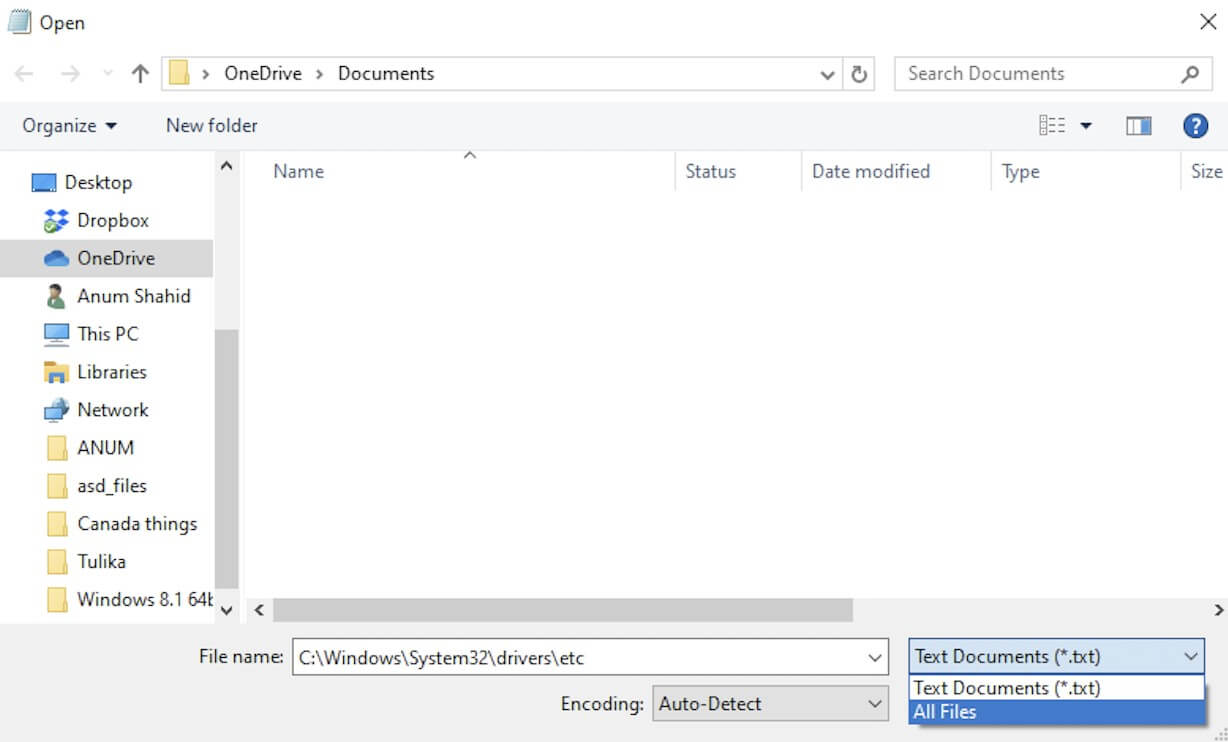
5. Double-click hosts to open the hosts file.
6. Scroll down to the bottom of the file.
Type 127.0.0.1, followed by the URL you want to block on Edge.
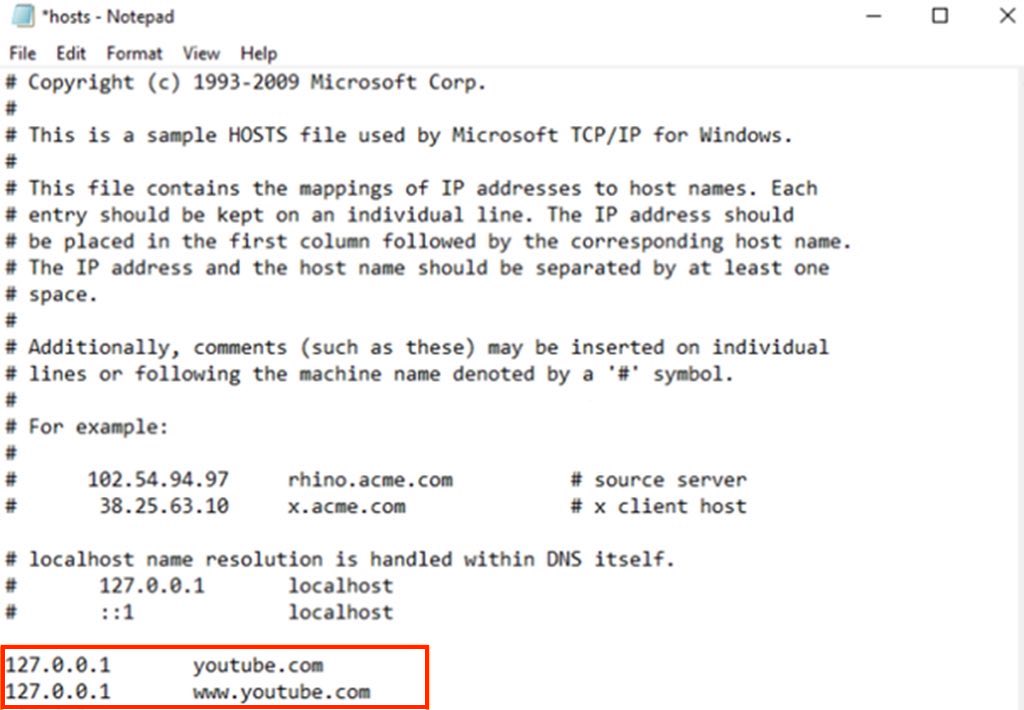
7. Click File > Save.
Now the site is blocked on Edge browser. If you want to unblock it, simply remove the added line from the hosts file.
Method 4. Block websites on Edge with Microsoft Family safety
Best for: Microsoft users who want to filter inappropriate websites and searches on child’s devices.
Microsoft Family Safety is a useful parental control tool available to Microsoft users. It helps parents better manage children’s online activities, including blocking inappropriate websites on Edge. This method is works on both computer and mobile phones. Here are the steps:
From web:
1. Visit family.microsoft.com. Sign in your Microsoft Family account.
2. Click Add a family member. Add your child’s account to the family group. Make sure your child can only log into his own Microsoft account.
3. Go back to the main window of Family Safety. Find the Content Filters section.

4. Go to the Web and search tab.
5. Turn on the toggle Filter inappropriate websites and searches.
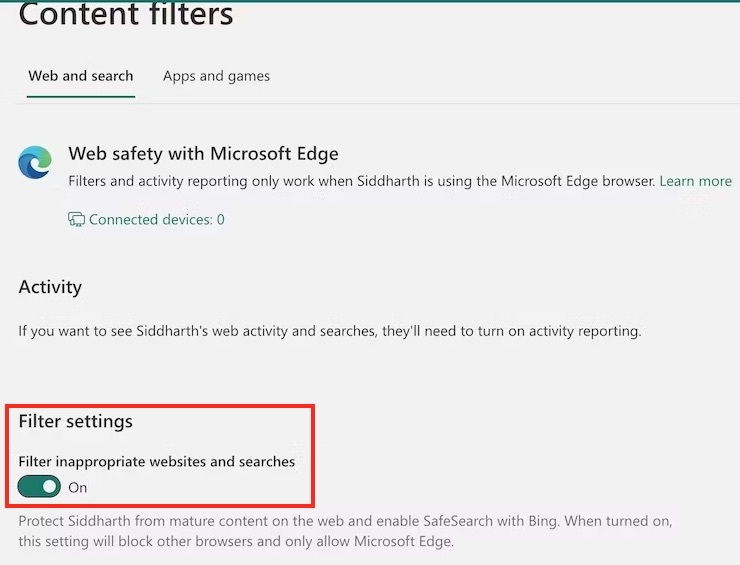
6. To block websites on Microsoft Edge, scroll down to find the Blocked Sites section. Add URLs to the box.
From app:
Microsoft Family Safety app is built-into Windows 10. For mobile users, you can download it from Google Play or App Store. Below are steps on mobile app:
1. Open the Microsoft Family Safety app.
2. Tap Get Started. Sign in your Microsoft account.
3. Click Add a family member from the Your family tab. Enter your child’s email address. Invite your child to join the family group.
4. Tap your child’s name from main window. Click Content Filters.
5. Turn on the toggle Filter inappropriate websites and searches.
6. Then add the URL you want to block under Blocked Sites.
FAQs
Can website blocking on Edge be bypassed?
While the four methods I introduced above can successfully block websites on Microsoft Edge, some computer-savvy users can find ways to bypass it. I recommend using those website blockers that require a password to enter/uninstall/quit, like Cisdem AppCrypt.
Can I block access to a website on Edge temporarily?
Yes. Some website blockers provide schedule feature that enables you to block websites for a set period of time, such as method 1 and method 2 in this article. Additionally, it let you apply the schedule only to a certain domain or to all blocked sites.
Should I allow or block cookies and site data of websites in Microsoft Edge?
Cookies can store browsing activity to remember user preferences and provide a better browsing experience. To protect user privacy, Microsoft Edge allows users to clear cookies and block sites from saving cookies. You can go to Microsoft Settings > Site Permissions > Cookies and site data. Add websites that you don’t allow to save and read cookie data.
Conclusion
Many websites on the Internet can be inappropriate, harmful, or distracting. Fortunately, with the help of website-blocking tools, you can easily restrict access to such sites. In this article, I introduced 4 methods to block websites on Edge, including free and built-in options. Hope this guide helps you choose the method that best suits your needs.

Norah Hayes likes to share her tips on how to improve focus and stay motivated at work. She believes it is essential to eliminate all online distractions during work hours.

Ethan Long joined Cisdem in 2015 as a developer and now serves as the editorial advisor for Cisdem AppCrypt. He actively tests and uses Cisdem AppCrypt and other screen-time management tools to ensure AppCrypt meets its promises in real-world scenarios.
Hannah Sanchez
I wanted to block a few websites on my son's computer without making things too complicated. This guide explained the steps clearly and helped me get everything set up quickly. Thank you!