


(2026) How to Recover Deleted Sheet in Excel with 8 Easy Ways
 1.6K
1.6K
 1
1


Microsoft Excel is not only widely used in businesses all around the world, but also favored by a multitude of regular private users. And it is very common to encounter issues like lost Excel sheets.
The issue could be one or more deleted sheet tabs in Excel, or even the entire Excel worksheet file being removed. Whichever situation you find yourself in, there are proven steps you can take to recover deleted Excel sheet. Microsoft 365, Microsoft Excel 2024, 2021, 2019 or earlier versions are all covered.
 Cisdem Data Recovery for Windows and Mac
Recover Deleted/Lost/Corrupted Sheets in Excel
- Support nearly all types of Excel sheets recovery: deleted, corrupted, formatted, lost, etc.
- Recover Excel sheets in both xls and xlsx
- Also recover MS Office Word, PowerPoint, and other documents, videos, photos, emails, etc.
- Recover unsaved Office documents
- Repair damaged videos and photos
- Restore Excel files from computer, USB drive, HDD, SSD, and more
- Filter Excel sheets and other files by file type, file name, date, etc.
- Preview all recoverable sheets or files before recovery
- Save files to local or cloud storage media
 Free Download Windows 11/10/8/7
  Free Download macOS 10.15 or later
Can I Recover Deleted Sheet in Excel?
YES, definitely you can.
But recovery methods will vary depending on the time when your Excel sheet is deleted. As a starter, let’s figure out 2 scenarios.
The first one is that you need to recover a deleted Excel sheet before save. Owing to Excel app not responding, computer crash, hardware malfunction, internet connection failure, power outage or other unexpected factors, the spreadsheet you’re working on becomes lost without saving. In this case, you can refer to option 1~4.
The other is that you have to restore a deleted sheet from Excel after save. This happens mostly due to human errors. Excel users may intend to give up several unwanted rows and columns within their sheet, but finally delete the whole sheet by mistake. Or they feel regretful having deleted a sheet still useful. Or they just erase the wrong Excel files. In this case, you can refer to option 5~6.
Please ascertain what is your case and proceed to seek for the most suitable advice on how to recover deleted sheet in Excel.
Option 1. Recover Deleted Sheet in Excel Directly
One straightforward way to restore a deleted Excel sheet tab not saved is to close the entire workbook without saving and then reopen it. Before taking actions, to prevent data loss from becoming more serious, make sure other sheet tabs in the Excel file have been saved previously.
How to recover a deleted sheet in Excel directly?
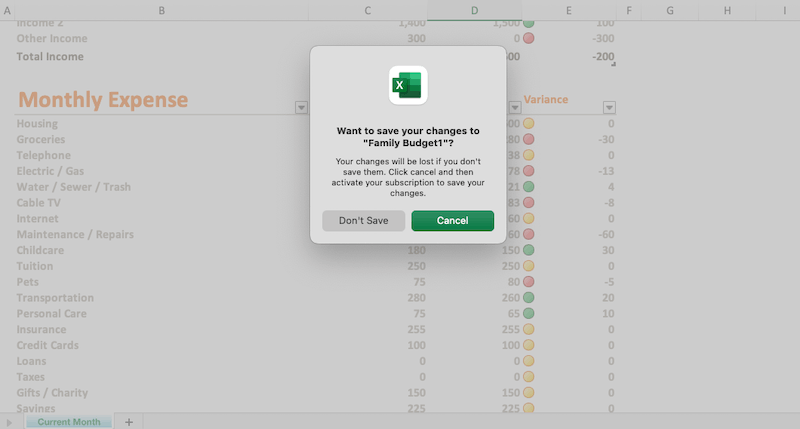
- Close the Excel workbook by clicking on the "X" icon from the Window.
- Then click Don't Save.
![not save]()
- Reopen the workbook to see if the deleted sheet is available again. If not, keep reading for the next method.
Option 2. Recover Deleted Excel Sheet with AutoRecover Feature
Microsoft Excel comes equipped with a handful backup feature called AutoRecover. Once turned on, it will automatically save the changes that are made to your workbook every 10 minutes by default, so that you can revert back the mistakenly deleted Excel sheet before saving within clicks.
How to recover deleted sheet in Excel via AutoRecover?
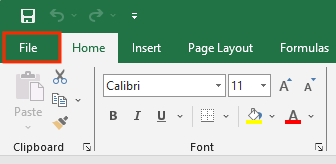
- Open Excel app > click on File tab.
![recover via autorecover 01]()
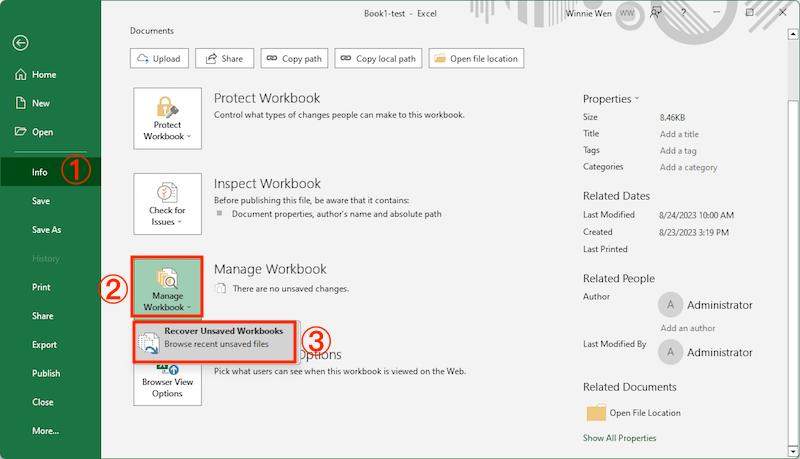
- Go to Info > Manage Workbook > Recover Unsaved Workbooks.
![recover via autorecover 02]()
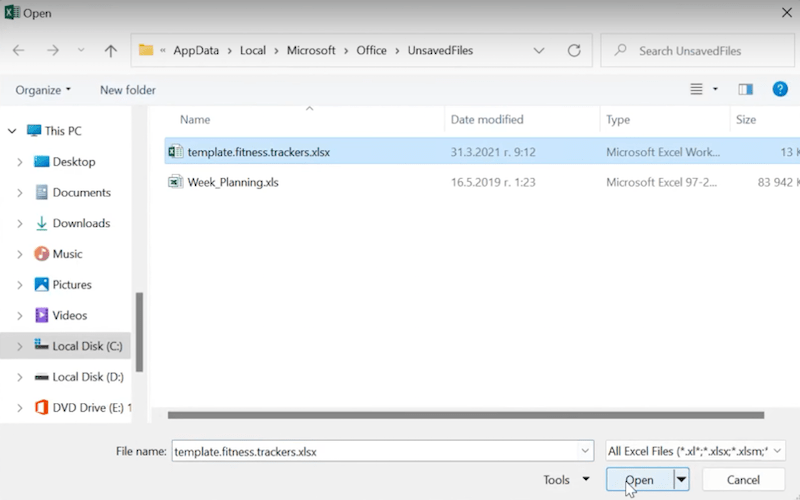
- From all the recent unsaved files, locate the exact one you want to recover.
![recover via autorecover 03]()
- Open and save it properly.
Alternatively, you’re also allowed to do the recovery by specifying AutoRecover file location:
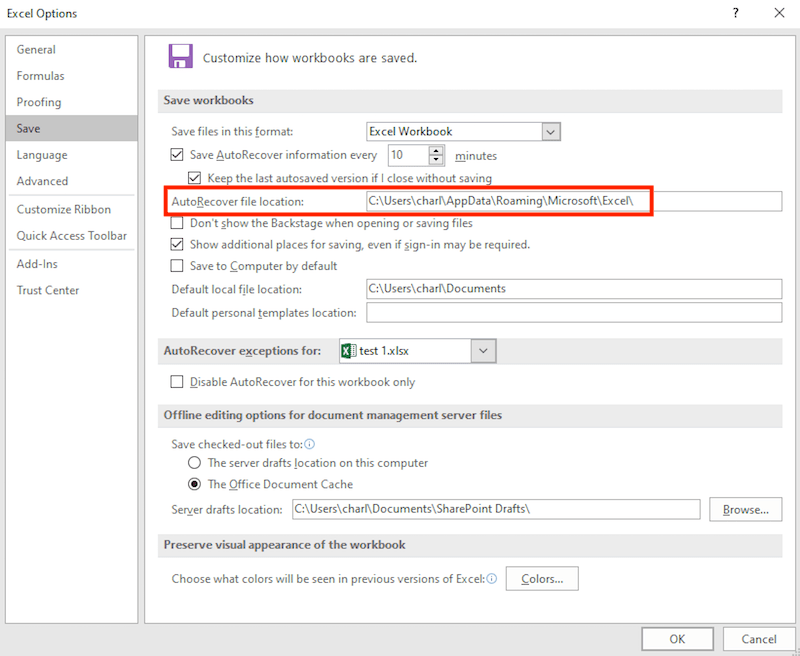
- In Excel app, navigate to File > Options > Save.
- As we can see, the AutoRecover file location is showed as C:\Users\(username)\AppData\Roaming\Microsoft\Excel\.
![autorecover file location]()
- Copy and paste this location in File Explorer.
- Enter the AutoRecovery folder to find any files with a similar name or extension as your unsaved sheet.
- Once a file that matches the sheet is found, copy it to a different location and open it in Excel.
Option 3. Restore Deleted Excel Sheet in Document Recovery
Another fix relating to Excel AutoRecover feature is Document Recovery box. When Excel app is closed suddenly and your sheet remains unsaved, fear not, Excel might have been saving it for you.
How to recover deleted Excel sheet in Document Recovery?
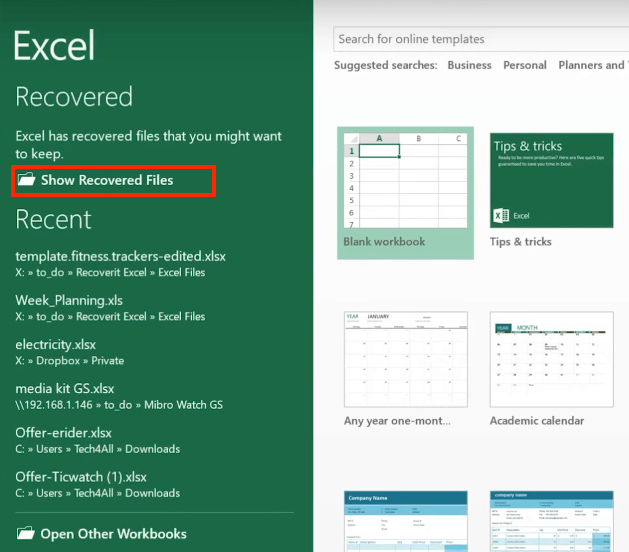
- Reopen the crashed Excel app.
- A prompt might appear to remind you of keeping the unsaved files. Click on Show Recovered Files.
![recover in document recovery 01]()
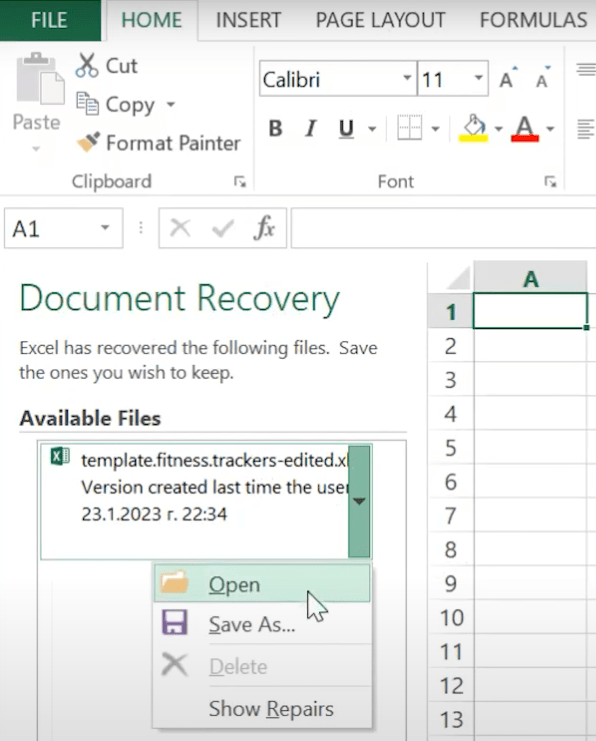
- A Document Recovery box should show up. Search for any deleted Excel spreadsheet that you don’t save.
![recover in document recovery 02]()
- Open and save it with an appropriate name in your preferred location.
Option 4. Retrieve Deleted Excel Sheet from Temp Files
If none of these procedures succeed, the last resort to recover the sheet before saving, is to fall back on temporary files of your deleted Excel sheet. Your PC creates temporary copies of Excel files while you work on them, and keeps the copies for a certain period. So these temp files may still exist on your computer even after deletion without saving.
How to retrieve deleted sheet from Excel with temp files?
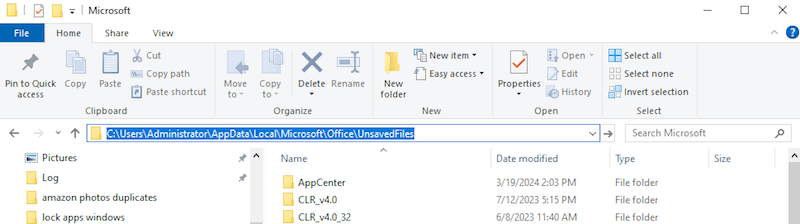
- Open File Explorer on your Windows.
- Head to the temp folder path: C:\Users\(username)\AppData\Local\Microsoft\Office\UnsavedFiles.
![recover from temp files]()
- Look for the temp Excel file you need. Open the file in Excel app to save and restore.
Option 5. Check Online Recycle Bin
Now, we will introduce the methods to recover deleted sheets in Excel after saving.
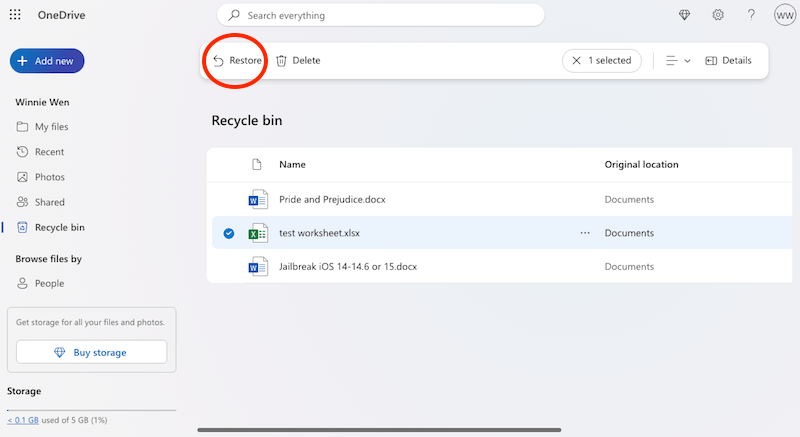
If you get accustomed to sync and back up files with online storage platforms, like OneDrive and SharePoint, congratulations, you may get back a deleted Excel sheet without effort, in Recycle Bin or Deleted Items folder online. This time we'll give a guide for OneDrive users, but the workflow on other online services is pretty much the same.
- Sign in to OneDrive with your Microsoft account.
![onedrive recycle bin 01]()
- Go to Recycle Bin.
- Then select the deleted sheets and click Restore.
![onedrive recycle bin 02]()
- Now, you can download or transfer the recovered sheets to a safe place.

Option 6. Use Windows File Recovery
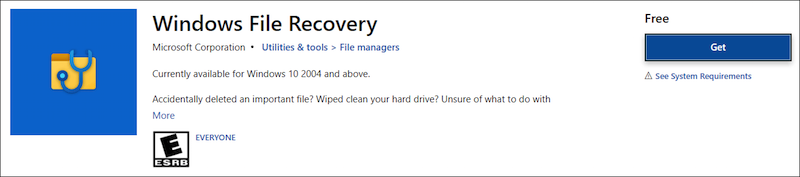
Microsoft has created Windows File Recovery app helping Windows users to undelete files. According to the relevant feedback, it performs well on Excel file recovery. Since it’s a command-line tool with no graphical interface, steps to recover deleted sheet in Excel would be a bit complicated.
- Download and install Windows File Recovery from Microsoft Store.
![windows file recovery 01]()
- After installation, the utility will automatically open.
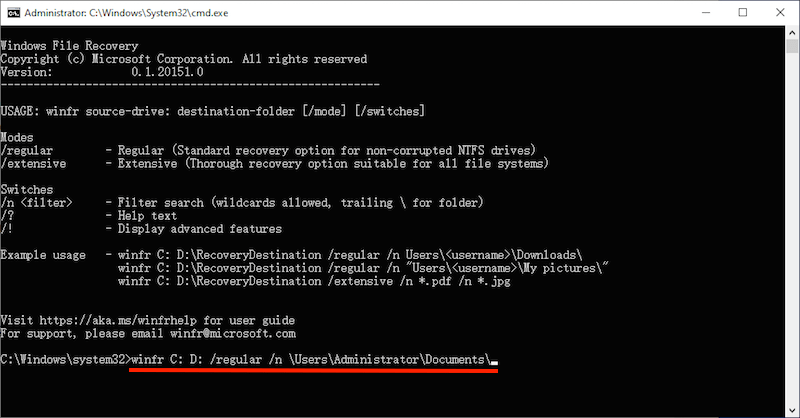
- Type the winfr command based on your own case > press Enter.
For example, to recover deleted Excel sheets from the Documents folder on C drive to D drive, type this command: winfr C: D: /regular /n \Users\(username)\Documents\.
To recover a deleted Excel sheet of which the name contains “test” from C drive to D drive, try this command: winfr C: D: /regular /n *test*.![windows file recovery 02]()
Option 7. Restore Excel Sheet from Previous Versions
Still unable to retrieve deleted sheet in Excel after saving? Try to check for its previous versions. This requires you to have enabled the File History feature or have created a restore point before the deletion of your Excel worksheet. Here are the detailed instructions:
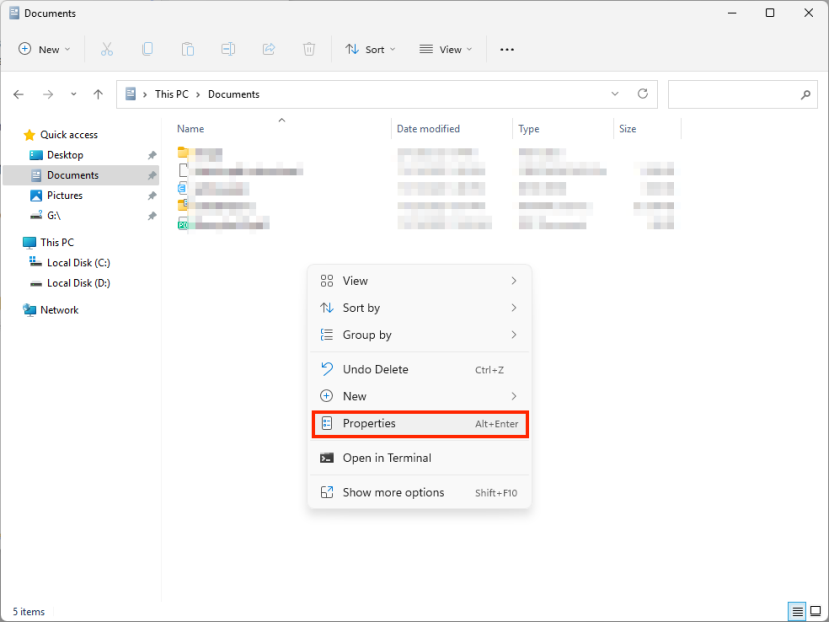
- Open File Explorer on your PC > go to the folder where your deleted Excel sheet was originally saved.
- Right-click on any blank area inside this folder > choose Properties.
![restore previous versions 01]()
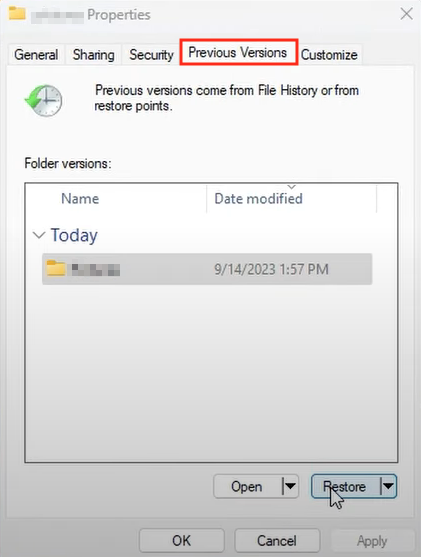
- Select Previous Versions tab, browse through the version list to choose a version that includes the needed Excel file.
![restore previous versions 02]()
- Click Restore to recover deleted Excel sheet from its previous version.
Option 8.Use Software to Recover Permanently Deleted Excel Sheet
Deleted all the sheets and above methods failed to recover your sheets? There is a great chance that it has been purged of your PC permanently. The good news is that you’re still likely to get the spreadsheet back, as long as it hasn’t been overwritten yet. Here your leading choice should be using a piece of specialized Excel sheet recovery software.
We’d say Cisdem Data Recovery could be worth a try. It’s a highly rated and standalone data recovery tool in the current market, with support for nearly every type of file format, file system and storage device you can think of. In addition to Excel sheet file in .xlsx/.xls/.xlsm/.xml and any frequently-used extensions, Cisdem can also restore deleted, lost or corrupted files of other document, photo, video, audio, archive, email and more in1000+ types.
Thanks to its easy-to-use UI, advanced scan algorithm, and high recovery rate, Cisdem Data Recovery is guaranteed to deliver excellent results and can be recommended even to all beginners and professional users.
Main features of Cisdem Data Recovery:
- Recover deleted Excel sheet, Word document, PowerPoint presentation and other office documents, total 1000+ file types
- Restore files from both internal and external storage device
- Support Linux/NAS/Partition/iCloud/Crashed PC&Mac recovery
- Repair damaged images, videos and Office document
- Recover unsaved files
- Scan and preview recoverable Excel files before recovery
- Locate desired data quickly using file filters
- Last scan record loaded to avoid rescanning
How to recover permanently deleted Excel sheet?
- Download, install and run Cisdem on your computer.
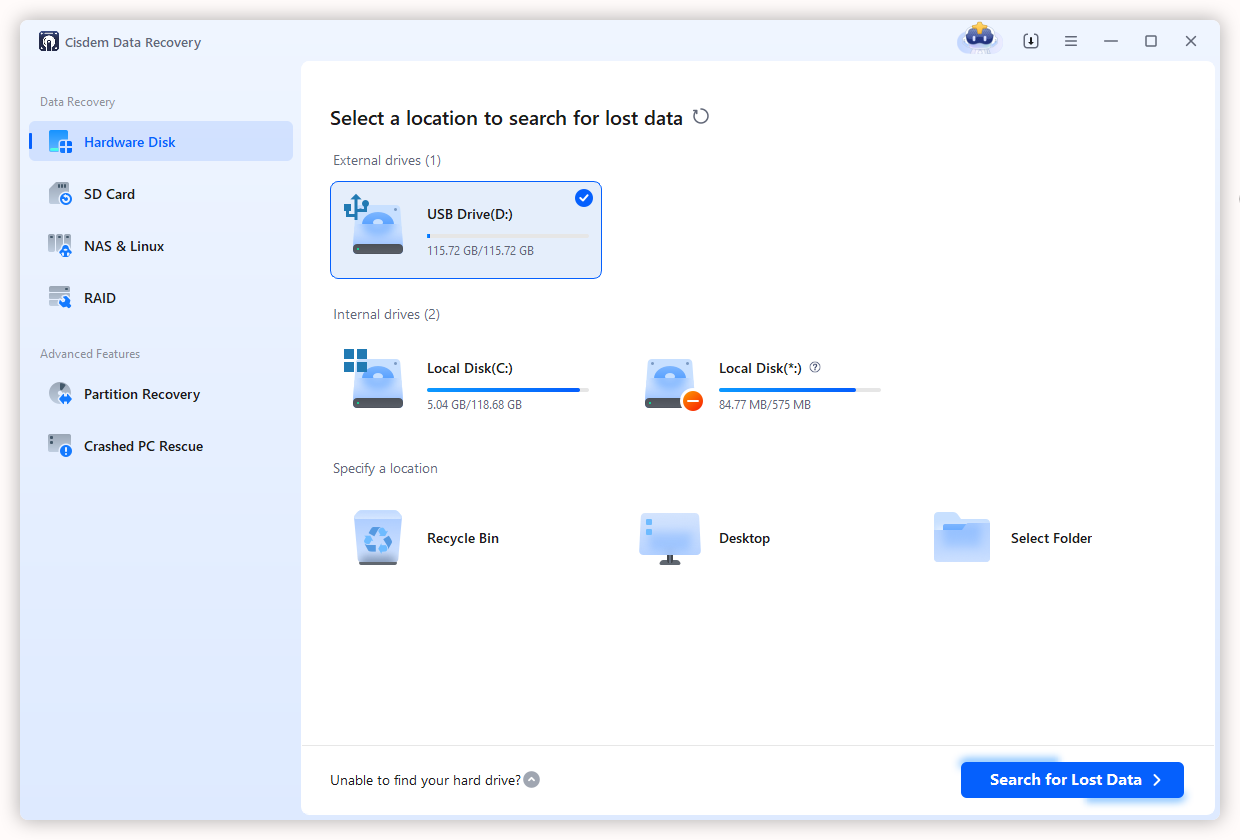
Free Download Windows 11/10/8/7 Free Download macOS 10.15 or later - Go to Data Recovery > Hardware Disk, click on the location where your Excel sheet was deleted, and choose Search for Lost Data to start.
![recover deleted excel sheet with cisdem 01]()
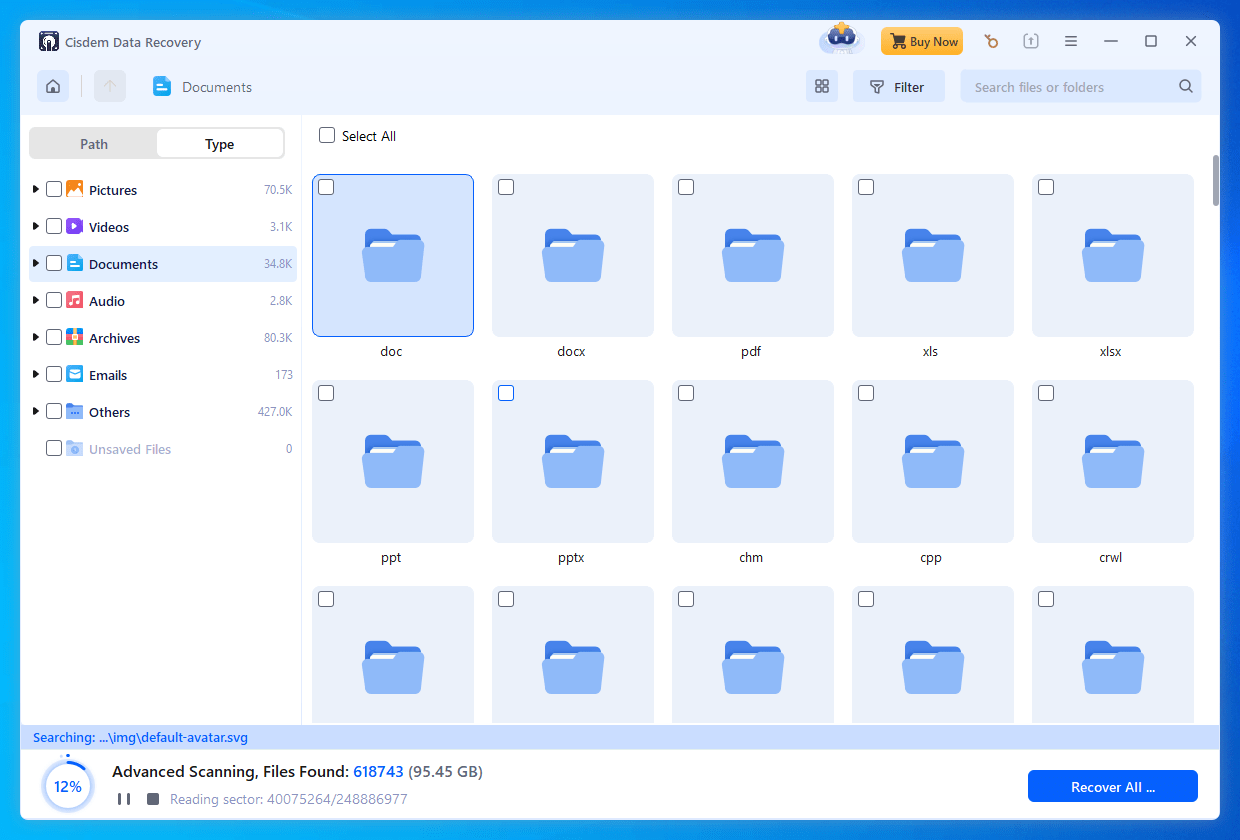
- In or after scanning, go to Type > Documents, and select the file format (xls or xlsx) of your deleted Excel sheet.
![recover deleted excel sheet with cisdem 02]()
- Find the sheet file you want, you can preview by double clicking on it. Then select it and click Recover to restore the permanently deleted Excel spreadsheet to a safe location.
![recover deleted excel sheet with cisdem 03]()

Conclusion
First, make sure the file is deleted before or after saving. If before saving, there are ways to undo and revert; if after saving, we need to check a backup, a previous version, or recycle bin. And the last resort yet a better choice is to use a professional data recovery program. Windows File Recovery is free to use, but it is command based, while Cisdem Data Recovery offers the most straightforward way to recover deleted sheets in your Excel app, on both Windows and macOS.

Zoey shows a great interest in what she does. Although not long with Cisdem, she has possessed a professional understanding of data recovery.

JK Tam is the lead developer at Cisdem, bringing over two decades of hands-on experience in cross-platform software development to the editorial team. He is now the lead technical approver for all articles related to Data Recovery and DVD Burner.
Joann
I accidentally deleted an Excel sheet while preparing a monthly sales report at work. Thought it was gone forever. Option 3 in your guide actually helped me recover it—super useful and thanks!