


How to Burn MTS to DVD on Windows 10/11 and MacOS with Lossless Quality
 1.0K
1.0K
 0
0


“I want to watch the MTS video took by my camcorder on the home DVD player for better enjoyment, but fail. Do you have any accessible methods to help me solve it?”
“My computer becomes slow because there are many MTS video that I collected. How can I keep this files better and unleash my computer simultaneously?”
It is common to see similar comments when we delivered a depth survey to know why people need to burn MTS files to DVD on Windows 10 currently. Meanwhile, we found that the reasons to burn MTS to DVD can be mainly divided into 2 types:
- Too many MTS video files make computer operate slowly.
- The MTS files cannot be directly played on many common home DVD players, so that people can’t enjoy high-quality MTS files on big screen.
Obviously, with the rapid development of camcorder, .mts files have gradually penetrated into people’s life. If you have trouble in burning MTS videos too, this article will show you how to burn MTS files to DVD on Windows 10/11 or Mac without losing any quality.
 Cisdem DVD Burner
Burn MTS Files to DVD on Windows/Mac with the Best Program
- Create DVD from MTS, M2TS, AVI, MP4, etc., 150+ digital formats provided
- Built-in video editor for polishing the added files
- Maintain the high video quality
- Easy to operate with a simple interface
- Compatible with any DVD discs like DVD-9, DVD-5, DVD-R/RW, DVD+R/RW, DVD+R DL, DVD-R DL, DVD-RAM, etc.
- Can burn to DVD disc, DVD folder and ISO file
- Can burn MTS/M2TS to DVD with subtitles & chapters
- 30+ beautiful DVD menu templates provided
- Offer preview function
- Available on Windows 10, 11 and MacOS, Sonoma, Sequoia, and Tahoe included
 Free Download
  Free Download
Some Facts About MTS and M2TS
MTS is short for MPEG Transport Stream, developed by Sony and Panasonic, which contains audio, video and other data in 720p and 1080i HD video resolution. M2TS stands for MPEG2 Transport Stream, which is mainly used for Blu-ray discs to store audio, video and other streams.
Differences between MTS and M2TS:
| MTS | M2TS | |
|---|---|---|
| Purpose | Record video on Camcorders | Store video on Blu-ray discs or AVCHD videos |
| Encryption | Not encrypted | Encrypted |
| Compatibility | Can be copied to other file formats easily | Can’t be copied directly |
| Support format | MPEG-4/H.264 | H.262/MPEG-2 Part 2, H.264/MPEG-4 AVC, Dolby Digital, DTS, etc. |
| Supported devices for video playback | Windows Media Player, VLC, 5KPlayer, and Final Cut Pro | Besides MTS supported devices, can also support a wide range of devices, such as Sony PlayStation 3s, Sony Bravia TVs, Western Digital WDTVs, etc. |
| Naming method | 8.3 naming convention | Longer than MTS |
How to Burn MTS Files to DVD on Windows 10/11 Without Losing Quality
When burning MTS files to DVD on Windows 10, Cisdem DVD Burner stands as the best MTS to DVD burning software available for Windows. It enables fast, high-quality burning of video files and also supports converting 1080p and 4K MTS videos to DVD format.
In addition to converting MTS/M2TS to DVD, the app can also burn various digital formats such as MP4, VOB, MOV, DV, WMV, MKV, AVI, and more to DVD. It supports a range of advanced features. You can utilize embedded video editor and DVD menu customization tools to burn exquisite DVDs with ease.
Below is the detailed steps on how to burn MTS files to DVD on Windows with Cisdem.
Step 1.Get the program.
Download and install the program on your Windows, and open it.
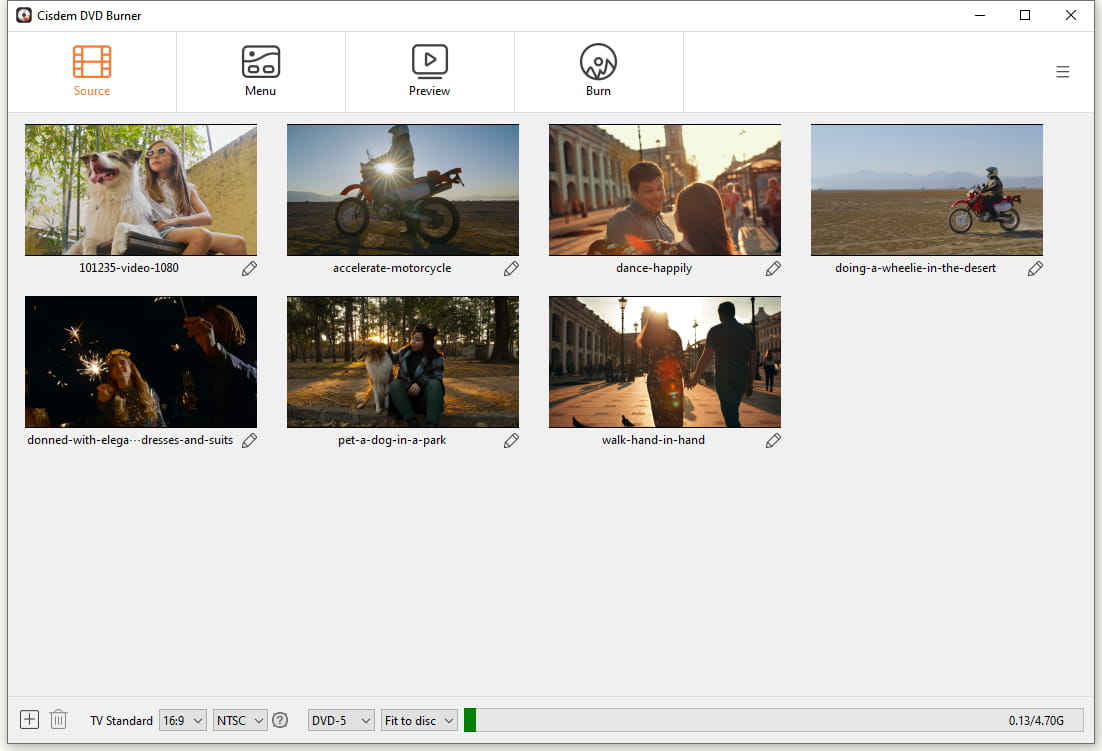
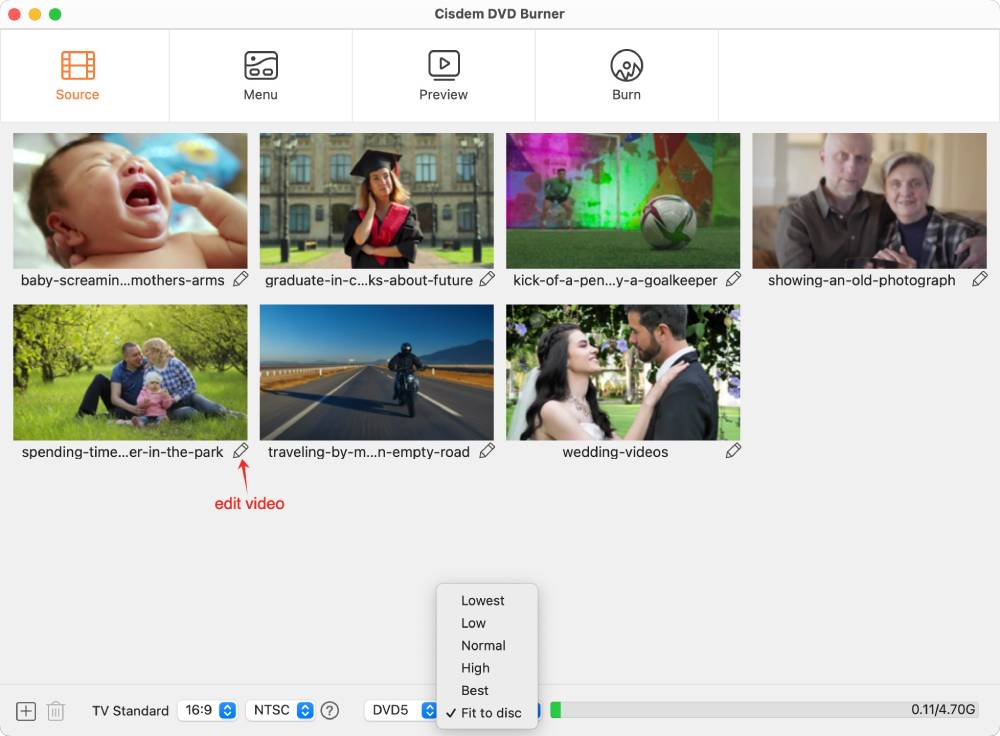
Step 2.Upload MTS/M2TS.
Insert a blank DVD disc onto your computer drive, drag and drop all MTS/M2TS files to the program. Once parsed, the files will be displayed as video thumbnails in the program.
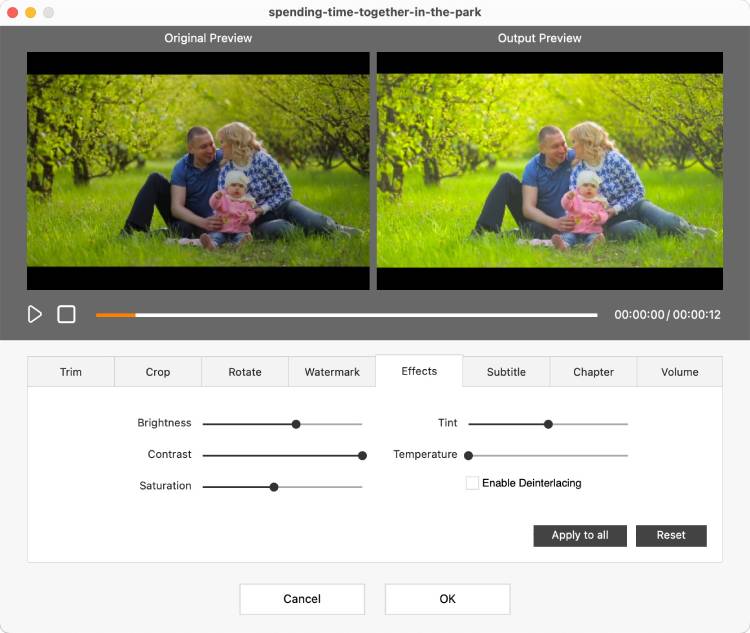
Step 3.Edit the MTS/M2TS files
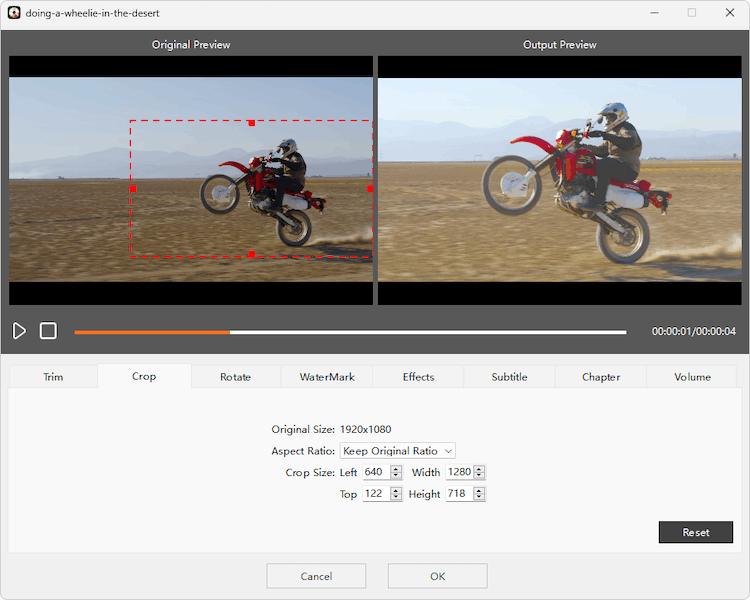
Click the “Edit” icon in the bottom-right corner of the video thumbnail, then modify the video as needed. You can delete unwanted video segments, add custom text or image watermarks, upload additional subtitles, split the video into multiple chapters, and more.
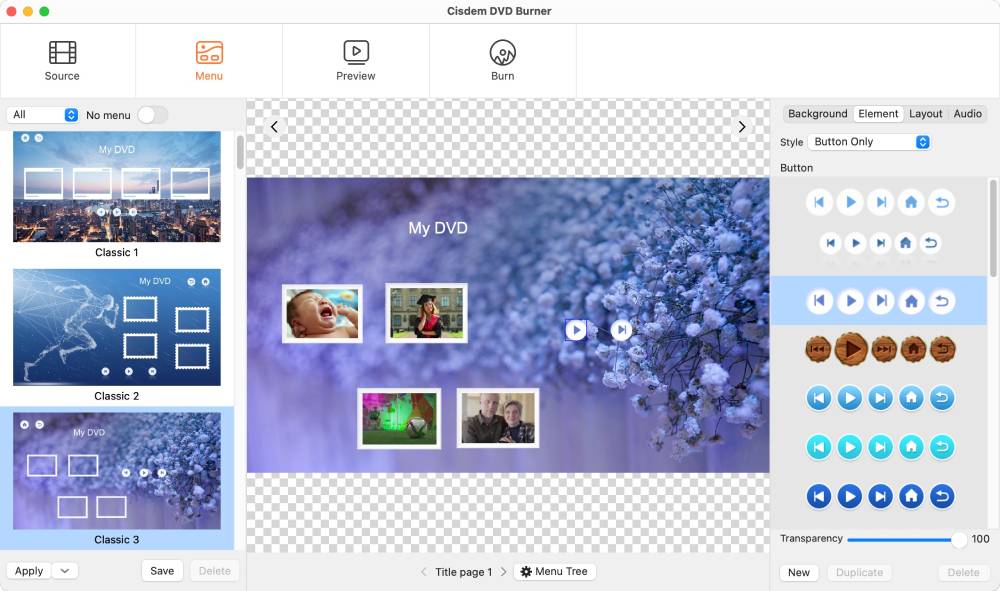
Step 4.Create a DVD menu
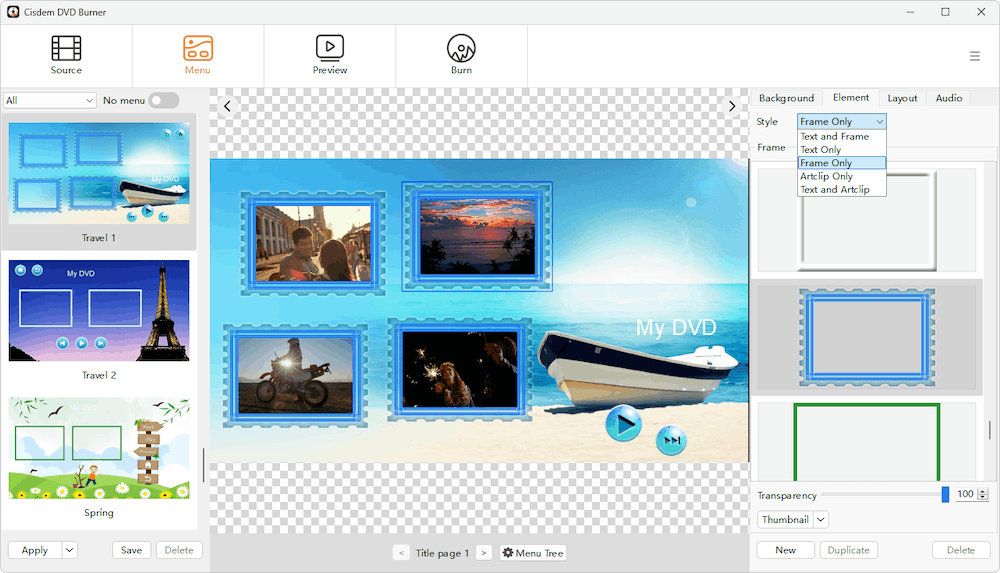
Go to the menu interface, pick one appropriate DVD menu in the left pane of the interface. Or you can customize a unique DVD menu by changing background image, music, text, chapter menu, etc.
Step 5. Preview the DVD result
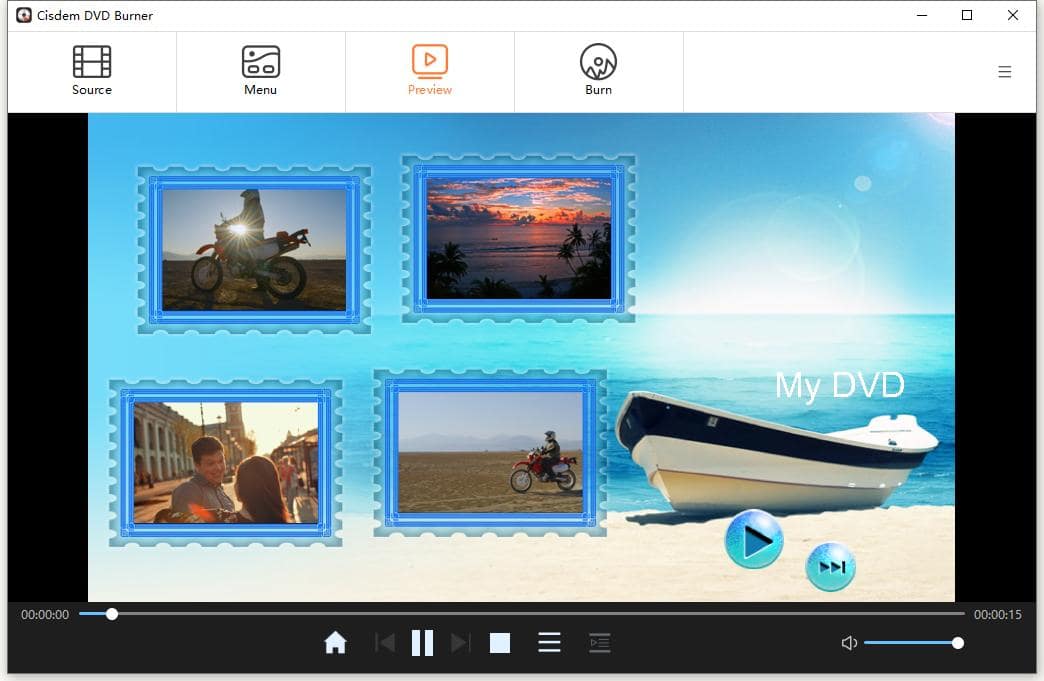
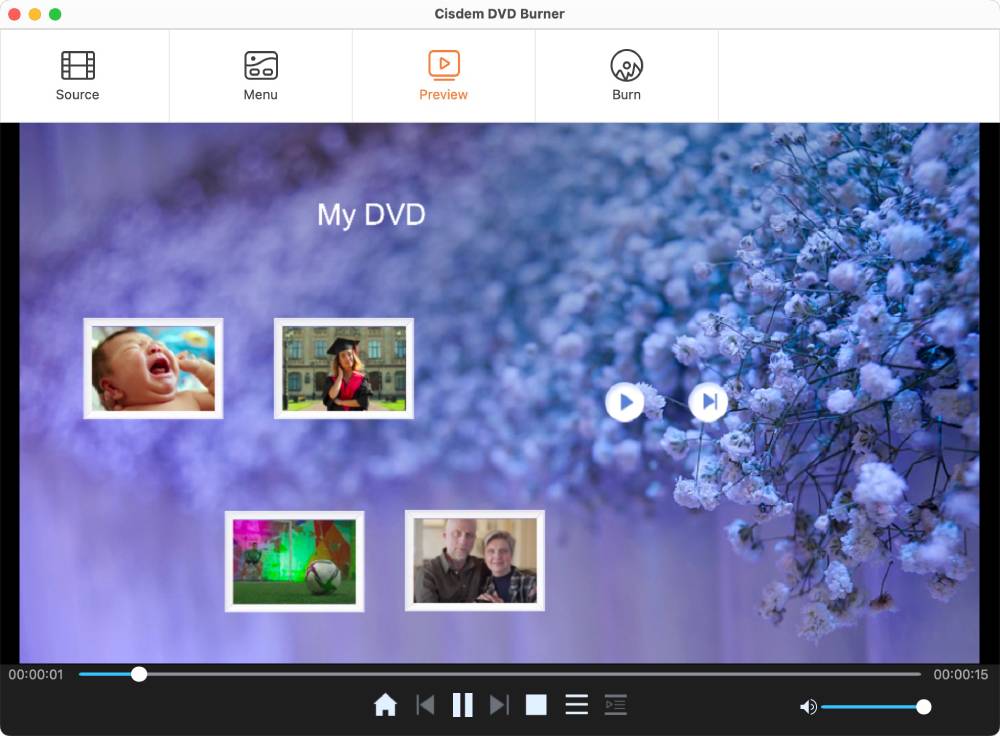
Then go to preview interface to load the ultimate content of the DVD and watch it in advance. If something doesn’t look right, just tweak the settings.
Step 6. Burn MTS/M2TS files to DVD
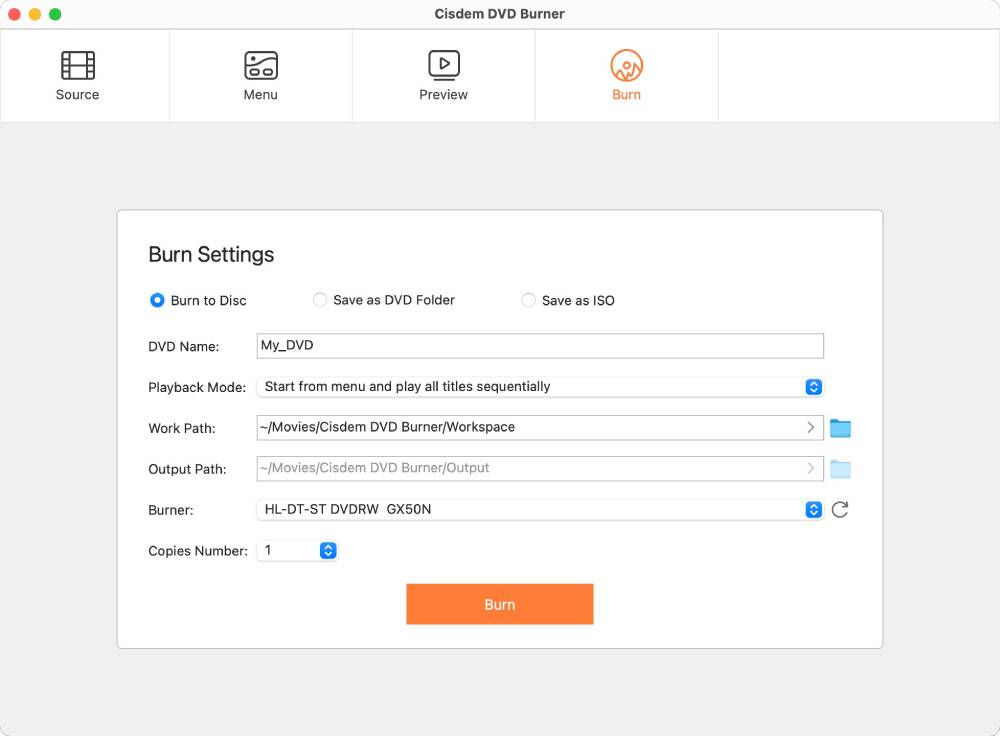
When all is done, move to burn interface, choose or enter the required disc information. Click the "Burn" button to convert MTS files to DVD on Windows 10/11.
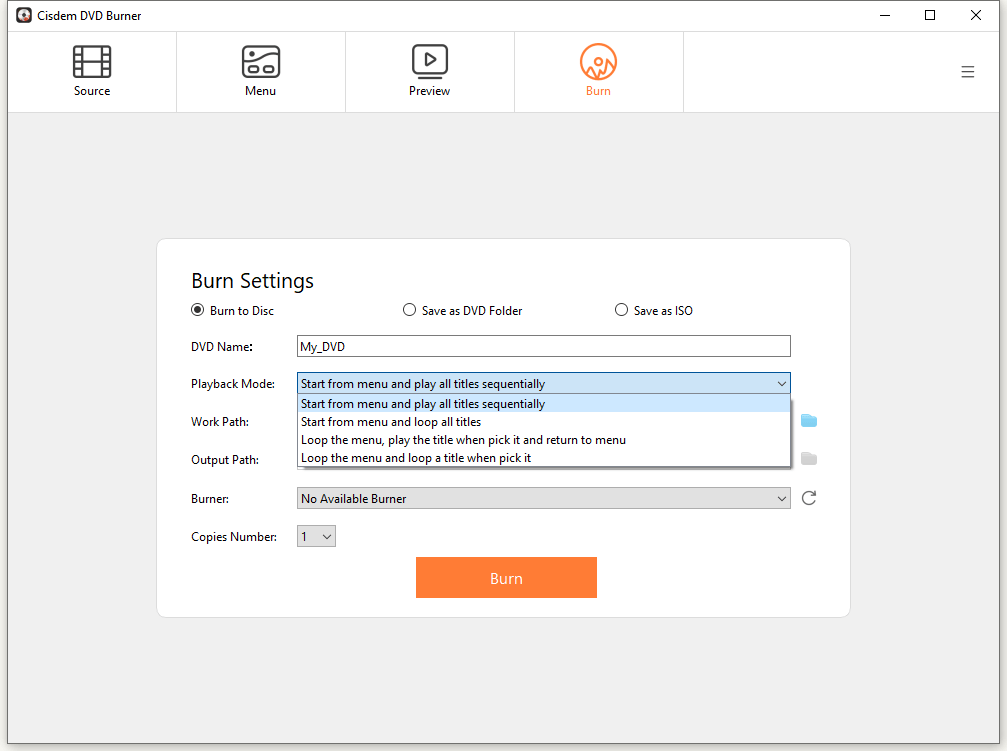
Besides, if you only want to burn a simple DVD, you can skip step 3, 4, and 5 mentioned above according to your need.
How to Burn MTS Files to DVD on Mac Quickly
Cisdem DVD Burner is a cross-platform program that can also work on Mac system. Furthermore, before developing the Windows version of Cisdem DVD burner, Cisdem DVD Burner for Mac has been dedicating to help the public burn DVDs for many years. With its superb behaviors, the Mac version has become a must-have tool for many people to burn DVDs.
If you have demands in burning MTS file to DVD on Mac, follow us to know the simple steps on how to achieve it on Mac with Cisdem.
- Download the Mac version of Cisdem DVD Burner on your device.
Free Download - Open the App and insert a DVD disc. Upload the MTS/M2TS file by dragging and dropping.
![burn mts/m2ts on mac 01]()
- Edit the video into your liking.
![burn mts/m2ts on mac 02]()
- Choose a suitable DVD menu template or manually customize a DVD menu.
![burn mts/m2ts on mac 03]()
- Use the preview feature to review your DVD project before burning.
![burn mts/m2ts on mac 04]()
- Switch to the burn interface, set the details of the DVD and click "Burn" start burning MTS/M2TS to DVD on Mac.
![burn mts/m2ts on mac 05]()
Why Not Choose Free MTS to DVD Burner for Windows (10/11) or Mac?
Compared to professional DVD burning software on Windows (10/11) or Mac, free programs may encounter all-assorted problems when you burn MTS to DVD. For example:
- Slow burning speed: The free MTS converters offer a slow speed to burn MTS file to DVD on Windows 10/11 or Mac, especially for a large file, which probably takes hours or days.
- Can’t burn a high-quality DVD: Only a handful of free MTS to DVD converter free create a DVD up to 1080P, HD or higher quality. What’s worse, some of them can damage the video quality during the burning process.
- Provide no additional features: The free programs don’t provide various advanced customization features that professional programs do, such as fancy DVD menus and menu customization feature, no built-in video editor, no preview function, etc.
- Unpleasant burning results: There may be some unexpected issues via using free apps, such as having no sound, crashing down during the working process, having no picture, having no subtitles after burning, etc.
In a word, using free tools may generate more unnecessary problems than professional ones. If you want to burn MTS file to DVD on Windows 10/11 or Mac effortlessly, professional DVD burners are highly recommended, which can help you burn high-quality DVDs within a few clicks.
Conclusion
After reading this article, you will know the most direct and effective solution to burn MTS files to DVD on Windows (10/11) / Mac is to look for a reliable desktop program. The professional desktop MTS to DVD converter will provide many enhanced features and ultra fast speed for you to easily create a playable DVD with impeccable quality, which allows you to play the burned DVDs on Mac, Windows and almost all DVD players.

Jenny is a technology editor who has been blogging since she was a student. Since joining Cisdem, she focuses on writing articles about video software and how-to guides. She loves exploring new tools and techniques.

JK Tam is the lead developer at Cisdem, bringing over two decades of hands-on experience in cross-platform software development to the editorial team. He is now the lead technical approver for all articles related to Data Recovery and DVD Burner.