


5 Ways to Perform CHK File Recovery (Incl. FREE)
 1.8K
1.8K
 1
1


CHKDSK command is designed to repair any file system errors, and today we’ll deliver a comprehensive guide for all that you should know about CHK file recovery in Windows, including what is a CHK file, how to open CHK and how to recover chk files to original format.
 Cisdem Data Recovery
Recover and Open CHK Files Easily
- Recover CHK files in original format and name
- Open CHK files in original quality without errors
- Restore files lost under different cases: deleting, formatting, factory reset, system crash, corruption, power off, etc.
- Recover 1000+ files: photos, videos, audio, documents, email, archives, etc.
- Repair damaged videos, photos and documents
- Restore files from internal and external storage devices
- Also recover unsaved Word, Excel, PowerPoint, etc.
- Support NAS, Linux, crashed PC and partition recovery
- Highly compatible with Windows 11, 10 and earlier
 Free Download Windows 11/10/8/7
What Is a CHK File?
In the event that a hard drive or an external storage device get corrupted on Windows, we tend to run CHKDSK command to repair the errors. After the repairing process, CHKDSK will find clusters that Windows still marks as in use but that no filepoints to anymore. The system cannot delete them, and cannot restore them, for the reason that the directory entry that linked those data to a filename is gone. So, it just writes them into a new file with a .chk extension, which is stored in a hidden Found.000 folder at the root of the drive, followed by Found.001, Found.002, etc.
Therefore, a CHK file is not a file format, it is the container of unidentified data created by CHKDSK, which contains only raw data, such as original name, folder, dates...Some CHK files might be complete, but most of them are fragments.
How to Open CHK Files?
Whenever you double click on a CHK file and want to open, you will be either asked to pick a program and then fail, or have nothing to happen. Actually, CHK is not a real format, and there is no program designed to open such a file directly.
To open CHK files, you either determine what is inside the file and then hand it to the right application. For example, you can open CHK file in a hex editor, then compare those first few characters against a list of known signatures, because each file type begins with its own few characters of code. When you recognize the type, rename the file with matching extension (File0000.chk to File0000.jpg), then you will be able to open it.
Or you just need a CHK recovery program to recover the CHK files to original format, when you cannot recognize the type, or the files inside the chk file just looks like random garbage.
How to Perform CHK File Recovery on Windows 11 or 10?
And in this part, we will show you 5 ways to recover CHK files to original format, with software or without software.
Method 1. Rename Extension Manually
As mentioned earlier, the files with .chk extension are not readable, so that we are unable to open and access CHK files directly. To make CHK files accessible and recover contents inside these files, the key point is to convert .chk files to their original formats. CHK files might be full files or file fragments. When CHK files are full files, luckily, we can recover them through changing their file extensions.
This solution would be recommended if you only have one or several CHK files to be recovered, because manually renaming the extensions of multiple files could be pretty time-consuming.
In case you remember the original file format of the .chk data, things are going to be much easier. What we are supposed to do is navigate to Found.000 folder in File Explorer, click View > Show/hide, and make sure File name extensions is chosen. Then change the CHK file extension to its original type, open the file with an associated app to verify if it has been restored successfully.

However, what if you have no idea of the original .chk file extension type? Just identify it at first. Here are our steps in detail:
- Open the CHK file with a text editor like Hex Editor or Notepad+ +.
- Some unique headers will indicate the file format type of this CHK file. For instance, a file that contains JFIF is in JPEG format; a file that contains Rar is a WinRAR archive; a file containing ID3 is a MP3 audio.
After identification, you’re allowed to recover the CHK file by simply renaming its extension.
Method 2. Run CMD to Change Extensions
If the CHK files that need to be restored are in a large number and you are exactly an experienced command-line user, this alternative way is made for you. Also, keep in mind that it’s feasible in the condition where all the .chk files were in the same format originally, as CMD will change all existing CHK files to the same file format simultaneously. That said, pursue the steps as follows if you find yourself in the described position.
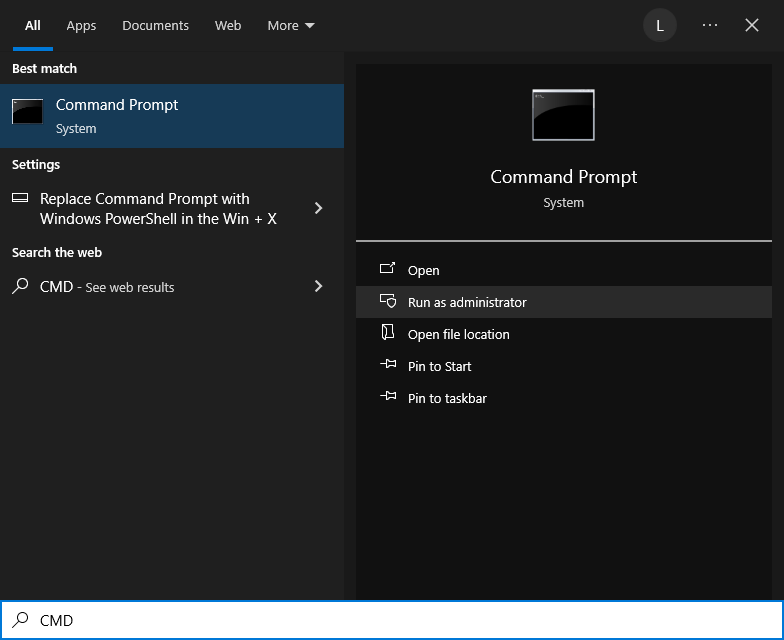
- Run Command Prompt as administrator on Windows.
![change extension with cmd 01]()
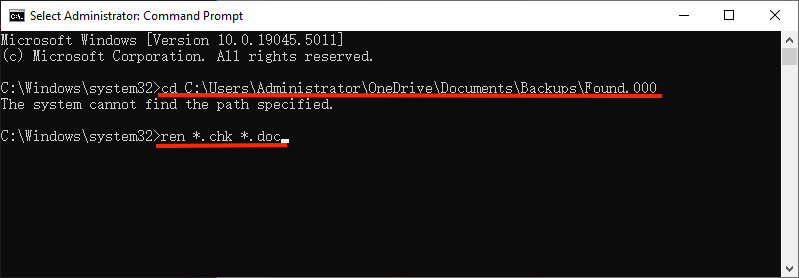
- Type cd * and press Enter. Replace * with your Found.000 folder path. Here mine is C:\Users\Administrator\OneDrive\Documents\Backups\Found.000.
- Continue to type ren *.chk *.doc and hit Enter. Replace doc with the original file format of your CHK files.
![change extension with cmd 02]()
- Exit CMD and go to check whether the CHK files are recovered properly in Found.000 folder.
Method 3. Best CHK File Recovery Software
If you delete CHK files by accident, the most recommended way to recover CHK files must be utilizing a file recovery program, like Cisdem Data Recovery for Windows. Better yet, Cisdem can help to restore lost or corrupted data even without using CHK files. By thoroughly scanning the hard disk where .chk files or other files were deleted, this handy tool will list out the recoverable items in an efficient manner, for users to preview and restore.
Cisdem Data Recovery supports the CHK file recovery from all commonly used storage devices, such as PC, laptop, USB drive, pen drive, SD card, memory card, digital camera, video player and so on. With user-friendly interface, patented technology and advanced scan algorithms, Cisdem makes file recovery a less daunting task.
Key features of Cisdem Data Recovery:
- Recover 1000+ types of file: videos, photos, documents, emails, bookmarks, archives, etc.
- Recover lost data due to system crash, power outage, formatting, improperly pulling out device, virus infection, factory resetting without backup, etc.
- Repair damaged photos, videos and documents
- Restore unsaved files
- Locate wanted files quickly with filter tool
- Preview files before recovery
- Retain scan records to avoid repeated scanning
- Quick scan and deep scan both enabled to find most files
- Compatible with Windows 11, 10, 8, 7
How to perform CHK file recovery with Cisdem Data Recovery:
- Free download, install and launch this app on your PC.
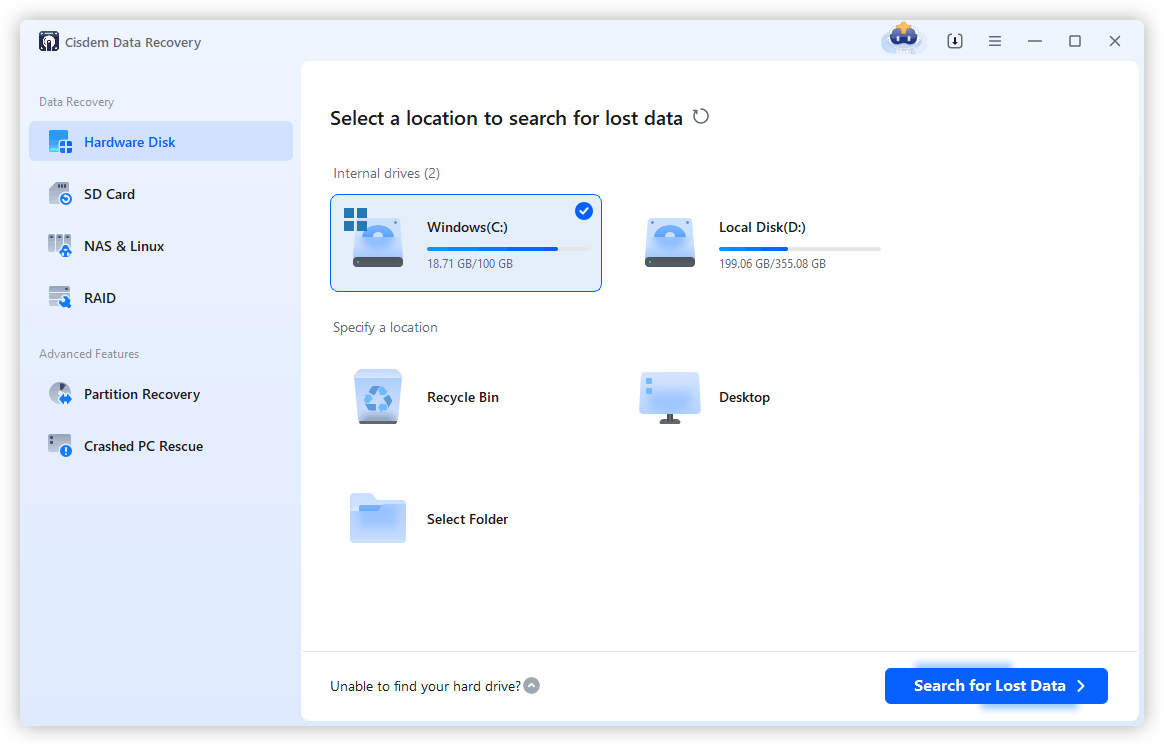
Free Download Windows 11/10/8/7 - Select the location where your files are deleted or lost, and click on Search for Lost Data to start scanning.
![cisdem data recovery 01]()
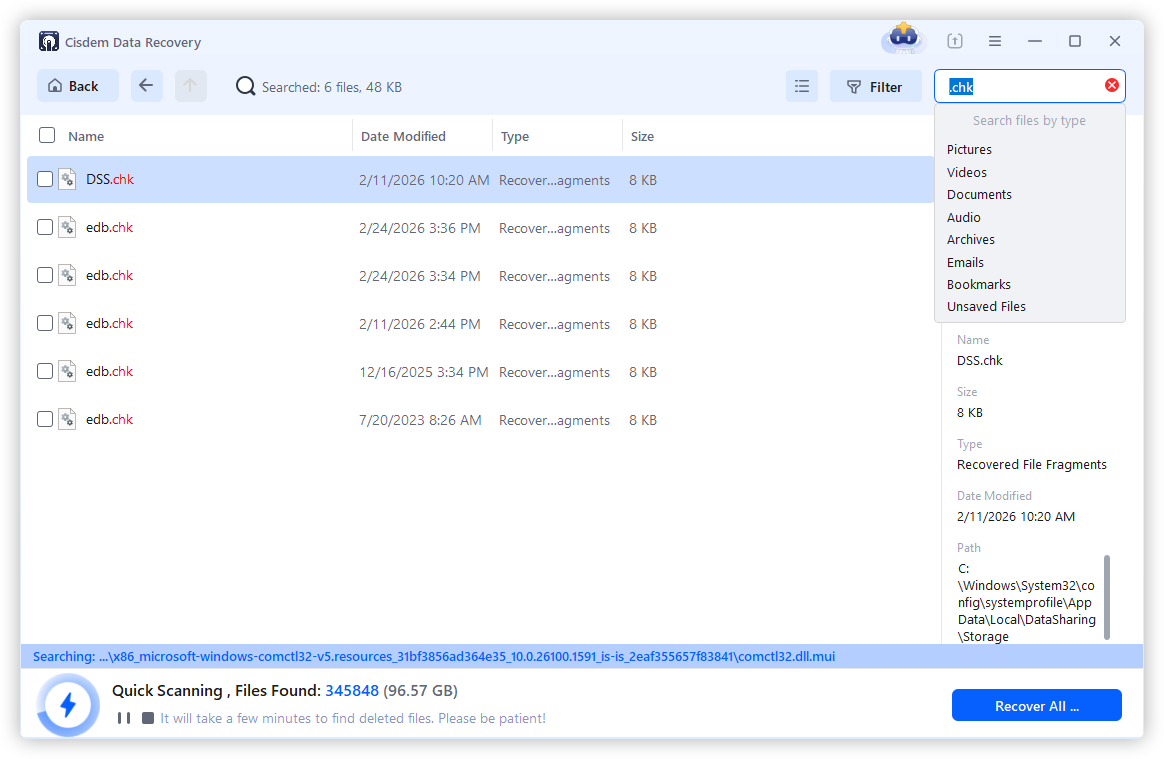
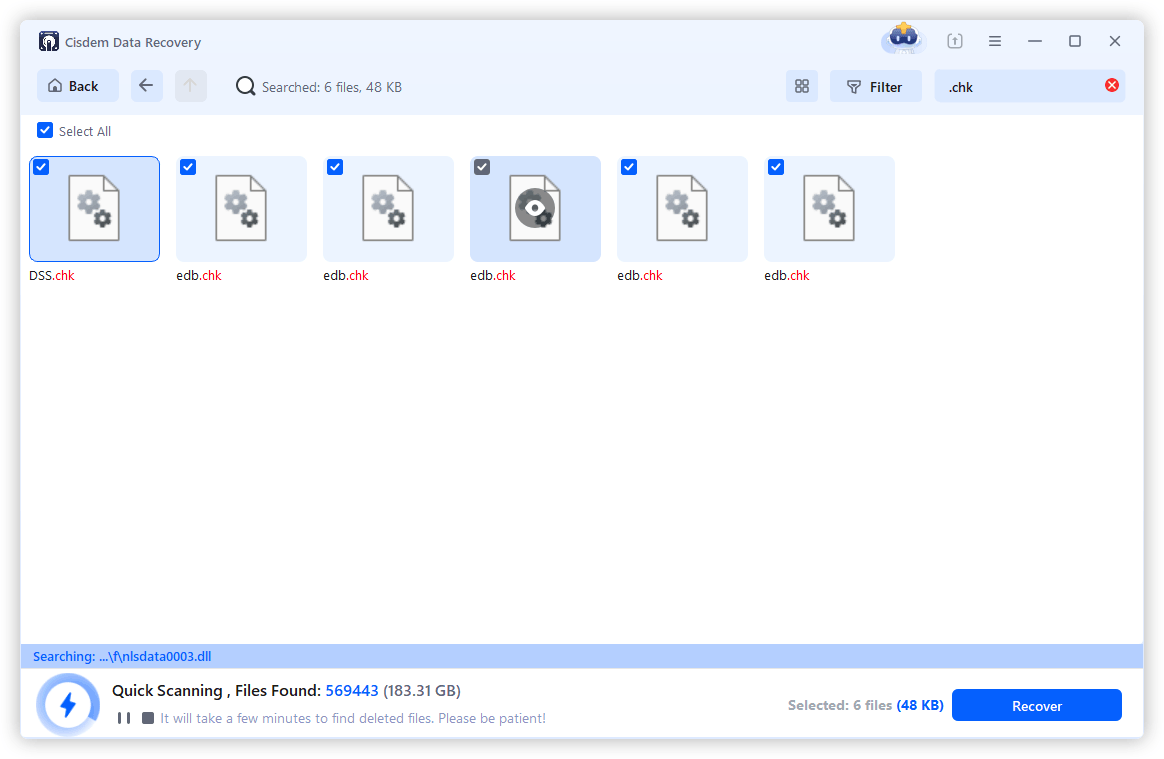
- Once the scanning finishes, enter keyword .chk in the search box to browse all the recoverable chk files.
![recover chk cisdem 02]()
- Also, you can go to Type, browse the files according to type.
![cisdem data recovery 03]()
- Then select the chk files or the specific deleted files, click Recover to get them back to your PC.
![recover chk cisdem 03]()

Method 4. Using UnCHK
Supposing the methods introduced above prove to be not working, your .chk files are most likely the file fragments of corrupted data from your storage device. In this case, you may need a dedicated tool to piece them back together.
UnCHK is a free and drag-n-drop utility to recover data from the chk folder after a disk check. It restores files by identifying them via file header (also looks inside some files to differ files that share the same header), then determining their original format and renaming them with the correct extension, so the files can be opened easily. It is safe and reliable, because it won't alter the original chk file, it just makes a copy of the CHK file.
How to recover data from chk files using UnCHK?
- Download UnCHK from its website, and run UnCHK on your PC.
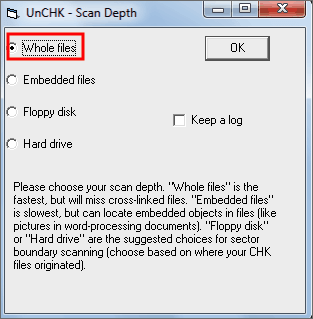
- Select your scan option, “Whole files” is recommended to detect each file and recover any CHK files. Then click "OK".
![unchk]()
- Pick the directory where your CHK files are in, and select the directory where you want to recover the files to.
Method 5. Using CHK File Recovery
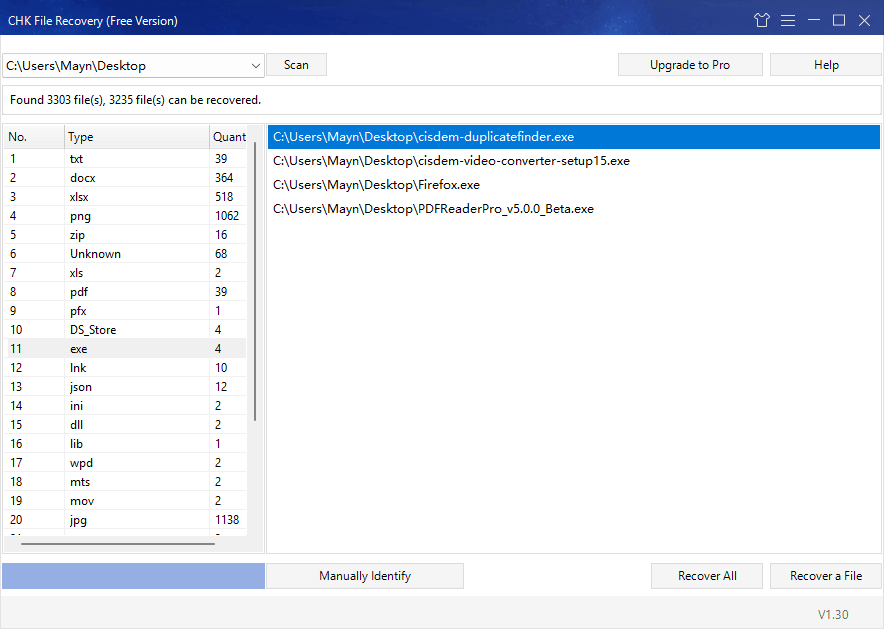
There is also another CHK file recovery tool, CHK File Recovery from DoGoodSoft. It is designed to recover chk items by identifying the existing types, indicating recoverable files in 100+ types, including documents, photos, videos, etc.
It is simple to use, and small in file size. Though the recovery rate is lower than other tools, it is worth a try, because it is free.
How to recover data from chk files using CHK File Recovery?
- Download, install and open the latest version of CHK File Recovery on Windows computer.
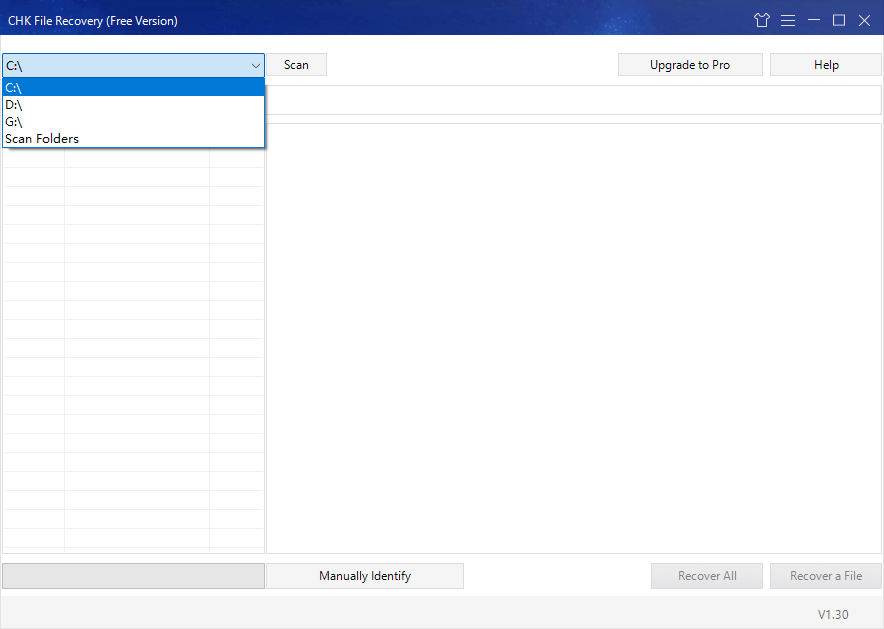
- Select the location where the chk file is stored from Scan.
![chk file recovery 01]()
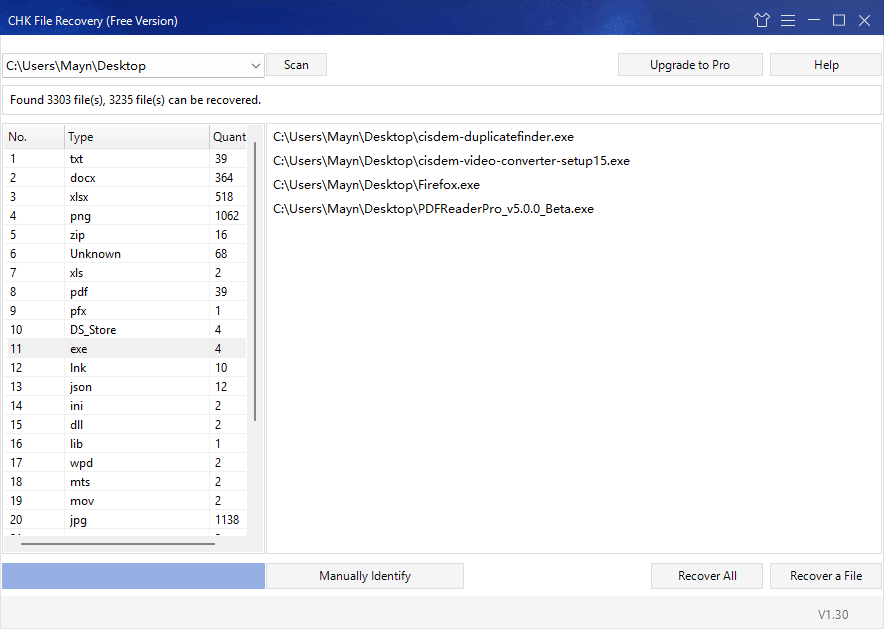
- Hit Scan, the program will identify and list all the recoverable items from the chk file.
![chk file recovery 02]()
- Select the files and click Recover button.
![chk file recovery]()
Closing Words
Data corruption is quite common today, and it is not easy to access the CHK files nor recover them in normal file formats. But rest assured now, we do have solutions to recover items from the chk files after a disk check. You’re suggested to try a trustworthy tool --- Cisdem Data Recovery, which can not only recover CHK files easily, but also restore lost/damaged files without using CHK files. Also, there are 4 free solutions to try your luck.

Zoey shows a great interest in what she does. Although not long with Cisdem, she has possessed a professional understanding of data recovery.

JK Tam is the lead developer at Cisdem, bringing over two decades of hands-on experience in cross-platform software development to the editorial team. He is now the lead technical approver for all articles related to Data Recovery and DVD Burner.
Renae C. Sizemore
I tried the CHK recovery software first, but the recovered file still wouldn't open. Then I tried the recovery method mentioned here. I honestly didn't expect much, but somehow it actually found my files. Glad I gave it a try!