


4 Keyword Blockers to Easily Block Websites and Content
 1.8K
1.8K
 1
1


Want to block large numbers of websites without adding every address one by one? A keyword blocker can help you. For example, blocking “game” can block access to all websites with “game” in their URLs. There are also keyword blockers can hide specific words on web pages.
In this article, I’ll compare four tools and show you how to set them up. I’ll also explain how to choose keywords without blocking websites you still need.
 Cisdem AppCrypt
Keyword Blocker with a Password
- Block URLs containing keywords added by you
- Block specific websites, pages, and categories (e.g., Porn, Social, Gambling)
- Offer an option to block all sites except approved ones
- Protect blocking with a password
- Also lock apps with a password
- Allow you to schedule blocking to be active 24/7 or only during specific hours
- Easy to use
- Hard to bypass
- Help with parental control, self-control, productivity, and more


Top 4 keyword blockers: Reviews and instructions
After testing, I picked up two tools block URLs containing keywords you choose. I’ll also cover a router-based keyword filter, whose rules depends on your router model. And one to hide selected words on web pages without blocking access to them. Choose the one that matches your needs.
1. Cisdem AppCrypt
Best for: Blocking URLs containing a keyword in browsers on Windows, Mac, or Android.
Cisdem AppCrypt is a website blocker and app locker designed for productivity, parental control, and digital wellbeing. It lets you add a word to its Web Block list. If that word is in a website’s or a page’s URL, AppCrypt blocks the URL. For example, block the keyword “game” using this tool, then all these websites will be blocked:
- www.gamessumo.com
- www.halfbrick.com/games/fruit-ninja-classic
- x.com/FortniteGame
- www.facebook.com/groups/gameplay1122
- www.reddit.com/r/game
How to block websites by keyword on Windows or Mac
Step 1. Download and install this keyword blocker on your computer.
 Free Download Windows 10 or later
  Free Download macOS 10.15 or later
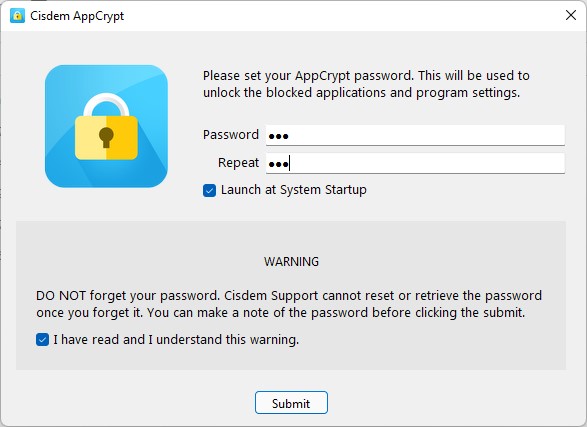
Step 2. Open the app. Set a password when prompted.
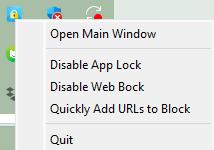
Step 3. Click the lock icon on the Windows taskbar/Mac menu bar. Select Open Main Window.
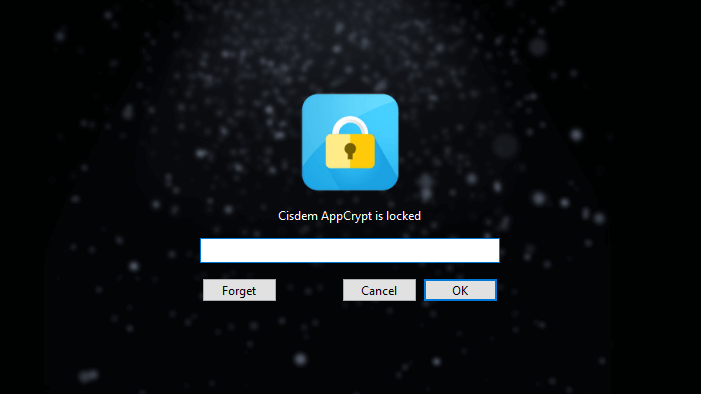
Step 4. Enter the password to access the main window.
Step 5. Open the Web Block tab. In the URL field, enter the keyword you want to block. Click Add. Add other keywords one by one.
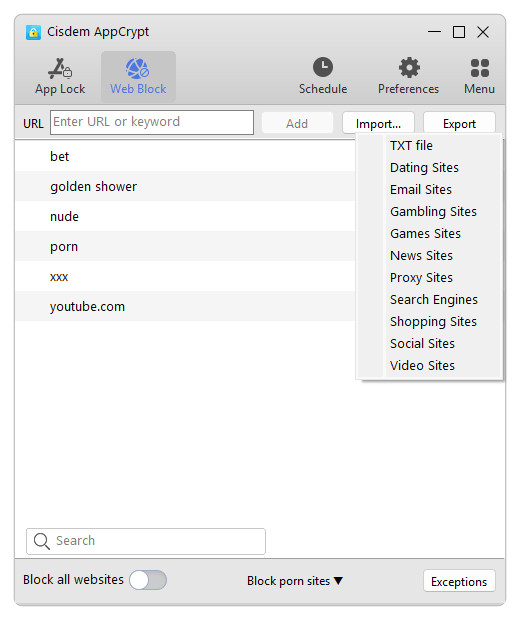
Now all websites containing these keywords in their URLs are blocked on your computer.
Note for Windows Users
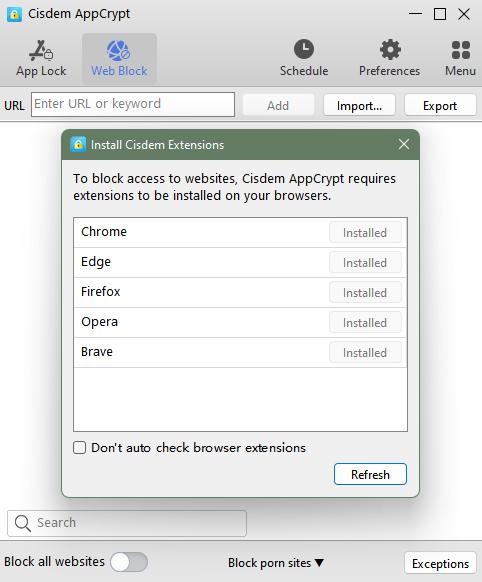
In step 5, when you choose the Web Block tab for the first time, you will be prompted to install a Cisdem extension on your browser(s), which is essential for implementing blocking. To prevent bypassing, I recommend that you lock this extension by configuring Preferences.
If a useful site is blocked:
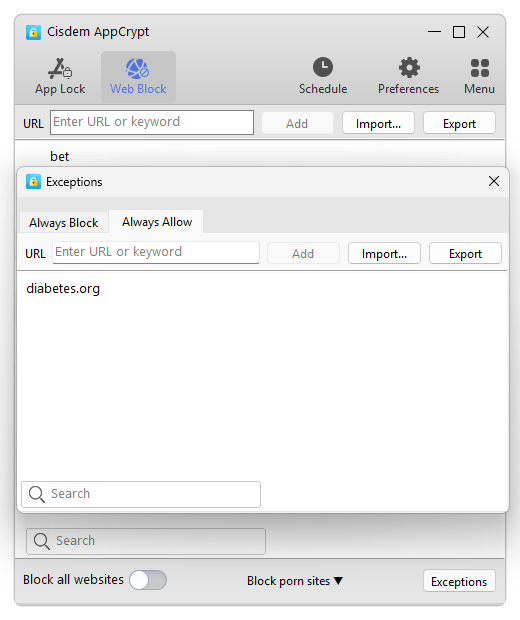
Here's a scenario. You add the keyword bet to the block list. It blocks tons of gambling sites, which is awesome. However, it also blocks a site called diabetes.org, which you need to visit. Don't worry. Here's the solution. Just click Exceptions in the bottom right corner, then add diabetes.org to the Always Allow list.
How to block websites by keyword on Android
Cisdem AppCrypt for Android also provides the keyword blocking feature.
Step 1. Download and install it from Google Play.

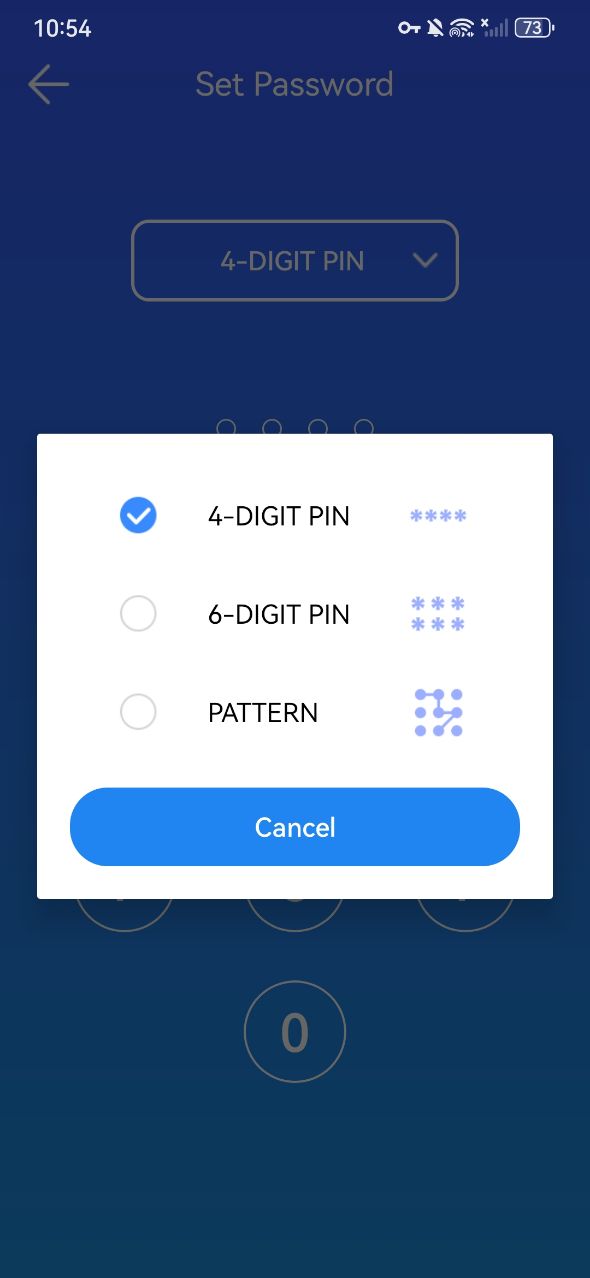
Step 2. Open it. Set a 4- or 6-digit PIN or a pattern to lock your settings.
Step 3. Click the Web Block tab. Enter the keyword you want to block in the top field. Click Add.
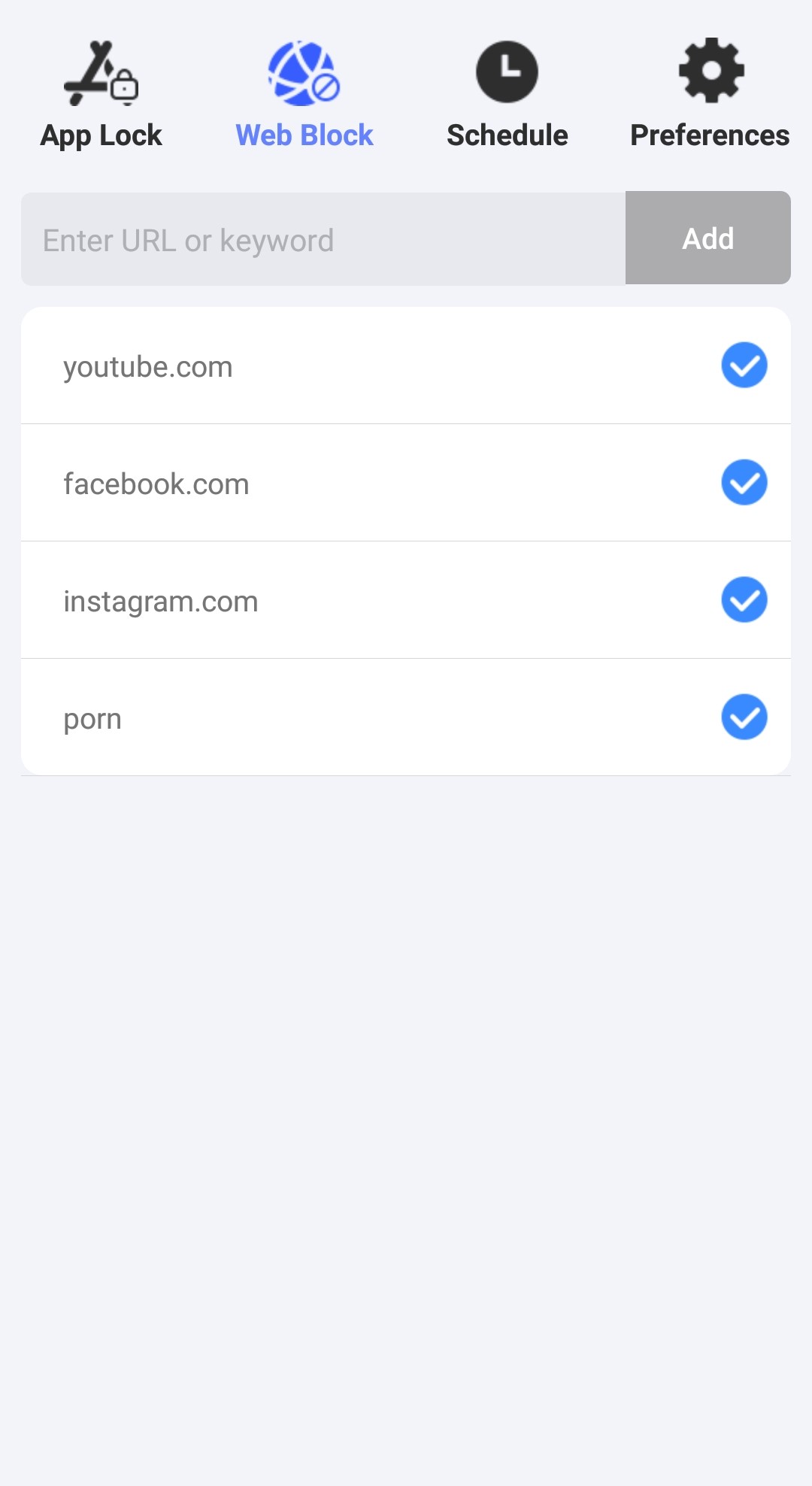
Now the keyword is blocked successfully. You can also click the Schedule tab to set time limits for the blocked keywords.
2. BlockSite
Best for: Blocking URLs by keyword in a browser where you have installed the extension.
BlockSite is an site blocker extension for Chrome, Firefox, and Edge browsers. Same as Cisdem AppCrypt, it offers keyword blocking options for block URLs containing specific words. But the extension can be easily removed or disabled when the user want to bypass the restrictions. It is a convenient choice if you want to manage distractions in your own browser and prefer a quick setup.
BlockSite offers the free plan and premium plan. The free plan allows you to add up to 2 words to block. If you need to block more keywords, you can upgrade to the premium plan, which costs $14.99 per month.
How to block websites by keyword with BlockSite
Step 1. From Chrome Web Store, Firefox Add-ons, or Microsoft Edge Add-ons, search for and Install BlockSite extension on your browser.
Step 2. Open the Options page. Go to Block Sites.
Step 3. Click Add to Block List. Choose Keywords.
Step 4. Enter the word you want to block in the top search box. Click the plus icon.
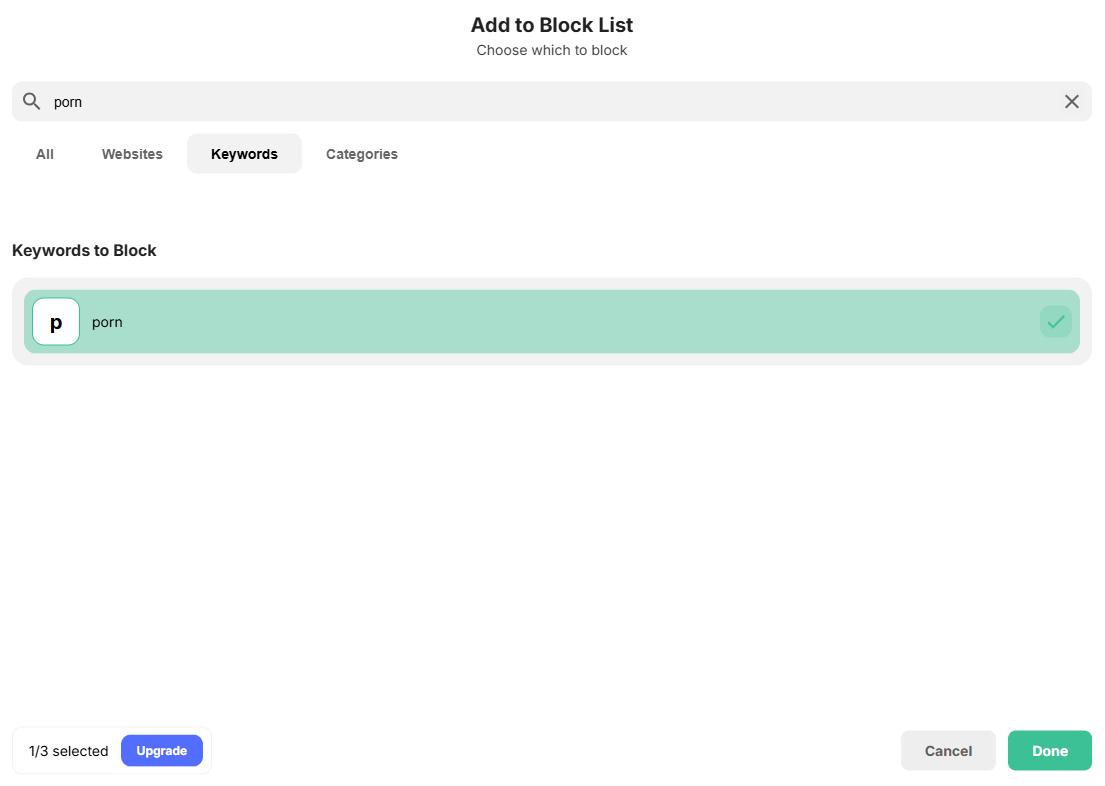
Step 5. Click Done.
Now all URLs containing this word are blocked on the browser.
3. Your router’s keyword filter
Best for: Blocking keywords on all devices while they connected to the Wi-Fi router.
Some routers let you restrict websites using keywords. The rules vary by model. You can check your router’s manual first.
How to set up keyword blocking on a router
Step 1. Open a browser. Enter your router's IP address in the address bar (like 192.168.1.1 or 192.168.0.1).
Step 2. Enter the administrator username and password.
Step 3. Look for the "Parental Control", "Access Control", “Web Filtering”, or similar options.
Step 4. Go to the keywords filtering section.
Step 5. Enter the words or phrases you want to block.
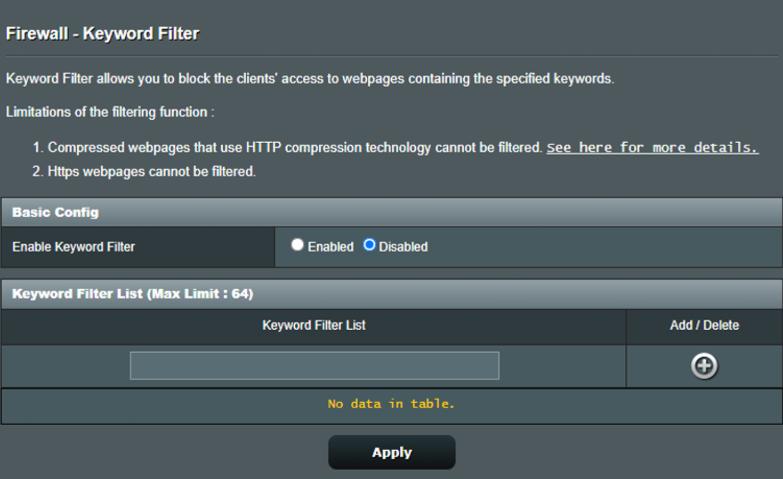
Step 6. Save your settings.
4. Word Blocker
Best for: Hiding selected words on web pages in Chrome.
Word Blocker is a Chrome extension provided by Papillon Software. Unlike the first three tools, it does not stop websites from opening. It just redacts words displayed on pages. Despite the difference, these tools may serve the same purposes, such as parental control.
Note
The tool might slow down your browser a little bit.
How to hide words on web pages with Word Blocker
Step 1. Search for "Word Blocker - Text Redaction & Pattern Filter" in the Chrome Web Store.
Step 2. Add the extension to your browser.
Step 3. Click the extension's icon in your browser's toolbar.
Now, you are in its settings.
Step 4. In the Editor tab, enter the list of keywords that you want to block. Click Save.
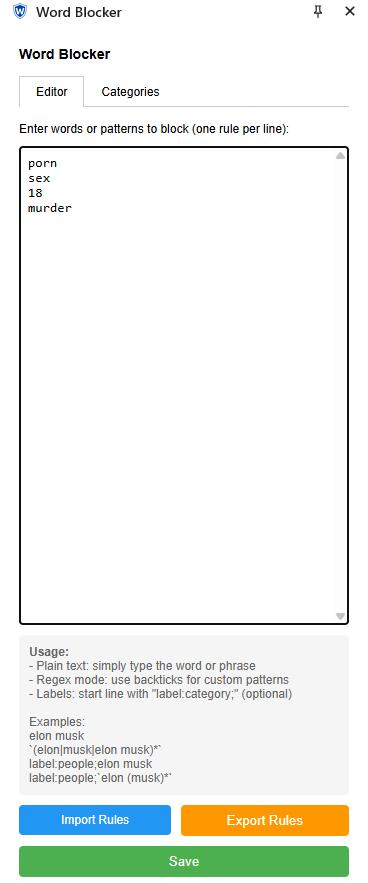
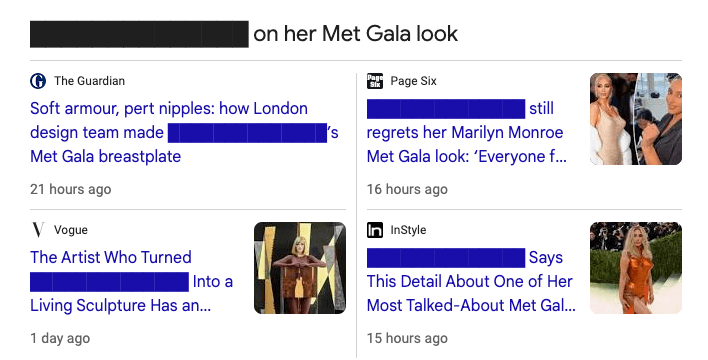
For example, after you add a word, like "nude", "torture", or "murder", the word will be replaced by a solid color block whenever it appears on a web page. You can also block a phrase, e.g., "teen sex" or "kim kardashian".
Lists of keywords you should block
The Internet makes our life more convenient, but there are also potential risks when using it. Blocking specific keywords can help us avoid interference from bad content, boost productivity, and keep network safe. Here are some keywords that are recommended to be blocked for parental controls, productivity, and online safety.
For parental controls
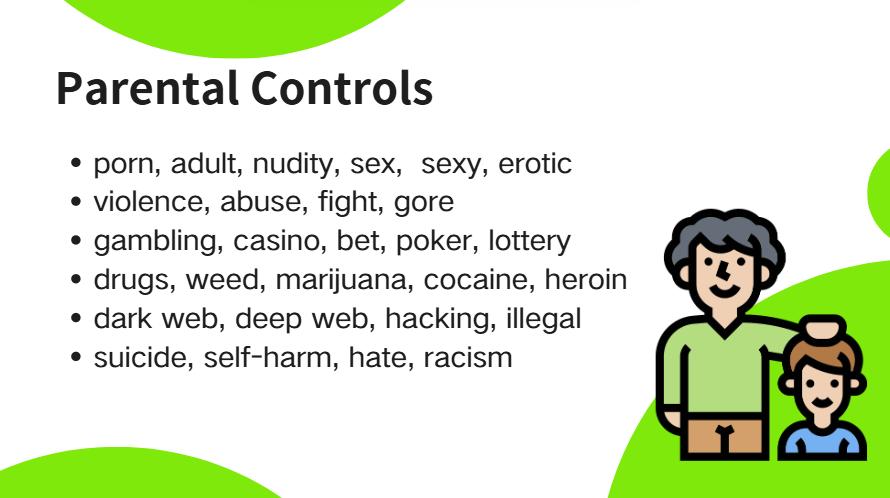
Parents may want to limit access to distracting sites or inappropriate content online for their children. A keyword blocker can help.
Start with the names of games, video platforms, or social sites your child visits often. If you want to block adult or inappropriate websites, use the list of URL keywords in the image below.
For productivity
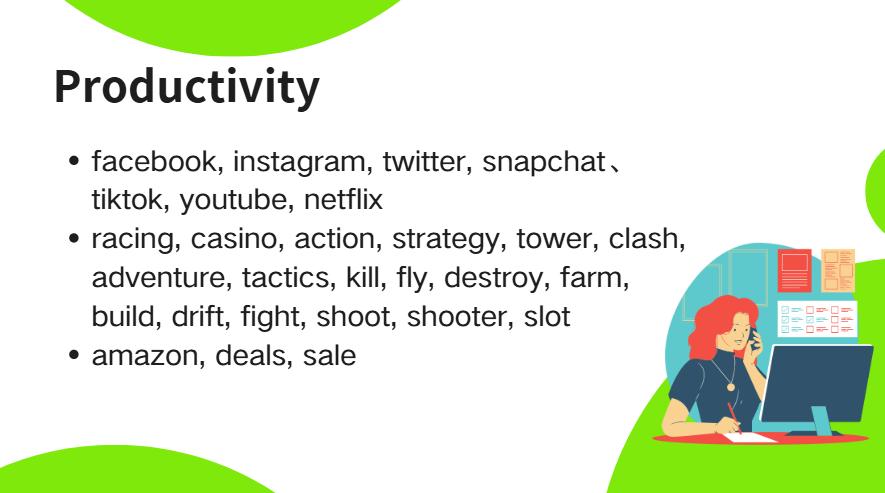
When working or studying, there are many interesting websites on the Internet that can distract us. Blocking some keywords that are not related to work or study, such as social media, games, etc., can boost our productivity.
For online safety
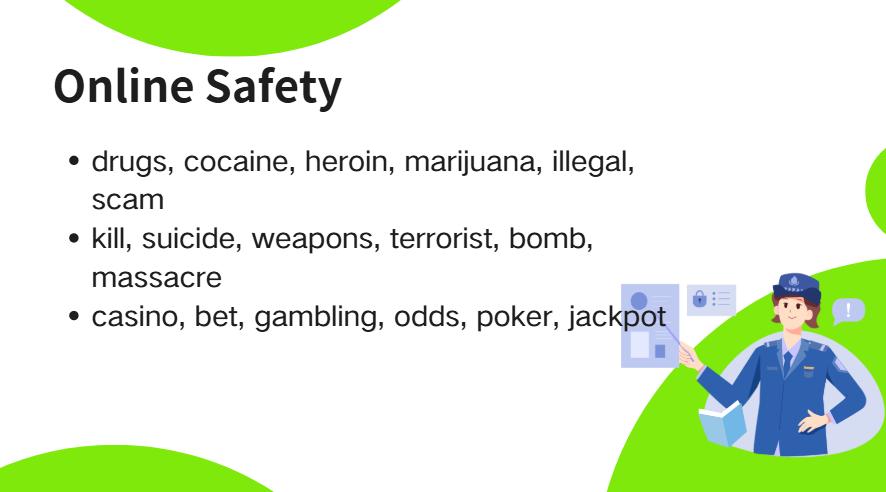
In order to enhance online safety, these keywords related to potentially harmful content should be blocked.
FAQs
Can I block keywords on Google?
Yes, you can use a keyword blocker extension for Google Chrome. Or Cisdem AppCrypt, which supports Chrome and other browsers as well.
Is there a keyword blocker for YouTube?
Yes. There are several keyword blocker extensions for YouTube that let you block videos that containing specific keywords in there titles or descriptions, such as YouTube Keyword and YTBlock.
Will a keyword blocker block websites I still need?
Yes. A short or common keyword may be in unrelated URLs. So after adding a keyword to the block list, there may be websites that you still need to be blocked. If this happens, you can add the site to the blocker’s allowlist.
Conclusion
Website blocking by keyword is a good way to restrict access to bad or inappropriate websites effectively. Simply add a word or phrase to the block list, and then a large number of websites will be blocked automatically. This article shares with you four different tools. I hope it helps.

Norah Hayes likes to share her tips on how to improve focus and stay motivated at work. She believes it is essential to eliminate all online distractions during work hours.

Ethan Long joined Cisdem in 2015 as a developer and now serves as the editorial advisor for Cisdem AppCrypt. He actively tests and uses Cisdem AppCrypt and other screen-time management tools to ensure AppCrypt meets its promises in real-world scenarios.
Ella Gonzalez
Blocking by keyword is much easier than managing individual URLs. The step-by-step guide is easy to follow and super helpful. Thank you!