


How to Undo RM on Linux, Windows or Mac to Recover Deleted Files?
 2.2K
2.2K
 1
1


rm is one of the most efficient commands to remove specified files or directories, across different devices like Linux, Windows, macOS. But when you run this command on you computer by mistake, it becomes tricky to undo, or recover the files after rm.
On different devices, the options to undo rm command will be different. This guide will walk you through the steps on how to recover files after rm across Linux, Windows and macOS.
Key Takeaways
- There is no Undo feature in Linux, Windows or macOS to revert the delete action, but we do have solutions to recover the files deleted by rm commands.
- Cisdem Data Recovery offers an all-in-one solution to recover permanently deleted files by rm commands on a Linux, Windows or macOS device.
- To undo rm in Linux, you can use TestDisk or recover from a backup.
- To undo rm in Windows, you can use Windows File Recovery or built-in File History to recover the deleted files.
- To recover files after rm command on a Mac, you can use PhotoRec or built-in Time Machine to retrieve the files.
 Best Data Recovery for Windows and Mac
Recover Files after rm on Linux, Windows, macOS
- Recover files after rm -r, -f, -rf, -i, -v, -d, etc.
- Also recover trashed, formatted, corrupted and lost files on both internal & external hard drive
- Restore 1000+ file types: docs, images, videos, audios, archives, emails, etc.
- Fix damaged videos, photos or office documents
- Recover unsaved files in Word, Excel, PowerPoint, Keynote, Pages, etc.
- Preview files before recovery
- Recover files to local drive or to cloud platforms
- Also support NAS, iCloud, Partition, Crashed PC/Mac recovery
 Free Download Windows 11/10/8/7
 Free Download macOS 10.15 or later
Part 1. Basics about rm Command
What is rm command used for?
rm is the short term of remove, it deletes files by removing its reference to a file or directory, you can add options like -r, -f, -rf, -i, -v, -d. It won’t move the deleted files to recycle bin on your computer, it permanently deletes the files and you won’t be able to restore from trash bin.
What is rm -rf command?
-r stands for recursive, while -f stands for force, and rm -rf means deleting the entire directory (folder) and all of its contents without asking to confirm each deletion.
Can we undo rm in Linux, Windows or macOS?
There is no Undo feature in the system to revert the deletion action, but we can undo rm by getting the files back, via a professional data recovery program, or from a backup.
Where do files deleted with rm go?
It is not in the recycle bin, then where do the files deleted with rm command go? It is still on the drive where it was originally stored, it just becomes invisible, because the system marks these blocks as available and will reuse the file's data blocks. If there is new data written to those blocks, the rm deleted file will be gone forever.
Can rm files be recovered?
Yes, but it can be only recovered before it is overwritten by other new data. Therefore, stop adding new data to your computer immediately, operations like updating system, running apps, transferring files, editing files, browsing websites will write a large amount of new data to your device. The more data you add to your device, the less possible you are able to recover the rm deleted files.
However, for a TRIM-enabled SSD drive, it is even less possible to recover the deleted files after rm or rm -rf command, because a TRIM command is used to ask SSD to reclaim the deleted blocks. If you act before this command, then it is still worth a try.
Part 2. All-in-one Solution to Recover Files Deleted by rm (-rf)
Restoring a file after rm can be a challenge, the solution for different operating systems would vary, this is where Cisdem Data Recovery comes into play.
It is a robust data recovering program, equipping with diverse feature options such as PC/Mac recovery, Linux recovery, NAS recovery, iCloud recovery, hard drive recovery, SD Card recovery. This app is reliable and efficient to restore 1000+ types of files under various data loss situations: deletion, formatting, corruption, missing, system crash, etc.
Cisdem also provides the ability to repair damaged files like video, photo or office documents, which saves you from the trouble of unable to open a file after recovery. Cisdem Data Recovery focus a lot on recovery rate and speed. It does the scanning and digging thoroughly to find a lost file, assists in discovering files quickly with a filter tool. The Preview feature is prominent, users can check the found files by viewing thumbnails or reading full file with defaulted readers, the preview loads quickly and it will be highly efficient to recover those wanted without error.
Cisdem supports both Windows and macOS, also offers free trial, with the paid plans starting with one-month plan, which is good for those want to recover lost files in a pinch.
How to recover files deleted by rm (-rf) in Linux?
- Download and install Cisdem Data Recovery on Windows PC.
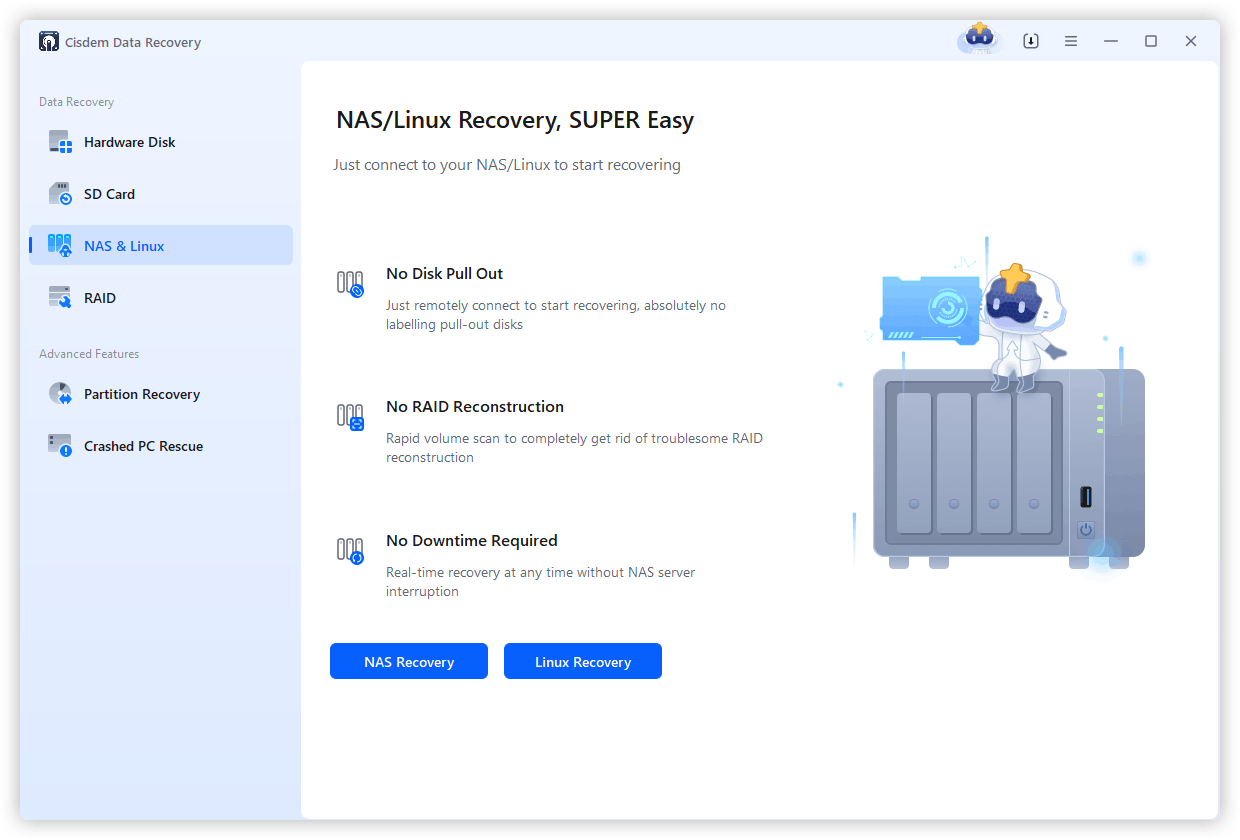
Free Download Windows 11/10/8/7 - Go to NAS & Linux, then choose Linux Recovery.
![recover linux cisdem 01]()
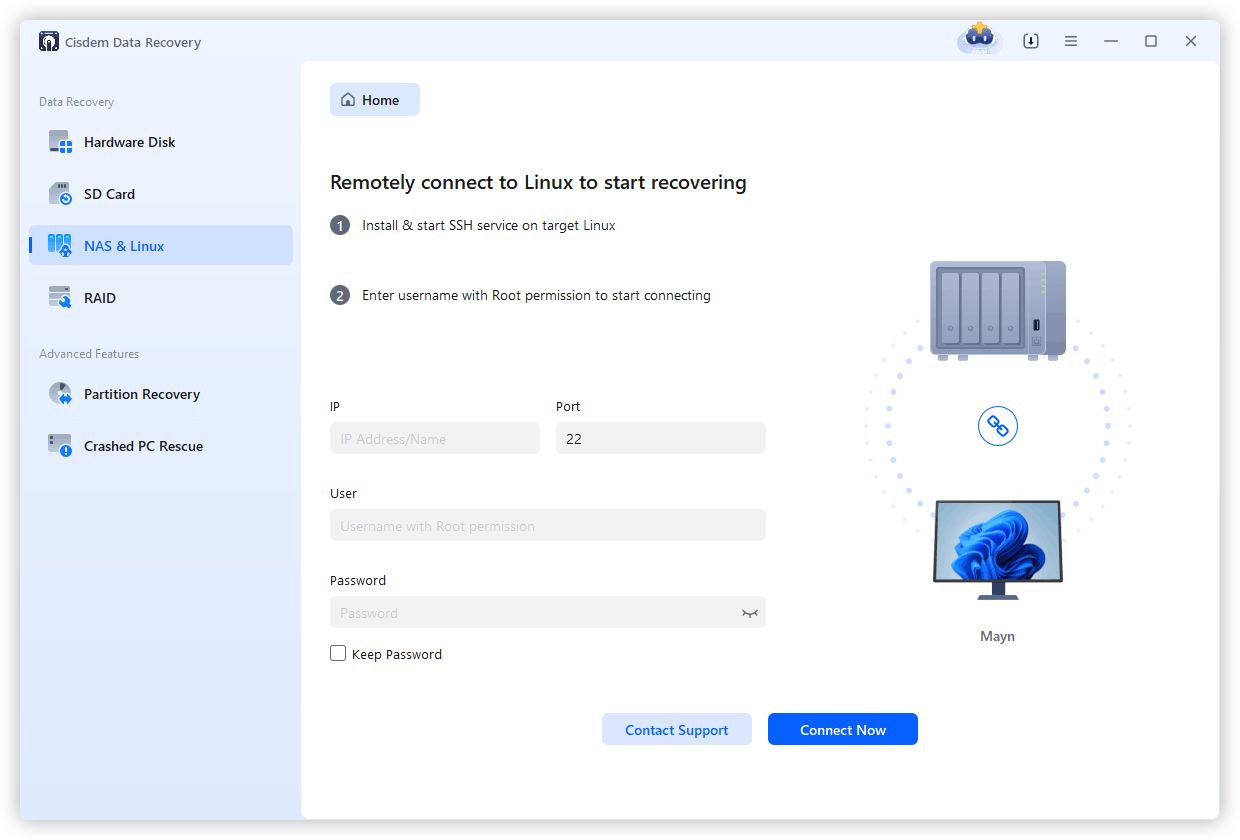
- Enter the user name and password, then click on Connect Now.
![recover linux cisdem 02]()
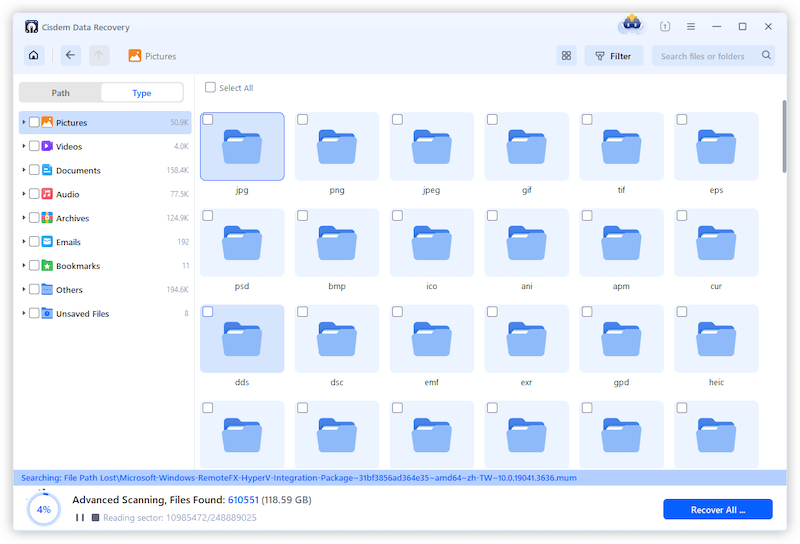
- Now, go to Type and check the folders on the left, you will see all the deleted rm folders and files Cisdem has found on the Linux device.
![recover rm file on linux 03]()
- Preview the files, select and click Recover button to restore.
How to recover files deleted by rm (-rf) on Windows or Mac?
- Download and install Cisdem Data Recovery on your Mac or Windows.
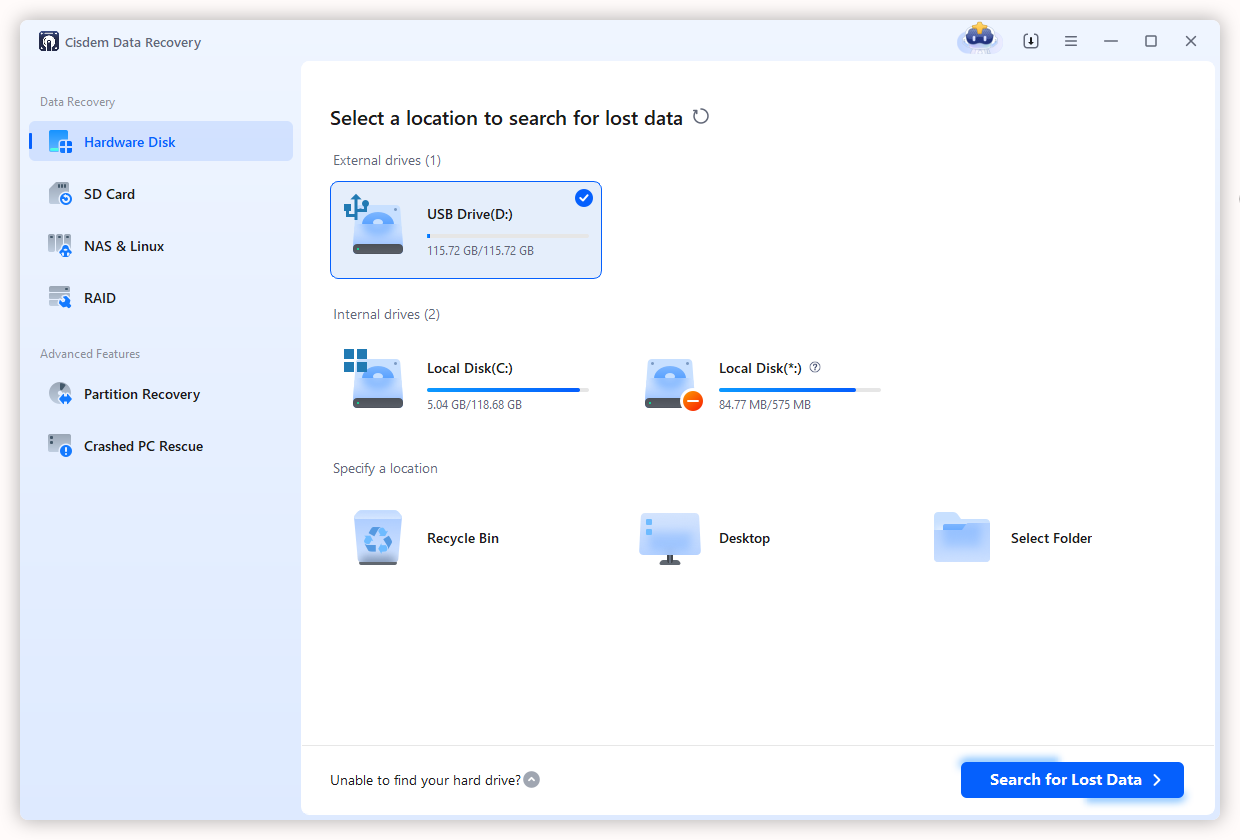
Free Download Windows 11/10/8/7 Free Download macOS 10.15 or later - Go to Hardware Disk and select the drive where you deleted the files or folders with rm command, click Search for Lost Data.
![recover rm file on linux 01]()
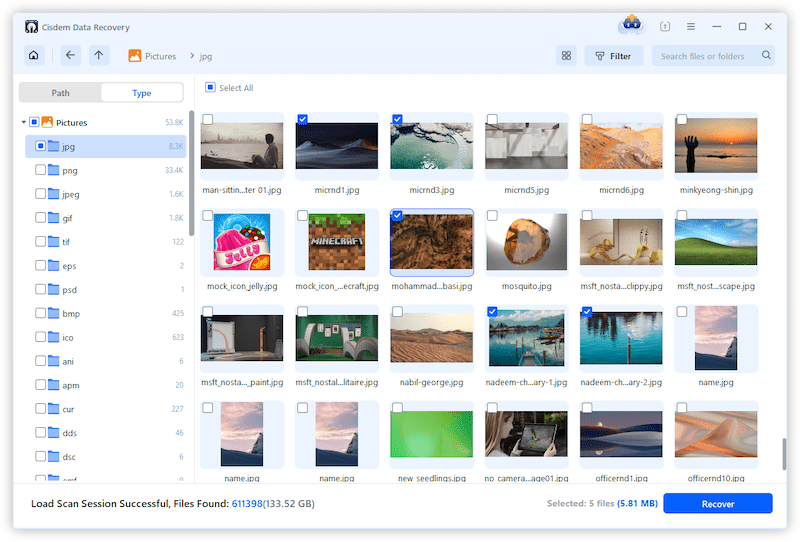
- Then go to Type, check your deleted files in the folders listed in the left side. Also, you can use filter or search box to quickly locate a file.
![recover rm file on linux 03]()
- Preview the files, then select and click Recover button.
![recover rm file on linux 04]()
Part 3. How to Undo rm (-rf) in Linux for Free?
Linux doesn’t allow undoing rm, which makes the situation a little tricky. If you are looking for a free solution to recover a rm file on Linux, because you are still in doubt with 3rd data recovery apps like Cisdem, there are 2 ways for you.
#1 Use TestDisk
TestDisk is a free data recovery application available on Linux, Windows, macOS and other operating systems. It runs in a shell to recover deleted files, especially lost partitions and unbootable disks. The latest version is 7.3 Beta, but you are recommended to using version 7.2, which is more stable.
TestDisk is great to recover deleted files after rm on FAT, exFAT, ext2 drives, but for ext3 or ext4 drives, the recovered files might not be opened normally.
If you don’t have a backup of the deleted files, you can follow up the steps:
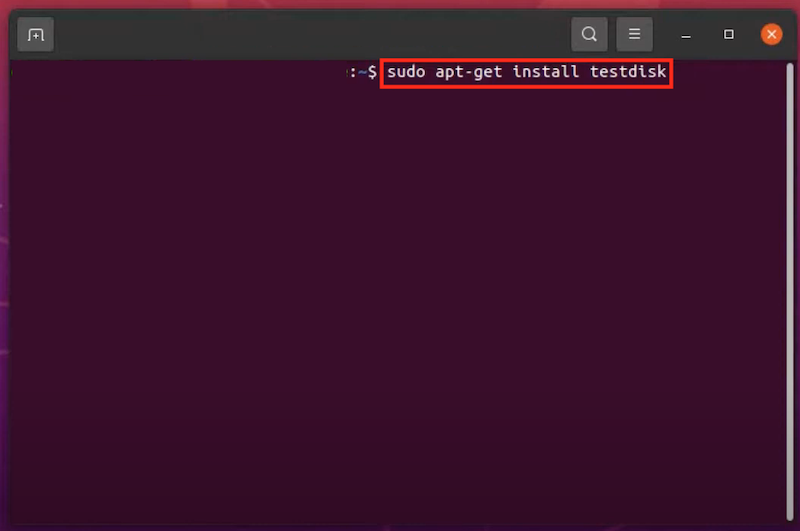
- Open the command tool on your device, then input sudo apt-get install testdisk -y, and press Enter.
![recover rm files testdisk 01]()
- Enter your password to install testdisk on your Linux.
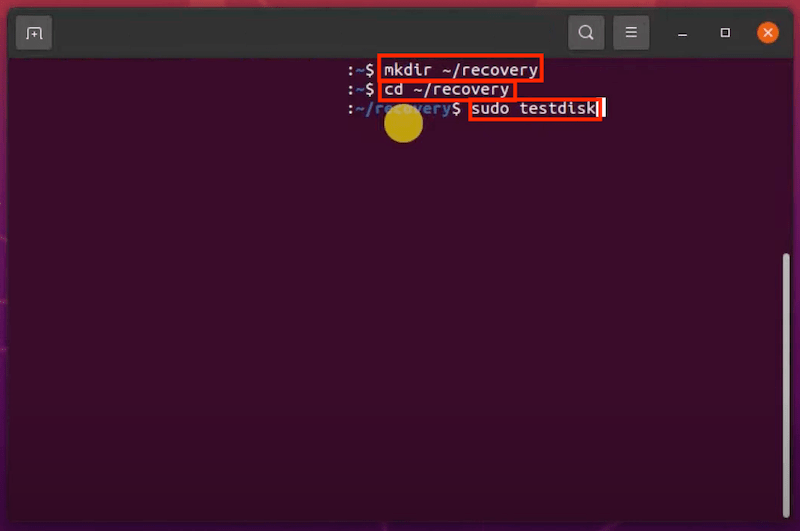
- Input mkdir ~/recovery, press Enter; then input cd ~/recovery, press Enter; finally input sudo testdisk and press Enter to run Testdisk.
![recover rm files testdisk 02]()
- Create a new log file or just skip this step. Press Enter.
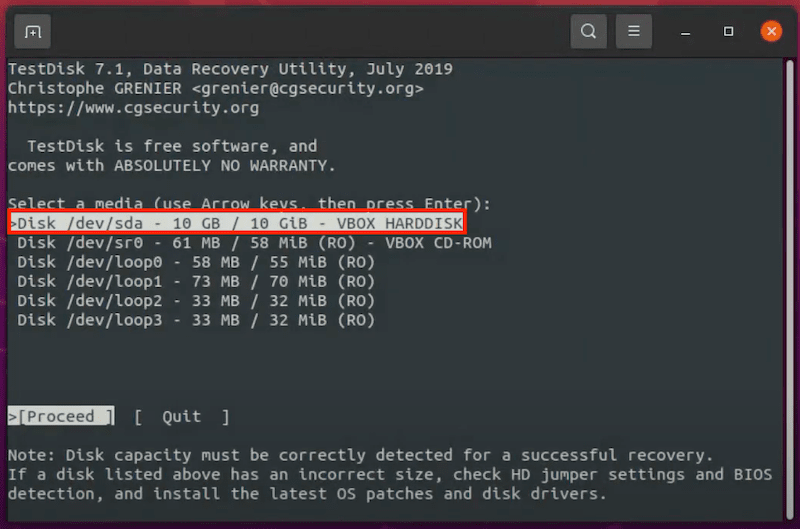
- Select the Linux drive where the file is rm deleted, then press Enter.
![recover rm files testdisk 03]()
- Select the Linux partition table type, press Enter.
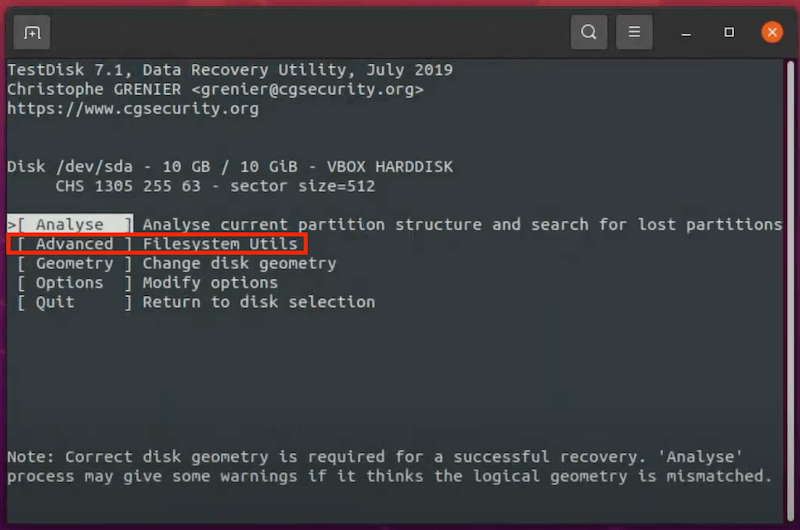
- Select Advanced and press Enter.
![recover rm files testdisk 04]()
- Select the Linux partition where you deleted the file from, press Enter.
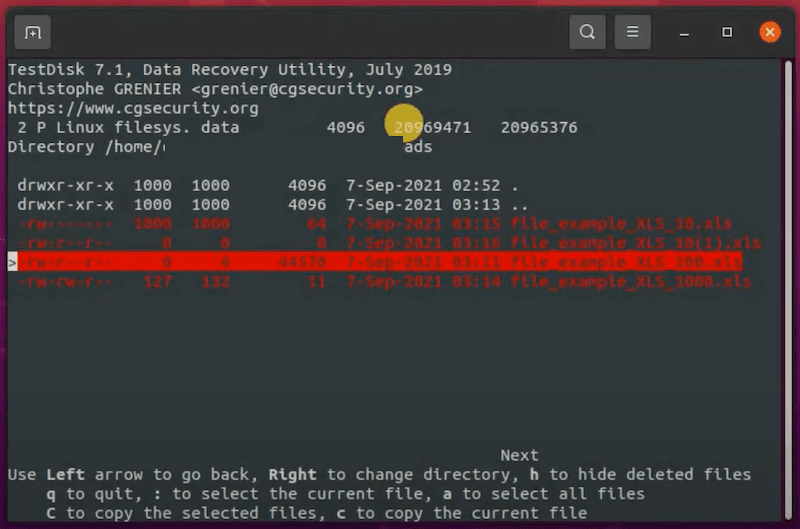
- Select the directory where you stored the deleted files and press Enter, the deleted files will be listed and select.
![recover rm files testdisk 05]()
- Press C to recover, then Quit TestDisk.
#2 Recover from Backup
If your Linux system uses Btrfs, then you can restore the deleted files after rm from its built-in snapshots by undoing all changes since a snalshot, or restore by reading the Btrfs metadata trees from the raw device when you don't have snapshots.
With snapshots: sudo snapper -c home undochange 42..0
Without snapshots: sudo btrfs restore /dev/sda1 /mnt/recovery/
If you’ve backed up your Linux files using backup tool, before the files are deleted with rm (-rf), it will be much easier to get them back. Just check back the backup location or storage device, then transfer them to a wanted path. It is always smart to backup your files.
Part 4. How to Recover Files after rm (-rf) on Windows for Free?
For Windows users who want to recover files deleted with rm (-rf), we will also look at 2 ways. The first one is applicable to the situation that you don’t have a backup, while the second is helpful when you have a backup.
#1 Use Windows File Recovery
Windows File Recovery is a free Windows application to restore documents, videos, photos or others from both internal and external storage devices. It doesn’t have a graphic user interface, you have to enter commands and use arrows on your keyboard to perform the recovery. It is safe and free to use, but the recovery rate will vary in different case, basically lower than those paid ones.
- Download Windows File Recovery from Microsoft Store, install and open it in a shell.
- Enter winfr source-drive: destination-drive: [/mode] [/switches]
- Choose a recovery mode: Regular or Extensive.
- Then input following commands:
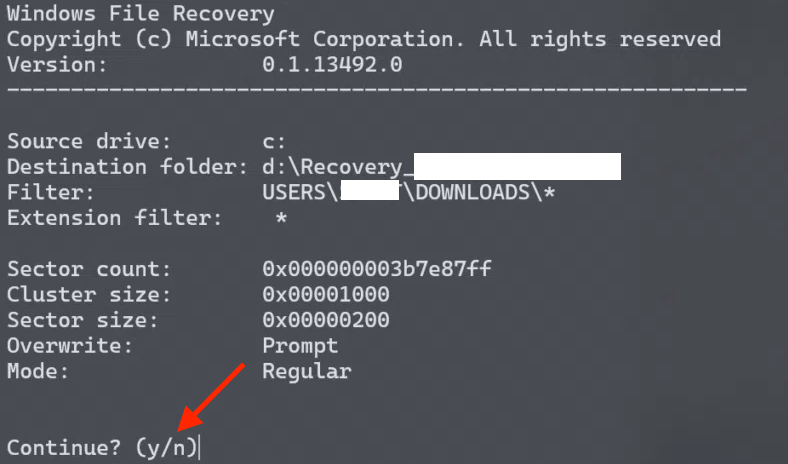
Winfr C: E: /regular /n \Users\<username>\Documents\
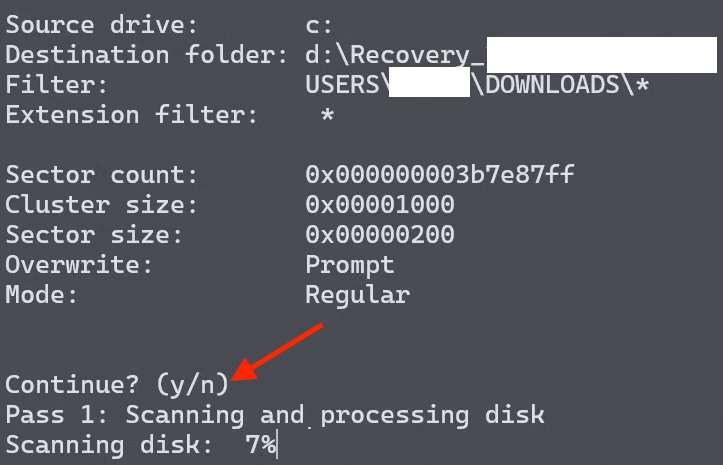
Winfr C: E: /extensive /n \Users\<username>\Pictures\*.JPEG /n\Users\<username>\Pictures\*.PNG. Enter y to continue.![recover rm files windows 01]()
- Then confirm by entering y to start the recovery.
![recover rm files windows 02]()
#2 Recover from File History
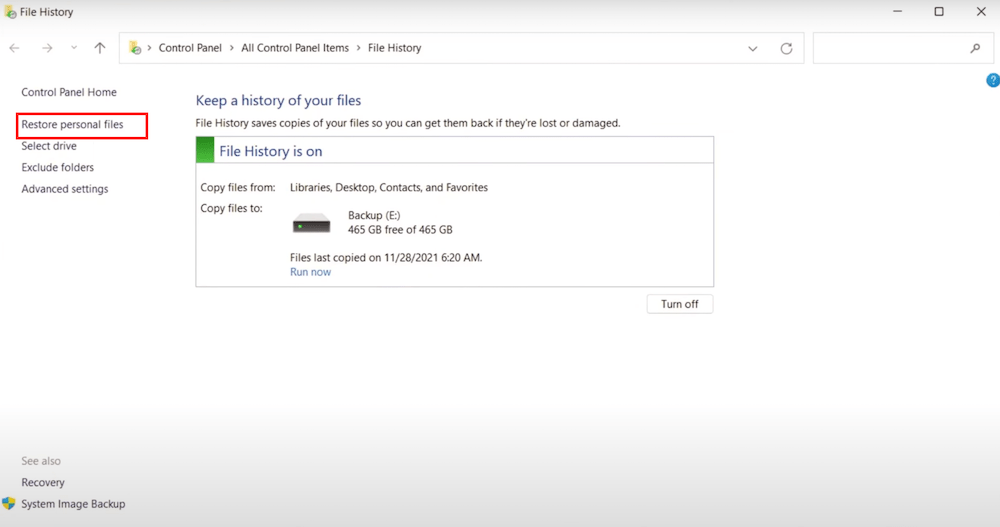
File History is considered as one of the best Windows built in tools, it continuously and automatically backs up specific folders to an external hard drive, so you will be able to recover a deleted file after rm from a previous version of the file.
- Connect the backup drive to your PC.
- Open Windows search box, enter File History to find and open File History.
- Then click on Restore personal files.
![recover rm files file history 01]()
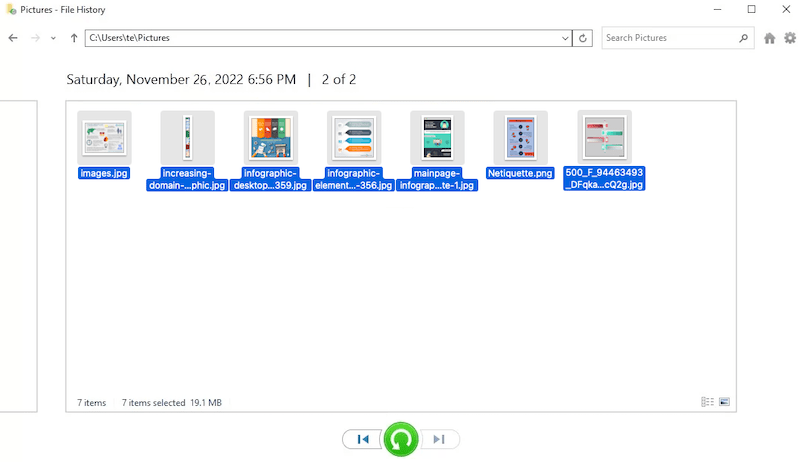
- Check the files you want to restore, select a previous version.
![recover rm files file history 02]()
- Click Restore.
Part 5. How to Undo rm (-rf) on Mac for Free?
Mac users can also delete a file with rm command in Terminal, and the process to recover a file after rm is easier than that on a Linux. If you want to restore a deleted file and not using a piece of software, there are 2 ways as well.
#1 Use PhotoRec
PhotoRec, same as TestDisk, is another free data recovery program from cgsecurity. The application name might make users think it supports photo recovery only. It is not, and it supports more files than TestDisk, including videos, photos, documents, archives and so on. Even, it works on damaged or reformatted disks.
- Download and install PhotoRec on your Mac.
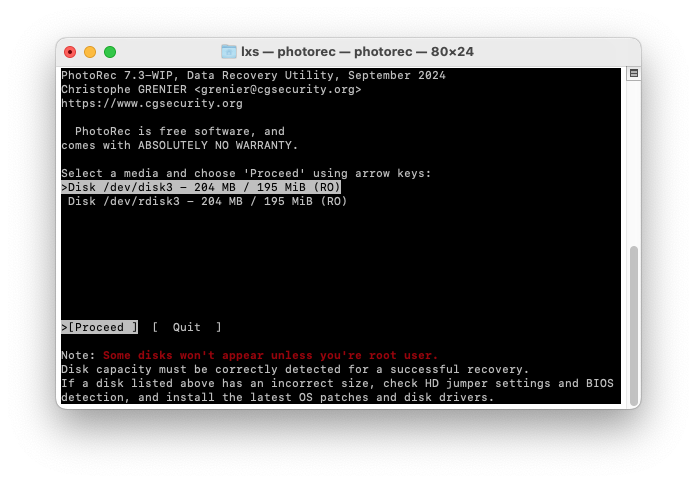
- Open PhotoRec in Terminal, enter your Mac user password.
- Select the disk where you deleted the file from, then press Enter.
![recover rm files mac 01]()
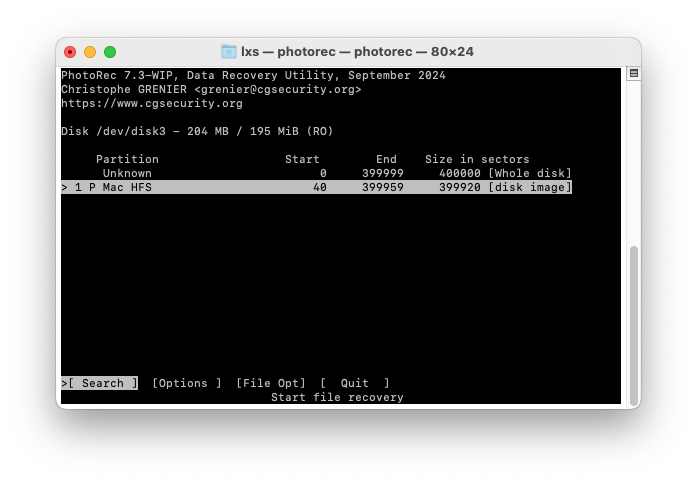
- Choose the Partition type and filesystem type, then press Enter.
![recover rm files mac 02]()
- Then choose the destination to save the recovered files, type C to start the recovery process.
![recover rm files mac 03]()
- Finally, go to the destination folder, check the recovered files on you Mac.
![recover files with photorec]()
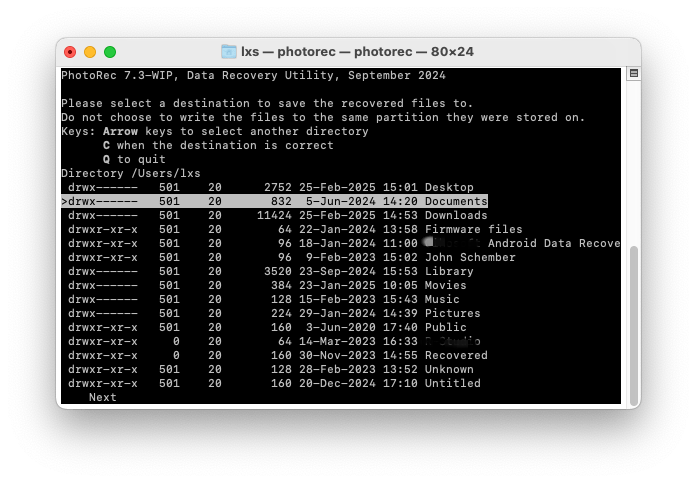
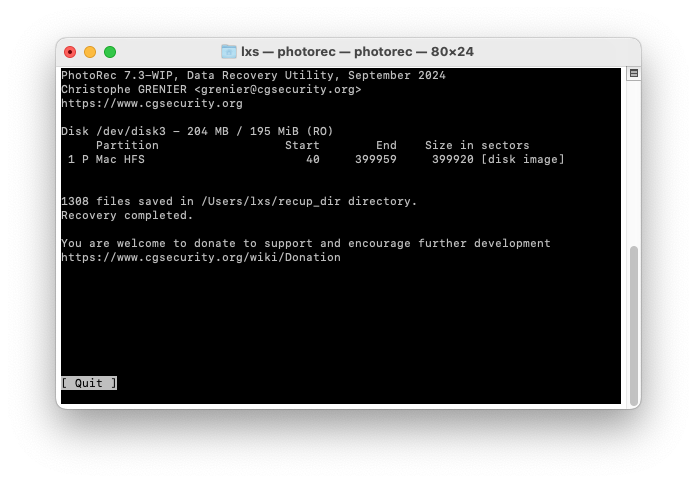
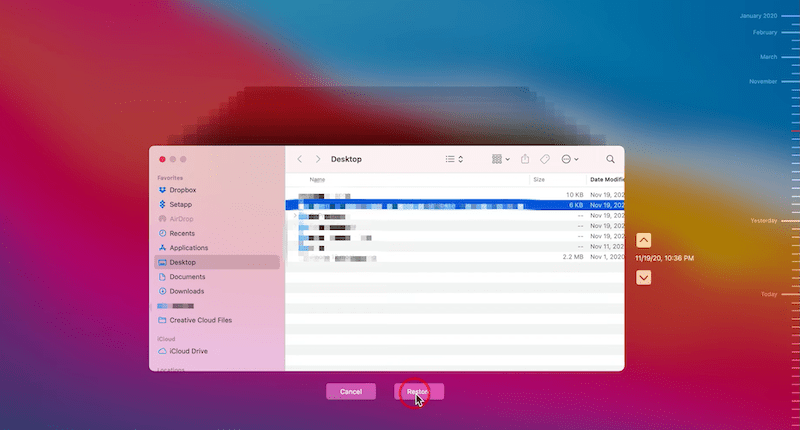
#2 Recover from Time Machine
If you’ve enabled Time Machine backup on your Mac, the process to recover rm files will be very easy, all you need to do is enter Time Machine and restore the files from your backup.
- Connect your Time Machine backup drive to Mac.
- Click on Time Machine icon and Enter.
![recover rm file time machine 01]()
- Go to the place where the deleted file is saved, and select a version from the backup list.
![recover rm files time machine 02]()
- Then click Restore.
![recover rm files time machine 03]()
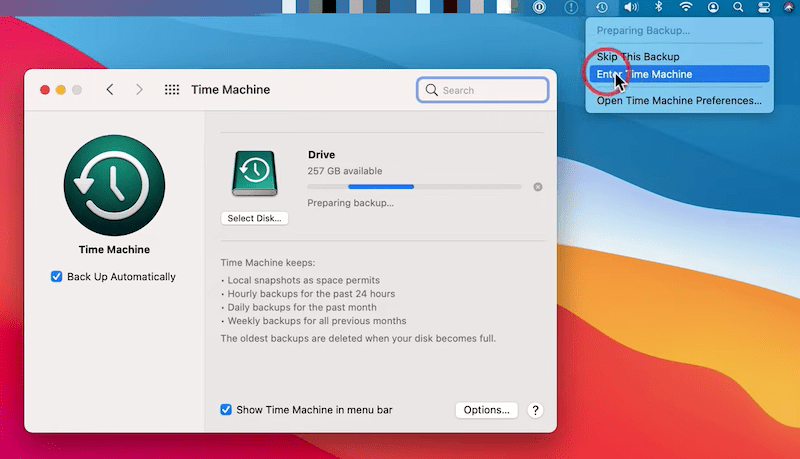
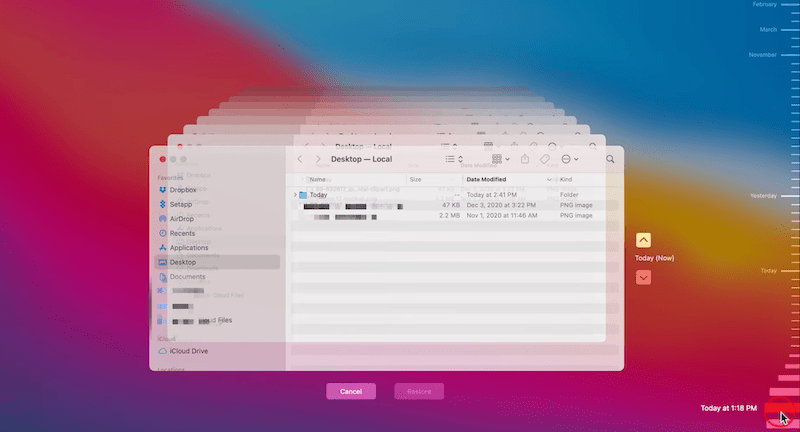
Final Thoughts
There may be other ways to recover a file after rm, however, it is not guaranteed that all the rm deleted files can be recovered. We recommend running Cisdem data recovery for the file retrieval. All of us should hopefully have no such data loss, but it’s a reminder of backing up files onto an external storage device.

Zoey shows a great interest in what she does. Although not long with Cisdem, she has possessed a professional understanding of data recovery.

JK Tam is the lead developer at Cisdem, bringing over two decades of hands-on experience in cross-platform software development to the editorial team. He is now the lead technical approver for all articles related to Data Recovery and DVD Burner.
Aaron
I deleted a file with rm by mistake and only realized it afterward. Thankfully, I had a recent backup, so I was able to restore the file from there. I checked this guide, accurate and helpful.