


How to Recover Deleted Files on Hard Drive after Deleting (Windows and Mac)?
 77
77
 0
0


Accidentally deleting files from a hard drive can be frustrating, especially when they are years of work, precious photos, business documents, etc. But a deleted file is not always gone forever. If you act quickly, you may be able to recover it before new data overwrites it.
Start by checking the Recycle/Trash Bin and restoring from backups if available. If those methods fail, professional data recovery software can help. In this guide, we’ll show you how to recover deleted files on a hard drive after deleting on Windows or Mac, comparing tools like Cisdem Data Recovery, Recuva, PhotoRec, DMDE, and local recovery services, so you bring your files back with highest recovery rate, but with lowest cost.
Can we recover deleted files on hard drive after deleting?
“I deleted my files on the hard drive accidentally. Are they gone forever?”
“I even emptied the Recycle Bin after deleting files on my hard drive. Can I still recover them?”
“I deleted files on my WD Elements a few days ago. Is it too late to recover?”
“Can recovery software really bring files back to my disk?”
These might be the questions that linger in your mind when you deleted files on a hard drive by mistake. Don’t worry, we can recover deleted files on hard drive after deleting.
When you delete a file on a hard drive, it will be moved to Recycle/Trash bin on your computer, and you continue to delete it from the bin for a permanent deletion, or empty the bin once for all, then the file becomes invisible and you think the file is gone forever. But it is not. The system won’t immediately erase the actual data, it just marks the space occupied by the file as available to store new data. Until that space is overwritten, the deleted file is still recoverable with appropriate solutions in time.
The chances of recovery depend on many factors, “how long ago the files were deleted” matters indeed, the what matters the most is “how much new data you’ve written to the hard drive since the last deletion”. Let’s check the examples:
A: The files were deleted on the hard drive 2 years ago, but you stopped using the drive since then.
B: The files were deleted just minutes ago, but you’ve kept writing large amount of new data to the hard drive since deleting, such as installing apps, editing documents, downloading files, etc.
Then the recovery rate of A is much higher than B, because there is less data overwritten in case A. In general, the sooner you stop using the hard drive and start the recovery, the higher the recovery rate.
Users like you are more likely in the situation where they failed to restore the deleted files by checking recycle bin or backups, because they are not there. Then this is where professional data recovery software comes in. And surely, data recovering programs are very helpful to recover deleted files, which has been proved by Reddit, Quora and other users on the Internet.
In the following sections, we’ll explain the best ways to recover deleted files on a hard drive after deleting, and help you pick the most suitable solution in your case.
What should we do immediately after deleting files?
Once again, we want to emphasize the following points: things we should do right after deleting files on a hard drive. The first few minutes can greatly determine whether those files can be successfully recovered or not.
1. Stop writing new data to the hard drive
As we explained in part 1, the deleted files on a hard drive is not removed instantly, they will be gone forever only when there is new data overwriting them. So, stopping writing new data to your internal or external hard drive, including browsing the drive, surfing online, copying data, editing docs, installing apps, downloading files, updating system, etc. If you have to install a data recovery app to restore your files, pick one from our list to reduce the risk of overwriting files.
2. Check the Recycle Bin
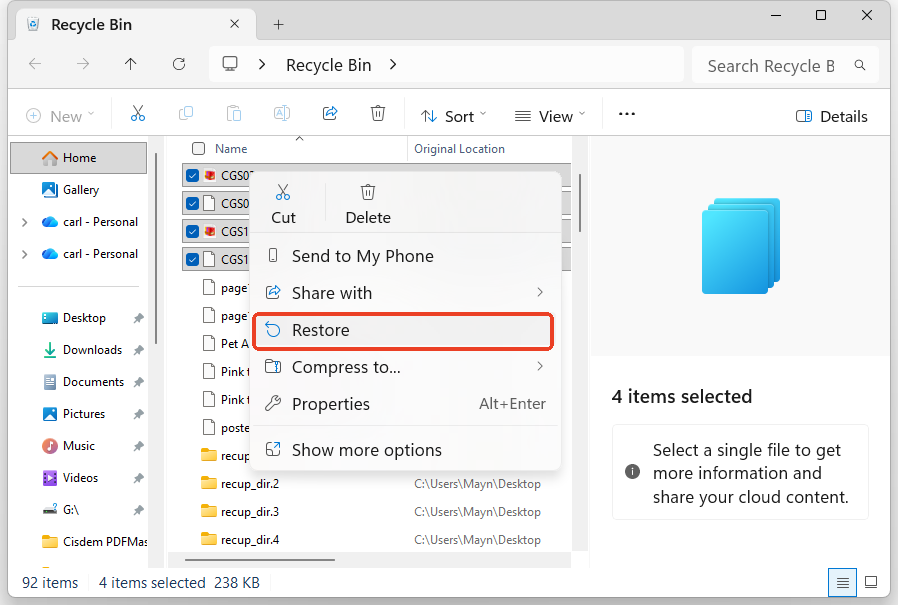
As we all know, deleted files from hard drive are simply moved to the recycle bin, if the bin is not emptied, you can easily recover by opening Recycle Bin (or Bin on Mac) > select the file > right click Restore (or Put back on Mac).
3. Check Available Backups
You might have copies of the deleted files in other places, such as another hard drive, cloud storage devices (iCloud, OneDrive, Google Drive, etc.). Then it could be much easier to restore your files by transferring the copies to your device.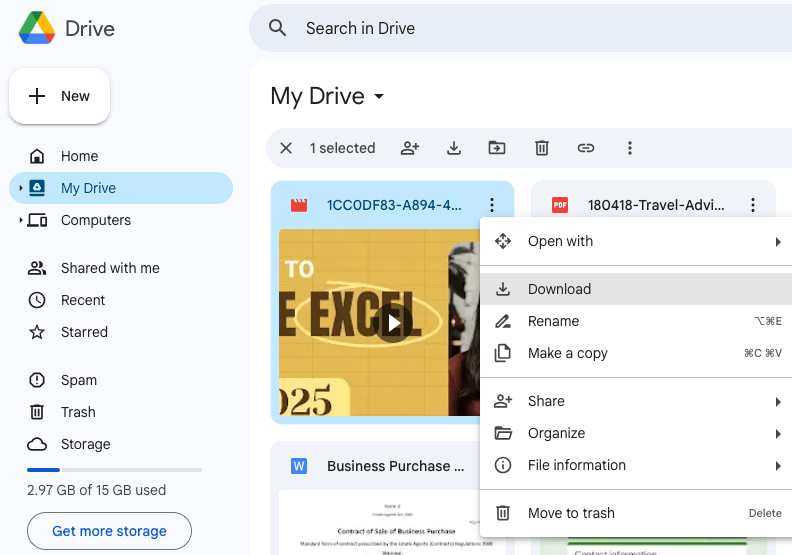
How to Recover Deleted Files on Hard Drive after Deleting?
In this section, we will introduce 5 best ways to recover deleted files on hard drive after deleting, if you want high recovery rate, or free solutions. The overview before each data recovery program will help you determine if it is the one suits your needs the most in a quick way.
#1 Use Cisdem Data Recovery
OS: Windows, macOS
Hard drive format: FAT(FAT12,FAT16,FAT32)/exFAT/NTFS/NTFS5/ext2/ext3/HFS+/ReFS, APFS, HFS+, HFS X, FAT16, FAT32, exFAT and NTFS
Recovery rate: high
How long does the recovery take: 17 minutes for deep scan (275.36GB used on 1.85 TB WD Elements SE)
How much does the recovery cost: starting from $49.95
Cisdem Data Recovery delivers a reliable data recovery experience, supporting a wide range of hard drive formats like FAT, exFAT, NTFS, HFS+, APFS. Available for both macOS and Windows, it can recover deleted files from both internal disks, external hard drives, SD Card, Linux, NAS, RAID and others.
It is equivalently efficient under different data loss scenarios, from deleted files, corrupted data to crashed PC. Also, it has a faster scanning than competitors, within 17 minutes, it scanned the whole hard drive and recovered virtually all files that I can remember, including some old deleted files. In addition, you could find the recoverable files in the first seconds or minutes when it was still in the quick scan mode.
With an intuitive interface, Cisdem Data Recovery makes it easy to locate and restore deleted photos, videos, documents, emails, and others. Starting at $49.95, it offers a competitive pricing tag for users who want an affordable recovery solution.
How to recover deleted files on hard drive after deleting in Cisdem?
- Download and install Cisdem Data Recovery on your computer.
 Free Download Windows 11/10/8/7
  Free Download macOS 10.15 or later
 - Connect the hard drive to your computer, if it is an external hard drive.
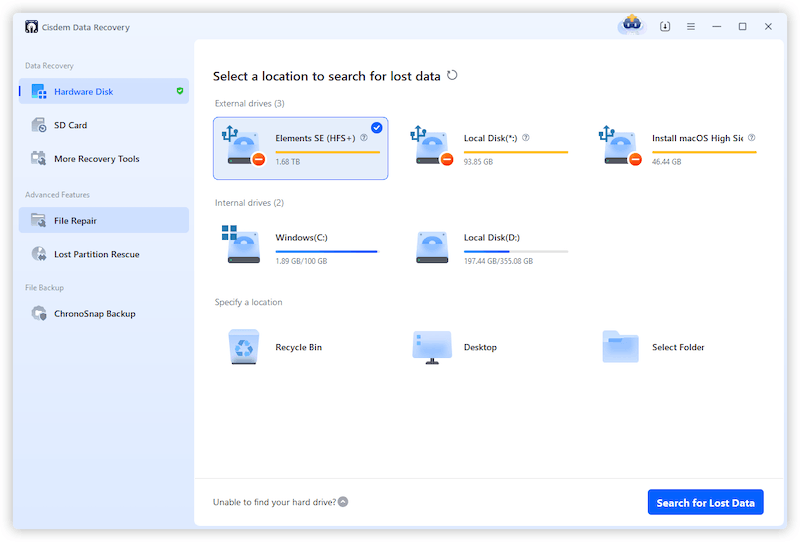
- Select the hard drive that you’ve deleted files from, click Search for lost data.
![recover hd cisdem 01]()
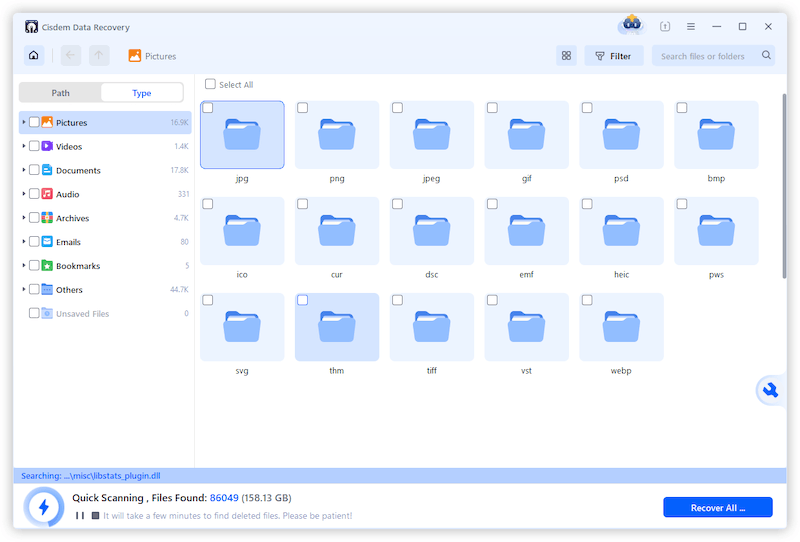
- Go to Type, browse the folders, or use the filter tool to locate the deleted files.
![recover hd cisdem 02]()
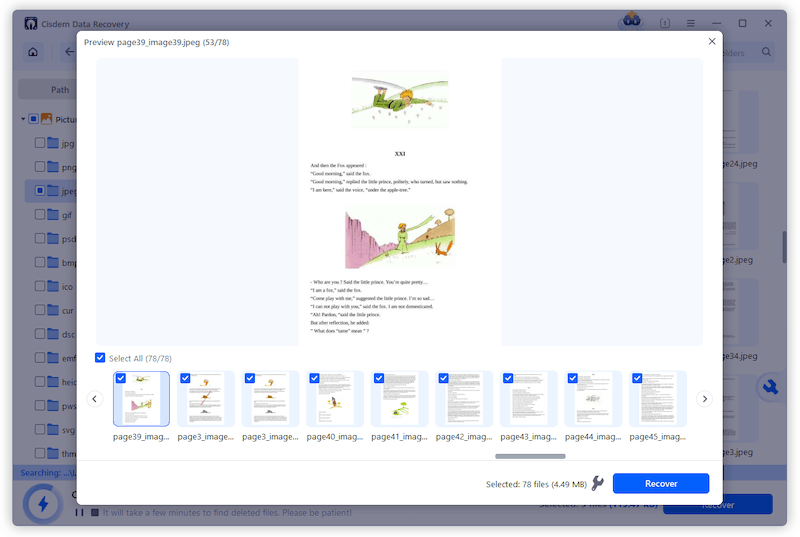
- Select the files and click Recover. Before recovery, you can double click the files to preview.
![recover cisdem dr 03]()
#2 Use Recuva
OS: Windows
Hard drive format: NTFS, FAT32, exFAT, FAT16, FAT12
Recovery rate: medium
How long does the recovery take: 12 minutes for deep scan (275.36GB used on 1.85 TB WD Elements SE) and skip a drive because it failed to recognize its format
How much does the recovery cost: free version is available
Recuva is a popular data recovery utility designed for Windows users, for being free and easy to recover deleted files from various hard drives and storage devices. It supports common Windows-based file systems, but not for macOS-based file systems.
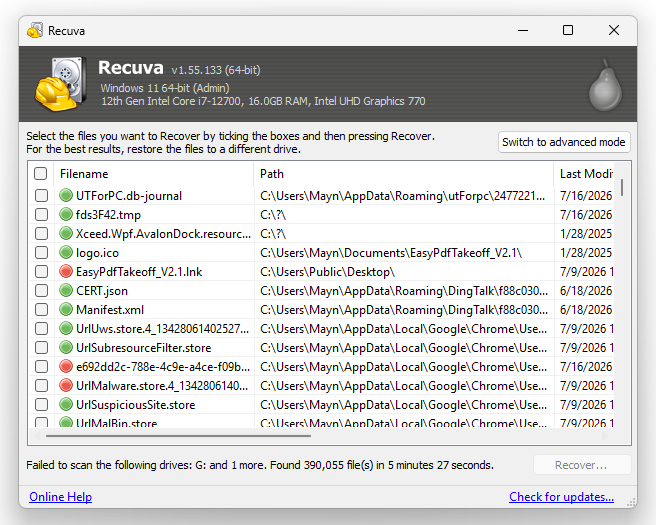
Recuva has a wizard to navigate users from setup all the way til the recovery process, making it super easy to recover lost data. And it scans very fast, though in my test, it failed to recognize one drive due to “invalid” format.
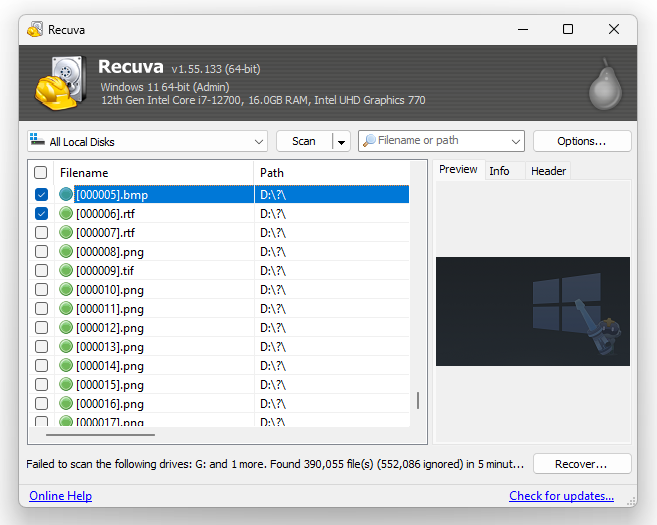
Its recovery rate is more limited compared with Cisdem and other premium data recovery software, most of the found files are system files from C drive that is “useless” for my hard drive recovery, and you can only preview the photos under advanced mode. However, its affordability and ease of use make it a solid option to try.
How to recover deleted files on hard drive after deleting in Recuva?
- Download and install Recuva on your PC.
- (Optional) Connect the external hard drive to your PC.
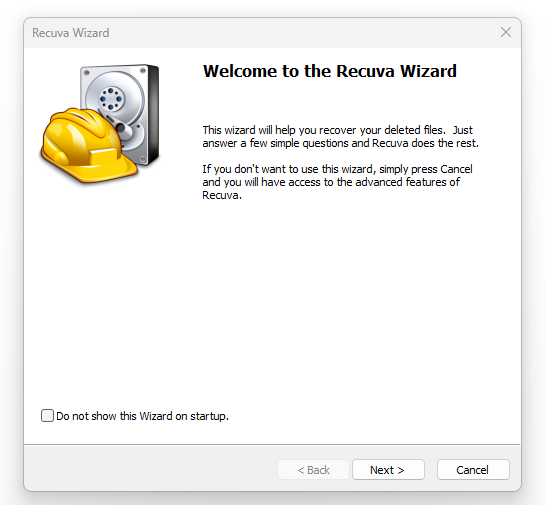
- Run Recuva and click Next to follow the wizard.
![recover hd recuva 01]()
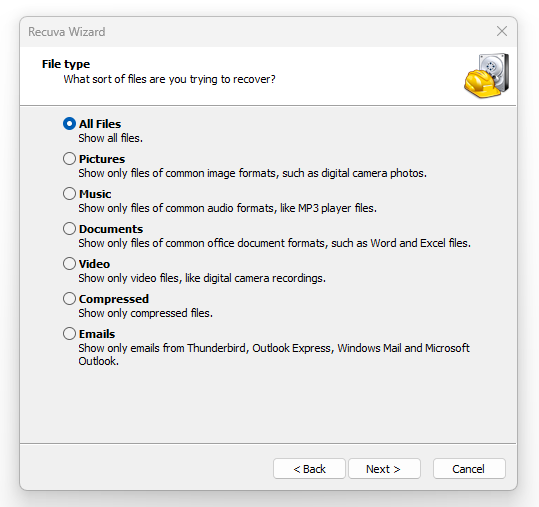
- Choose file types to scan and click Next.
![recover hd recuva 02]()
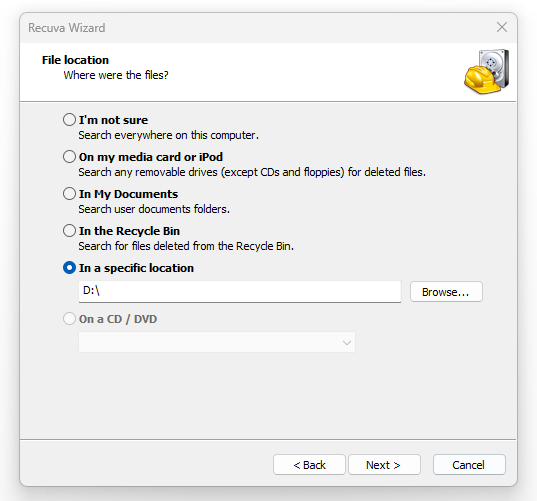
- Select the hard drive that you want to recover deleted files from, and click Next.
![recover hd recuva 03]()
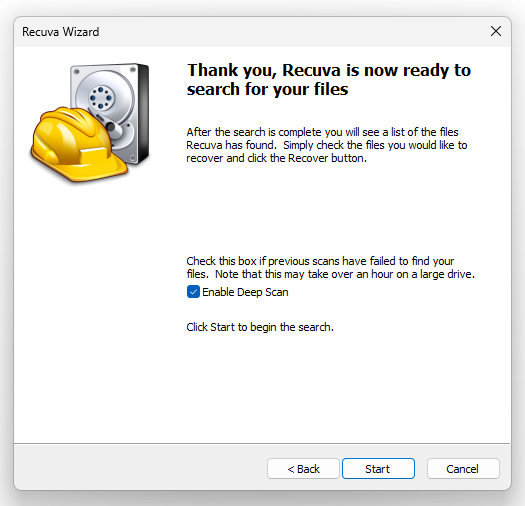
- Enable deep scan and click Start.
![recover hd recuva 04]()
- Browse the files, especially those green marked files that can be recovered successfully. You can switch to advanced mode to preview the photos.
![recover hd recuva 05]()
- Select the files and click Recover.
![recover hd recuva 06]()
#3 Use Photorec
OS: Windows, macOS, Linux
Hard drive format: FAT, NTFS, exFAT, ext2/ext3/ext4, HFS+
Recovery rate: medium
How long does the recovery take: 43 minutes for deep scan (275.36GB used on 1.85 TB WD Elements SE), it takes additional time to figure out how to use it due to command-line based.
How much does the recovery cost: free
PhotoRec is an open-source file recovery tool developed by CGSecurity, which uses file signatures rather than existing file system to recover deleted photos, videos, documents and others across different internal and external hard drive.
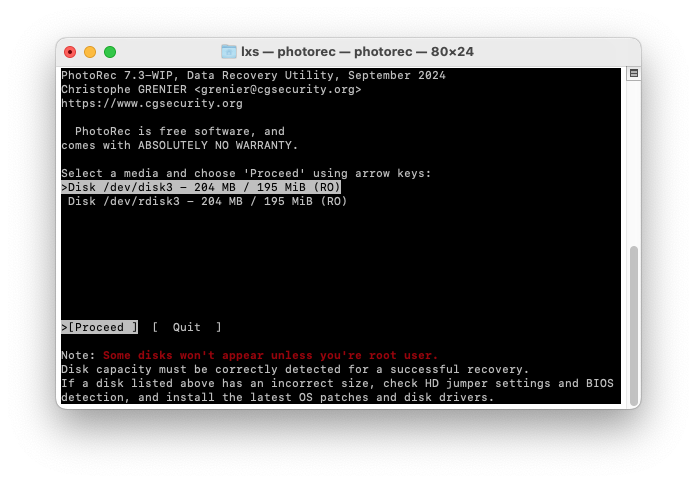
It has a command-line-based interface, which makes the recovery process more technical, and this is also the main reason why it took me longer time to locate my deleted files on the hard drive for the first time of using it. And the recovery rate is quite close to that of Recuva, there were many files still missing in my testing. Anyway, PhotoRec remains a highly recommended free solution for users to recover deleted files on a hard drive, across Windows, macOS, Linux.
How to recover deleted files on hard drive after deleting in Photorec?
- Download and install the latest version PhotoRec 7.3 on your computer.
- (Optional) Connect the external hard drive to your computer.
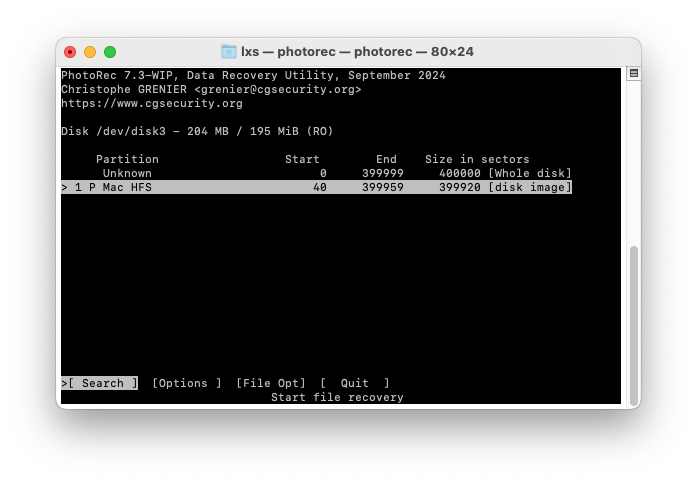
- Select the hard drive that you want to recover the deleted files from, by pressing the up and down arrows on your keyboard.
![recover hd photorec 01]()
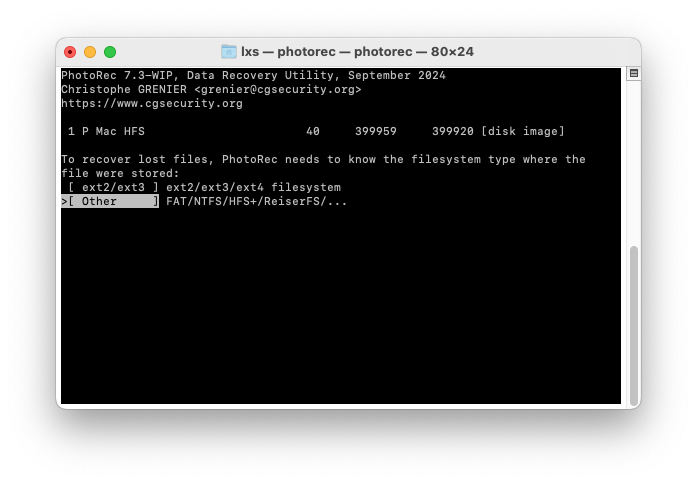
- Select partition type, and then press hit Enter.
![recover hd photorec 02]()
- Select file system, and then press hit Enter.
![recover hd photorec 03]()
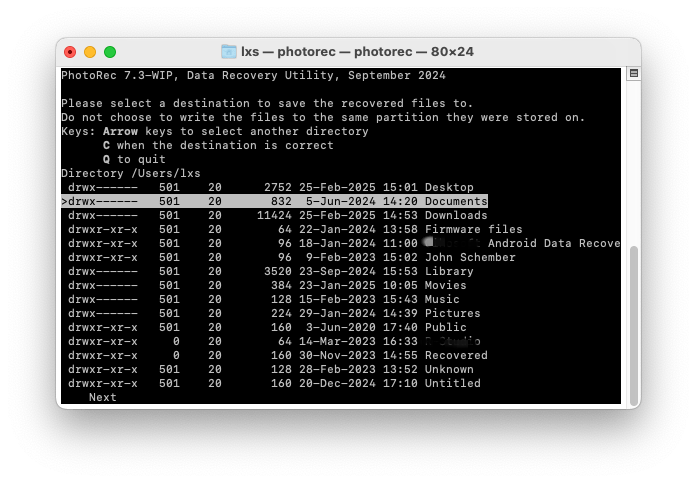
- Select destination to save the recovered files and press C key.
![recover hd photorec 04]()
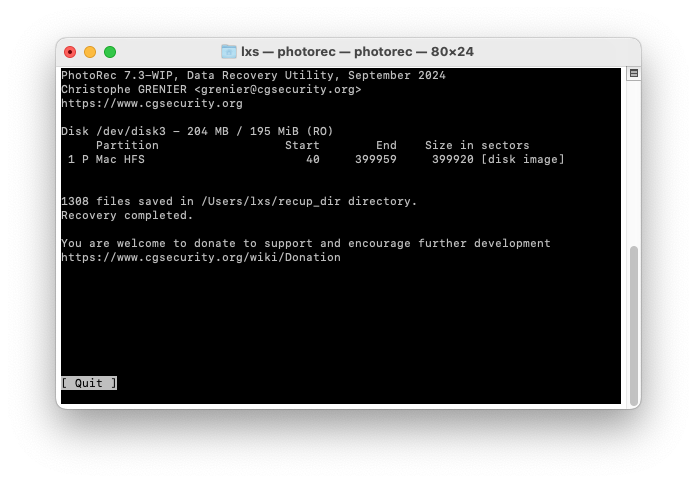
- The scanning and recovering will start, once finished, go to the destination folder to check up the recovered files.
![recover hd photorec 05]()
#4 Use DMDE Standard
OS: Windows, macOS
Hard drive format: FAT12/16, FAT32, exFAT, NTFS, ReFS, Ext2/3/4, HFS+/HFSX, APFS, btrfs
Recovery rate: high
How long does the recovery take: 57 minutes for full scan (275.36GB used on 1.85 TB WD Elements SE)
How much does the recovery cost: starting from $48
DMDE is designed to recover files from a healthy or problematic hard drive, also construct RAID, it offers a free version indeed, but the Standard edition is more appealing and recommended, because it allows unlimited file recovery and bulk folders recovery, which is very important in a recovery workflow.
It has an excellent support of file systems, storage devices and file types, as reliable as Cisdem Data Recovery, and the recovery rate is quite close to Cisdem’s. However, the full scan takes very long time, just a few files can be found back after a quick scan, and it felt like forever to wait for the full scan to finish. Though highly customizable, it is more technical, and requires more effort or time to master how to use it for your purpose, even the outdated interface might be a deal breaker.
However, if you are an advanced user who wants to deal with complex data loss situations, DMDE won’t let you down.
How to recover deleted files on hard drive after deleting in DMDE?
- Download and install DMDE on your device.
- Connect the external hard drive to your device if necessary.
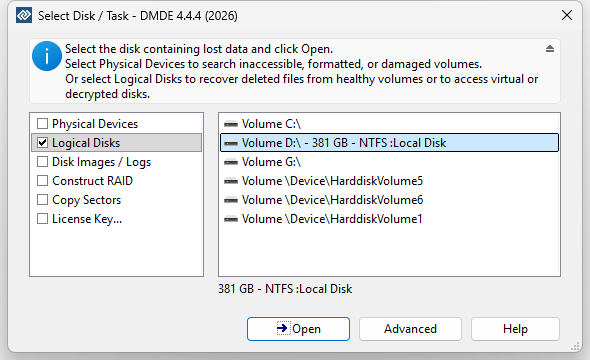
- Select Logical Disks and navigate to the hard drive that you lost files.
![recover hd dmde 01]()
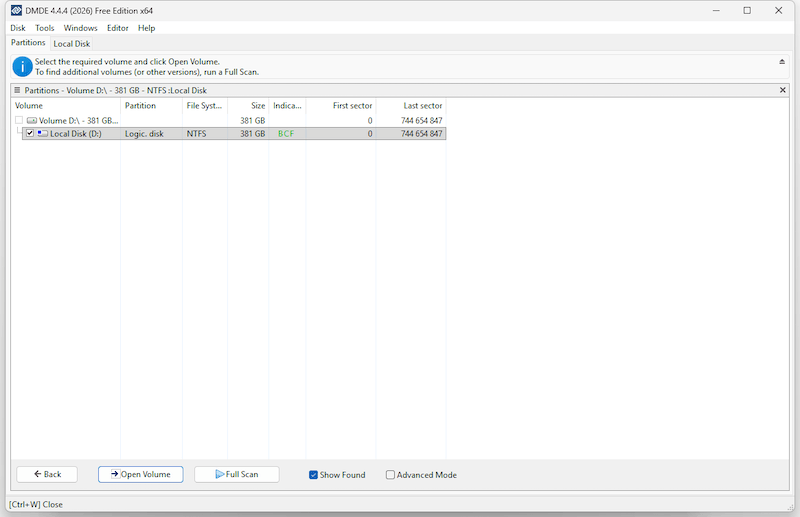
- Then select the volume and click Open Volume to continue.
![recover hd dmd 02]()
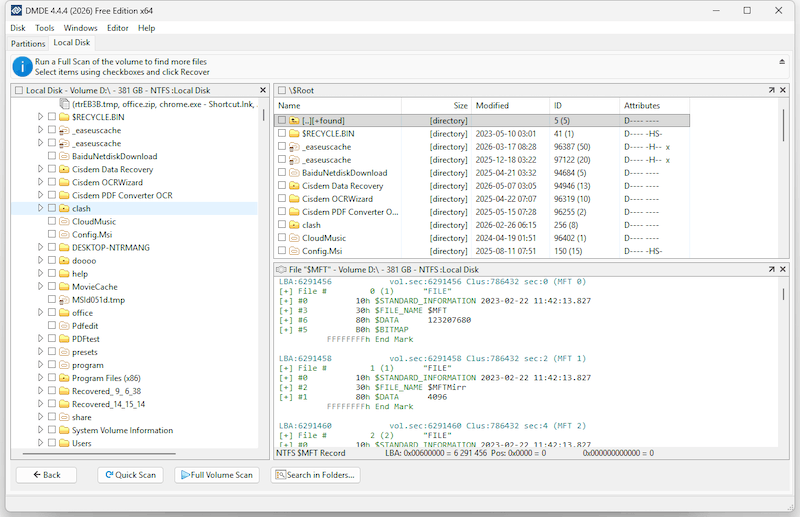
- Click Full Volume Scan to recover files as many as possible.
![recover hd dmde 03]()
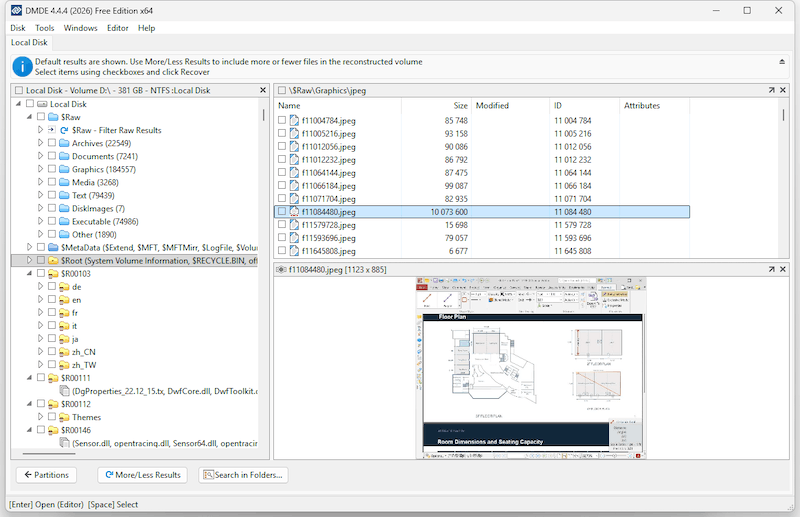
- Go to $Raw and browse the files to locate the wanted ones.
![recover hd dmde 04]()
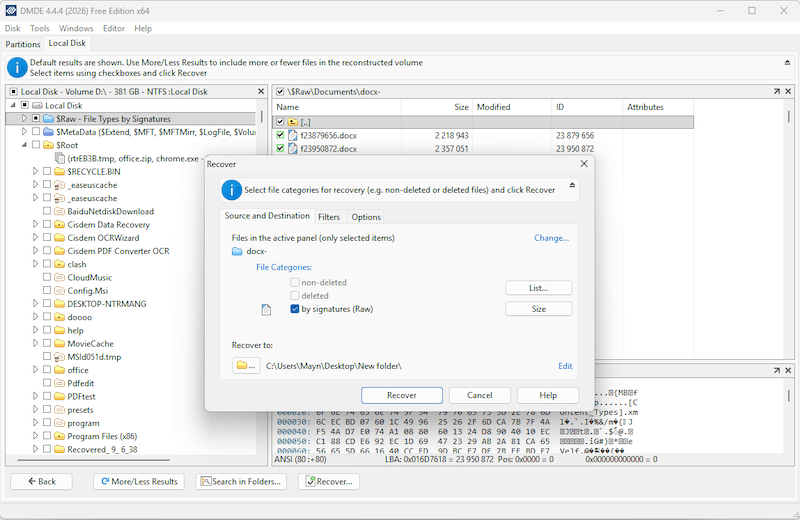
- Select the files, then click Recover button.
![recover hd dmde 05]()
#5 Use Local Data Recovery Services
Deleted files are extremely important and you are willing to get them back at any cost? Professional recovery lab is the best way to go, it has specialized equipment and techniques to deal with various data loss cases, also professional technicians are more experienced than others to figure out the issue and find the best way for file recovery.
Pros:
- Higher recovery rate
- Deal with complex data loss situations
Cons:
- Expensive (from hundreds to thousands)
- Privacy concerns
How to pick a local data recovery services?
- Check whether they have experience to cope with cases similar to yours
- Check for the recovery rate
- Ask if they have professional facilities, equipment, or applications
- Compare pricing and refund policy
- Check online reviews and feedback
How to avoid scam?
- Promise 100% recovery guarantee
- Require full payment before diagnosis
- Not explain the recovery workflow
- Very low price
Conclusion
Recovering deleted files from a hard drive after deleting depends on how carefully and quickly you act after the loss. Stop using the hard drive, check bin or backup first, then try professional data recovery software like Cisdem Data Recovery, DMDE or local data recovery services can help restore your files with a higher recovery rate. But if you want a free option and can bear the risk of losing the files forever, Recuva and Photorec are worth a try.

Connie Yu has been a columnist in the field of data recovery since 2011. She studied a lot of data loss situations and tested repeatedly to find a feasible solution tailored for each case. And her solutions are always updated to fix problems from the newest systems, devices and apps.

JK Tam is the lead developer at Cisdem, bringing over two decades of hands-on experience in cross-platform software development to the editorial team. He is now the lead technical approver for all articles related to Data Recovery and DVD Burner.