


DMDE Data Recovery Review 2026: Is It Trustworthy and How to Use?
 246
246
 1
1


DMDE Data Recovery has earned a strong reputation for its powerful recovery engine as a free data recovery program, though it is designed for technical users, it actually works to recover deleted files under different data loss situations. In this review, we’ll examine if this software is truly trustworthy, how well it lives up to real-world recovery problems and how to use it step by step.
 Cisdem Data Recovery for Windows or Mac
DMDE Data Recovery Fails to Recover Your File? Try Cisdem!
- It applies to various data loss situations, from simple to complex
- It supports virtually all internal and external storage devices, and file systems
- It restores 1000+ file types: video, photo, document, email, archive, bookmarks, etc.
- It recovers unsaved files in Word, Excel, PowerPoint, WPS, PSD, Keynote, Pages, Numbers
- It repairs damaged photos, videos and documents
- It builds in search and filter tool for quick file navigation
- It allows previewing files before recovery
- It saves recovered files to local drive or to cloud
 Free Download Windows 11/10/8/7
  Free Download macOS 10.15 or later
What Does DMDE Data Recovery Do?
DMDE Data Recovery is a free application available on Windows, macOS and Linux, to recover data from a healthy or problematic disk, by using file system recovery or raw recovery, either through quick scan or full scan. Instead of searching data from the entire drive and relying on existing file records, it checks partitions, volumes and analyze disk directories to regain access to lost data. And here is the list of its main features:
- Recover files from physical devices by searching inacessible, formatted, or damaged volumes.
- Recover data from logical disks by searching data on healthy volumes or on virtual/decrypted disks.
- Restore data from various internal and external storage devices
- Perform raw recovery when file system recovery is not possible
- Restore virtually all common and proprietary file types
- Create disk image and clone disk
- Construct RAID, also include custom striping, delayed parity, JBOD/spanned disks, automatic detection of RAID configurations.
- Investigate file allocation with cluster map.
- View, edit and navigate through files and different disk structures
- Manage partitions
- Copy, create, repair or remove directories bypassing NTFS driver.
Is DMDE Data Recovery Free?
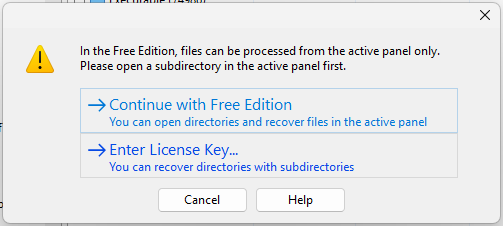
Yes, DMDE is 100% free to use, but the free version has limits.
The free version is powerful, and allows full access to all its features, but it sets a limit on the folder quantity when recovering data: up to 4000 files from only one directory per request.
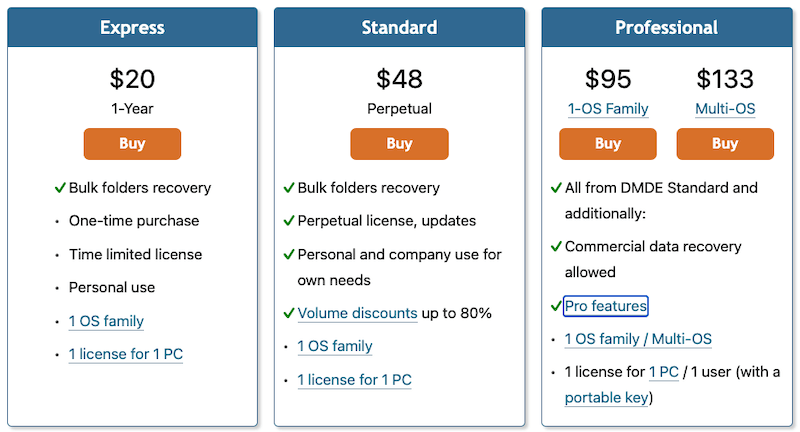
If you want to remove this limit and have a more efficient file recovery, there are 3 paid options for you:
- DMDE Express $20/1 year
- DMDE Standard $48/ Perpetual
- DMDE Professional $95/ 1-OS Family
- DMDE Professional $133/Multi-OS
Is DMDE Trustworthy?
Yes, DMDE is trustworthy. Though not perfectly designed for all users, DMDE is reliable to use, basing on our testing results regarding its safety, performance, recovery rate, pros, cons and so on. However, improper use might cause errors during the recovery process in DMDE, you should know some basics about disks, volumes, partitions, disk directories, etc.
DMDE is safe to download and use
Whenever speaking of a data recovery program, one of the biggest concerns that users have in common is whether it is safe to install and use, because such a program requires deep access to even complete control over the storage device to rescue data.
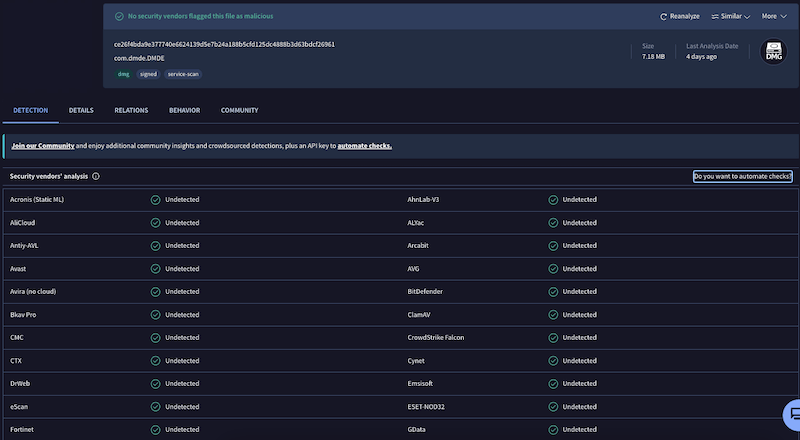
DMDE is proved to be safe for downloading, installing and using on any supported device, as long as you get the package from its official website or other authoritative reliable sources. The software has been trusted by 2M+ users in the last 20 years (most of the users are technicians and advanced users), there is nothing in DMDE is reported as bundled malware, spyware, or suspicious background activity. Also, you can check the scan result from VirusTotal website:
However, you should avoid cracked copies, which may contain harmful modifications, apps or plugins.
DMDE won’t damage your data
While processing file recovery, DMDE scans your drives in read-only mode, it just analyzes disk structures and searches deleted files without changing the original data, nor touching existing data on the drive.
Meanwhile, DMDE frequently provides warnings, hints, and recommendations throughout the whole recovery process. For example, DMDE suggests Dos and Don’ts under different use settings, reminds users not to save recovered files back to the same drive, navigates users to confirm their actions before they are done..., these built-in hints just help users make wiser recovery decisions instead of blindly proceeding.
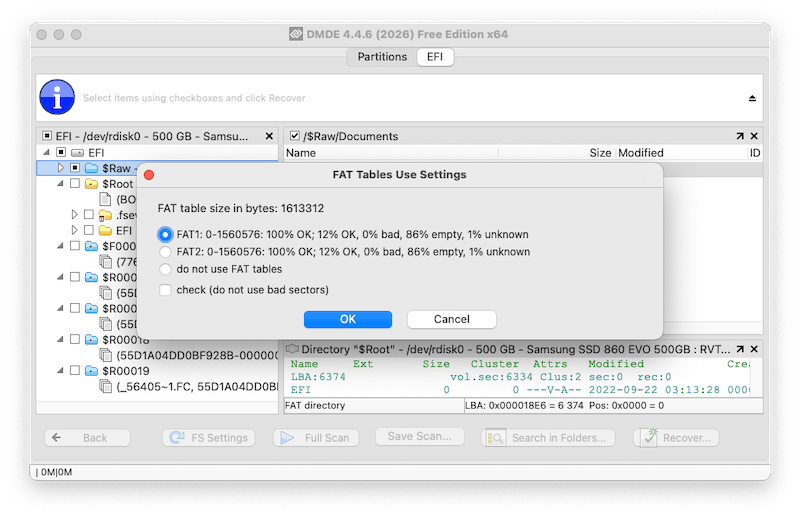
However, as we mentioned several times in this review, DMDE is better for technicians and advanced users to use, therefore, any improper implementation or configuration from a beginner user or done when using its advanced features like disk structure editing, partition management, might be very be risky and cause further data loss.
In one sentence, DMDE itself is not designed to damage your data, but improper operations may cause problems. You are always recommended to consult from an expert or check online videos/documentations to perform recovery in DMDE safely.
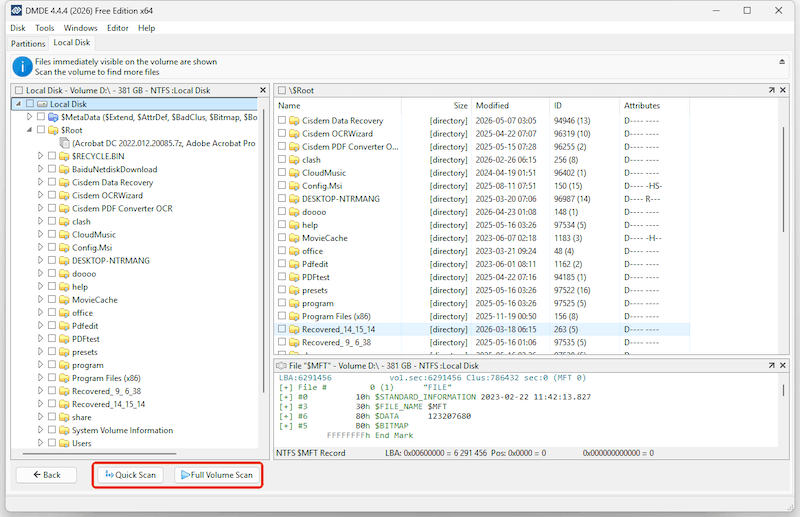
DMDE offers 2 scan modes
Another reason why DMDE is considered as trustworthy is its flexible recovery approach. Besides simply opening a volume to search and recover lost data, DMDE also provides Quick Scan and Full Scan modes to handle different levels of data loss efficiently.
Quick Scan works within the existing file system, and is usually accurate enough for recently deleted files or slightly damaged partitions. It is extremely fast, often done within seconds or a few minutes regardless of disk size. This scan mode is pretty useful when you only need to recover a few important files quickly.
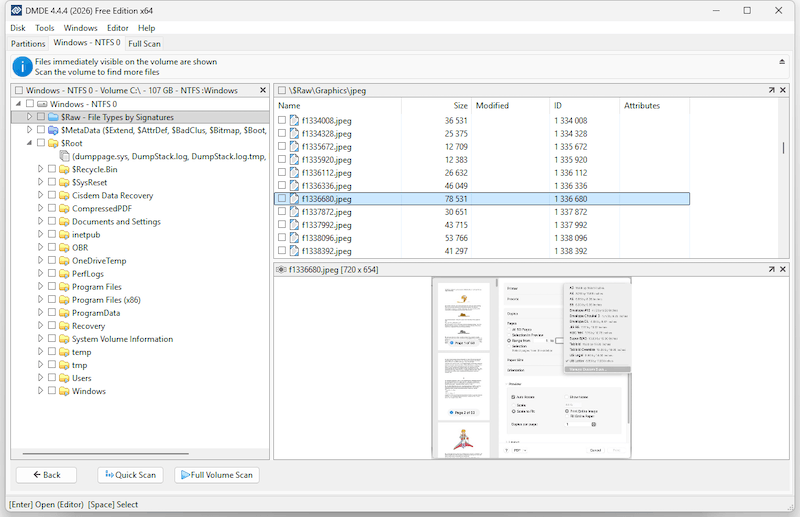
If visible files are not enough, or in more serious corruption cases, DMDE recommends a full scan. This deeper scan searches for lost partitions, damaged file system structures, recoverable files by signatures. Although a full scan may take dozens of minutes or even hours, they can often locate much more recoverable data in complex data loss situations. DMDE also allows users to save scan logs, so you can import next time to continue with the recovery process.
DMDE recovers data successfully
Though takes time to search, filter and recover wanted files and not recovers all the lost data, DMDE recovers data successfully indeed.
Basing on our testings, one was performed to recover trashed files from 500GB D drive on a Windows PC, and the other to recover inaccessible data from a damaged 1-TB Samsung HDD on Mac, DMDE managed to recover some files.
The first testing was easier, we just emptied the recycle bin and launched DMDE to do the file recovery. When opening the Volume C, there were some old trashed files showing up, but not included those we just deleted. And after a quick scan, the deleted files showed up, though not in original file name and most of them could not be previewed, we found the deleted files. The second testing was trying to rescue inaccessible data from a damaged hard drive, which was more complex. A full scan was done to find files as many as possible, the scanning took 2 hours and a half, and additional time was spent on the filter settings to recover files more accurately without moving all visible files to the drive. Approx 80% lost files were back. But not all of the recovered files are usable, in our case, 85% of text files like Word, Excel can be used, 80% of graphics can be used, while only 30% of videos can be used.
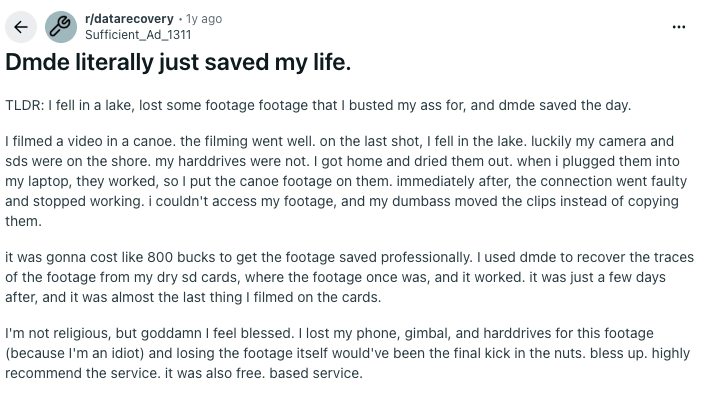
In addition, according to online reports, user feedback or reviews, DMDE is repeatedly mentioned as a tool that can recover lost files in situations where data seems permanently gone. For example, Reddit users successfully restored video footage after a failed drive connection, recovered a corrupted microSD card containing family videos, dealt with accidental partition deletion on large HDDs... And there are reviews on Trustpilot testifying its success in advanced use cases such as severe file system.
DMDE is more than a data recovery program
It is true that DMDE is known for recovering data, the program also includes a wide range of advanced disk tools.
Beyond recovery, DMDE can create disk images and clone disks to work on backup copies; reconstruct RAID; investigate file allocation; view and edit disk structures; manage partitions; copy, create, repair, or remove directories while bypassing the NTFS driver.
And thanks to these extra capabilities, DMDE works as a professional disk utility suite than a simple recovery application, providing more control and troubleshooting capabilities that advanced users often need in real-world complicated recovery situations.
Cisdem’s Verdict
Pros:
- Free to use
- Lightweight to run
- Available on Windows, macOS, Linux
- Recover files in common data loss cases: deletion, formatting, corruption, etc.
- Recover data from complex data loss situations: inaccessible drive, severely damaged dish, lost partition, corrupted file system, etc.
- Offer quick and full scan to recover data according to your needs
- Save scan logs
- Filter which files to be recovered by names, extensions, sizes, etc.
- Additional features: clone disk, reconstruct RAID, investigate file allocation, edit disk structures, manage partitions, create directories, etc.
- Support 16 interface languages
Cons:
- Free version doesn’t support bulk folders recovery
- Full scan takes long time
- Not user-friendly for beginners, requires learning curve about disk basics
- Recovery rate ranges from 80% to 90% according to real data loss scenarios, which falls behind commercial data recovery tools
- A part of the recovered files can not be used, most of the video files might get corrupted and cannot be opened at all
- Do not support data recovery from SSD Drives that uses trim optimization technology, and SMR disks
- Recoverable files won’t be showed with original file name
- Cannot preview files before recovery, except graphics
DMDE is a free yet powerful data recovery tool for advanced users to rescue data from complex data loss scenarios. The interface is technical and not-user-friendly, but the recovery result is quite impressive on formatted, failed, and damaged drives. Features like RAID reconstruction, disk cloning, partition management make it more than just a file recovery tool. While casual users may find the workflow difficult and dizzy, DMDE consistently proves itself as a trustworthy recovery solution for advanced users who are looking for free options.
How Long Does DMDE Data Recovery Take?
Well, it depends on the scan mode and volume size.
Here is the testing results:
| Test | File System | Volume Size | Scan Mode | Time |
|---|---|---|---|---|
| 1 | NTFS |
107GB |
Quick Scan | 8s |
| 2 | APFS | 200GB | Quick Scan | 14s |
| 3 | NTFS | 381GB | Full Scan | 90 min |
| 4 | APFS | 500GB | Full Scan | 70 min |
And you can conclude that a quick scan often costs several seconds to minutes according to volume size, while a full scan often takes at least one hour to finish. Luckily, DMDE processes very quickly when recovering the files from a directory.
How to Use DMDE Data Recovery on Windows or Mac?
DMDE works exactly the same on both Windows and Mac, showing partitions and volumes to select and scan, then recover deleted files from existing file system by directory or from raw recovery by file types. Here are the steps.
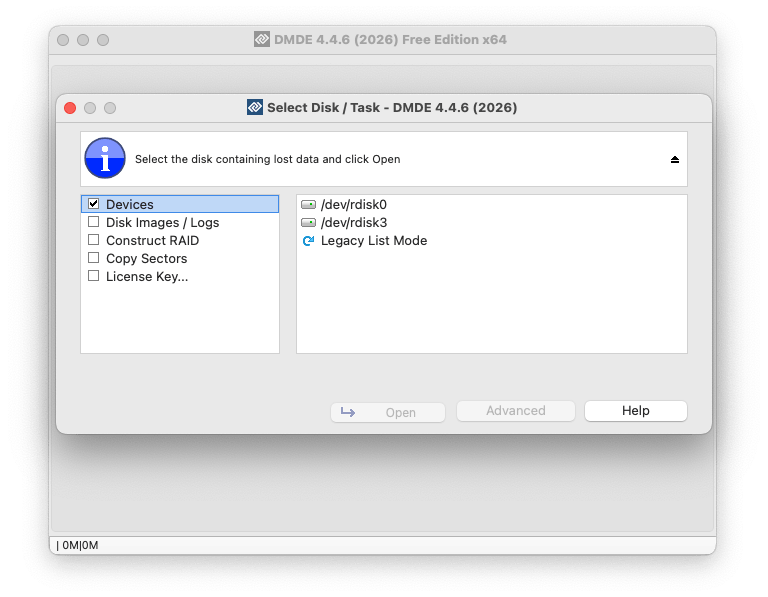
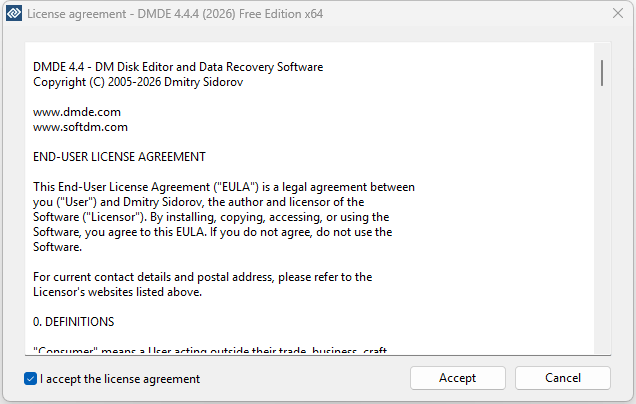
- Download and install DMDE on your device, accept the license agreement to run it on your device.
![use dmde 01]()
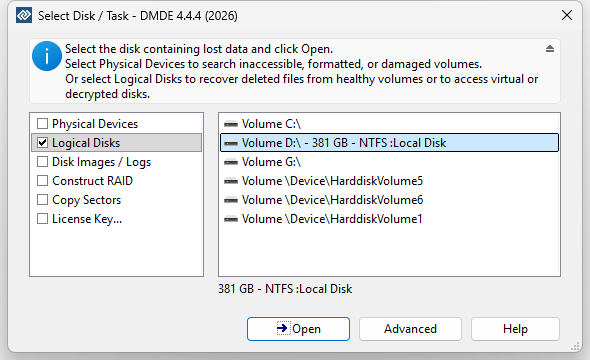
- Select Physical Devices or Logical Disks according to your needs, then select the drive and click Open.
![use dmde 02]()
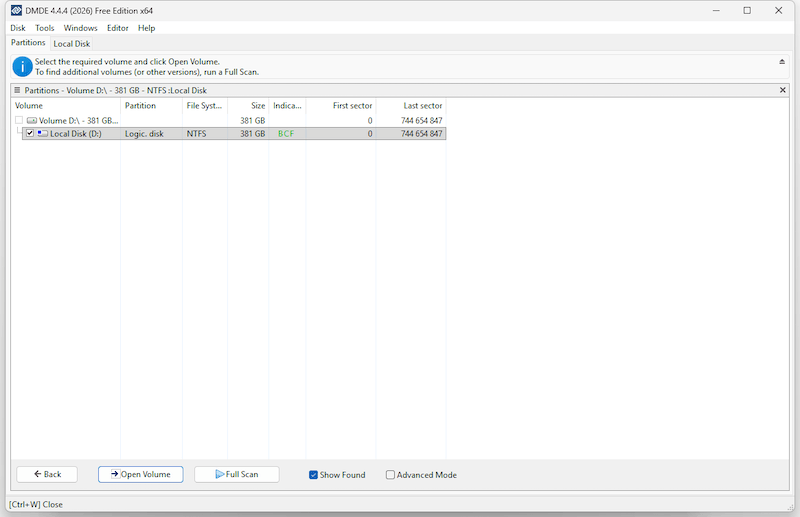
- Then select the volume and click Open Volume, a list of recoverable files will be showed up.
![use dmde 03]()
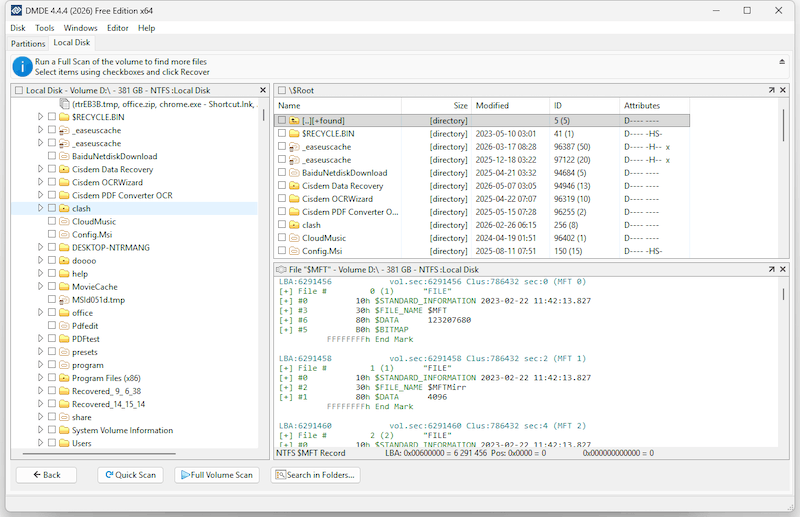
- If your lost files do not show up, click Quick Scan or Full Scan to find more files.
![use dmde 04]()
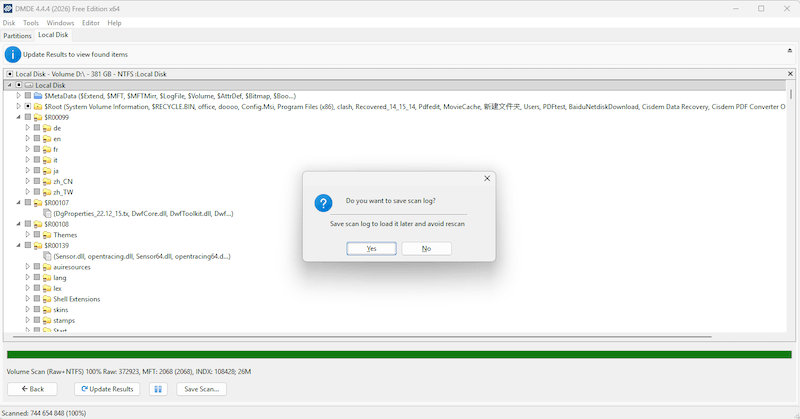
- Once the scan finishes, you can save the can logs.
![use dmde 05]()
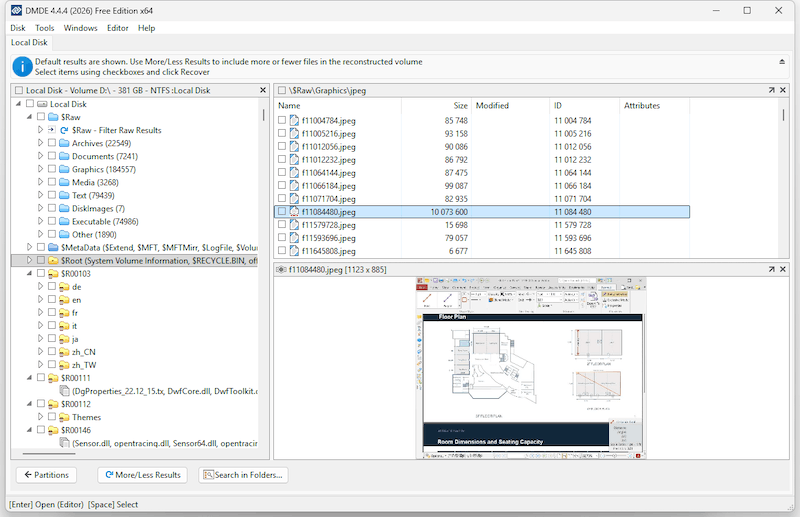
- Then go to the directories, or go to $Raw - File Types by Signatures to browse the recoverable files. You can double click on a image to preview.
![use dmde 07]()
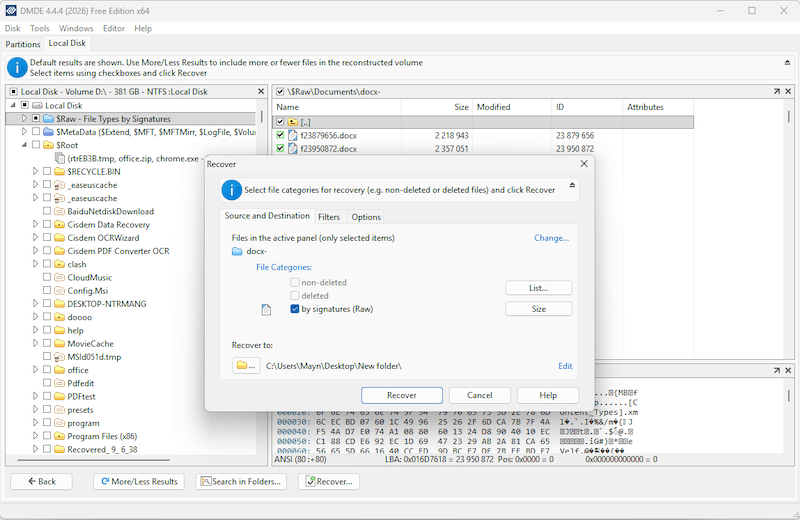
- Then select a file in a directory, or a folder and click Recover. You can filter which files to be recovered. Confirm by clicking Recover button.
![use dmde 06]()

Zoey shows a great interest in what she does. Although not long with Cisdem, she has possessed a professional understanding of data recovery.

JK Tam is the lead developer at Cisdem, bringing over two decades of hands-on experience in cross-platform software development to the editorial team. He is now the lead technical approver for all articles related to Data Recovery and DVD Burner.
Donna
DMDE looks powerful, especially for users who need more control over the recovery process. I appreciate that this review doesn’t only highlight its advantages but also explains why beginners may find the interface challenging.