


Nektony Duplicate File Finder Review: Is It a Good Option for You?
 429
429
 0
0


Key Takeaways
Nektony Duplicate File Finder is a good option for Mac users, but more direct image previews would make it better.
Nektony Duplicate File Finder is not available for Windows. Windows users can check out its alternative.
If you have a large number of duplicate files cluttering your computer, you may be looking for a reliable duplicate file finder. Nektony Duplicate File Finder is worth considering. What types of duplicate files can it find? What features does it offer? Is it safe to use? And what is the best alternative? In this review, I will answer all of these questions.
 Cisdem Duplicate Finder
Nektony Duplicate File Finder Not Helpful or Available? Try This
- Identify duplicate photos, videos, documents, audio files, and all other files
- Identify duplicate folders too
- Detect similar photos, allowing you to adjust the threshold for comparing images
- Support Mac, Windows PC, external storage devices, and cloud drives
- Scan for duplicate files in folders, Mac's Photos, iTunes, and Apple's Music
- Let you view duplicates in 3 ways, with side-by-side image previews
- Automatically select all but one file for removal in each set of duplicates, enabling you to delete all duplicates at once
- Allow you to adjust selections manually or choose from 8 rules (e.g., Select Newest)
- Easy to use for everyone


Part 1. Nektony Duplicate File Finder review
1. What types of duplicate files can Nektony Duplicate File Finder find?
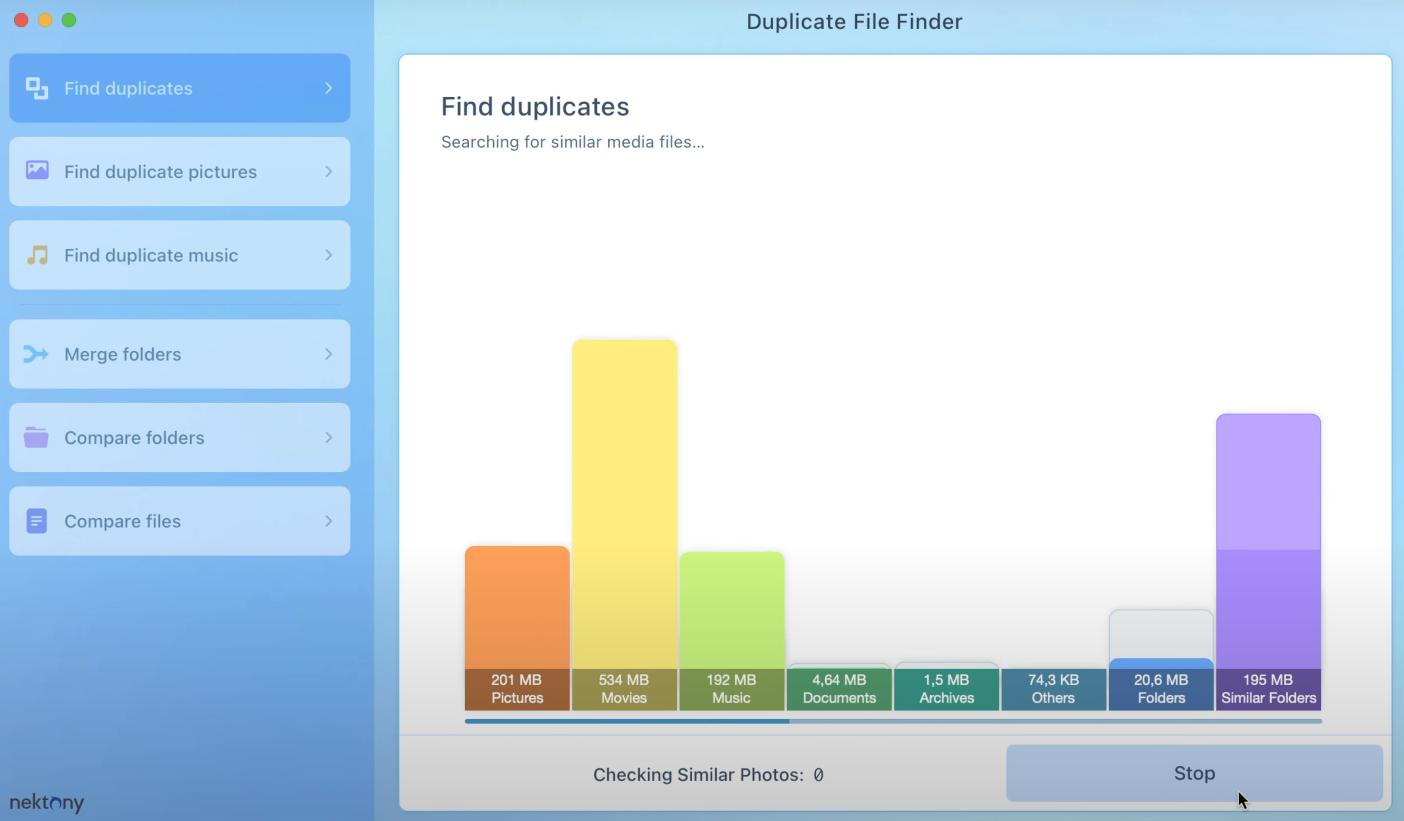
Nektony Duplicate File Finder can find almost all popular types of duplicate files along with their formats on your Mac, including the following, among others:
- Duplicate pictures (JPG, PNG, HEIC)
- Duplicate movies (MP4, MOV, MKV)
- Duplicate music(MP3, WAV, AAC)
- Duplicate documents (PDF, DOCX, XLSX)
- Duplicate archives (RAR, ZIP)
2. Nektony Duplicate File Finder features
Nektony Duplicate File Finder offers a range of useful features to help Mac users find duplicate files with ease:
- Find duplicate files on Mac by identifying them based on content not just file names
- Find similar audio files and photos
- Provide decent speed, taking 40 seconds to scan 9.73 GB of files
- Support scanning for duplicates in iTunes and the Photos app, in addition to folders
- Allow you to add multiple folders to scan at a time
- Let you preview the details of detected duplicates before deleting them
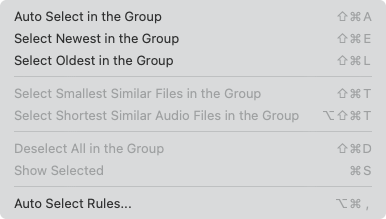
- Offer many rules to automatically select duplicate copies and redundant similar versions for deletion
- Move duplicates to the Trash so you can easily recover files that are accidentally deleted
- Offer additional features: merging two folders without duplicate files, comparing two folders, and comparing two files byte by byte
3. Limitations of Nektony Duplicate File Finder
While Nektony Duplicate File Finder does well in some aspects, it comes with some (potential) limitations that you may want to be aware of:
- This program is only compatible with Mac. (Windows users can try its alternative app.)
- Some features and options may be unnecessary for basic users and likely make the interface a bit cluttered.
- It provides single-photo previews instead of side-by-side previews, which may be less direct and convenient.
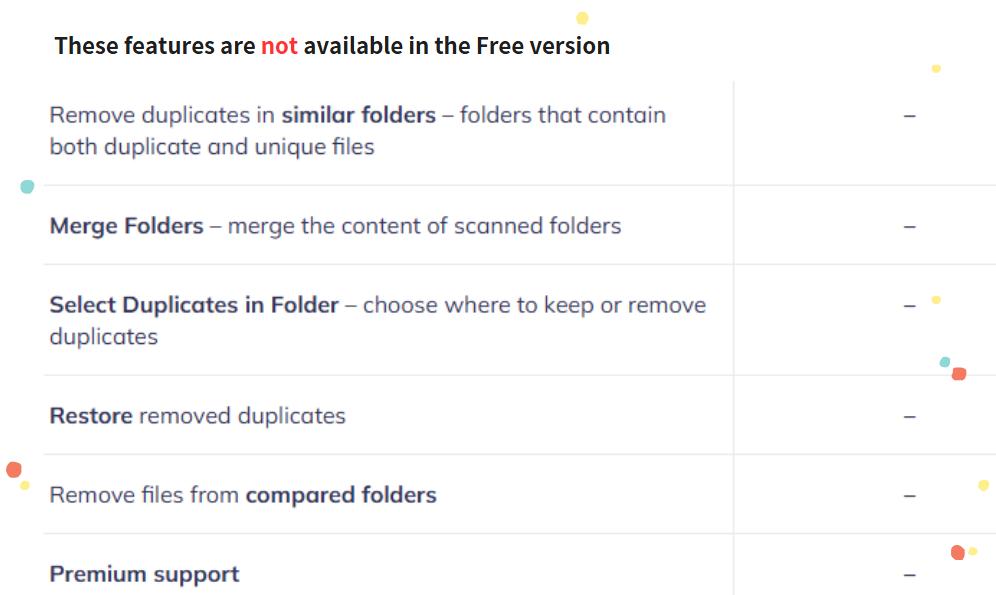
- Many advanced features are only available in the Pro version.
4. Is Nektony Duplicate File Finder easy to use?
Yes, it's easy to use. The interface is simple and intuitive, even for beginners. (Additional features may make the interface less clean, but it's still easy to navigate.) For more advanced users, there are enough customization options. However, the options might be a bit overwhelming for those who are new to this kind of software. All in all, it's user-friendly.
5. Is Nektony Duplicate File Finder safe?
Yes, Nektony Duplicate File Finder is safe. Nektony LLC is a software development company that is specialized in Mac applications. Nektony Duplicate File Finder is developed by it. Make sure to download this program from the Mac App Store rather than some third-party app downloading websites. In addition, their development team will regularly release updates to fix security vulnerabilities. The latest version of Nektony Duplicate File Finder is 8.5.2, which was released on November 14, 2025.
6. Is Nektony Duplicate File Finder free?
Nektony Duplicate File Finder offers both free version and pro version for users to choose from. The free version can meet the basic needs of some users. The pro version provides more advanced features such as merge folders, restore removed duplicates. It costs $14.95 per year or $34.99 for one-time purchase.
7. How to use Nektony Duplicate File Finder to find duplicate files on Mac?
Detailed steps on how to find duplicates on Mac using this duplicate file finder:
Step 1. Download this program from the Mac App Store. Install it on your Mac.
Step 2. Open it. Click the plus button. Select the folders or drives that you want to scan for duplicate files. Also you can select multiple folders or drives at once.
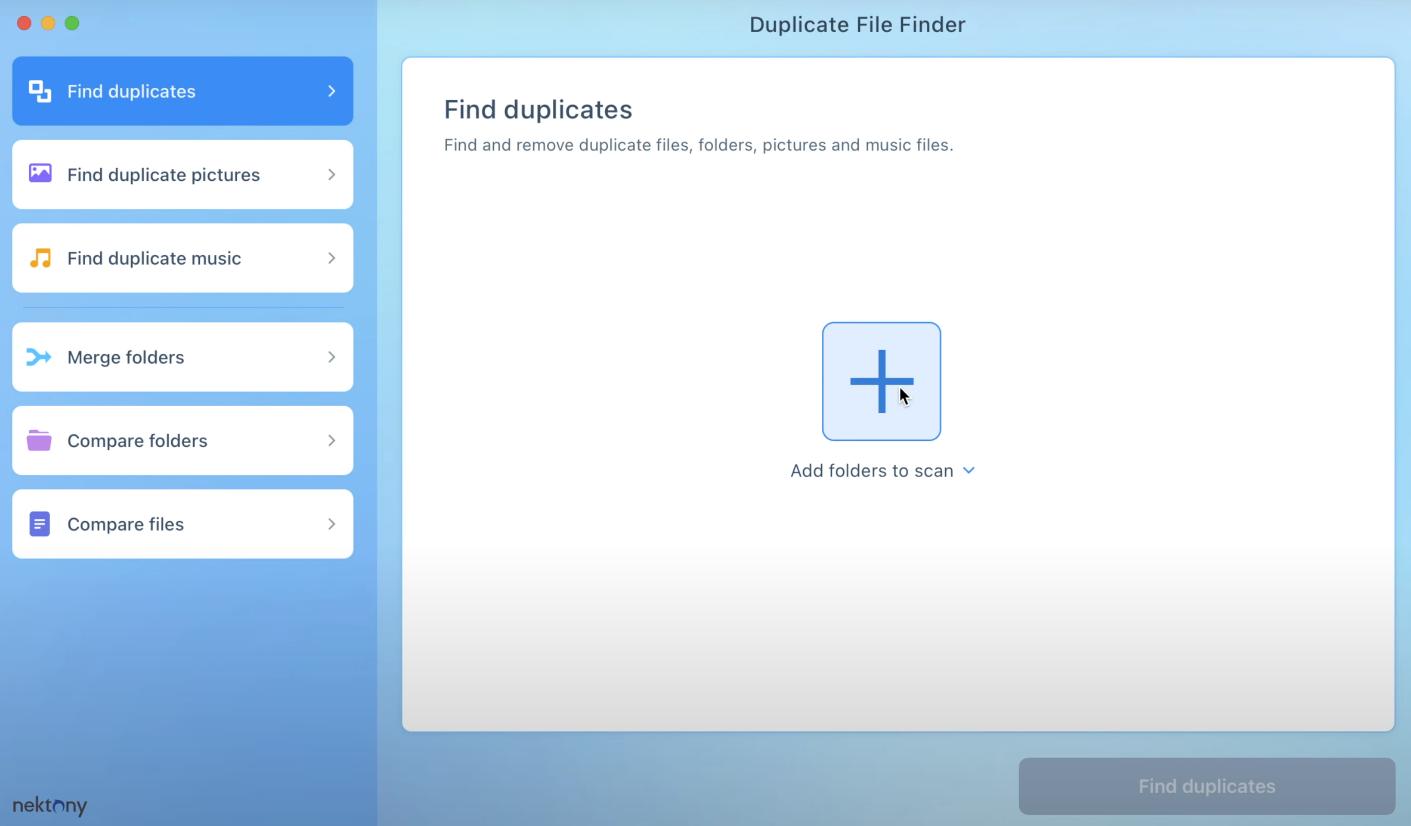
Step 3. Click “Find duplicates” in the bottom right corner to start scanning. The process may take only a few seconds, or a few minutes, or longer, which is depended by the number and size of files being scanned. So it’s not recommended to scan the entire drive.
Step 4. Wait for the scan to complete. Then you’ll see a list of detected duplicate files on your Mac.
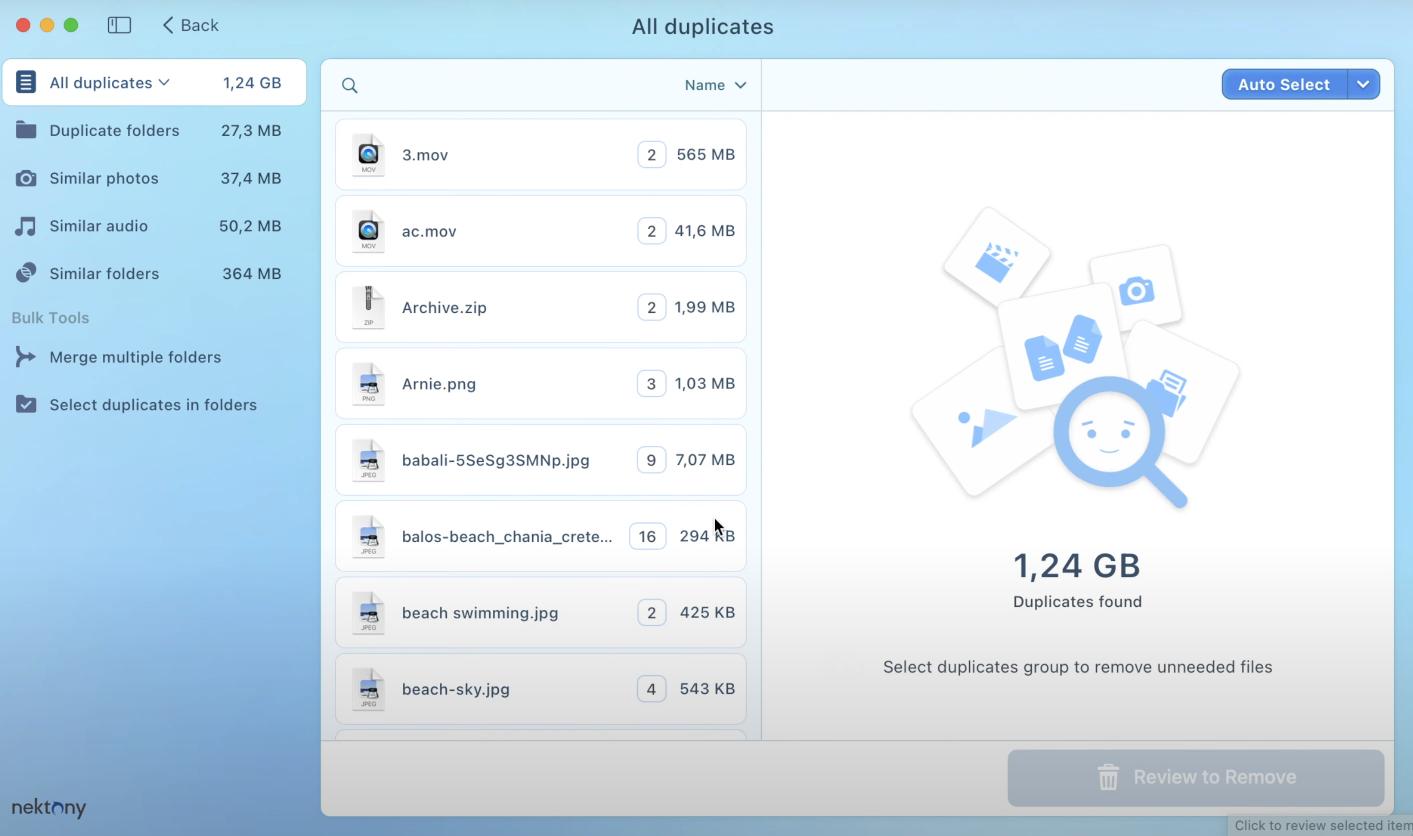
Step 5. You can manually choose unwanted duplicate files. Click “Review to Remove” button in the bottom right corner.
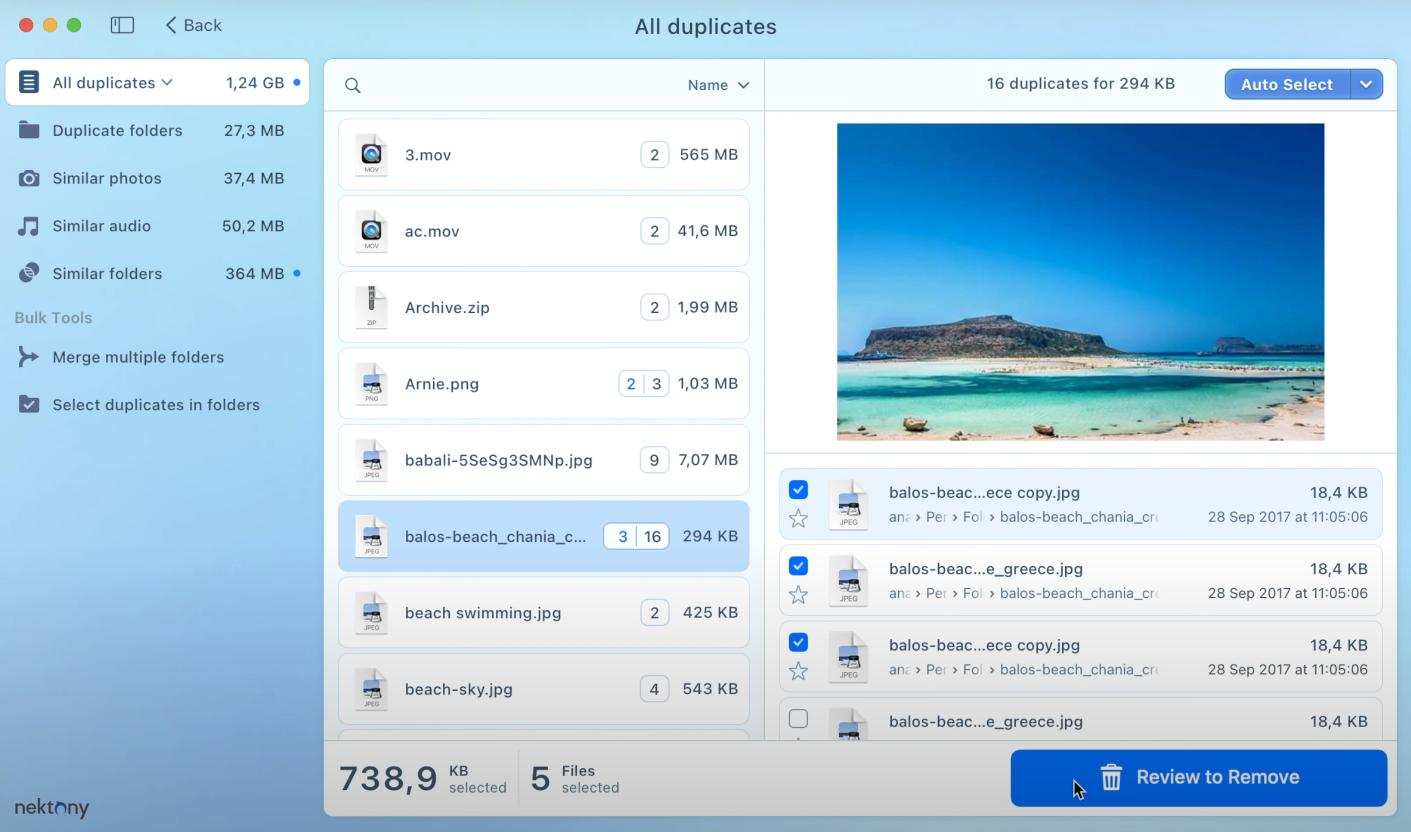
You can also click the “Auto Select” button in the upper right corner. It’ll automatically mark duplicates for deletion based on the rules.
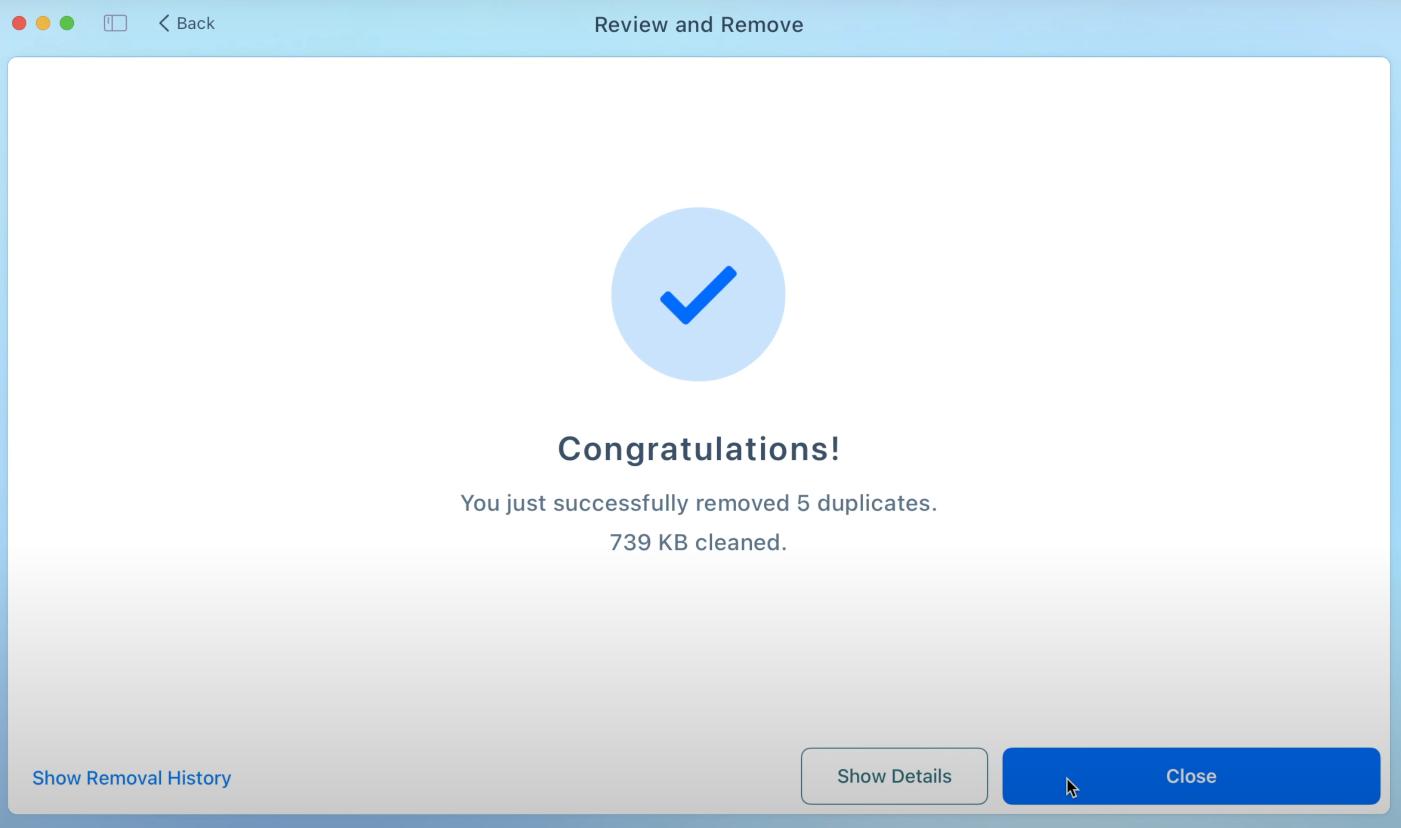
Step 6. Click “Remove” to delete the selected duplicates. Close the window.
Part 2. The best alternative to Nektony Duplicate File Finder - Cisdem Duplicate Finder
Overall, I think Nektony Duplicate File Finder is a good duplicate file finder. It can meet the needs of most users. However, some users may find it a bit cumbersome to use, or may be unsatisfied with its scanning accuracy especially when dealing with similar images on Mac. In this case, Cisdem Duplicate Finder is its best alternative.
With advanced algorithms, Cisdem Duplicate Finder identifies duplicate files based on file content, regardless of their file names. Most types of duplicate files can be detected by it, such as images, videos, audio files, archives, documents, folders, and more. By default, it also scans for similar images to free up more space on your Mac. You can adjust the similarity threshold in the settings.
This duplicate file finder support finding duplicate files on Macs, Windows PCs, external hard drives, SD cards, cloud drives, and more.
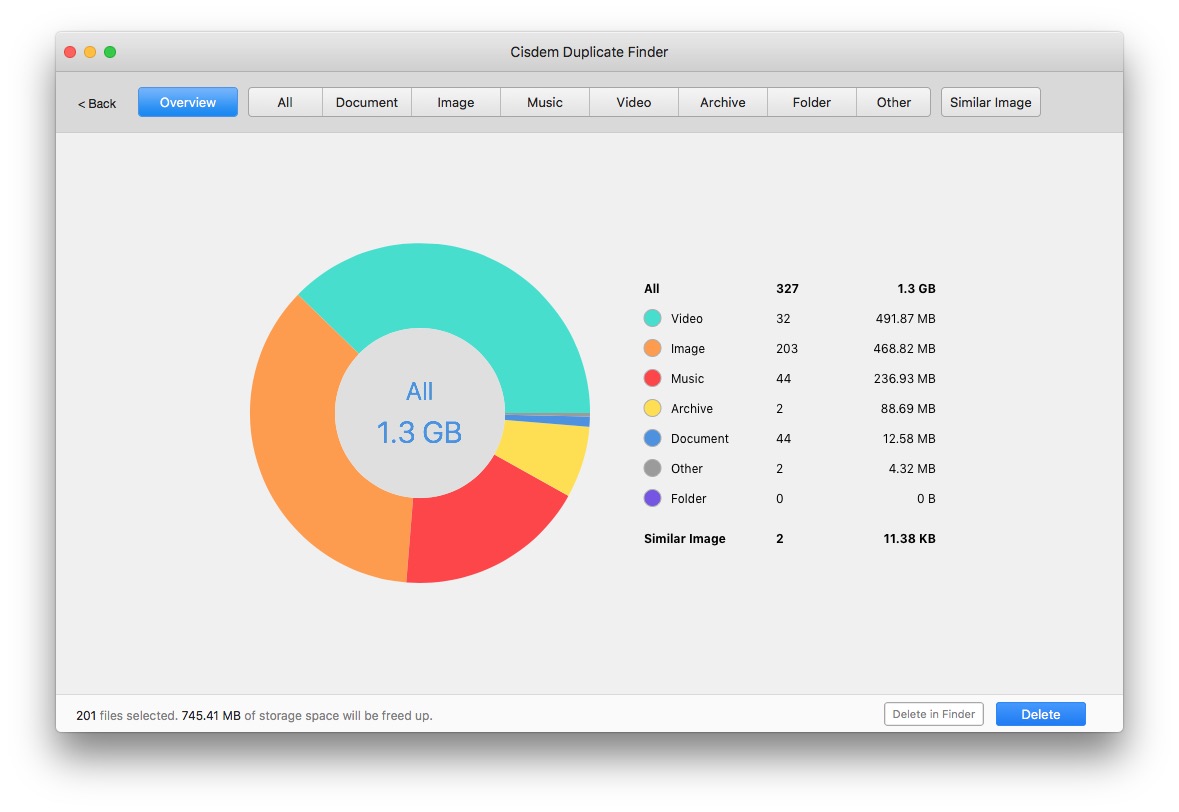
Cisdem Duplicate Finder has an intuitive interface. Compared to Nektony Duplicate File Finder, I think it is easier to use. Here are steps to find duplicate files on computer using it:
Step 1. Download and install Cisdem Duplicate Finder on your Mac or Windows computer.
 Free Download macOS 10.11 or later
  Free Download Windows 10 or later
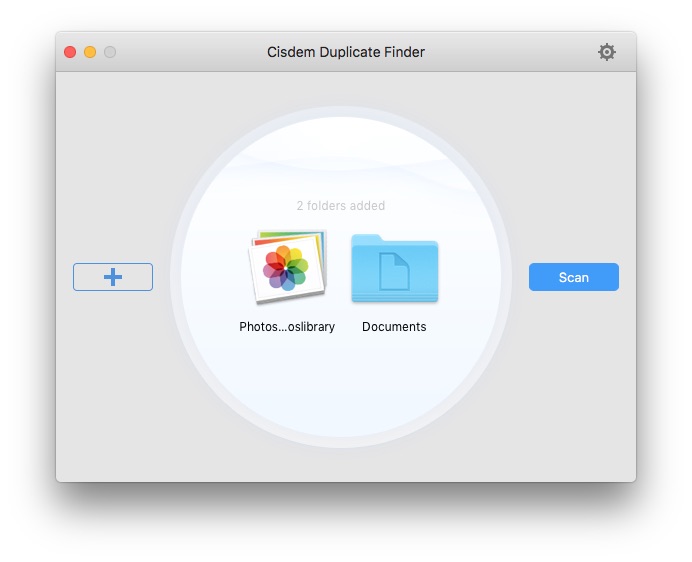
Step 2. Open it. Drag and drop one or multiple folders/drives into this program.
It allows you to scan for duplicates across your Photos library and Mac folders.
Click “Scan”.
Step 3. The scan results window will pop up soon. You can view and compare all detected duplicate files.
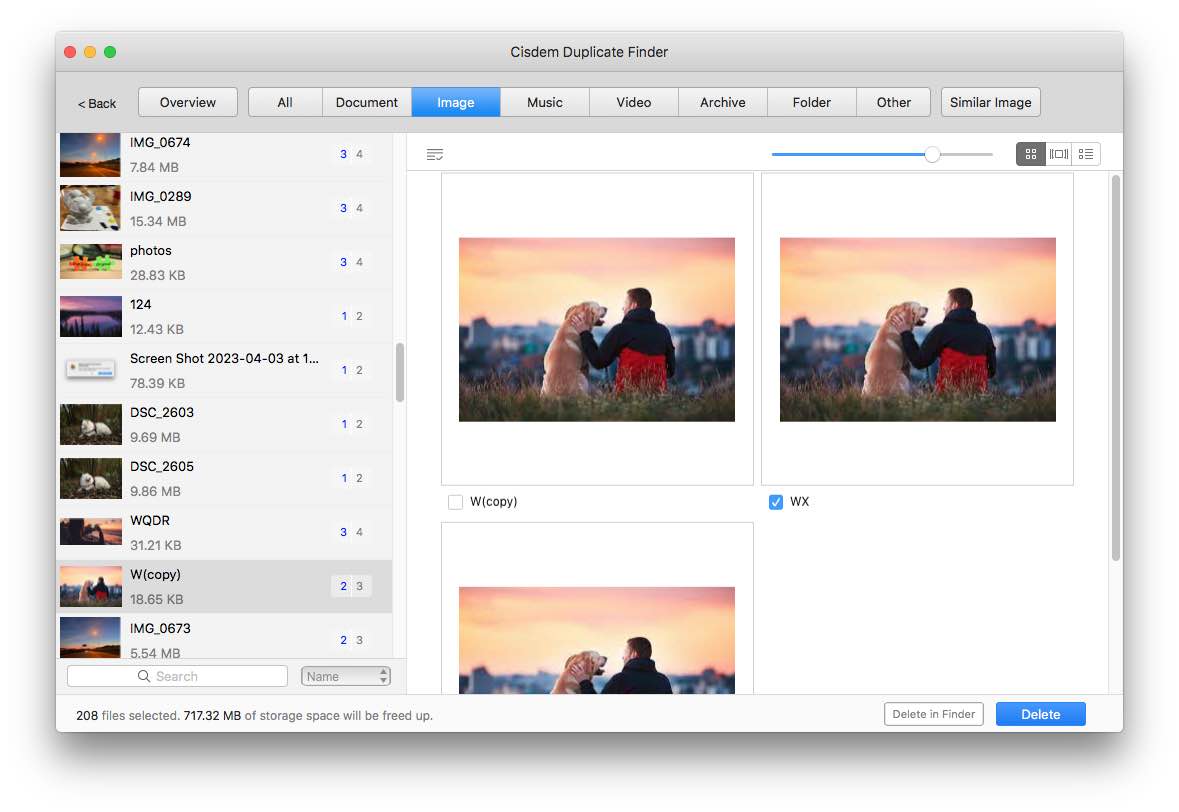
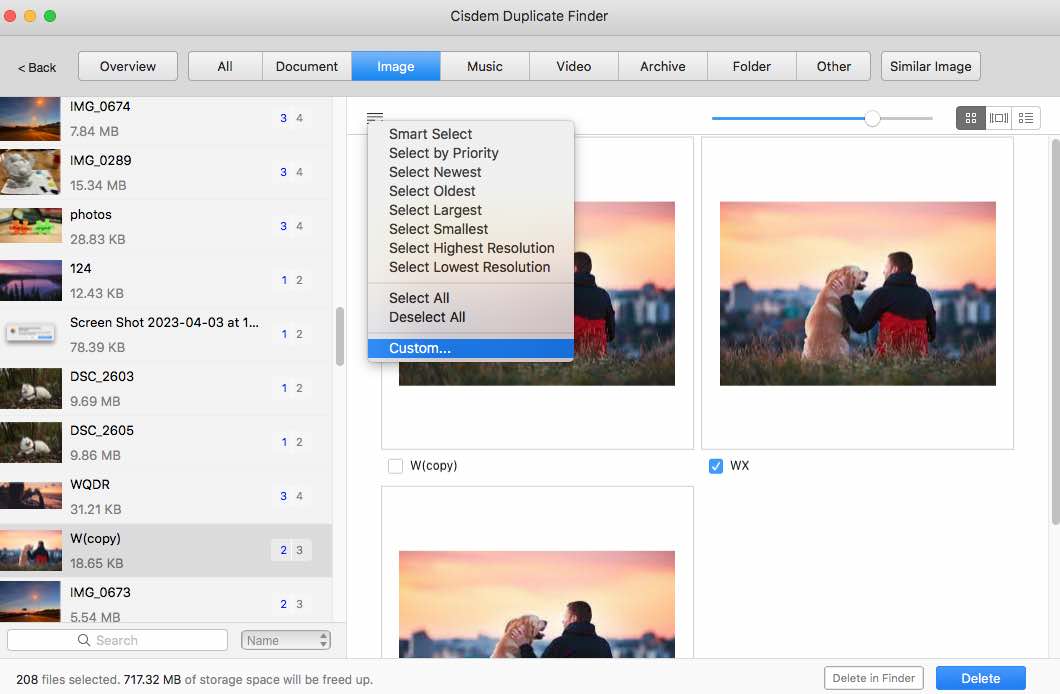
In each group of duplicate files, it has already select all but one file for you to delete. You can select or deselect files manually.
Or use the selection rules.
Step 4. Click “Delete” to remove the selected duplicate files.
Summary
With a professional duplicate file finder, you can clean up all duplicate files on your computer with ease. This Nektony Duplicate File Finder review covers the main features of this duplicate file finder, some of its limitations you might not like, its security, pricing, and tutorials. In addition, there is a Nektony Duplicate File Finder alternative app that performs equally well in finding duplicate files and is more suitable for less technically savvy users.

With a passion for tech and writing, Sarah joined Cisdem, where she focuses on creating articles about using utility tools to enhance file management and simplify contact management.

Adrian Li is Cisdem’s Chief Engineer and serves as the editorial advisor for Duplicate Finder and ContactsMate. His work and insights have been featured in leading tech publications such as Fossbytes, TUAW, Redmond Pie, SafetyDetectives, and BestForAndroid.