


How to Delete Duplicate Files and Photos on SD Card Easily
 958
958
 1
1


If you are a photographer, drone owner, content creator, or the like, you likely use SD cards a lot. Over time, duplicate photos, videos, and other files may accumulate on your SD card, taking storage space and leading to disorganization. In this article, I will show you how to delete duplicate files and photos on SD card easily, quickly, and reliably.
 Cisdem Duplicate Finder
The Best SD Card Duplicate File Remover
- Identify duplicate photos, videos, audio files, and all other files
- Detect similar images too
- Find duplicate files on SD cards along with other external storage devices, computers, phones, and cloud drives
- Let you view duplicate files in 3 ways, with side-by-side image previews
- Automatically select all but one file for removal in each set of duplicates, enabling you to delete all duplicates at once
- Allow you to adjust selections manually and choose from rules (e.g., Select Newest)
- Easy to use and customize


A brief comparison of two methods
There are two ways to find and delete duplicate items on an SD card.
- Doing it manually You can use your computer or Android device (depending on which device the card is inserted into) to browse through the files stored on the card, compare them to find duplicates, then delete unnecessary duplicates. This method can be time-consuming and inefficient.
- Using a duplicate file finder A dedicated tool can automatically find duplicate files on your SD card, display them, and allow you to delete them all at once, with customization options. This method is easier and more efficient.
If there are only a few files, the manual method can be suitable. For SD cards with lots of files, I recommend using a tool.
Method 1. How to delete duplicate photos and files on SD card automatically
A duplicate file finder and remover like Cisdem Duplicate Finder can help you get rid of the duplicates items on your SD card via a Mac or Windows computer, or an Android phone.
A set of duplicate files is two or more files that are exactly the same, regardless of their file names. Cisdem Duplicate Finder identifies duplicate photos, videos, audio files, documents, archives, and other other files. In addition, this tool detects similar images.
The tool’s support for RAW image formats is also worth mentioning. For photographers and other people who work with RAW images, such support is essential.
On Mac and Windows
In the following steps, I use a Mac as an example to show you the process of removing duplicates from an SD card using this tool. The process is almost the same on a Windows PC.
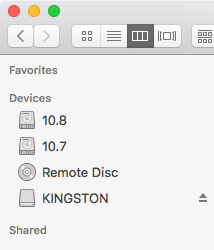
Step 1. Connect your SD card to your Mac or Windows PC
There are two options.
- Connect the device (such as your camera or drone) that the card is inserted into to your computer with a USB cable.
- Put your SD card into a card reader and connect the card reader to your computer.
If your card is connected, you can find it in Finder (Mac) or File Explorer (Windows). If you open it, you can find the files on it.
Step 2. Install the duplicate file finder
Download and install Cisdem Duplicate Finder on your computer. Open it.
 Free Download macOS 10.11 or later
  Free Download Windows 10 or later
Step 3. Scan for duplicate files
Click the Add button, select the SD card, and click Open. Alternatively, use drag and drop. (I recommend using the Add button on a Mac.)
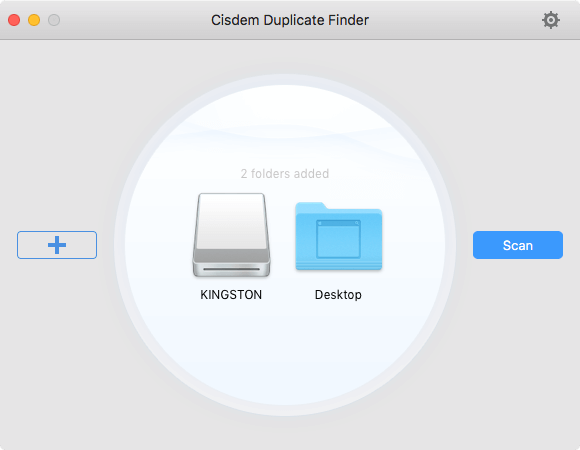
Click the Scan button to start identifying duplicate items. While the scanning speed is usually quick, it may take a while if there are a large number of files. Also, the read speed of the SD card can affect the scanning speed.
Tip
If you want, you can also add a local folder on your computer to find the same files between it and your SD card.
Step 4. View the scan results
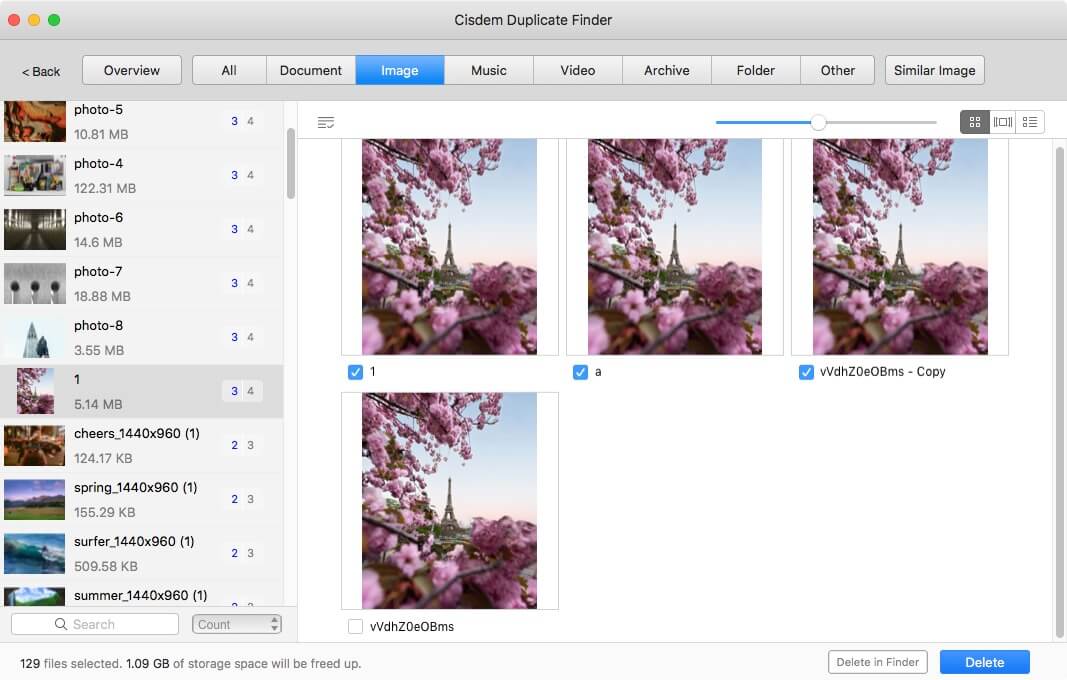
When the scan is complete, the results window will appear, displaying duplicate files in three view modes and allowing you to preview photos and see file information.
Step 5. Remove unnecessary duplicates
This tool has automatically selected all but one file for deletion in each set of duplicate files. Adjust the selection manually if needed.
In addition, there are preset rules (e.g., Select Newest) for mass selection. On the left, highlight the sets to which you want to apply a rule. Then choose a preferred rule.
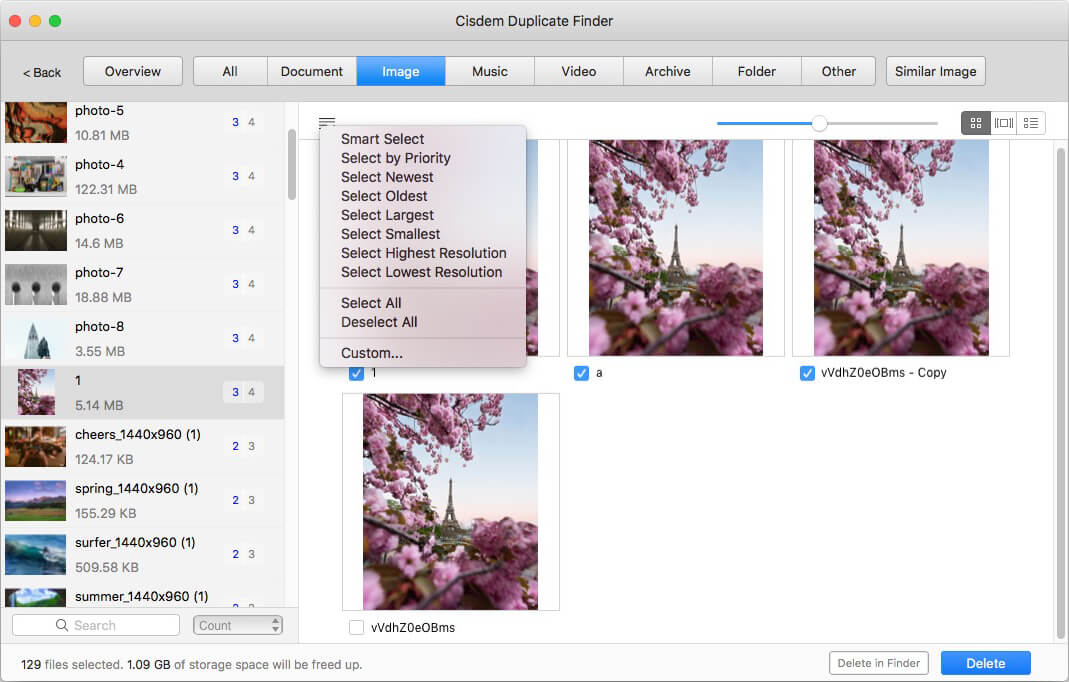
When you are sure that all unwanted duplicates are selected, click the Delete button in the bottom right corner, then confirm by clicking Yes in the message that appears. The duplicates will be deleted permanently.
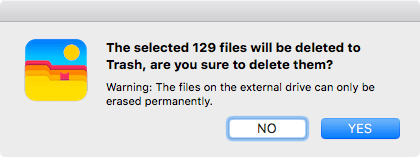
When the process is complete, you can safely eject your SD card from your computer.
Note 1
This tool has three removal choices. You can find Move to Trash (Mac) or Recycle Bin (Windows), and Remove Permanently, and Move to Folder. If you want to stop permanent deletion, you can choose Move to Folder to move duplicates to a folder on your computer.

Note 2
In step 3, before you click that Scan button, you can click the Settings icon in the top right corner and customize settings if needed, for example, excluding folders and files from a scan.
On Android
If the SD card is inserted into your Android phone or tablet, you can use Cisdem Duplicate Finder to handle the duplicate files on it directly on your device.
(However, if you prefer, you can use the above steps involving a computer. You can either connect the device to your computer with a USB cable, or take out the card and use a card reader.)
Step 1. Install Cisdem Duplicate Finder. Open it.

Step 2. Optionally, tap the settings icon in the top right corner and change settings.
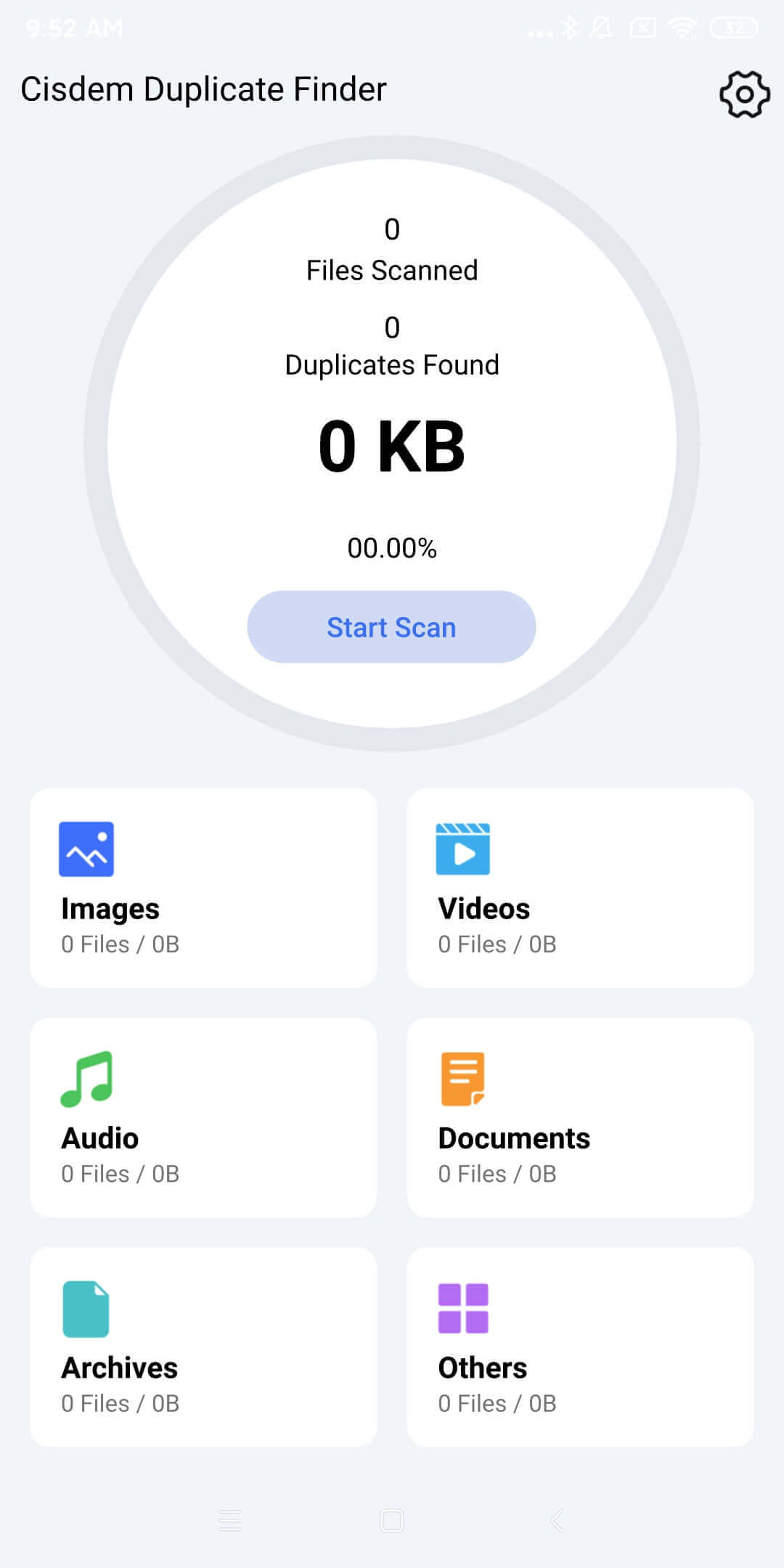
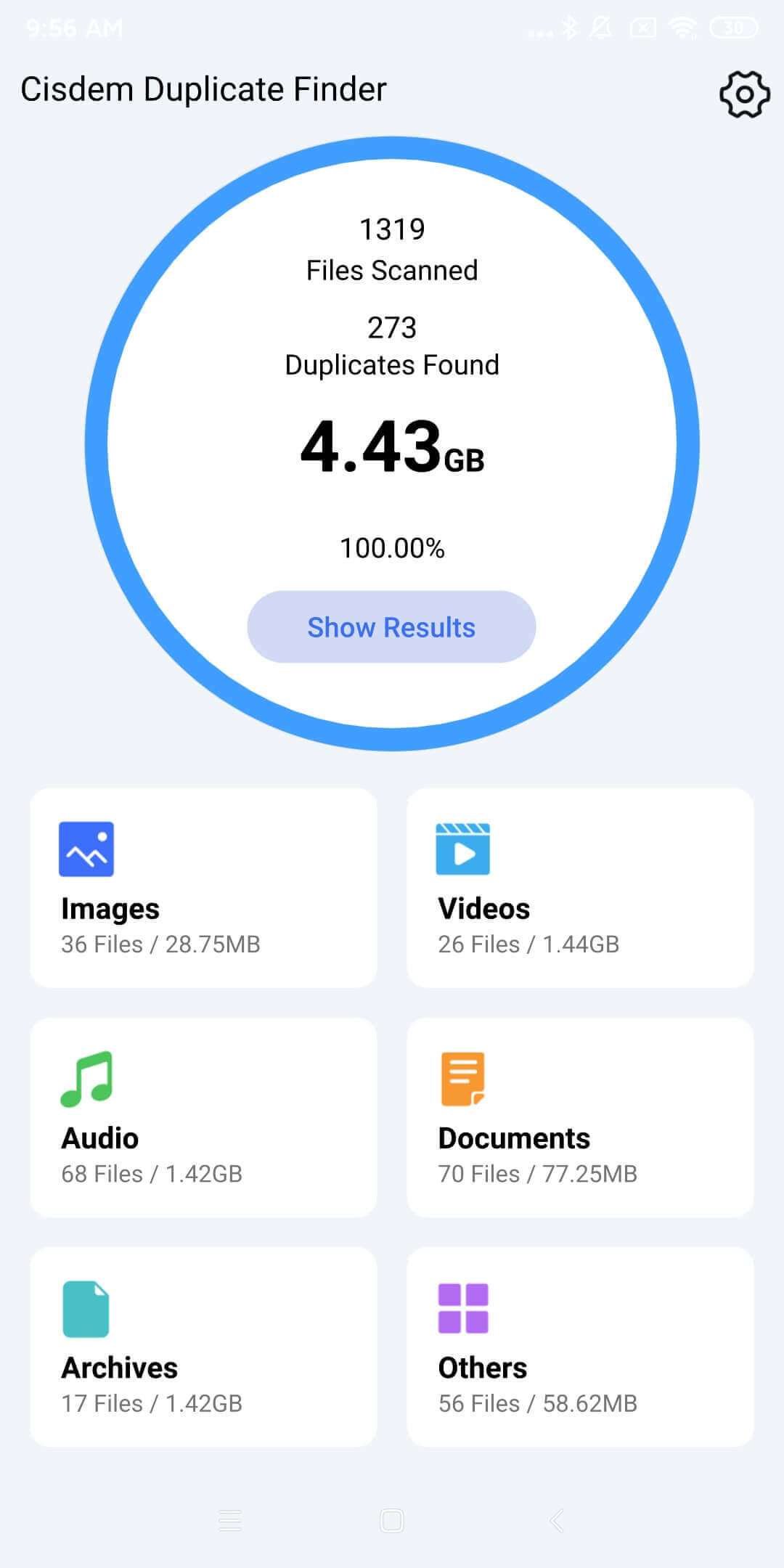
Step 3. Tap the Start Scan button to start looking for duplicates within and between your phone’s internal storage and SD card.
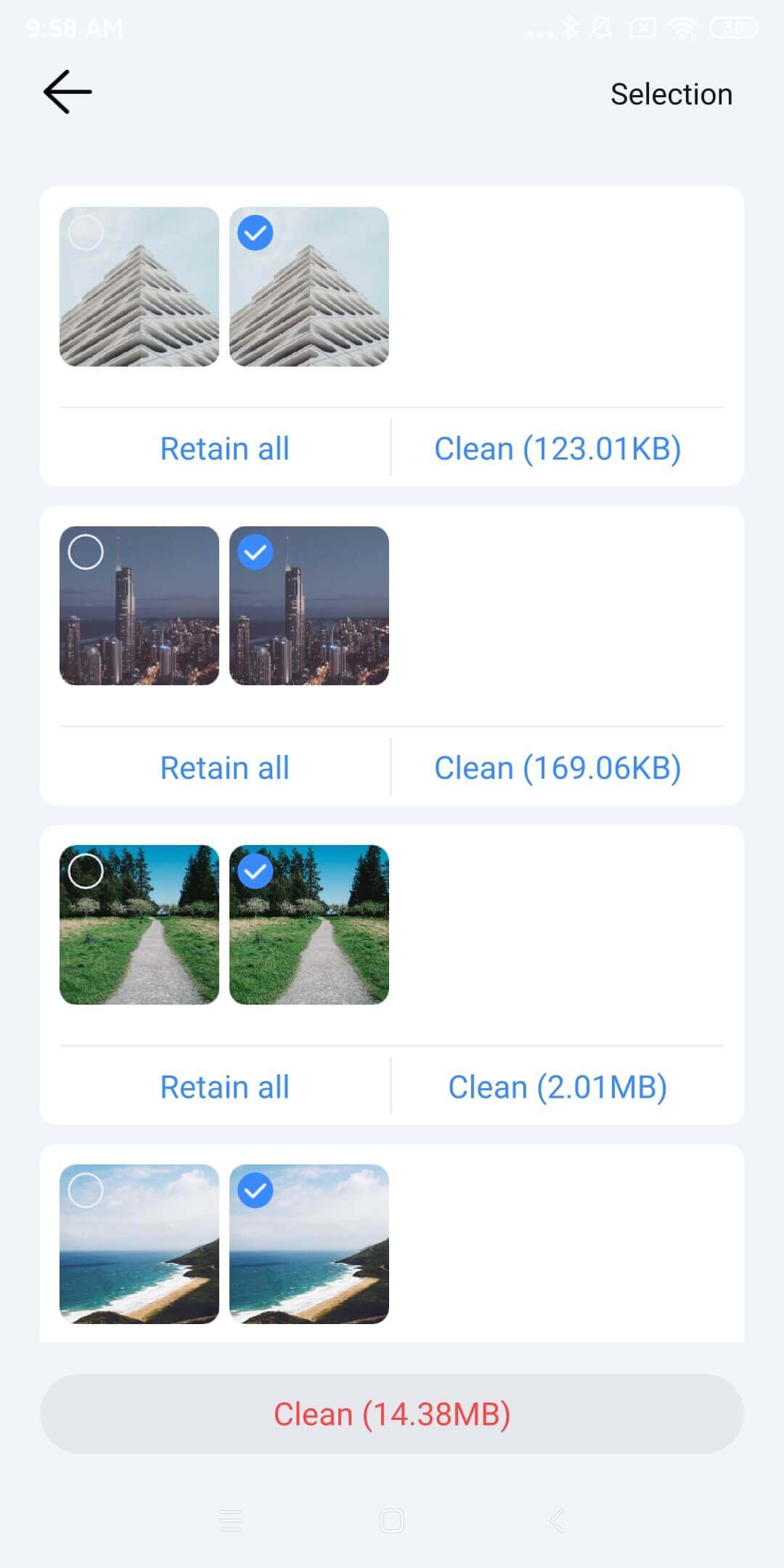
Step 4. Tap Images to see all detected duplicate photos. In each set, this tool automatically selected all but one photo for elimination. Also, you can select files by hand or choose a preset rule. Tap Clean and then Confirm to permanently clean up selected items.
Step 5. Continue handling other types of duplicates, such as duplicate videos and documents.
Method 2. How to manually find and remove duplicate files on SD card
I usually recommend the automatic method involving using a tool, but the manual method can be suitable if there aren’t many files on your SD card.
With the manual method, you can use the built-in or a third-party file manager on your computer or Android phone, such as Mac’s Finder, Windows’ File Explorer, and Android’s Files.
Since different file managers may work differently, the following steps only provide general steps of how this method works.
Step 1. Connect your SD card to your computer. Skip this step if the card is used on your phone.
Step 2. Open the card in the file manager on your device.
Step 3. Using the file manager’s features and options to sort the files on your card in a way that makes it relatively easy for you to spot duplicates. I recommend dealing with only one file type, such as images, at a time.
Here are some examples.
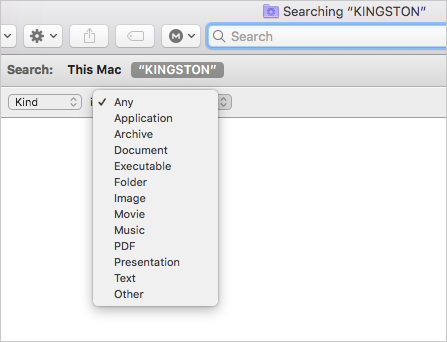
- Mac users can use Finder’s Smart Folder to easily organize files by criteria like file type, file extension, file size, and name and sort files by options like name and size.
![a Finder window]()
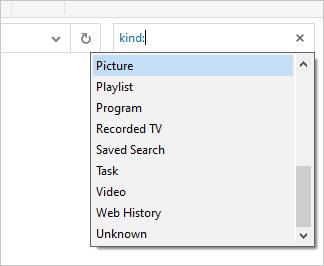
- Windows users can use File Explorer’s basic or advanced search features to filter files by type and then sort them by a preferred option.
![a File Explorer window]()
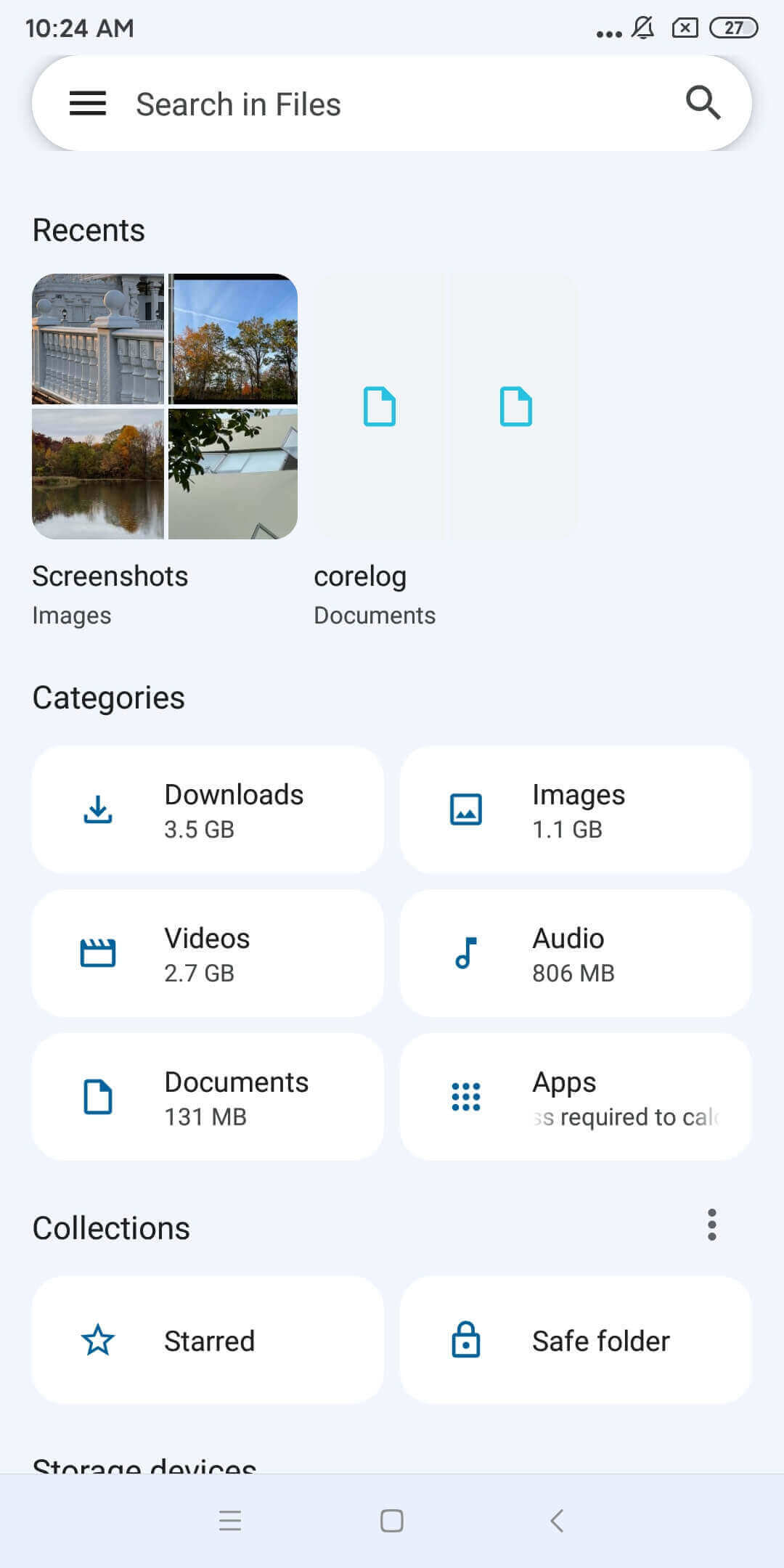
- Android’s Files already automatically displays files by type, such as Images and Videos. Tap a certain type and then sort files by size, name, or date.
![a screen showing five file types]()
Step 4. Now you can identify duplicates by comparing files’ attributes and content.
As mentioned above, the identification of duplicate files usually doesn’t take the file name into consideration. Simply looking at file names won’t be effective.
Step 5. Manually delete duplicates one by one or in bulk.
FAQs
Does deleting duplicate photos free up my SD card?
Yes, it does. However, make sure that those duplicates are permanently deleted instead of staying in the trash in your file manager app.
Can I recover duplicate files removed from my SD card?
It depends on the removal method you use. If they are moved to your file manager's Trash or Recycle Bin, you can easily restore them from there. If they are permanently erased, you can get them back only with decent file recovery software.
Conclusion
No matter you use your SD card to store the videos and videos you take, or back up files, or to increase the storage on your phone, you will like keeping your card duplicate-free. This article has two ways on how to delete duplicate photos and files on SD card. Regardless of the method you use, it’s always wise to be cautious when deleting files.

With a passion for tech and writing, Sarah joined Cisdem, where she focuses on creating articles about using utility tools to enhance file management and simplify contact management.

Adrian Li is Cisdem’s Chief Engineer and serves as the editorial advisor for Duplicate Finder and ContactsMate. His work and insights have been featured in leading tech publications such as Fossbytes, TUAW, Redmond Pie, SafetyDetectives, and BestForAndroid.
Ekta mill
I had thousands of travel photos on my SD card. I used to delete duplicates manually, which was time-consuming. Thanks to this guide, I found a better way.