


(8 Ways) How to Recover Sticky Notes on Windows 11, 10
 2.3K
2.3K
 1
1


Microsoft Sticky Notes enables us to quickly take notes on our Windows desktop, just like an electronic post-it note. If you rely on Sticky Notes heavily, losing them is really a big trouble. Sticky Notes can be deleted or go missing for different reasons, for example, accidental deletion, program glitches, system crashes.
The good news is that there are several ways to recover your Sticky notes. From using built-in auto save tools, checking local data to restoring via professional programs, you still have a good chance to getting your Sticky notes back to your PC.
 Cisdem Data Recovery
Recover Sticky Notes on Windows 11, 10, 8, 7 Efficiently
- Recover deleted, lost, formatted and corrupted Sticky Notes files
- Get back sticky notes from both internal and external hard drive
- Restore more than 1000 types of file: Notepad, Office Word, Excel, PowerPoint, MP4, JPEG, MP3, etc.
- Fix damaged photos, videos and documents
- Recover unsaved Word, Excel, PowerPoint, WPS, PSD, etc.
- Search and filter files quickly
- Preview before recovery
- Support advanced data recovery: NAS/Linux/RAID/Partition/SD/Crashed PC
- Save recovered files to local drive, also to cloud
 Free Download Windows 11/10/8/7
Where Are Sticky Notes Stored in Windows 11 or 10?
Do Sticky Notes save automatically?
Yes, it does.
When you edit or close a note in the app, it stores your changes in the background and in real time, without any manual saving by hitting the Save button. Even when you close the app or restart your PC, the notes will persist in the app.
Where's Sticky Notes file location on Windows 11 or 10?
In order to quickly find the recovery method that suits your case most, you’re obliged to figure out the storage location of sticky notes at first. And the specific folder path will vary depending on different Windows versions.
On Windows 7, 8 and 10 (version 1511 or earlier):
the Sticky Notes content is saved as a Stickynotes.snt file, which can be found in the following folder: C:\Users\AppData\Roaming\Microsoft\StickyNotes
On Windows 10 (version 1607 or later) and 11:
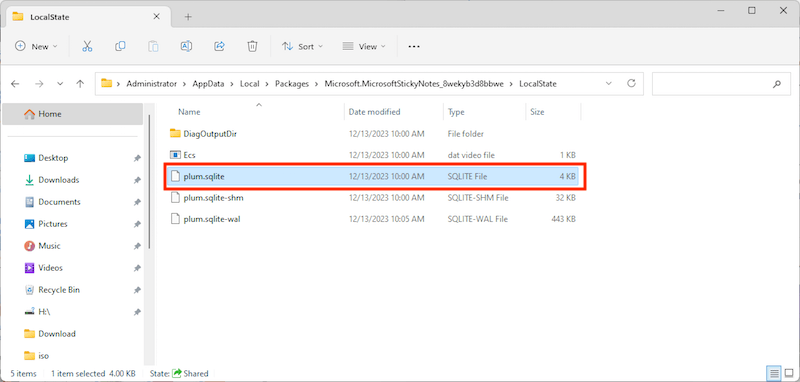
the Notes file is stored in the following folder with the file name plum.sqlite:
C:\Users\AppData\Local\Packages\Microsoft.MicrosoftStickyNotes_8wekyb3d8bbwe\LocalState
In addition, the notes will also be synced to cloud servers when signing in with your Microsoft account in Sticky Notes app. Then you can find the notes in Notes folder on your Outlook account.
So with that being said, your sticky notes can exist both locally and online under given scenarios. This throws light on our process to recover deleted sticky notes, with some of the tried and tested solutions in the next part.
How to Recover Deleted Sticky Notes on Windows 11 or 10?
If discovering your Sticky Notes files have been deleted by accident, take it easy, read on to check out 5 options for recovery. Your problem would be solved without effort.
1# Check Deleted Items Folder in Outlook
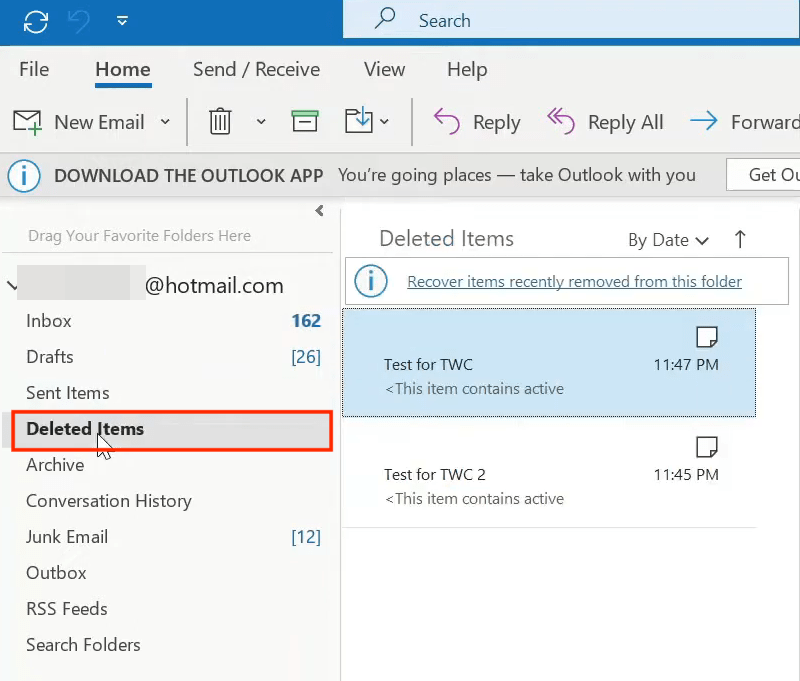
As mentioned before, when Sticky Notes app is synchronized with your Microsoft account, the notes are stored online in the web version of Outlook. Once deleted, they will head to the Deleted Items folder in Outlook. Then it’s super easy to retrieve the deleted sticky notes.
How to Recover Sticky Notes in Outlook?
- Sign in to Outlook web page with the same Microsoft account used in Sticky Notes.
- Go to Deleted Items folder.
![recover in outlook 01]()
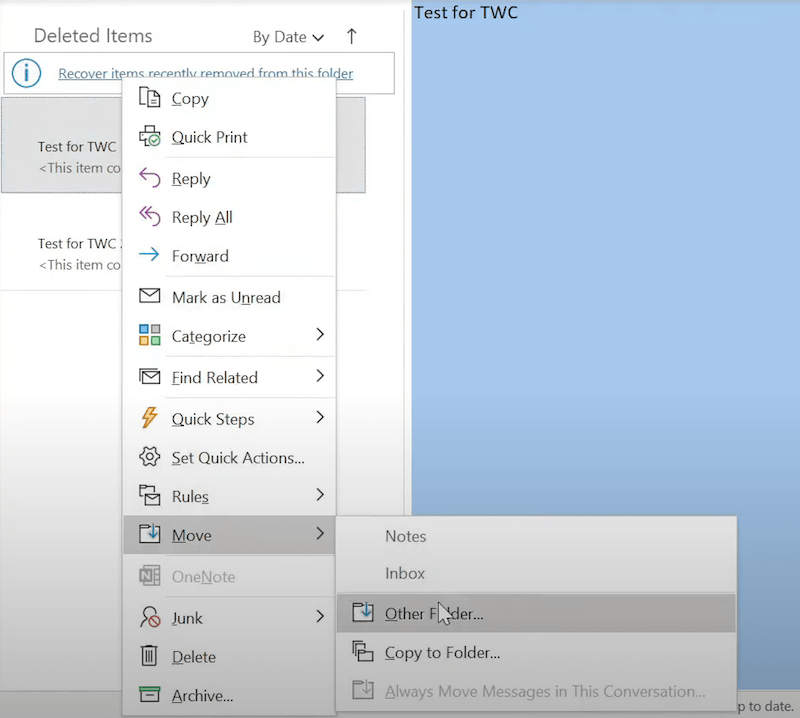
- Check if your lost sticky note is present. If yes, right click on it, select Move > Other Folder.
![recover in outlook 02]()
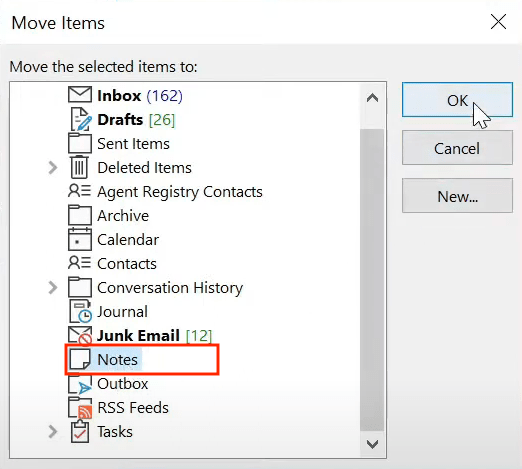
- Scroll down to choose Notes > OK. Your sticky note will be recovered after a few seconds.
![recover in outlook 03]()
2# Check Autosave Folder of Sticky Notes
If you didn’t synchronize your Sticky Notes with your Microsoft account, manually direct to auto-save folder of Sticky Notes in File Explorer. The app data containing your deleted sticky notes might still remain there in the Windows operating system.
While we have been told that there are 2 auto-save folder paths on different Windows OS versions. Here we’ll give a guide for Windows 10 (later releases)/11, but the workflow on earlier Windows 10 versions is pretty much the same. So make clear which system you’re using and follow the steps below to recover deleted sticky notes.
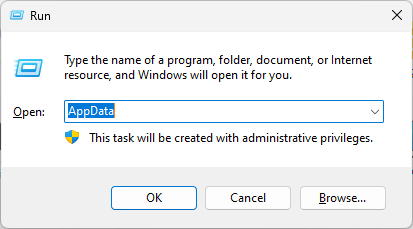
- Press Windows+R to bring up Run window.
- Type AppData, press Enter.
![recover from autosave folder 01]()
- Navigate to Local\Packages\Microsoft.MicrosoftStickyNotes_8wekyb3d8bbwe\LocalState.
- Find your Sticky Notes file named plum.sqlite or StickyNotes.snt.
![recover from autosave folder 02]()
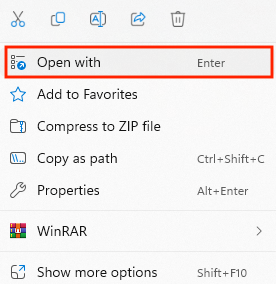
- Right-click it, open with a text editor like MS Word, Notepad, WordPad, etc.
![recover from autosave folder 03]()
- Select the default prompts and proceed to decode the file. Finally use Ctrl+F to search any keywords of the missing sticky notes.
3# Recover Permanently Deleted Sticky Notes with Software
If neither methods above manages to restore your sticky notes back, the notes are very likely to be permanently removed. Now things become more knotty. However, Cisdem Data Recovery for Windows will deliver you the peace of mind. With this highly rated and dependable tool, any tricky data loss issues can be properly resolved.
Cisdem comes equipped with a bunch of helpful features, such as high recovery rate, quick scan speed, easy-to-use UI and a lot more. Thanks to its advanced algorithm and straightforward operations, users are able to perform sticky notes recovery smoothly without the need of specialized knowledge on data retrieval.
Why Choose Cisdem to Recover Sticky Notes?
- Recover recently and permanently deleted files from Sticky Notes
- Recover sticky notes from Windows devices, external HDD/SSD hard drives, etc.
- Support recovery of 1000+ file types: notes, emails, documents, photos, videos, audios, etc.
- Recover unsaved files: Word, Excel, PowerPoint, Keynote, Pages, Numbers, PSD, WPS, etc
- Repair damaged videos, photos and documents
- Locate wanted files efficiently using file filters
- Recover files from NAS, Linux, RAID, Partition, Crashed PC
- Windows 11/10/8/7/XP supported
How to Recover Deleted Sticky Notes in Windows 11 or 10 with Cisdem?
- Download and install Cisdem on your PC.
Free Download Windows 11/10/8/7 - Select a location to scan.
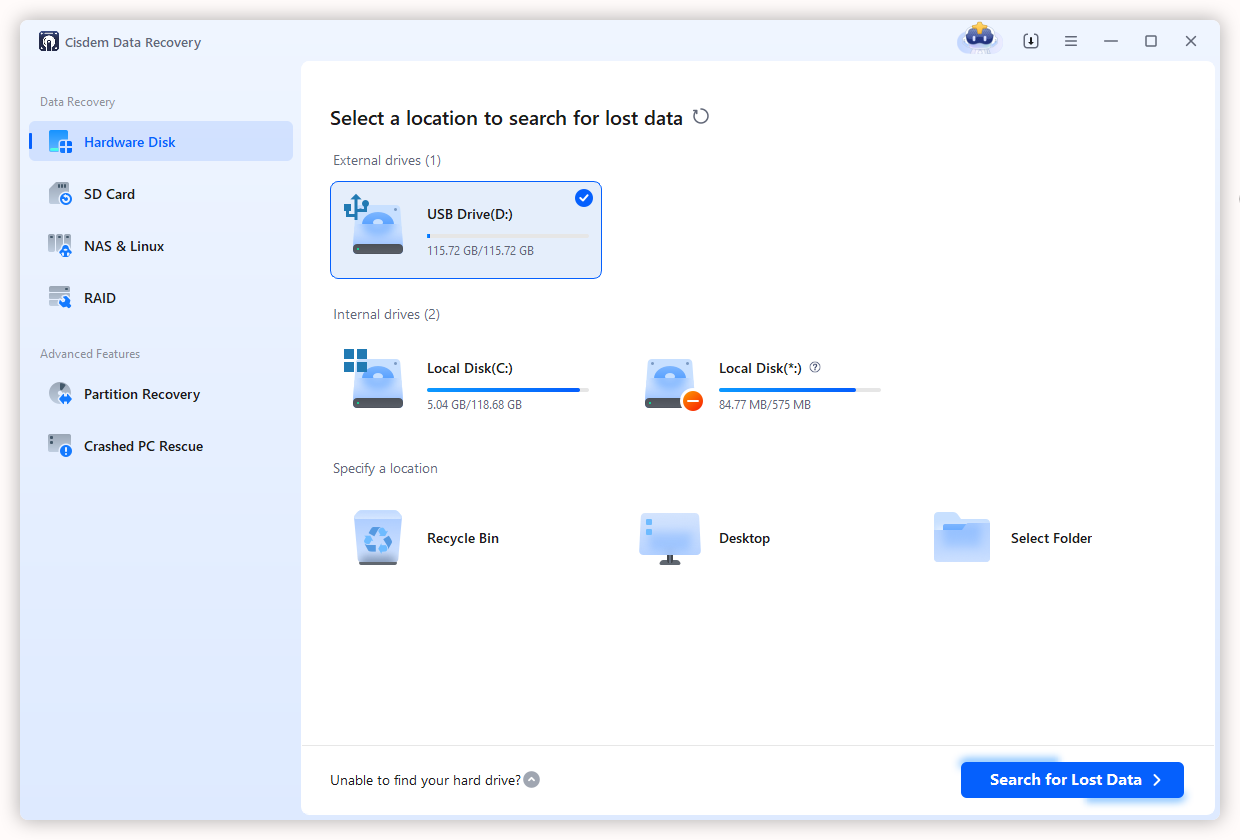
Open this program, choose Data Recovery > Hardware Disk, select the location where your deleted sticky notes were stored, and click Search for Lost Data.![recover sticky notes with cisdem 01]()
- Find the deleted sticky notes.
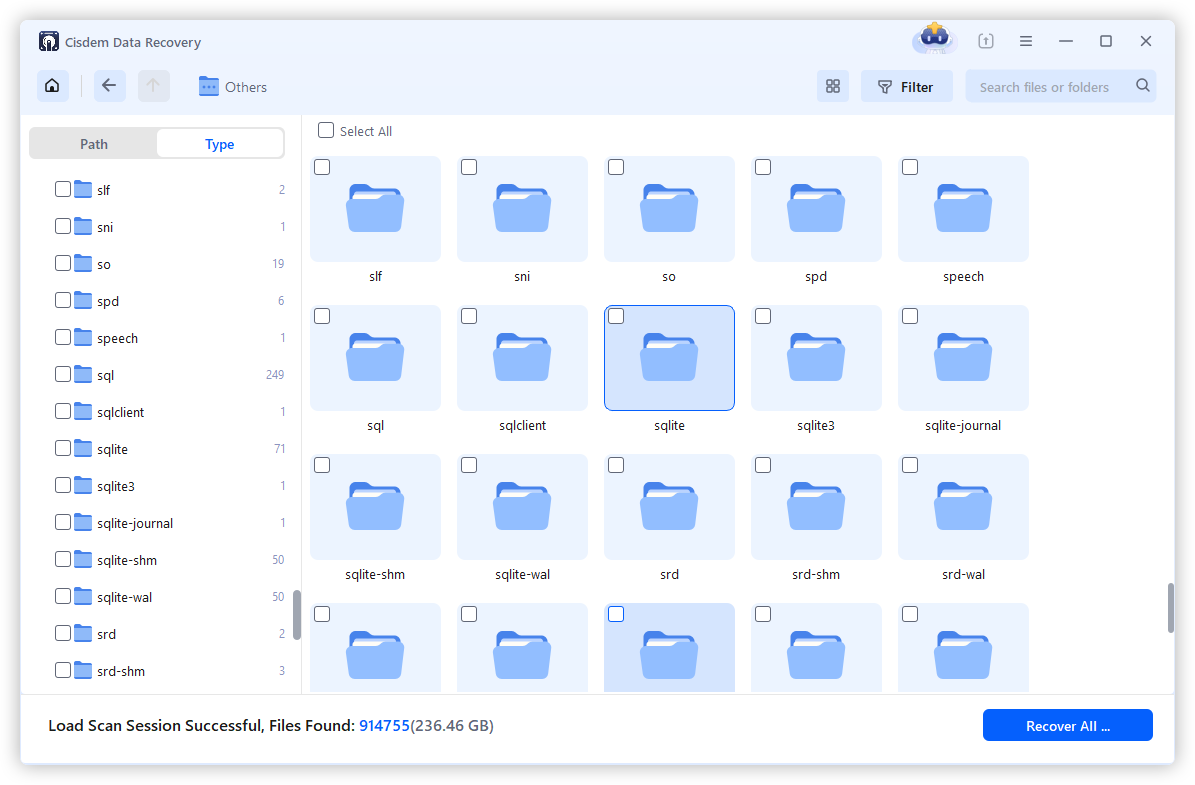
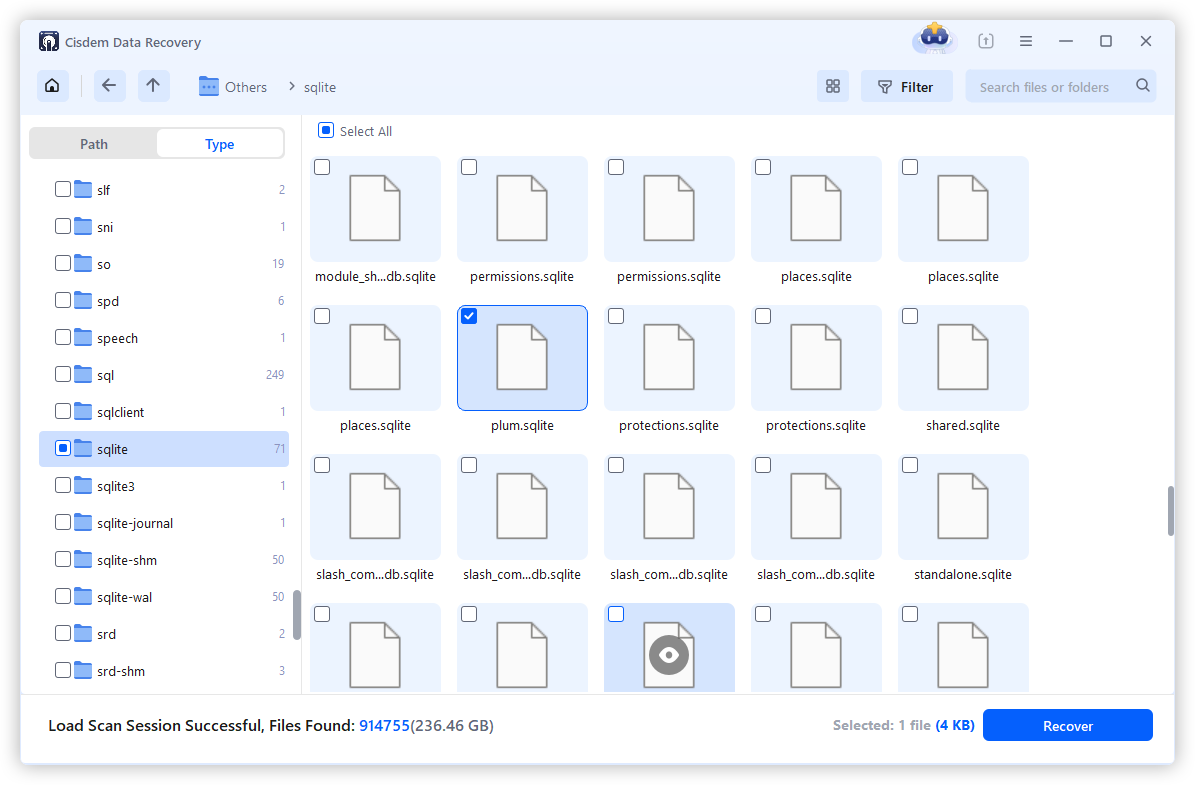
During or after scanning, go to Type > Others, find the sticky notes folder "sqlite". File filters and search bar are also available for quick file location.![recover sticky notes with cisdem 02]()
- Recover the deleted sticky notes.
Go to the Sticky notes file plum.sqlite. Select it and click Recover to revert the notes back to a new storage location instead of its original one.![recover sticky notes with cisdem 03]()
- Then import this plum.sqlite file to your Sticky Notes app and open the notes.
Also, you can check the video from Cisdem Official to recover your Sticky notes, starting from 03:00,
4# Recover Sticky Notes from File History
If you still need time to evaluate a third-party sticky notes recovery program, recovering from any backups could be another option. There is more than one backup choice built in Windows 10/11 system, while File History can be the most used one.
When correctly configured, File History is capable of restoring your deleted files within a few clicks. If you are one of those lucky guys having the deleted sticky notes included in backups made through File History, see the instructions to recover these notes.
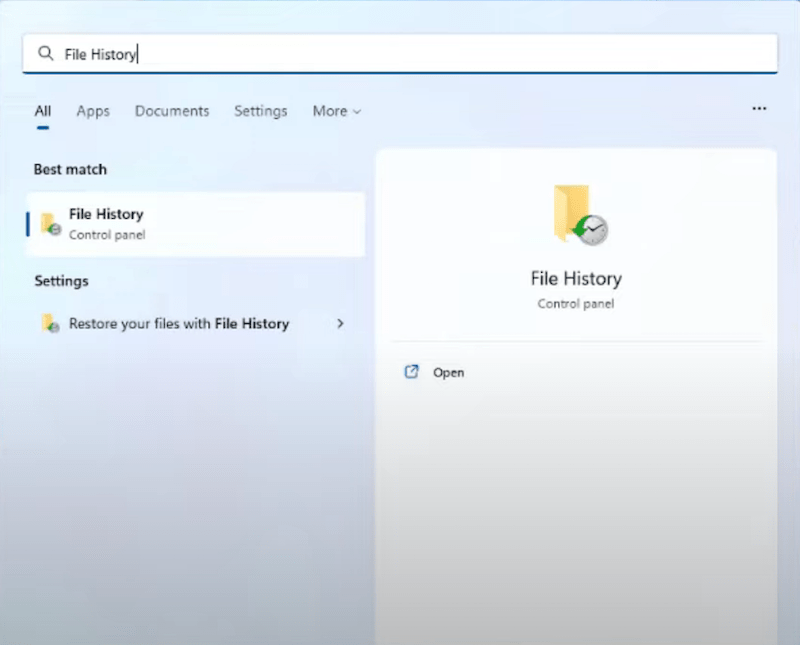
- Search File History in Windows Start menu, open it.
![recover from file history 01]()
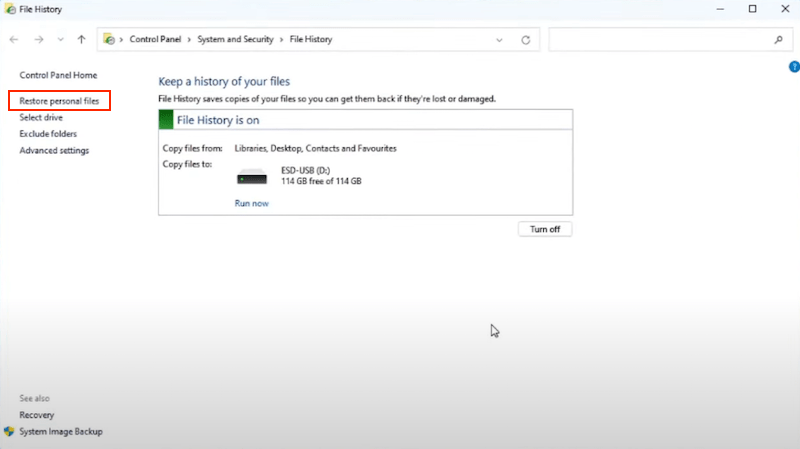
- Click Restore personal files from the left entries.
![recover from file history 02]()
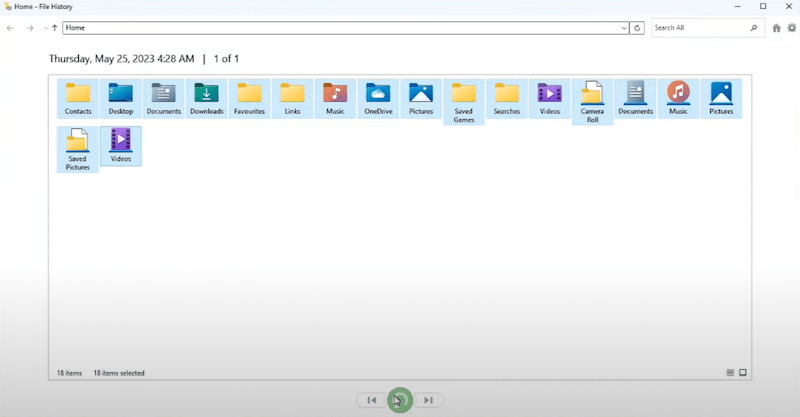
- Specify the exact backup that covers your lost sticky notes, click the bottom circular icon to restore.
![recover from file history 03]()
5# Recover Deleted Sticky Notes from OneNote Backup
Apart from File History or other Windows system backup, some Sticky Notes users prefer to create a backup saved in cloud storage, i.e. syncing the notes into OneNote account across Android or iPhone devices. Therefore, you can recover deleted sticky notes via OneNote synced data, if you have disenabled the sync before a deletion. This is how.
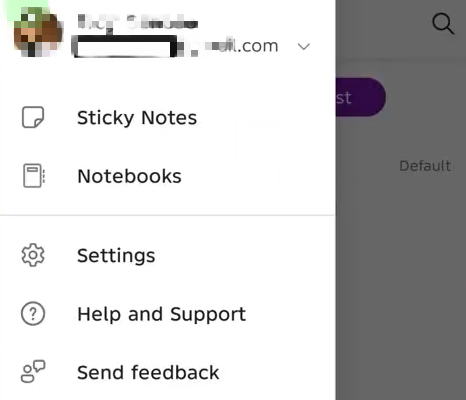
- On Android or iPhone, open OneNote.
- Sign in and tap your profile picture.
- Tap Sticky Notest, then check all the synced notes in OneNote, you can copy or export as needed.
![onenote sticky]()
How to Recover Missing Sticky Notes on Windows?
Odd as it may sound, at times your disappeared sticky notes are just invisible or hidden somewhere, not actually purged off your Windows device. To make the lost sticky notes reappear, the following 3 solutions are for your reference.
1# Check Notes List
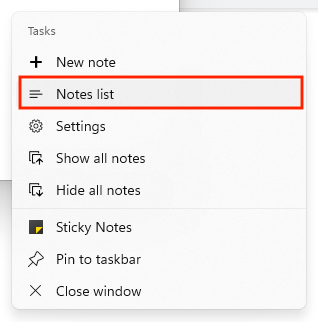
- Run Sticky Notes app on your PC.
- In the Windows taskbar, right click on its icon, choose Notes list.
![check notes list]()
- All your notes will be listed on the screen, double click the one you want to access it.
2# Show Hidden Files
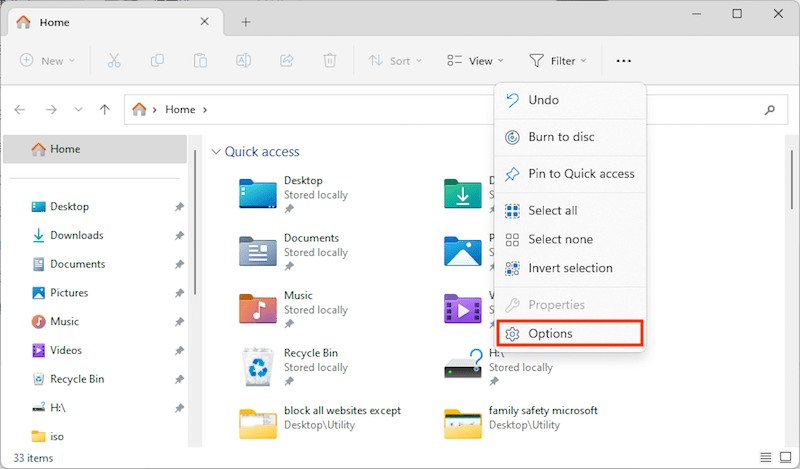
- Open Windows File Explorer, select Options.
![show hidden files 01]()
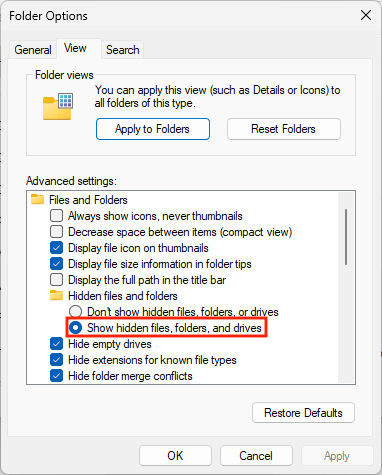
- Go to View tab, make sure “Show hidden files, folders, and drives” is chosen.
![show hidden files 02]()
- Click OK and Apply to confirm.
3# Reinstall Sticky Notes on Windows 11 or 10
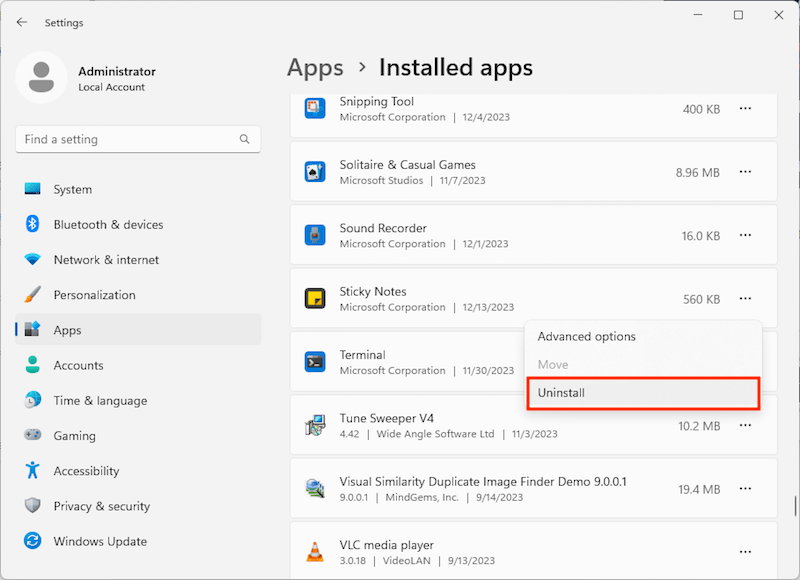
Besides lost contents of Sticky Notes, we might also encounter the missing Sticky Notes application, although it belongs to a built-in utility coming with Windows by default. Moreover, Sticky Notes app is possibly not opening or can’t work as it’s supposed to. To settle this kind of questions, you’re suggested to re-install Sticky Notes.
- For Windows 10 PC, go to Settings > Apps > Apps & features, scroll down to find Sticky Notes, click it to reveal the Uninstall button, and click this button.
For Windows 11 PC, go to Settings > Apps > Installed apps, click the three-dots icon next to Sticky Notes, and click the Uninstall option.![reinstall sticky notes win 11]()
- After the uninstalling, open Microsoft Store app, search for Sticky Notes, install the app again.
![ms store]()

Write in the End
This page has explored an ultimate tutorial on how to recover a sticky note on Windows 11 or 10, whether a deleted one or just a missing one. On the purpose of avoiding future data loss, remember to enable delete confirmation for Sticky Notes, and adopt a regular backup routine going forward.

Zoey shows a great interest in what she does. Although not long with Cisdem, she has possessed a professional understanding of data recovery.

JK Tam is the lead developer at Cisdem, bringing over two decades of hands-on experience in cross-platform software development to the editorial team. He is now the lead technical approver for all articles related to Data Recovery and DVD Burner.
Helen
I accidentally deleted a few Sticky Notes that had meeting points and quick reminders I actually relied on. I thought they were gone for good. What I appreciate most about this guide is how it didn’t just throw generic solutions at me—it showed exactly where Sticky Notes are stored and how they can still exist locally or even in Outlook if synced.