


How to Lock Settings on PC: Built-in & Third-Party Methods
 203
203
 0
0


“Can I lock Settings on my Windows computer? The computer is shared with others so it’s not convenient to set a PC password. I just need to lock Settings so they cannot change some of my system settings.”
You can customize your device preferences, including accounts, network, language, and more via Windows Settings. If you don’t want others to mess with these settings while using your computer, the best solution is to lock Settings. In these article, we’ll show you how to do that.
 Cisdem AppCrypt
Lock Settings on Windows 10/11
- Lock individual apps, like Settings, with password
- Offer an option to automatically re-lock apps after a period of inactivity
- Record failed attempts to open locked apps
- Also block websites on Chrome, Edge and more with password
- Let you block specific sites and pages, URLs with certain words, or all sites except a few
- Let you block all porn sites with 1 click
- Let you lock apps and block websites permanently or at scheduled times
- Easy to use
- Hard to bypass
- Help with privacy protection, productivity, and parental controls
- Compatible with Windows 10, Windows 11
- Also available for Mac, Android, iPhone and iPad


Method 1. Password-protect Windows Settings using a third-party app
You can lock the Settings app on a Windows PC using a third-party app locker. The tool I recommend is Cisdem AppCrypt. It allows you to lock Windows Settings with a password. So others cannot change your system preferences without your permission.
This tool is especially useful if you’ve set up content filters on a computer but don’t want children to bypass restrictions through the Settings app. It can block porn and other inappropriate sites by category. It also lets you lock other Windows system tools such as CMD and Task Manager with one click.
1. Download and install Cisdem AppCrypt on your PC.
 Free Download Windows 10 or later
2. Launch it. Set a password.
Check the box next to Launch at System Startup.
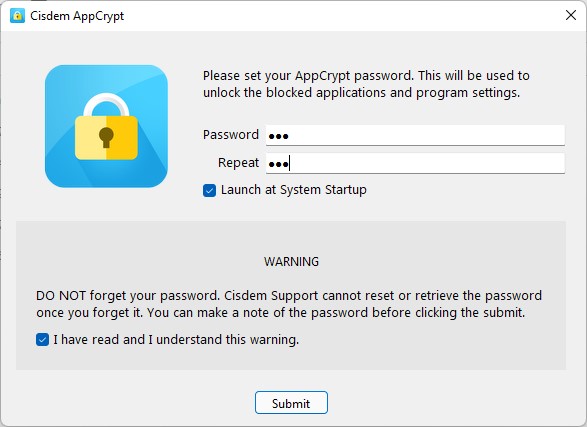
3. Click the AppCrypt icon on the taskbar. Enter the password to open the main window.
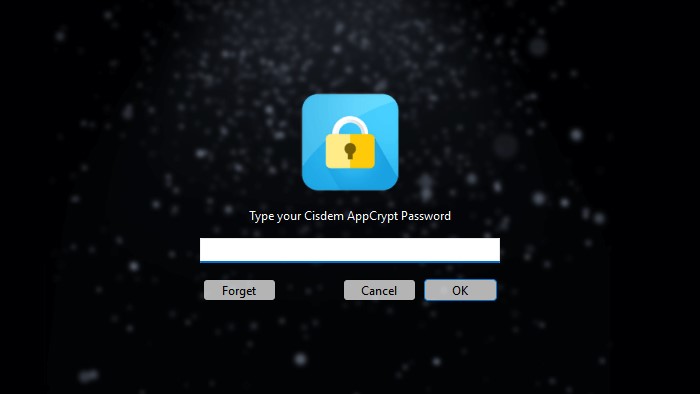
4. Go to the Preferences tab.
5. Check the box next to Disable System Settings.
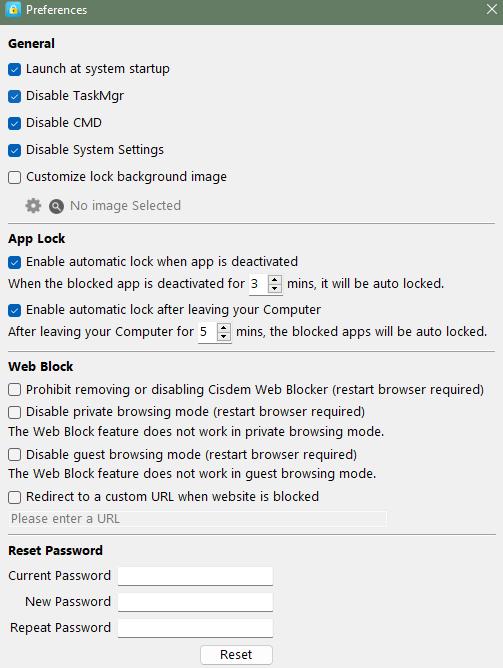
Now Settings is locked with password on your Windows.
More features of Cisdem AppCrypt you may find useful:
Lock individual apps on PC with password.
Block specific websites on Windows PC.
Method 2. Lock specific Settings page using built-in Group Policy
This method uses Group Policy - a built-in Windows tool that allows administrators to control computer system settings and and permissions. With it, you can choose to show only specific Settings pages, or hide specific pages. So others won’t be able to change some of your computer settings at will.
Note: I spent some time testing this method and ran into several errors. It’s fairly technical and can be a bit error-prone. So if you are not tech-savvy, this method is not recommended. As you may accidentally mess up your Windows settings.
1. Open your Windows Start menu. Search for group policy.
2. Click Edit group policy.
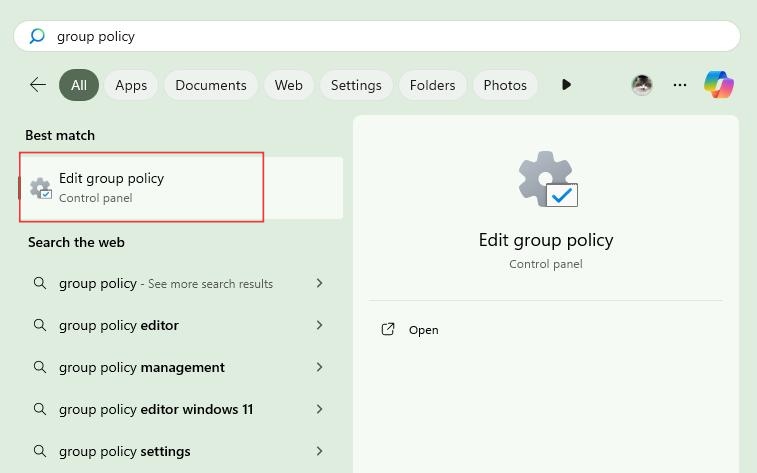
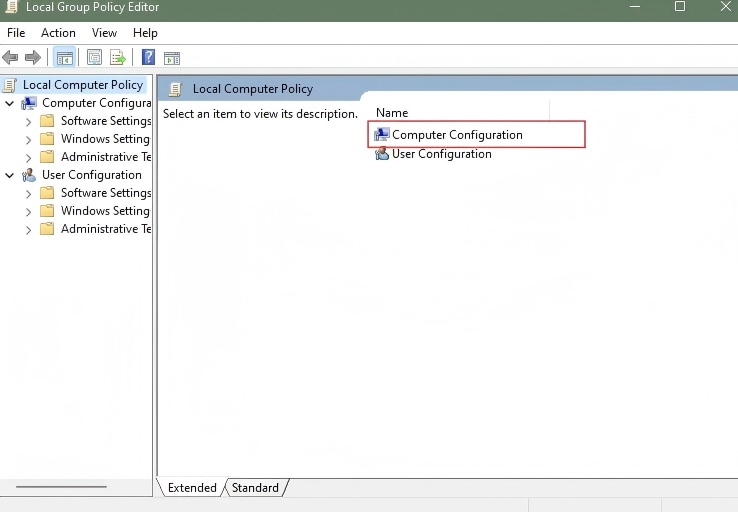
3. In the Local Group Policy Editor window, click Computer Configuration.
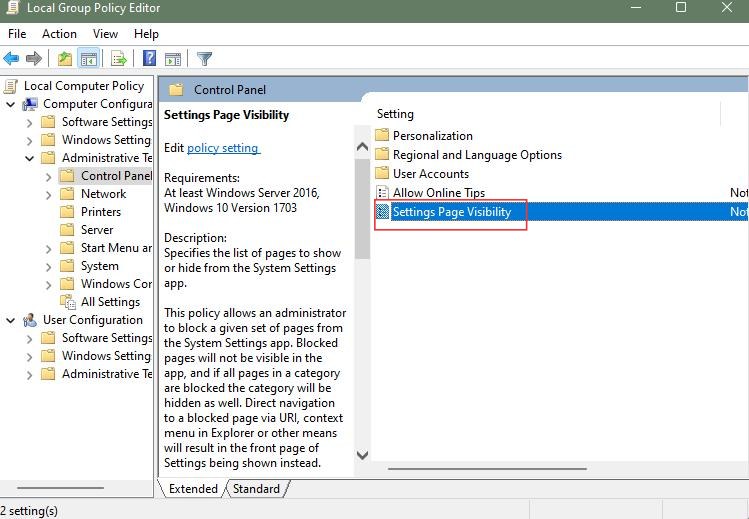
4. Click Administrative Templates > Control Panel > Settings Page Visibility.
5. In the new window, select Enabled. Then you can see a text field under Options.
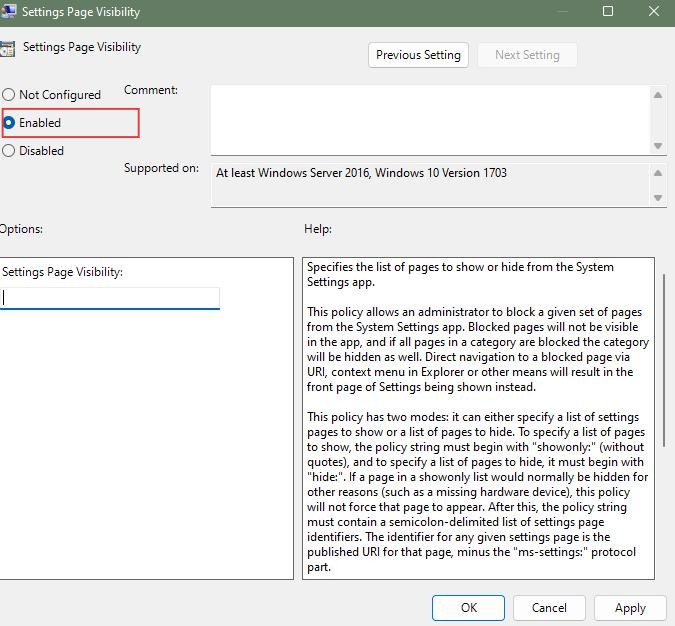
6. It provides 2 options:
1. Hide specific Settings pages
Enter hide:, followed by the Settings page identifiers you want to hide. Use semicolons to separate multiple identifiers.
Note: When hiding Settings pages, you must use the Microsoft-defined page ID, not the names shown in the Settings interface. Some page IDs may be different from their displayed names.
Here are some common Windows Settings page IDs that are different from their displayed names:
| Displayed names | Page IDs |
|---|---|
| Focus assist | quiethours |
| Storage | storagesense |
| Ethernet | network-ethernet |
| VPN | network-vpn |
| Background | personalization-background |
| Start | personalization-start |
| Family & other users | otherusers |
| Xbox Game Bar | gaming-gamebar |
| Captures | gaming-gamedvr |
| Camera | privacy-webcam |
For example, to hide the Background and Camera Settings pages on Windows, enter the following text: hide:personalization-background;privacy-webcam. Click Apply. Then click OK.
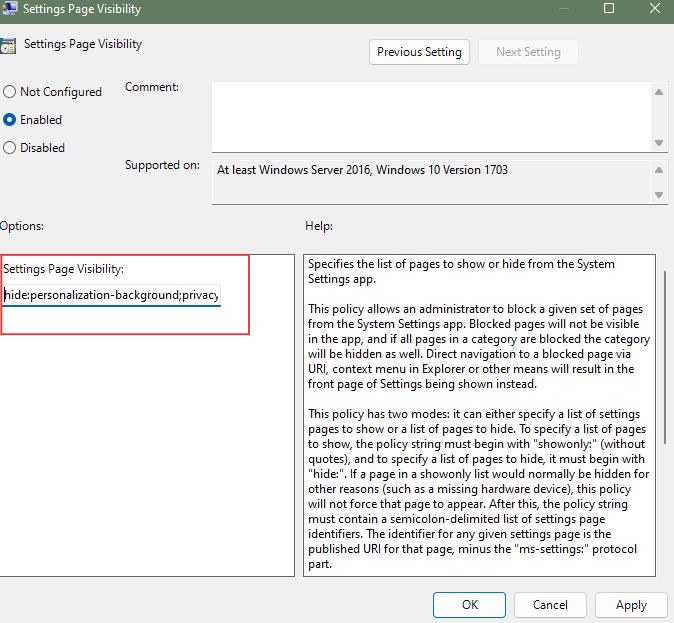
Open the Settings app again, you’ll see that these 2 Settings pages are now hidden.
2. Only show specific Settings pages
You can also set it to show only specific Settings pages.
Enter showonly:, followed by the Settings page identifiers you want to show. Use semicolons to separate multiple identifiers.
For example, to show only the Ethernet Settings page. Enter: showonly:network-ethernet. Click Apply. Then click OK.
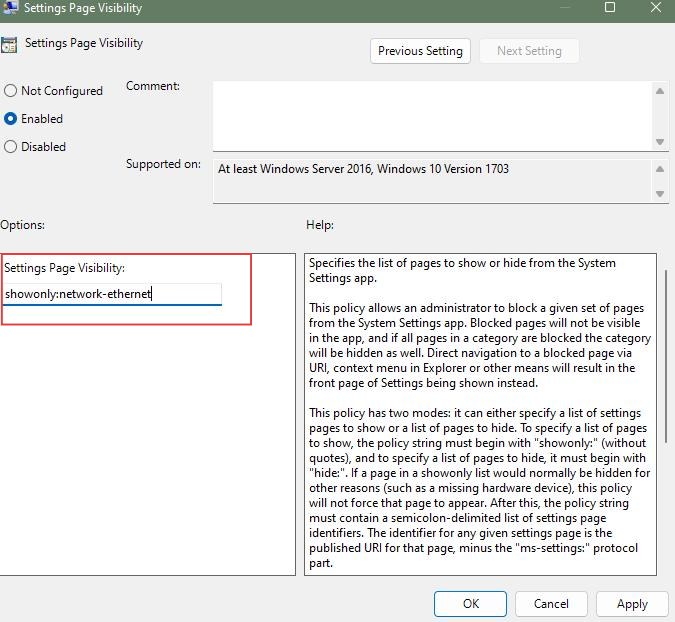
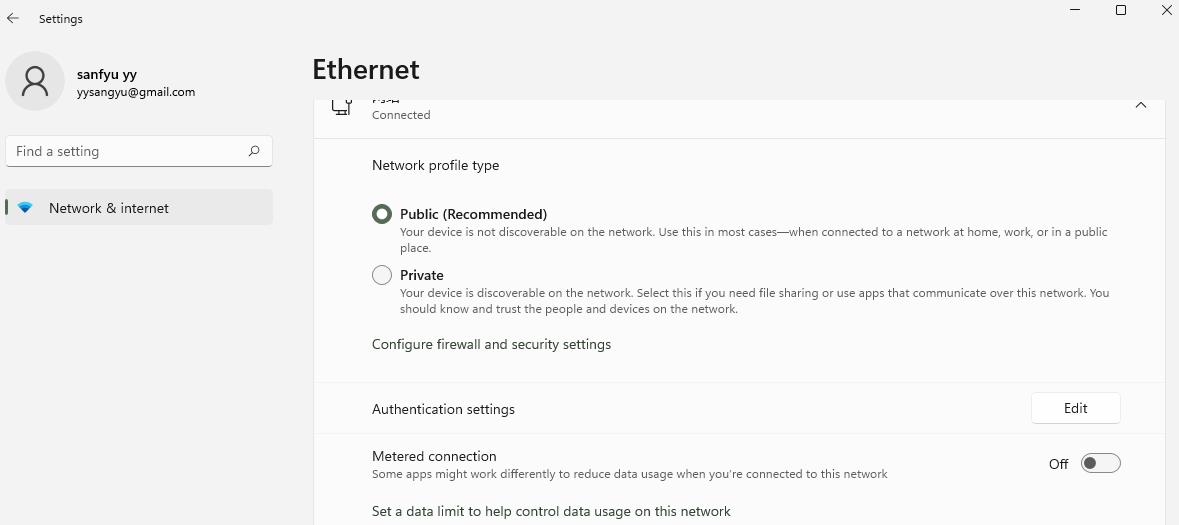
Open the Settings app again, you’ll see only the Ethernet Settings page now.
Bonus tips
How to lock Windows screen immediately without turning it off?
To lock your Windows screen immediately without turning off your PC, simply use a keyboard shortcut. Press the Win + L keys on your keyboard. Then the screen will lock right away.
How to set PC to lock automatically after a period of inactivity?
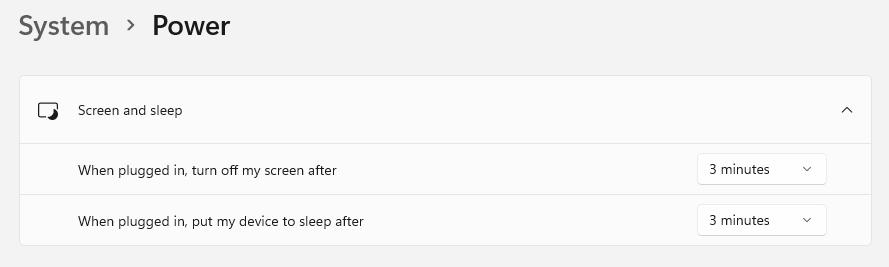
You may be worried that someone using your computer when you step away. You can set Windows to lock automatically. Open the Start menu. Go to Settings. Click System > Power > Screen and sleep. Next to “When plugged in, turn off my screen after...”, Set a time, such as 3 minutes.
How to lock a program in Windows?
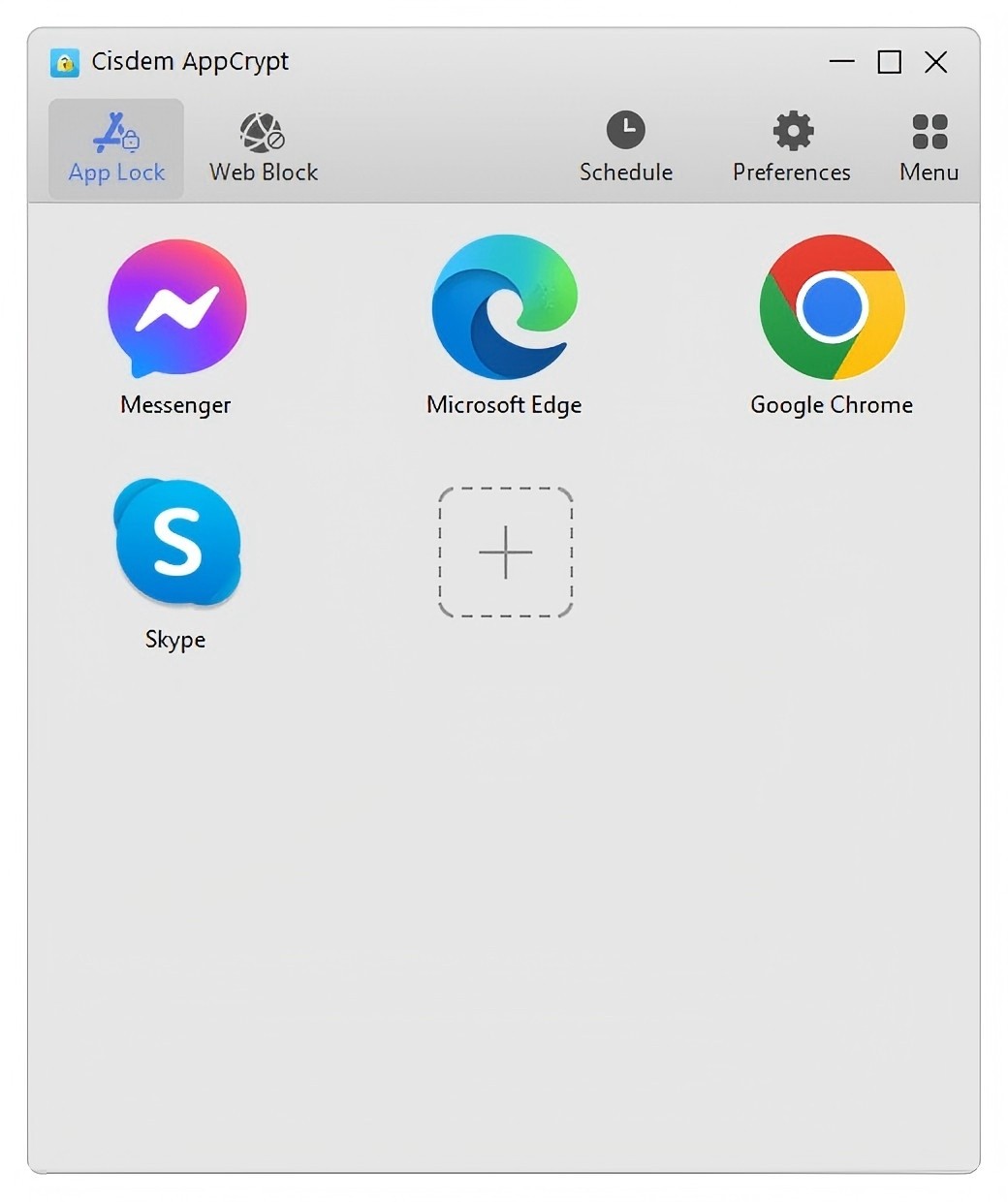
To lock a program in Windows PC, the easiest way is to use Cisdem AppCrypt - an app locker compatible with Windows 10 and Windows 11. You can download it from the Microsoft Store.
Conclusion
Locking Windows Settings has many benefits. It helps prevent others from changing your desktop background, adding accounts, or modifying some privacy settings. In this article, we covered 2 different ways to lock Settings. The first way is the best option for most users and it offers password protection. The second way can be bypassed by more tech-savvy users.

Norah Hayes likes to share her tips on how to improve focus and stay motivated at work. She believes it is essential to eliminate all online distractions during work hours.

Ethan Long joined Cisdem in 2015 as a developer and now serves as the editorial advisor for Cisdem AppCrypt. He actively tests and uses Cisdem AppCrypt and other screen-time management tools to ensure AppCrypt meets its promises in real-world scenarios.