


How to Block Microsoft Store on Windows 11 and 10 Computers
 13
13
 0
0


While Microsoft Store makes it easy to discover and install apps, sometimes you may want to block access to it if you are an IT administrator, school teacher, or parent. By doing so, you can prevent employees, students, or your children from installing unapproved apps or games, for purposes like security, better focus, or parental control.
In this article, I will show you how to block Microsoft Store using three different ways.
 Cisdem AppCrypt
Block Microsoft Store and Other Apps
- Block individual apps, such as Microsoft Store, with a password
- Record failed attempts to open blocked apps
- Also block specific websites, keywords, and categories (such as Social Sites, Adult Sites, and more)
- Block apps and websites 24/7 or during scheduled hours
- Easy to set up
- Hard to bypass


Key takeaways
- There are native methods available, including Windows' Group Policy feature and Microsoft Family Safety.
- The Group Policy feature only supports the Enterprise and Education editions of Windows, regardless of versions like Windows 11 or 10.
- Microsoft Family Safety only works for standard users accounts on PC.
- If you are using Windows Home or Windows Pro, or you are a parent restricting Microsoft Store access for children with an administrator user account, you can use Cisdem AppCrypt, a popular app lock for Windows.
Method 1. Disable Microsoft Store in Group Policy
Compatible editions: Windows Enterprise, Windows Education
Compatible versions: Windows 11, 10, and more
Suitable for: IT administrators, enterprises, schools, and organizations
What Group Policy does
The Group Policy feature is part of Windows management settings. It allows users to manage and configure operating systems for multiple computers. The feature provides a policy that turns off Microsoft Store, and you just need to enable this policy.
To apply this policy to multiple machines, such as the computers in a company, school, or library, you may use approaches like Microsoft Intune or AD.
If your company or organization doesn't have such an IT setup and there aren't many computers, you can consider configuring the policy individually on each one.
If you are using Windows Pro or Windows Home, this method won't work, and you can follow Method 3.
Step-by-step instructions
1. Press the Windows key and the R key at the same time.
2. In the Run dialog that opens, enter gpedit.msc, then click OK.
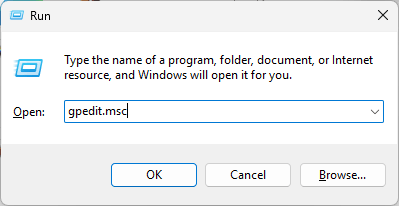
3. In the Local Group Policy Editor window that appears, double-click Administrative Templates.
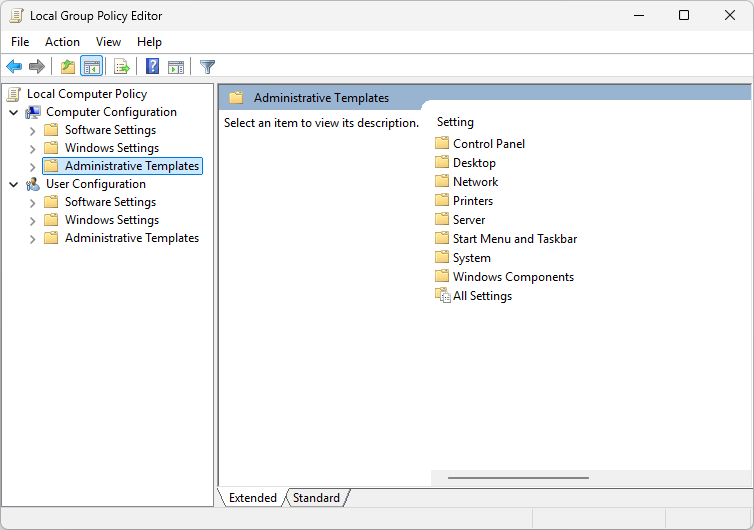
4. Double-click Windows Components.
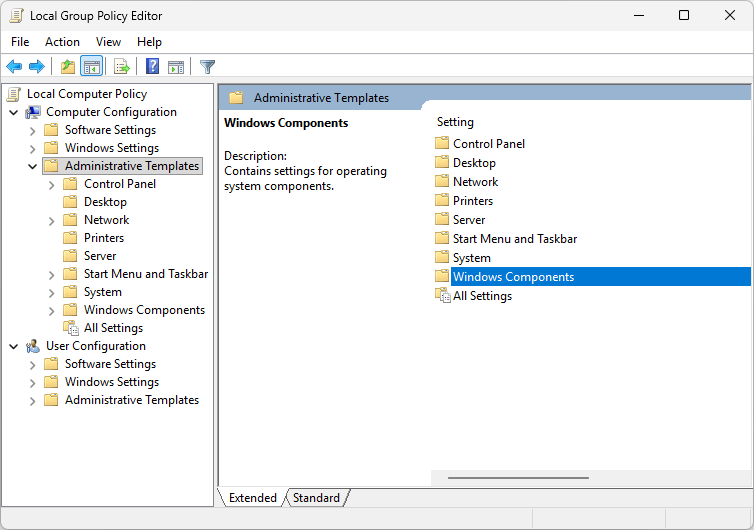
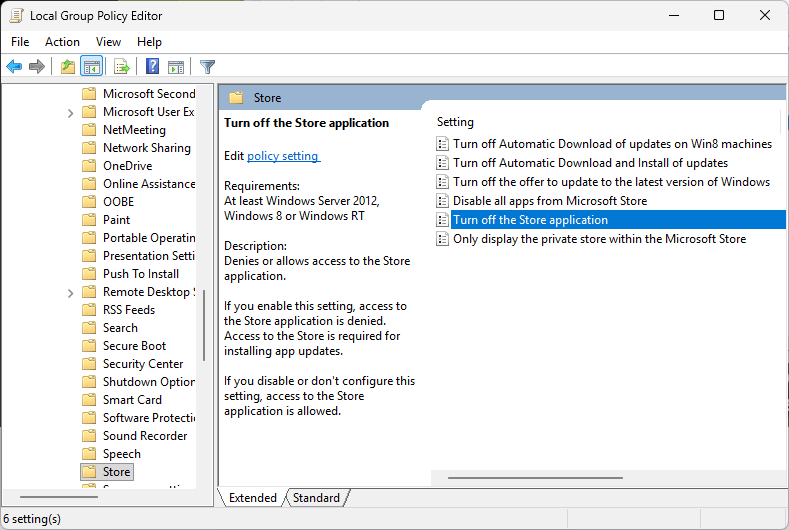
5. Find and double-click Store.
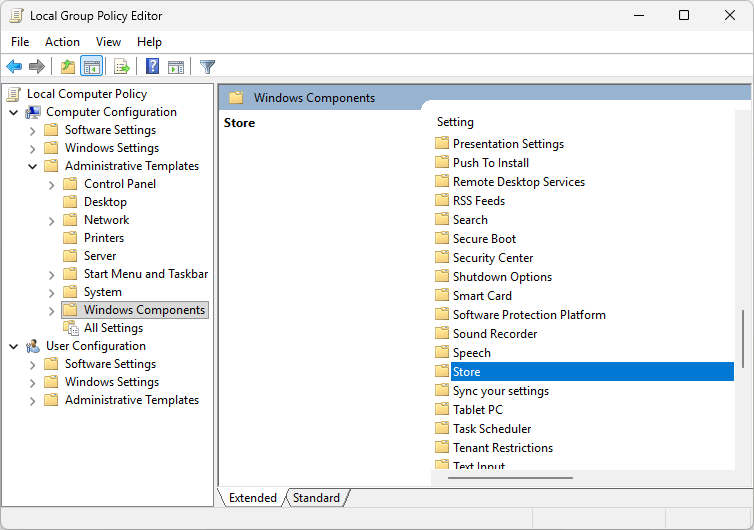
6. Double-click the Turn off the Store application policy.
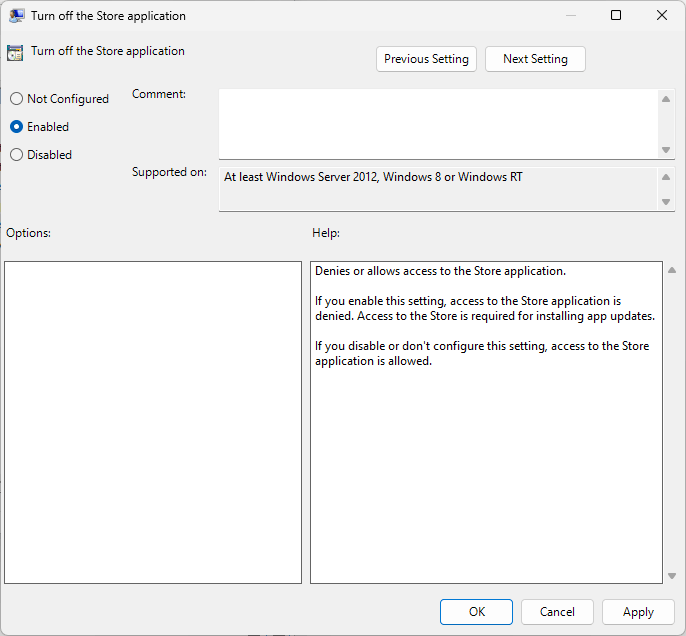
7. In the new window that opens, select Enable, click Apply, and then click OK. (Here, "Enable" means enabling the policy that turns off Microsoft Store instead of enabling Microsoft Store itself.)
Now, you can apply this policy to computers, depending on your approach.
The results
When users try to open Microsoft Store on these computers, the app won't open. Instead, it displays a message saying "Microsoft Store is blocked".
Method 2. Block Microsoft Store using Microsoft Family Safety
Compatible editions: Windows Home, Windows Pro
Compatible versions: Windows 11 and 10
Suitable for: Parents
What Microsoft Family Safety does
Microsoft Family Safety is a parental control tool from Microsoft. It can prevent access to Microsoft Store on a child's user account (on his or her own computer or a family PC).
However, if your child uses an administrator user account, you need to convert it to a standard user account. If your child does need an administrator account for homework or other tasks, then this method is not suitable. In such a case, you can use Method 3.
Step-by-step instructions
1. In your browser, visit https://account.microsoft.com/family/home and log in with your own Microsoft account.
2. Click Add a family member.
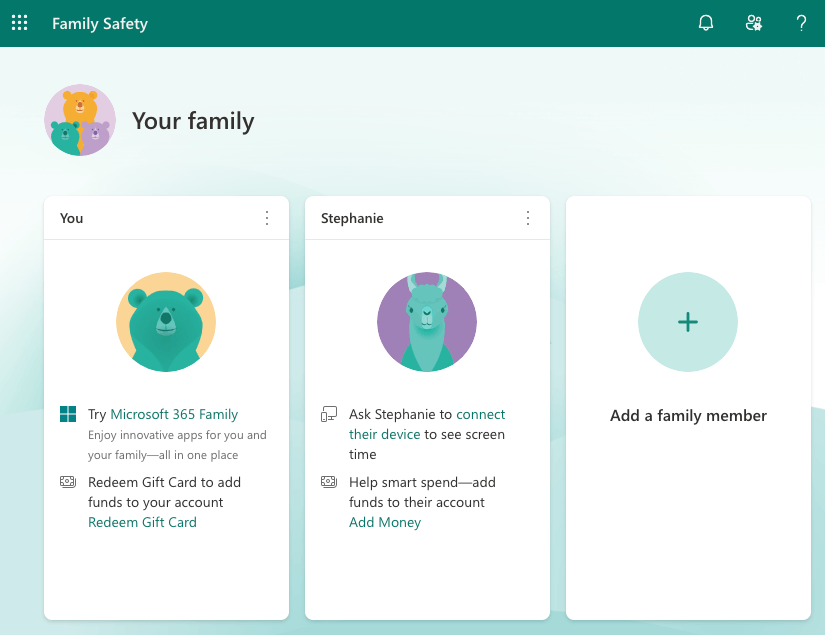
3. Click Email invite and enter your child's Microsoft account email, then click Send. (If your child doesn't have a Microsoft account, create one.)
Once your child has accepted the invitation, his or her profile will appear in your Family Safety settings.
4. Ask your child to sign in to the computer he or she uses.
5. Click your child's profile picture to access settings.
6. In the Windows tab, scroll down and click Apps, features, and games.
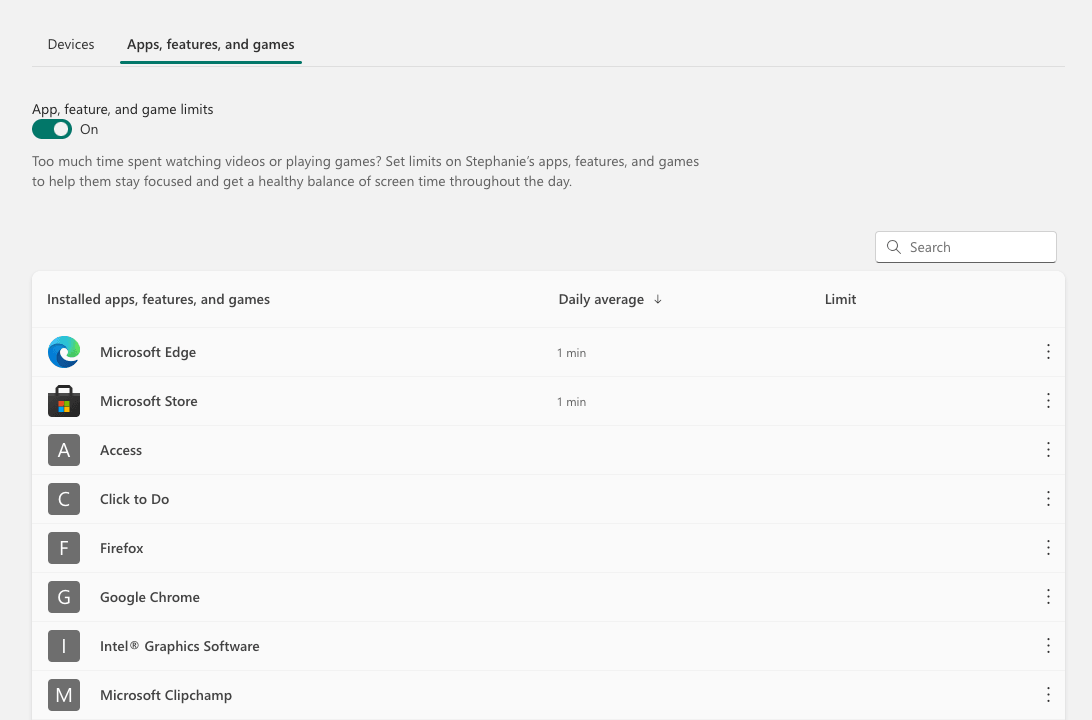
7. Turn on the App, feature, and game limits option.
8. Click Microsoft Store in the Installed apps, features, and games list.
9. On the new page that appears, choose one of the following options.
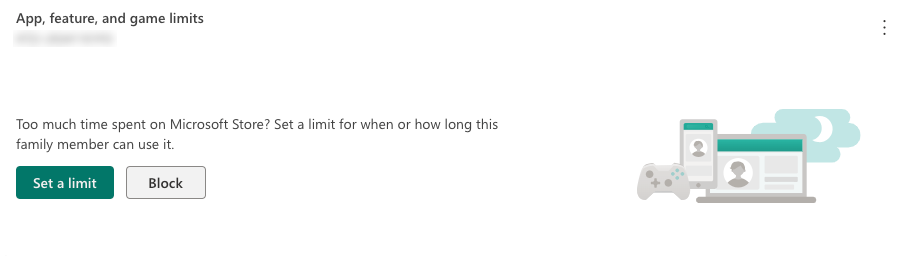
- Choose Block. This way, Microsoft Store will stay blocked until you unblock it.
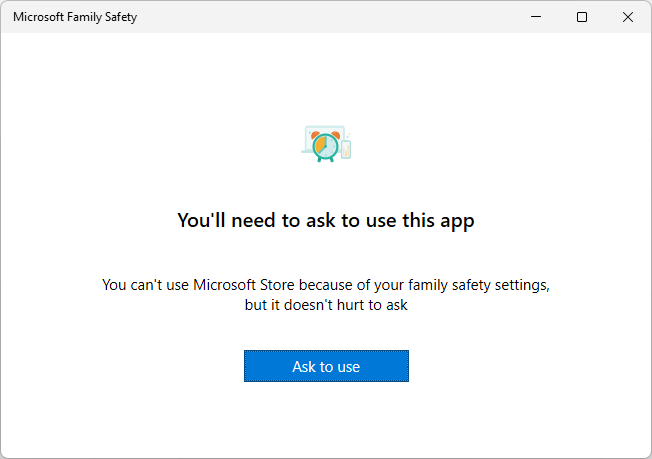
- Choose Set a limit, and then set the limit as 0 minute per day. This way, Microsoft Store is always blocked. However, your child can send a request to use Microsoft Store temporarily. If so, you will get a notification, and you can allow some time (such as 15 minutes, 30 minutes, or a custom time) or decline the request.
Method 3. Block Microsoft Store using Cisdem AppCrypt
Compatible editions: Windows Home, Windows Pro
Compatible versions: Windows 11 and 10
Suitable for: Average users seeking to easily restrict Microsoft Store access
What Cisdem AppCrypt does
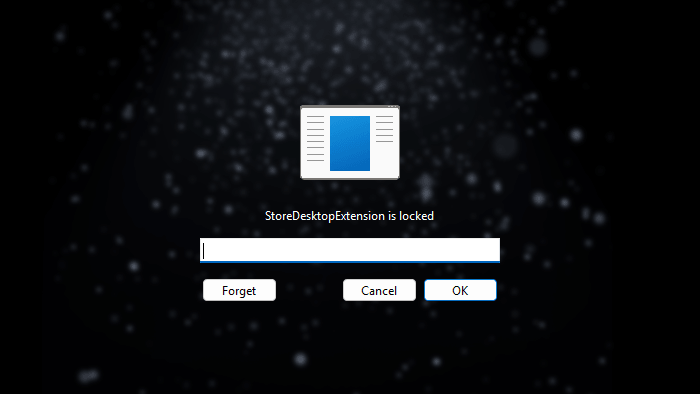
Cisdem AppCrypt is an app locker and website blocker in one. This tool can password-lock apps of your choice, such as Microsoft Store. When you or anyone else, such as your children, try to open the app, it will ask for a password.
Step-by-step instructions
1. Open Microsoft Store.
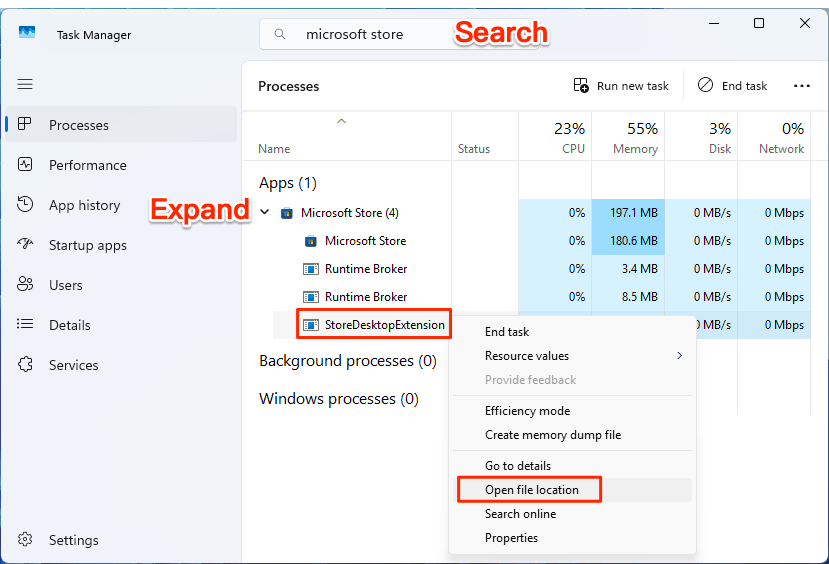
2. Open Task Manager by right-clicking the taskbar, then use the search box to quickly locate Microsoft Store.
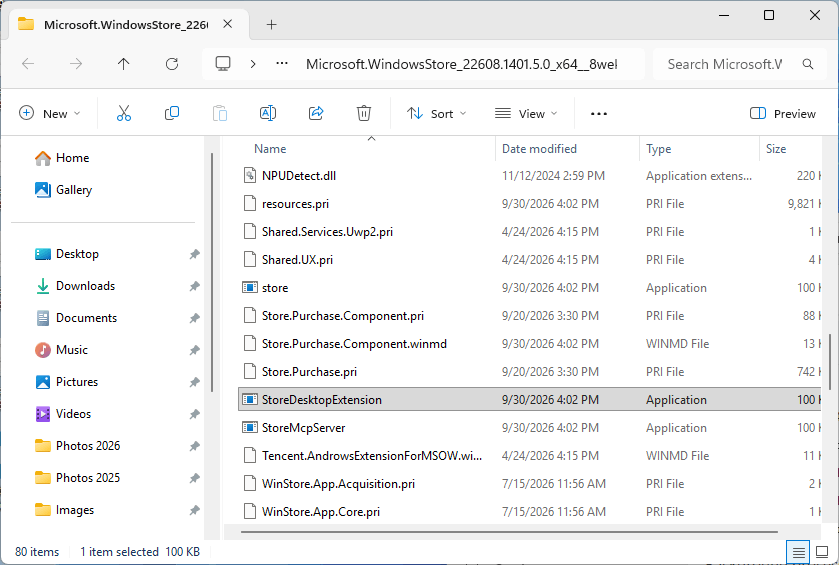
3. Expand Microsoft Store in Task Manager and right-click StoreDesktopExtension, then click Open file location.
This will open a File Explorer window, which automatically selects a file called StoreDesktopExtension.
4. Download and install AppCrypt.
 Free Download Windows 10 or later
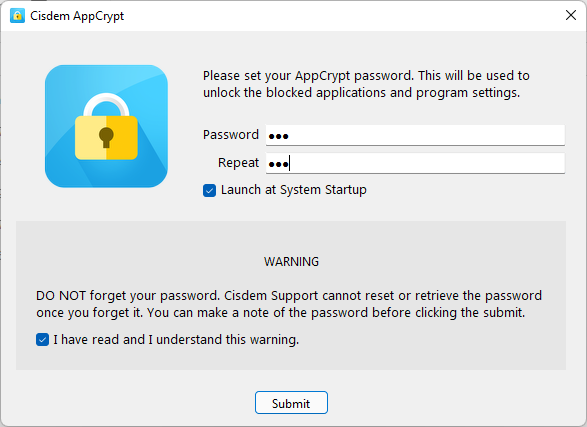
5. The first time you open it, set a password.
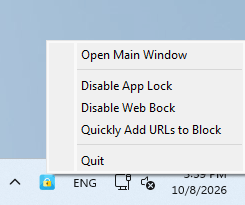
6. Right-click the tool's icon on the taskbar and choose Open Main Window.
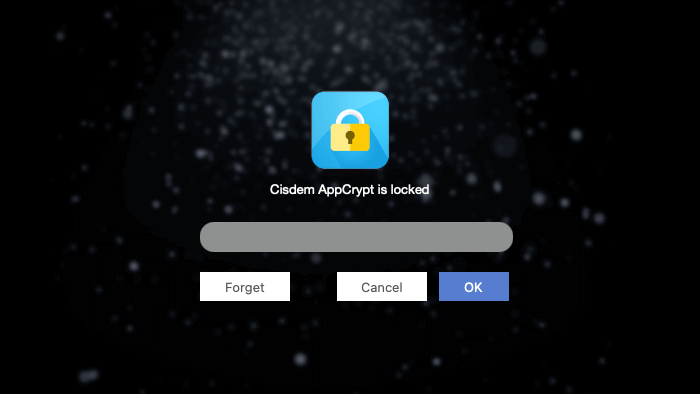
7. Enter the password to access the main window.
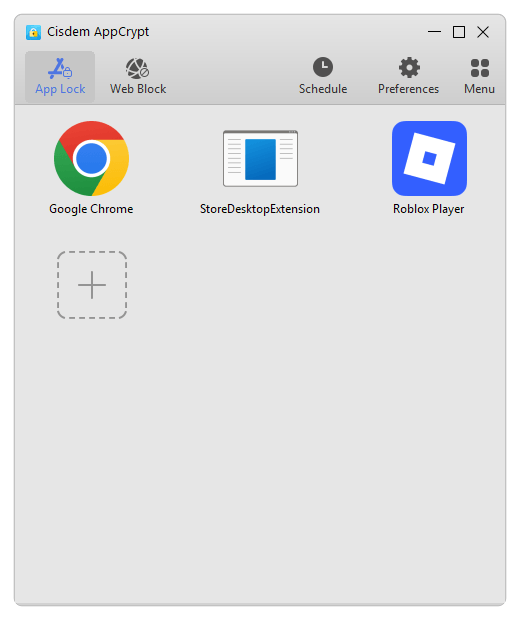
8. Drag the StoreDesktopExtension file into the main window's App Lock tab.
The results
From now on, if you or someone else tries to open Microsoft Store, AppCrypt will prompt for a password. If someone tries to bypass the lock and enters an incorrect password, Microsoft Store will still refuse to open. In addition, AppCrypt will record this failed attempt.
FAQs
How do I block Microsoft Store without Group Policy?
If Group Policy isn't available or doesn't work in your case, you can consider other restriction methods. For example, if you want to apply the restriction on a child's computer, you can try Microsoft Family Safety, which provides a Block feature.
Can I password-protect Microsoft Store?
Yes, you can. You can use an app locker like AppCrypt to protect Microsoft Store with a password. Only people who know the password can access Microsoft Store. However, make sure that you use a strong, hard-to-guess password.
Can I bypass Microsoft Store being blocked?
If Microsoft Store is blocked in Group Policy on the computer in your company or organization, you won't be able to bypass it yourself. You need to contact your IT or system administrator for help.
If you are a child or teen and find that this app is blocked by your parent using Microsoft Family Safety or other parental control software, you can try requesting temporary access.
When it comes to app locker or blocker software like AppCrypt, if you don't know the password, you can't bypass the lock put on Microsoft Store.

Norah Hayes likes to share her tips on how to improve focus and stay motivated at work. She believes it is essential to eliminate all online distractions during work hours.

Ethan Long joined Cisdem in 2015 as a developer and now serves as the editorial advisor for Cisdem AppCrypt. He actively tests and uses Cisdem AppCrypt and other screen-time management tools to ensure AppCrypt meets its promises in real-world scenarios.